# Deploying Google Play Apps

Follow this guide to deploy Google Play apps to you EMM (Enterprise Mobility Management) enrolled Android devices.

<p class="callout warning">At this time, Google Android Management does not support the deployment of paid Play Store Apps.</p>

## Creating the Fileset

![play-new_mobile.png](https://kb.filewave.com/uploads/images/gallery/2023-06/RUTtKQaLGgB34Pup-play-new-mobile.png)

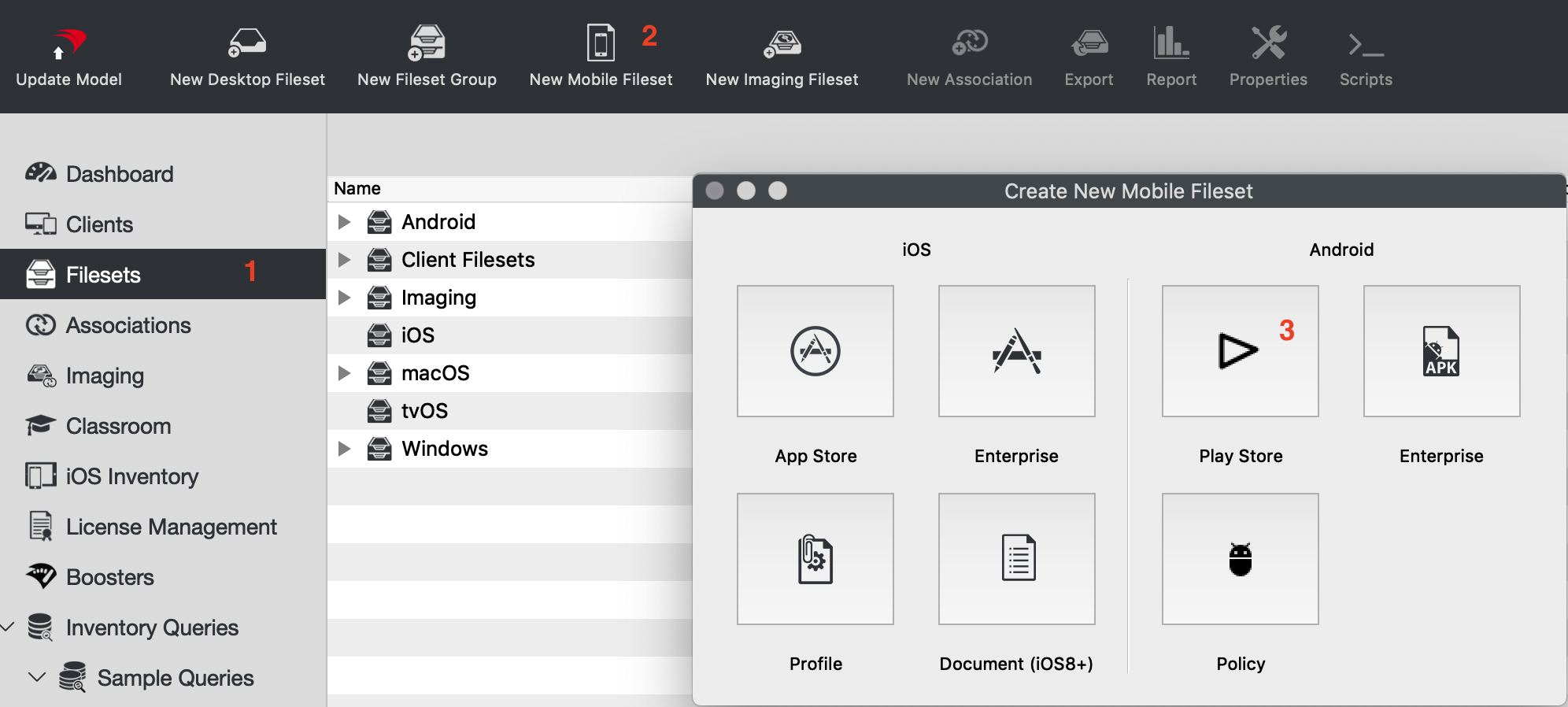
1. From the Filesets view
2. Select "New Mobile Fileset"
3. Select "Play Store"
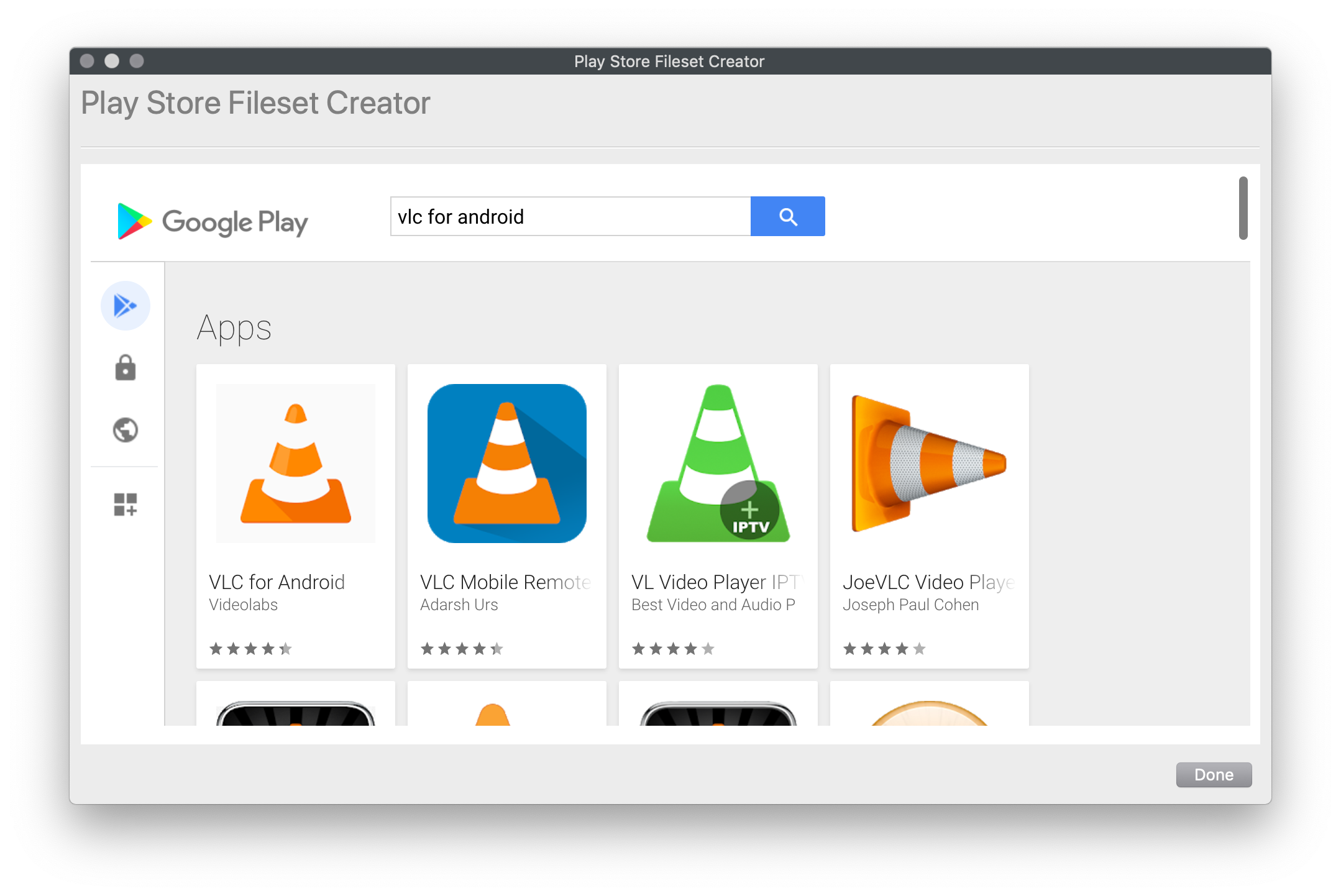
4. Search for the app you want to deploy (figure 1.2)
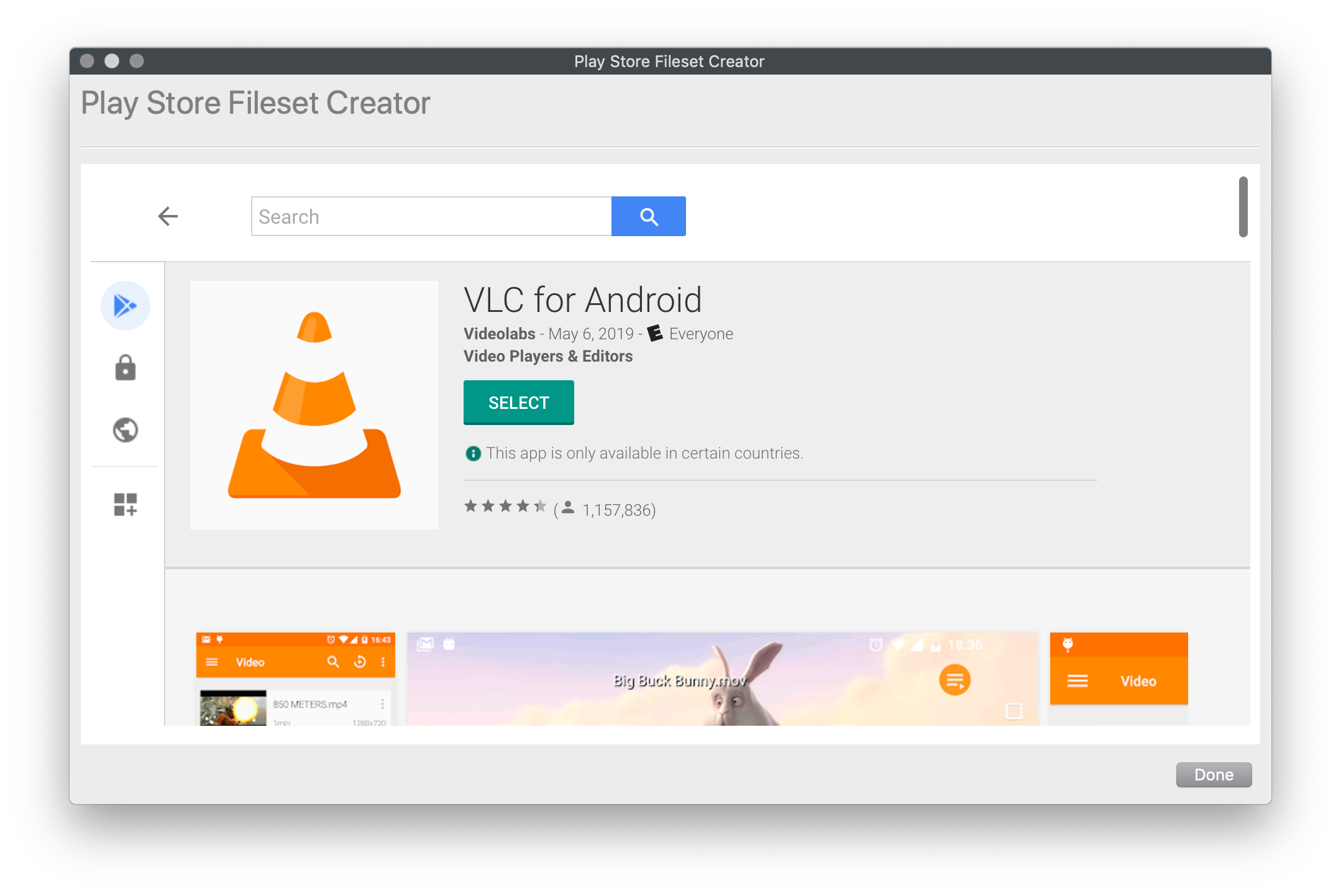
5. Click on the app and then press "Select" (figure 1.3)  
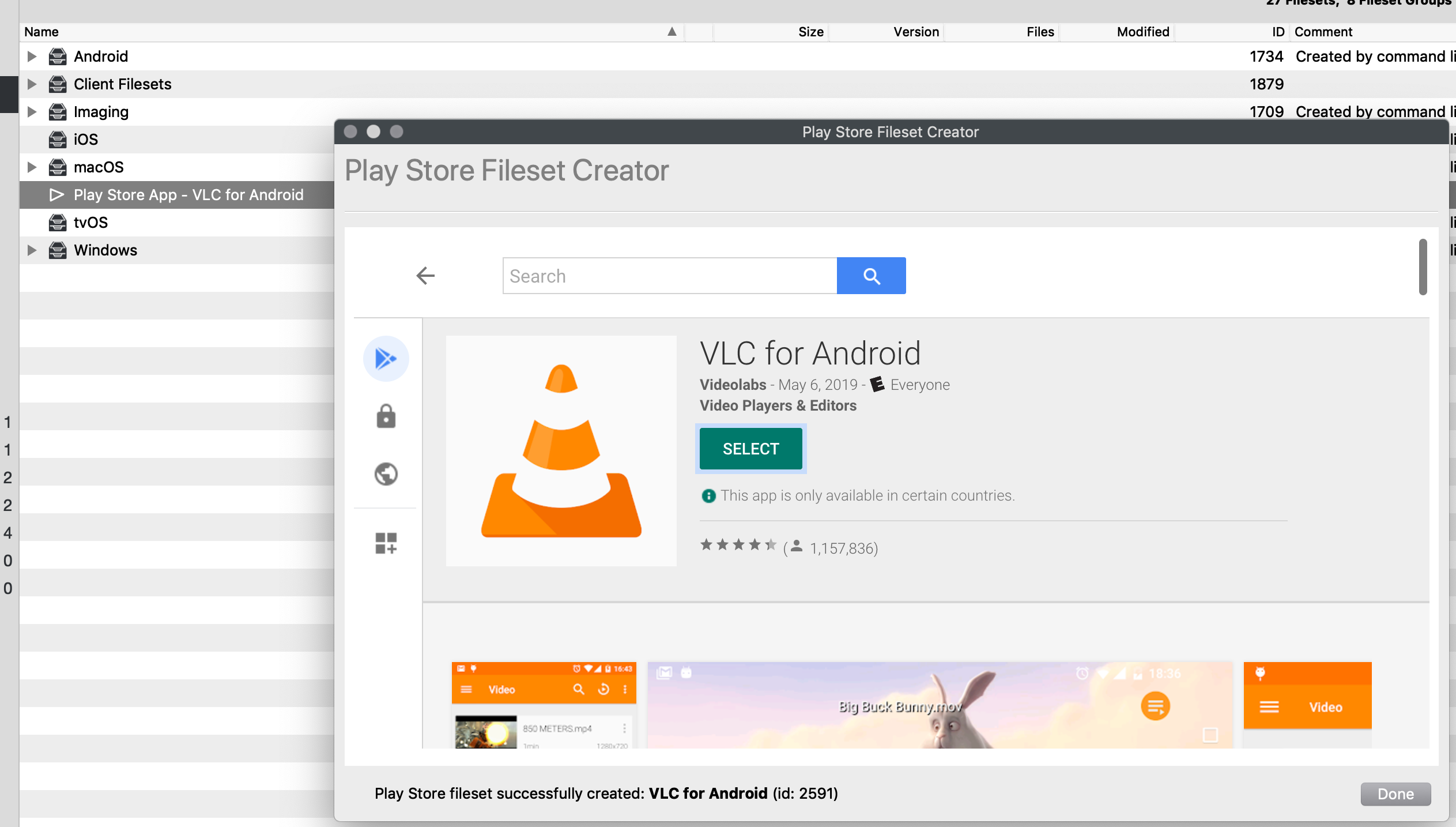
    FileWave will make the fileset in the background and leave the window open so you can keep searching for additional apps
6. Now associate the app to devices.

<table class="align-right" id="bkmrk-%C2%A0-figure-1.2---searc" style="height: 330px; width: 50.3704%;"><thead><tr style="height: 29.7969px;"><th style="width: 100%; height: 29.7969px;"> </th></tr></thead><tbody><tr style="height: 182.688px;"><td style="width: 100%; height: 182.688px;">![play-search_app.png](https://kb.filewave.com/uploads/images/gallery/2023-06/JRV6k2tRhSBcvhR2-play-search-app.png)</td></tr><tr style="height: 29.7969px;"><td style="width: 100%; height: 29.7969px;">Figure 1.2 - Search for the app</td></tr></tbody></table>

<p class="callout success">See: [Using Associations with Filesets](https://kb.filewave.com/books/filesets-payloads/page/using-associations-with-filesets "Using Associations with Filesets") for steps on creating associations</p>

<p class="callout success">If you have a Fileset Group selected before clicking the "New Mobile Fileset" button, any filesets you create will be placed into that Fileset Group by default.</p>

<table class="align-right" id="bkmrk-%C2%A0-figure-1.3---selec" style="width: 46.0494%; height: 329.11px;"><thead><tr style="height: 29.7969px;"><th style="width: 100%; height: 29.7969px;"> </th></tr></thead><tbody><tr style="height: 269.516px;"><td style="width: 100%; height: 269.516px;">![play-app_select.png](https://kb.filewave.com/uploads/images/gallery/2023-06/joDA9MVxMU7BEdVK-play-app-select.png)</td></tr><tr style="height: 29.7969px;"><td style="width: 100%; height: 29.7969px;">Figure 1.3 - Select the app</td></tr></tbody></table>

<table class="align-right" id="bkmrk-%C2%A0-figure-1.4---app-a"><thead><tr><th> </th></tr></thead><tbody><tr><td>![play-app_done.png](https://kb.filewave.com/uploads/images/gallery/2023-06/X1dCEBpCUWyniXWU-play-app-done.png)</td></tr><tr><td>Figure 1.4 - App added</td></tr></tbody></table>