ADE Troubleshooting
Apple Automated Device Enrollment (ADE), formerly known as DEP, lets organizations assign iPhone, iPad, Mac, and Apple TV devices to an MDM server before users start Setup Assistant. Use this page to confirm the expected ADE path and isolate common enrollment failures.
Correct ADE Workflow
|
|
|
Figure 1.1 - ADE Workflow |
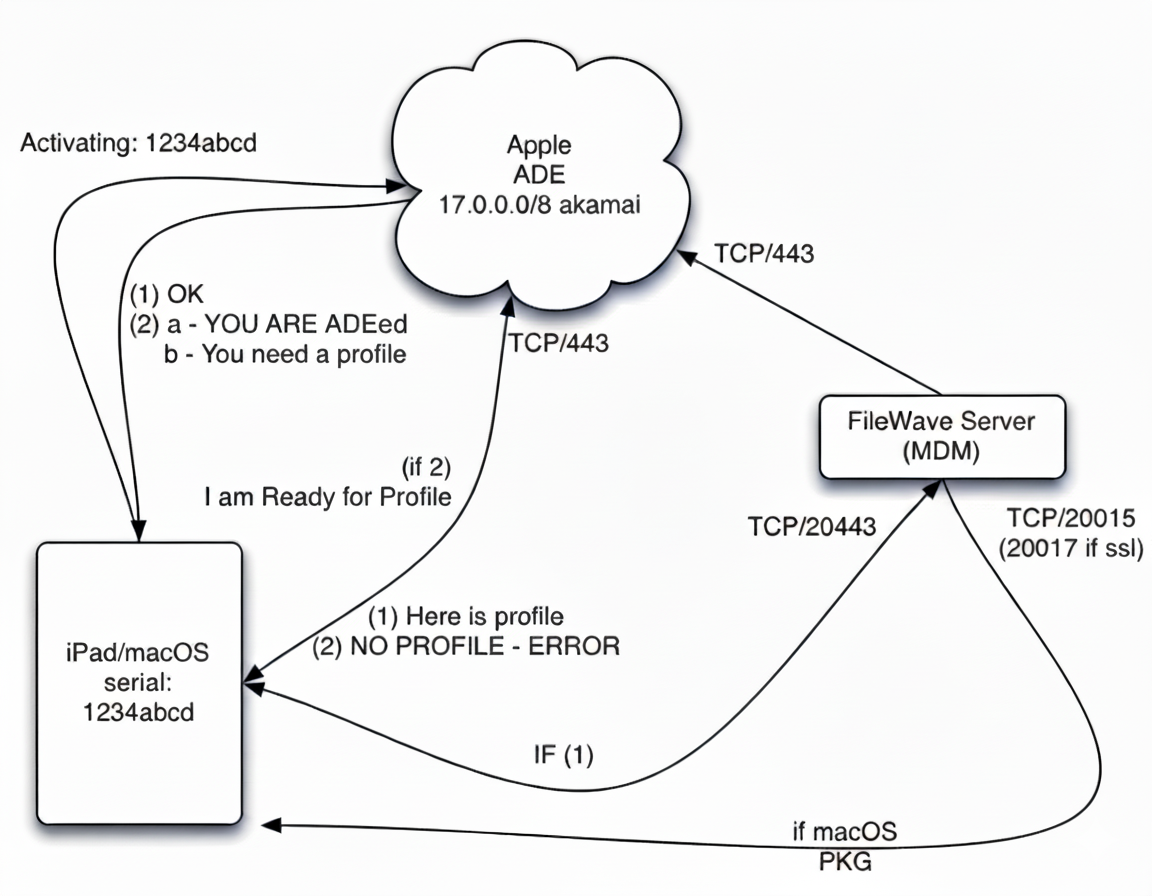
- Device activates with Apple (see ports: Default TCP and UDP Port Usage)
- Device is not in ADE - Apple responds with done - Setup Assistant skips enrollment
- Device is in ADE - Apple responds with enrollment ownership info
- Apple sends the ADE profiles to the device (See: Working with Apple’s Automated Device Enrollment (ADE))
- Device installs the ADE profile, then contacts the FileWave MDM server
- Device completes MDM enrollment
- For macOS, the device then installs the FileWave client package
Things to test
Check the connectivity
- Check the Default TCP and UDP Port Usage KB article for the needed ports.
You can download a FileWave port testing tool from https://supportresources.filewave.com/
- Put a test device, such as a laptop, on the same Wi-Fi network used for enrollment.
- Try enrolling iOS/iPadOS devices over Ethernet or a mobile hotspot to see whether the normal network is blocking required traffic.
You can connect supported iPhone or iPad devices to Ethernet with:
- Apple's "Lightning to USB 3 Camera Adapter" (the one with a female USB and another lightning port)
- Apple's "Apple USB Ethernet Adapter"
- A USB charger supplying 2+ amps of power
Plug in the device and make sure you get a link light.
Check the profile
Because ADE profiles are stored with Apple for assigned devices, FileWave cannot automatically add newly available options to profiles that already exist. If you recently upgraded FileWave, create a new ADE profile and update your automatic assignment rules (Automatically Assign ADE profiles). Do not duplicate an existing profile.