Command Line API (v1)
Command Line RESTful API
FileWave Central calls these definitions Inventory Reports; older FileWave versions and the version 1 API call them Inventory Queries. The Command Line RESTful API retains /query/ in its endpoint names and can:
- Run ad-hoc report definitions and return results
- Create Inventory Reports from JSON definitions
- Return current report results
- Delete reports
There is even the ability to read or alter Custom Field values for devices.
Examples:
Returning an Inventory Query request
FileWave GUI example
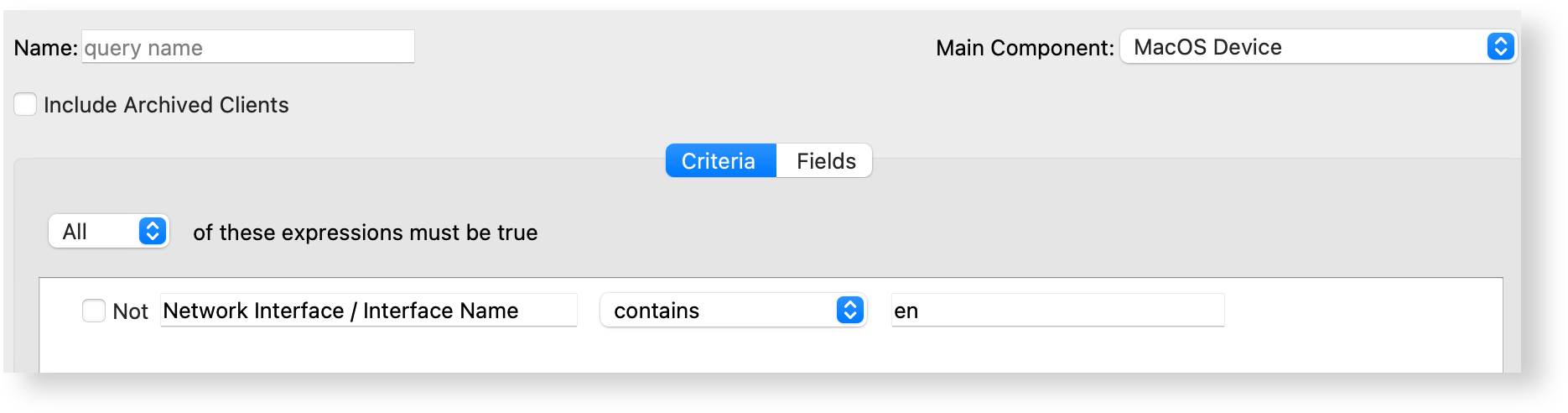
Imagine it is desirable to return a list of macOS devices which have a network interface name that contains 'en', the Field to be returned is the Device Name and the Main Component is 'MacOS Device'. The criteria would appear as below:
JSON Data Example
A RESTful API query, to return the same set of results, would have a JSON structure set out as:
{
    “criteria”: {
        “column":"interface_name",
        “component":"NetworkInterface",
        “operator”:”contains",
        “qualifier":"en"
    },
    “fields":[
        {
            “column”:"device_name",
            “component":"Client"
        }
    ],
    “main_component":"MacOSClient"
}
The JSON block mirrors a FileWave Central Inventory Report definition. The API and exported files may still use the older query terminology internally.
Import an Inventory Report definition from JSON
For a one-time manual import, use the controls in FileWave Central described in Exporting & Importing Inventory Reports. Use the API method when report deployment needs to be automated or repeated across FileWave Servers.
FileWave Central uses the term Inventory Report. The version 1 API retains the older Inventory Query terminology, so report creation uses the /inv/api/v1/query/ endpoint.
Requirements
- A valid JSON definition exported from FileWave Central or supplied by FileWave.
- A FileWave application token with the required permissions. Keep tokens out of scripts, tickets, documentation, and command history.
- Network access to one of the version 1 inventory API endpoints below.
Endpoints
| Connection | POST endpoint |
|---|---|
| Command Line API directly on TCP 20445 | https://SERVER_FQDN:20445/inv/api/v1/query/ |
| HTTPS reverse-proxy route on TCP 443, when available | https://SERVER_FQDN/api/inv/api/v1/query/ |
Use the endpoint that is enabled and reachable in your environment. The examples below use the direct Command Line API endpoint on TCP 20445.
macOS or Linux shell
SERVER_FQDN="filewave-server.example"
REPORT_FILE="report-definition.json"
: "${FILEWAVE_TOKEN:?Set FILEWAVE_TOKEN before running this command}"

curl --fail --silent --show-error \
  --request POST \
  --header "Authorization: ${FILEWAVE_TOKEN}" \
  --header "Content-Type: application/json" \
  --data-binary "@${REPORT_FILE}" \
  "https://${SERVER_FQDN}:20445/inv/api/v1/query/"
Windows PowerShell
$ServerFqdn = "filewave-server.example"
$ReportFile = "report-definition.json"

if (-not $env:FILEWAVE_TOKEN) {
    throw "Set FILEWAVE_TOKEN before running this command."
}

Invoke-RestMethod `
  -Method Post `
  -Uri "https://${ServerFqdn}:20445/inv/api/v1/query/" `
  -Headers @{ Authorization = $env:FILEWAVE_TOKEN } `
  -ContentType "application/json" `
  -InFile $ReportFile
Run the command once for each JSON definition. A successful POST creates a new Inventory Report; confirm it appears under Reports in FileWave Central and review its criteria and result columns before relying on it.
Keep TLS certificate verification enabled. Do not add -k or otherwise disable certificate validation in production automation.
Interacting with Custom Fields
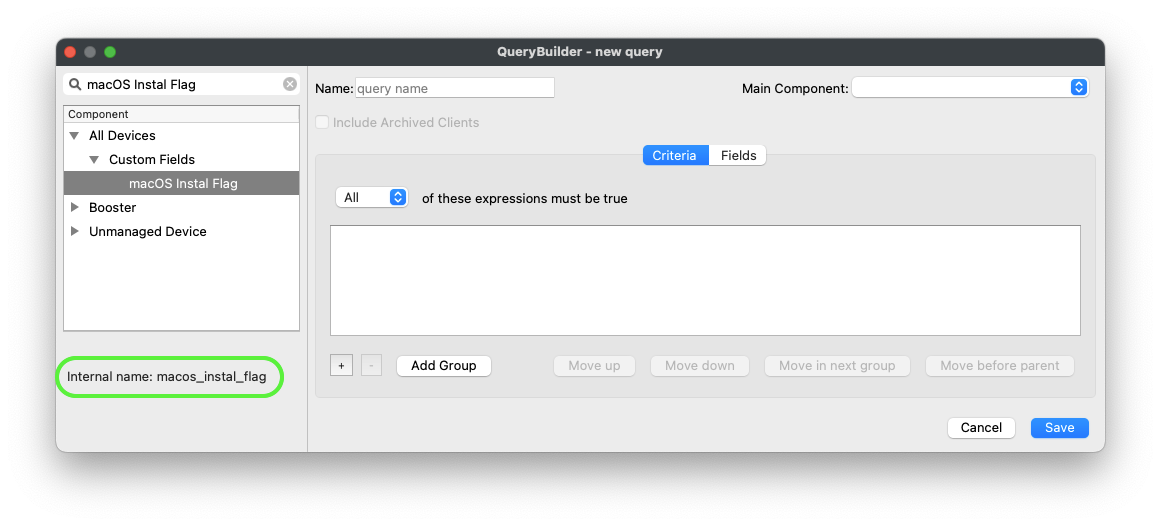
The first thing to appreciate, is all Inventory items have an 'Internal Name'. This is unique to each item and of course Custom Fields also therefore have their own Internal Name.
Internal Names may be viewed in FileWave Central when in the Inventory Query viewer. Select any item in the left hand sidebar and the bottom of the window will report the Internal Name.
Reading Values
Perhaps it would be desirable to read the Custom Field value of the above 'macOS Instal Flag' Custom Field for a device, for example, based upon its serial number. The JSON data block might look something like:
{
  "criteria":
    {
      "column":"serial_number",
      "component":"Client",
      "operator":"is",
      "qualifier":'\"$serial_number\"'
  },
  "fields":
    [
       {
        "column":"macos_instal_flag",
        "component":"CustomFields"
      }
  ],
  "main_component":"Client"
}
Using this method, it is possible to provide the Serial Number as a variable value; as such the same script could be ran on all devices, without the need to edit the script. Note the internal name used for the Custom Field as well as the single quotes around the $serial_number variable.
Editing Values
When referencing devices using the Command Line API, the endpoint refers to the device_id. This may differ from V2 API used by Anywhere.
As an alteration of a current value, the command would then use the PATCH option.
Example call:
curl -X PATCH https://$server_dns:20445/inv/api/v1/client/5e968b7947d74f064eb47ee2bcbbb67cb87eb122 -d $data -H "Content-Type: application/json" -H "Authorization: $auth"The data variable would contain the desired payload to amend, in a JSON data block. In the below example, the Custom Field to alter has an 'internal name' of 'admin_test', is a Boolean entry and the JSON data block could look like:
{
  "CustomFields":
    {
      "admin_test":
      {
          "exitCode":null,
          "status":0,
          "updateTime":"'$current_time'",
          "value":true
      }
    }
}
When Custom Fields are updated, a time stamp of when the update occurred is shown. When altering the value from the Command Line API, the time should be supplied, along with the value and a couple of other key/value pairs. There should be no reason to provide other values than those shown for 'exitCode' and 'status', when adjusting using the API.
Date is important and should be of the format "2018-09-10T15:48:08Z":
macOS example:
current_time=$(date -u +"%FT%TZ")Windows PowerShell:
$current_time = $(Get-Date -UFormat "%Y-%m-%d %R:%S")The code would look something like the following, where $query would be set as the content of the JSON:
macOS shell
curl -s -H "Authorization: $auth" \
    https://$server_dns:20445/inv/api/v1/query_result/ \
    -X PATCH \
    -data $query \
    -H "Content-Type: application/json"
Windows PowerShell
$header = @{Authorization=“$auth"}

Invoke-RestMethod -Method PATCH \
    -Headers $header \
    -ContentType application/json \
    -Uri https://$server_dns:20445/inv/api/v1/query_result/ \
    -Body $query
As with any Inventory Query, the criteria can be based upon any inventory item. This makes the Command Line API very powerful.