Certificates
Certificates add a layer of security and trust between devices. Below are some articles that discuss how various certificates are used within FileWave.
- Root Trusted SSL Certificate (Using and Renewing)
- Let's Encrypt Setup for FileWave Server (Debian)
- Let's Encrypt Setup for FileWave Server (macOS)
- APNs
- Apple Push Notification Service
- APNs Certificate Creation & Renewal on macOS Computers (Keychain)
- APNs Certificate Creation & Renewal on macOS Computers (XCA)
- APNs Certificate Creation & Renewal on Windows Computers
- Self-signed SSL Certificates
- Self-Signed SSL Certificates Going Forward
- Renew FileWave Server Self-signed Certificate
- Renew MDM self signed SSL certificate with iOS devices
- Troubleshooting
Root Trusted SSL Certificate (Using and Renewing)
Description
To communicate with devices, a certificate is required. Our recommendation is for a root-trusted SSL certificate to be implemented. If you are currently using a self-signed certificate, we suggest moving to a trusted root certificate; wildcard certificates are supported. This article will discuss both self-signed as well as a certificate from an authority, and the process to renew the certificate.
Since Filewave v12+, the Admin console indicates when a certificate is self-signed; Preferences > Mobile tab > HTTPS Certificate Management

iOS 10.3+ devices can be enrolled with a self-signed certificate. Over the Air (OTA) though will experience warnings or errors; Self Signed Certificate Errors.
Apple provide a list of certificates automatically trusted per OS and OS version: Apple Trusted Certs
Information
Root trusted SSL certificates can be purchased from a Certificate Authority (CA). Apple provides lists of trusted root certificates: https://support.apple.com/en-gb/HT204132
CA Vendors include:
- GoDaddy
- Digicert
- GlobalSign / AlphaSSL
- Trustwave
- and many more...
As FileWave supports wildcard certificates, if you already have a wildcard certificate this could be uploaded without additional purchase. Wildcard certificates are indicated by a * before the domain name. e.g.
- Wildcard cert: *.initech.com
- Dedicated cert: filewave.initech.com
If you already have a certificate bundle but it isn’t in the .p12 format, you can use this link to convert the file - Digicert: How to convert a certificate into the appropriate format
Requirements
Obtaining an official 3rd party root trusted SSL certificate will be dependent upon the Server's current domain. Only a domain that includes an official 'Top Level Domain' (TLD) may qualify for a root trusted SSL certificate and the root domain must be registered to purchase a certificate. Where the Server uses an internal-only domain, it is not possible to transition to an official certificate without first changing the domain where the Server belongs. See migration below. Example TLD:
- .com
- .org
- .edu
In the context of a Website, the root domain refers to the highest level of the hierarchy, e.g apple.com, microsoft.com, google.com
For example:
- demo.filewave.ch is a Fully Qualified Domain Name (FQDN) of a server called 'demo' in the root domain 'filewave.ch', the TLD being 'ch'.
- demo.filewave.local does not have a TLD and instead is using a private internal domain of '.local'. Without a TLD they are known as a Partially Qualified Domain Name (PQDN)
Often the term FQDN is used as a way to indicate the idea of writing the Server name along with its connected domain. Strictly speaking, with internal private-only domains, this should be referred to as PQDN. Not only does FileWave recommend using an FQDN, but regardless of using an FQDN or PQDN, always specify the Server name along with its connected domain name (rather than just the hostname) when setting any preferences, be that for Server, Clients, Boosters, etc. We also discourage the use of IP in settings.

Migration
Migration of certificates will not pose any issues as long as:
- Wildcard cert: domain matches the domain name of the previous self-signed certificate
- Dedicated cert: Server name and domain matches the name of the previous self-signed certificate
If during migration the Server's Host Name and/or Domain Name changes, all MDM devices will lose MDM communication with the FileWave Server and require re-enrolment into MDM
|
Case |
Current Certificate |
New Certificate |
Result |
|
Any certificate to any certificate (changing name) |
Self-signed cert = filewave.initech.com |
Root trusted cert = fw.initech.com |
CHANGING THE FQDN WILL REQUIRE DEVICES TO BE ENROLLED AGAIN |
|
Self-signed to root trusted (keeping the same name) |
Self-signed cert = filewave.initech.com |
Root trusted cert = filewave.initech.com |
This will NOT require devices to be enrolled again |
|
Self-signed to wildcard |
Self-signed cert = filewave.initech.com |
Wild Card cert = *.initech.com |
This will NOT require devices to be enrolled again |
|
Root trusted to root trusted |
Root trusted cert = filewave.initech.com |
Root trusted cert = filewave.initech.com |
This will NOT require devices to be enrolled again |
Procedure
There are 3 key steps.
- Create a CSR and Key to request a certificate from a CA
- Create CRT files from the downloaded certificates
- Convert the certificate to p12 to upload to the FileWave Server
Renewing Certificates
When renewing a current expiring certificate with a CA, step 1 is not required, if your CA allows the use of previously used private keys and certificate requests. You will however require the key in step 3. If you have not stored the key elsewhere, the key should always be accessible on your current FileWave Server in /usr/local/filewave/certs/.
If you have not stored the key safely and the Server was to break such that the key was not retrievable, the whole process would need to be repeated instead.
Certificate Expiry
Certificate expiry should be avoided. Renewing certificates should be done in advance to maintain full working order. If the certificate expires before you have a chance to renew, managed devices will not be able to connect to the FileWave Server. However, once it is renewed your devices will check back in.
Example process
For example:
- FileWave Server FQDN = fw.initech.com
- Files will be saved to created folder Certificates
- The certificate was purchased from AlphaSSL
Pre-requisite: OpenSSL. Unix-based systems have this by default. To follow this process on Windows will require an appropriate version of OpenSSL
Step 1
Create the.CSR and . KEY from OpenSSL
From a command prompt type the following:
macOS and Unix
sudo openssl req -new -newkey rsa:2048 -nodes -keyout /certificates/fw.initech.com.key -out /certificates/fw.initech.com.csrWindows
C:\OpenSSL-Win64\bin\openssl.exe req -new -newkey rsa:2048 -nodes -keyout C:\certificates\fw.initech.com.key -out C:\certificates\fw.initech.com.csrYou will be prompted for the following:
- Country Name (2-letter code)
- State or Province Name Locality Name (eg, city)
- Organization Name (eg, company)
- Organizational Unit Name (eg, section)
- Common Name (e.g. Server FQDN or YOUR name)
- Email Address
- A challenge password
- An optional company name
For this example the details should be:
- Common Name: fw.initech.com
- Do not enter a password
The Certificates folder should now show:
fw.initech.com.csr
fw.initech.com.keyThe KEY should be held safely. The CSR will need to be uploaded to the CA during the request of the certificate creation. You should receive confirmation from the CA, regarding domain ownership and how to retrieve the generated certificate along with some general instructions.
Step 2
Create CRT files from the downloaded certificates
It is typical, that the SSL certificate will also require an intermediate certificate. These should be readily available from the CA's website. If required, contact the CA for details of which intermediate you will require.
Once the SSL and intermediate certificate have been downloaded, instructions can be followed to create the CRT files. In the case of the email from AlphaSSL, only steps 1-4 should be followed.
Sample email from AlphaSSL.

These 2 CRT files can be copied to the Certificates folder from Step 1.
From the example:
- SSL certificate: purchasedcert.crt
- Intermediate certificate: AlphaSSLCA.crt
The certificates folder should now show:
AlphaSSLCAS.crt
fw.initech.com.csr
fw.initech.com.key
purchasedcert.crtStep 3
Convert the certificate to p12 to upload to the FileWave Server
The necessary files are now available to create the p12. From the command line type the following:
macOS/Linux
sudo openssl pkcs12 -export -out /certificates/fw.initech.p12 -inkey /certificates/fw.initech.key -in /certificates/purchasedcert.crt -certfile /certificates/AlphaSSLCA.crtWindows
C:\OpenSSL-Win64\bin\openssl.exe pkcs12 -export -out C:\certificates\fw.initech.com.p12 -inkey C:\certificates\fw.initech.com.key -in C:\certificates\purchasedcert.crt -certfile C:\certificates\AlphaSSLCAS.crtWhen OpenSSL prompts for an export password, enter a password and keep it available for the upload step. The p12 certificate can then be uploaded to the Server through the Admin console: Preferences > General Tab > SSL Certificate Management; FileWave will request the p12 password during upload. Once uploaded, check the 'Common Name' on the General tab matches the Server name in the Mobile Tab. For wildcard certificates, only the domain should match.
Apache web server service will automatically restart and the FileWave Server is now ready for MDM.
Command Overview
Explanation of OpenSSL command
OpenSSL pkcs12 #Create a p12 (also know as pkcs12)
-export -out /certificates/fw.initrode.us.p12 #Output location and name of p12 to upload to FileWave
-inkey /certificates/fw.initrode.us.key #Location and name of the private key file used to generate the CSR
-in /certificates/purchasedcert.crt #Location and name of the purchased certificate provided by the 3rd party supplier
-certfile /certificates/AlphaSSLCA.crt #Location and name of Intermediate certificate, (will often contain more than one cert)

Let's Encrypt Setup for FileWave Server (Debian)
What
This Knowledge Base (KB) article covers a Debian-focused shell script that automates Let's Encrypt SSL certificate setup for a FileWave server on Debian 12/13.
The script supports two challenge methods:
- HTTP-01 (standalone certbot)
- DNS-01 (Cloudflare)
Both paths handle certificate request, FileWave certificate injection, and renewal automation.
When/Why
FileWave administrators use this when they need a trusted SSL certificate for secure communication.
- Use HTTP-01 when port 80 can be reached from the internet.
- Use DNS-01 (Cloudflare) when port 80 is blocked/unavailable or you prefer DNS validation.
This documented process is for Debian 12/13. If you are a Hosted customer, FileWave can handle certificate management for you: SSL Certificate Management for Custom Domains (FileWave-Hosted Servers).
How
Prerequisites
- FileWave server on Debian 12 or 13
- Root/sudo access
- Public DNS name (FQDN) for the FileWave server
- If using DNS validation: Cloudflare API token with DNS edit permissions for the zone
Challenge method guidance
- HTTP-01: requires inbound TCP/80 reachability for Let's Encrypt validation. Also verify that any host firewall on the FileWave Server allows HTTP on port 80; on systems using
firewalld, check withsudo firewall-cmd --list-servicesorsudo firewall-cmd --list-ports. - DNS-01 (Cloudflare): does not require inbound TCP/80.
If TCP/80 is not available, select DNS-01 (Cloudflare) during install.
If HTTP-01 fails even though DNS is correct, check both upstream network access and the local server firewall. For a Debian server using firewalld, allow HTTP with sudo firewall-cmd --permanent --add-service=http followed by sudo firewall-cmd --reload. Keep port 80 reachable for HTTP-01 renewals, or use DNS-01 if you cannot keep HTTP open.
Install steps
-
Download the script with
wget:wget -O filewave-letsencrypt-debian.sh https://kb.filewave.com/attachments/413 -
Make it executable:
chmod +x filewave-letsencrypt-debian.sh -
Run install:
sudo ./filewave-letsencrypt-debian.sh --install -
Follow prompts for:
- Hostname (FQDN)
- Validation method:
1= HTTP-012= DNS-01 (Cloudflare)
- If DNS-01 is selected: Cloudflare API token
-
Confirm values when prompted.
-
Verify output for success messages and final summary.
What the script does
- Validates Debian and root execution
- Validates that FileWave server paths exist (
/usr/local/bin/fwcontrol,/usr/local/filewave/certs) - Validates hostname and email
- Validates DNS resolution (tries
8.8.8.8, then system resolver fallback) - Backs up existing certs under
/usr/local/filewave/certs/backup-<timestamp>/ - Installs/validates certbot
- Requests a new certificate using selected challenge method
- For DNS-01 (Cloudflare): creates
/etc/letsencrypt/secrets/cloudflare.iniautomatically (no manual pre-creation required) - Updates FileWave
mdm_cert_trustedDB flag - Creates renewal deploy hook:
/etc/letsencrypt/renewal-hooks/deploy/filewave-server-cert.sh
- Preserves existing cert file owner/group when replacing certificates
- Creates daily renewal cron:
/etc/cron.daily/letsencrypt-filewave
- Immediately injects cert into FileWave and restarts server services
Uninstall
To remove integration files created by the script:
sudo ./filewave-letsencrypt-debian.sh --uninstall
This removes FileWave renewal hook + cron job and (if present) Cloudflare credentials file. The script intentionally leaves certbot installed.
Troubleshooting
1) FileWave server prerequisites failed
If script reports missing FileWave binaries/paths:
- Verify
/usr/local/bin/fwcontrolexists. - Verify
/usr/local/filewave/certsexists. - Re-run on the FileWave server host.
2) Certificate request failed (HTTP-01)
Ensure inbound TCP/80 is reachable, then retry:
sudo certbot -n --agree-tos --standalone certonly -d "<FQDN>" -m "<EMAIL>"
sudo certbot renew --force-renewal
3) Certificate request failed (DNS-01 Cloudflare)
Ensure token permissions and retry:
sudo certbot -n --agree-tos --dns-cloudflare --dns-cloudflare-credentials /etc/letsencrypt/secrets/cloudflare.ini certonly -d "<FQDN>" -m "<EMAIL>"
sudo certbot renew --force-renewal
4) FileWave UI shows old certificate behavior
If older behavior persists, verify mdm_cert_trusted is set in PostgreSQL:
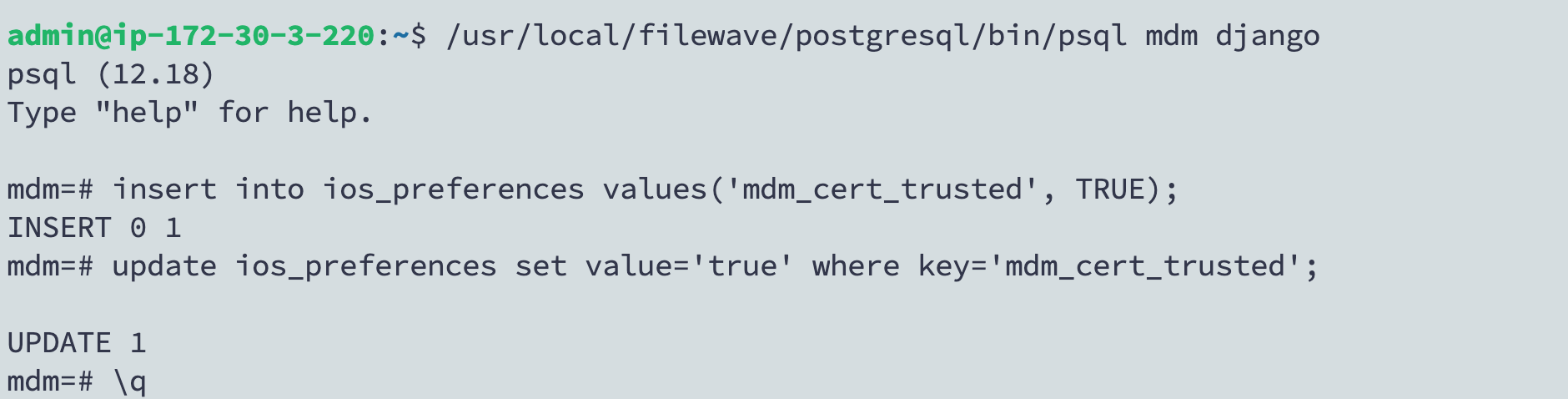
/usr/local/filewave/postgresql/bin/psql -d mdm -U django
insert into ios_preferences values('mdm_cert_trusted', TRUE) on conflict (key) do nothing;
update ios_preferences set value='true' where key='mdm_cert_trusted';
\q
Related Links
- Let's Encrypt Documentation
- Cloudflare DNS plugin for Certbot
- GitHub - nycon/filewave-installer: Filewave AIO installer
- Review My Notes: FileWave and Let's Encrypt | Version 12.0 (punkstuff.com)
Let's Encrypt Setup for FileWave Server (macOS)
What
This Knowledge Base (KB) article covers the macOS FileWave Let’s Encrypt script:
filewave-letsencrypt-macos.zsh
The script supports two challenge methods:
- HTTP-01 (standalone certbot)
- DNS-01 (Cloudflare API token)
Both paths handle certificate request, FileWave certificate injection, and renewal automation.
When/Why
Use this when your FileWave server runs on macOS and you need a trusted SSL certificate for secure communication.
- Use HTTP-01 when TCP/80 can be reached from the internet.
- Use DNS-01 (Cloudflare) when TCP/80 is blocked/unavailable, or you prefer DNS validation.
This documented process is for macOS 14 or newer. If you are a Hosted customer, FileWave can handle certificate management for you: SSL Certificate Management for Custom Domains (FileWave-Hosted Servers).
How
Prerequisites
- FileWave server on macOS 14 or newer
- Root/sudo access
- Public DNS name (FQDN) for the FileWave server
- Homebrew installed (
https://brew.sh) - If using DNS validation: Cloudflare API token with DNS edit permissions for the zone
- DNS utilities available (
nslookupordig)
If TCP/80 is not available, select DNS-01 (Cloudflare) during install.
Homebrew note
The script must be launched with sudo from a normal macOS admin account (so Homebrew actions can run as the invoking user).
- ✅ Expected: user shell →
sudo ./filewave-letsencrypt-macos.zsh --install - ❌ Not supported: direct root shell (
sudo su -then run script)
If Homebrew is missing, the script stops and prompts you to install Homebrew from https://brew.sh, then re-run.
Install steps
-
Download the script with
wget:brew install wget wget -O filewave-letsencrypt-macos.zsh https://kb.filewave.com/attachments/498 -
Make it executable:
chmod +x filewave-letsencrypt-macos.zsh -
Run install:
sudo ./filewave-letsencrypt-macos.zsh --install -
Follow prompts for:
- Hostname (FQDN)
- Validation method:
1= HTTP-012= DNS-01 (Cloudflare)
- If DNS-01 is selected: Cloudflare API token
-
Confirm values when prompted.
-
Verify output for success messages and final summary.
What the script does
- Validates macOS version (14+) and root execution
- Validates that FileWave server paths exist (
/usr/local/bin/fwcontrol,/usr/local/filewave/certs) - Validates hostname and email
- Validates DNS resolution (tries
8.8.8.8, then system resolver fallback) - Backs up existing certs under
/usr/local/filewave/certs/backup-<timestamp>/ - Installs/validates certbot
- Requests a new certificate using the selected challenge method
- For DNS-01 (Cloudflare): creates
/etc/letsencrypt/secrets/cloudflare.iniautomatically with secure permissions - Updates FileWave
mdm_cert_trustedDB flag (when FileWave PostgreSQL binary exists) - Creates renewal deploy hook:
/etc/letsencrypt/renewal-hooks/deploy/filewave-server-cert.sh
- Preserves existing cert file owner/group when replacing certificates
- Creates launchd renewal automation:
/Library/LaunchDaemons/com.filewave.letsencrypt.renew.plist/usr/local/filewave/sbin/filewave-letsencrypt-renew.zsh
- Immediately injects cert into FileWave and restarts server services
Uninstall
To remove integration files created by the script:
sudo ./filewave-letsencrypt-macos.zsh --uninstall
This removes FileWave renewal hook, launch daemon/runner files, legacy cron file (if present), and Cloudflare credentials file (if present). The script intentionally leaves certbot installed.
DNS-01 Cloudflare plugin details (macOS)
If the Cloudflare plugin is missing, the script attempts installation using Certbot’s Homebrew Python environment:
$(brew --prefix certbot)/libexec/bin/python3 -m pip install certbot-dns-cloudflare
Manual verification:
certbot plugins | grep -i cloudflare
Validation / test commands
Confirm launchd job is loaded
sudo launchctl print system/com.filewave.letsencrypt.renew
Optional forced renewal test
sudo certbot renew --force-renewal
Troubleshooting
1) FileWave server prerequisites failed
If script reports missing FileWave binaries/paths:
- Verify
/usr/local/bin/fwcontrolexists. - Verify
/usr/local/filewave/certsexists. - Re-run on the FileWave server host (not a non-FileWave Mac).
2) Certificate request failed (HTTP-01)
Ensure inbound TCP/80 is reachable, then retry:
sudo certbot -n --agree-tos --standalone certonly -d "<FQDN>" -m "<EMAIL>"
sudo certbot renew --force-renewal
3) Certificate request failed (DNS-01 Cloudflare)
Ensure token permissions and retry:
sudo certbot -n --agree-tos --dns-cloudflare --dns-cloudflare-credentials /etc/letsencrypt/secrets/cloudflare.ini certonly -d "<FQDN>" -m "<EMAIL>"
sudo certbot renew --force-renewal
4) FileWave UI shows old certificate behavior
If older behavior persists, verify mdm_cert_trusted is set in PostgreSQL:
/usr/local/filewave/postgresql/bin/psql -d mdm -U django
insert into ios_preferences values('mdm_cert_trusted', TRUE) on conflict (key) do nothing;
update ios_preferences set value='true' where key='mdm_cert_trusted';
\q
5) launchd renewal not running
-
Verify daemon loaded:
sudo launchctl print system/com.filewave.letsencrypt.renew -
Inspect renewal log:
sudo tail -n 200 /var/log/filewave-letsencrypt-renew.log
Related Links
- Certbot Instructions (macOS)
- Let's Encrypt Documentation
- Cloudflare DNS plugin for Certbot
- GitHub - nycon/filewave-installer: Filewave AIO installer
- Review My Notes: FileWave and Let's Encrypt | Version 12.0 (punkstuff.com)
APNs
MDM/DDM communication relies upon Apple's APNs cloud service.
Apple Push Notification Service
What
- Like to know a new message has been sent?
- Want to see how many messages are unread from the Home Screen, per App?
APNs is the Apple service FileWave uses to wake Apple devices for MDM/DDM check-ins. The device still contacts the FileWave server for the actual management commands; APNs only delivers the wake-up notification.
Push notifications allow apps to notify users with alerts, sounds, badges, or silent updates. Users control which notifications are visible or silenced in Settings.
Developers of apps that use APNs register their app with Apple and integrate the APNs token into their app server.
FileWave administrators generate the APNs token as part of the Apple MDM setup covered in the related certificate articles.
For APNs to work, the app and third-party server must trust Apple’s APNs service. Their trust stores must include the current Apple APNs root certificate.
APNs Certificate Update:
At times the Root Certificate used by APNs will require replacing, prior to expiry.
|
APNs Cert |
Service |
Up to Date |
From Date |
Expiry Date |
|
AAA Certificate Services root certificate |
Sandbox |
Jan 2025 |
- |
Dec 31 23:59:59 2028 GMT |
|
Production |
Feb 2025 |
- |
||
|
SHA-2 Root : USERTrust RSA Certification Authority certificate |
Sandbox |
- |
Jan 2025 |
Jan 18 23:59:59 2038 GMT
|
|
Production |
- |
Feb 2025 |
Apple will supply information when this occurs, ensuring developers of Apps and providers of 3rd party servers update their products.
FileWave Server already includes both of the above listed certificates within its Trust Store.
Third-party apps
Installing an app that requires APNs registers that app with APNs, and the device receives a unique device token for that app.
Messages pushed can include:
- Display Alert Message to User
- Apply Badge Icon to App’s Icon
- Play a Sound
- Deliver Notification Silently
Both Message and Unique Device Token are sent by the App’s Server when attempting to initiate a notification.
Notifications are relayed through Apple’s APNs service. When the device receives the notification, it acts according to the payload, such as displaying a message to the user.
In essence, the message payload therefore consists of:
- APS Dictionary: Message content
- Alert Keys: Assist notification processing, e.g. an identifier to a particular conversation of a messaging app.
- Device ID: Unique Device Token
The App should contain the current APNs Root Certificate within its Trust Store
MDM/DDM
MDM and DDM communication also rely on APNs, with a few important differences from user-facing app notifications:
- The act of enrolment is equivalent to installing the App, initiating the receipt of the Unique Device Token.
- The App in question is a binary, included in the Operating System by Apple: '/usr/libexec/mdmclient'.
- APS dictionary should not be included in the payload from an MDM server.
MDM APNs messages are only a request for the device to contact the MDM server. Commands are sent directly between the device and the MDM server after the device checks in.
Since Apple are the developers of the 'mdmclient', Apple manage its Trust Store. Apple’s list of supported Root Certificates per OS version are available from their KB:
https://support.apple.com/en-gb/103272
APNs Certificate Creation & Renewal on macOS Computers (Keychain)
Description
Apple Mobile Device Management (MDM) requires an Apple Push Notification service (APNs) certificate; renewable yearly.
APNs Expiry
If APNs certificates are allowed to expire, all MDM communication will be lost, until renewed. Update Model will also fail until renewed.
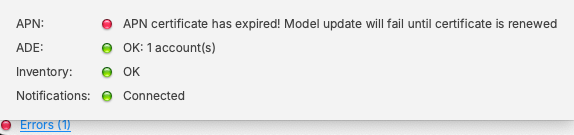
The following guide provides the steps to create and renew an APNs certificate using macOS with Keychain app.
APNs Topic
An APNs certificate has a unique topic, in the form of a hexadecimal string, and belongs to the Apple ID used to create the certificate. When renewing, the topic must match to ensure devices continue to communicate with the server. As such, not only must the same Apple ID be used when renewing an APNs certificate, but the current certificate must also be selected for renewal.
Step-By-Step Guide
Creating the Certificate Signing Request (CSR)
-
Open Keychain Access, located in: Applications > Utilities > Keychain Access.app.
-
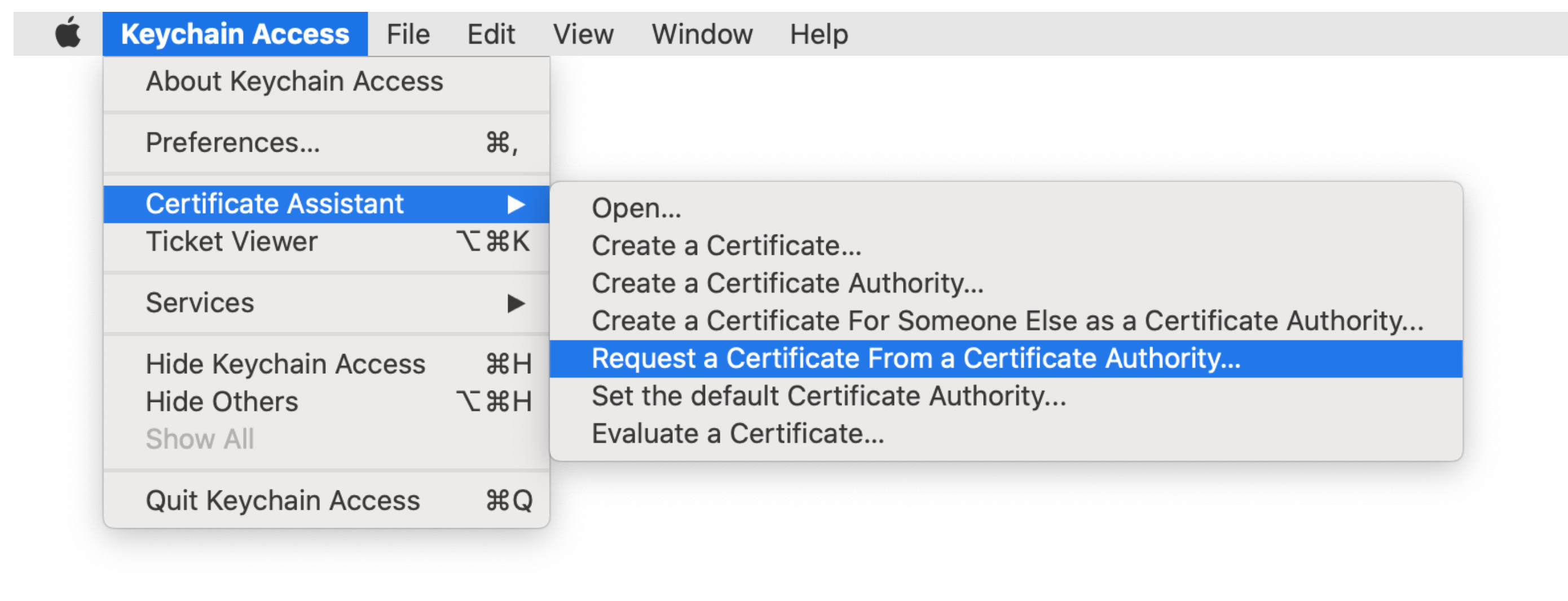
Create a CSR. Keychain Access > Certificate Assistant > Request a Certificate from a Certificate Authority...

-
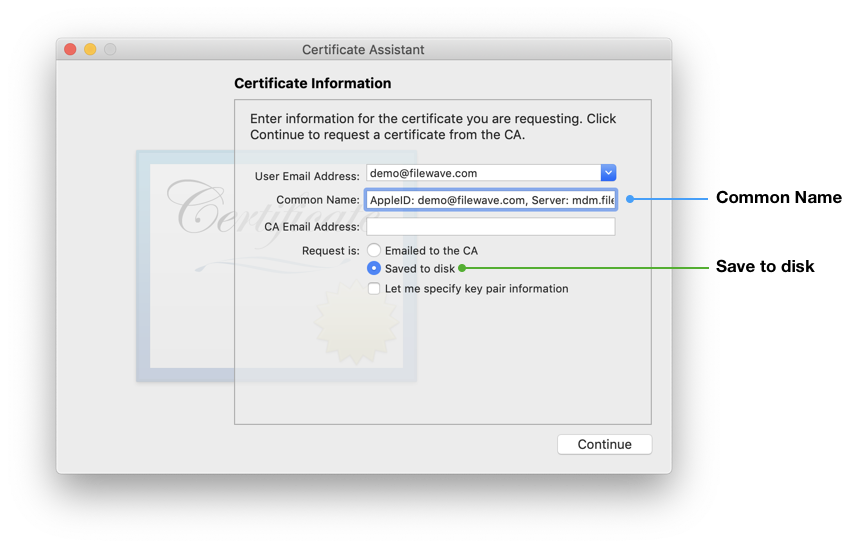
Enter the AppleID and Server name that you are going to be associating with this certificate in the "Common Name" field.
Common Name
Certificate Private Key names are visible in Keychain and the Common Name is used to set the Private Key name. Supplying the Apple ID and Server as the Common Name, ensures the Apple ID used to generate the certificate will be stored for future reference.
-
Select the radio button "Saved to disk" and click Continue.
-
Save the CSR request, ready to upload to FileWave in the next section.
Certificate Storage
Consider creating a secure location to store the created certificates and sub divide them using the date or year, e.g folder named: 'MDM APNs certificates 2020'.
Sign the CSR
CSR requests must be signed before uploading to Apple. FileWave has a portal for this process, which requires an active FileWave account.
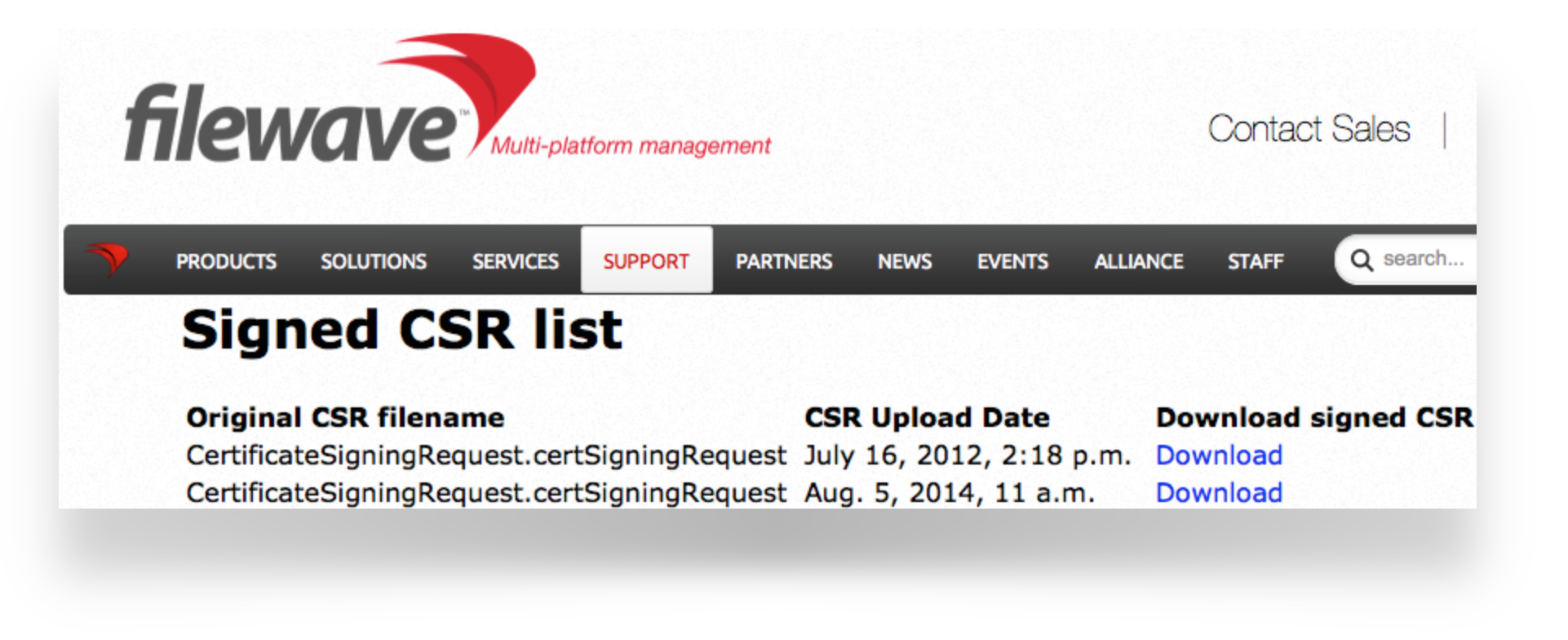
Upload the signed FileWave CSR to Apple
Creating a new Certificate
If you are renewing a certificate then jump to Renewing a Certificate
-
Navigate to: https://identity.apple.com/pushcert/ and log in with an Apple ID.
This Apple ID will own the certificate and is required for every renewal. Do not use a personal Apple ID, to avoid complications if that person where to leave the business or institution.
-
Click 'Create'.
-
'Accept' Apple's 'Terms of Use'.

Renewing a Certificate
To confirm the certificate, compare the Subject DN (Topic) and current certificate.
Clicking the 'i' button will show the certificate details, including the Topic:
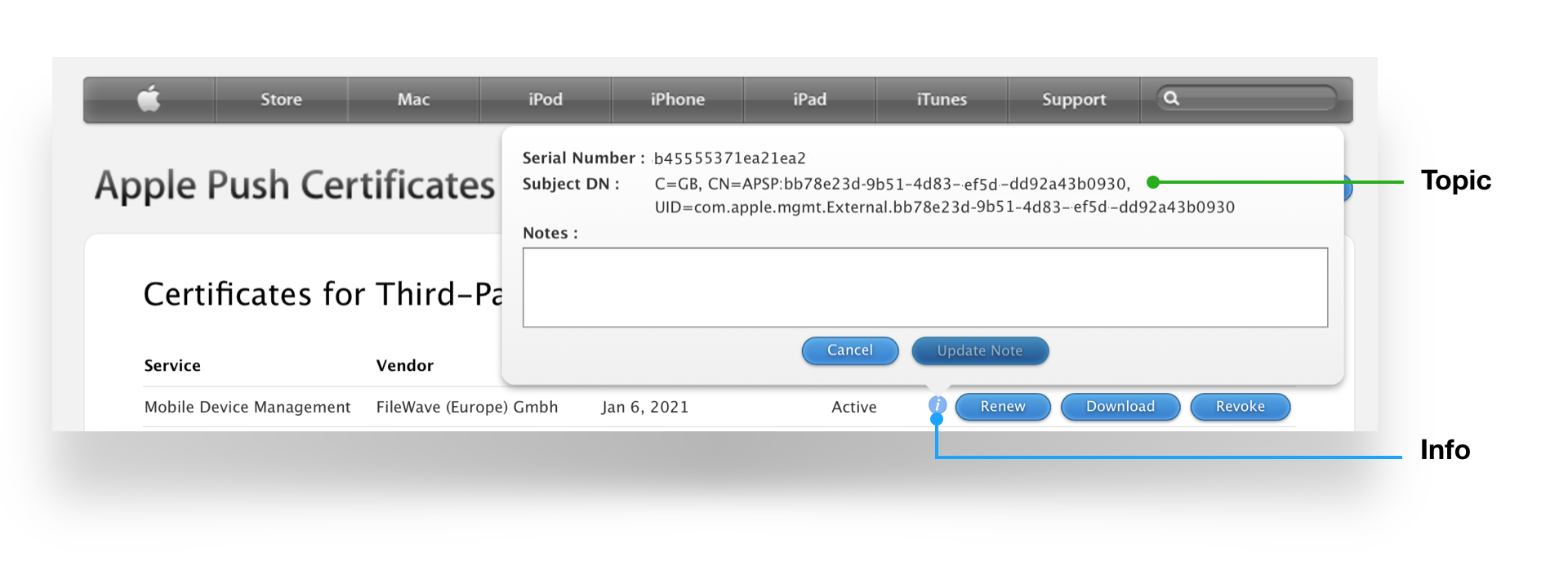
Ensure this matches with the 'Current Certificate' in FileWave Admin > Preferences > Mobile > Apple Push Notification Certificate:
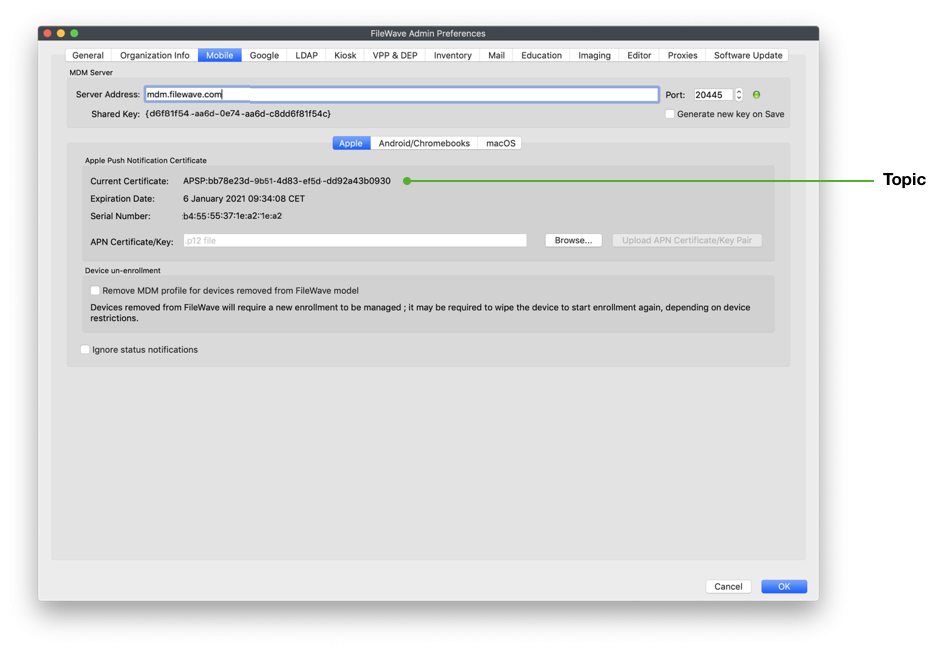
If the 'Topics' do not match do not continue. If the correct certificate is not in the list on Apple's website, this is the wrong Apple ID. If this guide was followed in creating the original certificate, the previously used Apple ID will be viewable from the certificate "Private Key".
Click 'Choose File' and browse to the signed FileWave CSR from the previous section.
Click 'Upload' and Apple will return a 'Confirmation'.
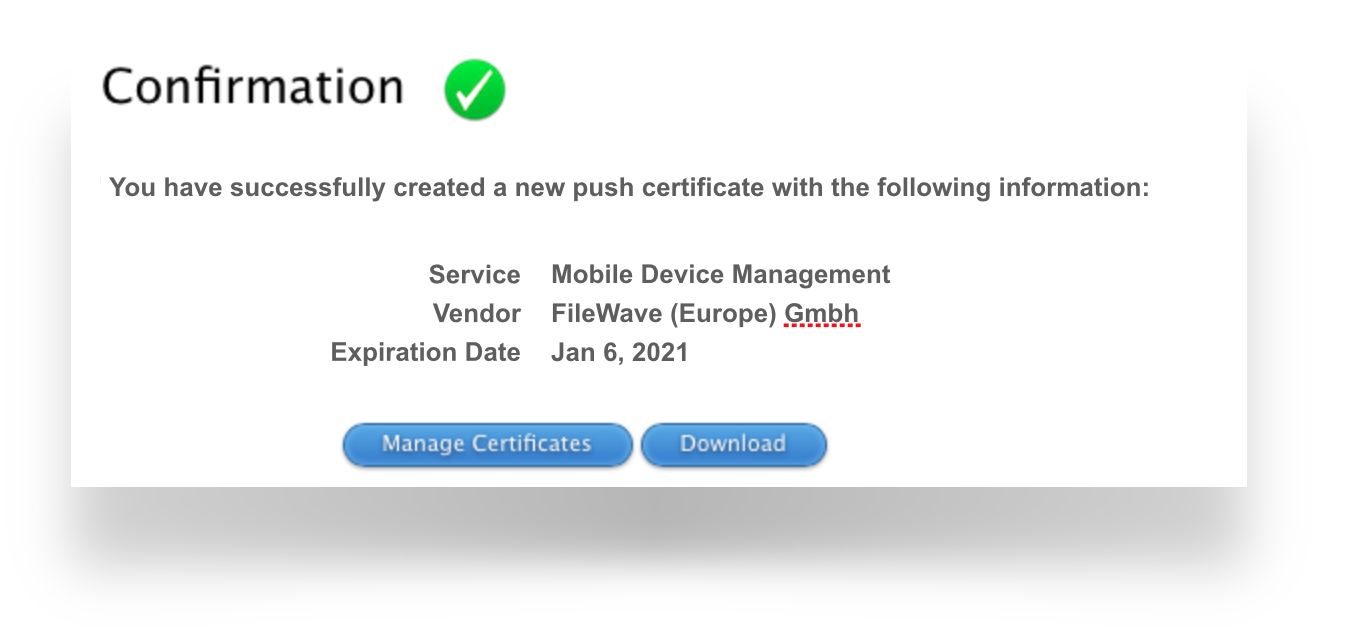
Click 'Download' and save the ".pem" file. Again consider where this certificate is stored.
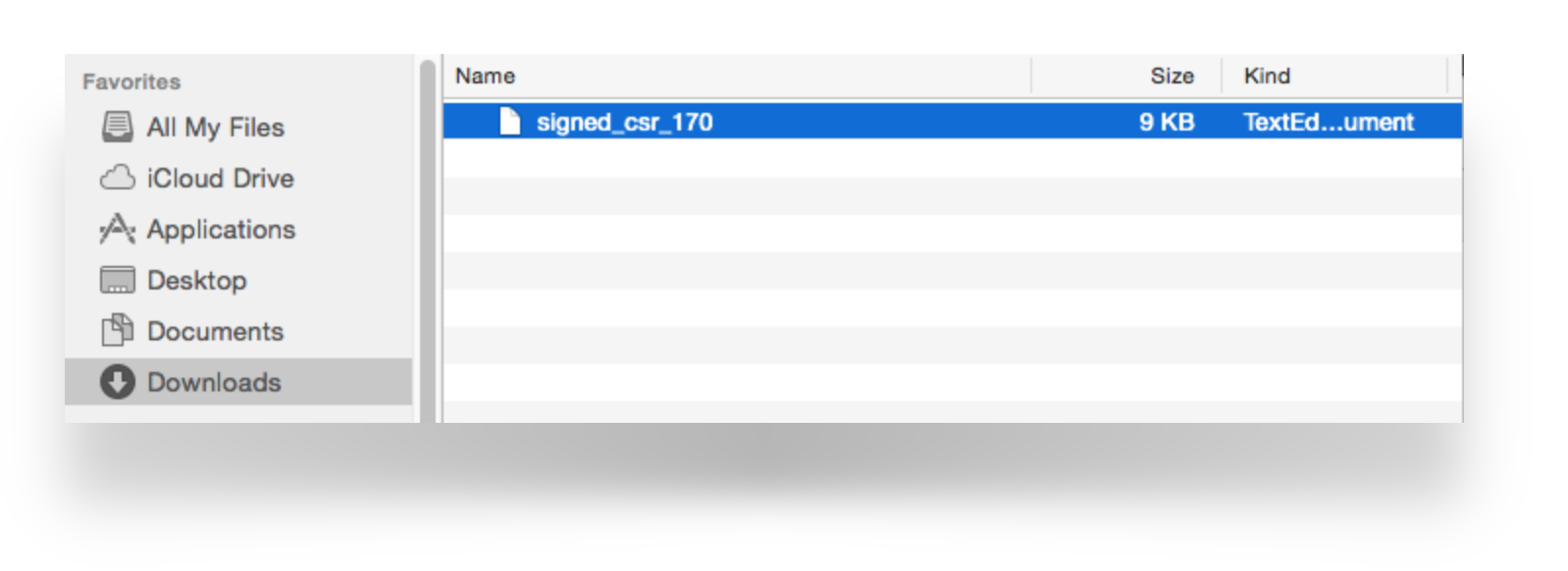
Create a ".p12" from the Signed CSR
-
Open Keychain Access app, select login from the Keychains list and then choose 'My Certificates' tab.
Keychain
If imported into the System Keychain, the Private Key will not be accessible. If 'All Items' tab is selected, private keys will not be available! -
Drag the downloaded PEM file into the Keychain main window.
-
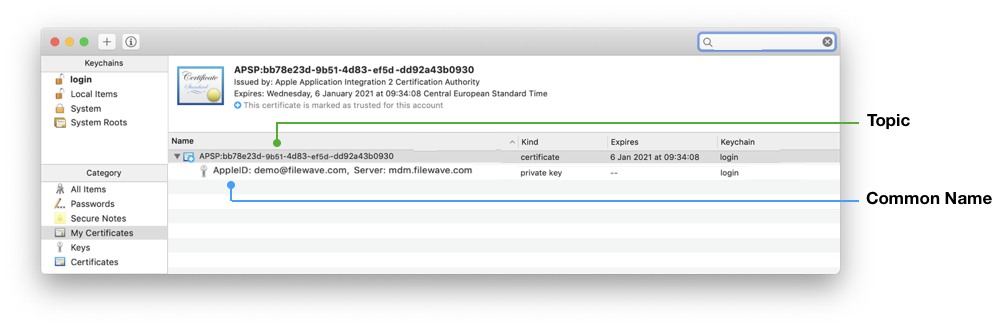
Locate the imported certificate. It will begin with "APSP:".
-
Click the disclosure triangle and select the expanded private key.
Common Name and Topic
The name of the Private Key will show the value defined as the "Common Name" from the creation of the CSR. Where recommendation was followed, this should list the Apple ID and Server name. Additionally the name of the Certificate is the same as the Topic.
-
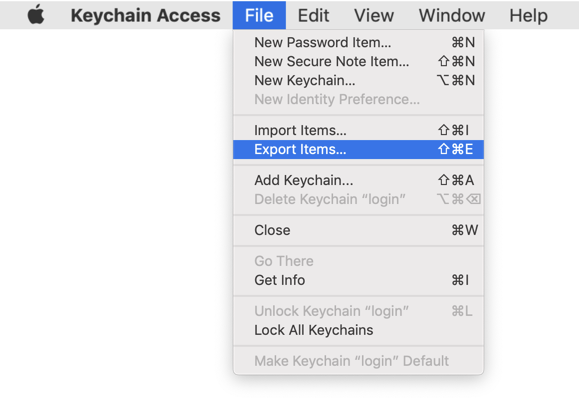
From the 'File' menu, choose 'Export Items...'.

-
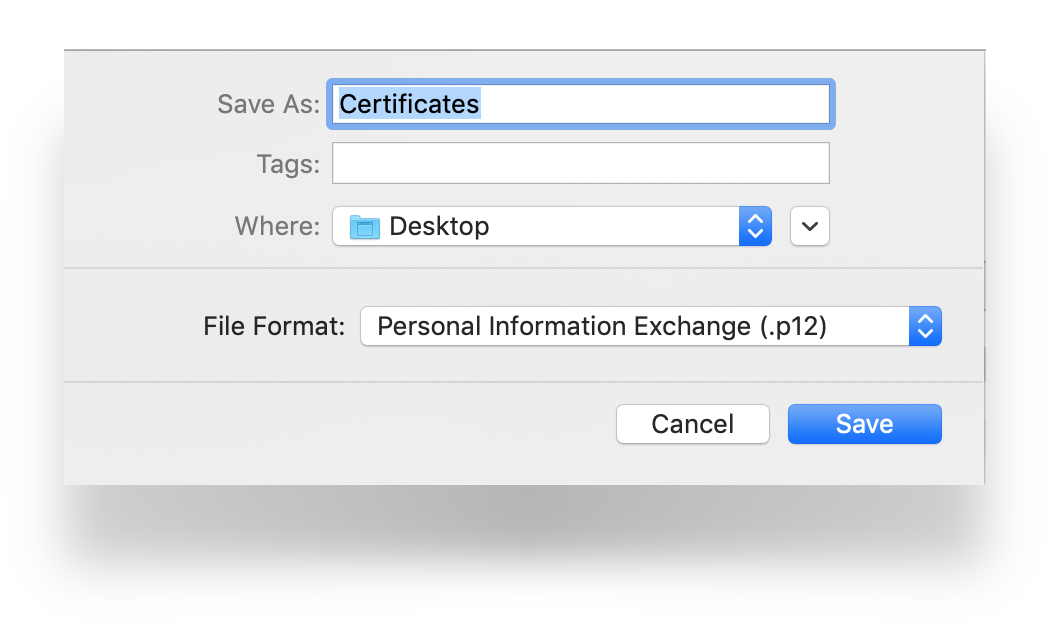
Export as a .p12 file. Again consider where this certificate is stored.
-
Click Save.

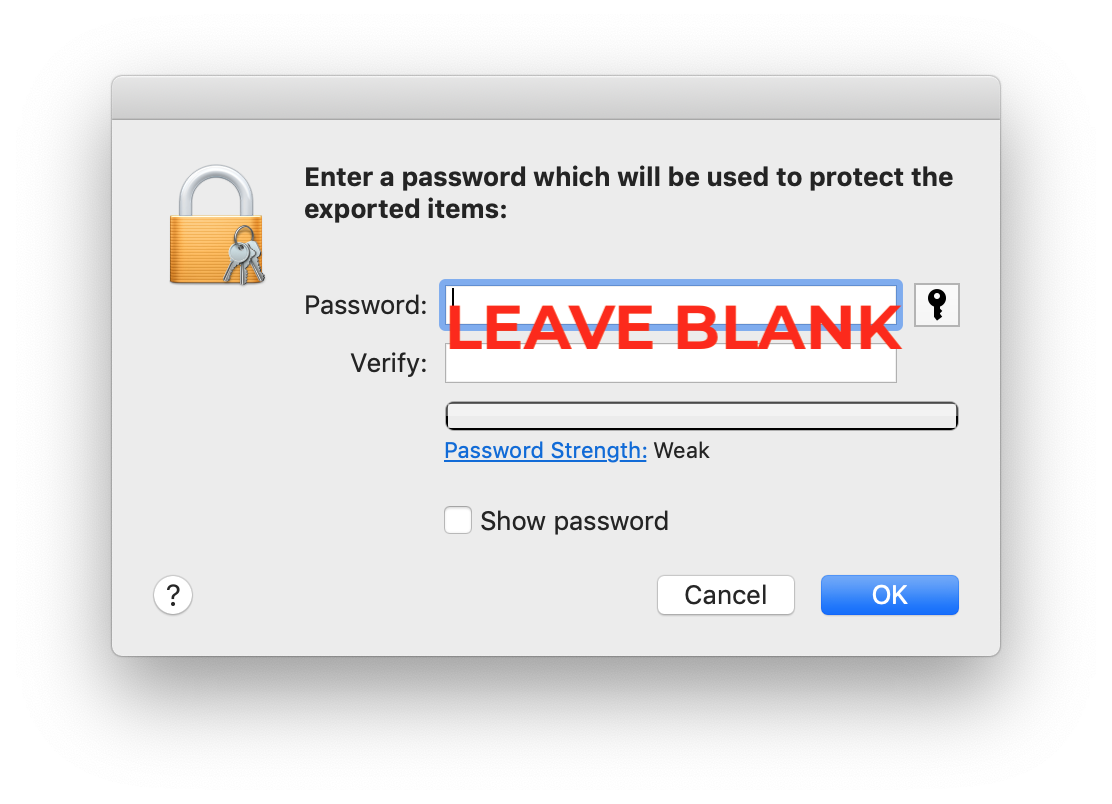
-
Leave the password blank.

-
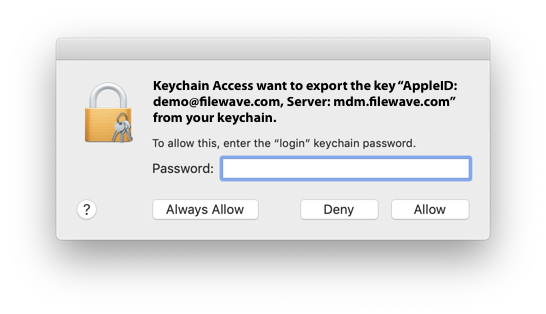
Enter your local admin account, when prompted, allowing Keychain to export.
Uploading the Certificate into FileWave
-
Launch the FileWave Admin and login to the FileWave server.
-
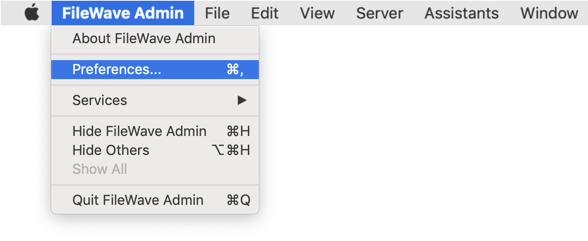
Open the FileWave Admin Preferences.

-
Select the 'Mobile' tab.
-
Click 'Browse' and navigate to the saved ".p12" APNs certificate.
-
Select the exported ".p12" certificate.
-
Click 'Upload APN Certificate/Key Pair'.
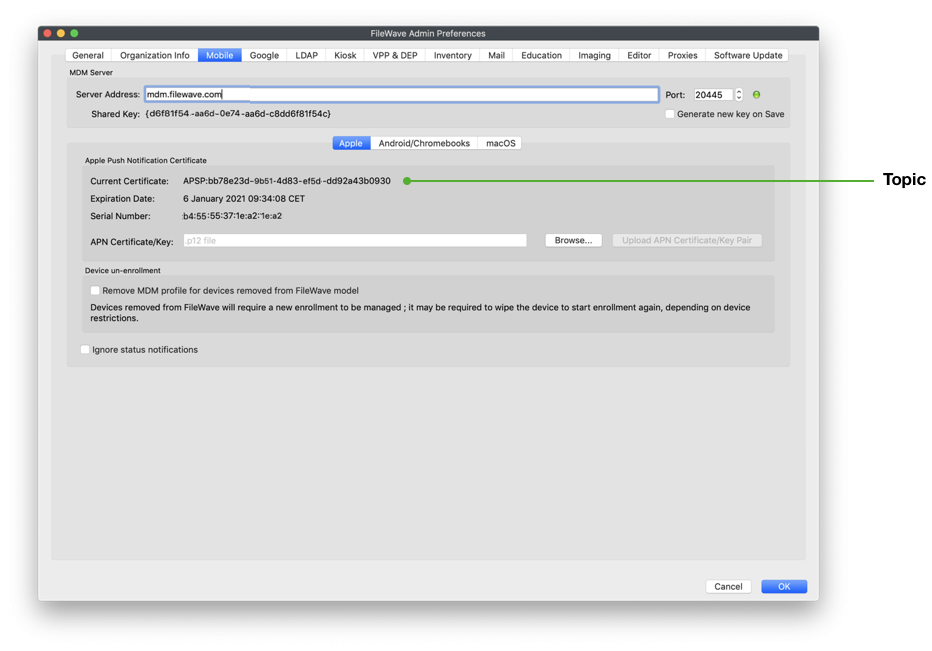
The topic should match the previous topic. FileWave Central should warn if the topics do not match before accepting the upload:
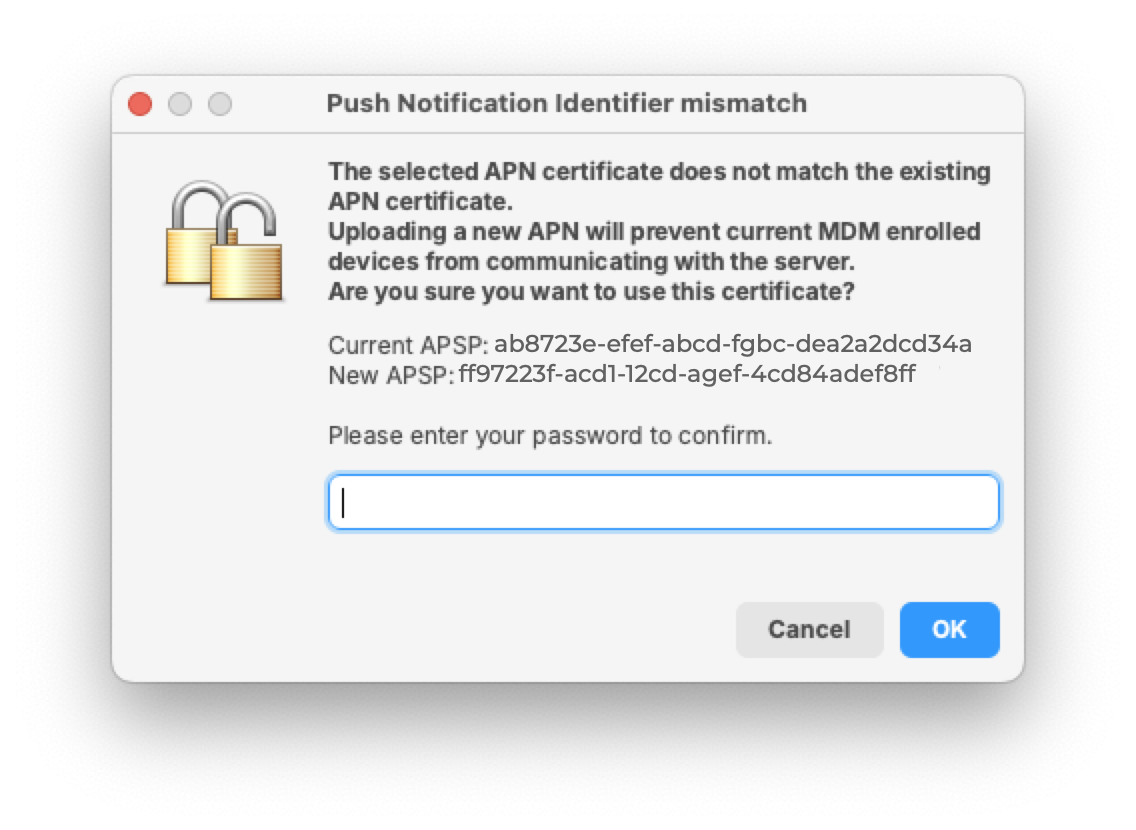
Click 'OK' to save and close the Preferences dialog.
That is it! FileWave may now manage Apple devices using Apple’s Push Notification Service.
APNs certificates require yearly renewals. Through FileWave Admin > Dashboard > Alert Settings, automated emails may configured. Consider adding 'APN for MDM'. Note this requires the Email preferences in Admin to be configured.
Contact Apple for help
If you forgot the email tied to your Apple Push Notiifcation you may reach out to Apple for assistant
Contact Apple for help with APN
Related articles
- APNs Certificate Creation & Renewal on macOS Computers (XCA)
- APNs Certificate Creation & Renewal on Windows
APNs Certificate Creation & Renewal on macOS Computers (XCA)
Description
Apple Mobile Device Management (MDM) requires an Apple Push Notification service (APNs) certificate; renewable yearly.
APNs Expiry
If APNs certificates are allowed to expire, all MDM communication will be lost, until renewed. Update Model will also fail until renewed.
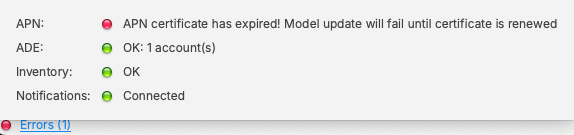
This guide explains how to create the Apple Push Notification Service (APNS) certificate for FileWave using an online CSR generator and the XCA certificate management tool, instead of the Apple Keychain. The Apple Keychain often causes issues with private key handling on newer macOS versions, so this method provides a more reliable alternative. You may use any online CSR generator (for example ssl.com), it does not have to be ssl.com specifically.
APNs Topic
An APNs certificate has a unique topic, in the form of a hexadecimal string, and belongs to the Apple ID used to create the certificate. When renewing, the topic must match to ensure devices continue to communicate with the server. As such, not only must the same Apple ID be used when renewing an APNs certificate, but the current certificate must also be selected for renewal.
Step-By-Step Guide
Prerequisites
- Access to the Apple Push Certificates Portal ( https://identity.apple.com/pushcert/ ).
- A valid Apple Business/School Manager account or Apple ID.
- Access to the FileWave Central console.
- Installed XCA tool: https://github.com/chris2511/xca/releases
Step 1: Generate CSR (Certificate Signing Request)
- Open the CSR generator at ssl.com. ( https://www.ssl.com/online-csr-and-key-generator/ )
- Enter the required details:
- Common Name (CN): e.g. FileWave APNS
- Organization (O): your company or school name
- Organizational Unit (OU): optional, e.g. IT Department
- Country (C): two-letter ISO code (e.g. DE)
- Generate the CSR and download the files:
- CSR file (.csr)
- Private Key (.key)
⚠️ Keep the .key file safe – you will need it later in XCA.
Step 2: Sign the CSR with FileWave
Before the CSR can be uploaded to Apple, it must be signed by FileWave.
Step 3: Upload the signed FileWave CSR to Apple
If you are renewing a certificate then jump to Renewing a Certificate
Creating a new certificate
- Go to the Apple Push Certificates Portal: https://identity.apple.com/pushcert/.
- Sign in with an Apple ID (⚠️ do not use a personal Apple ID – use a generic business or institution Apple ID for long-term use).
- Click Create.
- Accept Apple’s Terms of Use.
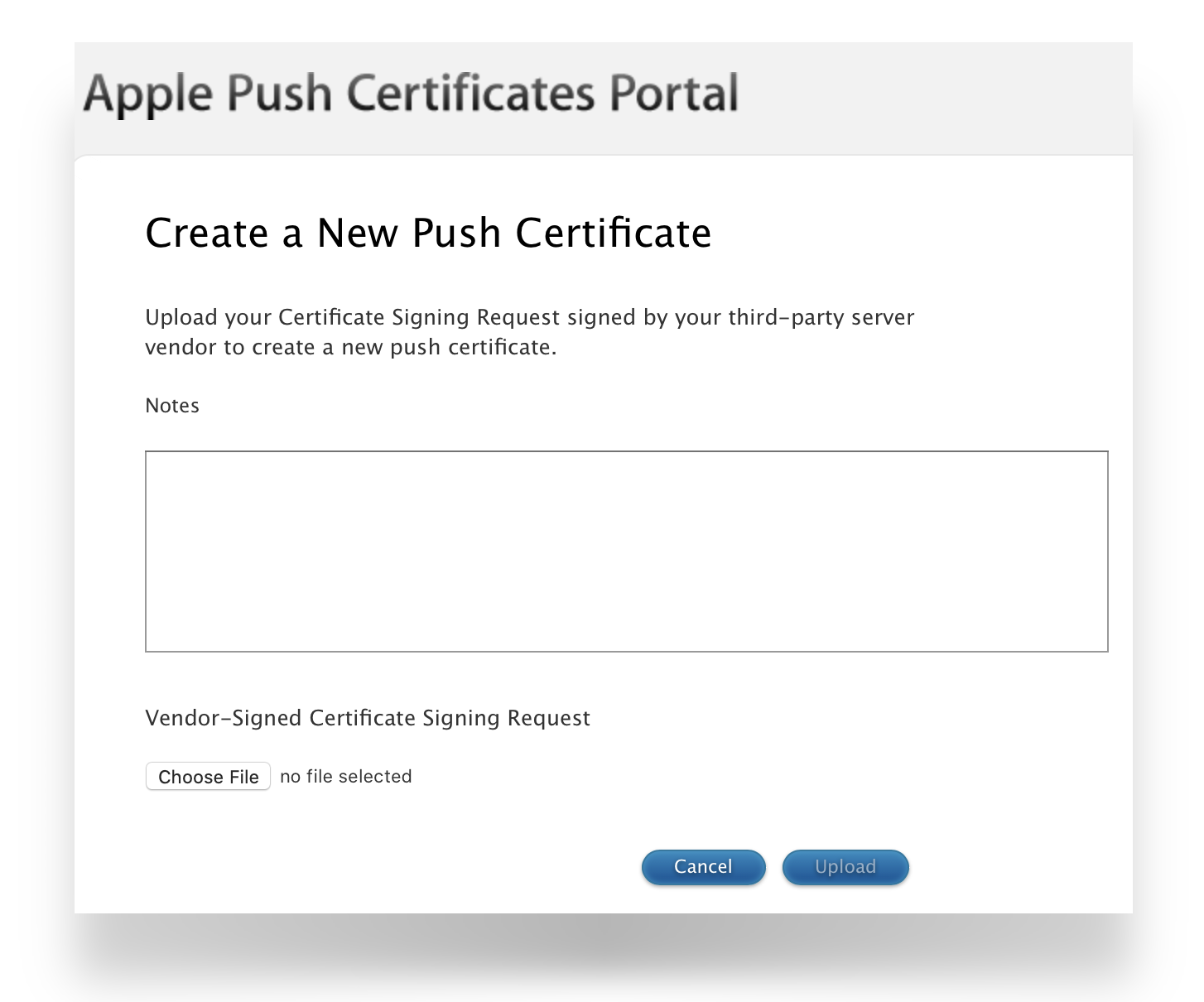
- Click Choose File and upload the signed FileWave CSR.
- Click Upload – Apple will confirm the request.
- Download the issued APNS certificate (.pem or .cer).
Renewing an existing certificate
- Go to https://identity.apple.com/pushcert/ and log in with the same Apple ID that owns the certificate.
- Locate the certificate to renew, confirm the Subject DN (Topic) matches the certificate in FileWave Admin.
- Click Renew.
- Upload the signed FileWave CSR.
- Download the renewed APNS certificate (.pem or .cer).
If the 'Topics' do not match do not continue. If the correct certificate is not in the list on Apple's website, this is the wrong Apple ID. If this guide was followed in creating the original certificate, the previously used Apple ID will be viewable from the certificate "Private Key".
To confirm the certificate, compare the Subject DN (Topic) and current certificate.
Clicking the 'i' button will show the certificate details, including the Topic:
Ensure this matches with the 'Current Certificate' in FileWave Admin > Preferences > Mobile > Apple Push Notification Certificate:
Step 4: Import and process the certificate in XCA
- First, download XCA for macOS: https://github.com/chris2511/xca/releases
- Install and start XCA.
- Go to Private Keys → Import and select the previously saved .key file from Step 1.
- Go to Certificates → Import and load the APNS certificate you downloaded from Apple (.cer/.pem).
- Link the certificate with the corresponding private key in XCA.
- Export the certificate as a PKCS #12 (.pfx) file – important: without a password.
- After export, rename the .pfx file to .p12 (FileWave requires the .p12 extension).
Step 5: Import the certificate into FileWave
- Open the FileWave Admin.
- Go to Preferences → Mobile.
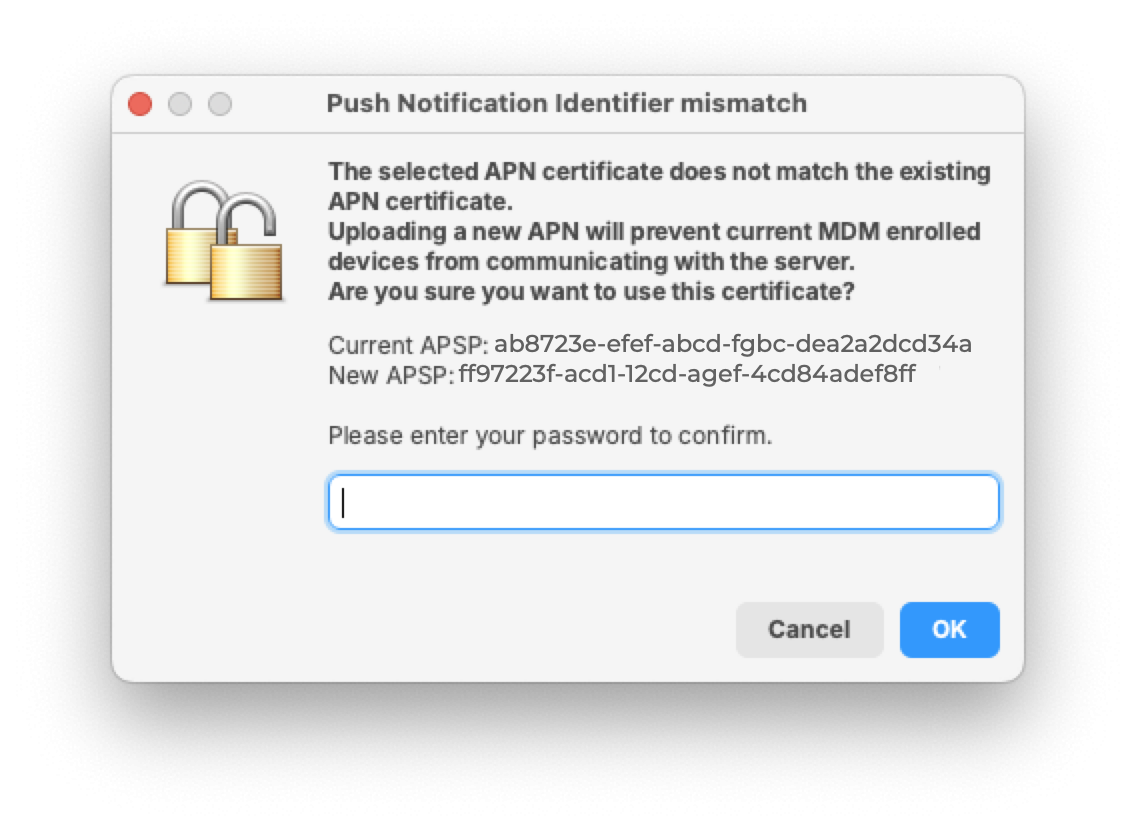
- Import the .p12 file you exported from XCA by browsing to the file and then picking to Upload. The topic should match the previous topic. FileWave Central should warn if the topics do match before accepting the upload.


- Save the settings by clicking OK to close the preferences dialog and verify that devices are communicating.
Step 6: Verification
- Test whether new or existing MDM clients correctly connect to the APNS service.
- Check the logs in FileWave Admin to ensure there are no certificate errors.
APNs certificates require yearly renewals. Through FileWave Admin > Dashboard > Alert Settings, automated emails may configured. Consider adding 'APN for MDM'. Note this requires the Email preferences in Admin to be configured.
Contact Apple for help
If you forgot the email tied to your Apple Push Notiifcation you may reach out to Apple for assistant
Contact Apple for help with APN
Related articles
- APNs Certificate Creation & Renewal on macOS Computers (Keychain)
- APNs Certificate Creation & Renewal on Windows
APNs Certificate Creation & Renewal on Windows Computers
Description
Apple Mobile Device Management (MDM) requires an Apple Push Notification service (APNs) certificate; renewable yearly.
APNs Expiry
If APNs certificates are allowed to expire, all MDM communication will be lost, until renewed. Update Model will also fail until renewed.
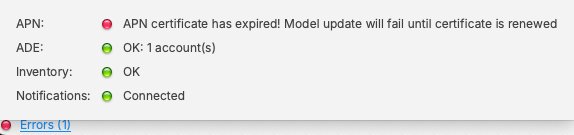
This guide explains how to create the Apple Push Notification Service (APNS) certificate for FileWave on Windows computers using OpenSSL. You will generate a Certificate Signing Request (CSR), have it signed by FileWave, upload it to Apple, and then convert it to a format FileWave can import.
APNs Topic
An APNs certificate has a unique topic, in the form of a hexadecimal string, and belongs to the Apple ID used to create the certificate. When renewing, the topic must match to ensure devices continue to communicate with the server. As such, not only must the same Apple ID be used when renewing an APNs certificate, but the current certificate must also be selected for renewal.
Step-By-Step Guide
Prerequisites
- Access to the Apple Push Certificates Portal (https://identity.apple.com/pushcert/)
- A valid Apple Business/School Manager account or Apple ID
- Access to the FileWave Central console
- OpenSSL for Windows installed: https://slproweb.com/products/Win32OpenSSL.html
- Download the full version (not the light version, as it needs configuration files)
Administrator Access
All cmd.exe commands in this guide must be run with 'Run as Administrator'.
Step 1: Generate CSR (Certificate Signing Request)
- Open cmd.exe as an Administrator
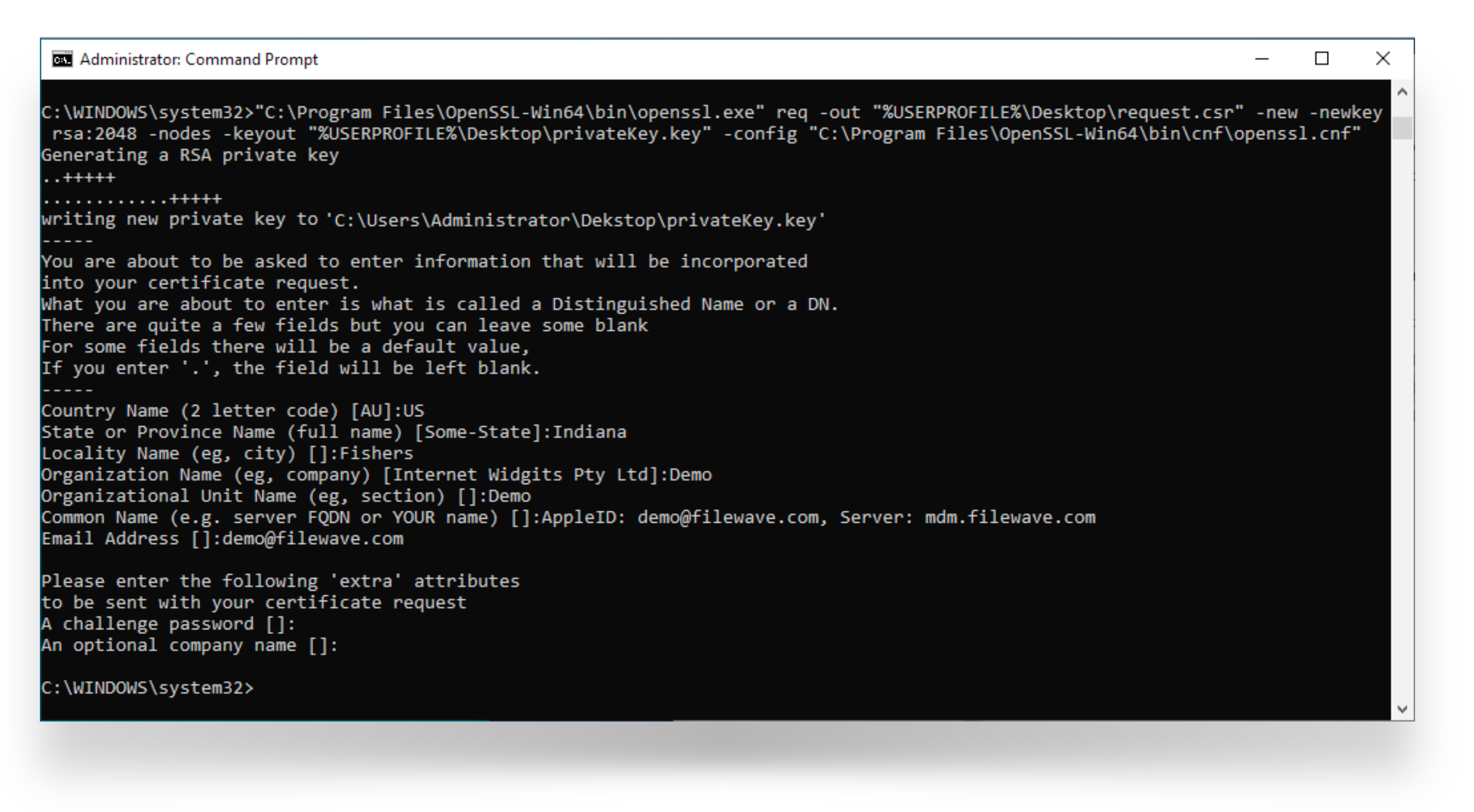
- Create a CSR by entering the following command. This will create two files on the Desktop:
request.csrandprivateKey.key:
"C:\Program Files\OpenSSL-Win64\bin\openssl.exe" req -out "%USERPROFILE%\Desktop\request.csr" -new -newkey rsa:2048 -nodes -keyout "%USERPROFILE%\Desktop\privateKey.key" -config "C:\Program Files\OpenSSL-Win64\bin\cnf\openssl.cnf"
- When prompted, enter values for the certificate fields. For Common Name, use a descriptive name like your Apple ID and server name (e.g.,
company@example.com - FileWave Server). This helps you identify the certificate later.
Common Name and Private Key
The Common Name you enter will be stored in the Private Key name. Using your Apple ID and server name ensures you can identify which Apple ID created this certificate in the future—important when renewing.
Step 2: Sign the CSR with FileWave
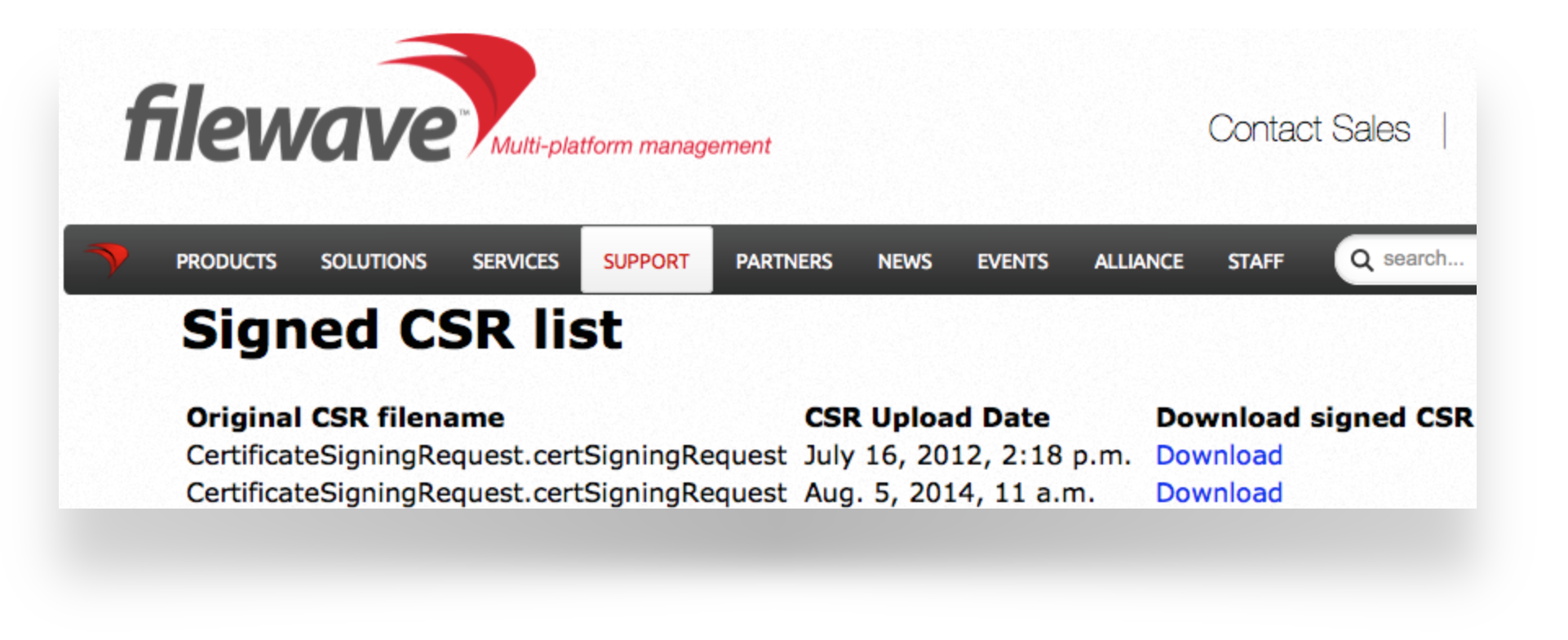
Before the CSR can be uploaded to Apple, it must be signed by FileWave.
Step 3: Upload the signed FileWave CSR to Apple
If you are renewing a certificate, skip to Renewing an existing certificate below.
Creating a new certificate
- Go to the Apple Push Certificates Portal: https://identity.apple.com/pushcert/
- Sign in with an Apple ID (⚠️ do not use a personal Apple ID – use a generic business or institution Apple ID for long-term use)
- Click Create
- Accept Apple's Terms of Use
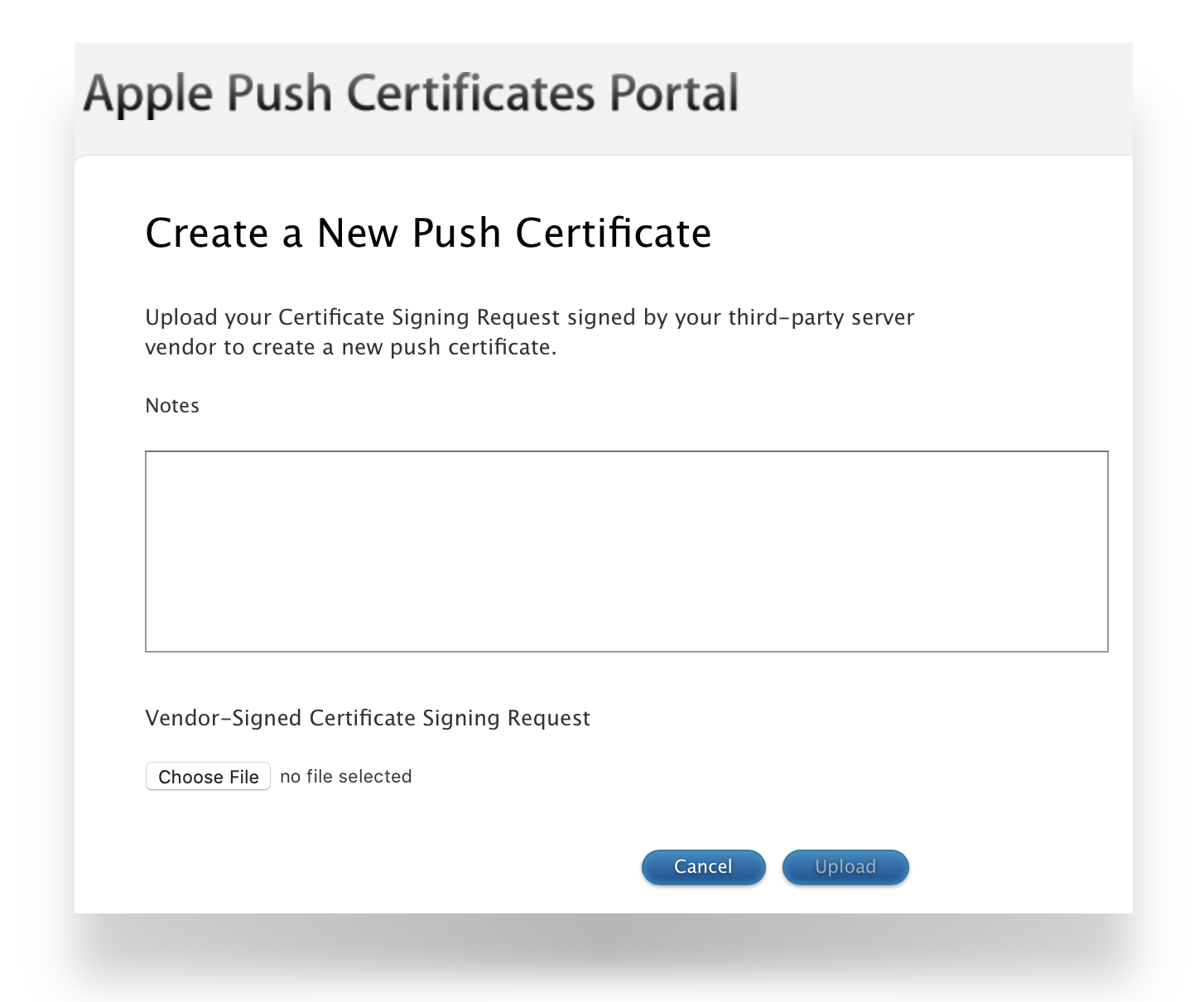
- Click Choose File and upload the signed FileWave CSR from Step 2
- Click Upload – Apple will confirm the request
- Download the issued APNS certificate (.pem or .cer) and store it securely
Renewing an existing certificate
- Go to https://identity.apple.com/pushcert/ and log in with the same Apple ID that owns the certificate
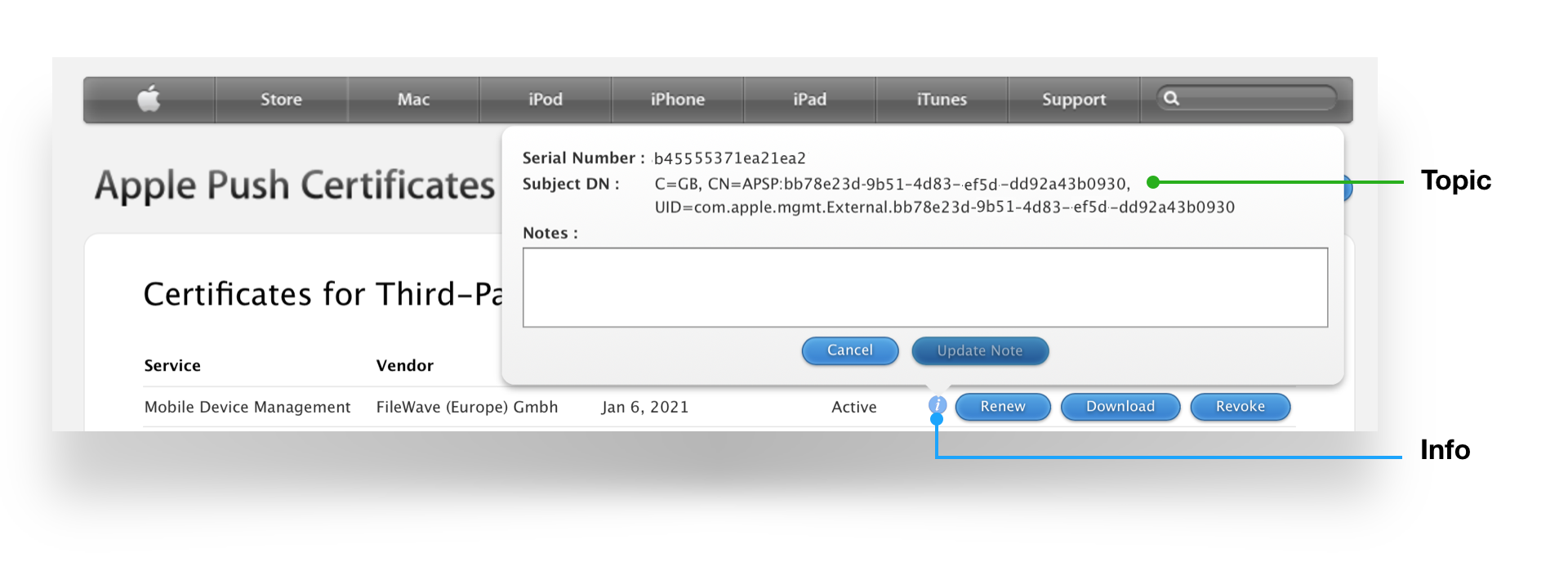
- Locate the certificate to renew and click the info (i) button to view certificate details, including the Topic

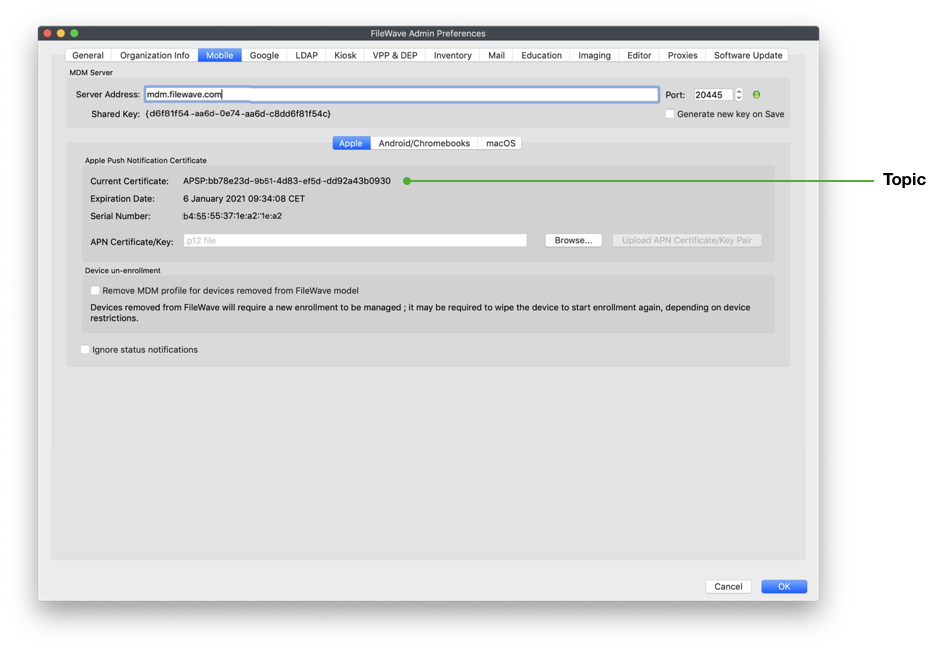
- Compare this Topic with the 'Current Certificate' in FileWave Admin > Preferences > Mobile > Apple Push Notification Certificate

Topic Mismatch
If the Topics do not match, do not continue. If the correct certificate is not in the list on Apple's website, you are using the wrong Apple ID. You can identify the correct Apple ID by reviewing the Private Key name from the original CSR (which should contain your Apple ID).
- Click Renew
- Upload the signed FileWave CSR from Step 2
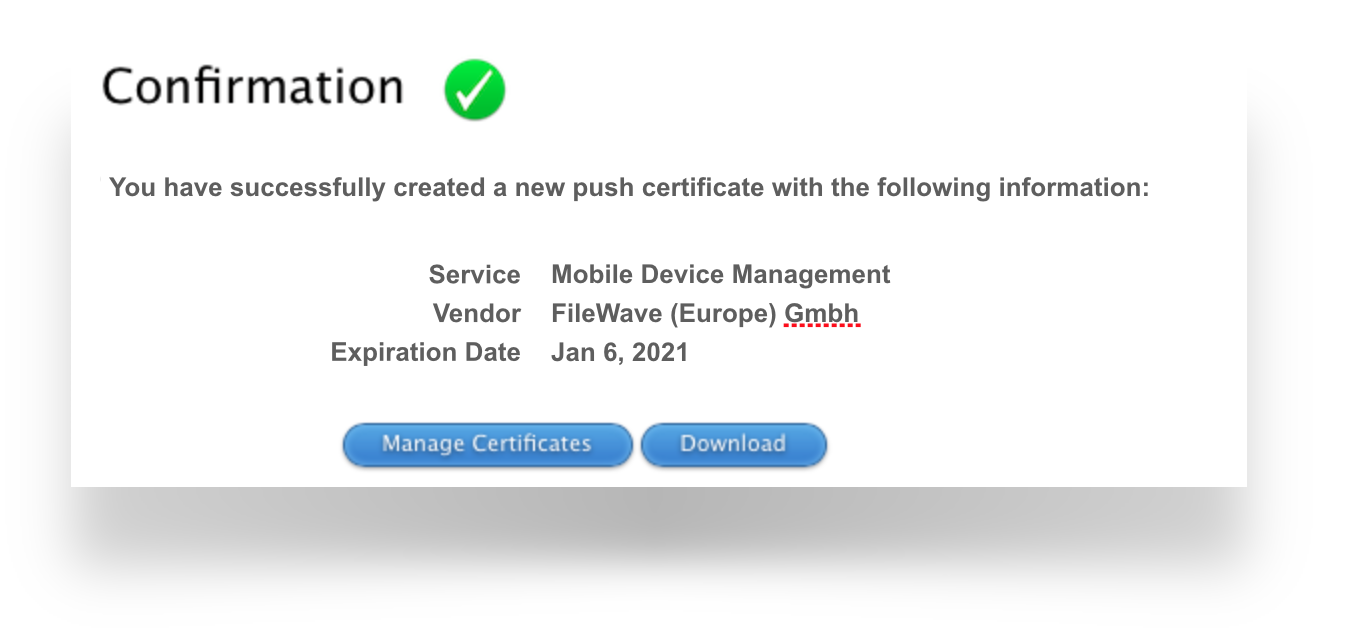
- Click Upload – Apple will confirm the request

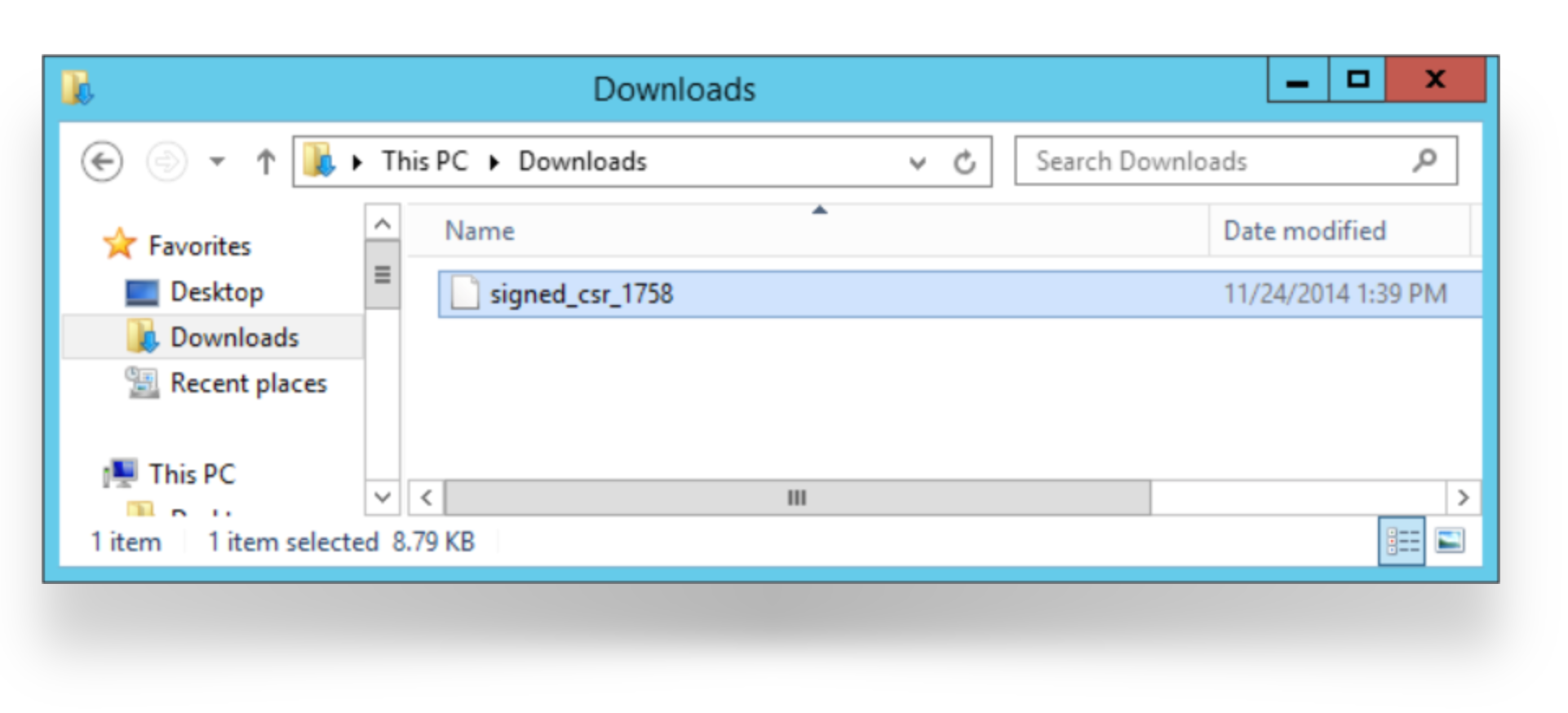
- Download the renewed APNS certificate (.pem or .cer) and store it securely

Step 4: Create a .p12 file from the Signed Certificate
- Open cmd.exe as an Administrator
- Create a
.p12file by entering the following command. Replace the file paths if necessary, and note thatMDM_FileWave.pemis an example – use your actual downloaded certificate filename:
"C:\Program Files\OpenSSL-Win64\bin\openssl.exe" pkcs12 -export -in "%USERPROFILE%\Downloads\MDM_FileWave.pem" -inkey "%USERPROFILE%\Desktop\privateKey.key" -out "%USERPROFILE%\Desktop\push_cert.p12" -name fw-apns
- When prompted for the Export Password, leave it blank and press Enter

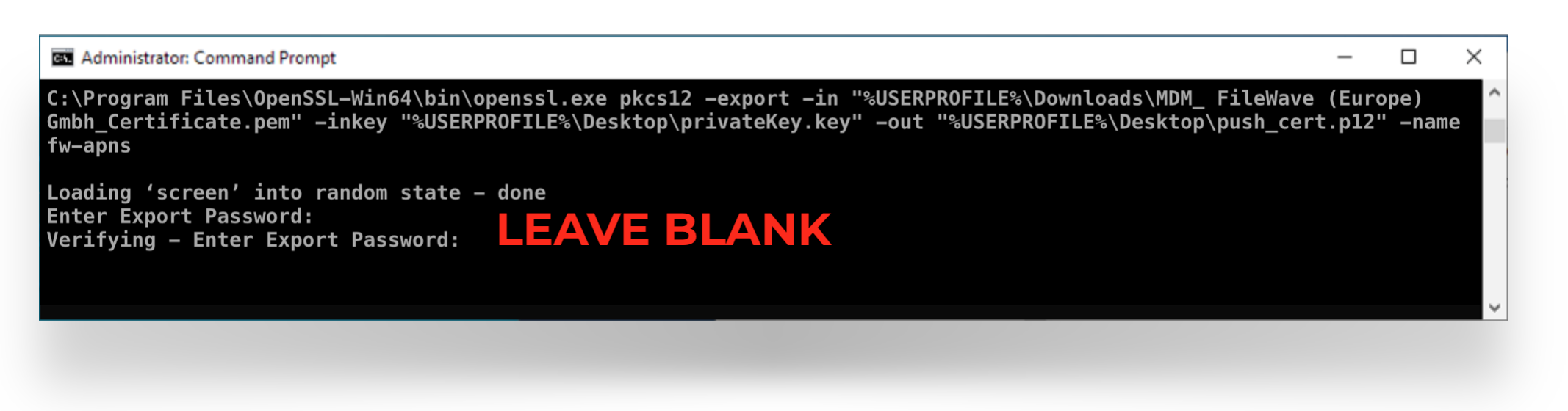
Path Issues
If the command errors when creating the .p12 file, replace the %USERPROFILE% variable with the full file path (e.g., C:\Users\YourUsername\).
- Verify the certificate was created correctly by running:
"C:\Program Files\OpenSSL-Win64\bin\openssl.exe" pkcs12 -info -in "%USERPROFILE%\Desktop\push_cert.p12"
This will display certificate details. Confirm that the Common Name matches the value you entered in Step 1, and that the Topic matches the value from Apple.
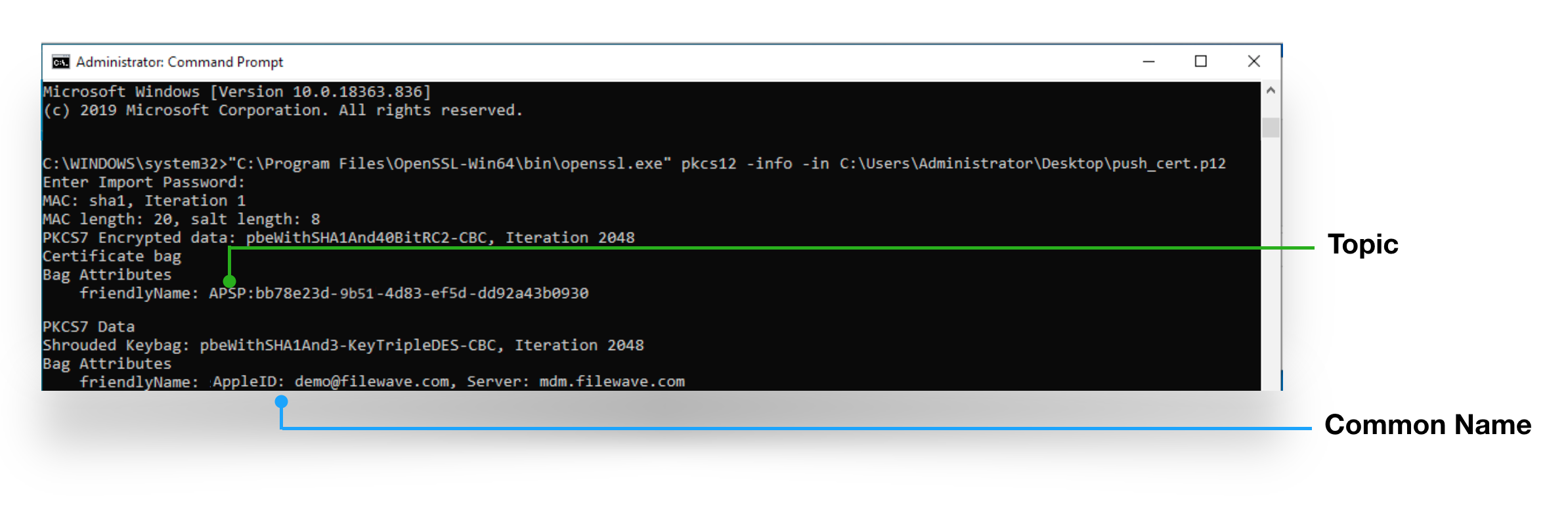
Common Name and Topic
The Private Key name will display the Common Name you entered when creating the CSR. The certificate name is the same as the Topic. Both should match the certificate you created or renewed at Apple.
Step 5: Upload the certificate into FileWave
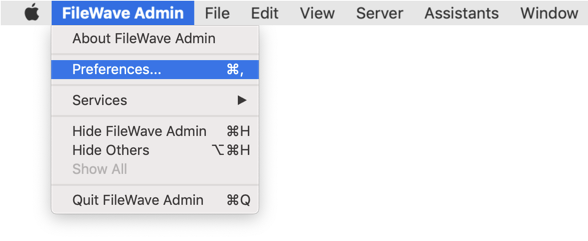
- Launch FileWave Admin and log in to your FileWave server
- Open Preferences

- Select the Mobile tab
- Click Browse and navigate to the
push_cert.p12file you created in Step 4 - Select the file and click Upload APN Certificate/Key Pair
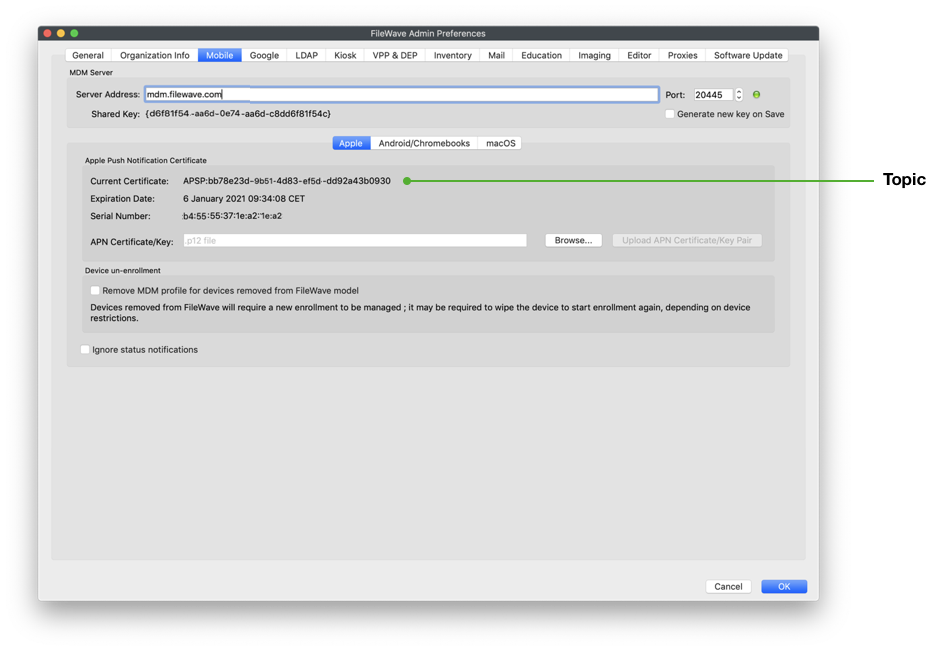
The topic should match the previous topic. FileWave Central should warn if the topics do match before accepting the upload:
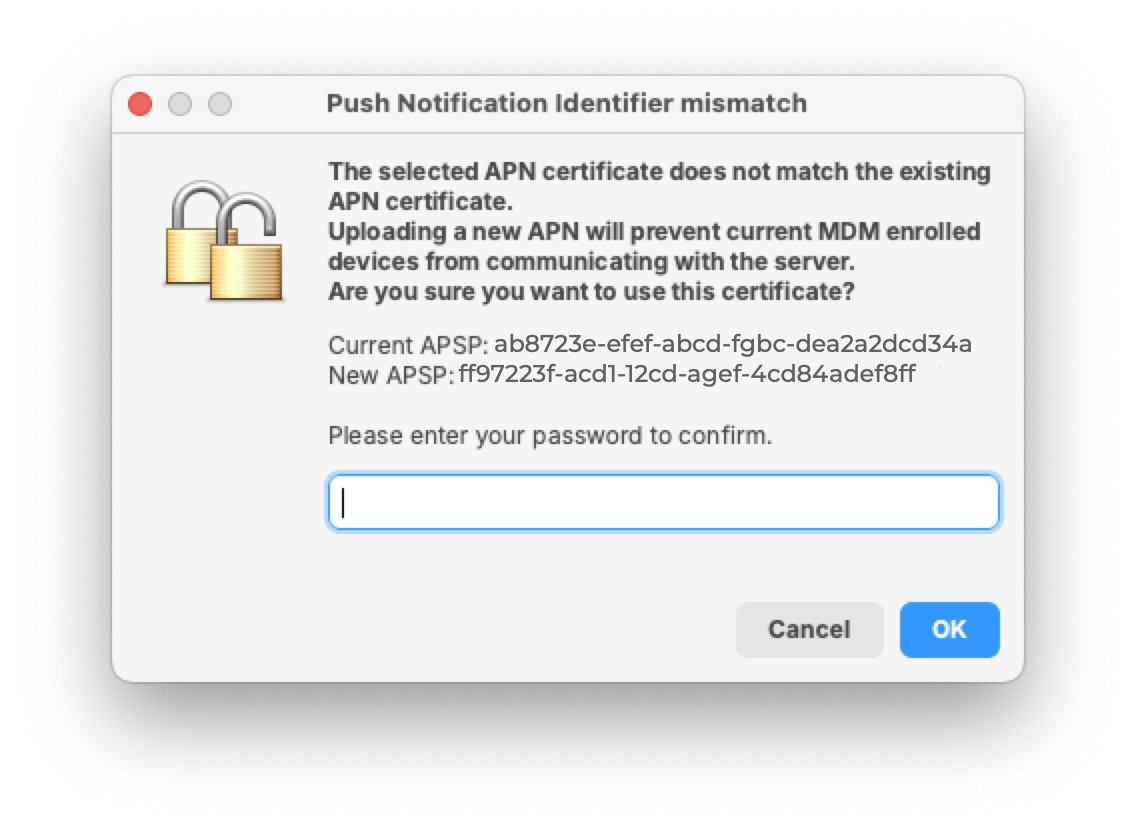
Click OK to save and close the Preferences dialog.
FileWave may now manage Apple devices using Apple's Push Notification Service.
Step 6: Verification
- Test whether new or existing MDM clients correctly connect to the APNS service
- Check the logs in FileWave Admin to ensure there are no certificate errors
APNs certificates require yearly renewals. Through FileWave Admin > Dashboard > Alert Settings, you can configure automated email reminders. Consider enabling the 'APN for MDM' alert. Note: this requires Email preferences in Admin to be configured.
Contact Apple for help
If you forgot the email tied to your Apple Push Notification certificate, you may reach out to Apple for assistance:
Contact Apple for help with APN
Related articles
- APNs Certificate Creation & Renewal on macOS Computers (XCA)
- APNs Certificate Creation & Renewal on macOS Computers (Keychain)
Self-signed SSL Certificates
Self-Signed SSL Certificates Going Forward
Using a self-signed certificate is not the recommended option and needs to be given a second thought before implementation. Having a certificate trusted by a Global Certificate Authority (CA) is not only the most recommended and most secure option but also becoming more of a requirement for a lot of processes in the tech world.
Having a certificate trusted from a CA will also make sure all of your FileWave communication is as secure and user experience as simplified as possible. If you’re FileWave server is going to be managing Chromebooks then a root trusted certificate is required, where as managing iOS devices were self-signed certs can work, you will have to manually trust the certificate during OTA enrollment for the device to communicate with FileWave.
Of course there are some use cases where a self-signed certificate makes sense such as a test or evaluation server.
FileWave Clients
When using a self-signed certificate your client devices will need this certificate to trust for proper and secure communication with FileWave.
Initial Install
If the FileWave Client has never been installed on your macOS or Windows devices then you will need to create a custom PKG/MSI. This custom package will need to be filled out with your server address, booster info, and other important data to make sure your clients connect successfully to the FileWave Server. One of those options is Server Certificate, you will need to upload your self-signed certificate into this option so that your new client devices will be trusted by the FileWave server.

How do you get the self-signed certificate to upload?
To get the self-signed certificate that needs to be uploaded just follow the steps below:
- Log into the FileWave Admin
- Go to FileWave Admin → Preferences
- While in the General Tab find the SSL Certificate Management pane
- Finally click the Get Current Certificate button, this will download the current SSL certificate you have in FileWave

iOS devices will enroll normally during DEP but, during OTA enrollment the FileWave certificate will need to be trusted manually. Please refer to the KB article linked here for more information.
Upgrade
All macOS and Windows clients on FW version 12.9.1 and below will still communicate with the FileWave server, but once upgraded to version 13 the self-signed certificate will need to be pushed to the devices. This will be done automatically when you upload the FileWave version 13 upgrade Fileset into the Filesets section the FileWave Admin.

iOS devices will not need anything pushed out, when the FileWave server is updated. But keep in mind during OTA enrollment the FileWave certificate will need to be trusted manually. Please refer to the KB article linked here for more information.
If you need to renew your self-signed certificate please refer the KB article linked here for those steps.
FileWave Admin
If using a self-signed certificate the FileWave Admin won’t be able to verify the identity of the server. When you log into the Admin you will be prompted that the server doesn’t trust the certificate and you have the option to continue with the connection being untrusted or you can add the certificate to your trust store then connect. Also when you connect via the Web Console you will be warned that the connection is not private.


On macOS, certificates manually added to trust store require explicit "Trust for SSL" permission.


Imaging Virtual Server
When using self-signed certificates the FileWave server will automatically transfer the certificate to a newly created IVS, but existing imaging servers will need to be pushed the certificate.
- Log into the FileWave Admin
- Go to FileWave Admin → Preferences → Imaging
- Select an imaging server then the Upload Certificate button at the bottom right of the pane

This will send the SSL certificate to the IVS, you have to do this for any existing IVS you have attached to your FileWave server. You can check the status of the IVS to see whether or not the certificate is uploaded, by selecting the IVS and clicking the Status… button.

Related Content
Renew FileWave Server Self-signed Certificate
Description
For simplicity, we should recommend Renewing with an Official SSL certificate or Let's Encrypt Setup for FileWave Server (Debian)
Using a self-signed certificate is strongly discouraged for a production server.
Information
A self-signed certificate may not be trusted by devices out of the box. Instead, the device requires a local copy to be able to trust the certificate. Prior to FileWave 13, this has only affected Mobile devices: Renew MDM self signed SSL certificate on iOS
However, FileWave uses the certificate for additional security for non MDM communication and initial installation or upgrading to FileWave 13 from a release of 12 or lower.
Renewal though requires additional steps to ensure device communication is not lost.
Directions
The 'fwcontrol' command for creating certificates is now a 2 step process, where 'fqdn' should be the Fully Qualified Domain Name of your FileWave Server, e.g. demo.filewave.ch:
sudo fwcontrol server generateSelfSignedCert --create --cn=fqdn [--country COUNTRY] [--state STATE] [--locality LOCALITY] [--organization ORGANIZATION] [--ou ORGANIZATIONAL_UNIT] [--email EMAIL] [--ignore_name_mismatch]
sudo fwcontrol server generateSelfSignedCert --installBracketed options are not required, but may be specified.
Step 1
Certificate Generation
Using demo.filewave.ch as an example:
sudo fwcontrol server generateSelfSignedCert --create --cn=demo.filewave.ch. --country SwitzerlandThis first step generates a new certificate, but unlike before, it does not overwrite the current active certificate. Instead, this certificate is in a 'pending' state. You should see the following warning when creating the certificate:
WARNING: Self-signed certificates are NOT recommended! If you install one, clients in version 13 or greater will no longer allow connections with the FileWave Server unless you put the new self-signed certificate in their trust store.
A self-signed certificate has been successfully created and is now pending for later installation on the server.
IMPORTANT!
- Before installing it, you must deploy it to the trust store of any device whose FileWave Client is in version 13 or greater, otherwise these clients will no longer be able to connect to the server!
To do so, you can create a fileset with a copy of /usr/local/filewave/certs/server.crt.pending to be deployed in the trust store folder.
- Once you are ready to install the new self-signed certificate and if you understand the risks, please run this command again with option --install.
running restart apache commandInstead a new certificate key/crt pair of files may be seen in the following server folder and will show as 'pending', along with the original key/crt pair:
/usr/local/filewave/certs/server.crt
/usr/local/filewave/certs/server.crt.pending
/usr/local/filewave/certs/server.key
/usr/local/filewave/certs/server.key.pendingAs indicated by the Important message, all clients will require a copy of this certificate to communicate with the server. During transition, it is important that both original and new certificate are installed on devices. Copy the server.crt.pending and rename appropriately for deployment. e.g. server.2019.04.30.crt
Mobile Devices
Installing the new certificate on Mobile devices is as before, except a profile needs to be made with this new certificate as well as the current certificate:
Renew MDM self signed SSL certificate with iOS devices
Computers
Installing the new certificate on Computers is the same as the process for Upgrading to FileWave 13, but this new certificate needs to be added to a Fileset manually. This could either be the current FileWave Upgrade Fileset or a new Fileset. Location of the file is either:
macOS:
macOS Client/Booster Trust Store
/private/var/FileWave/trust_storeWindows:
Windows Client/Booster Trust Store
C:\ProgramData\FileWave\FWClient\trust_storeSet the certificate 'Verification' to 'Ignore At Verify' to ensure it is never removed
If the new certificate should become live on the server prior to the clients receiving this Fileset, those devices will no longer be manageable through FileWave and a manual process will be required to locally instal the certificate.
Whichever option is chosen, a method should be designed to monitor the installation process. Only once all devices are updated, should the 'pending' certificate become the active server certificate.
Options for monitoring could include:
- Fileset Reports
- Custom Fields
A Custom Field could take the following form (assuming the example file name of 'server.2019.04.30.crt'):
macOS Example Custom Field
#!/bin/bash
server_cert=$(find /var/FileWave/trust_store -name "server.*.crt")
if [[ "$server_cert" != "" ]]
then
echo Yes
else
echo No
fi
exit 0Step 2
This second step enables the 'pending' certificate as the active certificate, replacing the original server certificate file.
sudo fwcontrol server generateSelfSignedCert --installOnce all clients have the new certificate within their respective trust stores, the 'pending' server certificate may now become active. When this update of the certificate occurs, any other elements requiring the server certificate should also be updated as this time.
DEP
The server certificate is stored as an 'Anchor certificate' within any created DEP profile. As with any certificate change, once the certificate is renewed, new DEP profiles should be created; do not duplicate.
Custom PKG/MSI
The Custom Client Installer also needs to include the certificate. The following links allow for uploading the current server certificate within the 'Options'
Details highlighted on: Self-Signed Certificates Going Forward
Renew MDM self signed SSL certificate with iOS devices
Self Signed certificate renewal
Renewing MDM self-signed certificate can be done if the current certificate has to be changed:
- the certificate is or is about to expire
- the certificate is not or will not be trusted by devices anymore
The main issue with self-signed certificate is that, by definition, those certificates are not issued by a trusted Certificate Authority (CA), and are not trusted by default on devices. To have devices trust those certificates, the certificate must be added to the trust store. This can be achieved by:
- DEP enrollment, which can add the server certificate
- Deploying a profile
- manually installing and trusting the certificate
In production environment, it is highly recommended to use trusted CA issued certificate ; self-signed certificates should only be used for testing and evaluation purpose. The best and most simple way to solve self-signed certificate renewal issues is to stop using self-signed certificate and use trusted CA certificates. There are free options like Let's Encrypt to have a trusted cert.
Planned renewal
In case you need to renew a self-signed certificate, you need to ensure all your devices will trust the new certificate before you renew it ; this implies the following steps:
- Create a new private key and certificate
$ openssl req -x509 -nodes -sha256 -days 3650 -newkey rsa:2048 -keyout /tmp/server.key -out /tmp/server.crt
Generating a 2048 bit RSA private key
...........................................................+++
....................+++
writing new private key to 'server.key'
-----
You are about to be asked to enter information that will be incorporated
into your certificate request.
What you are about to enter is what is called a Distinguished Name or a DN.
There are quite a few fields but you can leave some blank
For some fields there will be a default value,
If you enter '.', the field will be left blank.
-----
Country Name (2 letter code) []:
State or Province Name (full name) []:
Locality Name (eg, city) []:
Organization Name (eg, company) []:
Organizational Unit Name (eg, section) []:
Common Name (eg, fully qualified host name) []:filewave.acme.org
Email Address []:2. Import server.crt file into a profile fileset

3. Deploy the profile filest to all your devices
4. You are able to confirm that the profile was received and trusted by the device by going to Settings → General → About → Certificate Trust Settings, and should see your old as well as new self-signed certificate listed and trusted. The screen shot below shows what you will see with the device trusting both certificates.

5. Once all devices have the profile, you can switch the key and certificate. The path to your new "server.crt" and "server.key" may change depending on where the certificate is located on your FileWave server:
$ cd /usr/local/filewave/certs
$ mkdir old_certs
$ mv server.crt server.key old_certs
$ cp /tmp/server.*
$ fwcontrol apache restart6. Re-create DEP profiles and associations as the DEP profile contains a copy of the certificate and is sent to Apple at association time ; a new certificate implies a new DEP profile.
Failure to update your DEP profiles to have the new profile will cause trust issues at enrollment
Unplanned or late renewal
Worst case possibility using a self-signed cert that expires.
If the current certificate is not trusted by devices anymore (or because some devices did not get the new certificate before the switch), the renewal process remains the same, but with one exception: as devices will stop trusting the server certificate it's not possible to use FileWave to deploy the new certificate.
At this point, the best solution is to move forward with a trusted CA certificate ; your devices will start communicating immediately to your server as soon as the certificate is in place.
In case trusted CA is not possible, you will have to manually add the certificate to each impacted device:
- deploy the new certificate to devices ; you can either send it via e-mail, or send your users to the usual enrollment page and ask them to install the cert via "step 1"
- in the trust store, the newly installed certificate must be granted "use for SSL" permission
Related Content
Troubleshooting
Export .p12 SSL Certificate from Windows
When managing mobile devices, install a trusted SSL certificate on the FileWave Server. The server SSL certificate is configured in FileWave Central > Preferences > Mobile. If you generated the Certificate Signing Request (CSR) on a Windows-based system and completed the certificate generation process, Windows can export the SSL certificate and intermediate bundle as a .pfx file. That bundle should include the private key, public certificate, Root CA certificate, and intermediate certificate bundle. Rename the .pfx file to .p12, then upload it in FileWave Central > Preferences > Mobile without modifying the certificate contents.
Step-by-step guide
- Open a Run dialog and enter "mmc".
- Go to File > Add/Remove Snap-in.
- Add the Certificates snap-in and click the Add > button in the middle.
- Choose Computer account.
- Pick Local computer and click Finish.
- Click the OK button.
- In the MMC console browse to Certificates (Local Computer) > Personal > Certificates on the left. If your certificate is not there, browse the rest of the Certificates (Local Computer) tree until you find it.

- Select your certificate in the middle pane, right-click, and pick All Tasks > Export.
- When prompted, pick Yes, export the private key.

- Under Personal Information Exchange - PKCS #12 (.PFX), check Include all certificates in the certification path if possible. Leave the other two checkboxes unchecked.

- Click the Next button and specify an export password. FileWave Central will prompt for this password when you upload the SSL certificate in Preferences > Mobile.
- Save the file to your desktop.
- Change the file extension from .pfx to .p12.
- Upload the .p12 file in the Mobile preferences tab of FileWave Central.
Determine Correct Intermediates Bundle for SSL Certificate
Some SSL providers include multiple intermediate certificate bundles with your SSL certificate. Your SSL certificate must be merged with the correct intermediate bundle and your private key to generate the .p12 certificate file uploaded in the Mobile preferences tab of FileWave Admin. If the wrong intermediate bundle is used, interactive MDM enrollment may show an extra certificate-install step before Enroll Device, and client devices may not be able to communicate with the FileWave MDM server correctly. A healthy trust chain normally shows only the Enroll Device step.

Step-by-step guide
Follow the steps below to determine the correct intermediates bundle to pair with your SSL certificate so that only one step appears on the interactive enrollment page.
- When downloading your SSL certificate from your provider, choose Apache format if that option is available. If the certificate files do not have a .crt extension, download them again in Apache format.
- Go to the Intermediate Certificate Check page at https://tools.keycdn.com/ssl.
- Paste the contents of the SSL .crt file from your SSL provider.
- Paste the contents of the intermediate .crt bundle directly below it. The intermediate bundle may contain multiple certificates; include the full bundle below your SSL certificate.
- Click the Validate button.
- The checker returns either No chain issues detected or Chain issues detected. If chain issues are detected, repeat the check with the next intermediate bundle from your provider. Use the intermediate bundle that returns no chain issues when generating the .p12 file for FileWave.


Self Signed Certificate Error during iOS OTA Enrollment
This article shows how to resolve the certificate-trust error that can appear when you manually enroll iOS or iPadOS devices through OTA enrollment while the FileWave Server uses a self-signed certificate.
For production environments, use a publicly trusted server certificate when possible. If the server still uses a self-signed certificate, confirm the certificate shown in FileWave Central → Preferences → Mobile → HTTPS certificate.
Automated Device Enrollment can still work with this certificate state, but manual OTA enrollment may fail until the device trusts the installed root certificate.

If you keep the self-signed certificate, use the steps below on the device before starting the enrollment step. Replacing the self-signed certificate with a publicly trusted certificate avoids this manual trust workflow.
Steps to resolve when keeping a self-signed certificate
- Open the manual enrollment address on the device: https://your.fw.server.DNS.here:20443/ios
- Select Step 1 - Install Certificate.

- Follow the device prompts to install the certificate. Tap Install through the prompts, then tap Done.
- After the certificate is installed, open the Settings app. Do not start Step 2 - Enroll Device yet, because the device has not trusted the certificate.
- Go to General → About.
- At the bottom of About, tap Certificate Trust Settings.
- Under ENABLE FULL TRUST FOR ROOT CERTIFICATES, enable trust for the newly installed certificate.

Return to the manual enrollment page and continue with Step 2 - Enroll Device.
SSL Server Certificates - iOS 13 and macOS 10.15
Apple have updated their requirements for certificates for their new operating system releases: https://support.apple.com/en-us/103769
The new requirements can be broken down in the 3 major sections:
- The mandatory presence of a Subject Alternative Name
- Presence of an OID (1.3.6.1.5.5.7.3.1) designating the use of the certificate for TLS Web Server Authentication
- Maximum validity period of 825 days
Requirement 1 is confirmed to render MDM clients unable to connect to the MDM server when not being met.
Requirements 2 and 3 are not currently ( as of 24th of September 2019 ) interfering with MDM function when not being met. These two new requirements are not met by newly generated self-signed certificates as of FileWave Server 13.1.3 - so renewing your self-signed certificate will not mitigate this issue permanently. FileWave Server will be updated in a future release to accommodate these new guidelines in order to comply with self-signed certificates.
If you are using a self-signed certificate on a production server we recommend you purchase a valid 3rdparty certificate that has been signed by a trusted root CA.
To verify whether your certificate is affected by a missing subject alternative Name, please run the following command on your Linux/macOS server :
certSANCheck=$(openssl x509 -in /usr/local/filewave/certs/server.crt -text -noout | awk '/DNS/'; ); if [[ "$certSANCheck" == "" ]]; then echo "Certificate requires updating"; else echo "Certificate has SAN, no action required"; fiIf the above script returns "Certificate has SAN , no action required" , please verify the presence of the OID extension using the next snippet . Otherwise, please jump to "Directions" below to read on for instructions on how to mitigate this issue.
certOIDCheck=$(openssl x509 -in /usr/local/filewave/certs/server.crt -text -noout | awk '/TLS Web Server Authentication/'; ); if [[ "$certOIDCheck" == "" ]]; then echo "Certificate requires updating"; else echo "Certificate has OID, no action required"; fiIf the above script returns "Certificate has OID , no action required" , you can stop reading now . Otherwise, please check this page for updates on how to mitigate this issue .
To verify a Windows Server based Installation, please browse to your iOS enrollment page and verify the certificate as shown below :


If the above "Subject Alternative Name" is visible in the Certificate Details, and the "Enhanced Key usage" shows the OID 1.3.6.1.5.5.7.3.1, you can stop reading now. Otherwise, please read on for instructions on how to mitigate this issue.
Description
Apple have updated their requirements for certificates for their new operating system releases:
https://support.apple.com/en-us/103769
Some of these restrictions were in place with earlier versions of iOS and macOS:
https://support.apple.com/en-gb/100758
Loss of Device Management
This could affect device communication if using non-compliant certificates. Certificate should be updated as per the following guide before updating devices or MDM device management will be lost.
Self-Signed and 3rd Party Certificates
Although this is likely to be an issue with older self-signed certificates, official 3rd party certificates could also be affected. Where 3rd party certificates are affected, contact your supplier for an updated certificate.
Information
Requirements:
- FileWave Server version 13.1.0+
Particular interest should be paid to the following:
- TLS server certificates must present the DNS name of the server in the Subject Alternative Name extension of the certificate. DNS names in the CommonName of a certificate are no longer trusted.
When using self-signed certificates, if the certificate does not have a SAN entry, it will no longer be trusted in Apple's new operating systems.
FileWave has an option to generate self-signed certificates:
sudo fwcontrol mdm generateSelfSignedCert --cn=fqdn [--country COUNTRY] [--state STATE] [--locality LOCALITY] [--organization ORGANIZATION] [--ou ORGANIZATIONAL_UNIT] [--email EMAIL] [--replace] [--ignore_name_mismatch]However, earlier versions of FileWave did not generate a certificate with a Subject Alternate Name (SAN).
As of FileWave 13.1.0, fwcontrol generates a certificate that includes a SAN
Certificate Generation
Although a newer version of FileWave may be in place now, what is relevant here is the version of FileWave that was running when the certificate was generated.
Directions
This is a good opportunity to switch to an official SSL certificate, using our guide to ensure device management continuity:
Root Trusted SSL Certificate (Using and Renewing)
If you cannot make the switch at this time , please observe the following KB for distribution in profiles through MDM:
Renew MDM self signed certificate
For clients, the new certificate needs be added to the client's 'Trust Store' prior to making the pending generated certificate live. Details found on the following KB.
Renew Self-signed Certificate - FileWave 13+
Recovery
For devices upgraded when the server certificate did not meet requirements there are options:
- Obtain an official SSL 3rd party certificate (highly recommended)
- Manually install and trust the server certificate on each affected device
- Update the self-signed certificate as per the details then re-enrol all affected devices (may involve erasure of device)