**APNs Expiry** If APNs certificates are allowed to expire, all MDM communication will be lost, until renewed. Update Model will also fail until renewed.
[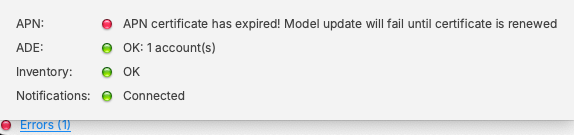](https://kb.filewave.com/uploads/images/gallery/2026-02/owIFDXr7VebYFYur-image.png) This guide explains how to create the Apple Push Notification Service (APNS) certificate for FileWave **using an online CSR generator and the XCA certificate management tool, instead of the Apple Keychain**. The Apple Keychain often causes issues with private key handling on newer macOS versions, so this method provides a more reliable alternative. You may use any online CSR generator (for example ssl.com), it does not have to be ssl.com specifically.**APNs Topic** An APNs certificate has a unique topic, in the form of a hexadecimal string, and belongs to the Apple ID used to create the certificate. When renewing, the topic must match to ensure devices continue to communicate with the server. As such, not only must the same Apple ID be used when renewing an APNs certificate, but the current certificate must also be selected for renewal.
## Step-By-Step Guide #### **Prerequisites** - Access to the **Apple Push Certificates Portal** ( [https://identity.apple.com/pushcert/](https://identity.apple.com/pushcert/) ). - A valid **Apple Business/School Manager account** or Apple ID. - Access to the **FileWave Central** console. - Installed **XCA** tool: [https://github.com/chris2511/xca/releases](https://github.com/chris2511/xca/releases) #### **Step 1: Generate CSR (Certificate Signing Request)** 1. Open the **CSR generator** at [ssl.com](https://www.ssl.com/online-csr-and-key-generator/). ( [https://www.ssl.com/online-csr-and-key-generator/](https://www.ssl.com/online-csr-and-key-generator/) ) 2. Enter the required details: - **Common Name (CN):** e.g. FileWave APNS - **Organization (O):** your company or school name - **Organizational Unit (OU):** optional, e.g. IT Department - **Country (C):** two-letter ISO code (e.g. DE) 3. Generate the CSR and download the files: - **CSR file (.csr)** - **Private Key (.key)**⚠️ Keep the **.key file** safe – you will need it later in XCA.
#### **Step 2: Sign the CSR with FileWave** Before the CSR can be uploaded to Apple, it must be signed by FileWave. 1. Navigate to [https://csr.filewave.com/](https://csr.filewave.com/) and log in with your FileWave account. 2. Upload the previously created **.csr file**. 3. Under *Download signed CSR*, your uploaded CSR should now appear as signed. 4. Download this newly signed CSR – this is the file you will upload to Apple in the next step. 5. Store the file in a secure location. [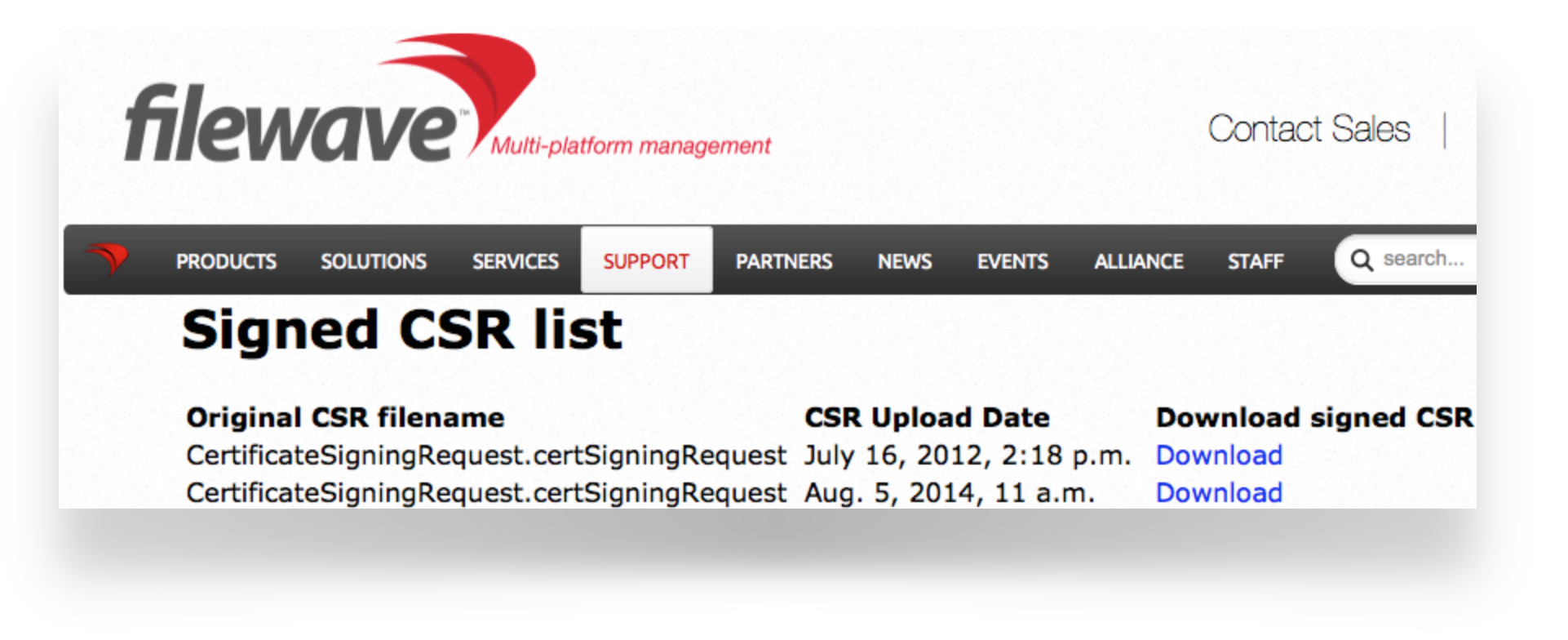](https://kb.filewave.com/uploads/images/gallery/2023-07/aUMBuc33HyIemxTq-image.png) #### **Step 3: Upload the signed FileWave CSR to Apple** If you are renewing a certificate then jump to [Renewing a Certificate](#bkmrk-renewing-an-existing) ##### **Creating a new certificate** 1. Go to the **Apple Push Certificates Portal**: [https://identity.apple.com/pushcert/](https://identity.apple.com/pushcert/). 2. Sign in with an Apple ID (⚠️ do not use a personal Apple ID – use a generic business or institution Apple ID for long-term use). 3. Click **Create**. 4. Accept Apple’s *Terms of Use*. 5. Click **Choose File** and upload the **signed FileWave CSR**. 6. Click **Upload** – Apple will confirm the request. 7. Download the issued **APNS certificate (.pem or .cer)**. [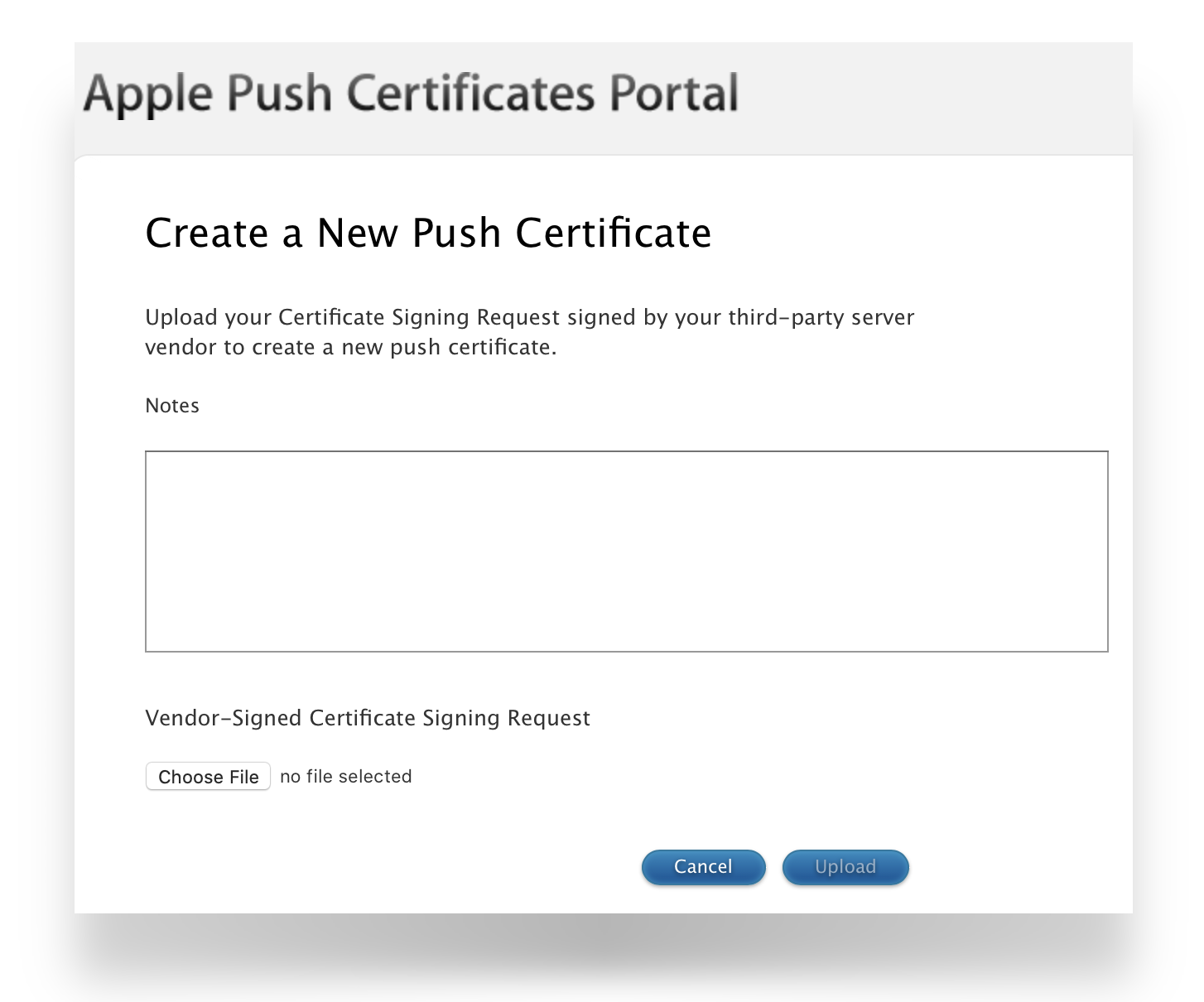](https://kb.filewave.com/uploads/images/gallery/2023-07/q3SFfJ5UMpW5OH2c-image.png) ##### **Renewing an existing certificate** 1. Go to [https://identity.apple.com/pushcert/](https://identity.apple.com/pushcert/) and log in with the same Apple ID that owns the certificate. 2. Locate the certificate to renew, confirm the *Subject DN (Topic)* matches the certificate in FileWave Admin. 3. Click **Renew**. 4. Upload the **signed FileWave CSR**. 5. Download the renewed **APNS certificate (.pem or .cer)**.If the 'Topics' do not match do not continue. If the correct certificate is not in the list on Apple's website, this is the wrong Apple ID. If this guide was followed in creating the original certificate, the previously used Apple ID will be viewable from the certificate "Private Key".
##### To confirm the certificate, compare the Subject DN (Topic) and current certificate. Clicking the 'i' button will show the certificate details, including the Topic: [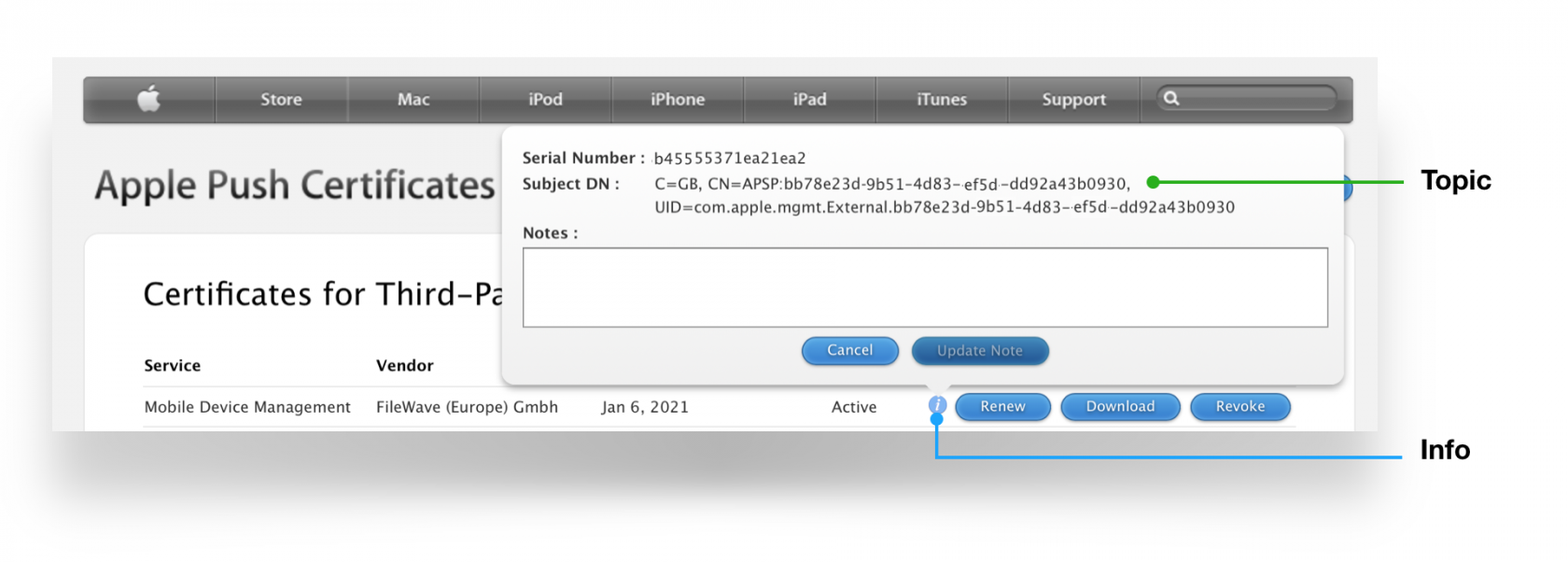](https://kb.filewave.com/uploads/images/gallery/2023-07/EY8Q5DZth1VIaIlJ-image.png) Ensure this matches with the 'Current Certificate' in FileWave Admin > Preferences > Mobile > Apple Push Notification Certificate: [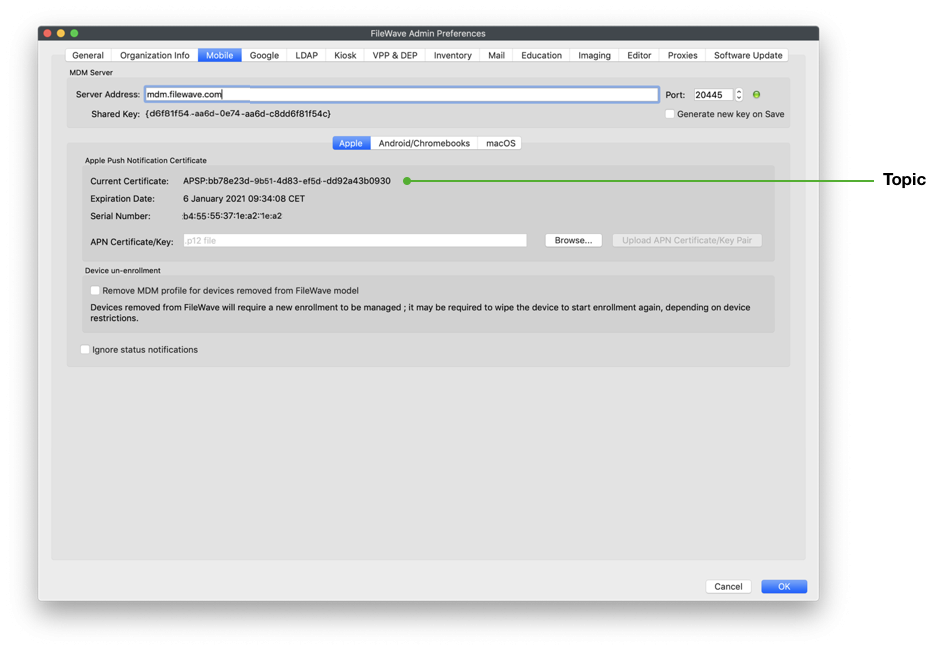](https://kb.filewave.com/uploads/images/gallery/2023-07/5UNFgg1tC7c2u7NY-image.png) #### **Step 4: Import and process the certificate in XCA** 1. First, download **XCA for macOS**: [https://github.com/chris2511/xca/releases](https://github.com/chris2511/xca/releases) 2. Install and start **XCA**. 3. Go to **Private Keys** → *Import* and select the previously saved **.key file** from Step 1. 4. Go to **Certificates** → *Import* and load the APNS certificate you downloaded from Apple (.cer/.pem). 5. Link the certificate with the corresponding private key in XCA. 6. **Export the certificate as a PKCS #12 (.pfx) file – important: without a password.** 7. After export, **rename the .pfx file to .p12** (FileWave requires the .p12 extension). #### **Step 5: Import the certificate into FileWave** 1. Open the **FileWave Admin**. 2. Go to **Preferences** → **Mobile**. [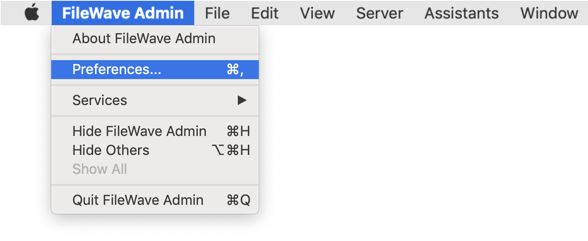](https://kb.filewave.com/uploads/images/gallery/2023-07/PZDUQSCEcAP5ab0F-image.png) 3. Import the **.p12 file** you exported from XCA by browsing to the file and then picking to Upload. The topic should match the previous topic. FileWave Central should warn if the topics do match before accepting the upload. [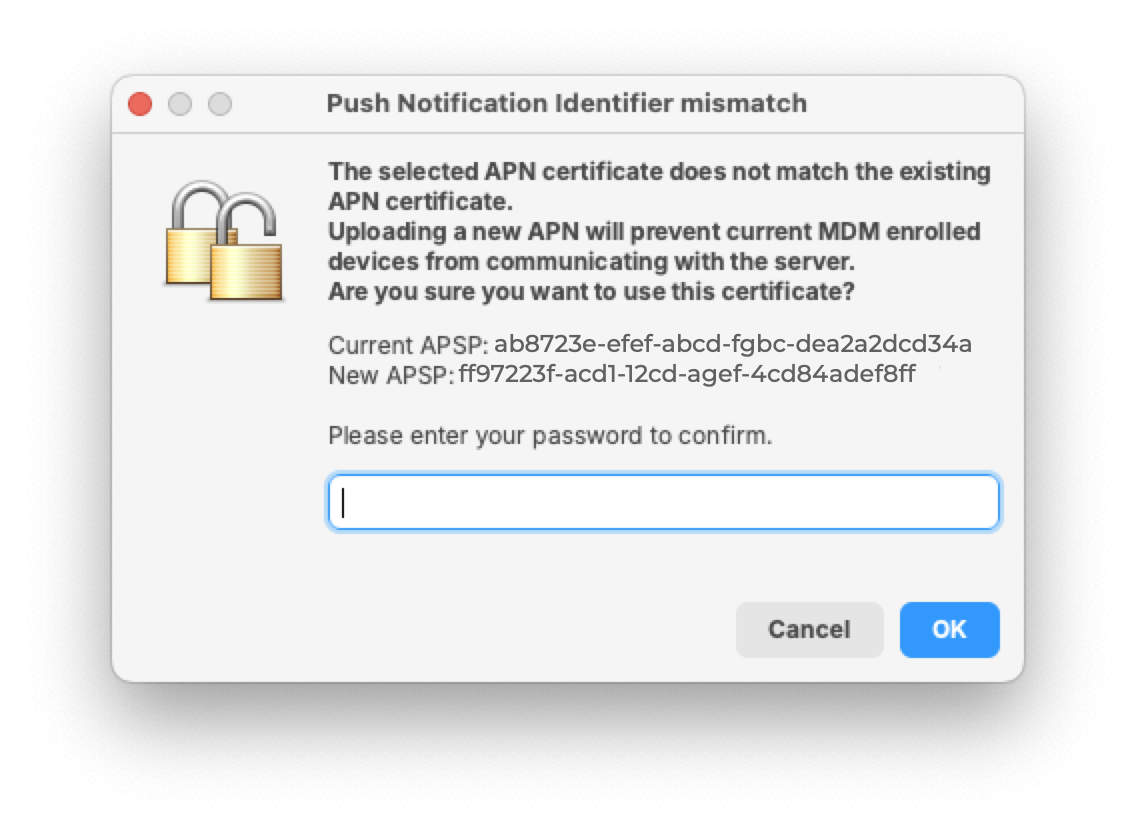](https://kb.filewave.com/uploads/images/gallery/2026-02/M8qpq5EUMPbud9Aq-image.png) 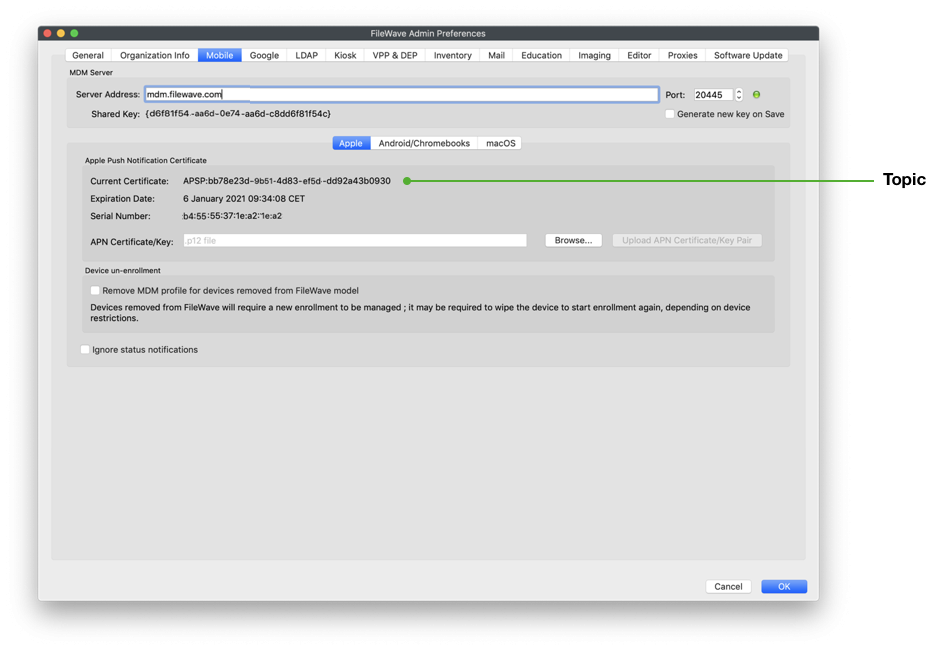 4. Save the settings by clicking OK to close the preferences dialog and verify that devices are communicating. #### **Step 6: Verification** - Test whether new or existing MDM clients correctly connect to the APNS service. - Check the logs in FileWave Admin to ensure there are no certificate errors.APNs certificates require yearly renewals. Through FileWave Admin > Dashboard > Alert Settings, automated emails may configured. Consider adding 'APN for MDM'. Note this requires the Email preferences in Admin to be configured.
## Contact Apple for help If you forgot the email tied to your Apple Push Notiifcation you may reach out to Apple for assistant [Contact Apple for help with APN](https://support.apple.com/en-us/118629) ## Related articles - [APNs Certificate Creation & Renewal on macOS Computers (Keychain)](https://kb.filewave.com/books/certificates/page/apns-certificate-creation-renewal-on-macos-computers-keychain "APNs Certificate Creation & Renewal on macOS Computers (Keychain)") - [APNs Certificate Creation & Renewal on Windows](https://kb.filewave.com/books/certificates/page/apns-certificate-creation-renewal-on-windows-computers "APNs Certificate Creation & Renewal on Windows Computers")