# Disable Chrome OS in FileWave

Use this workflow when you need to remove the Google OAuth token from FileWave and stop ChromeOS management for the environment. This disables ChromeOS integration in FileWave Central and returns the ChromeOS license count to zero.

<p class="callout info">This page disables ChromeOS management for the whole FileWave environment. If you only need to retire, sell, dispose of, or reassign individual Chromebooks, use [Removing ChromeOS / Chromebook devices](https://kb.filewave.com/link/1166). For reset or reassignment actions, see [Powerwash / Wipe Users on ChromeOS](https://kb.filewave.com/link/834).</p>

## <span class="fabric-text-color-mark">Disable ChromeOS management in FileWave</span>

1. Open Preferences in FileWave Central.
2. Go to the Chromebooks tab.
3. Click Configure OAuth token.
4. Sign in with your superuser credentials.
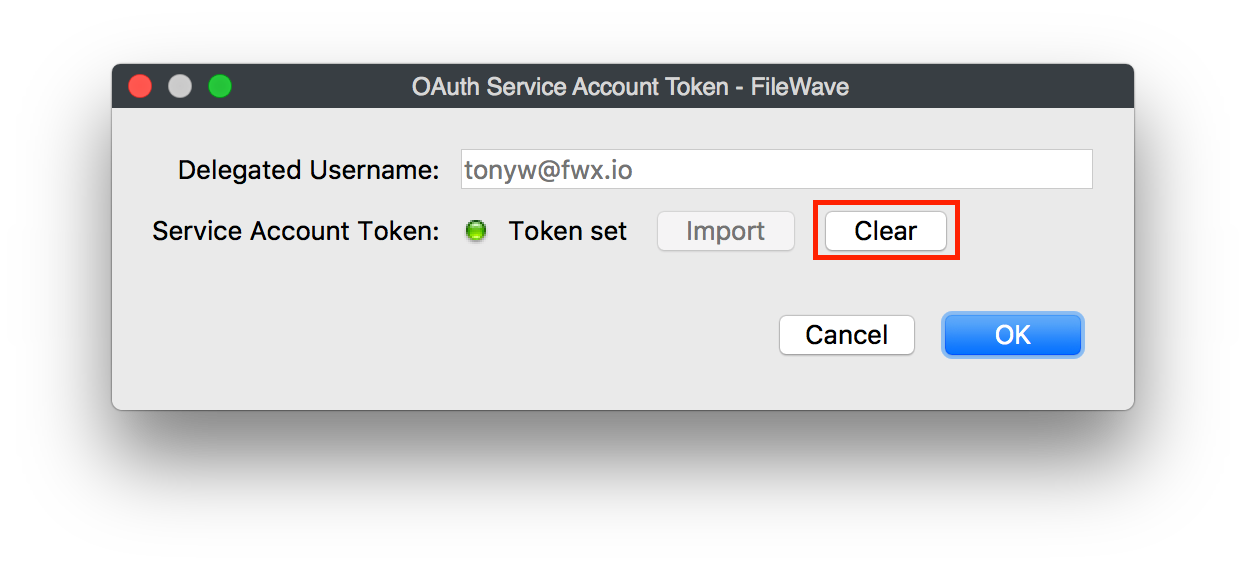
5. In the window that opens, click Clear.
    
    <div class="rich-media-item mediaSingleView-content-wrap image-align-start css-9s0sgq"><div class="css-1pokzg4"><div class="new-file-experience-wrapper css-1czd3xs" id="bkmrk-"><div class="media-file-card-view css-1yn77bd">![disablechrome-clear.png](https://kb.filewave.com/uploads/images/gallery/2023-06/CyUmznEHMn6pxeOx-disablechrome-clear.png)</div></div></div></div>
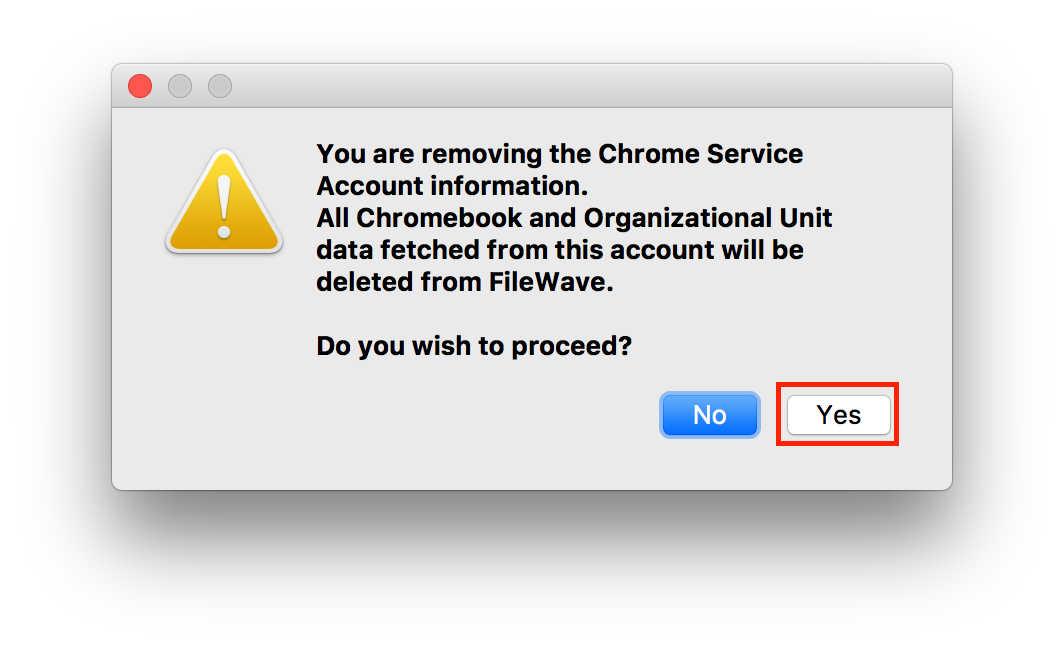
6. Confirm that you want to proceed by clicking Yes.
    
    <div class="rich-media-item mediaSingleView-content-wrap image-align-start css-9s0sgq"><div class="css-e8jniq"><div class="new-file-experience-wrapper css-1j31dtq" id="bkmrk--1"><div class="media-file-card-view css-1yn77bd">![disablechrome-confirmUPDATED.png](https://kb.filewave.com/uploads/images/gallery/2023-06/WFnc1afnCIMGulJ5-disablechrome-confirmupdated.png)</div></div></div></div>

<span class="fabric-text-color-mark">ChromeOS management is now disabled in FileWave, and the ChromeOS license count is zero.</span>

## Related Content

- [Removing ChromeOS / Chromebook devices](https://kb.filewave.com/link/1166)
- [Chromebook Management](https://kb.filewave.com/link/459)