# Reboot for ChromeOS (15.3+)
## What
For an MDM (Mobile Device Management) administrator managing ChromeOS devices, the ability to remotely send a reboot command is a powerful tool for device maintenance and troubleshooting. This command ensures that devices are running smoothly, updates are applied, and any minor issues are resolved without the need for manual intervention.
## When/Why
### Understanding the Reboot Command
- **Purpose**: The reboot command allows administrators to remotely restart ChromeOS devices, which is essential for applying updates, enforcing new policies, or fixing software issues.
- **Execution**: Through the MDM solution integrated with Google's Chrome Enterprise services, admins can issue reboot commands directly from the management console. This process ensures that all devices are up-to-date and functioning as expected.
- **Considerations**: When sending a reboot command, it's important to consider the timing and potential impact on users. Ideally, reboots should be scheduled during off-hours or times when the device is not in active use to minimize disruption. It's also good practice to inform users about planned reboots.
### Practical Use Cases
1. **Applying Updates**: To ensure devices have the latest features and security patches.
2. **Resolving Issues**: To fix minor glitches that can be cleared with a restart.
3. **Enforcing Policies**: To apply new configurations or policies that require a reboot to take effect.
### Tips for MDM Administrators
- **User Communication**: Notify users about scheduled reboots, especially if they are during working hours.
- **Scheduling**: Plan reboots during times that will least impact users, like after-hours or during known downtime.
- **Monitoring**: After issuing a reboot command, monitor the devices to ensure they restart successfully and operate as expected.
By leveraging the reboot command through your MDM solution, you can maintain control over the ChromeOS devices within your organization, ensuring they remain secure, up-to-date, and operate without issues. This command is a straightforward yet essential part of device management that helps keep everything running smoothly.
## How
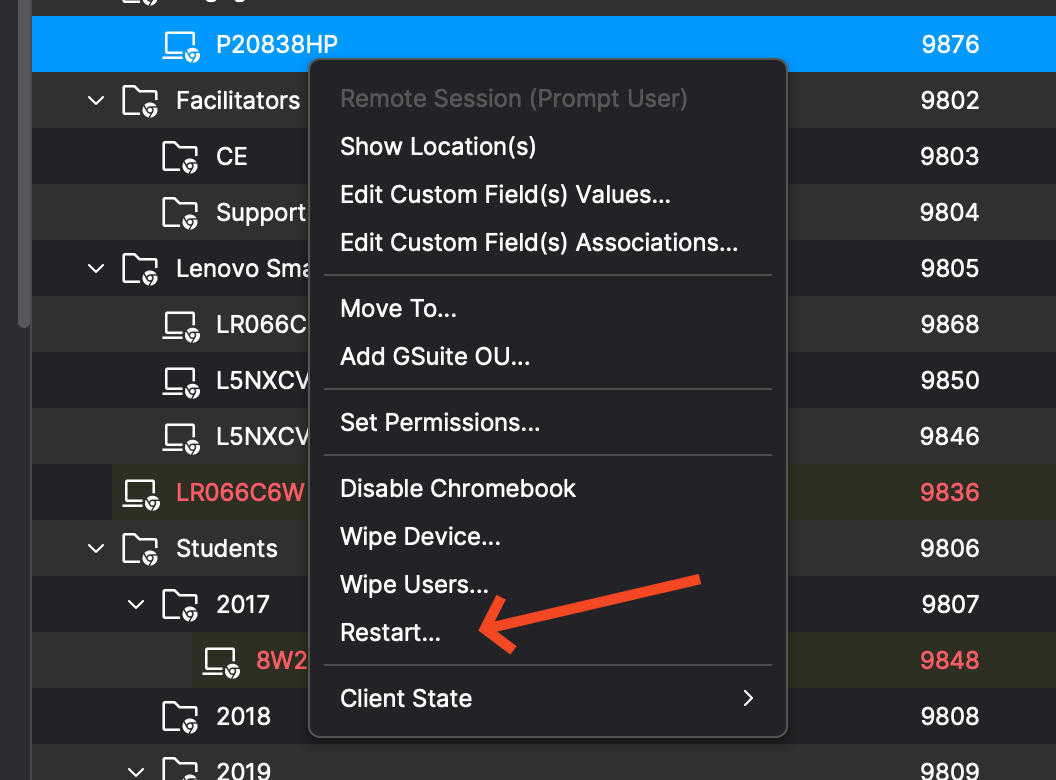
This command is executed by right clicking one or more Chromebooks and picking Restart... as shown below.
[](https://kb.filewave.com/uploads/images/gallery/2024-03/O5G5bxtYHW2RHfpf-image.png)
**REBOOT Command**
- **Description:** Introducing the REBOOT command, enabling system administrators to reboot devices for troubleshooting remotely and applying system updates.
- **Execution:** Initiates the remote reboot process on the selected devices.
- **Access:**
- The REBOOT command is accessible through the Central as well as Anywhere Admin for ChromeOS devices.
- Find the command in the dropdown menu labeled "Reboot..."
- Read permissions is the only requirement.
**Command History tab**
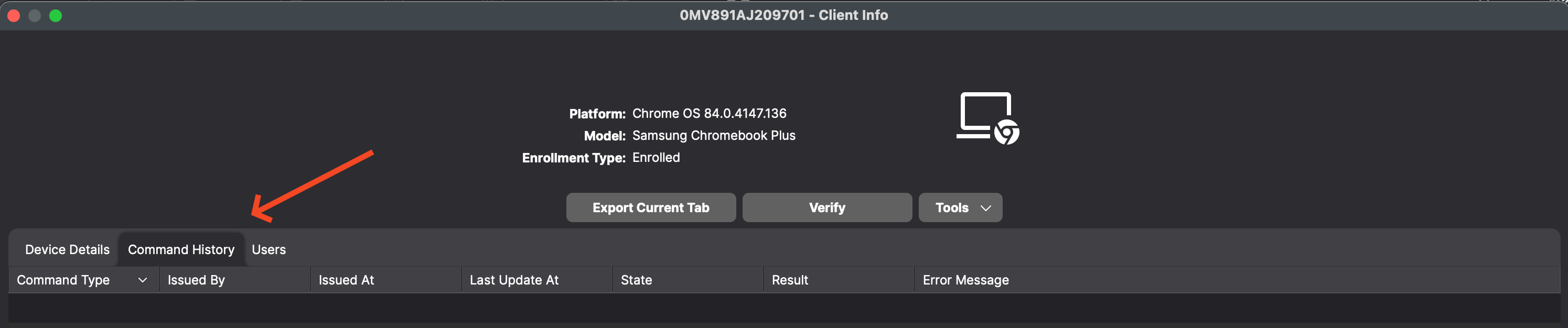
- **Description:** Users can now view all information related to sending REMOTE\_POWERWASH, WIPE\_USERS, and REBOOT Commands in the Command History tab for Chromebook devices. As shown below you can see this when looking at device details for a Chromebook.
[](https://kb.filewave.com/uploads/images/gallery/2024-03/HaBAriEtQkZmttxh-image.png)
Related Content
- [ChromeOS](https://kb.filewave.com/books/chromeos "ChromeOS")
- [Powerwash / Wipe Users on ChromeOS (15.3+)](https://kb.filewave.com/books/chromeos/page/powerwash-wipe-users-on-chromeos-153 "Powerwash / Wipe Users on ChromeOS (15.3+)")