Restart ChromeOS Devices
What
Send Restart from FileWave Central or FileWave Anywhere to reboot one or more managed Chromebooks. Use it after an update that requires a restart or as a targeted troubleshooting step.
Before you restart a Chromebook
Plan around the active user
- Restart interrupts the current session, so notify users before a planned maintenance restart.
- Choose a maintenance window or confirm that the selected devices are not in active use.
- Start with a small group when the restart is part of a broader update or policy rollout.
Good reasons to restart
- An installed ChromeOS update is waiting for a restart.
- A specific Chromebook is unresponsive or has a problem that a normal restart may clear.
- A tested configuration change explicitly requires the device to restart.
Verify the result
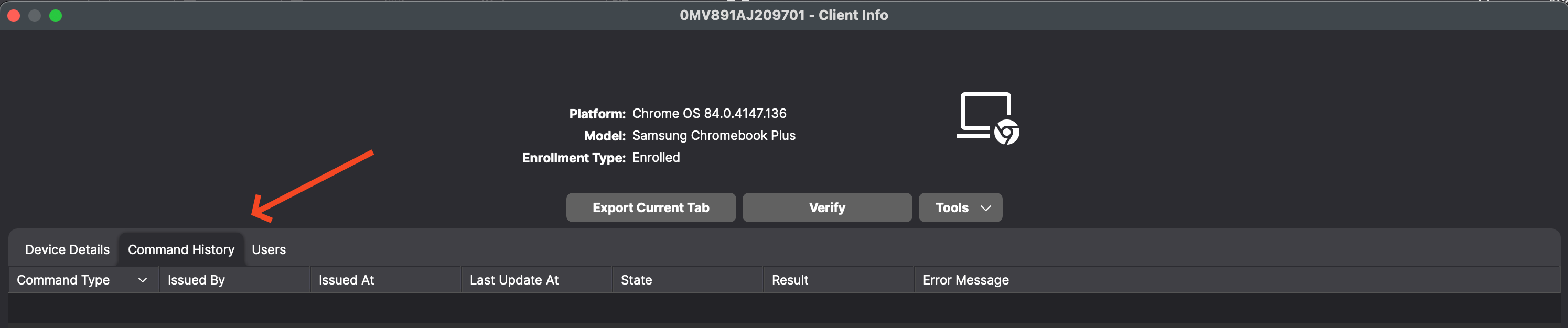
- Open the Chromebook's Command History tab and review the command state, result, and any error message.
- Confirm that the device returns to normal inventory and communication after it starts again.
A successful command confirms that FileWave delivered the restart request. Continue troubleshooting if the Chromebook returns with the same symptom.
Send Restart
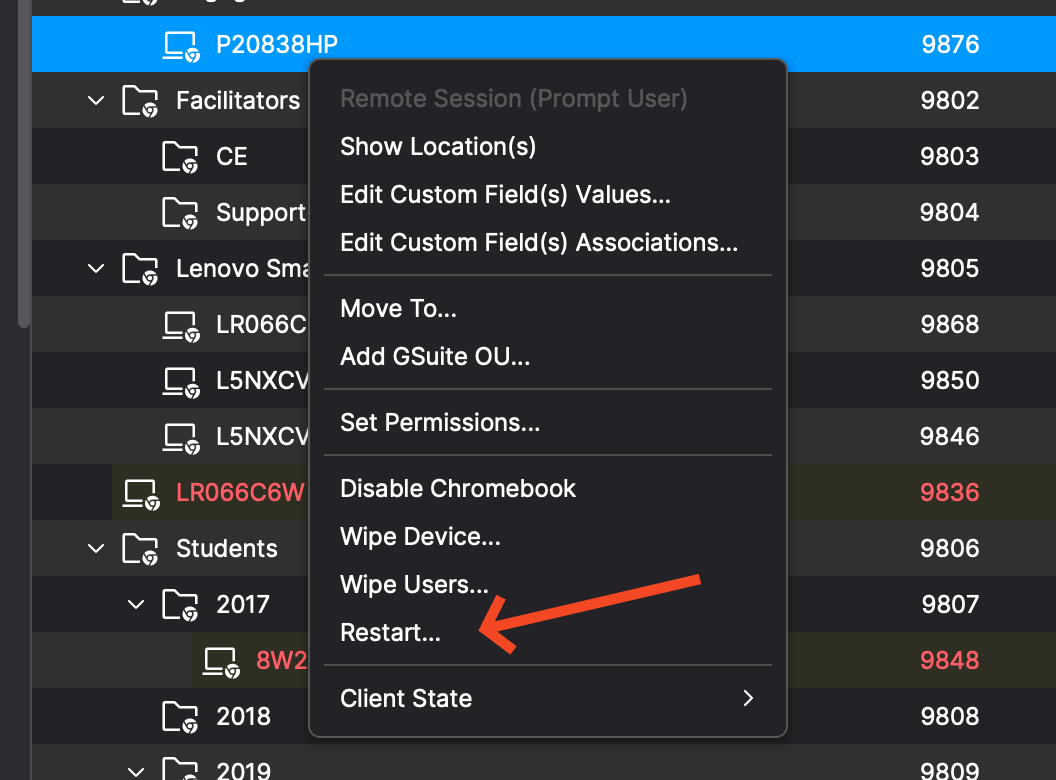
Select one or more Chromebooks, open the device action menu or right-click the selection, then choose Restart... as shown below.
Restart command details
-
Command: FileWave sends the ChromeOS
REBOOTcommand when you choose Restart.... -
Scope: The action applies to the selected Chromebook or Chromebooks.
-
Access:
-
The action is available for ChromeOS devices in FileWave Central and FileWave Anywhere.
-
The visible menu label is Restart....
-
If Restart... is unavailable, check that the administrator role can view the Chromebook and send device actions.
-
Check Command History
-
The Chromebook's Command History tab records
REMOTE_POWERWASH,WIPE_USERS, andREBOOTcommands with the issuer, timestamps, state, result, and error message.