# Restart ChromeOS Devices
## What
Send **Restart** from FileWave Central or FileWave Anywhere to reboot one or more managed Chromebooks. Use it after an update that requires a restart or as a targeted troubleshooting step.
## Before you restart a Chromebook
### Plan around the active user
- Restart interrupts the current session, so notify users before a planned maintenance restart.
- Choose a maintenance window or confirm that the selected devices are not in active use.
- Start with a small group when the restart is part of a broader update or policy rollout.
### Good reasons to restart
1. An installed ChromeOS update is waiting for a restart.
2. A specific Chromebook is unresponsive or has a problem that a normal restart may clear.
3. A tested configuration change explicitly requires the device to restart.
### Verify the result
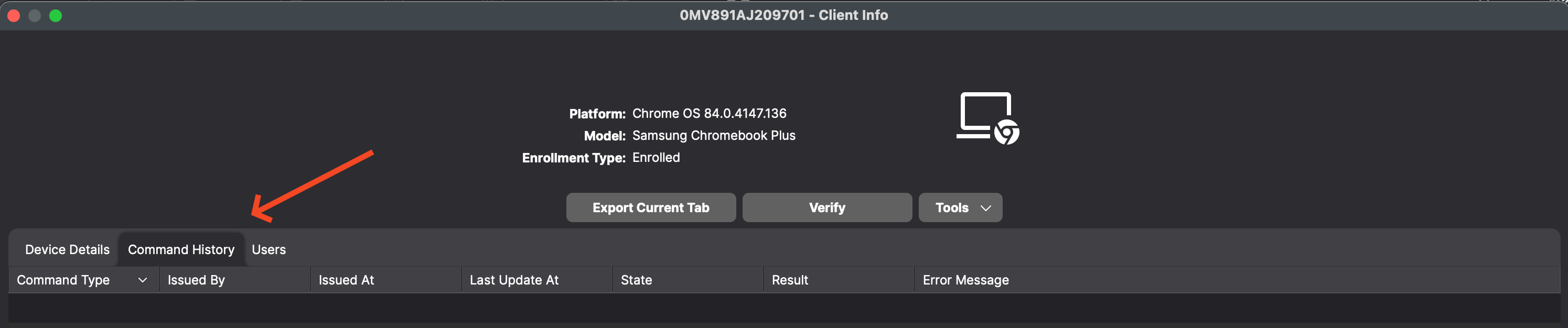
- Open the Chromebook's **Command History** tab and review the command state, result, and any error message.
- Confirm that the device returns to normal inventory and communication after it starts again.
A successful command confirms that FileWave delivered the restart request. Continue troubleshooting if the Chromebook returns with the same symptom.
## Send Restart
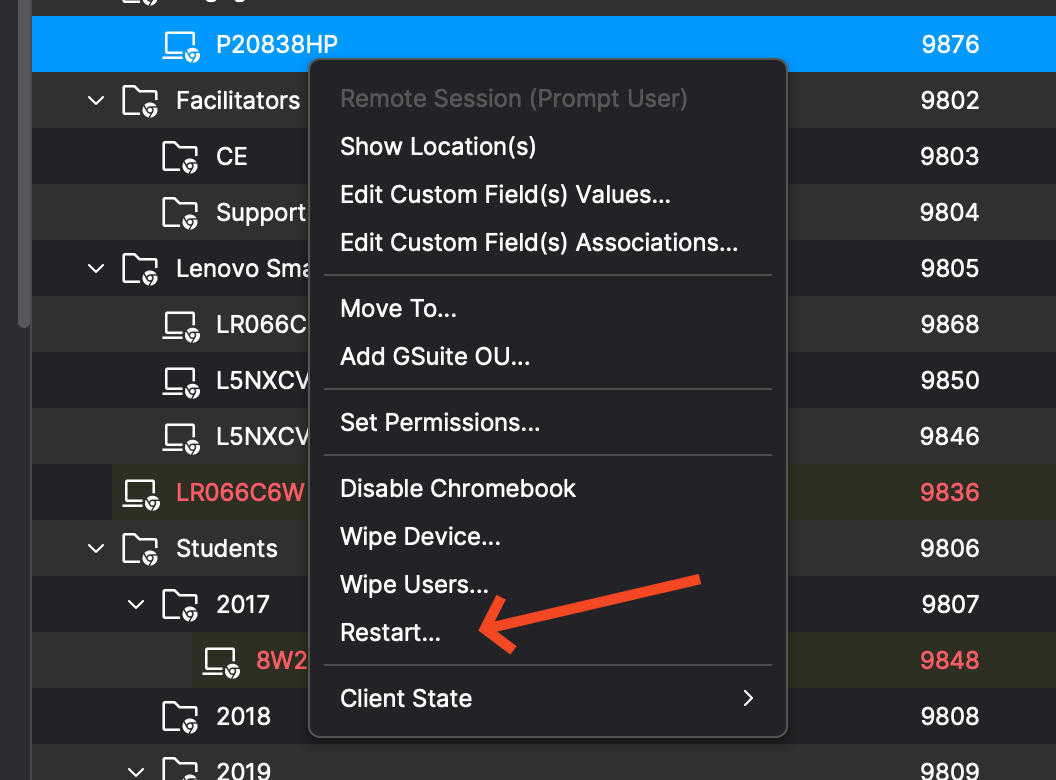
Select one or more Chromebooks, open the device action menu or right-click the selection, then choose **Restart...** as shown below.
[](https://kb.filewave.com/uploads/images/gallery/2024-03/O5G5bxtYHW2RHfpf-image.png)
### Restart command details
- **Command:** FileWave sends the ChromeOS `REBOOT` command when you choose **Restart...**.
- **Scope:** The action applies to the selected Chromebook or Chromebooks.
- **Access:**
- The action is available for ChromeOS devices in FileWave Central and FileWave Anywhere.
- The visible menu label is **Restart...**.
- If **Restart...** is unavailable, check that the administrator role can view the Chromebook and send device actions.
### Check Command History
- The Chromebook's **Command History** tab records `REMOTE_POWERWASH`, `WIPE_USERS`, and `REBOOT` commands with the issuer, timestamps, state, result, and error message.
[](https://kb.filewave.com/uploads/images/gallery/2024-03/HaBAriEtQkZmttxh-image.png)
## Related content
- [ChromeOS](https://kb.filewave.com/books/chromeos "ChromeOS")
- [Powerwash / Wipe Users on ChromeOS (15.3+)](https://kb.filewave.com/books/chromeos/page/powerwash-wipe-users-on-chromeos-153 "Powerwash / Wipe Users on ChromeOS (15.3+)")