Community Engagement
Information on our communities, training systems, and how to connect with us.
- FileWave Knowledge Base
- FileWave Knowledge Base AI Assistant
- Using Email to stay updated on KB updates
- Using RSS to stay updated on KB updates
- FileWave Product Management
- FileWave Roadmap Feedback and Product Suggestions Portals
- FileWave Discord Server
- FileWave Foundry
- Customer Event Schedule
- Customer Success
- Customer Technical Support
- FileWave Support Resources
- Cloud Hosting
- Cloud Hosting Product Information
- Cloud Hosting / Services Maintenance Schedule
- FileWave SaaS Service Level Agreement
- SSL Certificate Management for Custom Domains (FileWave-Hosted Servers)
- FileWave On-Premise Service Level Agreement
- Professional Services & Training
- FileWave Community Edition
FileWave Knowledge Base
Welcome to the FileWave Knowledge Base, the main home for FileWave documentation, product guidance, and customer-facing resources. You can use the Knowledge Base in a few different ways:
- browse Shelves to see the main documentation areas
- browse Books when you already know the section you want
- use the search box at the top of the page to find specific topics quickly
- use the FileWave Knowledge Base AI Assistant for guided help finding answers in the KB
Good starting points
These are useful places to begin:
- Evaluation Guide for customers getting started with FileWave
- Downloads for current software releases
- Community Engagement for customer resources, events, support, and training links
- Customer Event Schedule for upcoming FileWave events
- Using RSS to stay up to date for KB update notifications by RSS
- Using Email to stay up to date for KB update notifications by email
Some books and pages require a KB login before they are visible. Logging in also enables comments on KB pages. If you are new to FileWave and need KB access, contact customer.success@filewave.com.
Reporting issues or feedback
If you find an article that is wrong, unclear, or missing information:
- email kb@filewave.com
- open a case with Customer Technical Support
- discuss ideas and questions in the FileWave Discord Server
FileWave Knowledge Base AI Assistant
Who is Dave?
Dave is the FileWave KB AI assistant powered by Wonderchat. It uses FileWave KB content to answer questions about using FileWave and can respond in multiple languages.
How can I access Dave?
In the KB, click the chat bubble in the lower right corner.

In FileWave 16.1.0 and later, the same chat bubble is available in FileWave Anywhere. FileWave Central also has a toolbar button that opens a chat session, so you can ask a KB question without leaving the admin workflow.
Disable the chatbot
To hide Dave in FileWave Central and FileWave Anywhere, open Preferences in FileWave Central and disable the chatbot. Dave processes chat requests in the cloud, not on your local computer.
Why is he called Dave?
The name is a nod to a few fictional Daves and Davids who fit the helper theme: Dave Bowman from 2001: A Space Odyssey, Dave Lister from Red Dwarf, Dave from Dave, Dave from Hot Tub Time Machine, and David from Prometheus.
It is not a technical requirement. It is just a memorable name for the assistant you can ask when you need a fast pointer into the KB.
Related Content
Using Email to stay updated on KB updates
What
As a user of FileWave, you want to know when KB articles are created or updated. The KB has a built-in function to watch for changes to articles to keep you up to date. Note that if you prefer an RSS feed we have that too. Using RSS to stay updated on KB updates.
When/Why
Some articles are very important to know about updates for like Default TCP and UDP Port Usage or the Downloads book so receiving an email on every edit is desired.
Note that you need to login to the KB in order to use the Email notification system outlined in this article.
How
It’s now possible to be notified via email upon page changes within the KB! Alongside this you can also be notified upon new comments to pages. To provide some high-level user control, there’s a new “Notification Preferences” view which can be accessed via the “My Account” option in the header bar user dropdown:
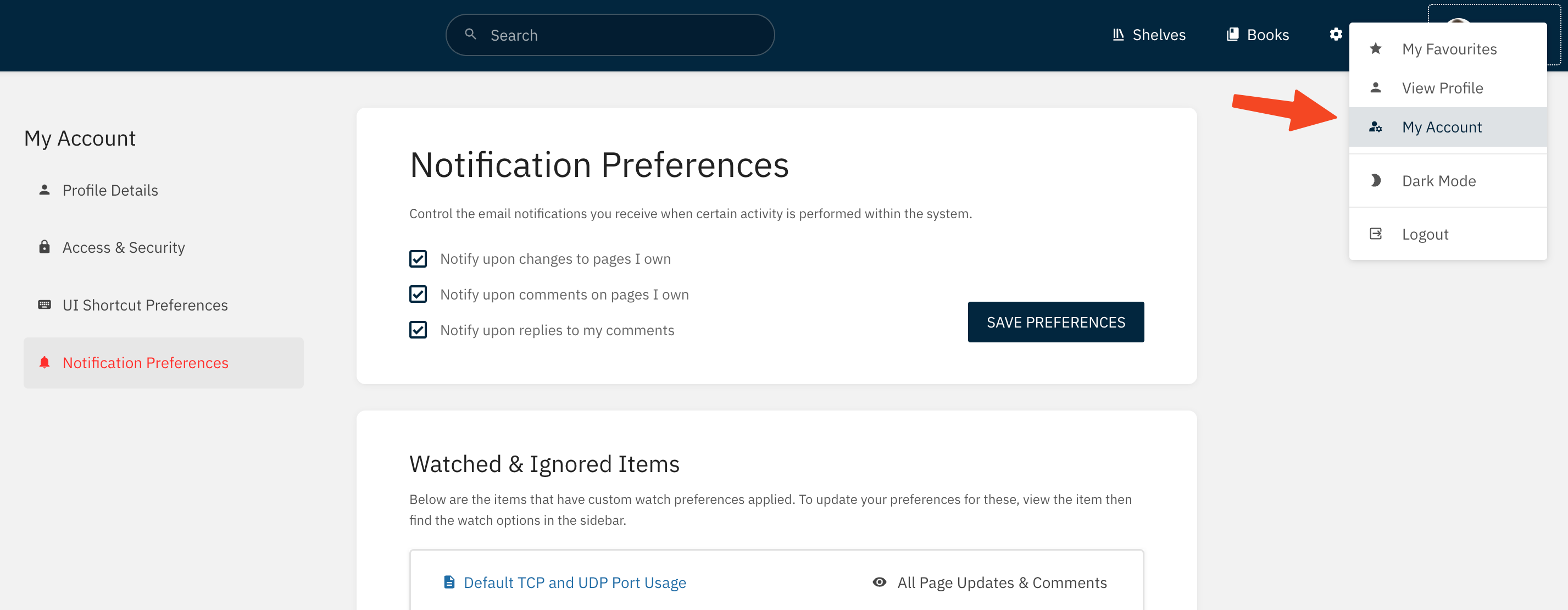
Within here are three new user preferences:
- Notify upon changes to pages I own
- Notify upon comments on pages I own
- Notify upon replies to my comments
These options represent global defaults for notifications. This new “Notification Preferences” view also lists all the items you’re watching or ignoring. Watching or ignoring allows content-specific control of notifications that may work in addition to, or override, your global notification preferences. You can watch any book, chapter or page via the new “Watch” action:
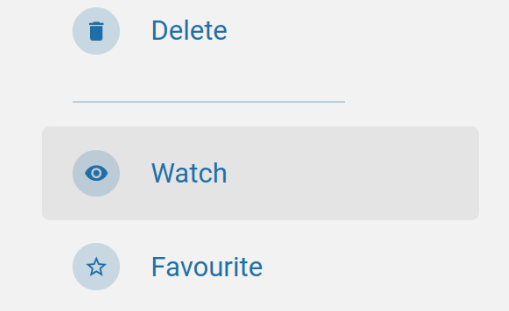
By default this will watch for new pages and page changes. This can be changed via the watch options menu, found by selecting the watch status in the details:
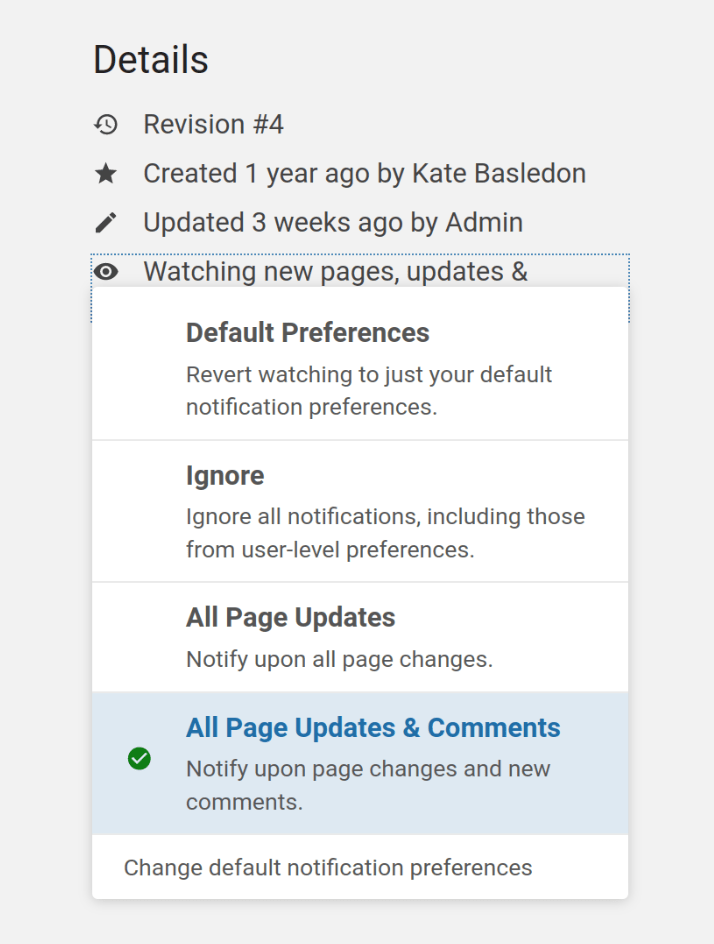
This provides various different levels of watching of content, in addition to the ability to ignore any notification events if things are getting too noisy within a particular book, chapter or page.
In in similar manner to permissions, watch preferences cascade from books to chapters to pages unless those have their own watch preferences set to override the parent status. When a page or chapter has active watch preferences from a parent item, this will be reflected within its details:

Notifications are sent upon relevant activity, and will include a few helpful related details in addition to a link to the relevant content:
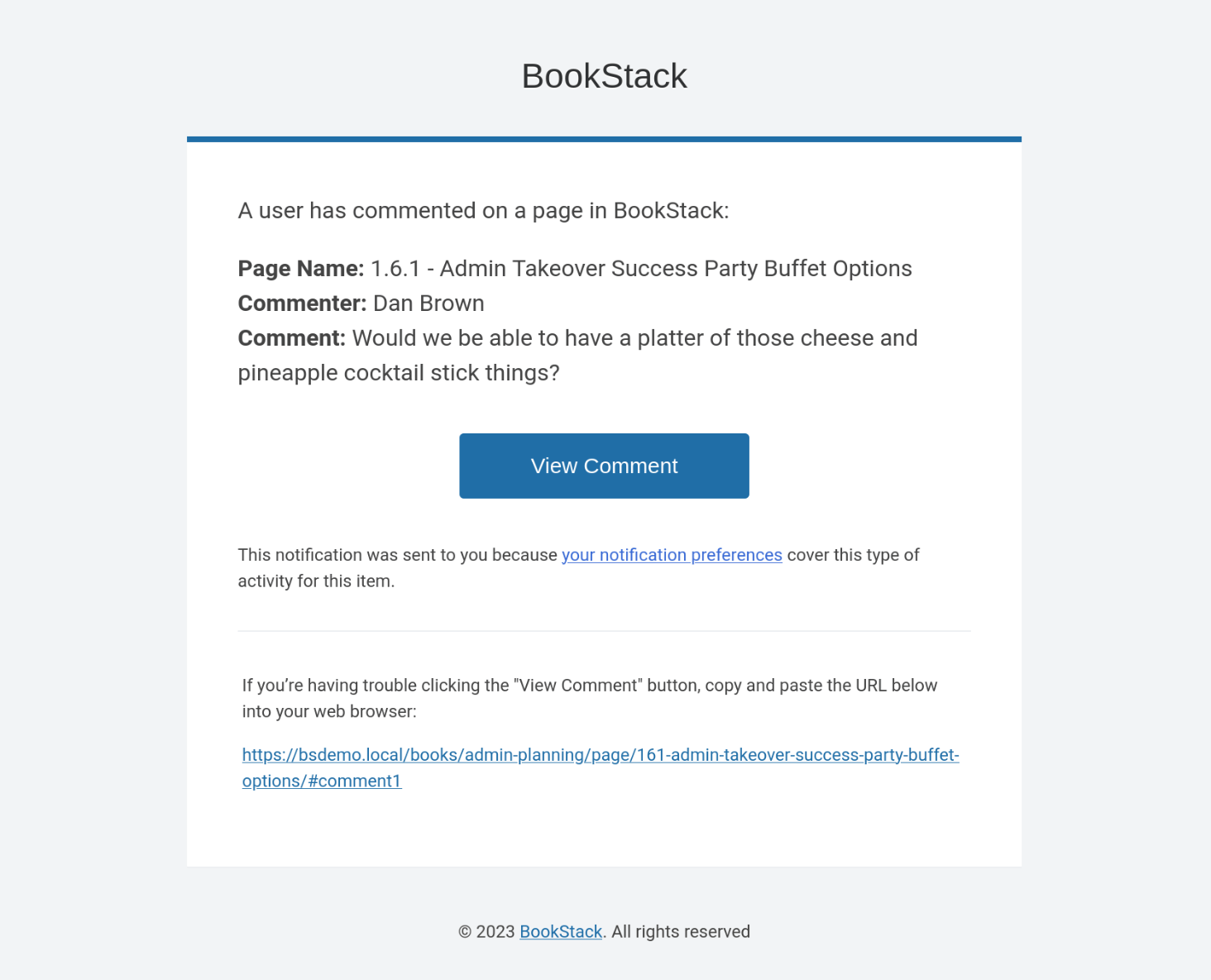
Page update notifications are somewhat debounced, meaning that the system will avoid sending notifications if re-updated by the same author within a time window. This is to prevent an attack of emails from an enthusiastically updating author.
Related Content
Using RSS to stay updated on KB updates
What
As a user of FileWave, you want to know when KB articles are created or updated. The KB has a built-in function called an RSS feed that can keep you updated on what has changed.
Note that the KB also has a native way you can be notified via email about updates to Books, Chapters or Pages. If you would prefer that then make sure to login to the KB and then look for "Watch" on the right side of the page while viewing something. Using Email to stay updated on KB updates
When/Why
An RSS feed is a format for delivering summaries of regularly changing web content. Subscribing to an RSS feed lets you stay informed of the latest content from sites you are interested in.
RSS is not designed to be read in a regular web browser. Specialized RSS newsreader programs can check RSS files every so often, and tell you what's new on a site. Your reader may be on a website, a browser extension, part of your email program, or a stand-alone program.
How
Use any RSS reader to subscribe to one of the below feeds, and you will always know what is new.
Feeds
- https://kb.filewave.com/rss/pages/new - A list of the last 25 new articles. This feed is good if you only want to know about newly created articles.
- https://kb.filewave.com/rss/pages/updated - A list of the last 25 updated articles. This feed is good if you want to know about all of the edits.
Tools
The following are some popular RSS readers for various operating systems.
Windows
Mac OS X
Multi-platform
-
RSS Feed Reader (Chrome browser)
-
Radio Userland (Windows and MacOS)
-
AmphetaDesk (Windows, Unix, Mac OS X)
Related Content
FileWave Product Management
At FileWave, Product Management plays a key role in determining the trajectory of our solutions. Our commitment to transparency involves regularly sharing our product roadmap, a strategy that both fosters trust with users and ensures our product evolution remains aligned with user needs and market trends.
Product Management at FileWave
Product Management at FileWave combines a breadth of expertise, drawing from domains such as software development, user experience, customer support, and relevant industry areas. This wealth of knowledge enables the team to develop and manage a product roadmap that truly reflects the needs and demands of our user base.
The product roadmap outlines the strategic direction for our product offerings. It details the enhancements and new features we plan to implement over the coming quarters. This roadmap is regularly updated and evolves in response to market demands, customer feedback, and technological advancements.
How to Access the Roadmap?
The roadmap is made accessible to all registered users of our knowledge base.
To access the roadmap:
- FileWave Roadmap Feedback and Product Suggestions Portals article to access our roadmap.
Please note: If you don't have access to submit ideas, our Customer Experience team can help. Contact them for assistance in gaining access to this valuable resource.
Feedback and Suggestions
Feedback from our users is invaluable in shaping our products. We encourage you to share your thoughts, experiences, and suggestions for improvements or new features. This collaborative process ensures our solutions continually meet your needs and exceed your expectations.
The Feedback and Suggestions portals can be accessed using the same link above. once you're logged in, but even easier is that it is now in the Help menus for FileWave Central as of FileWave 16.0.0 so you can submit feedback even easier! We look forward to hearing from you!
FileWave Roadmap Feedback and Product Suggestions Portals
At FileWave, we are committed to continuous improvement and innovation in our solutions. This is made possible by the valuable insights and suggestions from our users. To make this process of feedback and idea sharing more streamlined, we have established two dedicated portals: the FileWave Roadmap Feedback Portal and the FileWave Product Suggestions Portal.
FileWave Roadmap Portal
Our Roadmap Feedback Portal is an interactive platform designed to facilitate communication regarding our product roadmap. This portal gives you the opportunity to share your thoughts and experiences related to our roadmap, enabling us to better align our future plans with your needs and expectations.
Access the FileWave Roadmap Portal here: FileWave Roadmap
FileWave Product Suggestions Portal
Innovation is driven by ideas, and your ideas matter to us. Our Product Suggestions Portal is specifically designed to capture your suggestions for product improvements or new features. By sharing your insights, you can help us shape the future direction of FileWave.
Access the FileWave Product Suggestions Portal here: FileWave Feedback Portal
We encourage you to use these portals and contribute your feedback and suggestions. Your input plays a crucial role in our continuous product development process, and we're excited to hear from you! If you have any questions or require assistance, please do not hesitate to contact our support team.
FileWave Discord Server
The FileWave Discord Server is our community space for customers who want to connect with other FileWave users, join live events, ask questions, and stay engaged between support cases. If you used the Alliance Forums in the past, Discord now fills that role.
What you will find in Discord
The FileWave Discord community is a good place for:
- peer discussion with other FileWave admins
- product conversation and practical tips
- live events, demos, and community sessions
- Office Hours and other chances to ask questions in a more open forum
How to join
Join the FileWave Discord Server using the customer access link: Join Discord.
If you are new to Discord, you can create a free account during the sign-up process.
Events and ongoing engagement
Check the events areas in Discord for upcoming sessions and community activity. You can also view the full Customer Event Schedule.
Which channel to use for what
Discord is a good place for community discussion, learning, and staying connected between support cases. If you are not sure where something belongs, this is the simple split:
- Use Discord for community discussion, event conversations, and informal questions with other FileWave admins.
- Use Customer Technical Support for break/fix issues and troubleshooting when something is not working as expected.
- Use Customer Success for renewals, license expansion, account questions, and general lifecycle guidance.
- Use Professional Services & Training for onboarding, migrations, training, health checks, and other strategic service-led work.
FileWave Foundry
FileWave Foundry is FileWave’s online learning and certification platform. It is built for customers who want to learn FileWave at their own pace, whether they are just getting started or looking to go deeper on day-to-day administration and best practices.
What you can use Foundry for
Foundry is a good place to:
- get started with FileWave
- build practical administrator skills
- learn best practices and common workflows
- prepare for more structured training and certification
- learn on your own schedule, from wherever you are
Foundry is also evolving over time, so the best place to see the current learning paths and available content is inside Foundry itself rather than on a static index page.
FileWave Certified Administrator
If you want a more structured path, Foundry also supports the FileWave Certified Administrator (FCA) program. That path includes guided coursework, reviewed assignments, instructor interaction, and certification for customers who want a deeper level of FileWave knowledge.
For pricing and enrollment details for FCA, please contact Customer Experience.
Accessing the Foundry
You can access FileWave Foundry at foundry.filewave.com. Sign in with the same single sign-on credentials you use for FileWave support-related services. You do not need to be a support contact to access Foundry.
If you want to use Foundry on the go, you can also download the Moodle mobile app.
Feedback or questions
If you have feedback about Foundry itself, email Foundry@FileWave.com.
Related Content
Customer Event Schedule
This calendar shows upcoming FileWave customer-facing events, including training sessions, office hours, demos, product discussions, and other FileWave-hosted activities. If you want to stay current on live sessions, this is the best place to start. Subscribe to this calendar to keep these events in your own calendar app.
Upcoming events
Click any event to see full details, or open the full calendar in a new tab.
Subscribe to this calendar
ICS subscription URL (copy/paste):https://cal.filewavex.org/jlevitsk/4a200847-b37c-036a-ee8e-d80d67d98dca/
- Apple Calendar (macOS / iOS) and many desktop calendar apps:
Use the ICS URL above, or open the calendar subscription URL. - Google Calendar (web):
Google Calendar → Other calendars → + → From URL, then paste the ICS URL above.
Note: Google refreshes external calendars periodically, not instantly. - Outlook on the web (Microsoft 365 / Outlook.com):
Outlook Calendar → Add calendar → From internet, then paste the ICS URL above.
One-time download (snapshot only): Download .ics
Related Content
Customer Success
Customer Success is the team to contact when you are not sure where to start. If you have questions about renewals, licensing, account contacts, or which FileWave team can help, send us a note and we will point you in the right direction.
A good first stop is the FileWave Customer Resource Center. Bookmark it for FileWave news, current releases, events, support links, training options, and other resources customers use regularly.
When to contact Customer Success
Reach out to Customer Success for help with:
- renewals and subscription questions
- adding licenses or discussing account growth
- updating support contacts or account information
- finding the right path for Professional Services or Training
- learning more about FileWave Assist or FileWave Continuity
- getting routed to the right FileWave resource when you are not sure who owns the request
For break/fix technical issues, Customer Technical Support is the fastest route.
For planned work such as onboarding, migrations, training, architecture reviews, or other service-led projects, Customer Success can connect you with Professional Services & Training.
Email Customer Success at customer.success@filewave.com.
You may also see FileWave use the term Customer Experience (CX). In this context, CX and Customer Success point to the same customer-facing team.
Customer Technical Support
Customer Technical Support is the right place for break/fix issues with FileWave. If something is not working as expected, you need help troubleshooting an error, or service is disrupted, our Support team is here to help.
How to contact Support
We recommend using the Support Portal or email so your issue can be described clearly and routed correctly.
- Support Portal: help.filewave.com
- Email: help@filewave.com
- Phone North America: +1 (463) 238-3614
- Phone Switzerland: +41 71 539 26 38
Only listed Support Contacts can open support cases. If your support contact list needs to be updated, please contact Customer Success.
What Technical Support covers
Technical Support primarily handles break/fix issues, including:
- product behavior that is not working as expected
- troubleshooting errors or failed operations
- service disruptions
- diagnosing issues and helping restore normal operation
What to use for non-break/fix help
If you need strategic guidance, migrations, health checks, architecture reviews, training, or other service-led work, please contact Professional Services & Training.
If you need renewals, license expansion, support-contact updates, or general account/lifecycle help, please contact Customer Success.
If you want peer discussion, events, or a community space to connect with other FileWave users, visit the FileWave Discord Server.
For troubleshooting tools and downloads used by Support, see FileWave Support Resources.
FileWave Support Resources
These are tools that you will use with Technical Support to troubleshoot issues and this page can be accessed via https://go.filewave.com/supportresources or https://supportresources.filewave.com.
TeamViewer QuickSupport
 .
. 
Port Tester v16
On Windows you may need to download the latest supported Visual C++ Redistributable downloads and then the scanner will function without issue.
Debug Uploader Tool
The Debug Uploader Tool (UT) is a utility that runs on the server that will collect the debug information and securely upload it to support. This is a command run directly on a FileWave Server;
/usr/local/filewave/python/bin/python /usr/local/filewave/django/manage.pyc utUpdated TV URL: https://get.teamviewer.com/r6bwpyh
Cloud Hosting
Cloud Hosting Product Information
Overview
Imagine you're running your FileWave server on a spare computer in your office. It seems like a cost-saving move at first, but then a power outage hits, and your server lacks a UPS. The database gets corrupted, and suddenly, your team scrambles to recover lost data. You realize the OS hasn’t been patched in months, posing a security risk. When that old server finally dies, you're faced with the daunting task of migrating everything to a new machine. These are just a few scenarios that highlight the hidden costs and risks of self-hosting.
FileWave Cloud Hosting eliminates these concerns by handling backups, upgrades, and SSL certificates, allowing your team to focus on what they do best. It supports both FileWave Central and FileWave Anywhere administrative tools while maintaining your existing workflows.
Benefits of Hosted
Many benefits are outlined in the Cloud Hosting Current Customers.pdf, but key advantages include:
- Backups: No need to handle routine backups.
- Server Upgrades: Managed by FileWave.
- Business Continuity: Ensured in case of a disaster.
- Support Cases: Streamlined as access can be easily granted to support or development for issue diagnosis and resolution.
Differences from On-Premise
When transitioning to our Hosted service, there are a few differences to consider:
- FileWave Client IP Addresses - The FileWave server records the IP address the client is using to connect to the FileWave server. When clients are behind a router or firewall, the clients will only report their public (NAT) address to the FileWave server. This will not cause any issues with deployment or management of the clients.
- Fileset Uploads - Administrators should be aware that there is no “resume” feature for large Fileset uploads. If an upload fails, the incomplete Fileset will need to be deleted and the upload can be attempted again.
- Boosters - Boosters are optional for FileWave-hosted customers, but they are often recommended when you manage Windows or macOS systems. A Booster can cache Filesets and application installers closer to clients, reduce WAN traffic to the hosted server, and improve deployment performance. For Windows devices, Boosters can also cache Microsoft OS updates and patches. If clients will be outside a LAN environment and you choose to use Boosters, plan for an Internet-facing Booster; a common sizing target is one Linux Booster per 2,000 systems. For Apple OS updates and upgrades on macOS, iOS, iPadOS, and tvOS, use Apple Content Caching instead.
Why Choose FileWave Cloud Hosting Over Self-Hosting?
While it might seem cheaper to run FileWave on a spare server, consider the hidden costs:
- Backups: Will you consistently perform and verify backups?
- Power Protection: Does your server have a UPS to prevent data corruption during power failures?
- Security: Are you regularly patching the OS for security updates?
- Hardware Lifecycle: When the server reaches end-of-life, are you prepared to migrate to a new machine without additional costs?
- Disaster Recovery: If the server’s hard disk fails, can you quickly restore service?
These challenges are seamlessly managed by our dedicated cloud team, ensuring your FileWave server runs smoothly and securely.
Pricing
Please contact Customer Success for a quote. There is a one-time charge for the FileWave Server Migration and an annual charge based on the number of devices. The pricing is comparable to going directly to Amazon for their hosting.
Related Content
- Cloud Hosting / Services Maintenance Schedule
- Backup Procedures for FileWave Hosted Servers
- Your Hosted FileWave Server Has Been Upgraded - What Are Your Next Steps?
Cloud Hosting / Services Maintenance Schedule
Maintenance
This document serves as a detailed guide to the deployment and maintenance processes for FileWave's array of services. Our aim is to clearly present the methods and strategies employed to deploy and sustain the optimal functioning of our services. It encompasses a range of topics from maintenance schedules and procedures to deployment guidelines, providing our customers with a clear understanding of how we ensure the efficiency and reliability of our services in their diverse technological environments.
Regular Weekly Maintenance Period
This section outlines the standard weekly maintenance schedule relevant to our routine operations. It is essential to recognize that this schedule exclusively pertains to regular maintenance activities and does not encompass FileWave Version Upgrades, Incident Responses, or any additional maintenance intervals that may be communicated separately.
Prior to January 20th, 2026:
|
Region Name |
Region ID |
Weekday |
Local Time |
CET |
CEST |
|
US East (N. Virginia) |
us-east-1 |
Tuesday |
UTC 07:00 - 09:00 |
8:00 - 10:00 |
09:00 - 11:00 |
|
Europe (Frankfurt) |
eu-central-1 |
Wednesday |
CET/CEST 21:00 - 23:00 |
21:00 - 23:00 |
21:00 - 23:00 |
|
Asia Pacific (Singapore) |
ap-southeast-1 |
Thursday |
SGT 21:00 - 23:00 |
14:00 - 16:00 |
15:00 - 17:00 |
|
Asia Pacific (Japan) |
ap-northeast-1 |
Thursday |
JST 21:00 - 23:00 |
13:00 - 15:00 |
14:00 - 16:00 |
|
Asia Pacific (India) |
ap-south-1 |
Thursday |
UTC 15:30 - 17:30 |
16:30 - 18:30 |
17:30 - 19:30 |
From January 20th, 2026 forward:
|
Region Name |
Region ID |
Weekday |
Local Time |
|
US East (N. Virginia) |
us-east-1 |
Tuesday |
EST 03:00 - 06:00 |
|
Europe (Frankfurt) |
eu-central-1 |
Wednesday |
CET/CEST 21:00 - 00:00 |
|
Asia Pacific (Singapore) |
ap-southeast-1 |
Thursday |
SGT 02:00 - 05:00 |
|
Asia Pacific (Japan) |
ap-northeast-1 |
Thursday |
JST 03:00 - 06:00 |
|
Asia Pacific (India) |
ap-south-1 |
Thursday |
IST 23:30 - 02:30 |
Special Maintenance Period
In our commitment to transparency and minimizing operational impact, we proactively notify customers about impending special maintenance periods. Notifications are typically issued at least one week in advance, accompanied by details of the anticipated duration of downtime for each service. The execution of these maintenance activities adheres to the specific time frames detailed in the accompanying table, ensuring clarity and predictability for our customers.
|
Region Name |
Region ID |
Local Time |
CET |
CEST |
|
US East (N. Virginia) |
us-east-1 |
UTC 05:00 - 10:00 |
06:00 - 11:00 |
07:00 - 12:00 |
|
Europe (Frankfurt) |
eu-central-1 |
CET/CEST 21:00 - 06:00 |
21:00 - 06:00 |
21:00 - 06:00 |
|
Asia Pacific (Singapore) |
ap-southeast-1 |
SGT 21:00 - 06:00 |
14:00 - 23:00 |
15:00 - 00:00 |
|
Asia Pacific (Japan) |
ap-northeast-1 |
JST 21:00 - 06:00 |
14:00 - 22:00 |
15:00 - 23:00 |
|
Asia Pacific (India) |
ap-south-1 |
UTC 15:30 - 00:30 |
16:30 - 01:30 |
17:30 - 02:30 |
Emergency Maintenance
During emergency maintenance scenarios, our primary objective is the rapid resolution of the issue at hand. We commit to informing our customers about such emergencies at the earliest opportunity, with the timing of communication being carefully calibrated according to the incident's severity. This approach ensures that our focus remains firmly on swift resolution, while still keeping our customers duly informed as the situation progresses.
Deployment Guidelines
FileWave Server
- Major/Minor Version Upgrades: These upgrades are to be scheduled during the Special Maintenance Period. Customers will be notified one week in advance of the scheduled upgrade.
- Patch Version Upgrades: Depending on the severity of the fix, these upgrades should be scheduled either during the Special Maintenance Period or announced as Emergency Maintenance. Notification to customers will be given as soon as possible.
Infrastructure
- Non-Emergency Changes Causing FileWave Server Downtime: These are to be scheduled within the Regular Weekly Maintenance Period. No separate communication will be issued for these changes.
- Emergency Changes Causing FileWave Server Downtime: These changes can be scheduled at any time, with notifications to customers provided as soon as possible.
- Changes Not causing FileWave Server Downtime: These can be scheduled at any time and do not require prior communication with customers.
Related Content
FileWave SaaS Service Level Agreement
This Service Level Agreement (this “SLA”) is incorporated into the Terms of Service between FileWave and Customer (the “Agreement”).
The provisions of the Terms of Service resp. End-User License Agreement also apply to this SLA.
A. DEFINITIONS
“Designated Support Liaisons” means the two individuals specifically designated by Customer to coordinate error response and FileWave support.
*Note—Customer may request additional Designated Support Liaison(s) for an additional fee.
“Level 1 Error” refers to an error, excluding any Maintenance Period, that causes the FileWave server to cease operating, and which is likely to cause widespread or irreversible damage to the customer’s existing deployment or infrastructure.
“Level 2 Error” refers to an error, excluding any Maintenance Period, that causes the FileWave server to fail in regard to a critical or primary function in the current deployment environment, and which may cause reversible or localized damage to the customer’s existing deployment or infrastructure.
“Level 3 Error” refers to an error or product behavior, excluding any Maintenance Period, that causes a failure or undesired output from a minor component in the FileWave system, and while the error or behavior may be inconvenient for the customer, it does not cause imminent or irreversible damage to their deployment.
“Level 4 Error” refers to a minor error or unexpected product behavior, excluding any Maintenance Period, which includes user support for requests of best practices, templates, guidance for deployments, or feature requests.
“Maintenance Period” refers to any scheduled maintenance on the SaaS platform. FileWave will announce planned maintenance in advance to ensure minimal disruption. Details about scheduled maintenance, including timing and expected impact, will be available on our Cloud Hosting / Services Maintenance Schedule. Emergency maintenance may occur without prior notice.
“Response” refers to an email, telephone, or in-person acknowledgment of a Trouble Ticket.
“Trouble Ticket” means a written trouble ticket properly submitted to FileWave at help.filewave.com or help@filewave.com by one of Customer’s Designated Support Liaisons.
B. BACKUP
FileWave will perform daily backups of all Customer Data and securely retain these backups for a period of thirty (30) days. After this retention period, older backups will be automatically overwritten. FileWave is responsible for ensuring the accuracy and integrity of these backups and will take all reasonable measures to protect Customer Data during the backup process.
C. ERROR RESPONSE TIME AND REMEDY
Level 1 Error – Response Time: 2 Hours.
FileWave will work to restore the server to a state of normal operation. This may be achieved using a work-around, temporary solution while a more permanent solution is found.
Level 2 Error – Response Time: 4 hours.
FileWave recognizes that this emergency may be caused by outside factors (deadlines, deployments, unexpected load) and will work to resolve the issue as quickly as possible for the customer.
Level 3 Error – Response Time: 8 hours.
FileWave will assist the customer in navigating around this issue while working to determine the root cause. If the issue is found to result from a defect in the FileWave product, the FileWave support team will follow the procedures for a Level 1 or 2 incident. If the issue is due to incorrect or lack of documentation, the support team will ensure the documentation is appropriately updated.
Level 4 Error – Response Time: 24 hours.
FileWave is available to assist customers with questions regarding best practices or other issues with their deployments. Every effort will be made to ensure these questions are answered in a timely fashion and feature requests are properly documented and delivered to the correct departments.
D. SUPPORT AVAILABILITY
FileWave provides technical support 24 hours a day, 5 days a week (24/5), from Monday to Friday. Support requests submitted outside these hours, including weekends, may not receive immediate attention and could be addressed on the next business day.
E. CUSTOMER RESPONSIBILITIES
Server access:
For Level 1, 2, and 3 Errors, FileWave may need access to mission-critical servers and services (such as the customer’s FileWave server and related infrastructure). To assist with this support, the customer agrees to provide FileWave with system-level control of FileWave servers and appliances, or to remain available during the performed work to grant access on an as-needed basis for the support team. Failure to provide access to the required servers may impede FileWave’s ability to help resolve the issue.
Data collection:
FileWave may be required to capture a copy of the customer’s database and logs to further investigate the issue with the development team by using our uploader tool (UT) or by a manual process.
Environment access:
For all levels of incidents, FileWave may require access to the customer’s environment. This access will be provided using a screen-sharing tool or other remote access methodology to be determined during work on the incident.
SSL Certificate Management for Custom Domains (FileWave-Hosted Servers)
What
This article explains how FileWave can manage SSL certificates automatically using Let’s Encrypt for customers who use their own custom DNS names (e.g., filewave.forrest.com) with FileWave-hosted servers. This eliminates the need for customers to manually renew SSL certificates, providing a more secure and convenient experience.
When/Why
When your FileWave Server is hosted by FileWave and you use a custom domain to access it, managing SSL certificates typically becomes your responsibility. However, FileWave now offers a way to automate this process using Let’s Encrypt.
By delegating SSL management to FileWave:
-
You no longer need to track certificate expiry or handle renewals manually.
-
Your server remains secured with valid, trusted certificates.
-
The process is seamless once set up—and currently free for hosted customers.
This option is ideal for organizations that:
-
Use custom DNS names for branding or routing reasons.
-
Prefer hands-off, automated certificate handling.
-
Want to reduce reliance on third-party certificate management.
Note: While the service is currently free, FileWave may introduce a small future fee to support its ongoing development and maintenance. Customers will always be informed in advance and may choose to opt out and return to managing their own certificates.
How
To allow FileWave to manage SSL certificates for your custom domain, follow these steps:
1. Open a Support Ticket
Start by opening a ticket with FileWave Support via the IT Service Desk. Indicate that you want to enable SSL management for your custom domain.
The Support team will:
-
Confirm your domain name of your FileWave Server.
- Open a ticket with the Cloud Team on your behalf.
-
Provide you with the necessary DNS CNAME record value (based on a corresponding subdomain under filewave.net).
2. Add the Required CNAME Record to Your DNS
To allow FileWave and Let’s Encrypt to automatically manage your SSL certificate, you need to add a CNAME record in your DNS settings. This record is used specifically for domain validation using the DNS-01 challenge method required by Let’s Encrypt.
-
Log in to your DNS provider’s management console.
-
Locate the area to add a new DNS record.
-
Add a CNAME record with the following structure (values provided by FileWave Support):
Format:
_acme-challenge.<your-domain> IN CNAME _acme-challenge.<provided-subdomain>.filewave.net.Example:
_acme-challenge.filewave.forrest.com IN CNAME _acme-challenge.forrest.filewave.net.This CNAME allows the Let’s Encrypt system to validate the domain through FileWave’s infrastructure.
3. Check for Existing CAA Records
A CAA (Certification Authority Authorization) DNS record specifies which Certificate Authorities (CAs) are allowed to issue certificates for your domain. If a CAA record exists and does not include Let’s Encrypt (letsencrypt.org), then Let’s Encrypt will not be able to issue or renew your certificate.
To enable FileWave to manage the certificate, ensure your DNS includes a CAA record like:
yourdomain.com. IN CAA 0 issue "letsencrypt.org"If you already have CAA records that restrict certificate issuance to other CAs, you’ll need to modify them to include Let’s Encrypt.
Need help with this? FileWave Support can assist in identifying and resolving any CAA-related issues during implementation.
4. FileWave Cloud Team Handles the Rest
Once the DNS CNAME record is in place, FileWave’s Cloud Team will:
-
Verify the DNS setup.
-
Complete the configuration for SSL automation.
-
Monitor and renew certificates automatically on your behalf.
Related Content
Digging Deeper
Let’s Encrypt uses the ACME protocol to verify control of a domain before issuing a certificate. In this case, DNS-based challenges are used, where you prove ownership by creating a specific DNS record—an _acme-challenge CNAME pointing to a FileWave-managed subdomain.
By doing so, FileWave can securely respond to these challenges on your behalf, allowing the automation of issuance and renewal processes. This approach is especially useful when the server is behind load balancers, proxies, or hosted in environments where HTTP-based challenges (port 80) aren’t feasible.
If you’ve ever missed a certificate renewal deadline or find SSL tedious to manage, this automation will save time and avoid outages due to expired certs.
FileWave On-Premise Service Level Agreement
This Service Level Agreement (this “SLA”) is incorporated into the Terms of Service between FileWave and Customer (the “Agreement”).
The provisions of the Terms of Service resp. End-User License Agreement also apply to this SLA.
A. DEFINITIONS
“Designated Support Liaisons” means the two individuals specifically designated by Customer to coordinate error response and FileWave support.
*Note—Customer may request additional Designated Support Liaison(s) for an additional fee.
“Level 1 Error” refers to an error, excluding any Maintenance Period, that causes the FileWave server to cease operating, and which is likely to cause widespread or irreversible damage to the customer’s existing deployment or infrastructure.
“Level 2 Error” refers to an error, excluding any Maintenance Period, that causes the FileWave server to fail in regard to a critical or primary function in the current deployment environment, and which may cause reversible or localized damage to the customer’s existing deployment or infrastructure.
“Level 3 Error” refers to an error or product behavior, excluding any Maintenance Period, that causes a failure or undesired output from a minor component in the FileWave system, and while the error or behavior may be inconvenient for the customer, it does not cause imminent or irreversible damage to their deployment.
“Level 4 Error” refers to a minor error or unexpected product behavior, excluding any Maintenance Period, which includes user support for requests of best practices, templates, guidance for deployments, or feature requests.
“Maintenance Period” refers to any scheduled maintenance on the SaaS platform. FileWave will announce planned maintenance in advance to ensure minimal disruption. Details about scheduled maintenance, including timing and expected impact, will be available on our Cloud Hosting / Services Maintenance Schedule. Emergency maintenance may occur without prior notice.
“Response” refers to an email, telephone, or in-person acknowledgment of a Trouble Ticket.
“Trouble Ticket” means a written trouble ticket properly submitted to FileWave at help.filewave.com or help@filewave.com by one of Customer’s Designated Support Liaisons.
B. BACKUP
The Customer is solely responsible for performing regular backups of all Customer Data stored on the FileWave server. The Customer must ensure that these backups are conducted daily and securely retained for a period that meets their data retention and recovery requirements. FileWave is not responsible for the accuracy, integrity, or protection of Customer Data during the backup process. The Customer must take all reasonable measures to safeguard their data, including the use of appropriate backup tools and practices.
C. ERROR RESPONSE TIME AND REMEDY
Level 1 Error – Response Time: 2 Hours.
FileWave will work to restore the server to a state of normal operation. This may be achieved using a work-around, temporary solution while a more permanent solution is found.
Level 2 Error – Response Time: 4 hours.
FileWave recognizes that this emergency may be caused by outside factors (deadlines, deployments, unexpected load) and will work to resolve the issue as quickly as possible for the customer.
Level 3 Error – Response Time: 8 hours.
FileWave will assist the customer in navigating around this issue while working to determine the root cause. If the issue is found to result from a defect in the FileWave product, the FileWave support team will follow the procedures for a Level 1 or 2 incident. If the issue is due to incorrect or lack of documentation, the support team will ensure the documentation is appropriately updated.
Level 4 Error – Response Time: 24 hours.
FileWave is available to assist customers with questions regarding best practices or other issues with their deployments. Every effort will be made to ensure these questions are answered in a timely fashion and feature requests are properly documented and delivered to the correct departments.
D. SUPPORT AVAILABILITY
FileWave provides technical support 24 hours a day, 5 days a week (24/5), from Monday to Friday. Support requests submitted outside these hours, including weekends, may not receive immediate attention and could be addressed on the next business day.
E. CUSTOMER RESPONSIBILITIES
Server access:
For Level 1, 2, and 3 Errors, FileWave may need access to mission-critical servers and services (such as the customer’s FileWave server and related infrastructure). To assist with this support, the customer agrees to provide FileWave with system-level control of FileWave servers and appliances, or to remain available during the performed work to grant access on an as-needed basis for the support team. Failure to provide access to the required servers may impede FileWave’s ability to help resolve the issue.
Data collection:
FileWave may be required to capture a copy of the customer’s database and logs to further investigate the issue with the development team by using our uploader tool (UT) or by a manual process.
Environment access:
For all levels of incidents, FileWave may require access to the customer’s environment. This access will be provided using a screen-sharing tool or other remote access methodology to be determined during work on the incident.
Professional Services & Training
Professional Services & Training provides expert help for planning, deploying, optimizing, and scaling FileWave in your environment. Whether you are onboarding, training new administrators, preparing for a migration, or looking for strategic guidance, our global team is here to help.
We support customers across regions and time zones and can tailor our work to your goals, internal resources, and operational needs.
How Professional Services & Training can help
Professional Services & Training can assist with:
- onboarding and implementation guidance
- administrator training and enablement for new or existing staff
- upgrade and migration planning
- health checks and architecture reviews
- custom workflows, Filesets, and scripting assistance
- guidance on service offerings such as FileWave Assist and FileWave Continuity
- strategic engagements to help your team adopt and use FileWave more effectively
To discuss Professional Services or Training, contact us here:
📨 professional.services@filewave.com
You can also schedule a meeting with Josh Levitsky.
For break/fix technical issues, please contact Customer Technical Support.
For renewals, license expansion, account questions, or general lifecycle guidance, please contact Customer Success.
FileWave Community Edition
The FileWave Community Edition is your exclusive ticket to the FileWave Management Suite, absolutely free for up to 15 mobile, desktop, or tablet devices.
Designed for individuals and small-scale organizations, the FileWave Community Edition ensures that your device management remains simplified yet efficient.
✔ Manage up to 15 devices each for mobile, desktop, and Chrome.
✔ Multi-platform support for iOS, macOS, Windows, Android & ChromeOS.
✔ Access to Discord community, Knowledge Base, and Foundry video courses.
✔ Easy maintenance with compliance to data regulations, along with detailed reports on device usage and security status.
So, if you are looking to run a personal instance of FileWave or maybe are a very small organization with a small number of devices then this may be for you. You simply need to be able to run your own Debian or macOS system to act as a server. If you are new to running virtual servers, then check out Linode: https://go.filewave.com/linode There you can run a server for about 2 months for free with the initial credit they give.
Sign up: https://www.filewave.com/pricing/
⚠️ Please note that TeamViewer is not included in Community Edition, and there is no official Technical Support beyond the community support in Discord. If you ever want to switch from Community Edition to Professional just reach out to Customer Experience for a license quote.