Get Email Notifications for FileWave KB Updates
What email notifications cover
A signed-in FileWave KB user can watch a page, chapter, or book and receive email when matching content changes. Comment and reply notifications are available through the same preferences. If you prefer a feed reader, use Using RSS to stay updated on KB updates.
When to use email alerts
Watch frequently changing resources when you want updates delivered directly. Useful examples include Default TCP and UDP Port Usage and the Downloads book.
You must sign in to the FileWave KB to configure email notifications.
Configure notifications
Open the user menu in the header, select My Account, then open Notification Preferences. This page contains your global notification defaults and the content you explicitly watch or ignore:
Notification Preferences does not subscribe you to every KB edit. The global switches define which activity can generate mail, while the watch and ignore controls determine which books, chapters, and pages use those settings. Return to this page when you need to audit or remove older subscriptions.
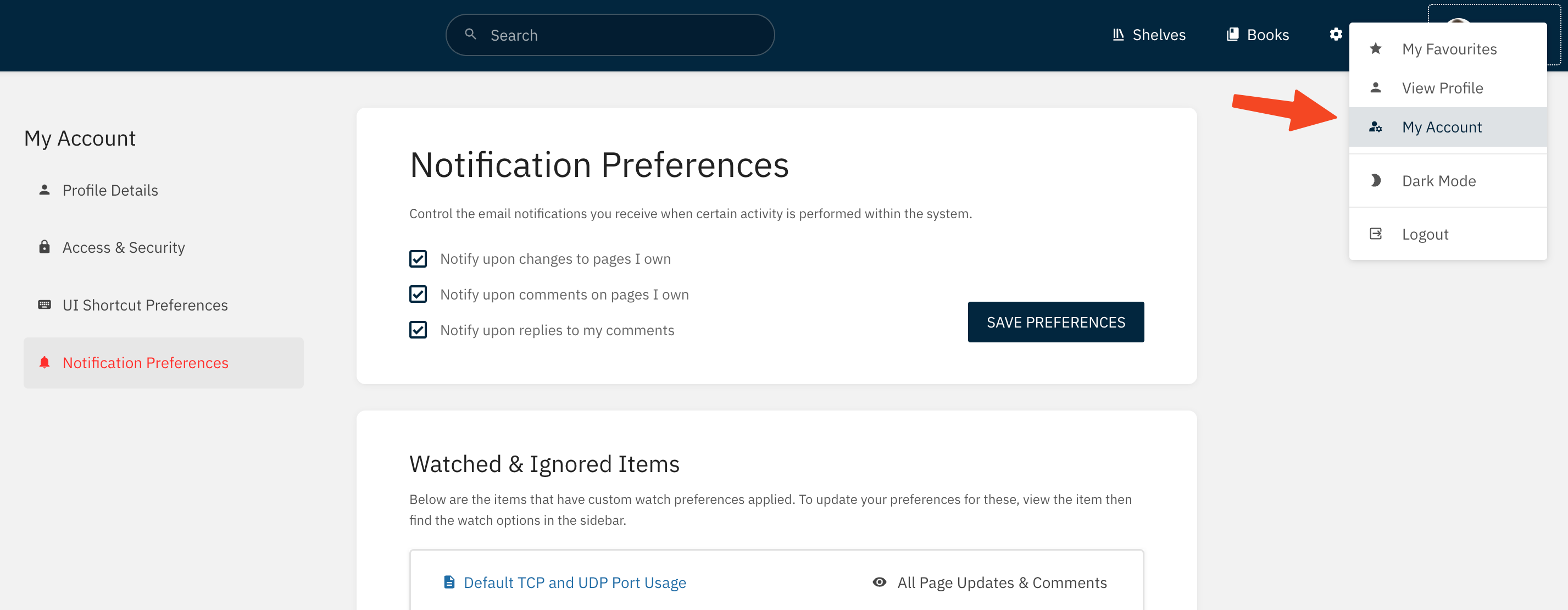
The global preferences cover:
- Notify upon changes to pages I own
- Notify upon comments on pages I own
- Notify upon replies to my comments
These settings are global defaults. The same page also lists content you watch or ignore, which makes it the quickest place to review the effective subscriptions on your account. Use the Watch action on a book, chapter, or page when you need content-specific control:
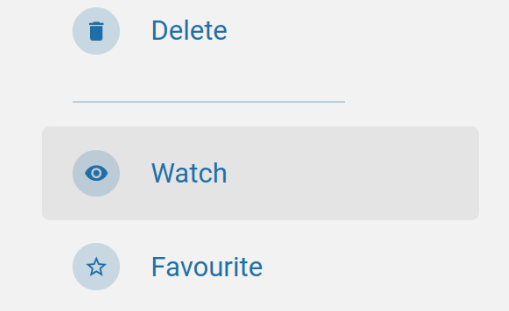
The default watch setting includes new pages and page changes. Select the current watch status in the content details to choose different events:
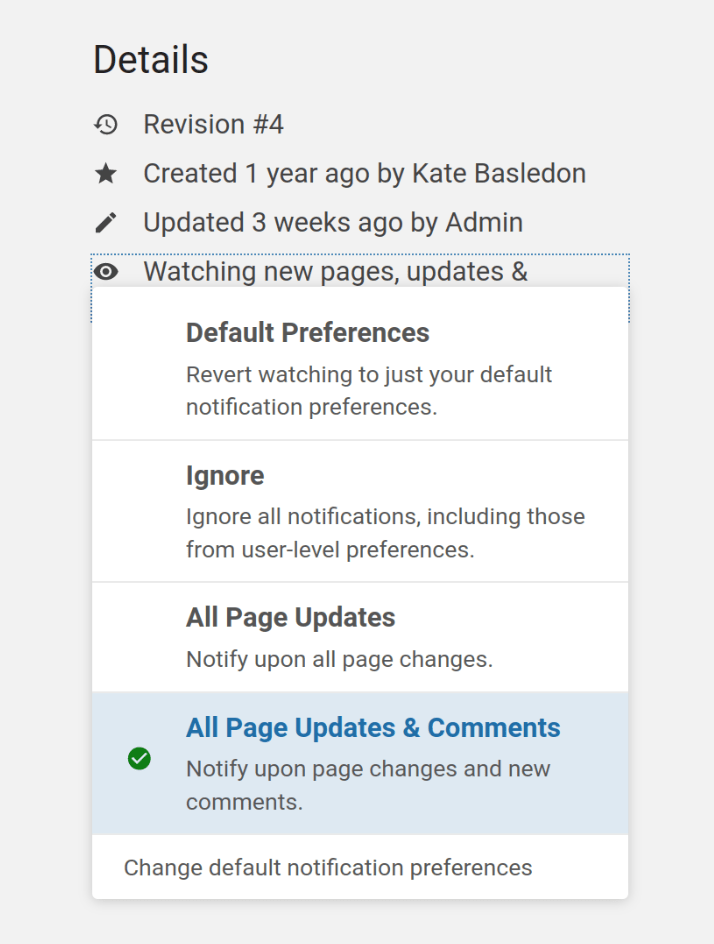
Choose the events you need, or ignore notifications for a specific book, chapter, or page when its inherited settings are too broad. Watching a book is useful when you need new-page alerts as well as updates; watching one page avoids mail from unrelated material in the same book.
Watch preferences inherit from books to chapters and pages. A child item can override the inherited setting, and its details show when a parent watch applies:

A notification identifies the relevant activity and links back to the KB content:
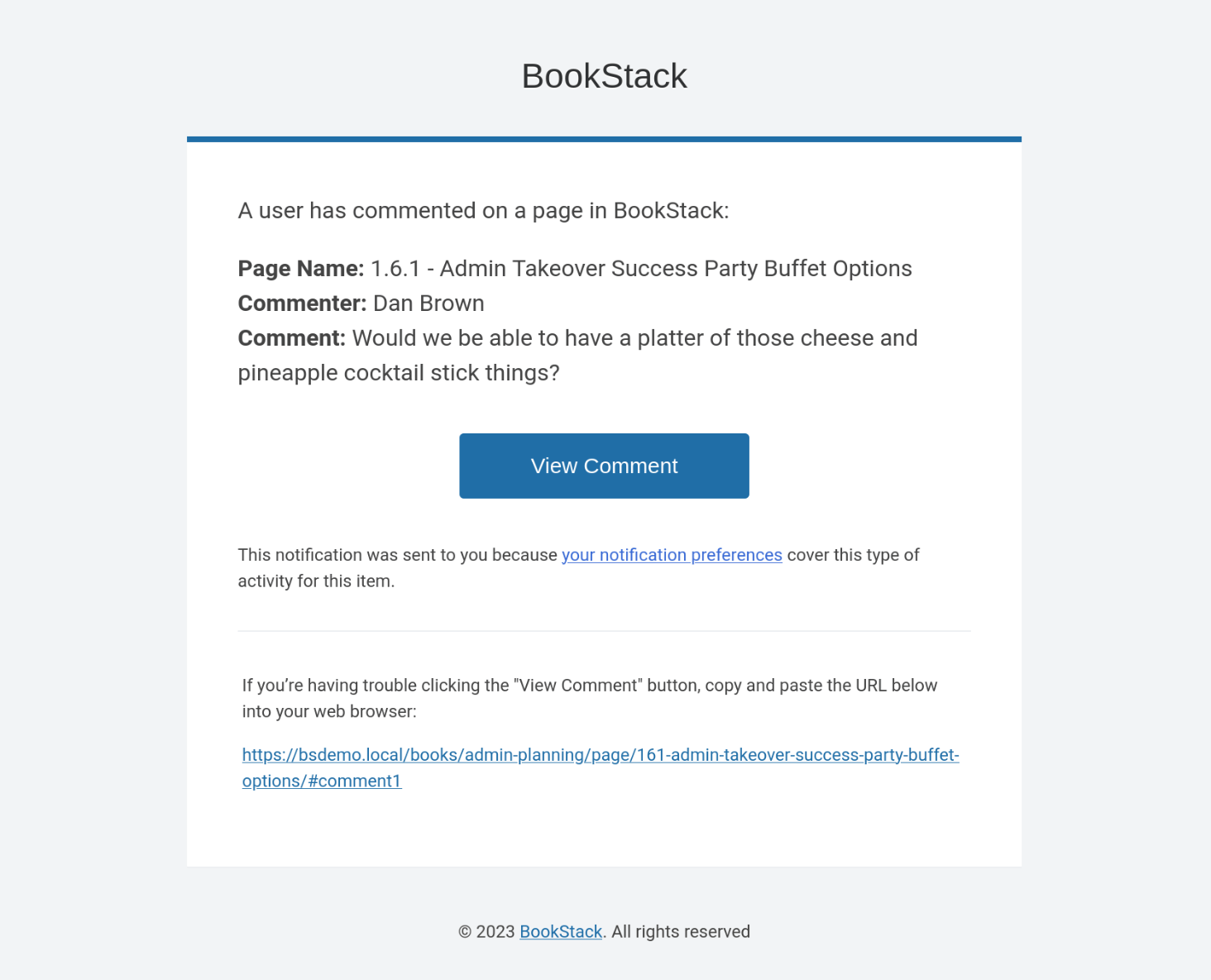
The KB groups rapid updates from the same author within a short window so one editing session does not generate an email for every save.