**Review imported scripts before assignment.** Read the script, confirm the interpreter and permissions it expects, and test the Custom Field on a small device group before assigning it broadly.
## Export Custom Field definitions 1. In FileWave Central, open **Assistants > Custom Fields > Edit Custom Fields**. 2. Select one or more custom fields 3. Select **Export**. 4. Save the "FileWave Custom Fields.customfields" file 5. Share online, or store for later ## Import Custom Field definitions 1. Download the custom field file 2. In FileWave Central, open **Assistants > Custom Fields > Edit Custom Fields**. 3. Select **Import**, then choose the `.customfields` file. 4. If the imported Custom Field contains a script, verify it is safe and appropriate for your environment. 5. Use **Edit Custom Field Associations** to assign the field to the required devices or groups. 6. You may also want to import custom field values See [Custom Fields](https://kb.filewave.com/books/custom-fields/page/custom-fields "Custom Fields") for more on assigning fields to devices, and importing custom field values. ## Conflicts: ### Custom vs Internal FileWave will let you re-use an internal name that is the same as another inventory element. If a Custom Field were added with an internal name of 'location', two 'location' internal names would co-exist the built-in internal name and the added Custom Field. A prefix may be added to avoid confusion on matching inventory names. The prefix varies depending upon the method being used to reference the internal name.| Method | Prefix | Example |
| MDM Profile | custom\_field | %custom\_field.location% |
| Scripted (Launch Argument or Environment Variable) | CustomFields | %CustomFields.location% |
**Avoid overwriting until dependencies are reviewed.** Import the definition as an additional field when possible, compare both definitions, and resolve the conflict deliberately.
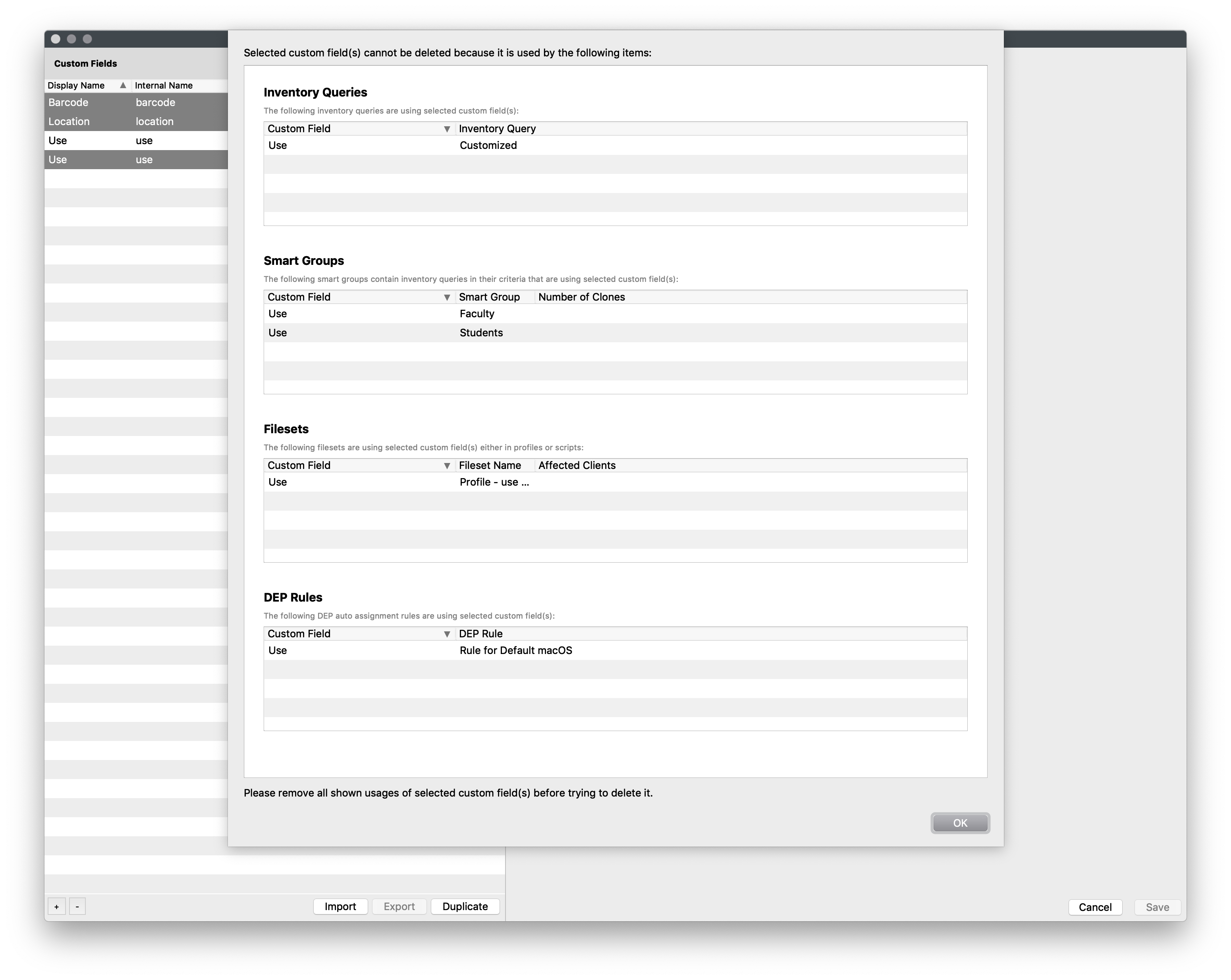
If the internal names are in use (Smart Groups, Reports (formerly Queries), Automated Device Enrollment) when you press "**overwrite existing"** you will see this telling you where it is in use: