Configure Grafana Plugins and CSV Data Sources
Some Grafana plugins need access to additional files. This example configures the Marcus Olsson CSV data source plugin for a local file or an HTTP URL.
When adding the CSV plugin as a data source, choose Local or HTTP and provide the corresponding file path or URL:
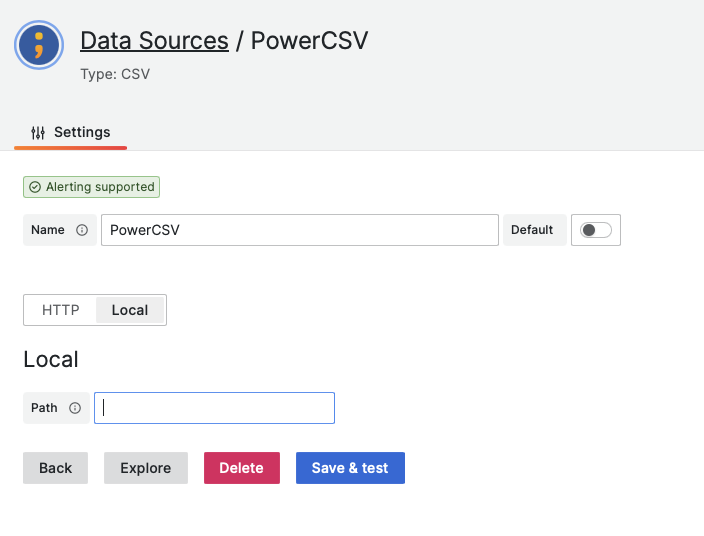
Local data source
By default, local data sources are not allowed. It is possible to overcome this via the Grafana 'ini' file, however this has limitations.
The FileWave Grafana 'ini' file is defined as:
/usr/local/etc/filewave/grafana/conf/filewave.ini
Enablement of Local files is achieved by adding the following into this file:
[plugin.marcusolsson-csv-datasource]
allow_local_mode = true
After doing so, the server service should be restarted:
fwcontrol server restartLocal files may now be accessed with this plugin. However, the caveat is that this file is overwritten by the FileWave installer on each upgrade. The outcome is the file must therefore be edited on each upgrade attempt.
HTTP data source
HTTP Data Source has no similar caveat. If there is already an available HTTP share in-house, this could be utilised. However, the FileWave Server could have the apache configuration adapted to include such files.
Configure Apache
This process will rely on Apache having access to a directory which serves these files. This could either be one that already exists or configuration could be used to add a new directory to serve just the required files.
Create a dedicated directory for plugin-served files so they remain separate from FileWave application content.
This is editing FileWave Server files and folders. FileWave upgrades can overwrite files, folders or expansion of product may include new files and folders. Consider using a directory that is unlikely to clash with future updates.
In this example, the new chosen folder is:
/usr/local/filewave/grafana_plugins_custom/csv
'grafana_plugins_custom' does not yet exist. Rather than just creating one custom plugin folder for all possible plugin use, in this example a subdirectory for the CSV files has been created. Additional plugins that also required http file shares could use the same parent, but have their own subfolder.
The Apache file that can be edited to create new http file shares is:
/usr/local/filewave/apache/conf/httpd_custom.conf
Because httpd_custom.conf is the FileWave custom Apache configuration, its entries persist across FileWave upgrades.
Alias /plugins_custom /usr/local/filewave/grafana_plugins_custom/csv
<Directory "/usr/local/filewave/grafana_plugins_custom/csv">
Options Indexes FollowSymLinks
AllowOverride All
Require all granted
</Directory>
See the Apache 2.4 host authorization documentation for Require options that can restrict access by host or IP address.
However, to highlight two key aspects.
Directory
This is the newly created directory from which the files may be shared from
Alias
When accessing the files from a URL, this is essentially a shortcut for the URL, which will be redirected internally to this folder on access. In this instance, the alias (shortcut link) is:
/plugins_custom
Require all granted allows every client that can reach this URL to download the CSV file. If the data is not intended for broad access, replace it with an appropriate Require ip or other authorization rule and test access before configuring Grafana.
FileWave Server process should be restarted once configured:
fwcontrol server restartVerify CSV file access
Once configured, CSV files may be populated into the newly created document. For example:
# ls -l /usr/local/filewave/grafana_plugins_custom/csv
total 184
-rw-r--r--  1 root  _www  14425 Aug  3 17:06 admin.csv
-rw-r--r--  1 root  _www  19364 Aug  3 17:06 data.csv
-rw-r--r--  1 root  _www  36694 Aug  3 17:06 paint.csv
-rw-r--r--  1 root  _www  19345 Aug  3 17:06 video.csv
Test download may be achieved by way of the server URL appended with the alias. For example if the server were called 'demo.filewave.ch', then the URL from the above configuration would be:
https://demo.filewave.ch/plugins_custom/
However, a file should be addressed directly. Taking the paint.csv as an example:
https://demo.filewave.ch/plugins_custom/paint.csv
Accessing this URL in a browser should show the contents or download the file.
Plugin Data Source
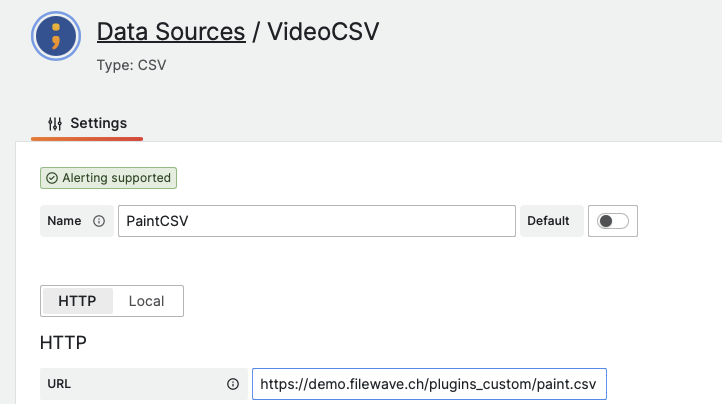
Other Data Source settings should be configured as desired.