# Resolving “Login failed: User sync failed” Error in Grafana
## What
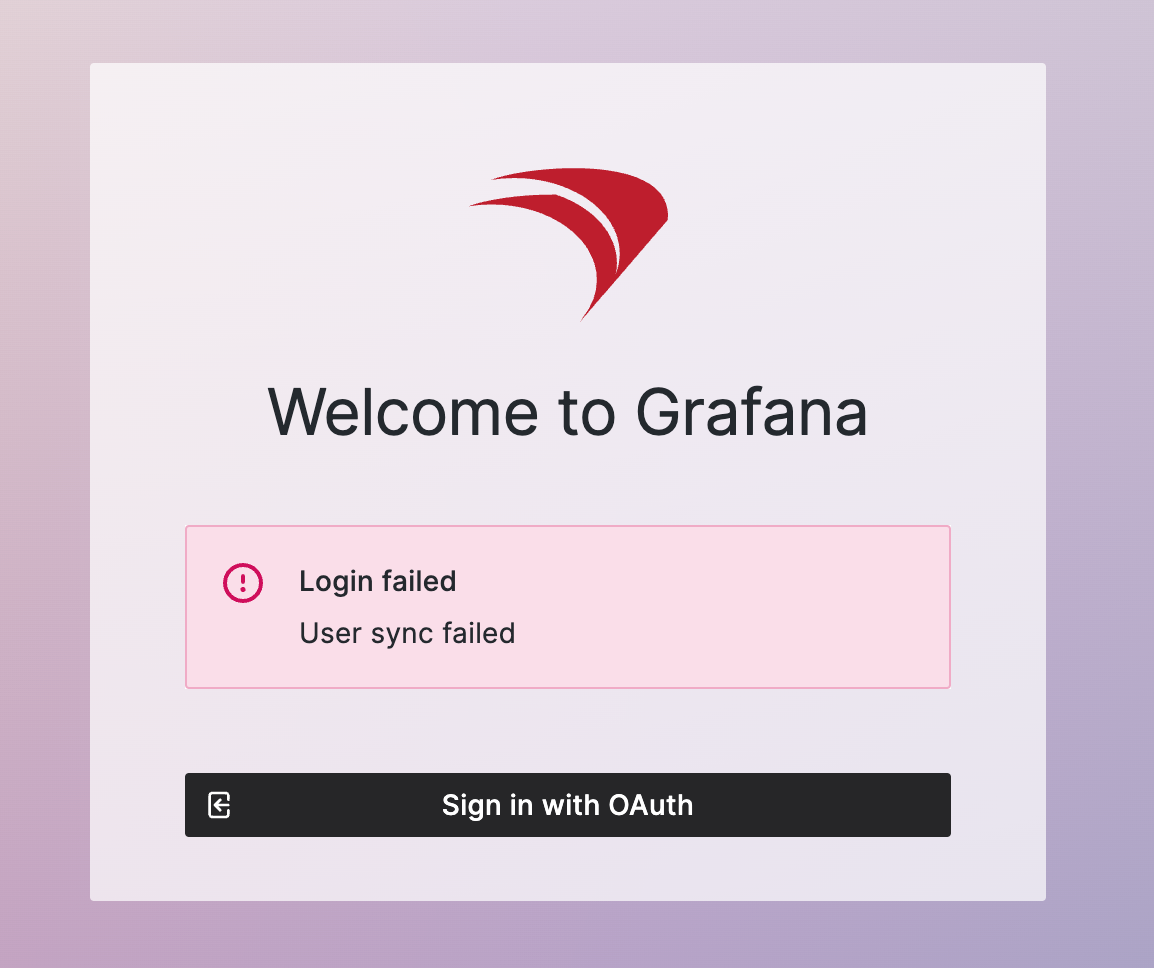
This article explains how to resolve the “Login failed: User sync failed” error when an administrator signs in to the FileWave Dashboard through Grafana.
[](https://kb.filewave.com/uploads/images/gallery/2024-06/9oGAS9jainT09TCk-image.png)
## When/Why
This error occurs when a FileWave administrator account uses a username that conflicts with Grafana. The most common case is a FileWave Central administrator named “admin”, since Grafana also uses an internal “admin” account. The conflict can appear when that administrator tries to open the FileWave Dashboard through Grafana.
## How
Avoid using “admin” as a FileWave administrator username. Use the steps below for a built-in administrator account. If the affected administrator comes from [LDAP](https://kb.filewave.com/books/identity-provider-idp-integration/page/ldap-admin-integration "LDAP Admin Integration") or an [IdP](https://kb.filewave.com/books/identity-provider-idp-integration/page/admin-login-using-an-idp-provider "Admin Login in Using an IdP Provider"), rename or adjust the account in that identity source instead.
1. **Access FileWave Central:**
- Open FileWave Central.
- Navigate to Preferences -> Manage Administrators.
2. **Rename the “admin” Account:**
- Identify if an “admin” user exists.
- Rename this user to a specific named account, such as a real administrator name.
- Ensure the new username is unique and does not conflict with other system usernames.
3. **Create Named Accounts:**
- Create individual named accounts for each administrator.
- Named administrator accounts help prevent this Grafana conflict and make audit trails easier to understand.
4. **Update Login Credentials:**
- Inform administrators whose usernames changed.
- Update any saved login credentials in browsers or password managers accordingly.
## Related Links
- [Managing FileWave Administrators](https://kb.filewave.com/books/filewave-central-anywhere/page/managing-filewave-administrators "Managing FileWave Administrators")
## Digging Deeper
Grafana uses a default “admin” account during initial setup. If FileWave also has an administrator named “admin”, Grafana user synchronization can fail because the username is already reserved or in use.
Named accounts also improve accountability because administrator activity can be tied to a person instead of a shared generic login.
For FileWave administrator-account setup, see the related administrator-management article above.