DDM (Apple)
Declarative Device Management (DDM) is an advanced framework introduced by Apple to enhance the management of iOS, iPadOS, and macOS devices. Unlike traditional device management methods, DDM allows devices to proactively apply configurations and policies based on declarations provided by administrators or IT departments. These declarations define the desired state of the device, enabling it to autonomously enforce settings and make adjustments without constant communication with a management server. DDM can manage various aspects of device configuration, including account setups, security policies, app management, and compliance enforcement. By utilizing a more device-centric approach, DDM reduces network traffic and server load, allowing for more efficient and scalable device management. This framework provides organizations with a dynamic and responsive way to ensure devices remain configured correctly and adhere to organizational policies, even in changing environments or when devices are offline.
- Apple Device Management - DDM Assets
- Apple Device Management - DDM Configurations
- Battery Health Inventory Field
- DDM Configuration - Restricting Math Results in Other Apps with FileWave
- View macOS Background Tasks with DDM
Apple Device Management - DDM Assets
What
DDM Assets let you define reusable values for Apple Declarative Device Management configurations. Use them for shared settings such as credentials, server details, certificates, or other data that more than one DDM configuration needs. Instead of copying the same value into each configuration, reference the Asset and update it in one place.
When/Why
Use Assets when multiple DDM configurations need the same value, when one update should flow to every configuration that references it, or when Fileset organization and permissions should control who can manage shared DDM data.
This is useful for standardized environments where many devices need the same settings, such as schools or organizations with shared Wi-Fi, account, certificate, or service configuration.
DDM Assets and Configurations are supported on devices running iOS 15, iPadOS 15, macOS 12 Monterey, or later.
How
To create and use Assets:
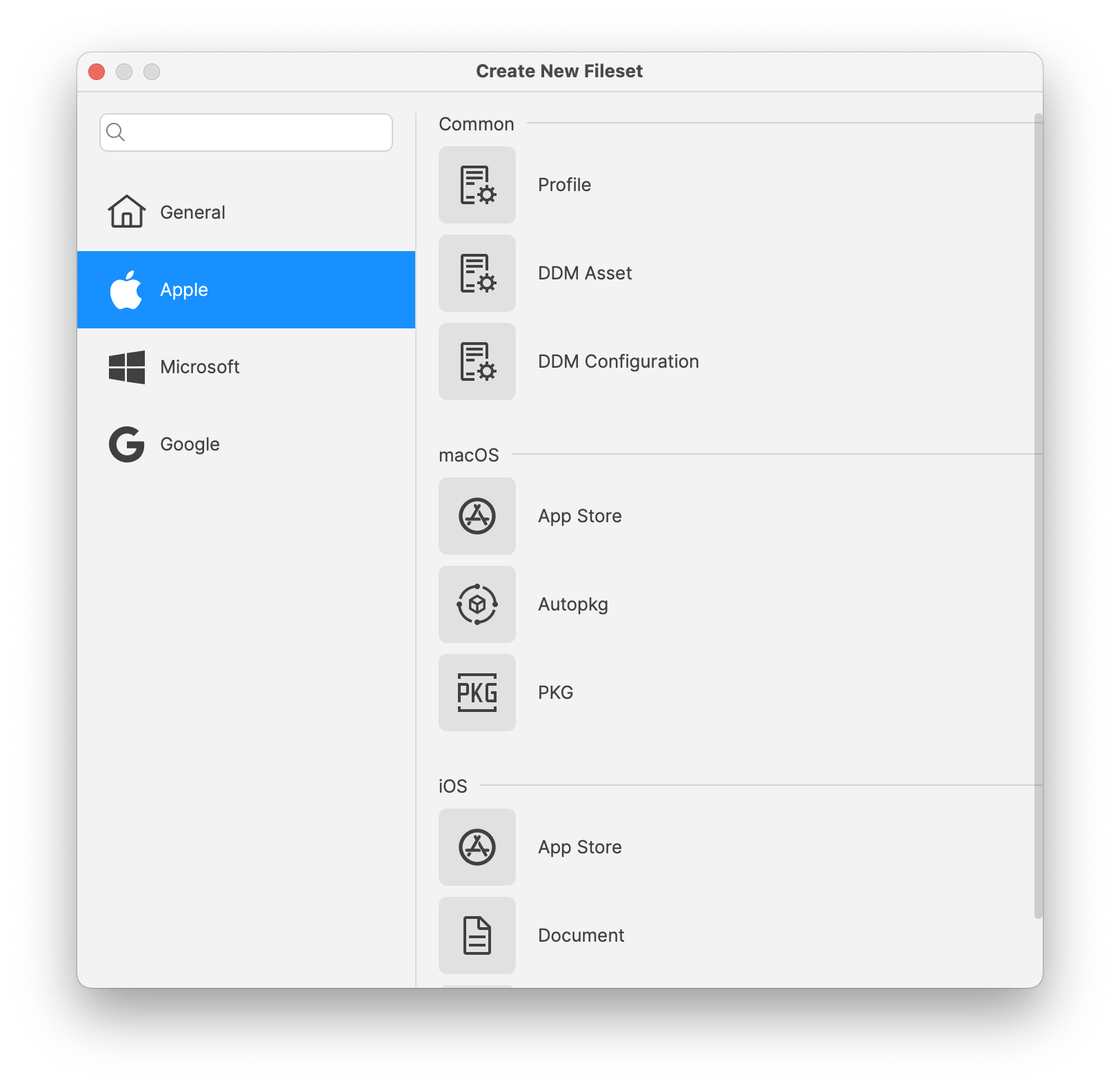
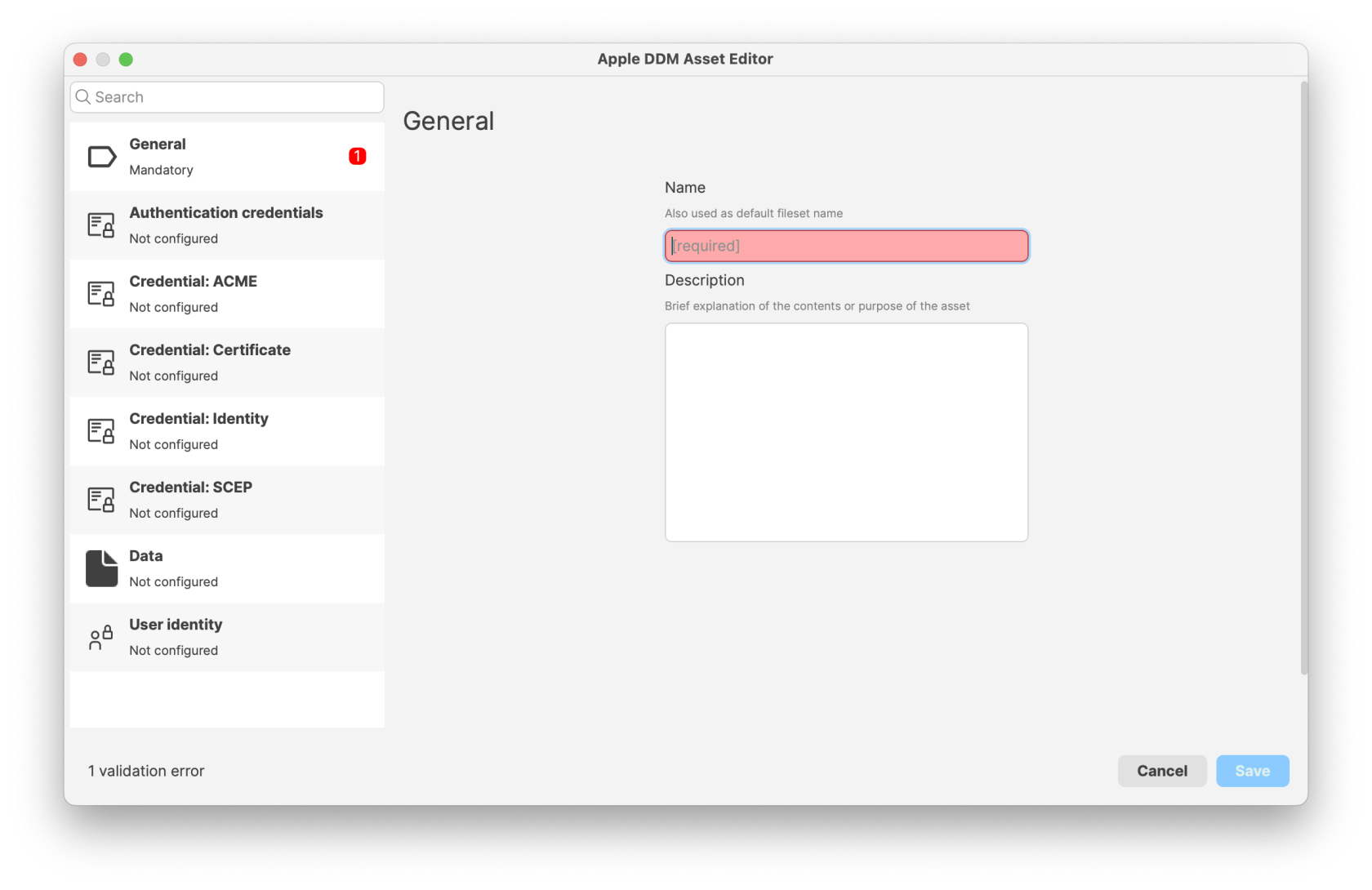
- Create an Asset: Create a new Fileset and choose DDM Asset from the Apple section.
- Configure the Asset: Define the reusable settings, such as credentials, server addresses, certificates, or other supported values.
- Reference the Asset in a DDM Configuration: Create or edit a DDM Configuration by creating a Fileset and choosing DDM Configuration from the Apple section. In settings that support Assets, add a reference to the Asset. For example, a CalDAV configuration can use authentication credentials from a DDM Asset.
- Deploy to devices: Assign the configurations that reference the Assets to your devices or device groups, then monitor the deployment to confirm that devices receive both the configuration and the associated Assets.
When a configuration references an Asset, FileWave manages that Asset as a dependency. Deploying the configuration also deploys the associated Asset to the target devices.
FileWave 16.4 JSON import and export
Starting with FileWave 16.4, administrators can import and export DDM Assets using Apple’s JSON declaration format. Imported Assets can be edited in FileWave and referenced by DDM Configurations just like Assets created with the built-in editor.
- Create or open a DDM Asset Fileset.
- Use Import to select an Apple JSON Asset declaration.
- Review validation results and inspect every imported value before saving.
- Confirm that dependent DDM Configurations resolve the intended Asset.
- Test the dependent Configuration on representative devices before broad deployment.
- Use Export to create JSON for backup, review, or reuse.
When imported Configurations and Assets reference one another, FileWave resolves the dependencies where possible. Unknown or unsupported declaration content is preserved instead of being silently removed.
Treat exported Asset JSON as sensitive. Assets can include credentials, certificates, account details, and service configuration. Review and protect the exported file before sharing it.
For configuration types, deployment behavior, the macOS 26 default-value issue, and JSON Configuration imports, see Apple Device Management – DDM Configurations.
Related Content
- Apple Device Management – DDM Configurations
- Apple Platform Deployment: Declarative Device Management
Digging Deeper
Assets are most useful when a value is shared, changes occasionally, and should stay consistent everywhere it is used. Updating the Asset once keeps dependent configurations aligned without editing each configuration separately.
Permissions and Fileset organization also apply to Assets, so teams can manage shared configuration data with the same structure they use for other Filesets.
Apple Device Management - DDM Configurations
What
Declarative Device Management (DDM) is Apple’s modern device-management model. FileWave 15.5 introduced DDM Configurations and Assets; FileWave 16.4 expands the built-in configuration editors and adds JSON import and export for Apple declarations. DDM moves more state evaluation to the device, allowing supported Apple devices to apply declarations and report status without relying only on repeated server commands.
FileWave continues to add DDM editors as Apple publishes new declaration types. Existing screenshots on this page show earlier FileWave 16.x editors; labels and available declarations may differ in FileWave 16.4.
When/Why
Use DDM Configurations in FileWave 15.5 or later when you need to:
- Modernize Device Management: Adopt Apple’s latest device management methodology to stay current with industry advancements.
- Increase Efficiency: Allow devices to autonomously manage configurations, reducing reliance on constant server communication.
- Enhance Scalability: Improve performance when managing large fleets, as devices handle more processing locally.
- Improve Responsiveness: Devices can apply configurations and respond to changes more quickly without waiting for server commands.
This is particularly useful for organizations managing numerous devices, seeking to optimize performance and reduce overhead.
DDM Assets & Configurations are supported on devices running the following versions and above: iOS 15, iPadOS 15, macOS 12 Monterey.
Starting in FileWave 16.3.x, mixed DDM/MDM deployments are handled more cleanly. DDM Configurations are not Apple Profile Filesets, and Apple Profiles still install through MDM. Command Policy Filesets are also excluded from DDM installation and sent as their corresponding MDM commands during deployment.
Starting in FileWave 16.3.x, the Service Configuration Files editor includes additional built-in services: com.apple.cryptoTokenKit and com.apple.authorization.
How
To create and use DDM Configurations in FileWave 15.5 and later:
- Create a Configuration:
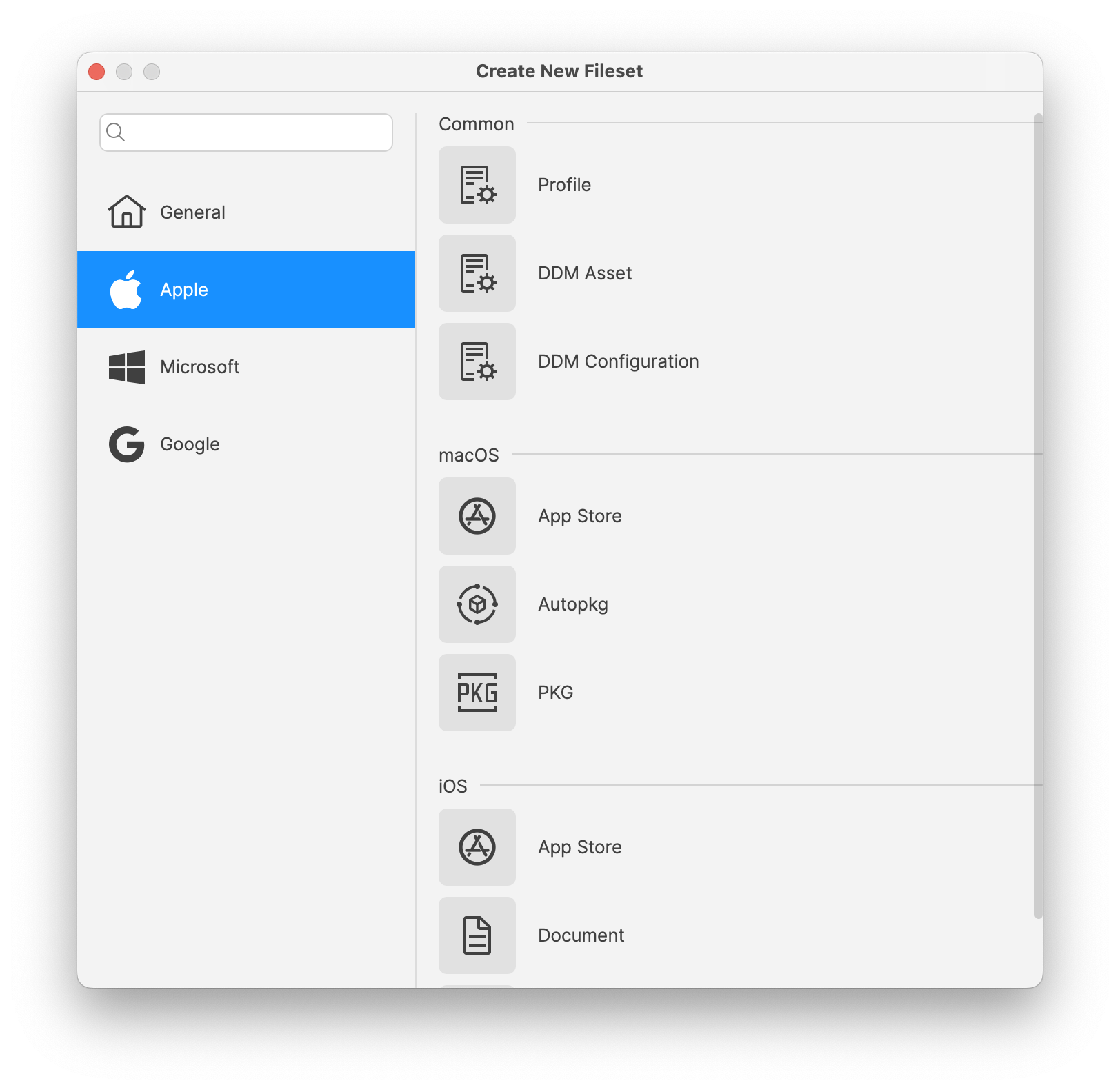
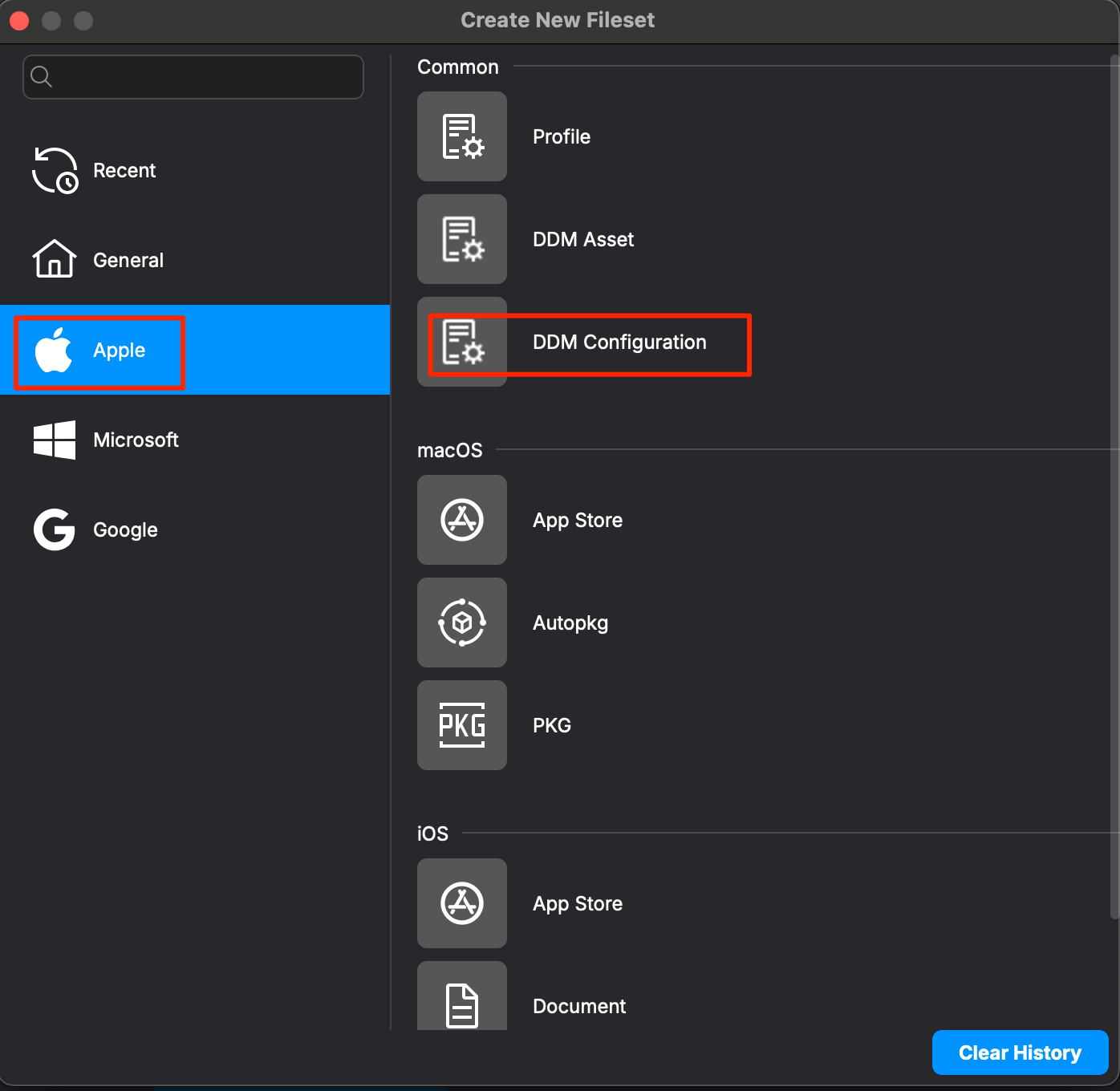
- Create a new Fileset and pick DDM Configuration from the Apple section.

- Create a new Fileset and pick DDM Configuration from the Apple section.
- Configure the Configuration:
- Pick the desired Configuration
- Reference a DDM Asset in DDM Configurations:
- Some Configurations can reference Apple Device Management - DDM Assets. An example is the Account: CalDAV Configuration which can be fed credentials from a DDM Asset (configured with the DDM Asset Editor)

- Some Configurations can reference Apple Device Management - DDM Assets. An example is the Account: CalDAV Configuration which can be fed credentials from a DDM Asset (configured with the DDM Asset Editor)
- Automatic Dependency Handling:
- When a configuration references an Asset, FileWave automatically manages the Asset as a dependency.
- Deploying the configuration will also deploy the associated Asset to the target devices.
- Deploy to Devices:
- Assign the configurations to your devices or device groups.
- Monitor the deployment to ensure that devices receive both the configuration and the associated Assets.
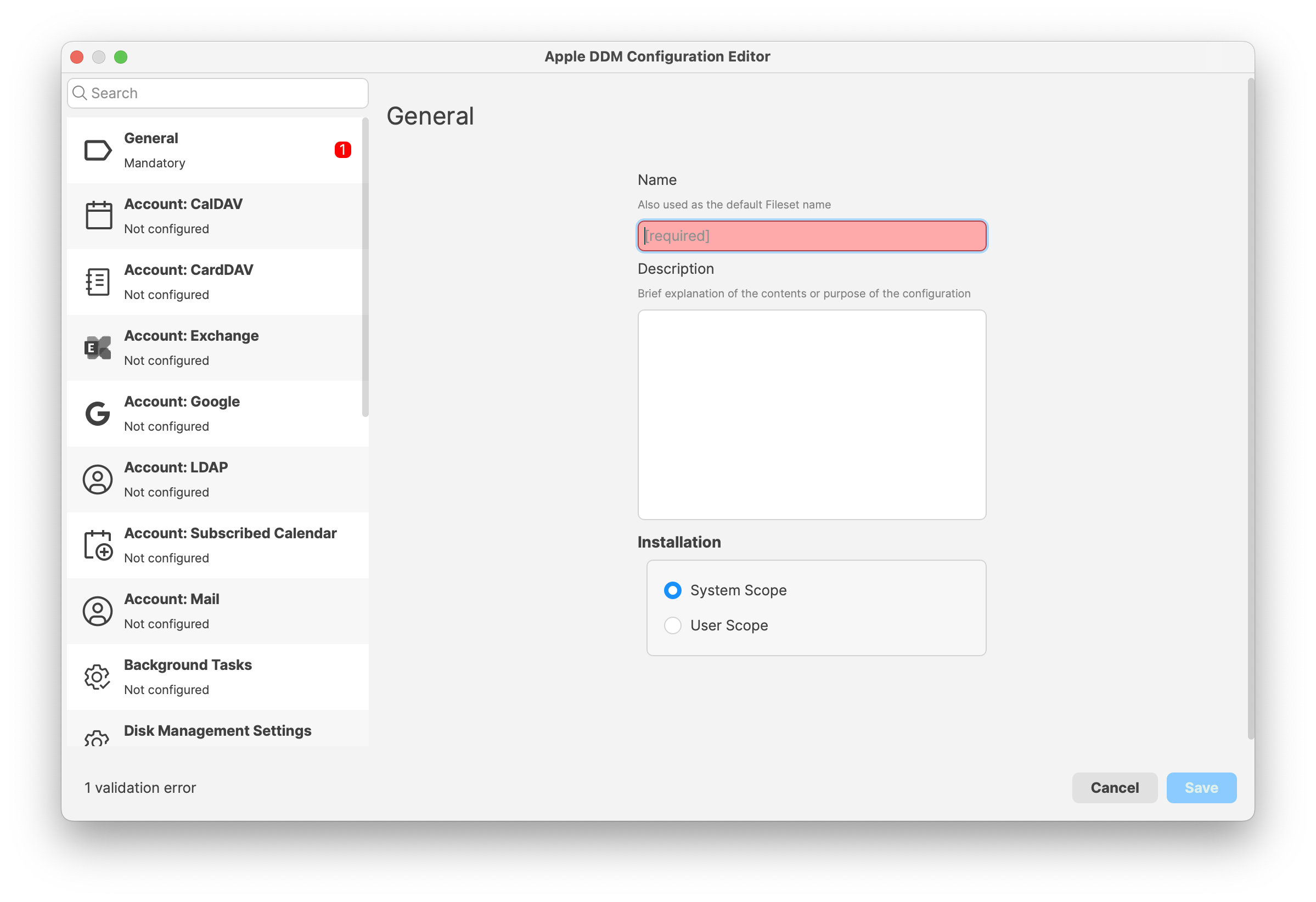
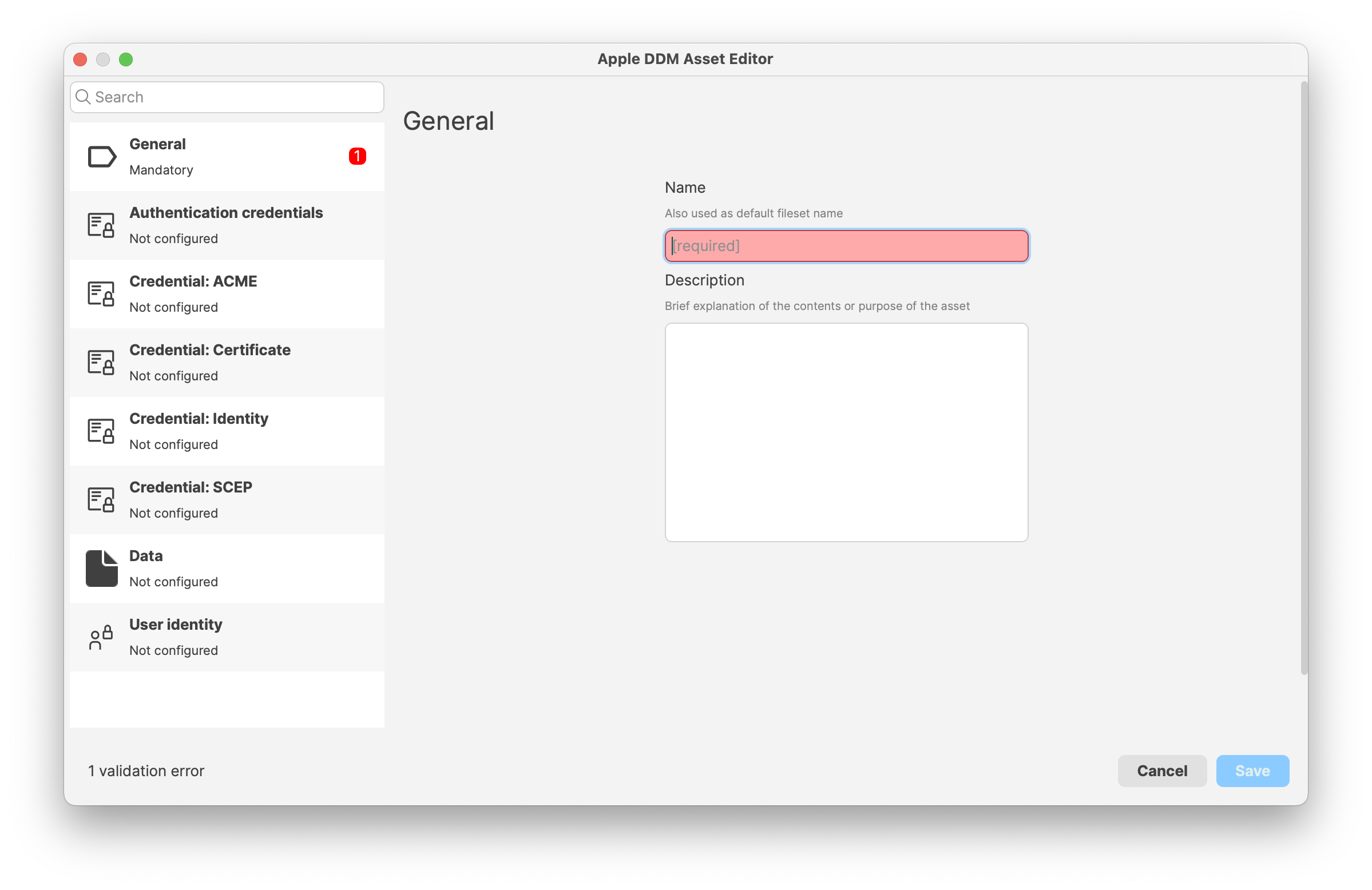
FileWave 16.4 DDM configurations
FileWave 16.4 adds dedicated editors for several Apple declaration types. Create these as DDM Configuration Filesets and deploy them only to supported devices.
macOS 26 through 26.5 default-value issue: Apple devices can reject a DDM configuration when certain settings are explicitly included with their default values. Apple has been notified of the OS-level issue. When the default behavior is intended, leave the affected setting undefined instead of explicitly sending its default value.
Siri Settings
On supported iOS, macOS, and visionOS devices, administrators can enable or disable Siri, enforce profanity filtering, restrict Siri while the device is locked, and prevent Siri from generating user-provided content.
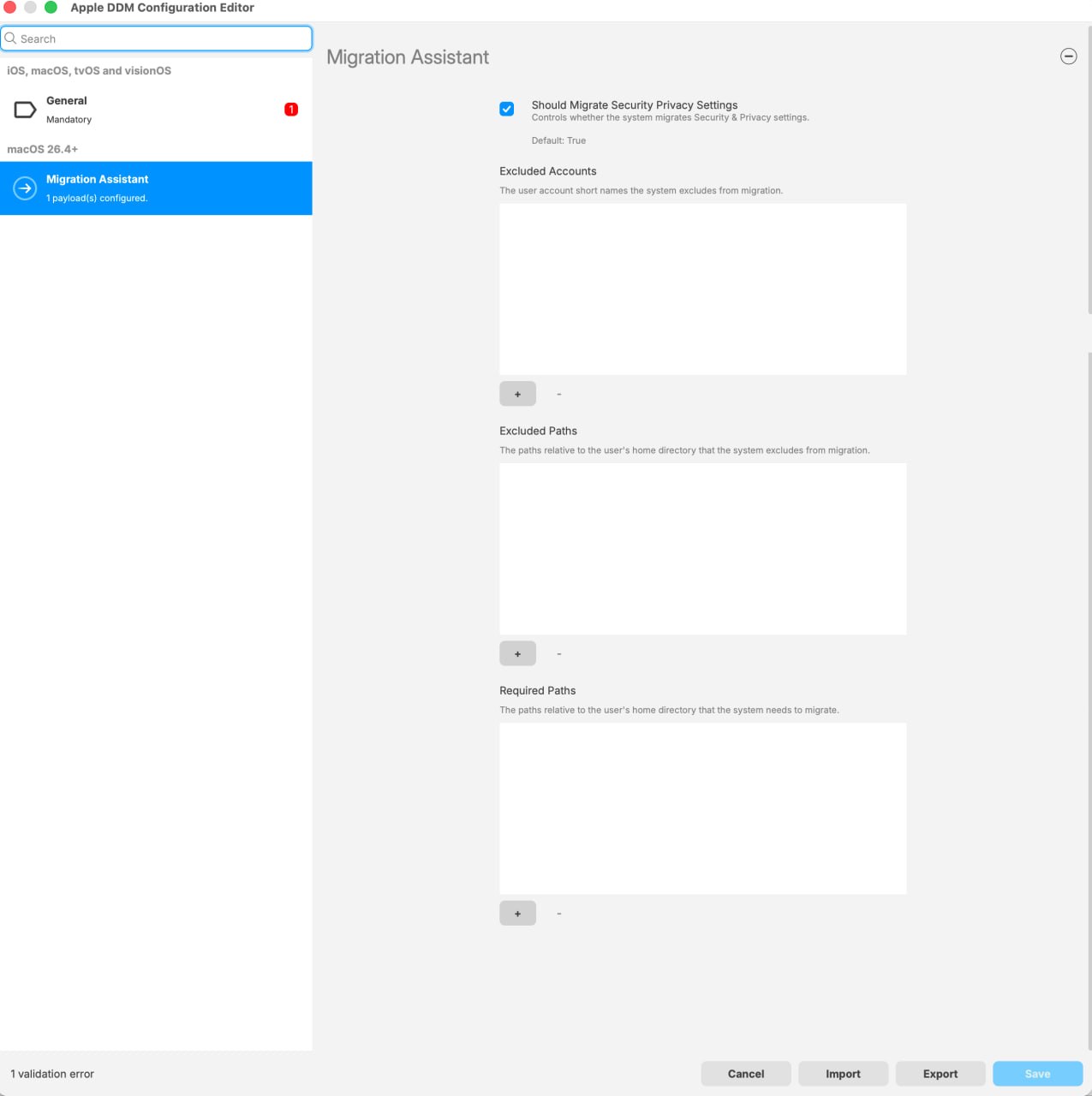
Migration Assistant Settings
On macOS 26.4 and later, administrators can manage Mac-to-Mac migration during Setup Assistant. The FileWave 16.4 DDM Configuration Editor exposes these controls:
- Should Migrate Security Privacy Settings — controls whether Security & Privacy settings migrate. The editor shows a default of True.
- Excluded Accounts — user account short names the system excludes from migration.
- Excluded Paths — paths relative to the user’s home directory that the system excludes from migration.
- Required Paths — paths relative to the user’s home directory that the system needs to migrate.
Use the + and − controls to manage each list. Configure the mandatory General settings and resolve validation errors before saving. The device reports migration progress and completion status after deployment.
Keyboard Settings
On supervised iOS and macOS devices, administrators can manage auto-correction, predictive text, spell checking, Slide to Type, dictation, text replacements, definition lookups, and math-related keyboard suggestions supported by newer Apple operating systems.
Apple Intelligence Settings
On supported iOS, macOS, and visionOS devices, administrators can manage Writing Tools, Genmoji, Image Playground, Image Wand, Smart Replies, summarization, transcription, and other Apple Intelligence capabilities. Privacy-oriented controls can require supported services such as Dictation and Translation to use on-device processing.
The traditional MDM Restrictions payload remains available and is documented in Apple Profile: Apple Intelligence. Avoid managing the same setting through conflicting MDM and DDM declarations.
External Intelligence Settings
This separate declaration controls third-party AI services integrated with Apple operating systems. Administrators can allow or deny external intelligence providers, control sign-in with personal or organizational accounts, and restrict use to approved enterprise workspaces when Apple and the provider support that control.
Import and export DDM declarations as JSON
Starting with FileWave 16.4, DDM Configuration and DDM Asset Filesets can import and export Apple’s JSON declaration format. This allows administrators to deploy newly announced Apple declarations before a dedicated FileWave editor is available, modify imported declarations, back them up, and share reusable definitions.
- Create or open a DDM Configuration or DDM Asset Fileset.
- Use the editor’s Import action and select the Apple JSON declaration.
- Review validation results for malformed or incomplete content.
- Review imported Assets, Configurations, and their resolved dependencies before saving.
- Test the declaration on representative devices running the intended Apple OS versions before wider deployment.
- Use Export when you need an Apple JSON declaration for backup, review, or controlled reuse.
FileWave resolves related Configuration and Asset dependencies where possible. Unsupported or unknown declaration payloads are preserved during import and deployment rather than discarded, but preservation does not guarantee that a target Apple OS accepts or applies the declaration.
Protect exported Assets. A DDM Asset export can contain credentials, certificates, server details, or other sensitive configuration values. Store and share exported JSON accordingly.
Cellular downloads for DDM application installs
FileWave 16.4 supports Apple’s AllowDownloadsOverCellular setting for applications installed through Declarative Device Management on iPhone and iPad (iOS and iPadOS). Use the application’s DDM installation settings to choose how automatic installs and updates use cellular data:
| Setting | Automatic installation or update behavior |
|---|---|
| Always On | Applications of any size may download over a cellular network. |
| Always Off | Cellular downloads are blocked; the automatic install or update waits for a non-cellular network. |
| Store Settings | The device follows its App Store cellular-download settings. |
User-initiated application installs or updates always follow the device’s App Store settings, regardless of the DDM value. This control governs automatic DDM delivery; it is not a universal cellular-data restriction.
Use Always Off where cellular cost or bandwidth is the primary concern, Always On where timely managed delivery is more important, or Store Settings when device-level user/organization policy should decide. Pilot the choice on a cellular-capable supervised device before broad deployment.
Fileset Status
Unlike Profiles, DDM configurations are deployed with one single DDM command, meaning the Client Info > Command History tab will not show individual events per DDM configuration delivered.
Starting in FileWave 16.3.x, Client Info > Fileset Status provides more detailed status information for multi-configuration DDM Filesets. For example, a Fileset such as Screen Sharing Configuration can contain multiple DDM configurations, and each one can now report its own status within the Fileset Status view. This makes it much easier to see which specific configuration succeeded or failed during deployment.
This detailed DDM status is shown in the same area used for Script status, because scripts and DDM configurations cannot coexist within the same Fileset. Single-configuration DDM Filesets are not changed by this behavior.
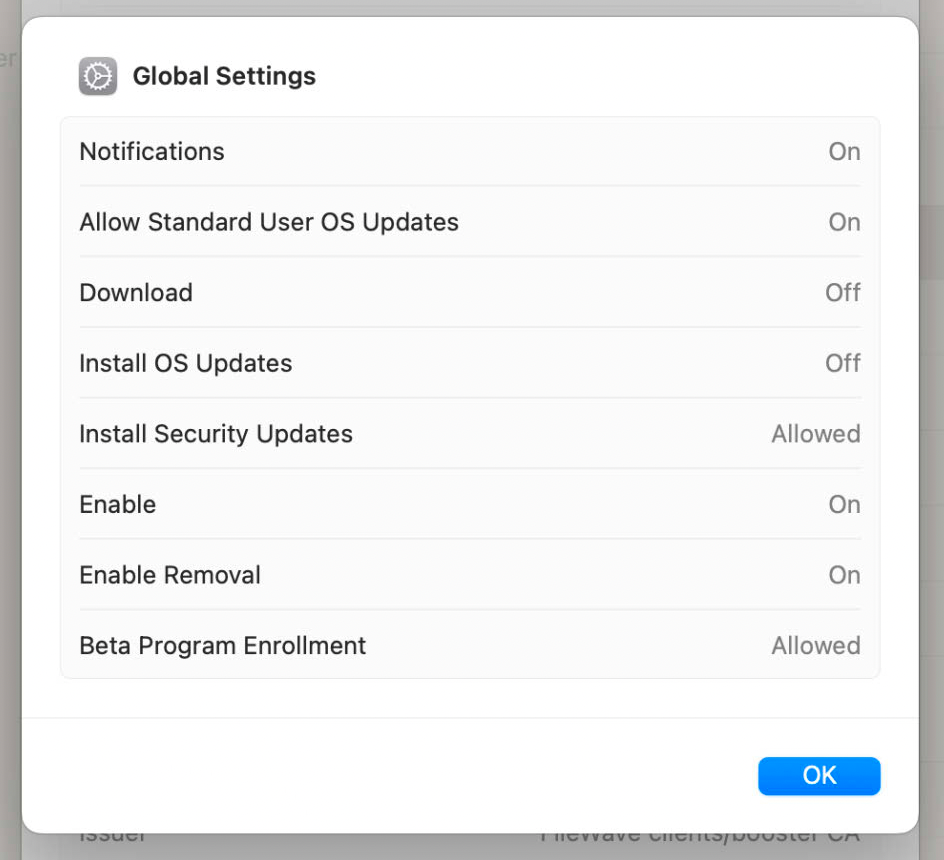
Likewise, when viewing the installed Profiles on a device, the DDM Configurations will not show as Profiles, but, instead, within the FileWave MDM Configuration Profile. Accessing the Profile list from Settings of a device, open the FileWave MDM Configuration Profile and scroll down to Device Declarations:
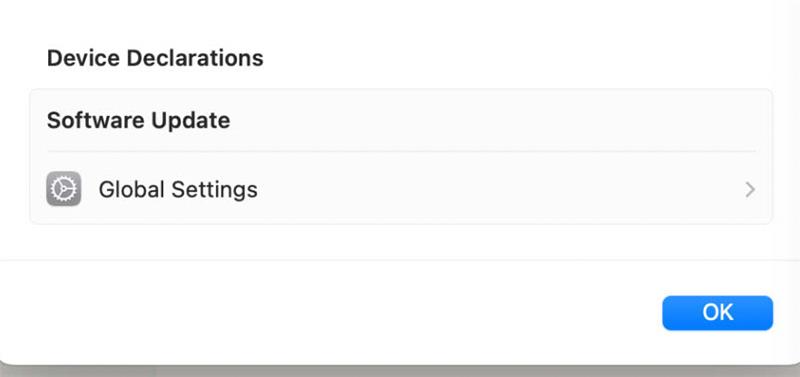
In the above example, opening Global Settings should reflect the settings delivered by Apple DDM Configuration Filesets. For example:
Related Content
- Apple Device Management – DDM Assets
- Apple Profile: Apple Intelligence
- Apple Platform Deployment: Declarative Device Management
Digging Deeper
Declarative Device Management (DDM) represents a significant evolution in Apple’s device management strategy:
- Device-Centric Management: Devices receive declarations of desired states and autonomously ensure compliance, reducing the need for continuous server commands.
- Enhanced Performance: Offloading processing to devices improves performance and scalability, especially in large environments.
- Improved Reliability: Devices can enforce configurations even when temporarily disconnected from the management server.
Key Benefits:
- Reduced Server Load: Servers are less burdened with managing individual device states, as devices handle more tasks independently.
- Faster Configuration Application: Devices can apply changes immediately upon receiving declarations, without waiting for additional instructions.
- Proactive Compliance: Devices continuously ensure they meet the declared state, self-correcting if configurations are altered or removed.
Use DDM Configurations and Assets when Apple provides an applicable declaration and the managed device supports it. Keep traditional MDM Profiles for controls that do not yet have a suitable declaration.
Avoid conflicting MDM and DDM controls
Apple does not define a reliable outcome when multiple Profiles or declarations manage the same setting with different values. A result observed during testing—including an apparently more restrictive value winning—is not a supported precedence rule and can change across operating-system releases.
Do not rely on payload order or “most restrictive wins.” Design the policy so the device receives one intended value for each managed setting.
Battery Health Inventory Field
What
FileWave 16.2.0 and later reports Apple’s Battery Health status in device inventory. Use it to find batteries that need service, devices that cannot report battery health, and hardware that reports a non-genuine battery.
The possible values are:
-
Normal – Battery is functioning within expected parameters.
-
Non-Genuine – Battery replacement detected that is not Apple-certified.
-
Service-Recommended – Battery requires servicing due to degradation or fault.
-
Unknown – Device could not determine battery status.
-
Unsupported – Device does not support reporting battery health.
Apple provides this status item on iOS and iPadOS 17.0 and later and macOS 14.4 and later. Hardware support is limited to iPhone, specific iPad models, and Macs with Apple silicon. Other devices report Unsupported.
When/Why
Use this field during hardware audits, replacement planning, or troubleshooting when battery condition may explain poor runtime or unexpected shutdowns.
-
When: Use this field during device audits, lifecycle management, or when troubleshooting performance and uptime issues.
-
Why: It helps IT teams proactively schedule repairs or replacements, avoid downtime, and distinguish between genuine vs. non-genuine repairs.
How
-
Open FileWave Central and locate the target device.
-
Navigate to the Client Info window.
-
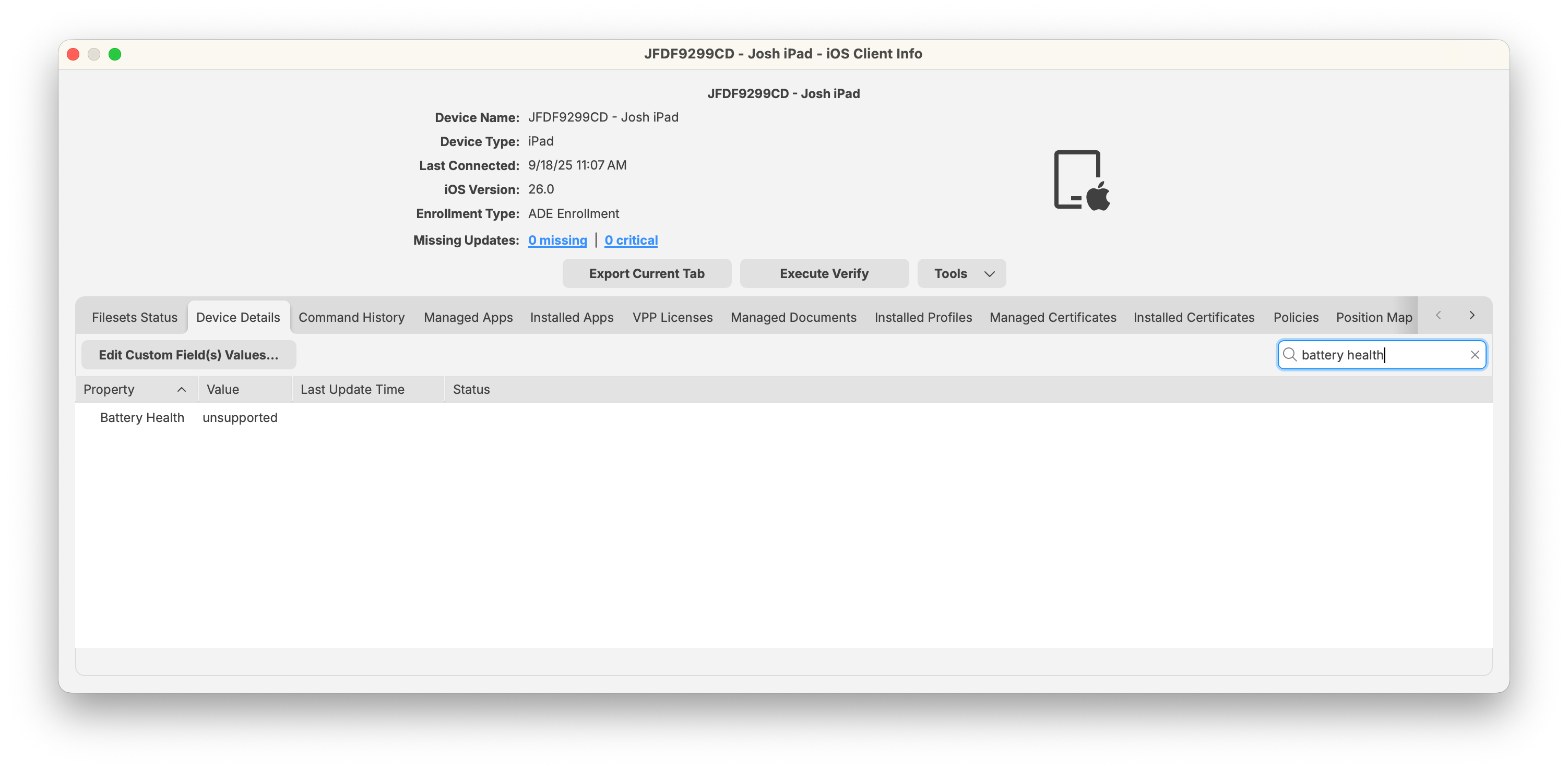
Select the Device Details tab (or search for “Battery Health” in the search bar).
-
Review the reported Battery Health value.
-
For unsupported devices, the value will display as Unsupported.
-
Supported iPads and Macs will show one of the Apple-defined statuses.
-
Apple maintains the current list of iPad models that can report battery health. Check that list when a recent iPad still reports Unsupported.
Smart Group Example: Devices Needing Battery Service
To automatically identify devices that require attention:
-
In FileWave Central, create a new Smart Group.
-
Add a filter with:
-
Property: Battery Health
-
Operator: equals
-
Value: Service-Recommended
-
-
Save the Smart Group.
The Smart Group collects devices reporting Service-Recommended so you can plan repairs or replacements.
Related Content
Digging Deeper
-
FileWave does not calculate battery health; it simply displays the status as reported by the device.
-
In environments with mixed device generations, you may see a mix of Normal and Unsupported values, depending on hardware.
-
For ongoing fleet checks, use a Smart Group with Battery Health = Service-Recommended.
DDM Configuration - Restricting Math Results in Other Apps with FileWave
Restricting Math Results in Other Apps with FileWave
With iOS 18 and macOS 15, Apple introduced new controls for managing Math Notes and related behaviors across apps. FileWave allows you to configure these restrictions through the Apple DDM Configuration Editor.

Steps to Configure
-
In FileWave Admin, go to:
New Fileset → Apple → DDM Configuration:

-
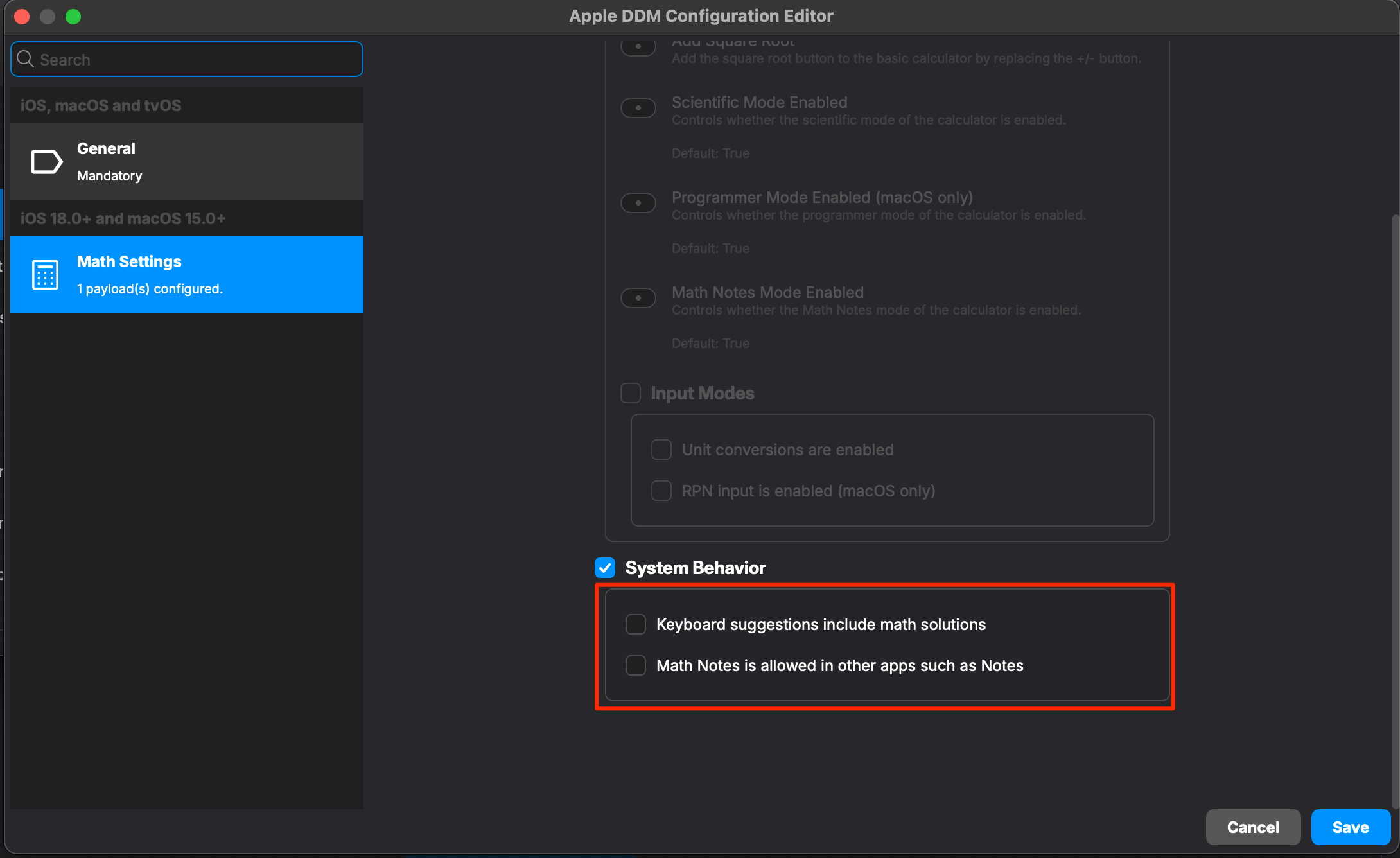
Search for Math Settings in the search bar > Configure. Under Math Settings, enable System Behavior by checking the box.

-
Leave the sub-options unchecked:
-
Keyboard suggestions include math solutions
-
Math Notes is allowed in other apps such as Notes
⚠️ Note: Checking Math Notes is allowed will enable sharing of math results across apps (e.g., in Freeform). Leaving it unchecked will restrict this.
-
-
Save and deploy the configuration to a test device, then a test group, followed by all target devices.
Result
Once applied, Math Notes and related results will no longer be offered in other apps such as Freeform or Notes. Even though the device’s Settings > Freeform > Math Results menu may still display “Suggest Results,” no actual math solutions will appear.
This ensures students or end users can use core functionality of apps without unintended math assistance.
View macOS Background Tasks with DDM
What
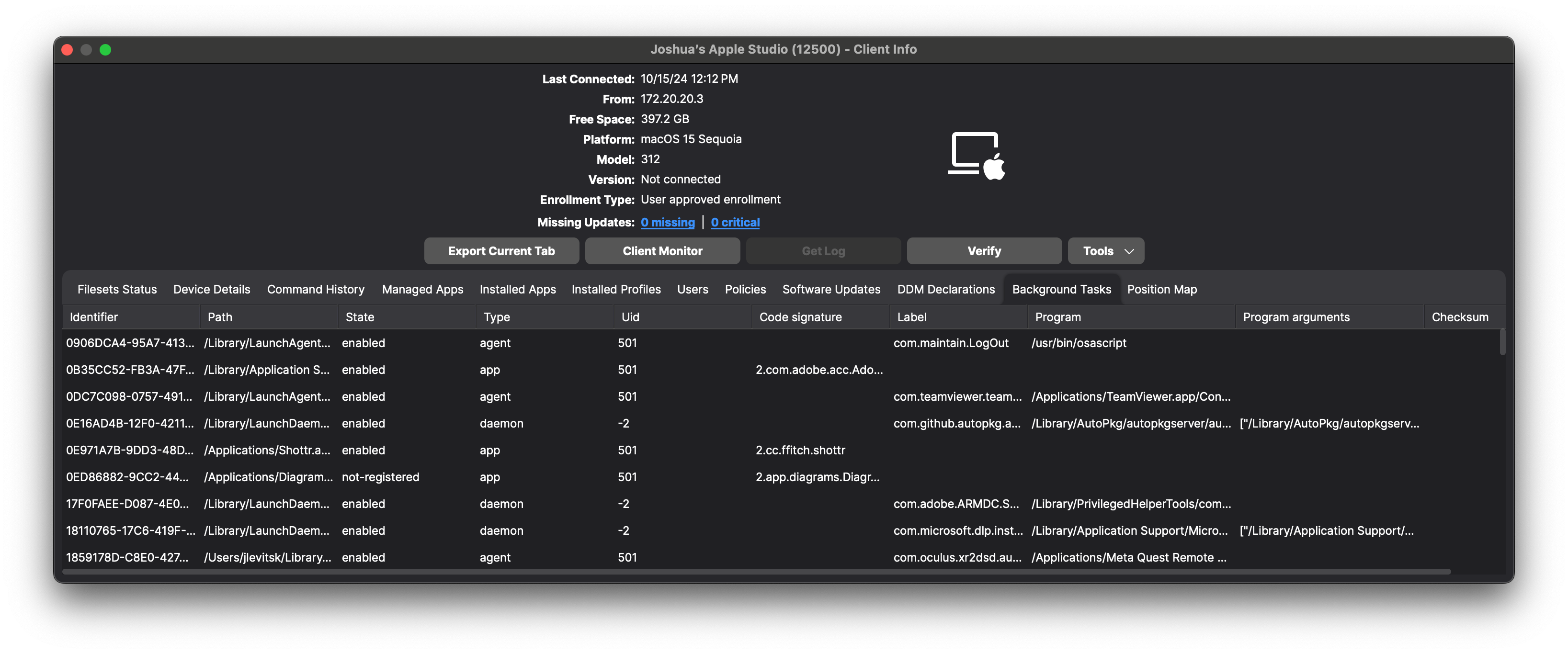
FileWave can inventory the launch agents, launch daemons, login items, applications, and other background tasks that a managed Mac reports through Apple Declarative Device Management (DDM).
DDM status reporting is declarative. When the device management service subscribes to a status object, the device reports its current state and later changes. FileWave therefore receives device-reported background-task status instead of repeatedly polling each Mac to discover the same information.
Requirements
Apple supports the DDM Background tasks status report on macOS 14 and later. The Mac must be enrolled so FileWave can receive the status data. Available fields can vary by task, and a field may be blank when the device does not return a value for it.
What FileWave reports
Apple's Background tasks status can include the task type, state, bundle ID, user ID (UID), label, and team identifier. In FileWave Central, the Background Tasks view can provide the following operational detail:
| Field | What it helps identify |
|---|---|
| Identifier | The identifier associated with the reported task record |
| Path | The application, LaunchAgent, LaunchDaemon, or other path associated with the task |
| State | The reported state, such as enabled or not-registered |
| Type | The task category, such as agent, daemon, or app |
| UID | The user or system context under which the task is reported |
| Code signature | Code-signing information returned for the task, when available |
| Label | The launchd or service label that can identify the component |
| Program | The executable or program launched by the task |
| Program arguments | Arguments supplied to the program, when reported |
| Checksum | The reported checksum value, when available |
How to view and report the data
- In FileWave Central, open the managed Mac and its Client Info window.
- Select the Background Tasks tab. Scroll horizontally to inspect fields that are outside the initial view.
- Use Inventory Reports when you need to compare returned background-task values across multiple Macs rather than inspect one device at a time.
When to use it
Background-task inventory can help you:
- Confirm that an expected security, management, or support component is present and reporting the expected state.
- Find Macs that report an unfamiliar task label, executable path, code signature, or team identifier.
- Use the reported task data as one input when investigating login-item, launch-agent, launch-daemon, application-launch, performance, or battery-life concerns.
- Compare task types and states across a device group for troubleshooting or policy review.
- Document the device-reported state as part of a security or compliance investigation.
A background-task record is evidence of what the Mac reported; it is not proof by itself that a component is safe, malicious, required, compliant, currently executing, or consuming resources. A state such as enabled is reported status, not a live process measurement. Validate unfamiliar values against your approved software inventory, vendor documentation, and device investigation before taking action.