DDM options will be gradually extended over following FileWave versions, gradually providing a broader scope of offerings. The screenshots in this KB are from FileWave 16.x
## When/Why Implement **DDM Configurations** in FileWave 15.5 when you aim to: - **Modernize Device Management**: Adopt Apple’s latest device management methodology to stay current with industry advancements. - **Increase Efficiency**: Allow devices to autonomously manage configurations, reducing reliance on constant server communication. - **Enhance Scalability**: Improve performance when managing large fleets, as devices handle more processing locally. - **Improve Responsiveness**: Devices can apply configurations and respond to changes more quickly without waiting for server commands. This is particularly useful for organizations managing numerous devices, seeking to optimize performance and reduce overhead.DDM Assets & Configurations are supported on devices running the following versions and above: **iOS 15**, **iPadOS 15**, **macOS 12 Monterey.**
Starting in FileWave 16.3.x, mixed DDM/MDM deployments are handled more cleanly. DDM Configurations are not Apple Profile Filesets, and Apple Profiles still install through MDM. Command Policy Filesets are also excluded from DDM installation and sent as their corresponding MDM commands during deployment.
Starting in FileWave 16.3.x, the **Service Configuration Files** editor includes additional built-in services: `com.apple.cryptoTokenKit` and `com.apple.authorization`.
## How To create and use **Configurations** in **FileWave 15.5**: 1. **Create a Configuration**: - Create a new Fileset and pick **DDM Configuration** from the **Apple** section. [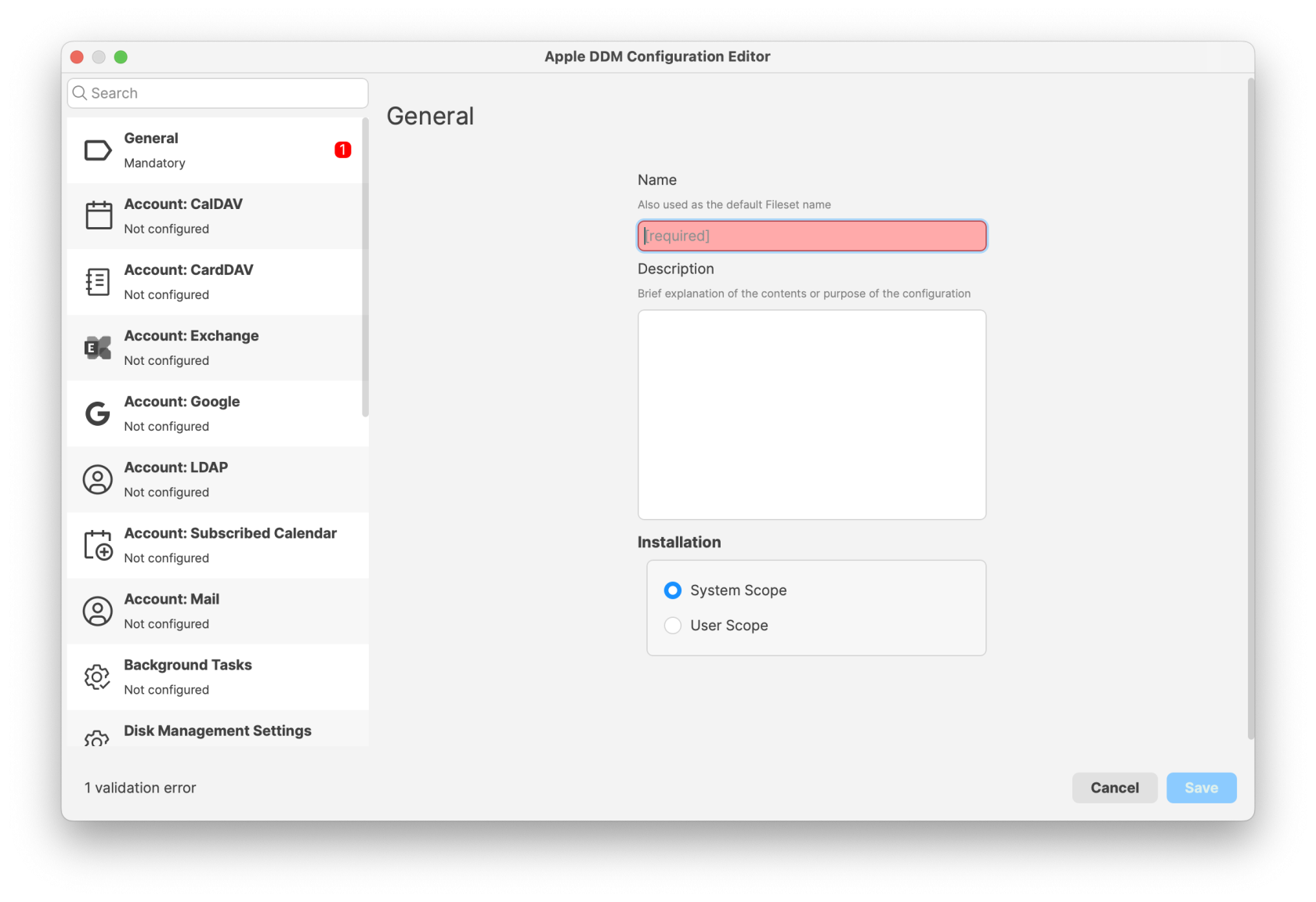](https://kb.filewave.com/uploads/images/gallery/2025-04/IPWxLFYkWXs4pGyr-image.png) 2. **Configure the Configuration**: - Pick the desired Configuration 3. **Reference a DDM Asset in DDM Configurations**: - Some Configurations can reference **[Apple Device Management - DDM Assets](https://kb.filewave.com/books/ddm-apple/page/apple-device-management-ddm-assets "Apple Device Management - DDM Assets")**. An example is the **Account: CalDAV** Configuration which can be fed credentials from a **DDM Asset** (configured with the DDM Asset Editor) [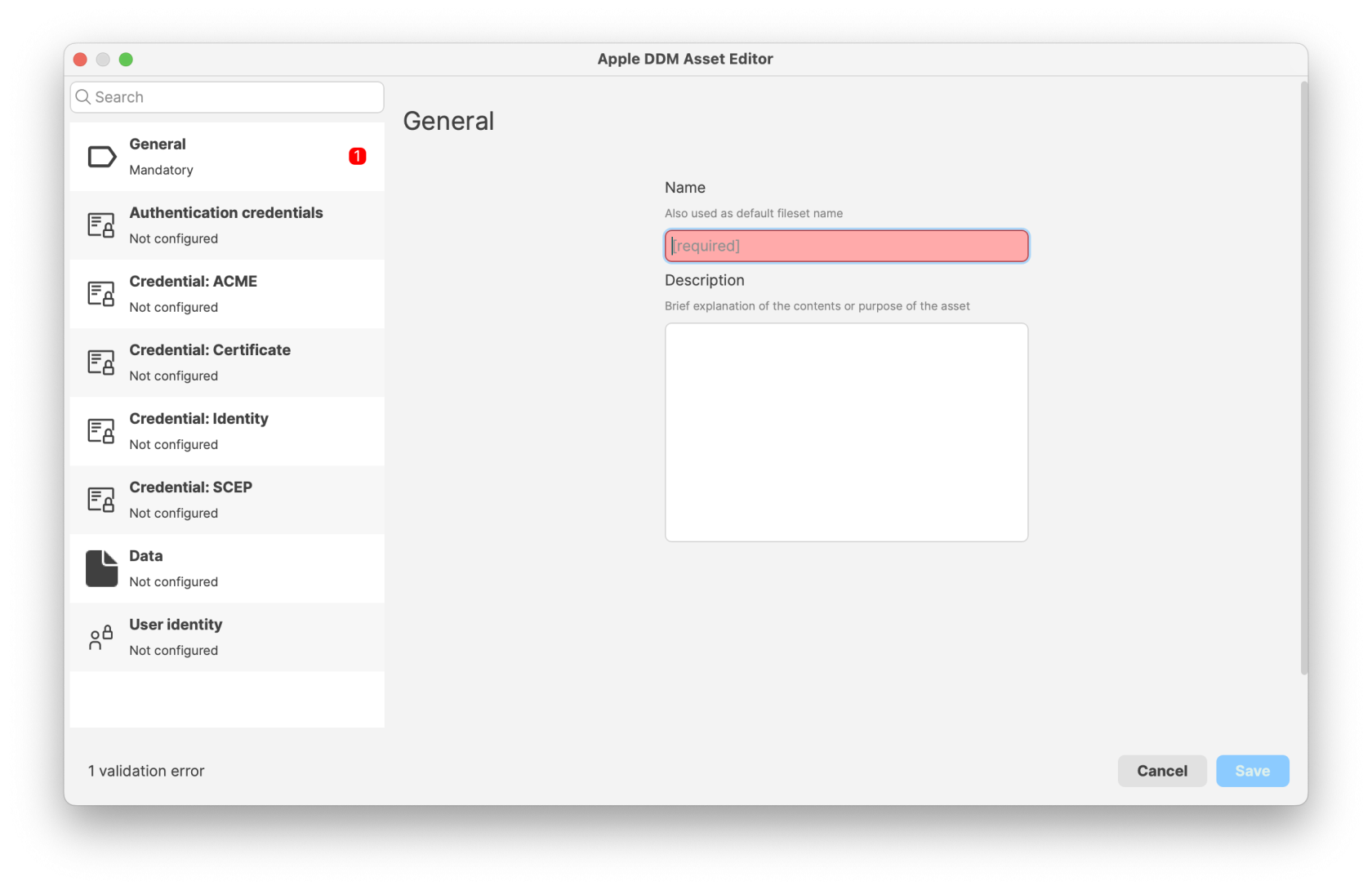](https://kb.filewave.com/uploads/images/gallery/2025-04/46dDMf3gtUHKc4y4-image.png) 4. **Automatic Dependency Handling**: - When a configuration references an Asset, FileWave automatically manages the Asset as a dependency. - Deploying the configuration will also deploy the associated Asset to the target devices. 5. **Deploy to Devices**: - Assign the configurations to your devices or device groups. - Monitor the deployment to ensure that devices receive both the configuration and the associated Assets. ### Fileset Status Unlike Profiles, DDM configurations are deployed with one single DDM command, meaning the Client Info > Command History tab will not show individual events per DDM configuration delivered. Starting in FileWave 16.3.x, **Client Info > Fileset Status** provides more detailed status information for **multi-configuration DDM Filesets**. For example, a Fileset such as **Screen Sharing Configuration** can contain multiple DDM configurations, and each one can now report its own status within the Fileset Status view. This makes it much easier to see which specific configuration succeeded or failed during deployment. This detailed DDM status is shown in the same area used for Script status, because scripts and DDM configurations cannot coexist within the same Fileset. Single-configuration DDM Filesets are not changed by this behavior. Likewise, when viewing the installed Profiles on a device, the DDM Configurations will not show as Profiles, but, instead, within the FileWave MDM Configuration Profile. Accessing the Profile list from Settings of a device, open the FileWave MDM Configuration Profile and scroll down to Device Declarations: [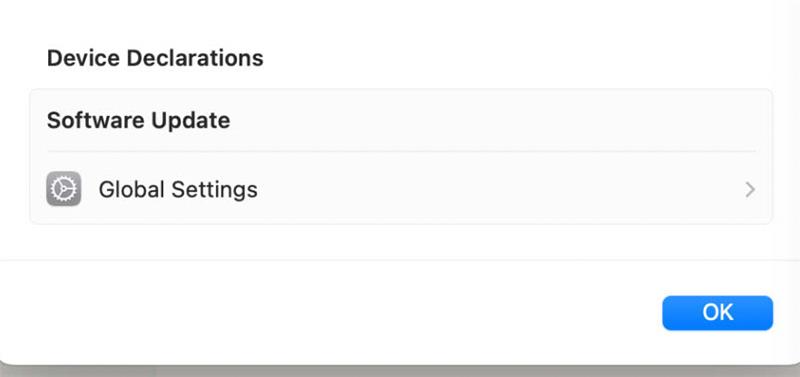](https://kb.filewave.com/uploads/images/gallery/2025-04/834mj9bfZbR77g4G-image.png) In the above example, opening Global Settings should reflect the settings delivered by Apple DDM Configuration Filesets. For example: [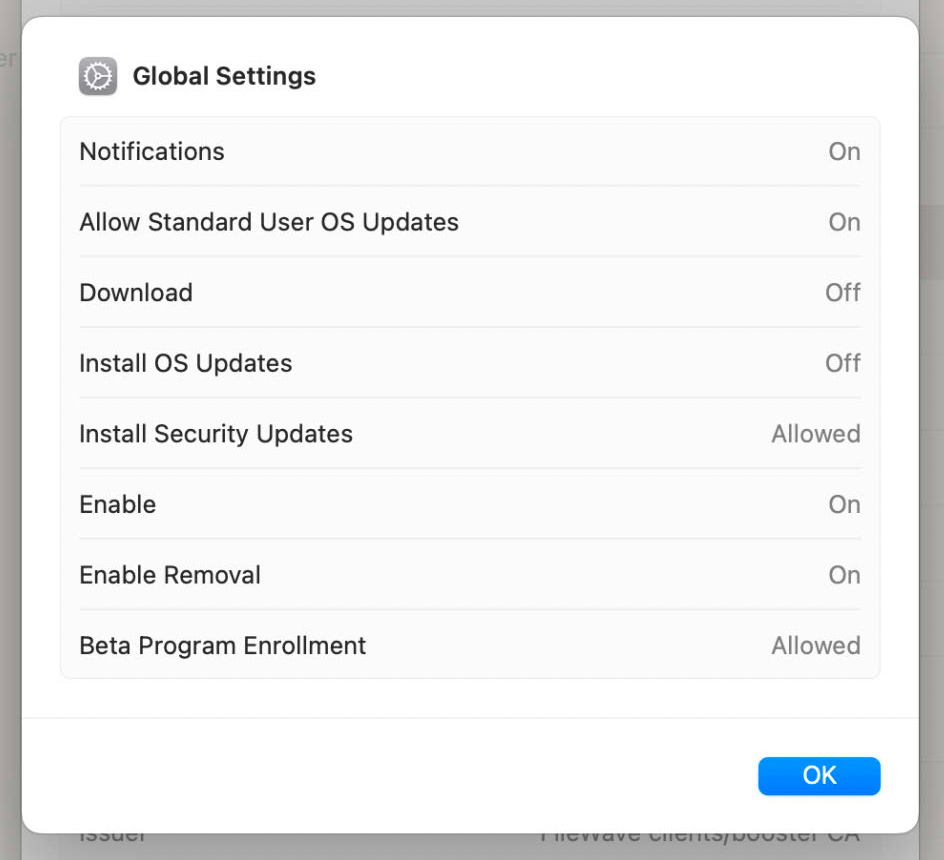](https://kb.filewave.com/uploads/images/gallery/2025-04/6nG32vjX609SRuwr-image.png) ## Related Content - [Apple’s Declarative Device Management Documentation](https://developer.apple.com/business/documentation/MDM-Protocol-Reference.pdf) ## Digging Deeper **Declarative Device Management (DDM)** represents a significant evolution in Apple’s device management strategy: - **Device-Centric Management**: Devices receive declarations of desired states and autonomously ensure compliance, reducing the need for continuous server commands. - **Enhanced Performance**: Offloading processing to devices improves performance and scalability, especially in large environments. - **Improved Reliability**: Devices can enforce configurations even when temporarily disconnected from the management server. **Key Benefits**: - **Reduced Server Load**: Servers are less burdened with managing individual device states, as devices handle more tasks independently. - **Faster Configuration Application**: Devices can apply changes immediately upon receiving declarations, without waiting for additional instructions. - **Proactive Compliance**: Devices continuously ensure they meet the declared state, self-correcting if configurations are altered or removed. By embracing DDM configurations in FileWave 15.5, organizations can achieve a more efficient, scalable, and responsive device management system that meets the demands of modern IT environments. **Conflicting Payloads:** Apple have not provided any alternate information, from MDM Payloads, regarding the experience if two DDM configurations are applied to control the same feature, but with differing settings. Please consider the following: - Where MDM Payloads are concerned, Apple suggest the experience is undefined. - [Plan your configuration profiles for Apple devices](https://support.apple.com/en-gb/guide/deployment/dep9a318a393/web) - Apple used to have an additional clause, suggesting that where restrictions payloads conflicted, the more restrictive setting would win (but this detail was removed from their documentation). - It would be reasonable to assume that the same conditions apply to DDM. For what it is worth, testing the conflict between MDM and DDM for a restriction provided the following result: - Set differing macOS Software Update defer durations in both MDM and DDM payloads. - Associate both. - In each test, the most restrictive (greatest duration of days) appeared to always be applied. - It did not matter if DDM or MDM was the more restrictive.In would be sensible to avoid conflicts where possible, rather than rely on a tested experience.
# Battery Health Inventory Field ## What FileWave v16.2.0+ now reports **Battery Health** as an inventory field for supported iPads and Macs. This value comes directly from Apple’s device management framework and can help administrators quickly identify whether a device battery is functioning properly, requires service, or is using a non-genuine replacement. The possible values are: - **Normal** – Battery is functioning within expected parameters. - **Non-Genuine** – Battery replacement detected that is not Apple-certified. - **Service-Recommended** – Battery requires servicing due to degradation or fault. - **Unknown** – Device could not determine battery status. - **Unsupported** – Device does not support reporting battery health.To get a value of anything other than Unsupported you would need iOS 17.0+, iPadOS 17.0+, or macOS 14.4+ and for iPads it was added to higher end iPads at the end of 2024 and all iPads in 2025.
## When/Why Battery health information is crucial for organizations managing fleets of iPads or Macs where device longevity, service costs, and user experience depend on reliable battery performance. - **When**: Use this field during device audits, lifecycle management, or when troubleshooting performance and uptime issues. - **Why**: It helps IT teams proactively schedule repairs or replacements, avoid downtime, and distinguish between genuine vs. non-genuine repairs. ## How 1. Open the **FileWave Central Console** and locate the target device. 2. Navigate to the **Client Info** window. 3. Select the **Device Details** tab (or search for “Battery Health” in the search bar). 4. Review the reported **Battery Health** value. - For unsupported devices, the value will display as **Unsupported**. - Supported iPads and Macs will show one of the Apple-defined statuses.💡 **Support Note**: According to [Apple’s documentation](https://support.apple.com/en-us/117759), battery health reporting is currently available on higher-end **2024 models** and **all 2025 iPad/Mac models**.
[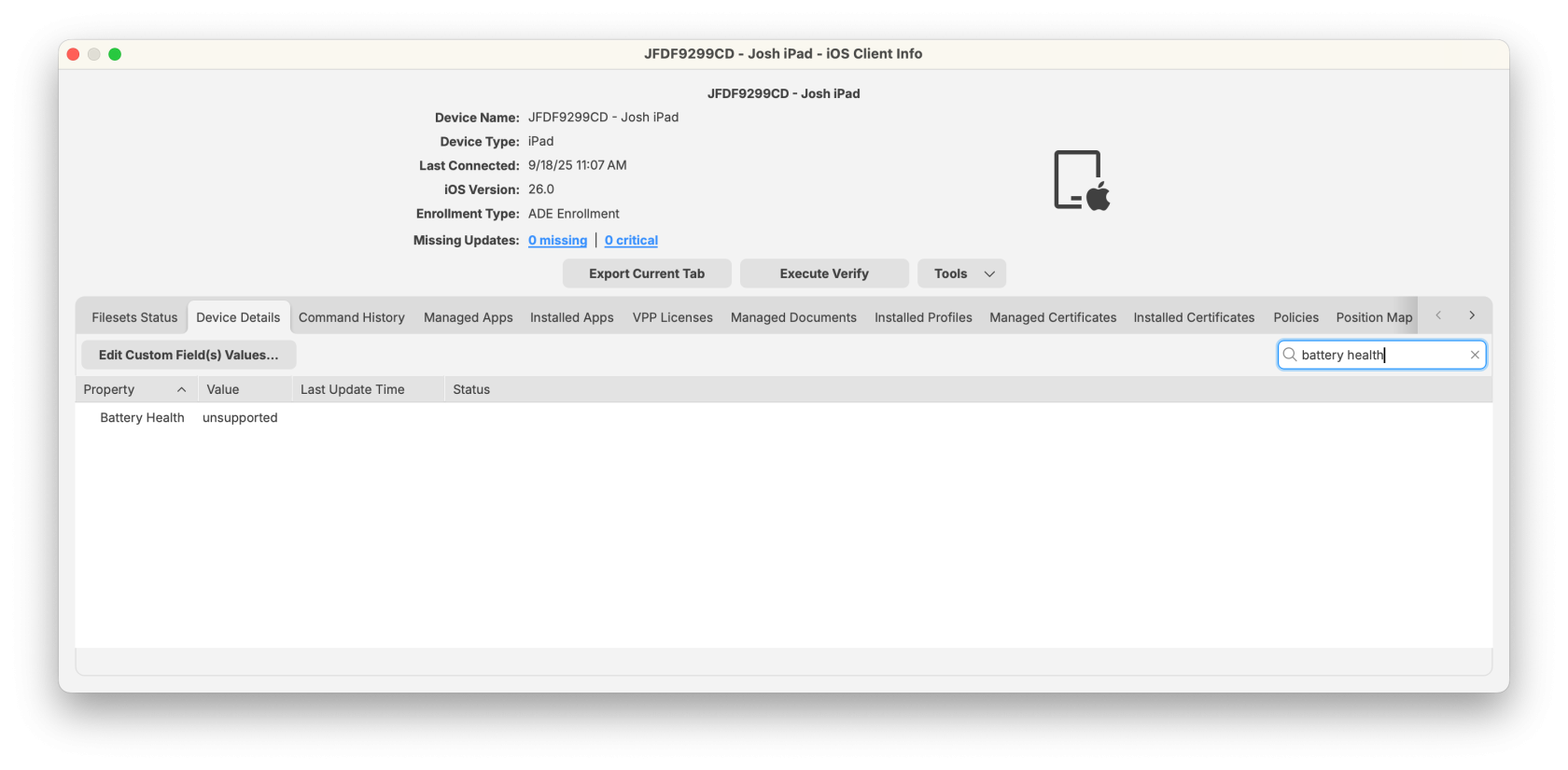](https://kb.filewave.com/uploads/images/gallery/2025-09/LyAtTLXJRtmJwS5X-filewave-admin-2025-09-18-11-07-22.png) #### **Smart Group Example: Devices Needing Battery Service** To automatically identify devices that require attention: 1. In the **FileWave Central Console**, create a new **Smart Group**. 2. Add a filter with: - **Property**: Battery Health - **Operator**: equals - **Value**: Service-Recommended 3. Save the Smart Group. This group will dynamically collect all devices with failing batteries so administrators can schedule replacements or repairs. ## Related Content - [Apple: Check iPad battery health](https://support.apple.com/en-us/117759) - [Apple Developer Documentation – Battery Health Status](https://developer.apple.com/documentation/devicemanagement/statusdevicebatteryhealth) ## Digging Deeper - FileWave does not calculate battery health; it simply displays the status as reported by the device. - In environments with mixed device generations, you may see a mix of **Normal** and **Unsupported** values, depending on hardware. - For long-term fleet management, admins may consider building a **Smart Group** that collects devices with Battery Health = Service-Recommended to streamline service workflows. # DDM Configuration - Restricting Math Results in Other Apps with FileWave ## Restricting Math Results in Other Apps with FileWave With iOS 18 and macOS 15, Apple introduced new controls for managing **Math Notes** and related behaviors across apps. FileWave allows you to configure these restrictions through the **Apple DDM Configuration Editor**. 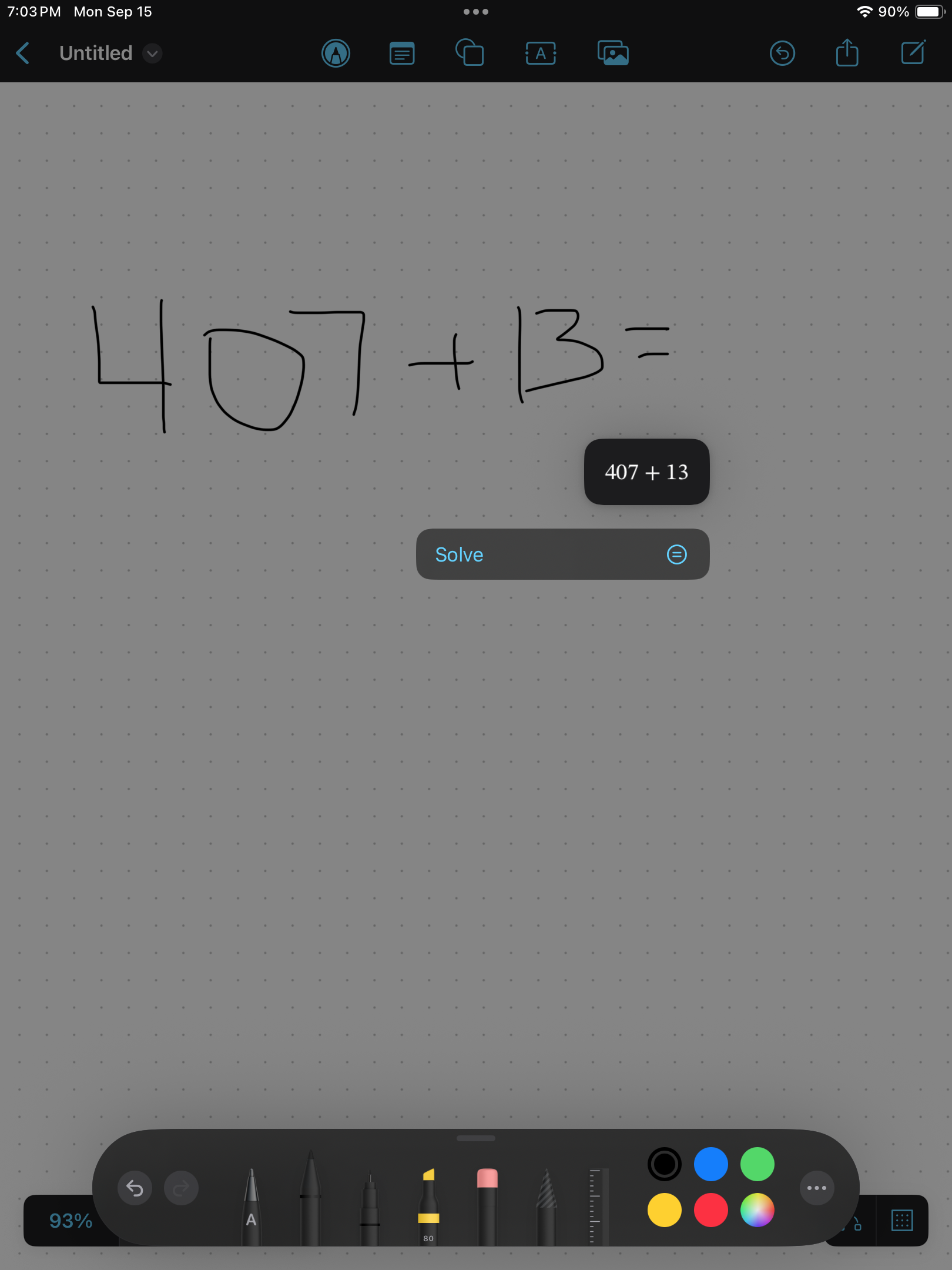 ## Steps to Configure 1. In FileWave Admin, go to: **New Fileset → Apple → DDM Configuration:** [](https://kb.filewave.com/uploads/images/gallery/2025-09/VhR0ETlvmTdjHI2Z-image.png) 2. Search for Math Settings in the search bar > Configure. Under **Math Settings**, enable **System Behavior** by checking the box. [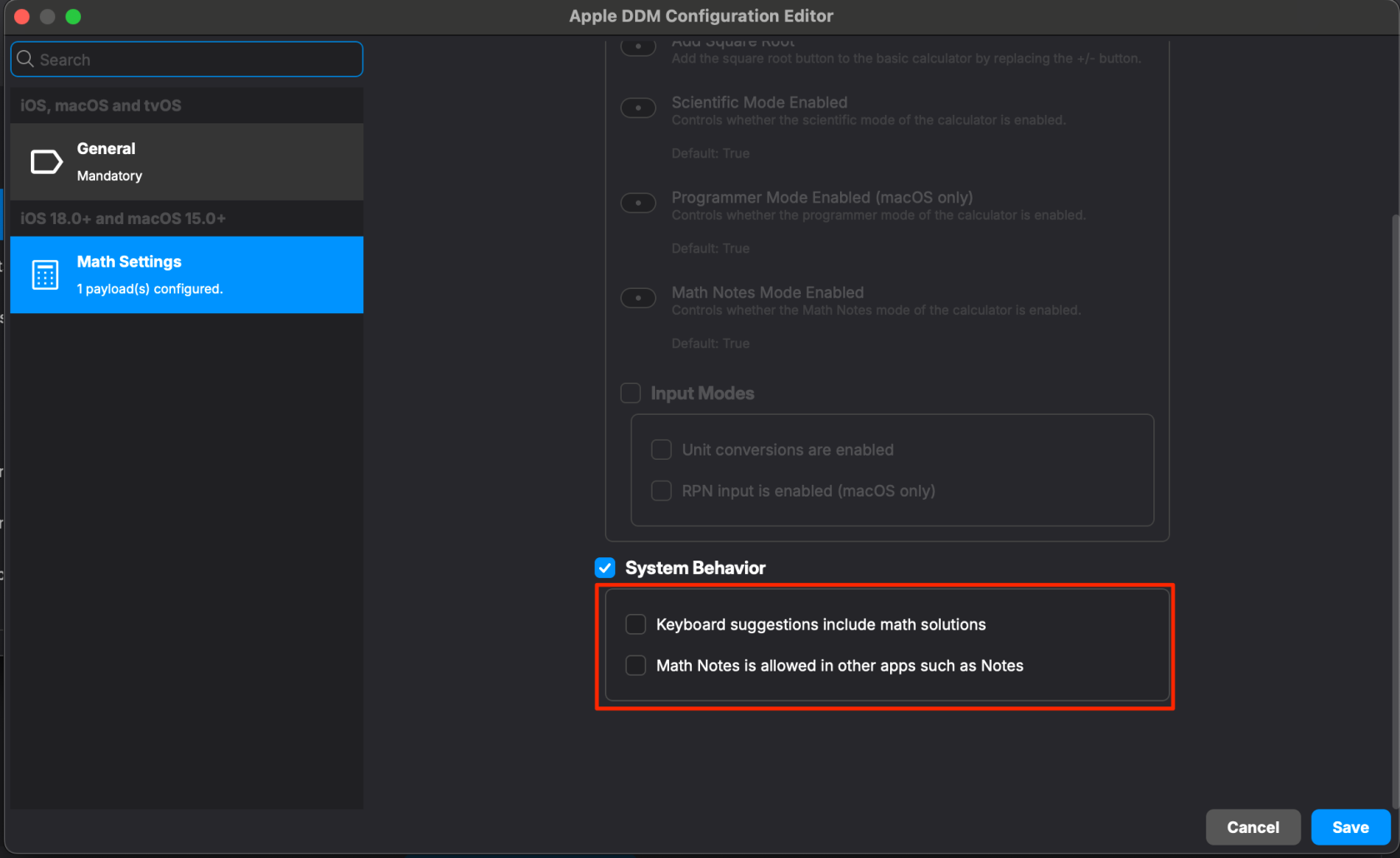](https://kb.filewave.com/uploads/images/gallery/2025-09/kVk5E0HsiR68XKsI-image.png) 3. Leave the sub-options **unchecked**: - *Keyboard suggestions include math solutions* - *Math Notes is allowed in other apps such as Notes* ⚠️ Note: Checking *Math Notes is allowed* will **enable** sharing of math results across apps (e.g., in Freeform). Leaving it unchecked will restrict this. 4. Save and deploy the configuration to a test device, then a test group, followed by all target devices. ## Result Once applied, Math Notes and related results will no longer be offered in other apps such as Freeform or Notes. Even though the device’s **Settings > Freeform > Math Results** menu may still display “Suggest Results,” no actual math solutions will appear. This ensures students or end users can use core functionality of apps without unintended math assistance. # Background Tasks (DDM status - macOS) ## What FileWave has integrated Apple’s **Declarative Device Management (DDM)** capabilities to enhance the monitoring of background tasks on macOS devices. This new feature allows administrators to receive detailed reports on the background tasks that are present. The information provided includes the service identifier, the application path (e.g., /Applications/1Password.app), the status of the service (such as **enabled** or **not registered**), the type of service (application or login item), the user ID (UID) under which the service is running, and the code signature details. By leveraging DDM, macOS devices can autonomously report this information without the need for constant server queries. This enhancement improves the visibility of background processes across your device fleet, aiding in compliance, security auditing, and troubleshooting efforts. ## When/Why This feature is particularly useful when there is a need to: - **Audit Background Tasks**: Keep track of all background tasks running on macOS devices to ensure they comply with organizational policies. - **Enhance Security Monitoring**: Identify unauthorized or malicious background tasks that could pose security risks. - **Troubleshoot Issues**: Diagnose problems related to application performance or system stability by analyzing running background tasks. - **Compliance Verification**: Ensure that required tasks are running and that unnecessary ones are disabled, aligning with compliance standards. #### **Why This Feature Matters** Understanding which background tasks are running on your macOS devices is crucial for maintaining a secure and efficient computing environment. Background tasks can have significant impacts on device performance, battery life, and security. Unauthorized tasks might access sensitive data or provide an entry point for threats. By receiving detailed reports on these tasks, administrators can take proactive measures to manage and secure their device fleet effectively. The integration of DDM enhances this process by allowing devices to report their status autonomously. This reduces the need for frequent server polling, decreases network traffic, and provides up-to-date information without delays. ## How #### **Enabling Background Tasks Reporting** To utilize this feature, ensure that your macOS devices are enrolled in FileWave and running macOS 12 Monterey or later, that DDM is supported on these versions and ensure the FileWave Client is at least v15.5.0. #### **Accessing Background Tasks Data** Background tasks based on a launch daemon are now reported in Inventory for macOS devices supporting DDM, once the FileWave Client is up to date on a supported version of macOS. The below image shows an example of this inventory data. [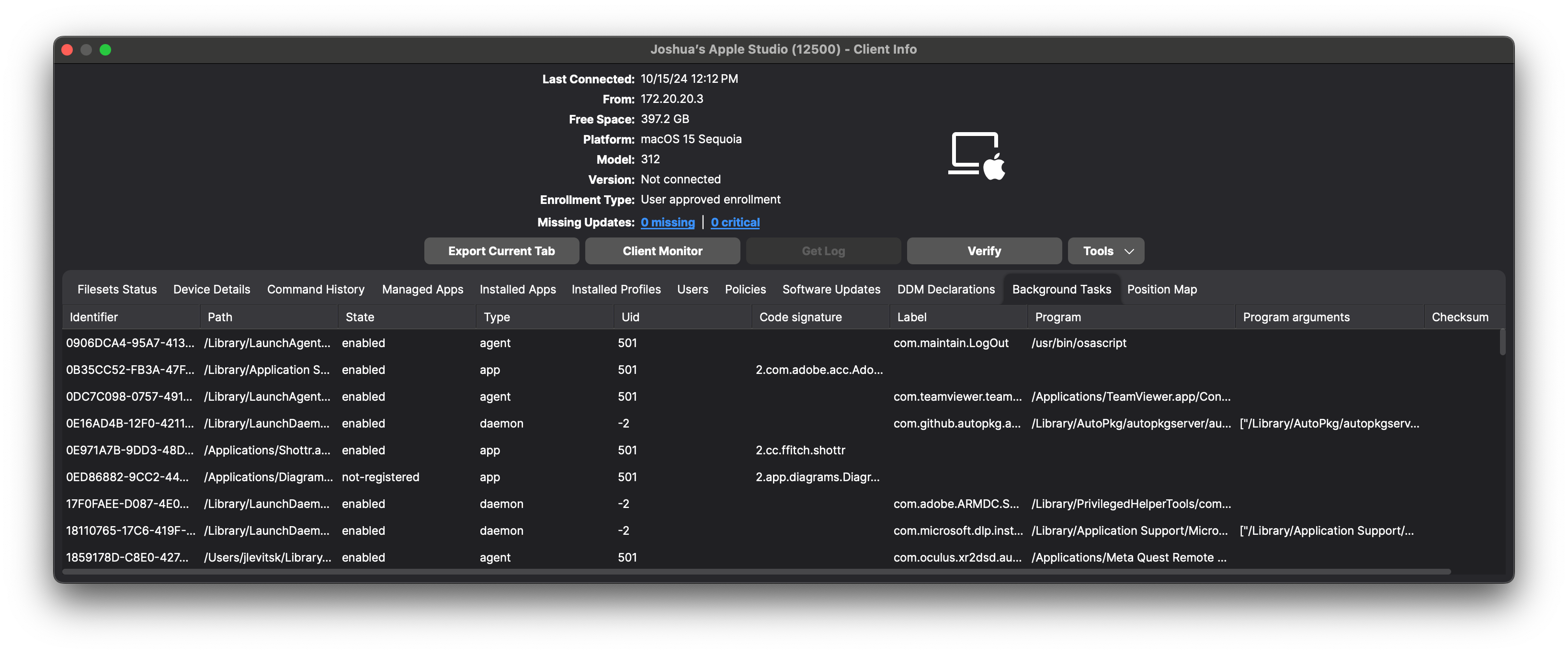](https://kb.filewave.com/uploads/images/gallery/2024-10/YTkOPO1Cwh7wKrod-image.png) ## Related Content - [FileWave Version 15.5.0](https://kb.filewave.com/books/downloads/page/filewave-version-1550-unsupported "FileWave Version 15.5.0")