Do not log into the Chromebook before enrollment. If a user signs in first, reset the device and start the enrollment process again.
You need a configured Google enrollment user to enroll the device.
On power up, the device should present the Welcome page: [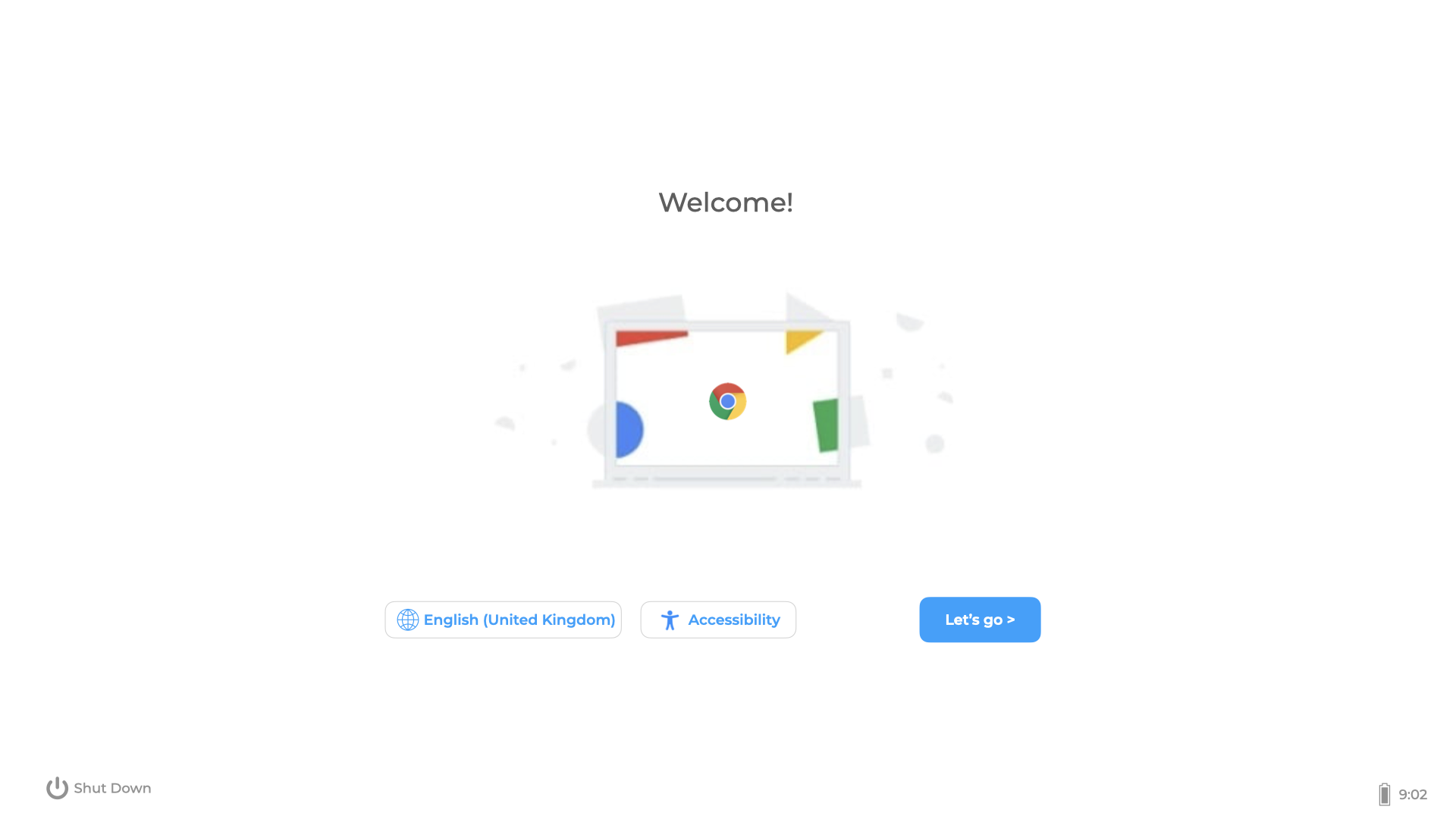](https://kb.filewave.com/uploads/images/gallery/2023-07/AHeJwW9ThqeA0GHO-chromebook-welcome.png) Click **Let's go**, then select a Wi-Fi network. After the device joins a network, it may show an Enterprise Enrollment page: [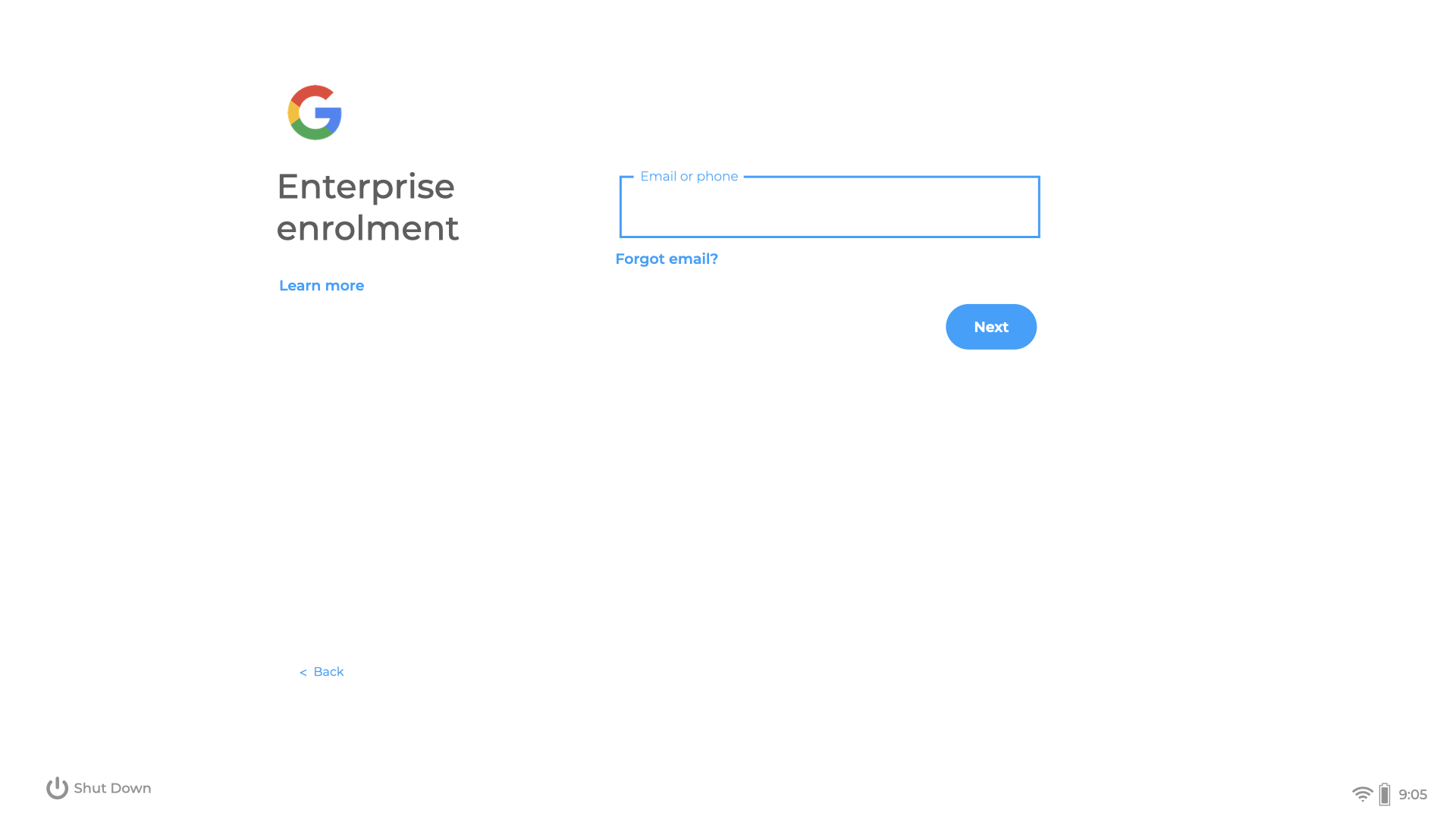](https://kb.filewave.com/uploads/images/gallery/2023-07/Fcui3DRN8CcZMz92-chromebook-enrolment-page.png) If it does not, press **Ctrl+Alt+E** to enroll the device. Enter the Google enrollment username and password. The device shows a progress bar while enrollment is running. When enrollment completes, a success page should appear: [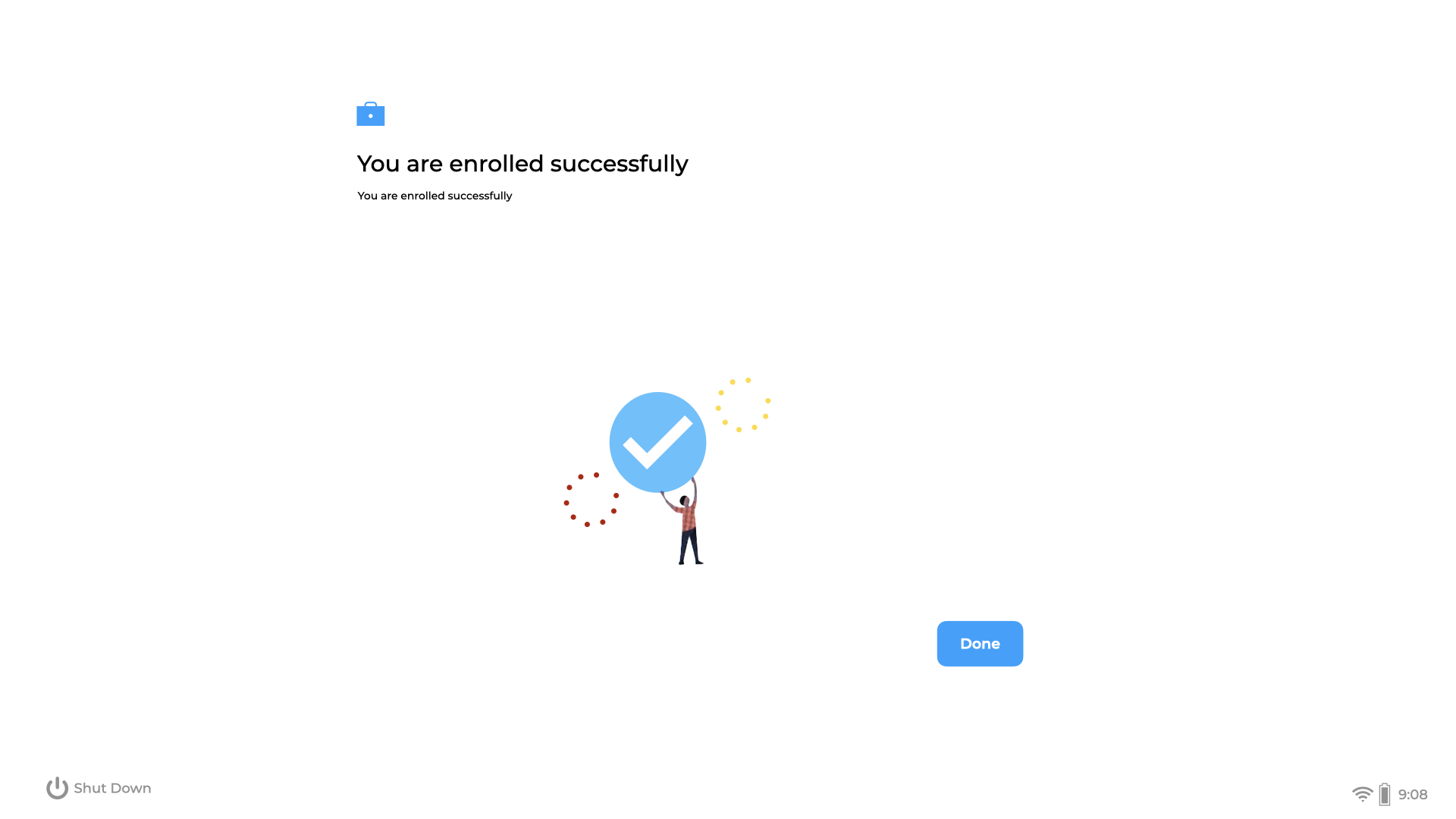](https://kb.filewave.com/uploads/images/gallery/2023-07/7EhfE9BHhH5PHnOJ-chromebook-enrolled.png) At this point, the device should show in Google Admin Console as provisioned. After the next FileWave Google OAuth synchronization, the device should appear in the FileWave Client view. You can trigger synchronization manually from FileWave Central preferences: [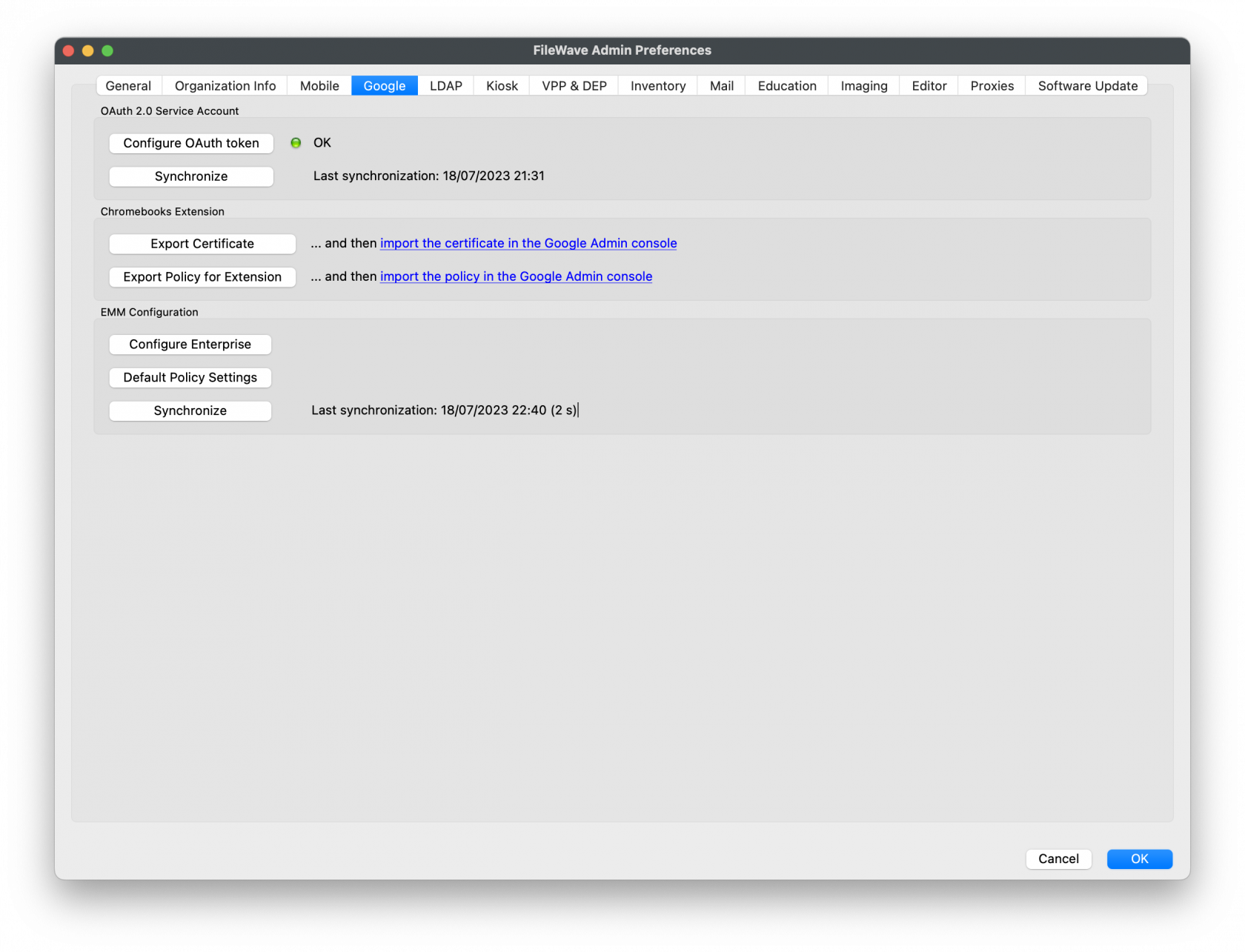](https://kb.filewave.com/uploads/images/gallery/2023-07/pEiJ0878rYk7Vu26-image.png) Clicking **Done** on the device should present the login page to the user: [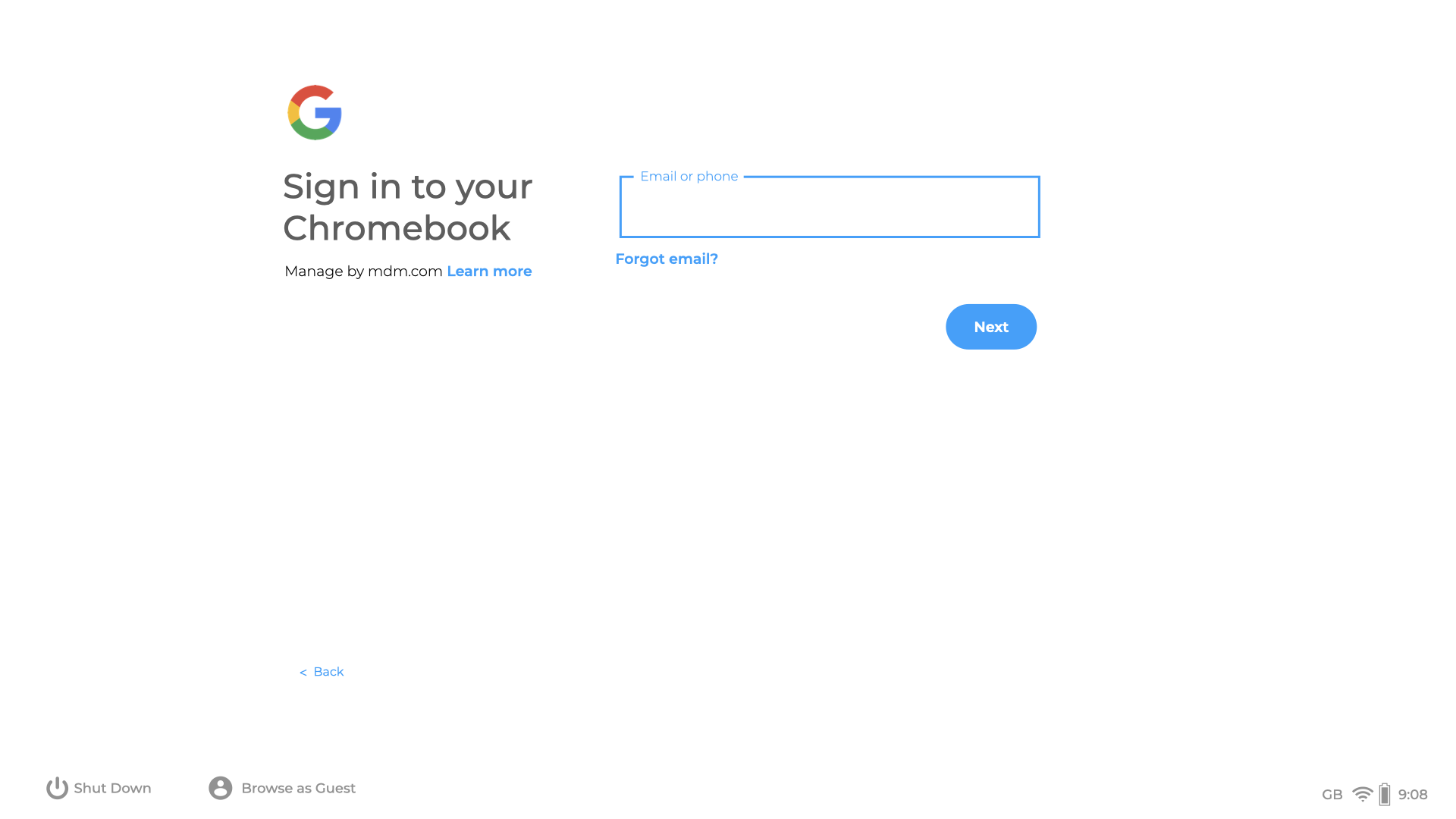](https://kb.filewave.com/uploads/images/gallery/2023-07/IGmCZ6YtQ6KxzMeG-chromebook-login.png)