Associations to Deployments Strategy Guide
Deployments are the replacement for Associations as you move forward with FileWave in future. Deployments allow you to set rules for content delivery just as associations do, but deployments also allow you to group “associations” into one place to edit and organize them commonly.
When using the webadmin you will notice that you can not create associations any longer, and will use deployments in their place. But, don’t worry, deployments are easy to understand and use!
- How Are Deployments Different than Associations?
- What makes Deployments better than Associations?
- How to decide what is included in a single deployment?
- Combining payloads into a singular deployment based on metadata
- Plan One or Multiple Deployments
- Convert Associations to Deployments
- Resolving Conflicts in Associations Conversion
- Explanation of Clones with Deployments
- Deployments in FileWave Central
How Are Deployments Different than Associations?
What
Deployments and associations use the same core assignment rules, but deployments let you group multiple associations and manage them together.
When/Why
Use deployments to assign content to devices, much like an association. The difference is that a deployment can group multiple associations into one easier-to-find content delivery rule.
How
See View - Deployments for creating a deployment from scratch. Related articles also cover the Associations to Deployments Conversion Tool and the practical benefits of deployments.
Digging Deeper
Deployments use the same content delivery rules as associations, including:
- Timing options for installation
- License management (for VPP related content)
- Installation method, such as Kiosk or direct installation
|
|
|
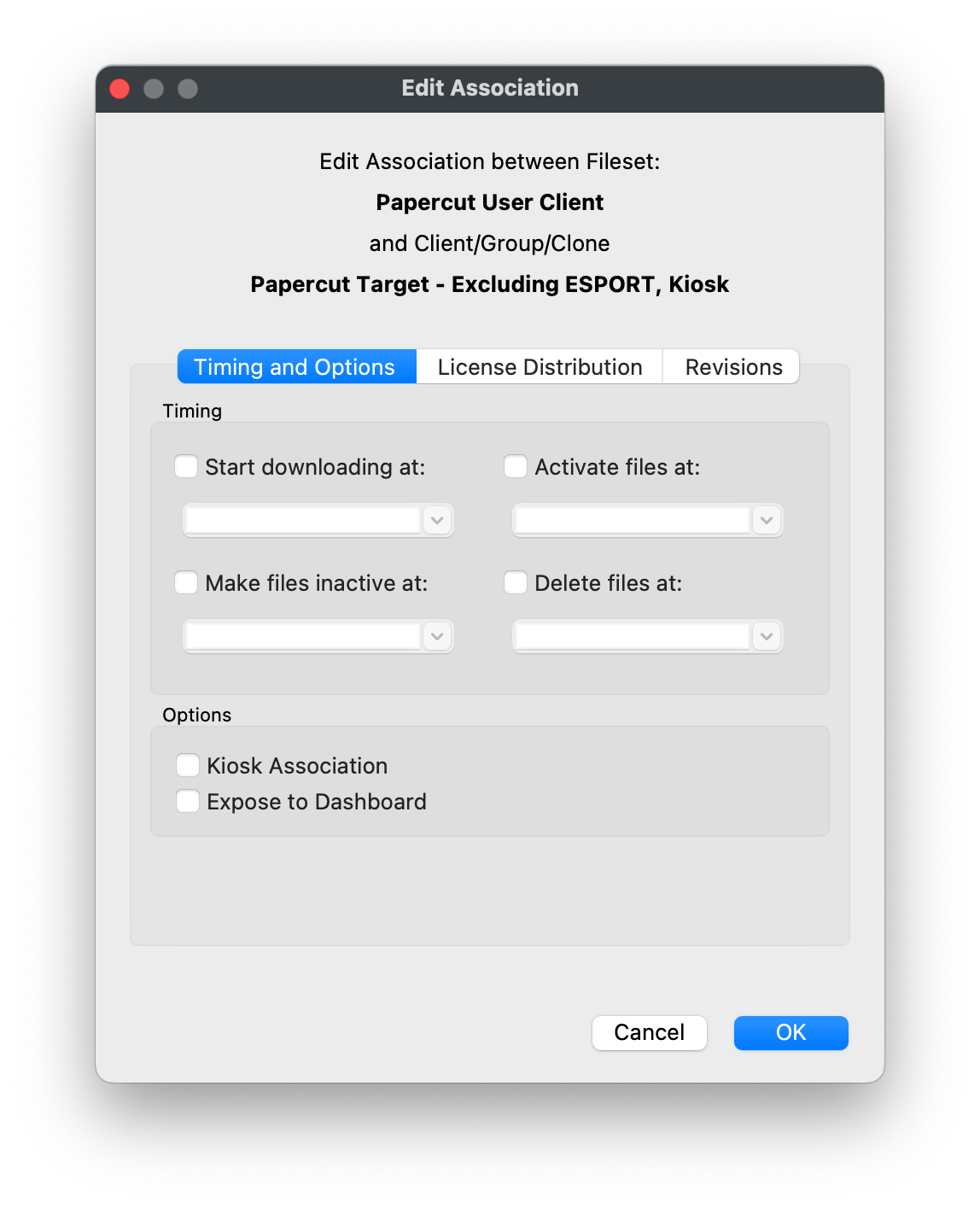
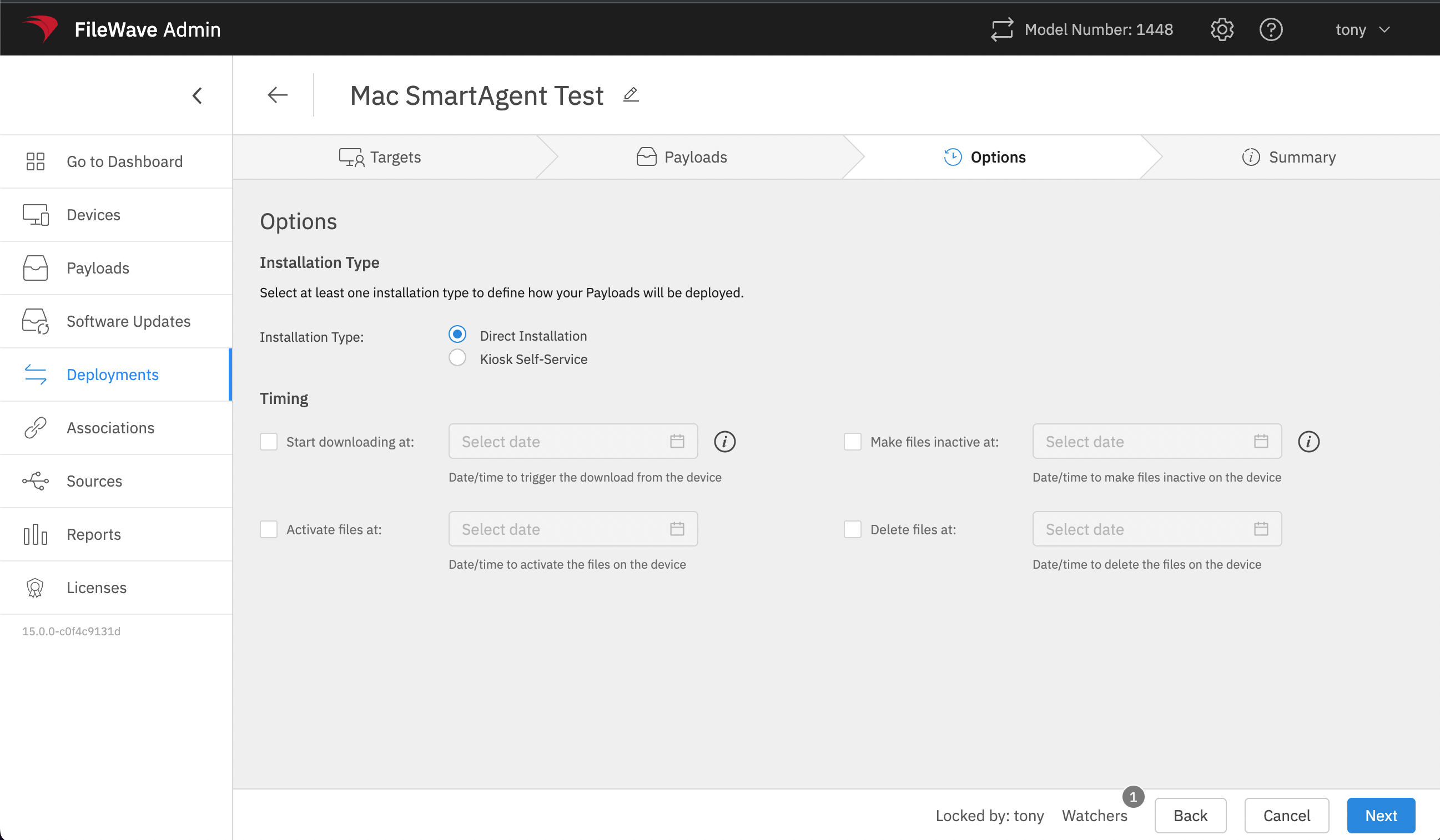
Unlike a single association, a deployment can apply those rules to multiple Filesets or payloads at the same time. When the delivery rule needs to change, you can update the deployment once instead of editing each association separately.
What makes Deployments better than Associations?
What
Deployments and Associations both assign Filesets or payloads to devices. Deployments are usually easier to maintain because one Deployment keeps its targets, exclusions, Filesets, and shared delivery options together.
Deployments are not automatically better for every existing assignment. Use them when the included content should share the same behavior. Keep or split assignments when timing, installation type, licensing, targets, exclusions, or Fileset revisions need to differ.
Why use Deployments?
| Deployment capability | Operational benefit |
|---|---|
| Multiple Filesets and targets in one rule | Update the shared assignment once instead of finding and editing a set of separate Associations. |
| Exclusions | Target a broad group and omit specific devices or subgroups without building a separate assignment structure. |
| Shared options | Apply one installation type, timing configuration, and applicable VPP/Apps and Books license-distribution model to the included content. |
| Tags and names | Group and find related content-delivery rules without reorganizing the Fileset tree around each assignment. |
| Ongoing maintenance | Add or remove targets and Filesets later while retaining the Deployment's shared options. |
When one Deployment is a good fit
Group content in one Deployment when all of the following are true:
When not to combine assignments
Use separate Deployments—or retain existing Associations until a deliberate conversion is appropriate—when any included item needs different behavior.
- One application is optional in Kiosk while another must install directly.
- One Fileset needs a different activation, inactivation, or deletion schedule.
- Different targets or exclusions should receive different combinations of content.
- VPP/Apps and Books applications need different license-distribution models.
- Multiple revisions of the same Fileset must remain available or transition independently.
Association conversion is a real replacement. The conversion tool replaces the selected Associations with the resulting Deployment after you publish the preview. Review every target, Fileset, option, revision, and added or removed assignment before publishing.
FileWave Central 16.4
FileWave Central 16.4 shows included targets and Filesets side by side in a unified Deployment editor. Exclusions and shared options expand below the included items, and Tags are available for organization and filtering.
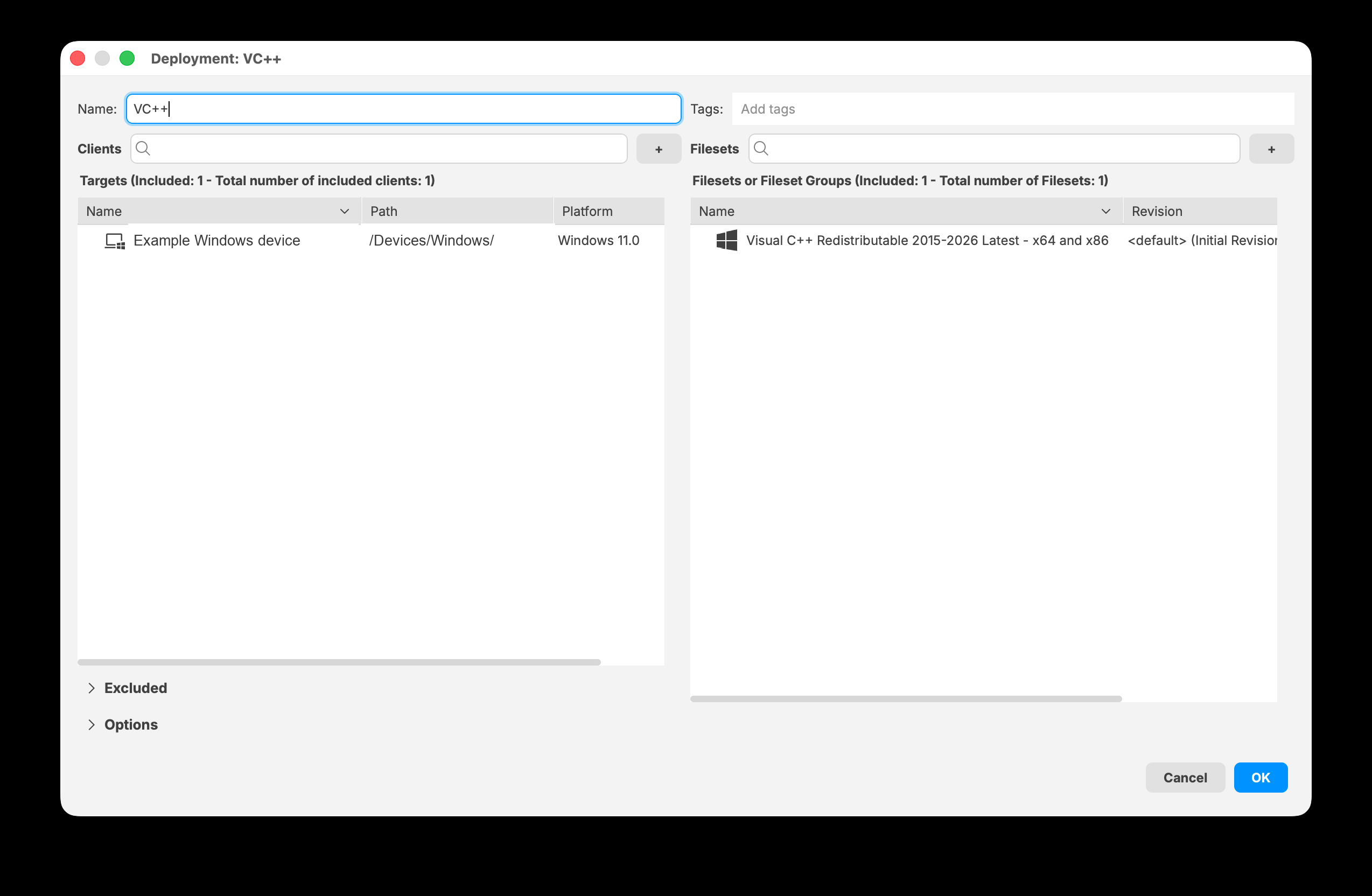
FileWave Central 16.4 keeps included targets and Filesets together in the Deployment editor.
Decision summary
| Situation | Recommended approach |
|---|---|
| Content shares targets, exclusions, installation type, timing, licensing, and revision behavior | Use one Deployment. |
| Only one part of the assignment needs different behavior | Use a separate Deployment for that content or target scope. |
| Existing Associations already express intentional differences | Keep them until the conversion preview proves that a Deployment preserves the intended result. |
| Several matching Associations should be managed together | Use the Associations-to-Deployment conversion tool and review the preview before publishing. |
Related content
How to decide what is included in a single deployment?
What
Deployments let you group multiple payloads and manage their deployment rules together. The practical question is which Filesets and payloads belong in the same deployment.
When/Why
This applies when you create new deployments and when you convert existing associations into deployments. Group content that should share the same assignment logic, timing, licensing behavior, delivery settings, revision behavior, and destination platform.
How
A good deployment grouping balances admin effort with the deployment metadata that FileWave applies to that content:
- What grouping keeps the FileWave administrator workflow manageable?
- Which deployment metadata should apply to the content together:
- Licensing options
- Timing options
- Delivery options
- Fileset and payload revisions
- Destination platform
Use the related deployment strategy articles for more detail on each of these choices.
Combining payloads into a singular deployment based on metadata
What
Every Deployment stores metadata about how content is assigned: targets and exclusions, installation type, timing, applicable license distribution, and Fileset revision choices.
When/Why
Use one Deployment for multiple Filesets or destinations only when the content should share the same metadata. If one Fileset or target needs a different installation type, schedule, license-distribution model, target list, exclusion, or revision behavior, split it into a separate Deployment.
How
A single Deployment is a good fit when all of the following are true:
- The Filesets use the same Installation Type, such as Direct Installation or Kiosk Self-Service.
- The timing options match.
- Applicable VPP/Apps and Books applications use the same Device or User license-distribution model.
- The same targets and exclusions should receive the content.
- There are no Fileset revision conflicts.
For example, if Firefox should be available through Kiosk Self-Service for both Accounting and HR, those groups can be included in the same Deployment when the rest of the settings also match.
If Firefox should be available through Kiosk Self-Service for Accounting but installed directly for HR, do not combine those assignments. The delivery metadata differs, so use separate Deployments.
Association conversion
Association-to-Deployment conversion follows the same rule: combine Associations only when their metadata matches and the resulting Deployment should apply every included Fileset to every included target.
In the Associations view, filter the list to find candidates, select the matching Associations, and choose Move to Deployment. Review the conversion preview before publishing. The preview shows changes to targets, Filesets, options, timing, and revisions; no conversion is committed until you choose Publish.
Conversion replaces the selected Associations. Do not combine Associations merely to reduce their count. If the preview adds content to a target, removes an assignment, changes timing, or resolves a revision differently than intended, cancel and split the conversion.
Quick metadata check
| Compare | Question before combining |
|---|---|
| Targets and exclusions | Should every included target receive every included Fileset, with the same exclusions? |
| Installation Type | Should all content use Direct Installation or all use Kiosk Self-Service? |
| Timing | Should download, activation, inactivation, and deletion timing apply together? |
| License Distribution | Should applicable Apps and Books licenses use the same Device or User model? |
| Fileset revisions | Can the resulting Deployment use one intended revision of each Fileset? |
Related content
Plan One or Multiple Deployments
What
A Deployment applies every included Fileset to every included target. Use one Deployment only when every target should receive every Fileset with the same exclusions, Installation Type, activation and deactivation, installation timing, license distribution, revision behavior, and destination-platform requirements.
There is no single correct number of Deployments. Choose an organization that makes the current behavior clear and that you can extend safely when applications, target groups, or delivery rules change later.
Decide before you group assignments
Split assignments into separate Deployments when any of these settings need to differ:
| Setting | Use separate Deployments when |
|---|---|
| Assignment type | Some content installs automatically, appears in Kiosk, or exists only for license assignment |
| Activation and deactivation | Payloads need different start or end dates |
| Installation timing | Payloads need different installation windows |
| Kiosk rules | Items need different self-service visibility or presentation |
| Deployment on request | Only some payloads or target groups should use self-pickup behavior |
| Payload requirements | Platform, Booster, dependency, or runtime requirements do not match |
Fewer Deployments are easier to maintain only when the assignments genuinely share the same rules. Combining unrelated assignments merely to reduce the Deployment count makes later changes harder to understand and riskier to scope.
Organize by payload or destination
As a primary pattern, organize Deployments around the payloads being delivered or around the destinations receiving them. Avoid making both dimensions vary inside one Deployment unless the assignments still share every relevant delivery rule. Delivery method and platform are common reasons to separate otherwise similar assignments.
Worked example
For a simple example, Firefox and Chrome can share one Deployment assigned to the IT and HR groups only when both groups should receive both Filesets and every Deployment option matches.
For a larger example, suppose the following applications must be assigned to all managed Windows and macOS devices:
| Payload | Delivery | Destination |
|---|---|---|
| Google Chrome - Windows | Automatic installation | All Windows Devices |
| Google Chrome - macOS | Automatic installation | All macOS Devices |
| Firefox - Windows | Kiosk | All Windows Devices |
| Firefox - macOS | Kiosk | All macOS Devices |
| Adobe Acrobat Reader - Windows | Automatic installation | All Windows Devices |
| Adobe Acrobat Reader - macOS | Automatic installation | All macOS Devices |
| TeamViewer Host - Windows | Automatic installation | All Windows Devices |
| TeamViewer Host - macOS | Automatic installation | All macOS Devices |
Recommended grouping
- Standard Apps Windows (Automatic): Chrome, Adobe Acrobat Reader, and TeamViewer Host assigned to All Windows Devices
- Standard Apps macOS (Automatic): Chrome, Adobe Acrobat Reader, and TeamViewer Host assigned to All macOS Devices
- Optional Apps Windows (Kiosk): Firefox assigned to All Windows Devices
- Optional Apps macOS (Kiosk): Firefox assigned to All macOS Devices
This creates four reusable building blocks because the platform and delivery behavior differ. If Microsoft Teams later uses the same targets, Installation Type, timing, exclusions, license distribution, and revision behavior, add its Windows and macOS Filesets to the corresponding Standard Apps Deployments. If any option differs, give Teams a separate Deployment instead.
Related Content
- Combining Payloads into a Single Deployment Based on Metadata
- How Are Deployments Different than Associations?
- Convert Associations to Deployments
Convert Associations to Deployments
What the conversion tool does
The Associations conversion tool in FileWave Anywhere turns selected legacy Associations into a Deployment without forcing you to rebuild each target and payload manually.
When to use it
Use the tool during a planned move from Associations to Deployments. Start with a small, representative set whose timing, installation type, and other metadata are already consistent.
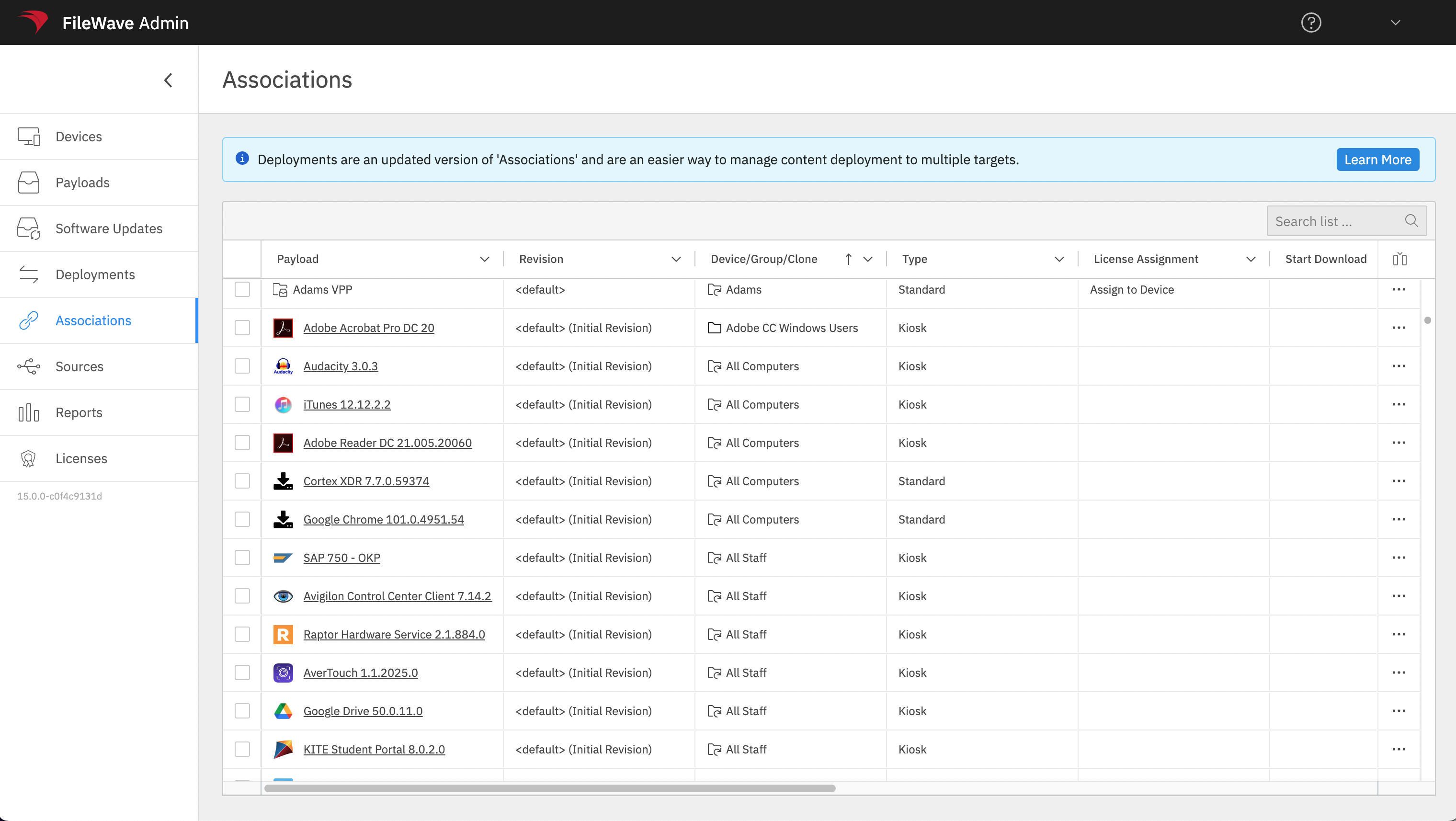
Convert a test set
Select Associations with matching metadata, add them to a new or existing Deployment, preview the result, and save only after the targets, payloads, timing, and installation behavior match the original intent. The video below shows a simple conversion.
When timing options, installation types, or other metadata differ, resolve the conflicts before saving. See Resolving Conflicts in Associations Conversion for the conflict workflow.
Conversion replaces the selected Associations with a Deployment. Pilot a small set, compare the preview with the original assignments, and verify device behavior before converting the next batch.
Resolving Conflicts in Associations Conversion
What
The guidance we have given in other articles is about making sure metadata matches when converting associations. But sometimes, we need to convert items that don’t match in order to “fix” them. This article covers how “conflicts” are handled within conversion.
When/Why
Use the conflict resolution tool to resolve conversion conflicts and preview the impact before saving. That preview is the safety check: it shows whether the conversion will make the changes you intend. The most likely conflicts are:
- changing from Kiosk to Standard deployment (or vice versa)
- having more than one target (not technically a conflict, but important to understand)
- differences in timing options
- differing payload revisions
How
The examples below show common conflict types and the preview output to check before publishing the conversion:
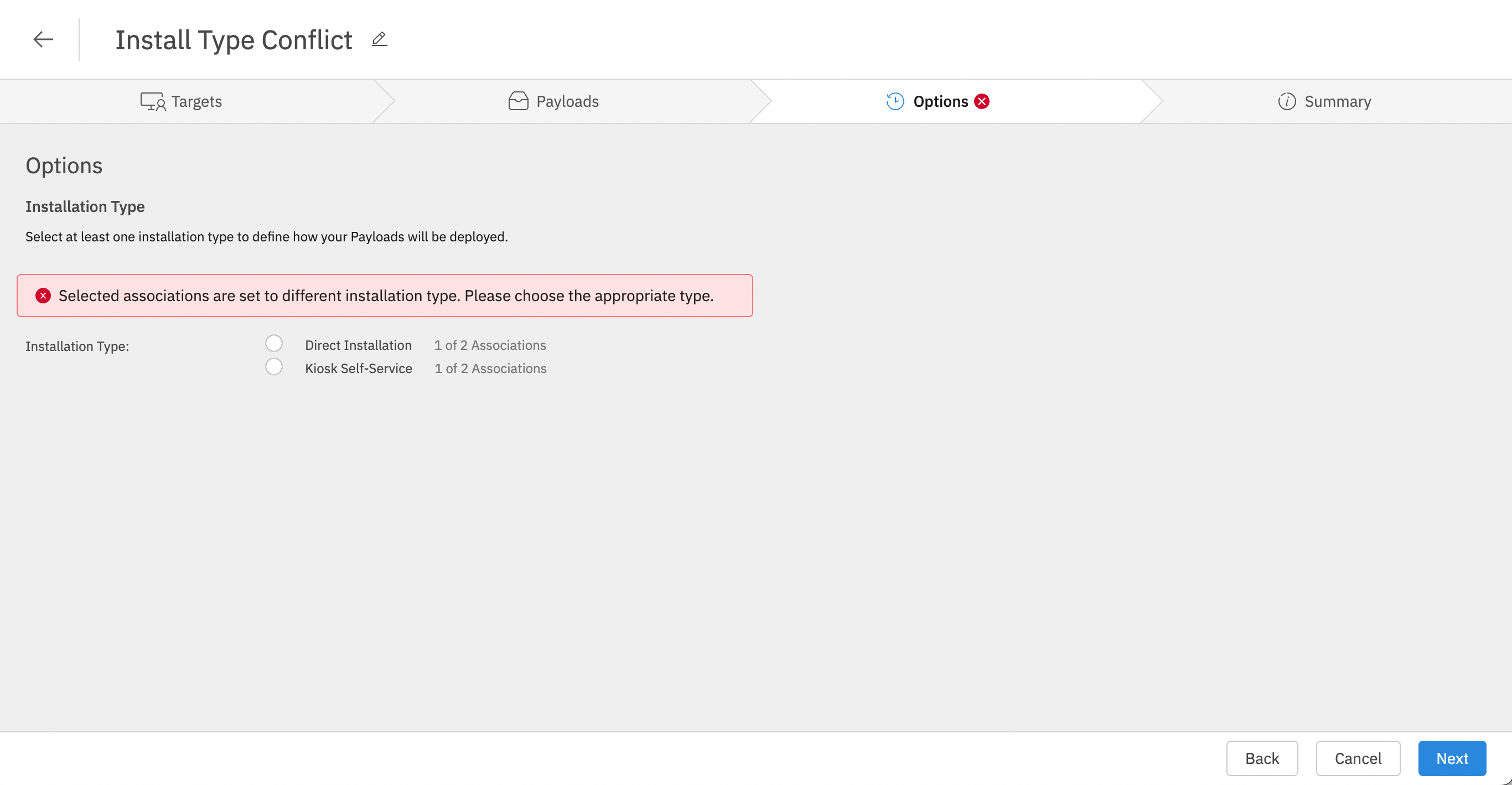
| Conflict Type | |
| Conflicting Installation Type |
Note that you have to choose which installation type you want to have before you can preview |
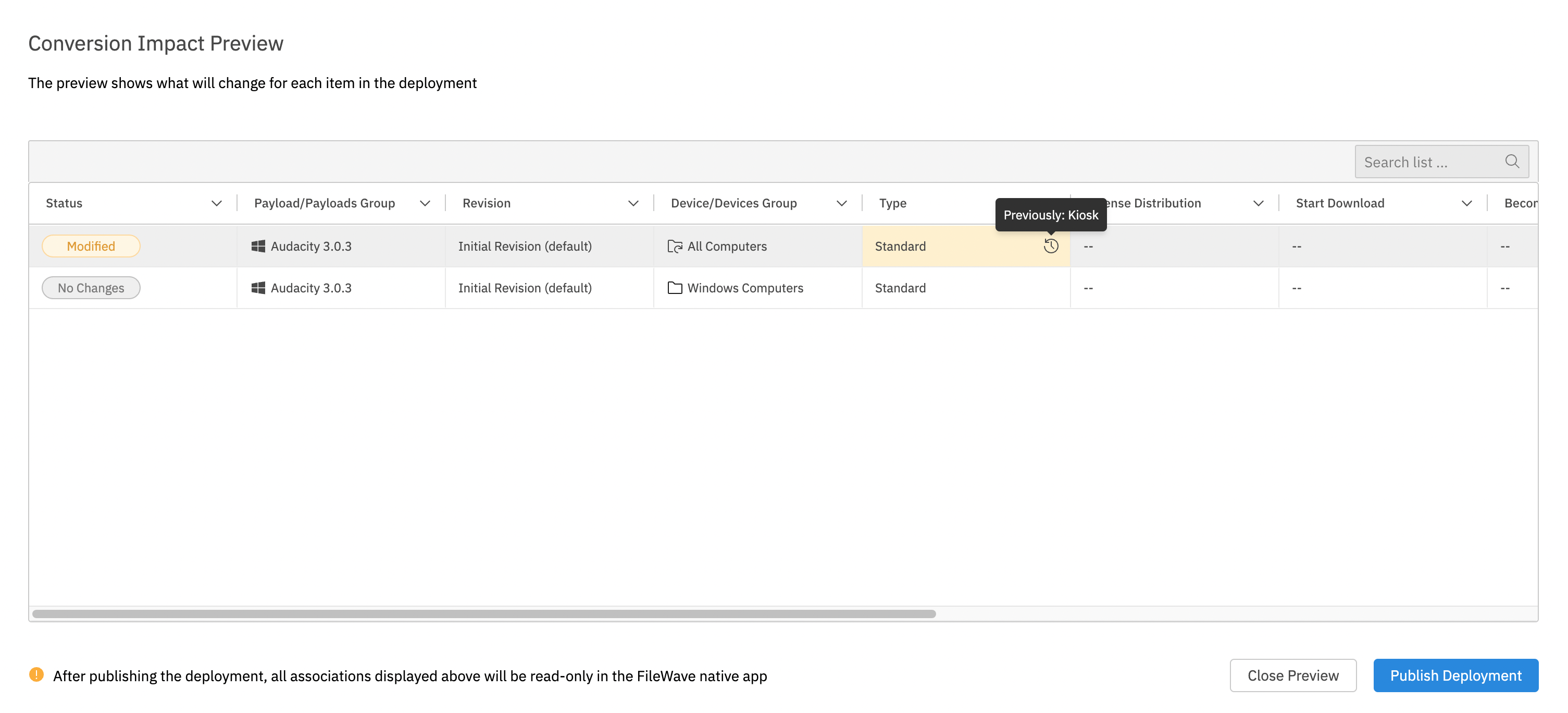
|
And the preview shows you which association changed, and how it changed |
|
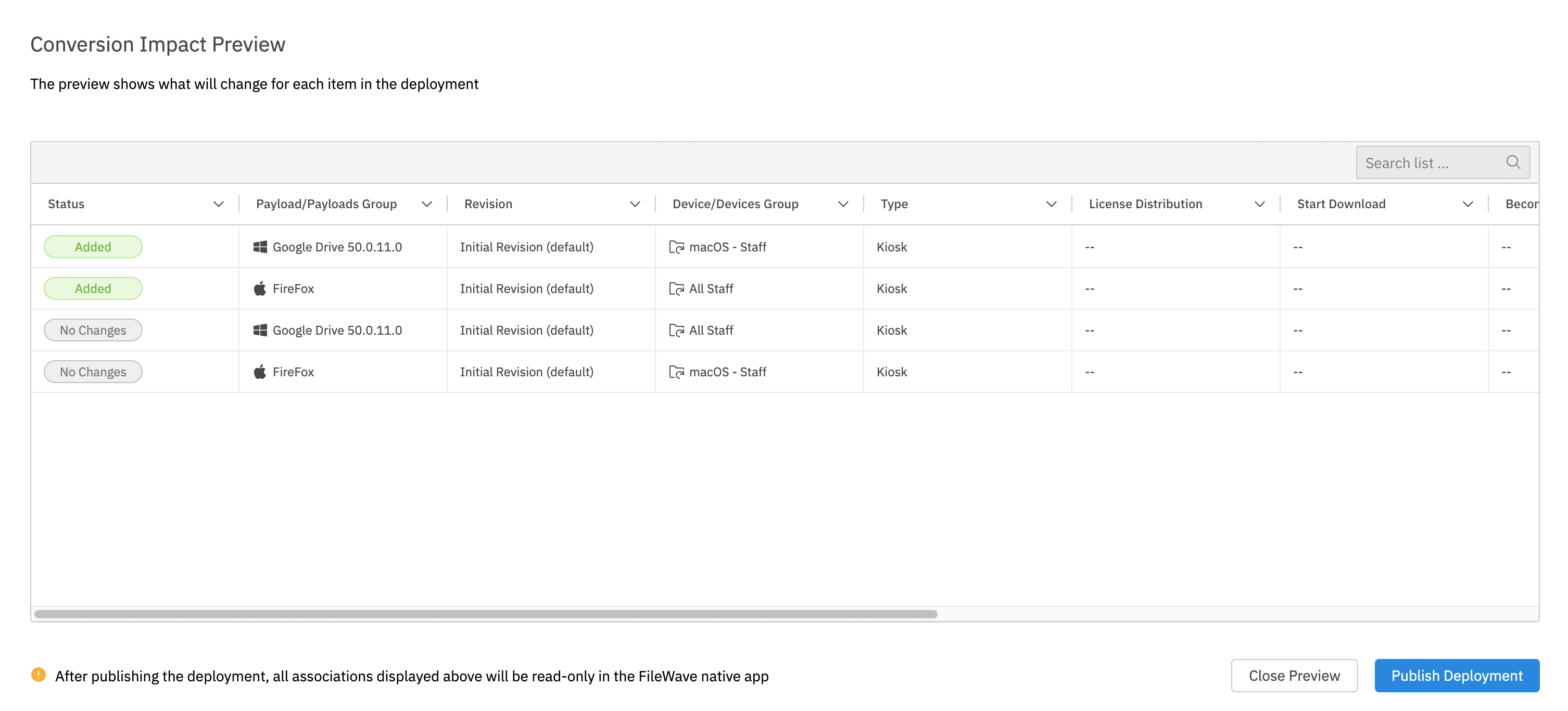
| Mixing targets and/or payloads |
Technically this is not a conflict, as mixing two targets that have differing payloads simply means all payloads will be installed on all targets, so there is nothing to “resolve”. (I.e. If we combined one association of IT/Firefox with HR/Chrome, then all devices will get both Firefox and Chrome)
Notice though that in preview, we see the “added” payloads to the corresponding groups. |
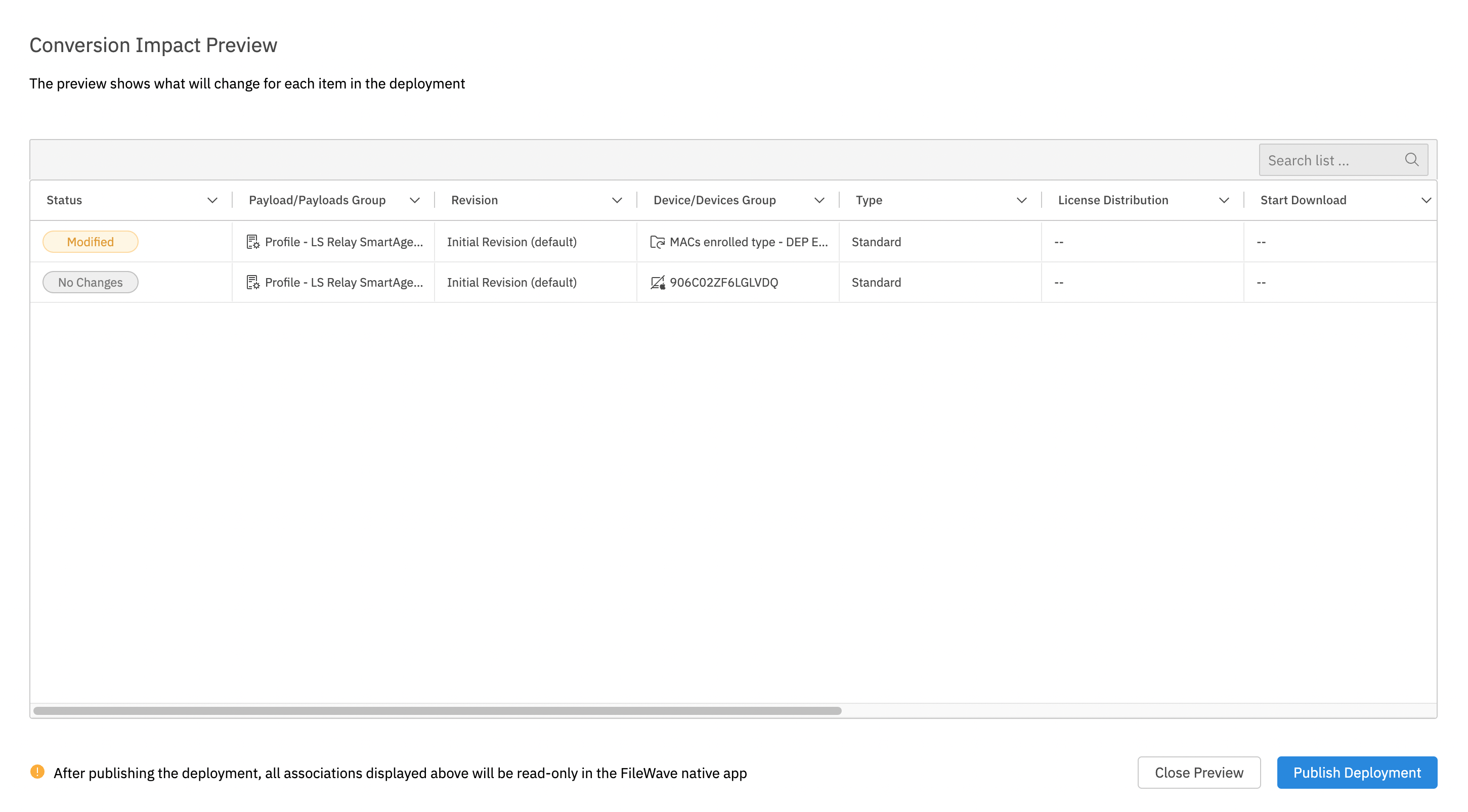
| Differences in Timing |
Note that timing option changes will show in preview too. |
| Differing Payload (Fileset) Revisions |
In preview then, you will see the changed revision. |

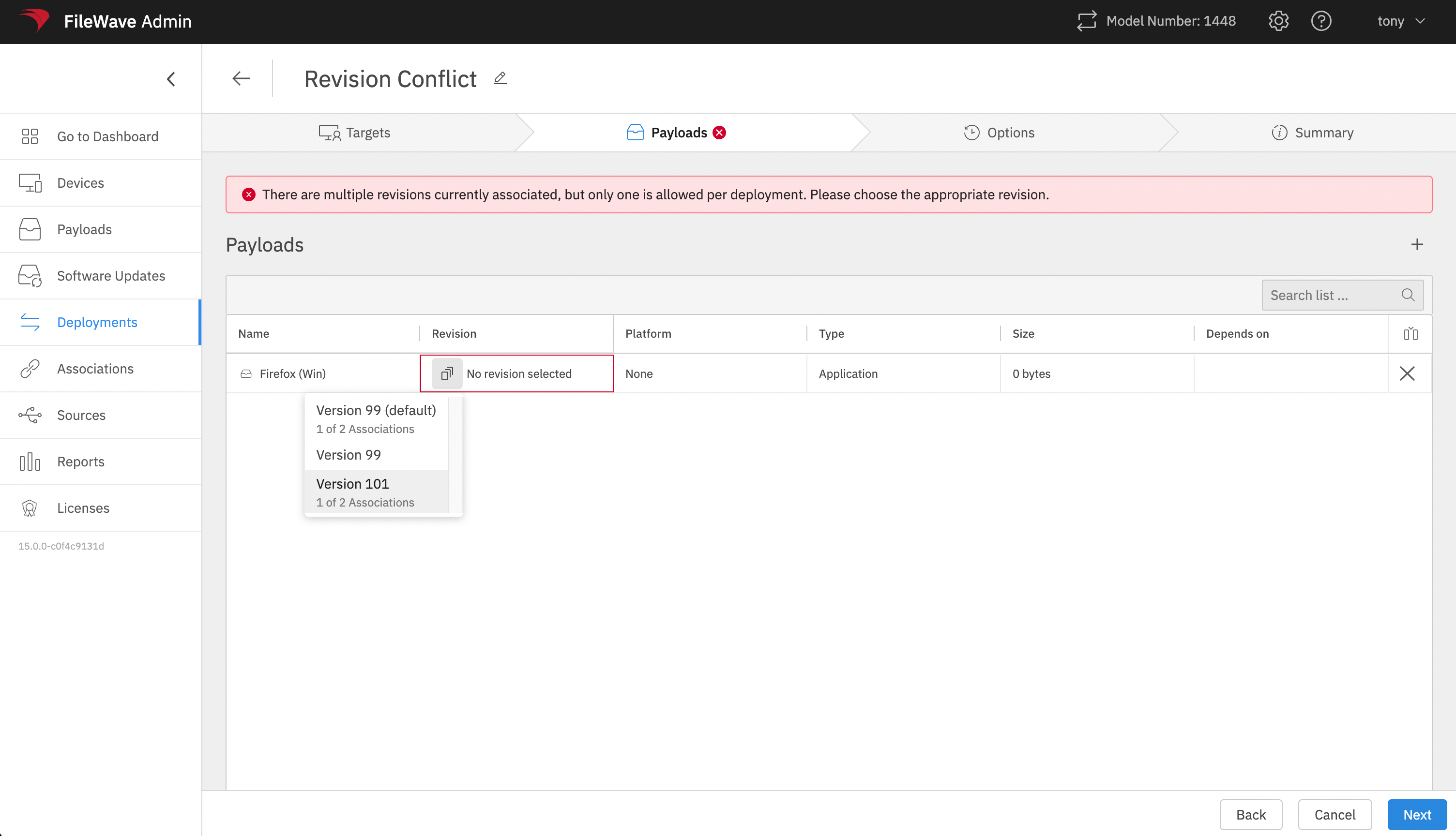
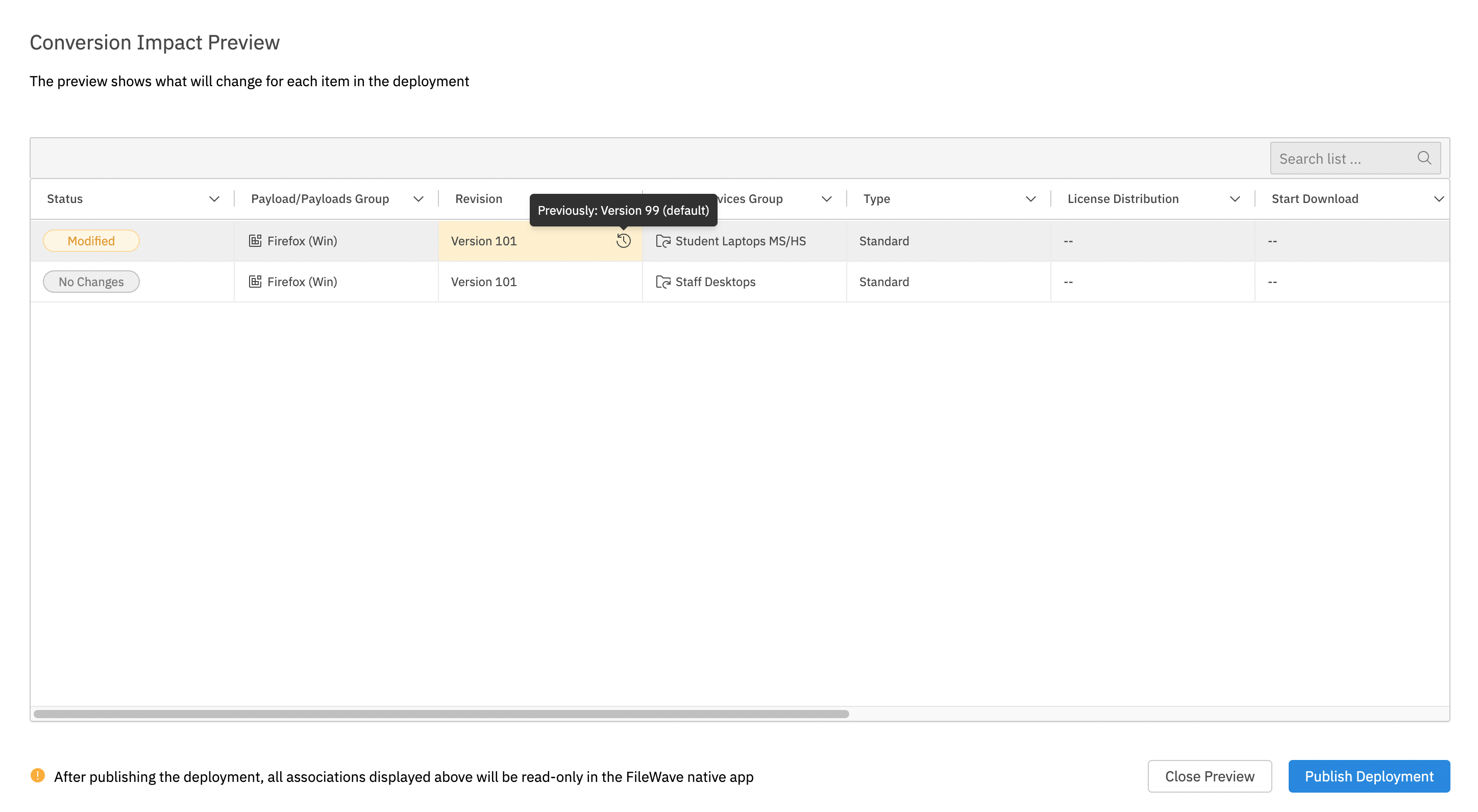
Digging Deeper
Important note: If there are timing options in the past with regard to file deletion, those “associations” will automatically become exclusions in the new deployment. You’ll see exclusions identified as an icon with a slash through it.
Some additional notes regarding the preview view:
- Large conversions can show many records in the preview. Scroll through the list before publishing.
- No changes are made until you choose Publish from the preview page
- You can cancel a conversion at any point before choosing “Publish” and no changes will be made whatsoever
- There can be 4 types of changes:
- No change at all
- Modification of one element (i.e. timing)
- Addition of an element (i.e. a payload is going to something it wasn’t going to before)
- Deletion of an element (i.e. a payload is no longer going to something that it did prior)
Explanation of Clones with Deployments
What
In FileWave, a clone is a reference to an existing device or device group. This article explains how clones behave when you move from Associations to Deployments.
When/Why
An admin might choose a clone on purpose, or choose one because it is convenient during assignment work. Either way, the payload is ultimately assigned to the real device or device group behind that clone.
How
Deployments handle clones differently from Associations. Associations reference the clone object itself, while Deployments convert the clone to the original device or device-group ID. That conversion makes the Deployment easier to understand because it points at the real target.
When converting Associations that use clones, test slowly. Changing the target from the clone to the original device or group can affect which association wins if your environment has overlapping rules.
Use the View - Deployments articles for the basic Deployment workflow. The related Associations to Deployments articles also explain how to use the conversion tool and when Deployments are a better fit than older Associations.
Deployments in FileWave Central
What
A FileWave Deployment keeps its target rules, Filesets, exclusions, and deployment options together. In FileWave Central 16.4, included targets and Filesets appear side by side in one editor instead of on separate tabs.
When/Why
Use a Deployment when you want to assign Filesets, applications, profiles, or other content to devices with consistent settings. You can add or remove targets and content later without rebuilding the assignment, and all content in the Deployment uses the same applicable installation, timing, and license-distribution options.
How
Use the FileWave 16.4 Deployment list columns
FileWave Central and FileWave Anywhere 16.4 provide the same predefined Deployment columns so administrators can review and organize Deployments consistently across both interfaces:
| Column | Use it for |
|---|---|
| Installation Type | Distinguish Direct Installation from Kiosk Self-Service Deployments. |
| License Assignment | Identify the Device or User assignment model used when VPP/Apps and Books licensing applies. |
| Creation Date | Find newly created or older Deployments during review and cleanup. |
| Tags | Group Deployments by purpose, owner, rollout, environment, or another organization-defined convention. |
Show the columns needed for the current task, then use them for sorting and filtering. A column summarizes the Deployment; open the Deployment before changing targets, Filesets, exclusions, timing, or licensing.
Create or open a Deployment
Open Deployments in FileWave Central, then create a Deployment or open an existing one for editing.
At the top of the editor:
- Enter a clear Name.
- Add Tags when you want to group or filter Deployments.
Add targets and Filesets
The left side of the editor contains the included Targets. The right side contains included Filesets or Fileset Groups.
- Use the + beside Clients to add devices or groups as targets.
- Use the + beside Filesets to add Filesets or Fileset Groups.
- Use either search field to find items already included in the Deployment.
- The headings show the number of directly included items and the resulting total number of clients or Filesets.
You can also begin from selected Clients or Filesets elsewhere in Central. Choose Create Deployment… to create a new Deployment with that selection included, or Add to Deployment… to add it to an existing Deployment.
FileWave Central 16.4 displays included targets and Filesets together in the Deployment editor.
Exclude devices or groups
Expand Excluded when part of an included group should not receive the Deployment. Select Add devices/groups, then choose the devices or groups to exclude.
The Exclusions heading shows the number of directly excluded items and the resulting total number of excluded clients.
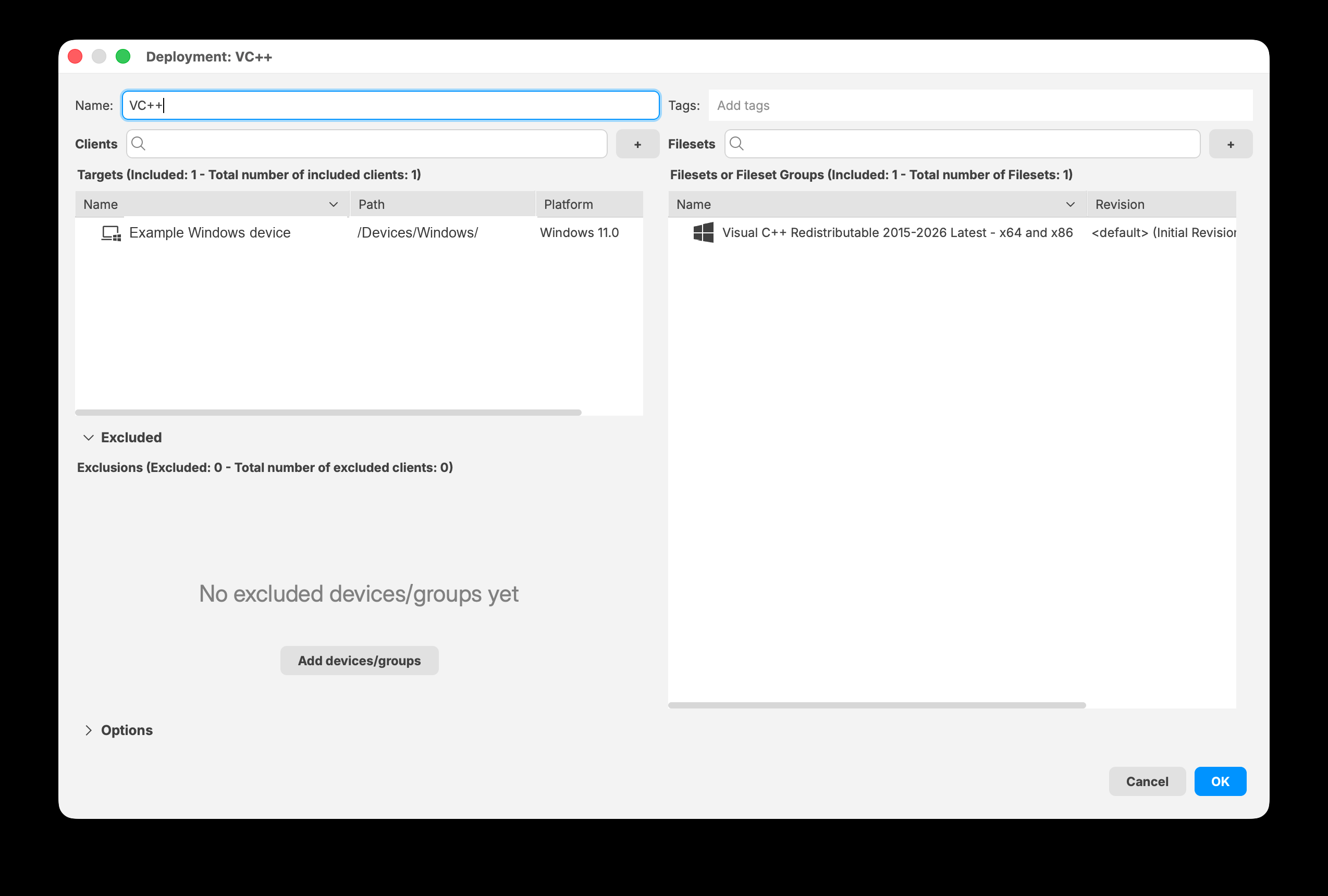
Expand Excluded to add devices or groups that should not receive the Deployment.
Configure Deployment options
Expand Options to configure the settings that apply to the Deployment's content.
Installation Type
- Direct Installation delivers applicable Filesets directly to targeted devices.
- Kiosk Self-Service makes applicable Filesets available through Kiosk for users to install.
Timing
Timing is optional. Select a checkbox to set any supported stage:
- Start downloading at
- Activate files at
- Make files inactive at
- Delete files at
License Distribution
License Distribution applies to VPP/Apps and Books applications. Use it to choose whether licenses are assigned with the Device or User licensing model. If none of the selected Filesets are VPP applications that support license distribution, Central reports that no license-distribution options apply.
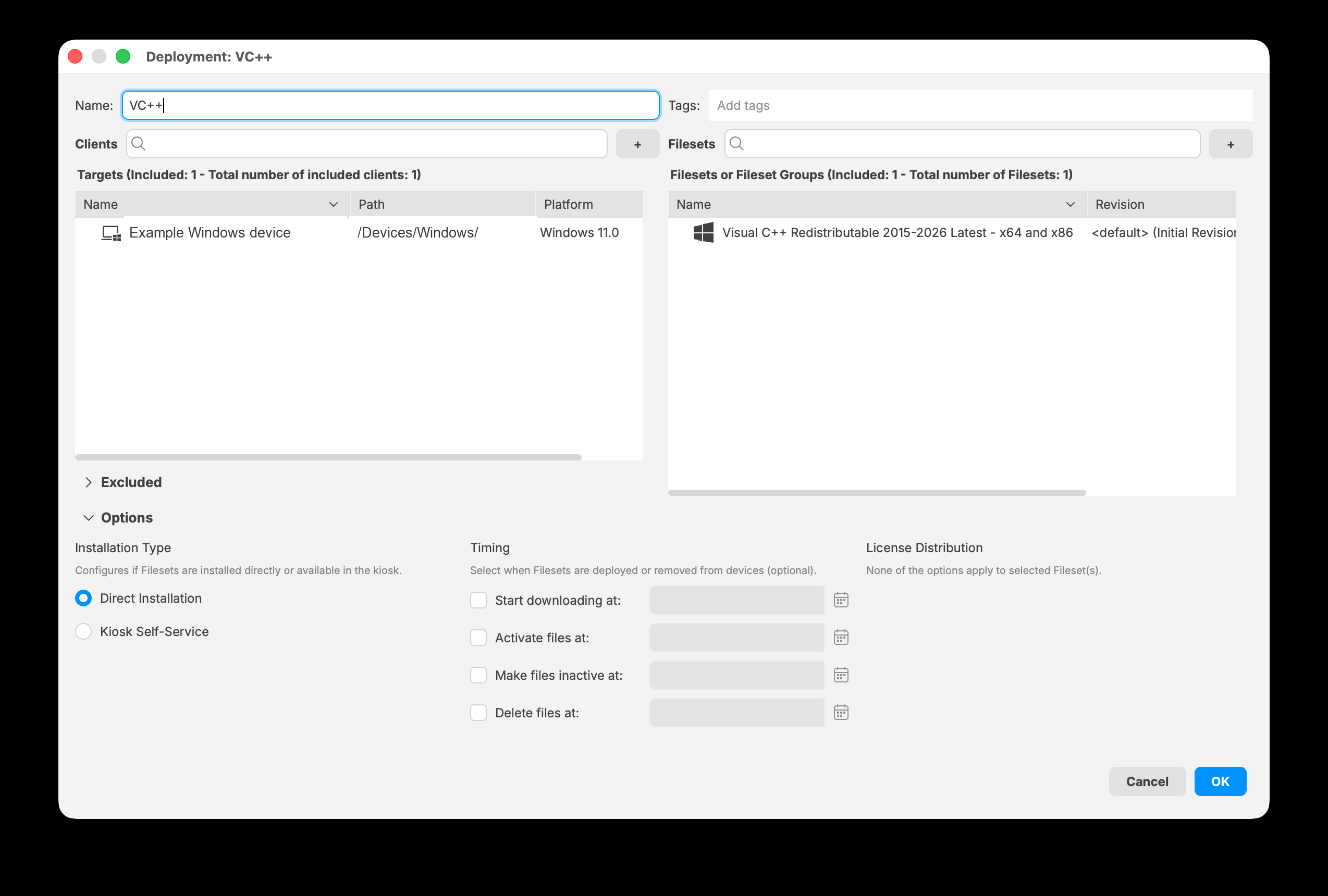
Expand Options to choose an installation type and configure optional timing and license distribution when available.
Save and maintain the Deployment
Select OK to save the Deployment. You can reopen it later to change the name, tags, targets, Filesets, exclusions, or options.
After saving, update the FileWave Model to distribute the change.
Automation with the FileWave API
FileWave Server 16.4 and later also provide supported public API endpoints for creating, listing, reading, updating, and deleting Deployments. See Managing Deployments with the FileWave API (16.4+) before automating Deployment changes.