You do not have to use fileset revisions. If you ignore revisions, filesets continue to work the way they always have. When you do need staged application updates or controlled testing, revisions can make that workflow cleaner.
## Related Content - [Associating a Fileset Revision](https://kb.filewave.com/books/filesets-payloads/page/associate-a-specific-fileset-revision "Associating a Fileset Revision") - [Editing Filesets that have Revisions](https://kb.filewave.com/books/filesets-payloads/page/editing-filesets-that-have-revisions "Editing Filesets that have Revisions") - [Managing Revisions](https://kb.filewave.com/books/filesets-payloads/page/managing-revisions "Managing Revisions") # Associate a Specific Fileset Revision ## What When a Fileset has revisions, FileWave Central asks which revision the new association should use. A Fileset without revisions follows the normal association workflow. ## When/Why For example, a Firefox Fileset might contain separate revisions for versions 79 and 80. Select the revision you want the target devices to install when you create the association. ## How Create the association in FileWave Central, then choose the required revision in the prompt shown below: The **default** option follows whichever revision is marked as the Fileset's default. See **"Default" Revisions** below before using that option in production. ## Related Content - ["Default" Revisions](https://kb.filewave.com/books/filesets-payloads/page/default-revisions ""Default" Revisions") - [Editing Filesets that have Revisions](https://kb.filewave.com/books/filesets-payloads/page/editing-filesets-that-have-revisions "Editing Filesets that have Revisions") - [Managing Revisions](https://kb.filewave.com/books/filesets-payloads/page/managing-revisions "Managing Revisions") # Editing Filesets that have Revisions ## What You may need to edit an existing Fileset after it has more than one revision. The revision selector controls which revision you are changing. ## When/Why For example, assume a Firefox Fileset has two revisions: v79 and v80. You might need to change a file only in v80, or you might need to make the same change in both revisions. Check the revision selector before editing so you know which Fileset revision is open. ## How In both the Fileset editor and the script editor, use the **Revision** drop-down menu to choose the revision you want to edit. In the screenshots below, the Fileset window is showing v79 and the script editor is showing v80:  To switch revisions in either window, change the value in the drop-down. If you do not use Fileset revisions, leave the selector at the default revision and continue editing the Fileset the usual way. ## Related Content - [Associating a Fileset Revision](https://kb.filewave.com/books/filesets-payloads/page/associate-a-specific-fileset-revision "Associating a Fileset Revision") - [Managing Revisions](https://kb.filewave.com/books/filesets-payloads/page/managing-revisions "Managing Revisions") # Managing Revisions ## What FileWave revisions let you keep multiple versions of a Fileset, profile, or script available for testing, rollback, and production deployment. ## When/Why The revision management actions are: - Edit revision metadata to change the revision name or description without changing the revision contents. - Create a revision to add another version within the current Fileset. - Delete a revision when that version should no longer be available. - Set a revision as *Default* to control which revision existing associations use for testing or production. ## How Access these actions through the *Manage Revisions* button in the Fileset Editor, Script Editor, or Fileset Properties window, as shown below: 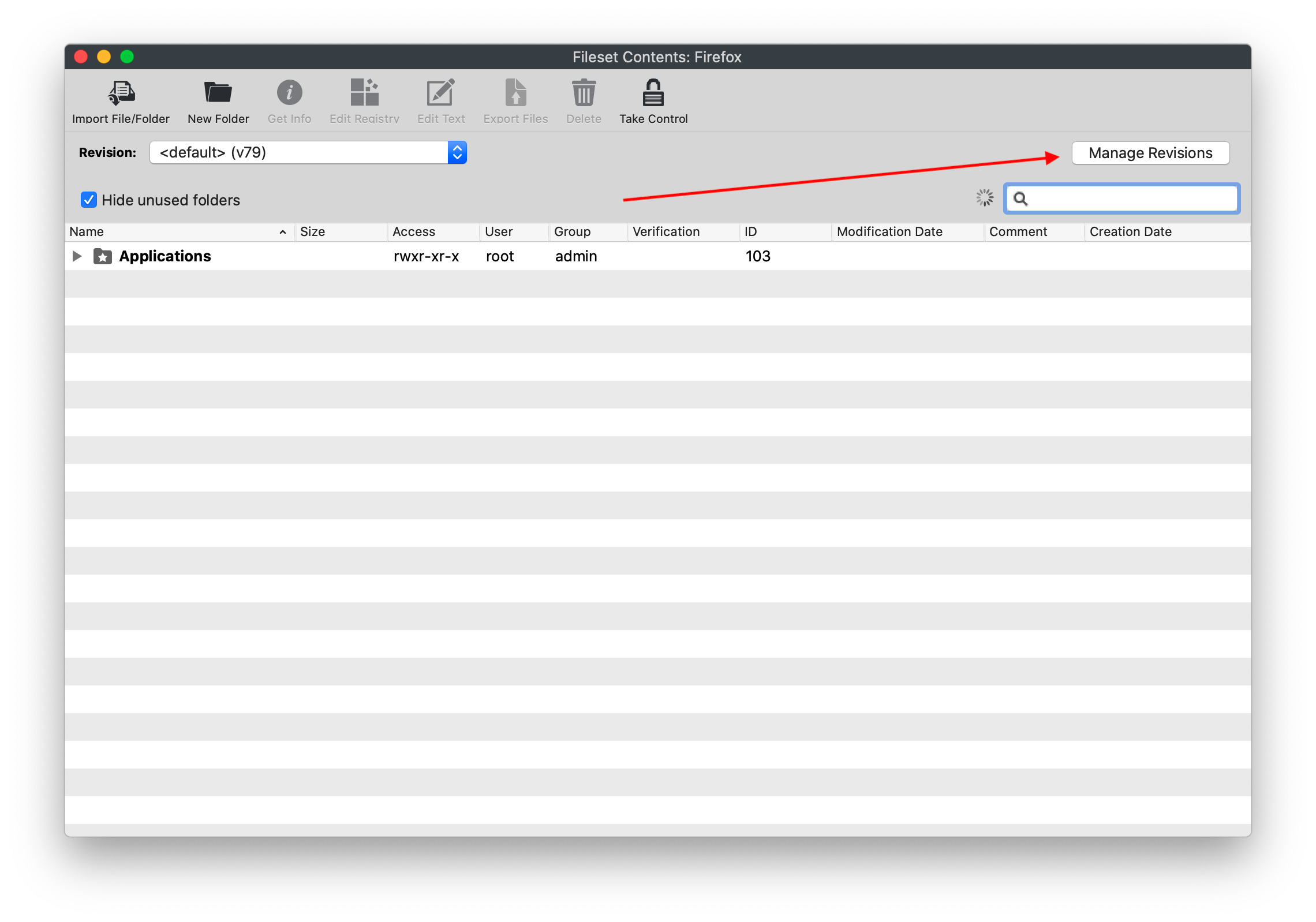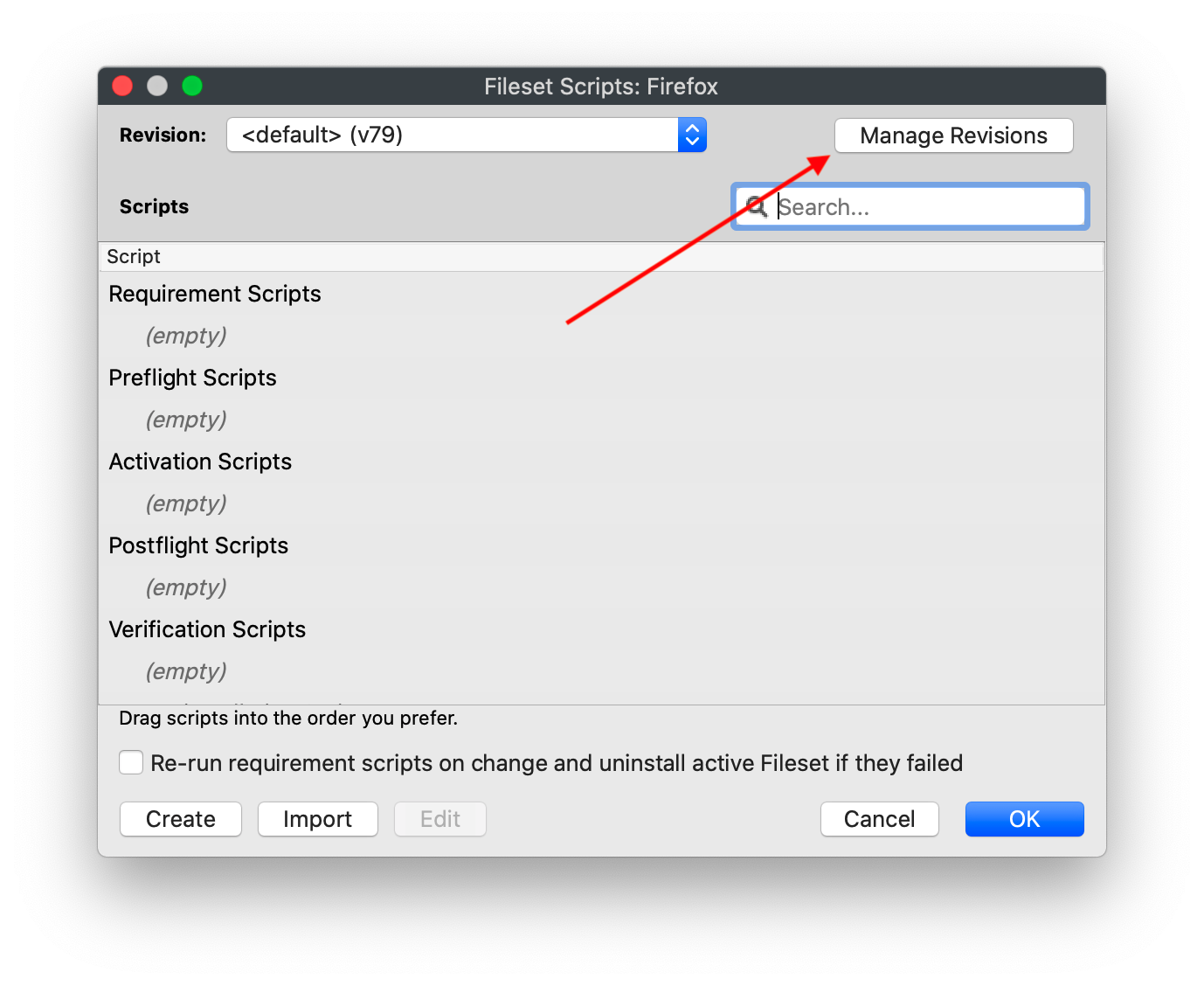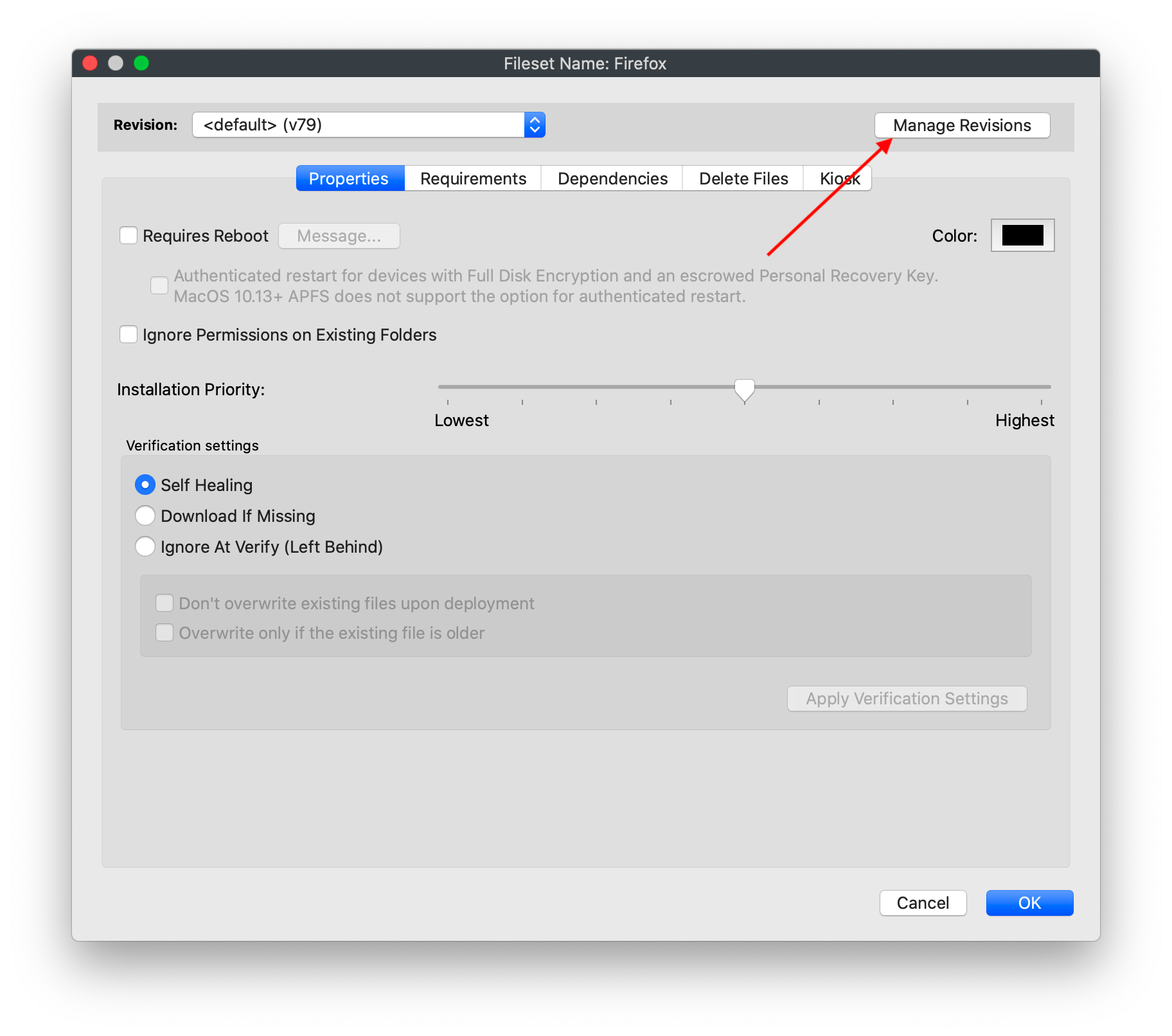 Use the related articles below for the step-by-step workflow for each revision action. ## Related Content - ["Default" Revisions](https://kb.filewave.com/books/filesets-payloads/page/default-revisions ""Default" Revisions") - [Creating a New Revision](https://kb.filewave.com/books/filesets-payloads/page/creating-a-new-revision "Creating a New Revision") - [Editing Fileset Revisions](https://kb.filewave.com/books/filesets-payloads/page/editing-fileset-revisions "Editing Fileset Revisions") - [Removing/Deleting a Revision](https://kb.filewave.com/books/filesets-payloads/page/removingdeleting-a-revision "Removing/Deleting a Revision") # "Default" Revisions ## What Default revisions let you point an association at whichever Fileset revision is marked as the default, instead of hard-coding that association to a named revision. This is useful when you test a new revision with a small group first, then promote it for production without editing every production association. ## When/Why In this example, Firefox v79 is assigned to all devices through two associations: 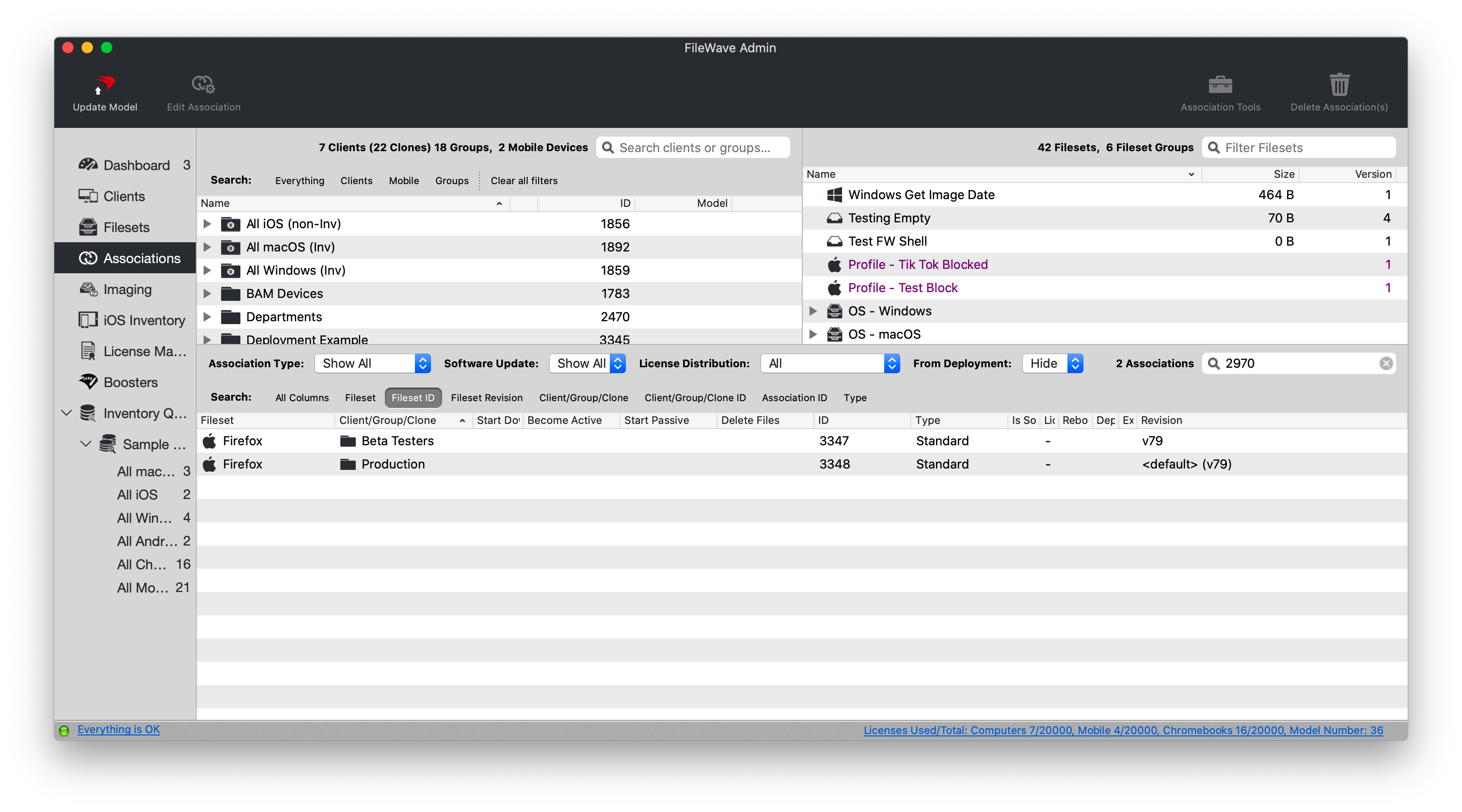 In the screenshot, the Production group is associated to <default> (currently v79), while the Beta Testers group is associated directly to v79. Both groups install v79 today, but only the Production association will follow the default revision when that default changes. ## How Test the new revision before promoting it. In this example, edit the patch testers association first so that group receives v80: 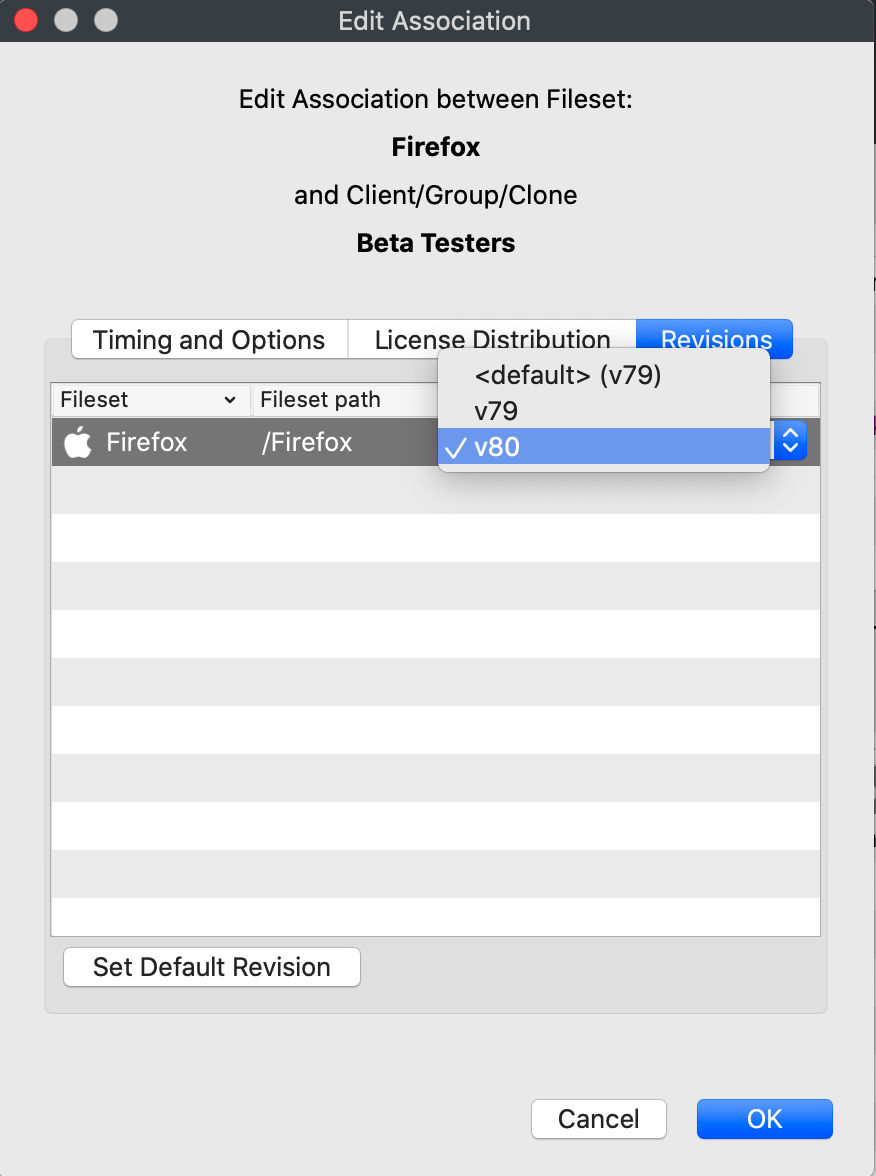 Once we save this association and update the model, all patch testers will get the new version. No deleting of the association or creating a new one is required. After testing, you could edit every production association one by one, but default revisions are designed to avoid that. The Production association points to the default revision of the Fileset, not directly to v79. Change the Fileset's default revision to v80, then update the model. 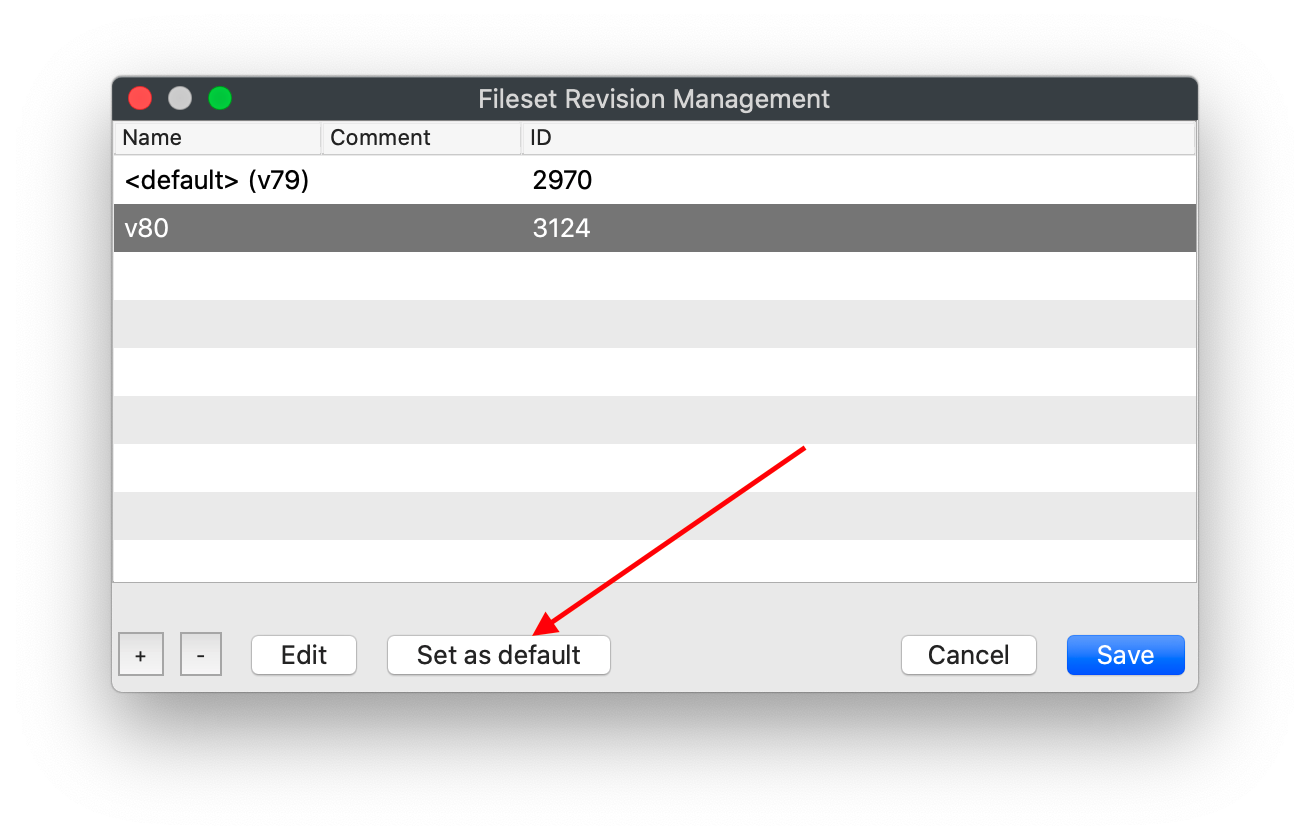 Once we save that change, and update the model, you'll see the change reflected in the association: 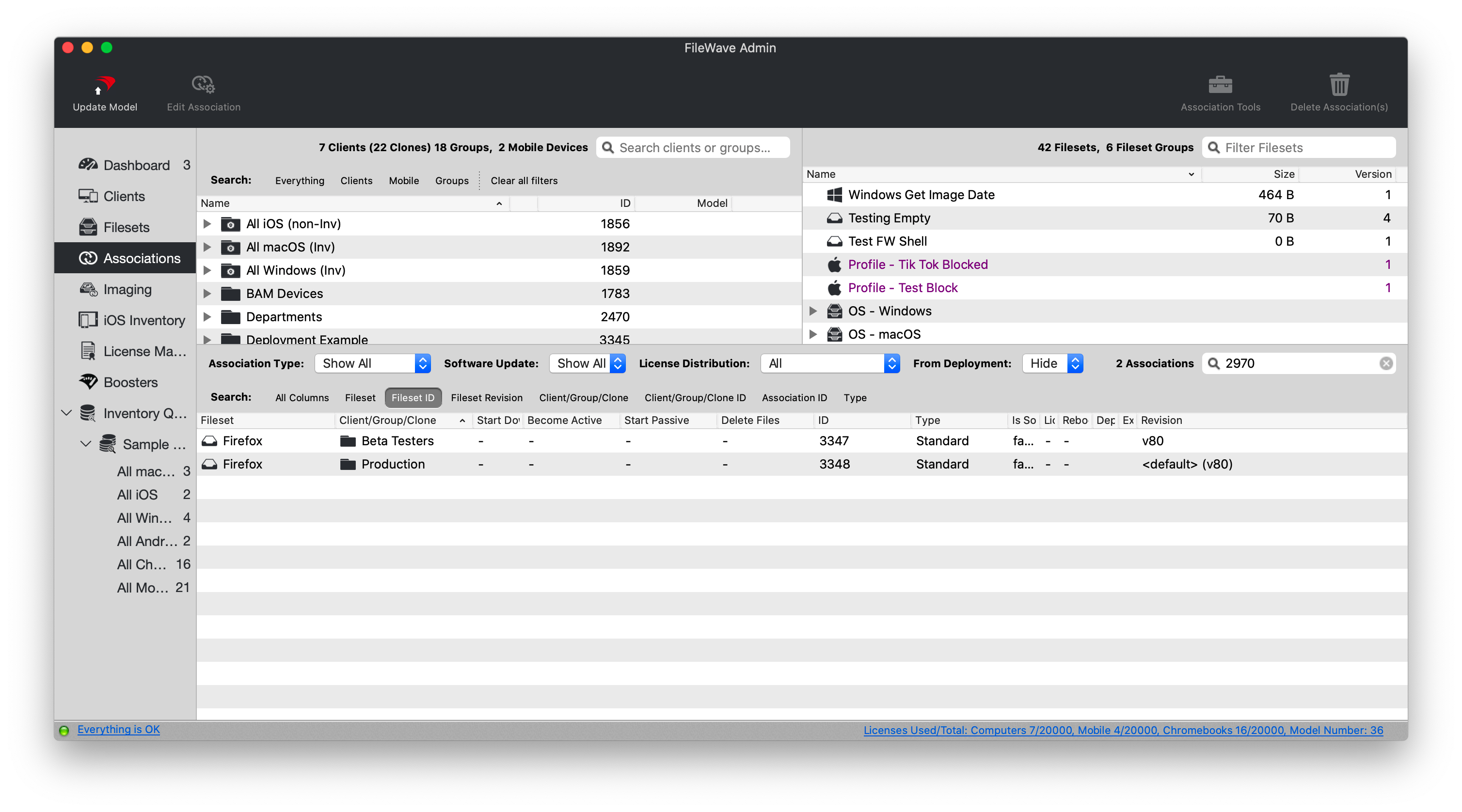 And, upon next check-in, all "Production" devices will upgrade to v80.FileWave handles the revision transition through the model update and normal client check-in process. Use a test group first so you control when the new revision reaches production devices.
## Related Content - [Managing Revisions](https://kb.filewave.com/books/filesets-payloads/page/managing-revisions "Managing Revisions") - ["Default" Revisions](https://kb.filewave.com/books/filesets-payloads/page/default-revisions ""Default" Revisions") - [Creating a New Revision](https://kb.filewave.com/books/filesets-payloads/page/creating-a-new-revision "Creating a New Revision") - [Editing Fileset Revisions](https://kb.filewave.com/books/filesets-payloads/page/editing-fileset-revisions "Editing Fileset Revisions") - [Removing/Deleting a Revision](https://kb.filewave.com/books/filesets-payloads/page/removingdeleting-a-revision "Removing/Deleting a Revision") # Creating a New Revision ## What Create a new Fileset revision when you need to update an existing Fileset without losing the earlier version. ## When/Why Fileset revisions are useful for applications and payloads that will be updated over time. For example, you can keep the current Firefox revision assigned while preparing a newer Firefox revision for testing or rollout. ## How Add a revision from the *Manage Revisions* view by clicking the plus icon: Choose the revision type that matches the change. Start empty when you do not want files from the previous revision. Duplicate the previous revision when you want to keep existing content, scripts, or properties and edit from there. Once the revision is created, edit it like any other Fileset. When creating a new revision, choose how much of the previous revision should be copied: 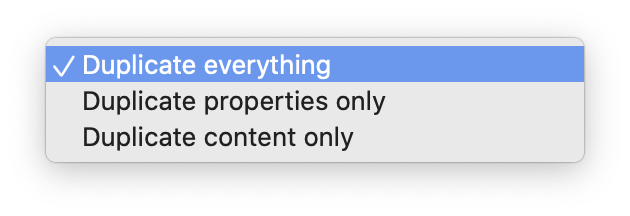 You can duplicate everything, duplicate only the properties, or duplicate only the content from an earlier revision.**Drag-and-drop revisions** You can also create Fileset revisions by dragging files from the file system onto an existing Fileset. FileWave will prompt you to create a new Fileset or add revisions to the existing Fileset.
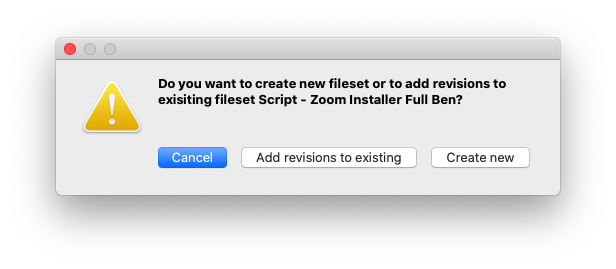 If you add revisions, FileWave will ask which revision should be the default after import: 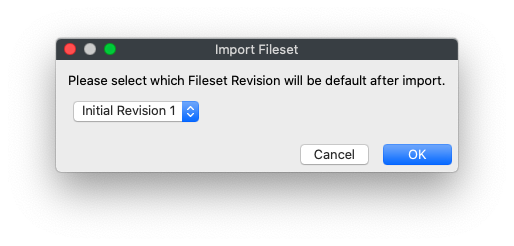 ## Related Content - [Managing Revisions](https://kb.filewave.com/books/filesets-payloads/page/managing-revisions "Managing Revisions") - ["Default" Revisions](https://kb.filewave.com/books/filesets-payloads/page/default-revisions ""Default" Revisions") - [Editing Fileset Revisions](https://kb.filewave.com/books/filesets-payloads/page/editing-fileset-revisions "Editing Fileset Revisions") - [Removing/Deleting a Revision](https://kb.filewave.com/books/filesets-payloads/page/removingdeleting-a-revision "Removing/Deleting a Revision") # Editing Fileset Revisions ## What A Fileset revision has two editable properties: its name and its description. ## When/Why Use the **Manage Revisions** window when you need to rename a revision or add a clearer description. For example, the first revision is named **Initial Revision** by default. Replacing that with a short description can make later associations easier to understand. ## How Open **Manage Revisions** for the Fileset, select the revision, then choose **Edit**: 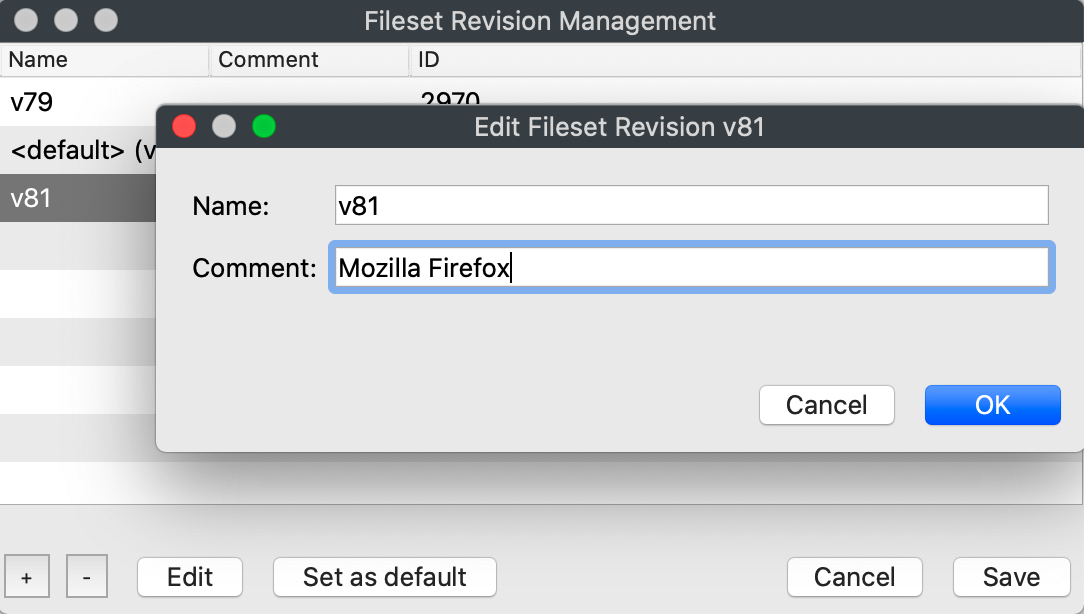 Use descriptive values in both fields so admins can tell which revision they are associating later. ## Related Content