| **Name** | The Fileset title shown in FileWave Central. |
| **Size** | The Fileset's stored size on the FileWave Server, and on Boosters or clients after transfer. |
| **Version** | The Fileset version. FileWave increments this number after a changed Fileset is included in a Model Update. |
| **Files** | The total number of files stored in the Fileset. |
| **ID** | The unique identifier FileWave uses to track the Fileset. |
| **Comment** | An administrator note shown in FileWave Central. |
| **VPP Token** | The Apple volume-purchasing token associated with the app. |
| **Default Revision** | The revision deployed by default when the Fileset has multiple revisions. |
| **Revision Count** | The number of revisions available for the Fileset. |
You can select files in a Fileset and export them back to your local device.
# Create and Update PKG and MSI Filesets ## What FileWave can create installer-aware Filesets for macOS PKG and Windows MSI packages. The Fileset runs the installer when its deployment activates. ## Why Use this Fileset type for a standard PKG or MSI that does not need custom install arguments or extra orchestration. Use an empty Fileset when the installer needs custom commands, supporting files, or a different uninstall workflow. ## How In FileWave Central, choose **New Fileset**, select the PKG or MSI Fileset type, and choose the installer. FileWave creates the installer-aware Fileset for you.You can also drag a PKG or MSI file into the Filesets view to create the same Fileset type.
Drop the installer onto a Fileset Group when you want the new Fileset created in that group.Before the first upload, consider removing the version number from the installer filename and putting it in the revision name instead. This makes later in-place installer replacement easier.
## Information Opening a PKG or MSI Fileset will show the contents similar to the below: [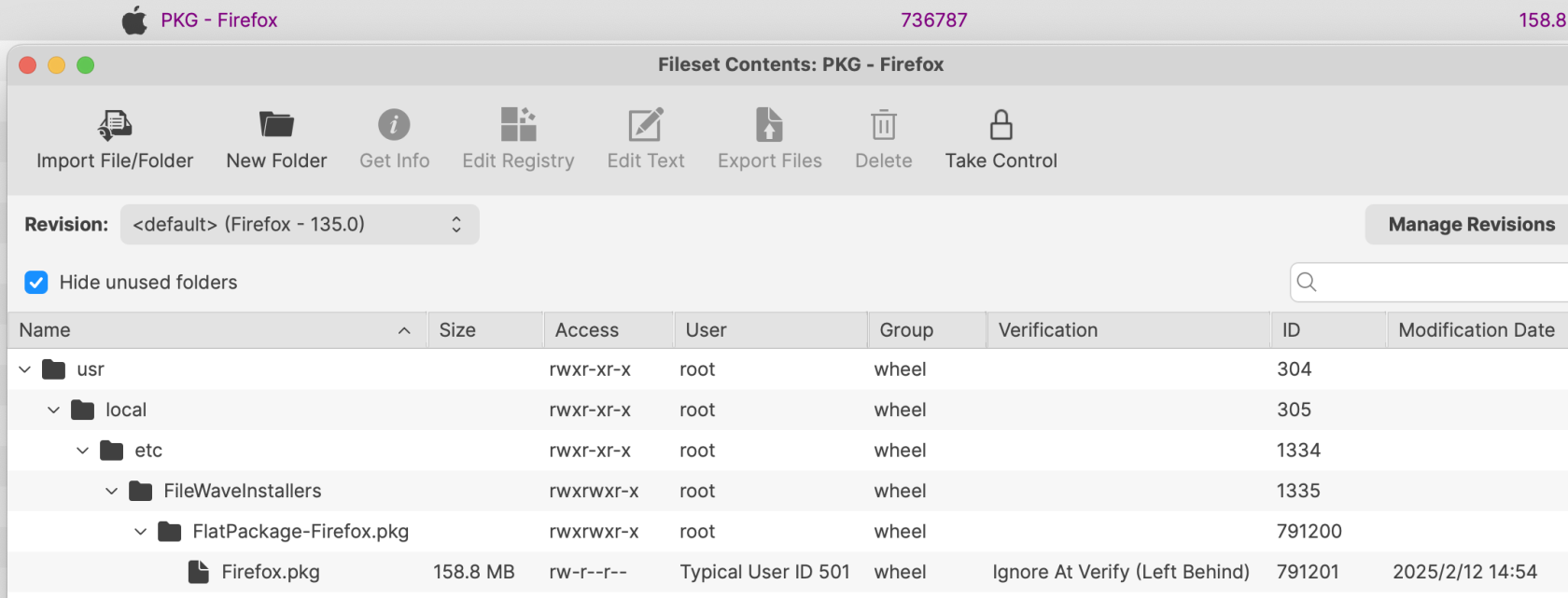](https://kb.filewave.com/uploads/images/gallery/2025-02/6ojD9S4X0N5yip78-image.png) The Fileset records the installer filename used when it was created.When you replace the installer manually inside a PKG or MSI Fileset, the new file must use the same filename as the installer it replaces.
### Revisions Use revisions to test a newer installer while preserving the current deployment and its additional Fileset content. There are two ways to create a new revision: - Drag and drop a new installer onto the existing Fileset - Open the existing Fileset, choose the option to Manage Revisions and from the button to add a new revision, choose to duplicate #### Drag & Drop When dragging a PKG installer onto a current PKG Fileset or an MSI onto a current MSI Fileset, a prompt similar to the below should be shown: [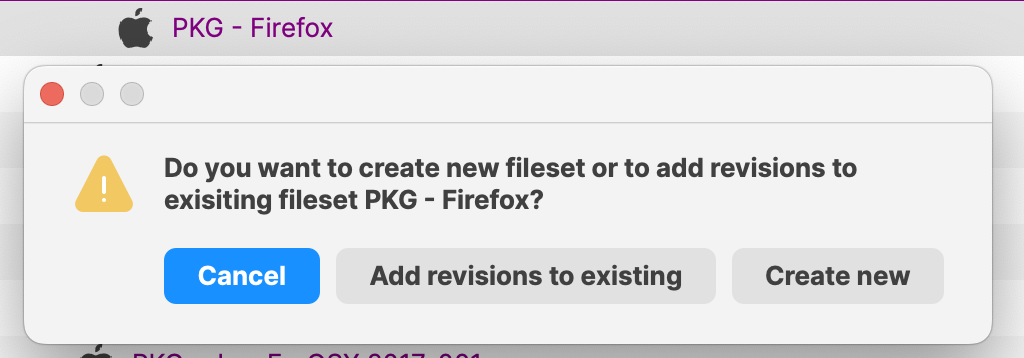](https://kb.filewave.com/uploads/images/gallery/2025-02/UULkHQ1A5CEXDqHa-image.png) Choose **Add revisions to existing** to create a revision with the new installer. The installer reaches devices only after you assign that revision or make it the default revision for the applicable associations.Name the new revision with the installer version so administrators can tell which package each assignment uses.
#### Duplication When choosing to Manage Revisions from within the Fileset, there is the option to duplicate a revision of choice. On doing so, everything from the prior Revision can be copied over to this new revision. [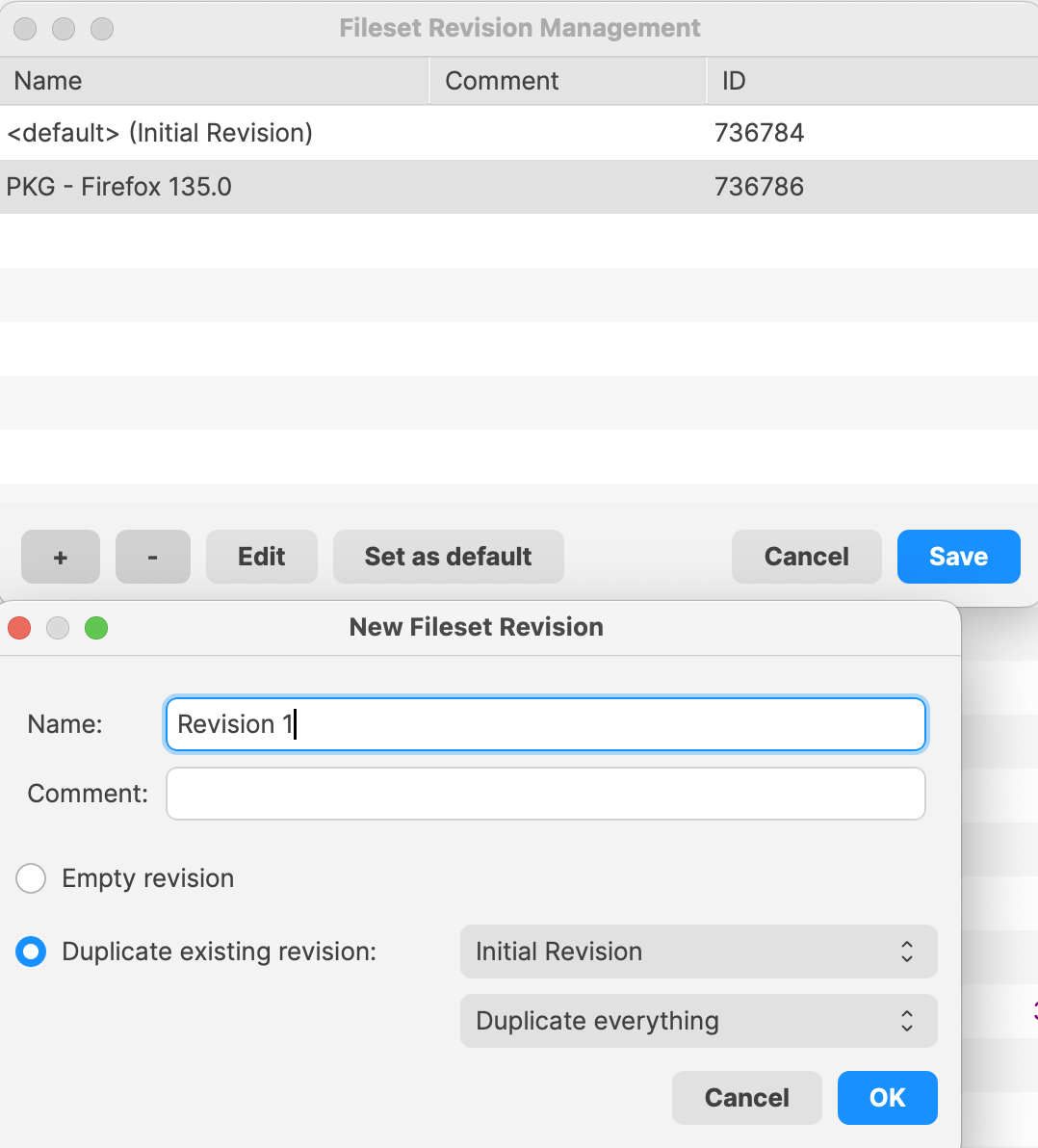](https://kb.filewave.com/uploads/images/gallery/2025-02/jaEvwtaKpwub0doQ-image.png) Duplicate a revision when the Fileset includes supporting files or settings that should carry forward. The installer filename rule still applies. When replacing the installer in a duplicated revision, **the new installer filename must match the filename already stored in the Fileset**.Before creating the first Fileset for a given installer, rename the installer to exclude the version number before uploading. Instead, add the version number into the name of the revision instead.
The name of the installer to be uploaded does not need to match, but the name of the installer within the Fileset must match. If the name of the installer file does not match before upload, 'copy' the name from within the Fileset, upload the new installer into the same folder as the original installer, delete the original installer and rename the new installer using 'paste'.
If the name of the initial installer uploaded includes the version number, when manually altering the revision, since the name must match, the newly uploaded version would have to be misnamed with a version number that does not make sense.
File Level Filesets (including PKG and MSI Filesets) can be exported for transfer to another FileWave server. They can also be compressed and stored for future use or archived.
Most installers only handle upgrade, not downgrade. If there is a desire to rollback to an older revision, it is likely the currently installed version on the device will need to be deleted beforehand.
After a successful installation, FileWave removes the local `.msi` staging file. [Uninstalling Filesets](https://kb.filewave.com/books/filesets-payloads/page/uninstalling-filesets) explains the **Use MSI uninstaller** option. Use an empty Fileset when installation or removal requires custom switches or commands.
## Related Content - [Fileset Revisions](https://kb.filewave.com/books/filesets-payloads/chapter/fileset-revisions) - [Uninstalling Filesets](https://kb.filewave.com/books/filesets-payloads/page/uninstalling-filesets) # Verification There are three primary verification settings. Each of these settings causes the related file(s) to behave differently once deployed. 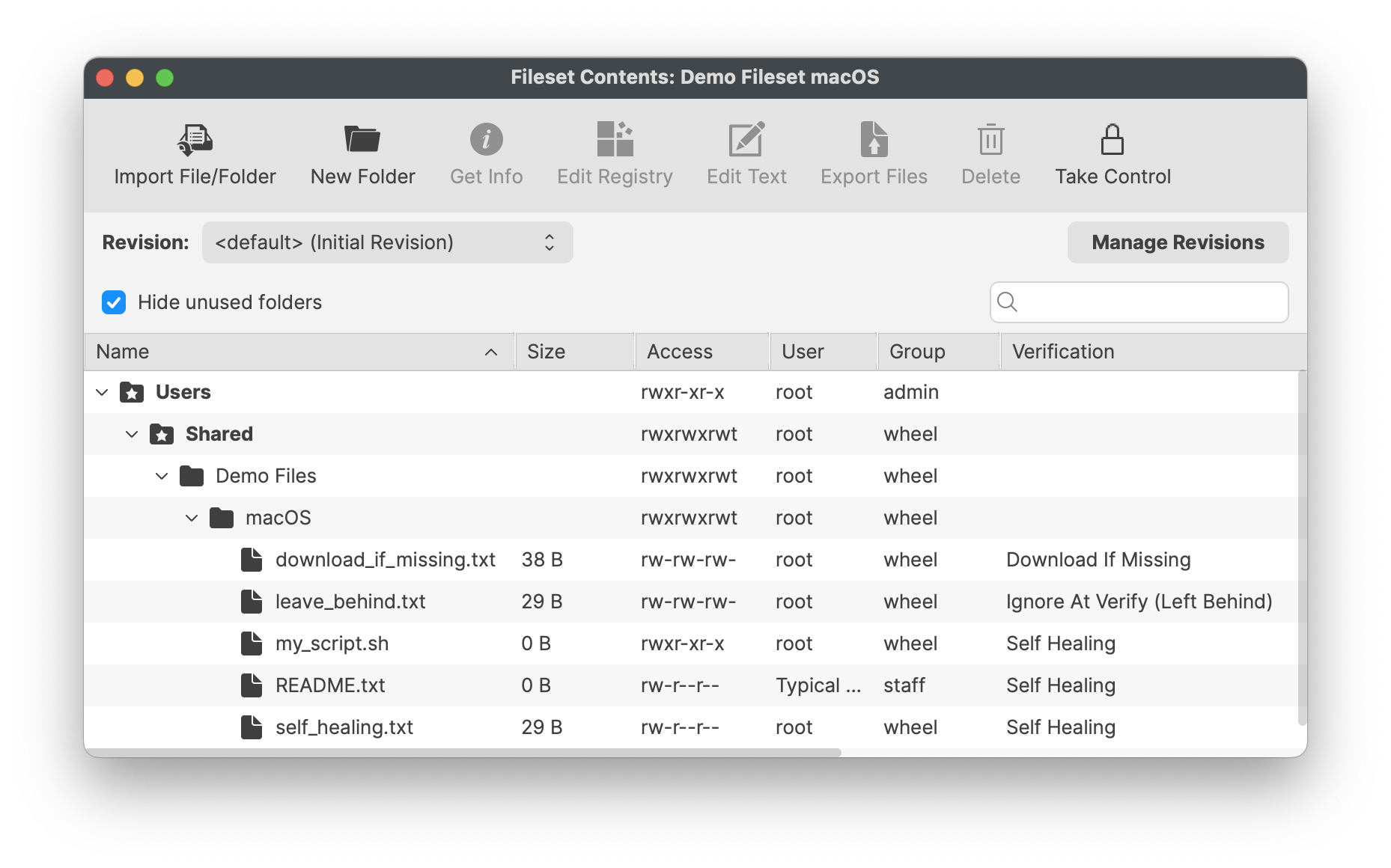| **Self Healing** | Files set as self-healing will be replaced on devices with those within the Fileset, if different, or added if missing. The act of Verification re-confirms all included files. | On disassociation, Files included in the Fileset will be removed from the device |
| **Download if Missing** | Similar to self-healing, however, the file will only be added if the file is missing. After initial deployment, the file may be altered, without repair occurring at Verification | On disassociation, Files included in the Fileset will be removed from the device |
| **Ignore At Verify (Left Behind)** | Once delivered, the file may be altered. | On disassociation, delivered files will remain on the device. |
| **Don’t overwrite existing files upon deployment** | If enabled, only deliver the file if it does net exist. |
| **Overwrite only if the existing file is older** | A sub option to the overwrite option, only replace the current file on the device, if that existing file has an older timestamp than the matching file in the Fileset. |
Any files that already exist between one Fileset and another, will not be transferred between server and client since they already exist as required; with the exception of the overwrite option on initial deployment.
# Windows Registry Windows registry files can be included in a Windows Fileset and reviewed in FileWave before deployment. This is useful when a Windows application, driver, or FileWave Client setting is controlled by documented registry keys and there is not a better native policy, installer option, ADMX setting, or application configuration file to manage the same behavior.**Quick answer:** Use a Windows Registry Fileset when you need FileWave to deliver registry keys or values to Windows clients. Review the registry path, value type, and data before assigning the Fileset, especially when the setting affects application behavior, security, Windows policy, or FileWave Client behavior.
## What is the Windows Registry? The Windows Registry is a hierarchical database that Windows and many applications use for configuration. Registry content is organized into **keys** and **values**. A value has a name, a type such as `REG_SZ`, `REG_DWORD`, or `REG_BINARY`, and the data Windows or the application reads. - `HKEY_LOCAL_MACHINE` / `HKLM` stores machine-wide settings. - `HKEY_CURRENT_USER` / `HKCU` stores settings for the currently loaded user profile. - On 64-bit Windows, settings for 32-bit applications may appear under `HKLM\SOFTWARE\Wow6432Node`. For more background, see Microsoft’s [Structure of the Registry](https://learn.microsoft.com/en-us/windows/win32/sysinfo/structure-of-the-registry), [Windows registry information for advanced users](https://learn.microsoft.com/en-us/troubleshoot/windows-server/performance/windows-registry-advanced-users), and [Registry Redirector](https://learn.microsoft.com/en-us/windows/win32/winprog64/registry-redirector) articles. ## How FileWave helps FileWave shows registry entries in the Fileset so you can inspect the tree, the value names, the registry types, and the data before deployment. That review step matters because a small path or type mistake can make a setting do nothing, apply to the wrong registry view, or change behavior more broadly than intended. 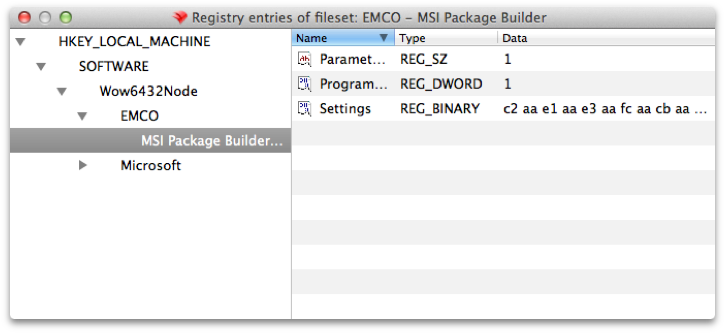 ## When this is helpful - A vendor documents a registry value that must be set after installation and the installer does not provide a reliable command-line switch or configuration file. - You need the same machine-wide application setting on a group of Windows devices, such as a setting under `HKLM\SOFTWARE\Vendor\Product` or, for 32-bit apps on 64-bit Windows, `HKLM\SOFTWARE\Wow6432Node\Vendor\Product`. - Support asks you to apply a documented troubleshooting value to a scoped group instead of editing every endpoint manually. ## Example: scoped FileWave Client troubleshooting One practical example is temporarily changing a documented FileWave Client configuration value for a small Windows pilot group. FileWave Client settings on Windows are stored in the registry; for FileWave 15.5.0 and higher, the client settings are documented under `HKLM\Software\FileWave\WOW6432\WinClient`. If Support asks you to adjust a value such as `debugLevel` while troubleshooting, a Windows Registry Fileset can apply that change consistently to the pilot group. Keep a rollback Fileset or documented manual steps ready so the value can be restored after testing. Use the exact path and supported values from [FileWave Client Configuration Settings](https://kb.filewave.com/link/240). Do not guess at FileWave Client registry values or leave troubleshooting-level logging enabled longer than needed. ## Before you deploy - Test the registry change on a disposable or pilot Windows device first. - Export or document the original key/value so you have a rollback path. Microsoft’s [back up and restore the registry](https://support.microsoft.com/en-us/topic/how-to-back-up-and-restore-the-registry-in-windows-855140ad-e318-2a13-2829-d428a2ab0692) guidance explains the manual Registry Editor workflow. - Prefer `HKLM` for device-wide settings. Treat `HKCU` carefully because it is tied to a specific loaded user profile. - Confirm the value type, not just the value name. `REG_DWORD` value `1` is not the same thing as text value `"1"`. - Avoid broadly deploying machine-specific values, user SIDs, license secrets, one-time tokens, or copied binary blobs unless the vendor explicitly documents that approach. - Assign the Fileset to a small pilot first, verify the application or Windows behavior, then widen the assignment only after the result is confirmed. ## Related links - [FileWave Client Configuration Settings](https://kb.filewave.com/link/240) - [Microsoft Learn: Structure of the Registry](https://learn.microsoft.com/en-us/windows/win32/sysinfo/structure-of-the-registry) - [Microsoft Learn: Windows registry information for advanced users](https://learn.microsoft.com/en-us/troubleshoot/windows-server/performance/windows-registry-advanced-users) - [Microsoft Support: Back up and restore the registry](https://support.microsoft.com/en-us/topic/how-to-back-up-and-restore-the-registry-in-windows-855140ad-e318-2a13-2829-d428a2ab0692) # Apple VPP Apps Unlike File Level Filesets, Apple VPP Filesets contain the details of the App from the App Store, including the link to the App, with 3 distinct tabs, Details, Kiosk and Configuration.FileWave does not store Apps from the App Store, devices will pull the Apps directly from the App Store on successful activation.
#### Details Amongst these are some key entries:| **Remove App when MDM profile is removed** | If the device has the MDM enrolment profile removed, this option will force Apps managed by MDM to be removed. |
| **Prevent Data Backup** | Disallow the App from backing up user data |
| **Take management of this app if the user has installed it already** | For Apps already installed, the MDM server will take over management of the App from the user. This is required if you want FileWave to manage deployment behavior, updates, and related settings for that App. |
| **Application update (DDM)** | For supported apps installed through DDM in FileWave 16.3.x, this controls how the App is updated on iOS, iPadOS, and macOS. Choose **Follow Store Settings**, **Always On**, **Always Off**, or **Pin specific version**. If you choose **Pin specific version**, use the version field to target the exact App Store version to install and keep. |
| **User** | Only set when a managed user logs in |
| **System** | Payload settings applied regardless of user logged in. |
Apple allows the management of any amount of directory users for a single device. However, only one local user will be managed. This user will be the first user after enrolment of the device.
Profiles are stored directly within the Fileset and delivered to devices after MDM communication has been established. # Android Apps ## What Android Filesets can be created from public or private Google Play apps. Web apps can also be added when you need to publish a managed web shortcut. 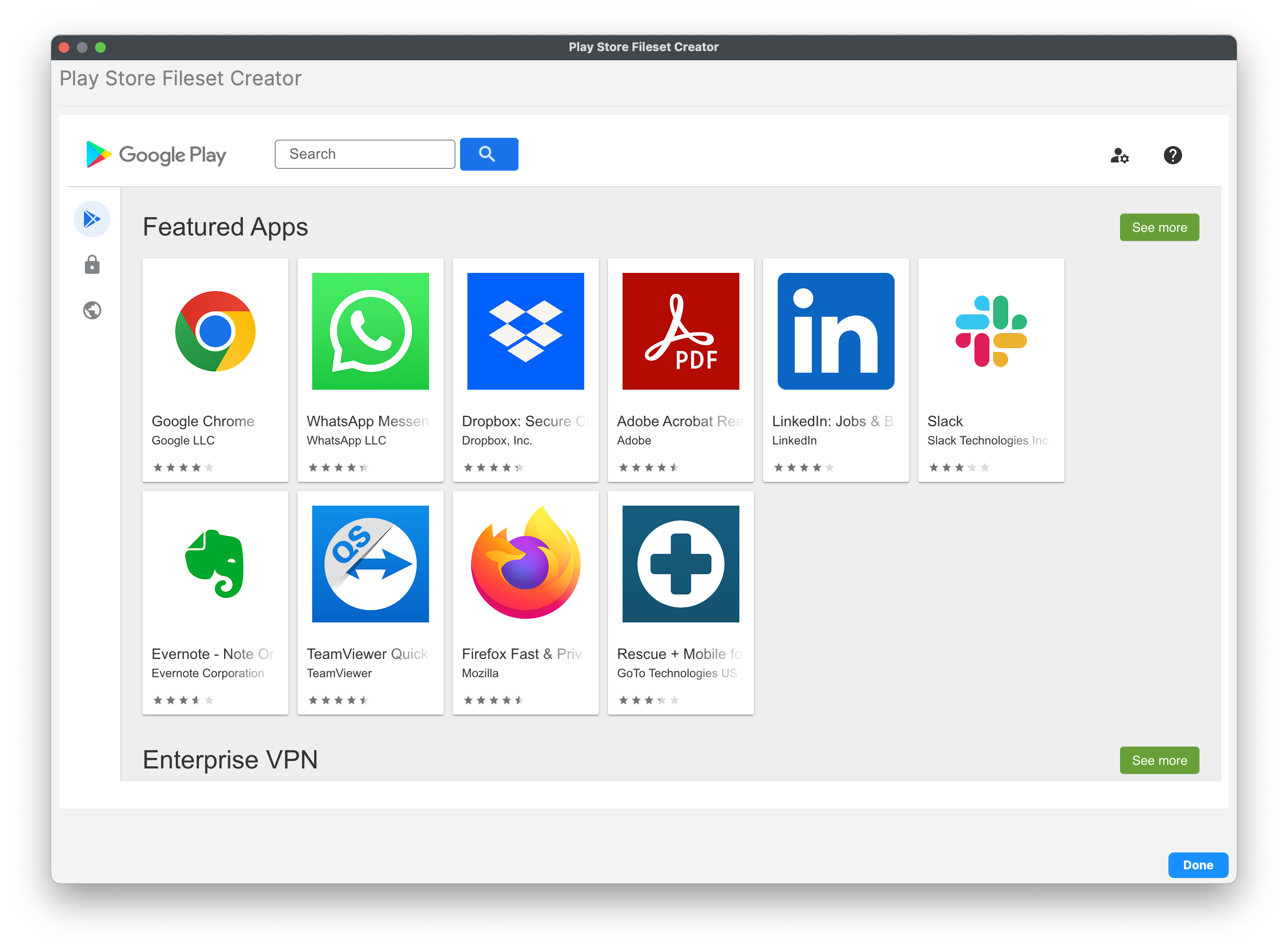 A Play Store App Fileset has Configuration, Permissions, and Managed Properties controls. Managed Properties appear only when the app developer exposes managed configuration settings. 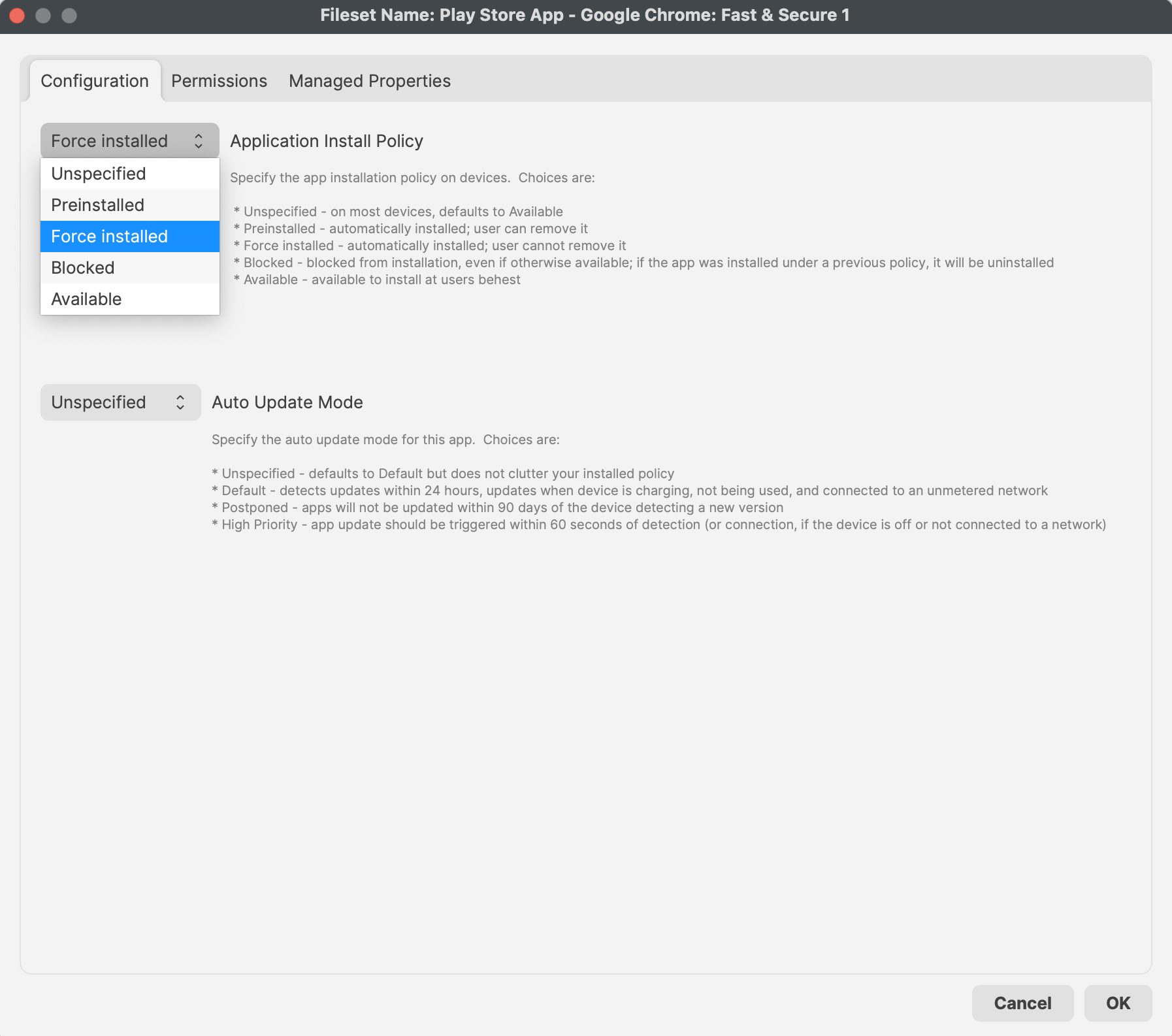 ## FileWave 16.4 app policy controls ### Auto Update Mode FileWave 16.4 exposes **Auto Update Mode** in each Android Play Store app Fileset’s **Properties > Configuration** tab. This is an app-specific setting.| Mode | Behavior |
|---|---|
| **Unspecified** | Leaves the value unspecified in the installed policy; Android uses its Default update behavior. |
| **Default** | Detects app updates within 24 hours and installs them when the device is charging, not in use, and connected to an unmetered network. |
| **Postponed** | Defers the app update for up to 90 days after the device detects the new version. |
| **High Priority** | Requests the app update within 60 seconds of detection, or after the device reconnects if it was offline. |
| **Properties** | Additional features include Reboot, the Force sub-option, priority, and an option to change verification for the entire Fileset. Priority provides extra control over the order of Fileset activation. |
| **Requirements** | Settings define the OS and hardware requirements for the Fileset. The Fileset downloads and activates only on devices that match these requirements. |
| **Dependencies** | Dependencies are covered in more detail elsewhere. In essence, the Fileset activates only after another defined Fileset installs first. |
| **Delete Files** | A defined list of files to be removed during activation |
| **Kiosk** | Details shown to users via the Kiosk Self-Service menu and system tray item. |
Profiles may only be a dependency in one direction, to prevent unexpected delay of Fileset installations.
FileWave has no control over the MDM protocol and relies on Apple’s process for delivering MDM items. For this reason, dependencies can make an MDM Fileset, such as a profile or VPP app, install after a non-MDM Fileset has activated, but other Filesets cannot depend on an MDM Fileset.
# Use Fileset Dependencies to Control Installation Order Fileset dependencies make one Fileset a prerequisite of another. When you associate the dependent Fileset, FileWave installs its required dependency first. ## How dependency order works The screenshot shows the dependency properties for both sides of a two-Fileset chain: - **Left:** The prerequisite Fileset. Select it as a dependency; you normally do not need a separate device association solely to satisfy this chain. - **Right:** The dependent Fileset that you associate with devices. Its properties show the left-hand Fileset as a dependency, so it installs afterward. 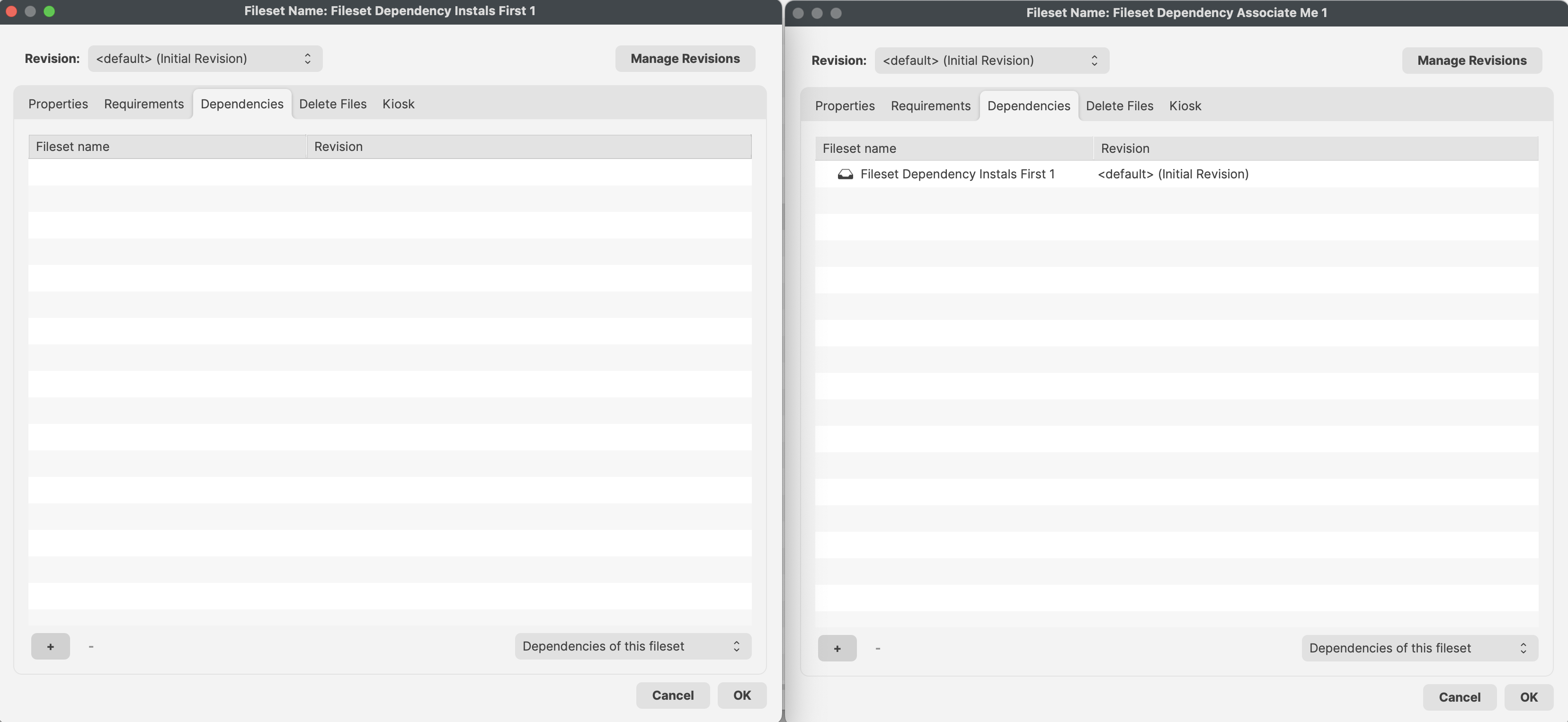 ## Build longer dependency chains A Fileset can depend on more than one prerequisite. A dependent Fileset can also become the prerequisite for another Fileset, creating a longer installation chain. Keep the order deliberate and test the full chain on a small device group before broad deployment. # Revisions Previously, updating one version of a software, for example, to a newer version, would require: a new Fileset created, new association or deployment generated and then the prior association removed. Revisions simplifies this process. To prevent associations or deployments being altered, a Fileset becomes a container of multiple revisions. 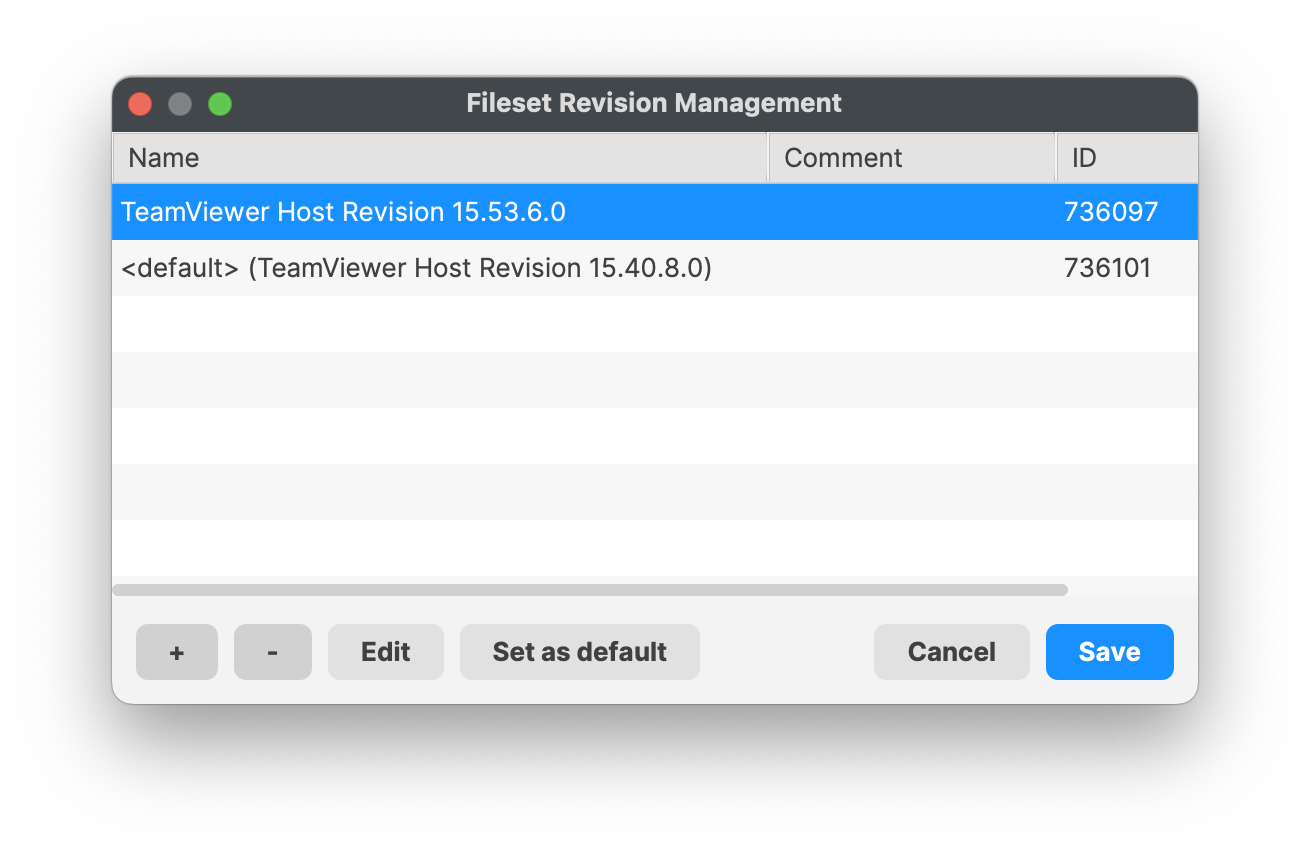 The version associated with devices may be altered within the Fileset. This allows for efficient update of Filesets on devices, simplified process between testing and mass assignment, whilst at the same time providing an easy method to roll back if found to be necessary; depending upon Fileset Type.Behind the scenes, swapping from one revision to another is the same as actually swapping between two different Filesets. All contents will be reconsidered and any scripts ran, e.g. a post-uninstaller script will run if included in the Fileset Revision that is being unassigned.