# Add Silent Install Arguments to Windows EXE Filesets
Windows EXE installers often need command-line switches for silent deployment. Add those switches as Launch Arguments on the installer executable in the FileWave Fileset. If the vendor provides an MSI, prefer it when it supports the install and uninstall behavior you need, but test its required properties and `msiexec` options rather than assuming no arguments are necessary.
EXE switches are vendor-specific. Common examples include `/s`, `/silent`, `/q`, and `/quiet`, but confirm the exact command in a local Command Prompt first. In FileWave Central, open **Get Info** for the installer, select **Executable**, enable **Execute once when activated**, then use the plus button under **Launch Arguments** to add each argument.
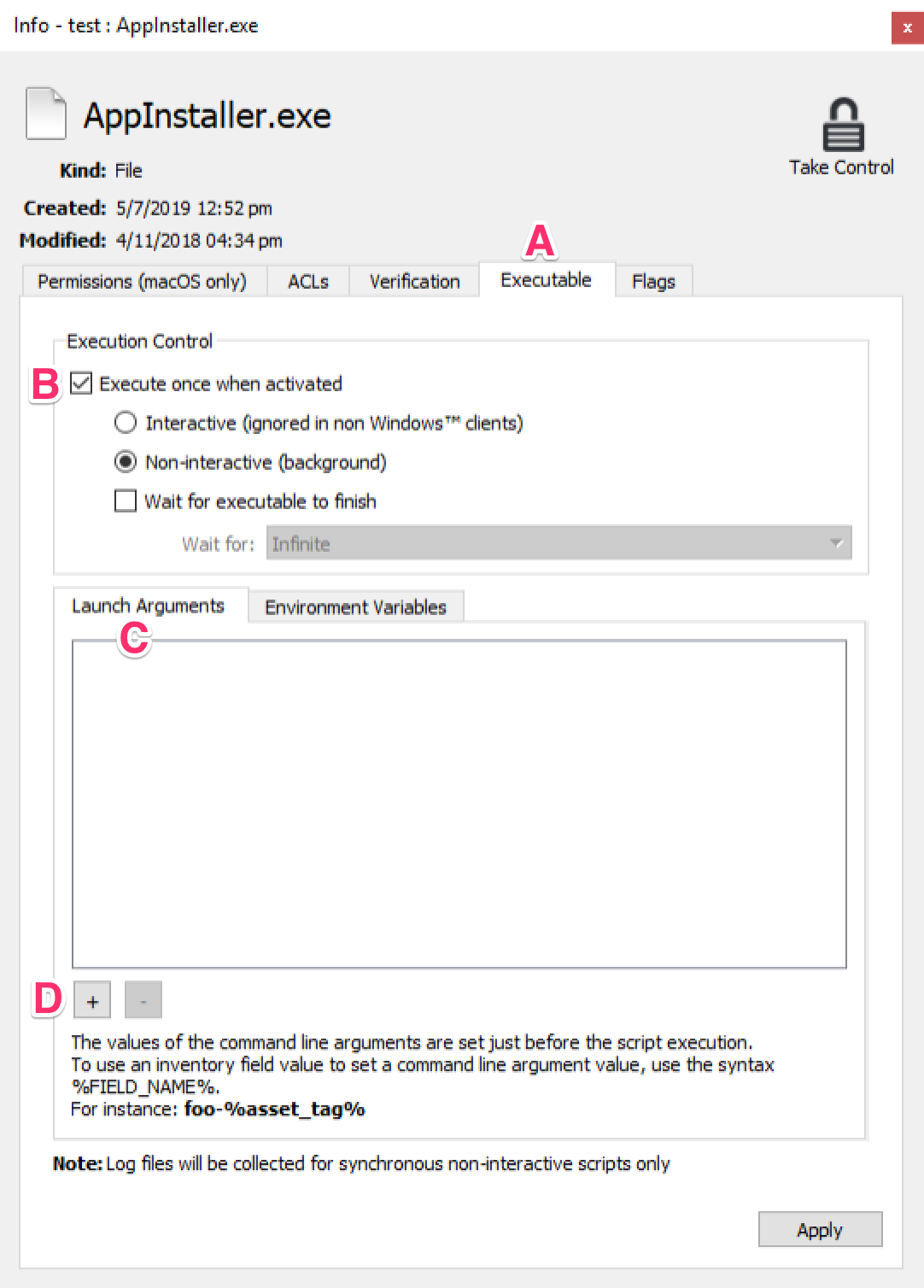
Enter each space-delimited item after the executable name as a separate Launch Argument, in the same order used by the working command. This example has four arguments:
`AppInstaller.exe /s /name=MyOrg /reg ABC123`
| Count
| Argument
|
| 1
| /s
|
| 2
| /name=MyOrg
|
| 3
| /reg
|
| 4
| ABC123
|
When a value contains spaces, keep the quotation marks from the tested command. The Launch Arguments UI stores the quoted value across separate rows, so preserve the opening quote on the first piece and the closing quote on the last piece. This example has eight arguments:
`AppInstaller.exe /s /name="My Org" /reg ABC123 /l "c:\windows\temp\My App\install.log"`
| Count
| Argument
|
| 1
| /s
|
| 2
| /name="My
|
| 3
| Org"
|
| 4
| /reg
|
| 5
| ABC123
|
| 6
| /l
|
| 7
| "c:\\windows\\temp\\My
|
| 8
| App\\install.log"
|
Assign the Fileset to a pilot device first. Confirm that the installer completes silently, the application is present, and the Fileset reports the expected status before broad deployment.
## Related reference
- [Microsoft Standard Installer command-line options](https://learn.microsoft.com/en-us/windows/win32/msi/standard-installer-command-line-options)