# Android Apps
## What
Android Filesets can be created from public or private Google Play apps. Web apps can also be added when you need to publish a managed web shortcut.
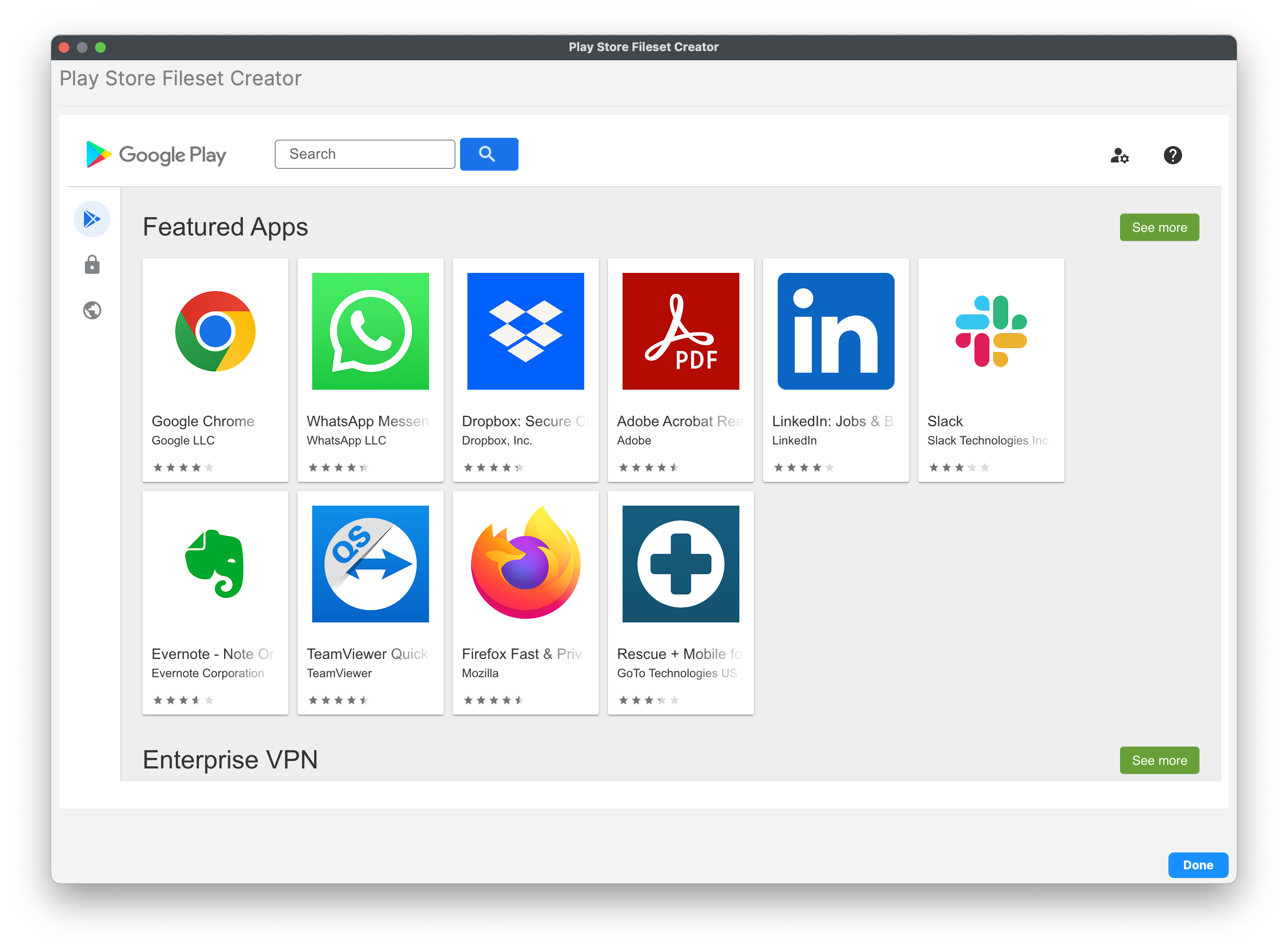
A Play Store App Fileset has Configuration, Permissions, and Managed Properties controls. Managed Properties appear only when the app developer exposes managed configuration settings.
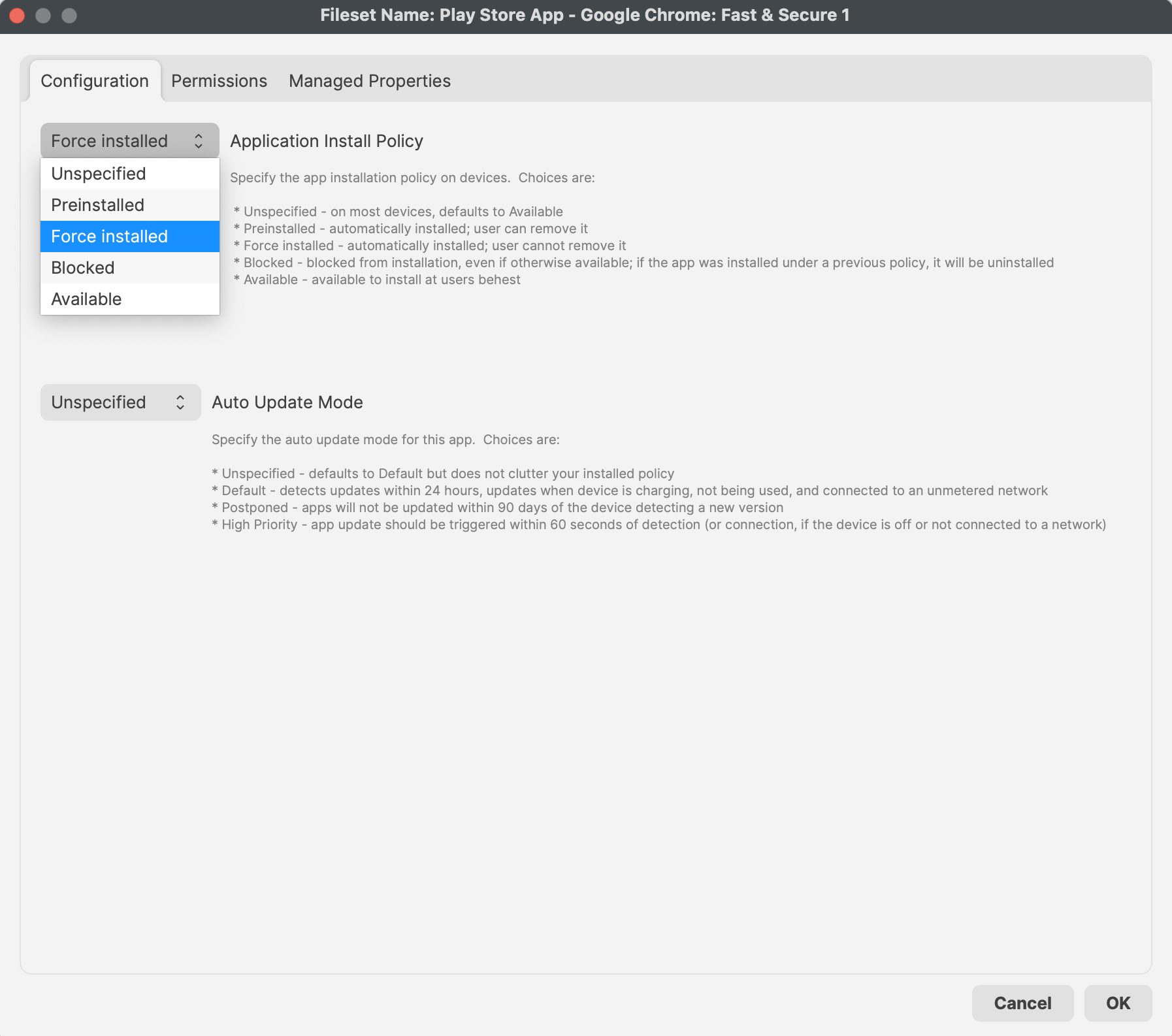
## FileWave 16.4 app policy controls
### Auto Update Mode
FileWave 16.4 exposes **Auto Update Mode** in each Android Play Store app Fileset’s **Properties > Configuration** tab. This is an app-specific setting.
Mode
Behavior
**Unspecified**
Leaves the value unspecified in the installed policy; Android uses its Default update behavior.
**Default**
Detects app updates within 24 hours and installs them when the device is charging, not in use, and connected to an unmetered network.
**Postponed**
Defers the app update for up to 90 days after the device detects the new version.
**High Priority**
Requests the app update within 60 seconds of detection, or after the device reconnects if it was offline.
**There is no separate App Update Mode in the Android Default Policy Editor shown in FileWave Central 16.4.** Configure this value on the Android app Fileset. **Unspecified** falls back to Android’s Default behavior; it does not inherit a FileWave Default Policy value.
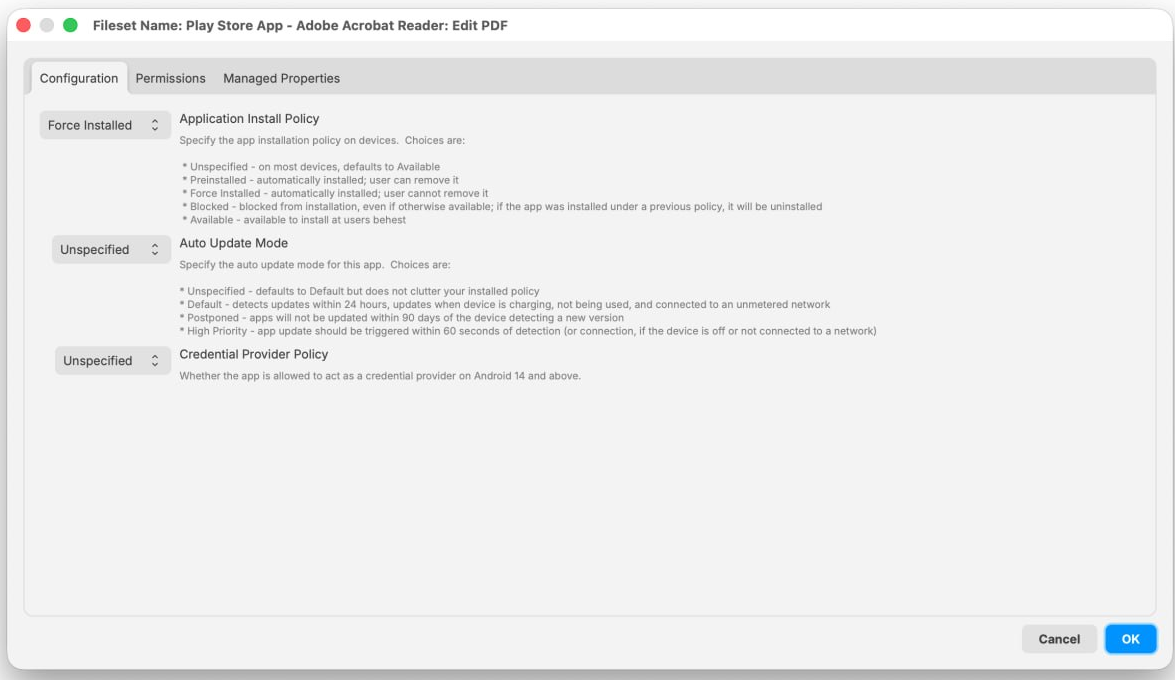Android Play Store app Fileset Properties in FileWave 16.4. Auto Update Mode and the app-specific Credential Provider Policy are configured on the **Configuration** tab.### Credential Provider
For Android 14 and later, FileWave 16.4 can allow a specific app to supply credentials when Android displays an authentication prompt. Configure this only for a trusted password-management or credential-provider app.
- **Per app:** Set Credential Provider Policy in the Android app Fileset’s **Properties > Configuration** tab.
- **Global default:** Open **FileWave Central > Preferences > Google > EMM Configuration > Default Policy Settings**.
- **Default posture:** Apps are not allowed to act as credential providers unless explicitly permitted.
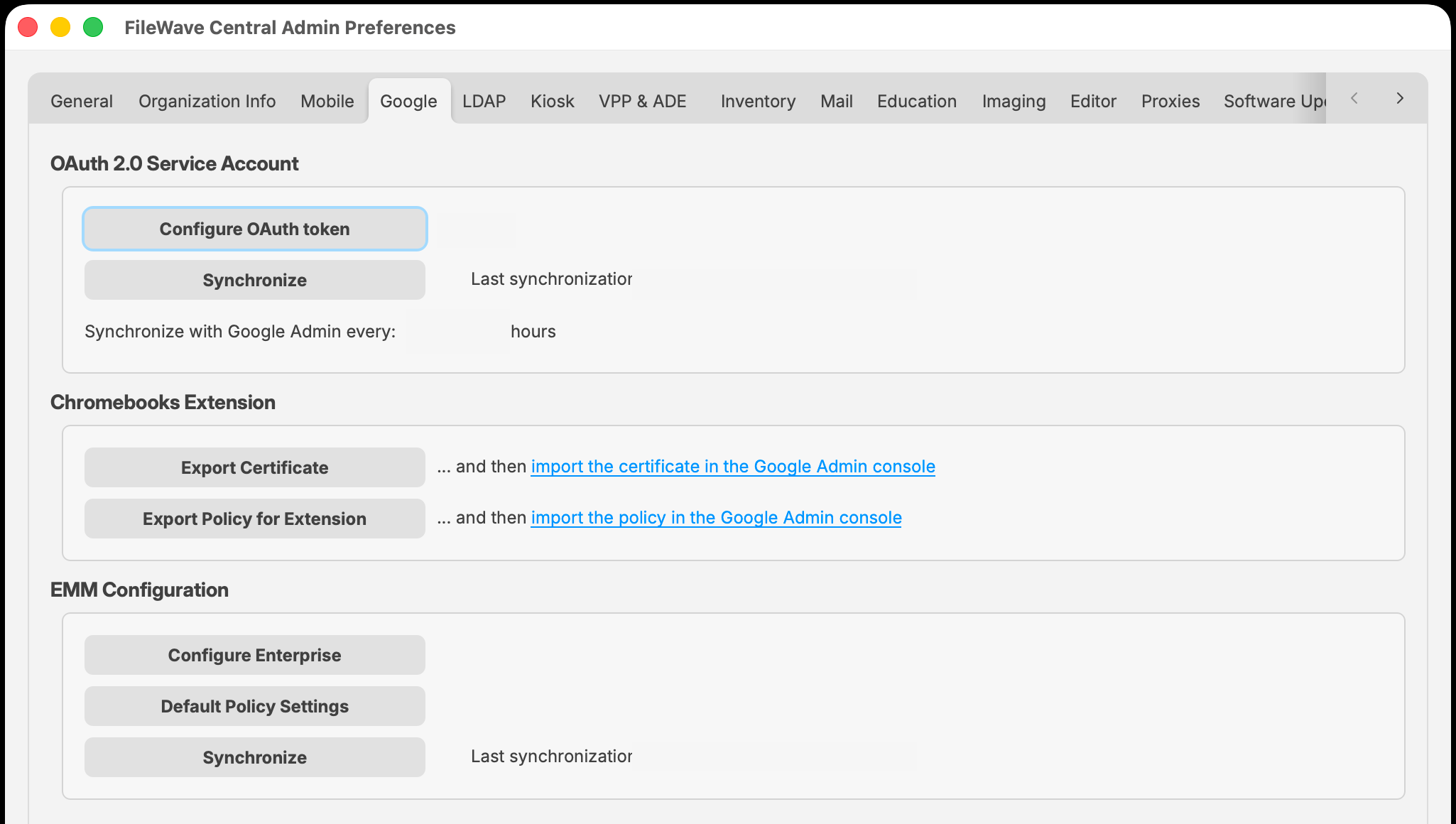Open the global Credential Provider baseline through **Preferences > Google > EMM Configuration > Default Policy Settings**.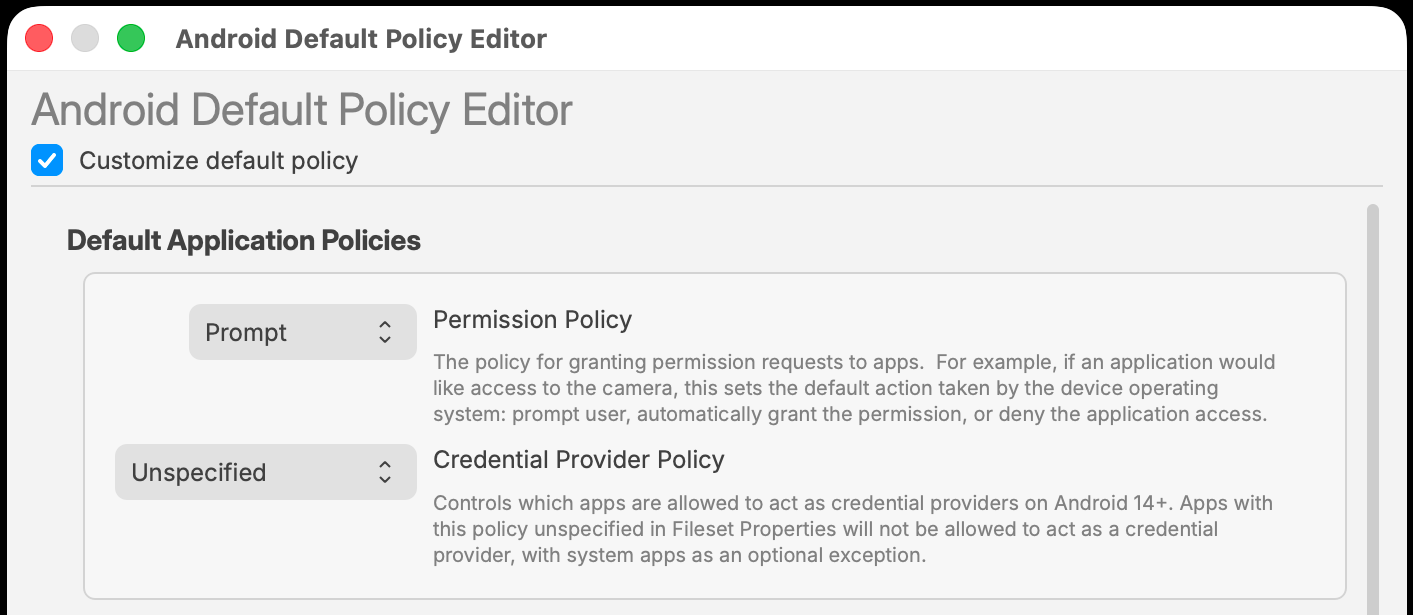The Android Default Policy Editor provides the global Permission Policy and Credential Provider Policy.
**Do not globally allow credential-provider behavior merely to enable one password manager.** Keep the global default denied and allow the approved app specifically.
## Review before deployment
- Review Configuration, Permissions, Auto Update Mode, Credential Provider, and any Managed Properties.
- Confirm the intended Auto Update Mode for the app and whether Credential Provider should inherit the global default or use an explicit app value.
- Deploy first to a representative test device with the same Android version and enrollment mode as production.
## Related Content
- [Android EMM Policies and Permissions](https://kb.filewave.com/books/android/page/android-emm-policies-and-permissions)
- [Android Policy Planning](https://kb.filewave.com/books/top-tips/page/android-policy-planning)