You can also drag a PKG or MSI file into the Filesets view to create the same Fileset type.
Drop the installer onto a Fileset Group when you want the new Fileset created in that group.Before the first upload, consider removing the version number from the installer filename and putting it in the revision name instead. This makes later in-place installer replacement easier.
## Information Opening a PKG or MSI Fileset will show the contents similar to the below: [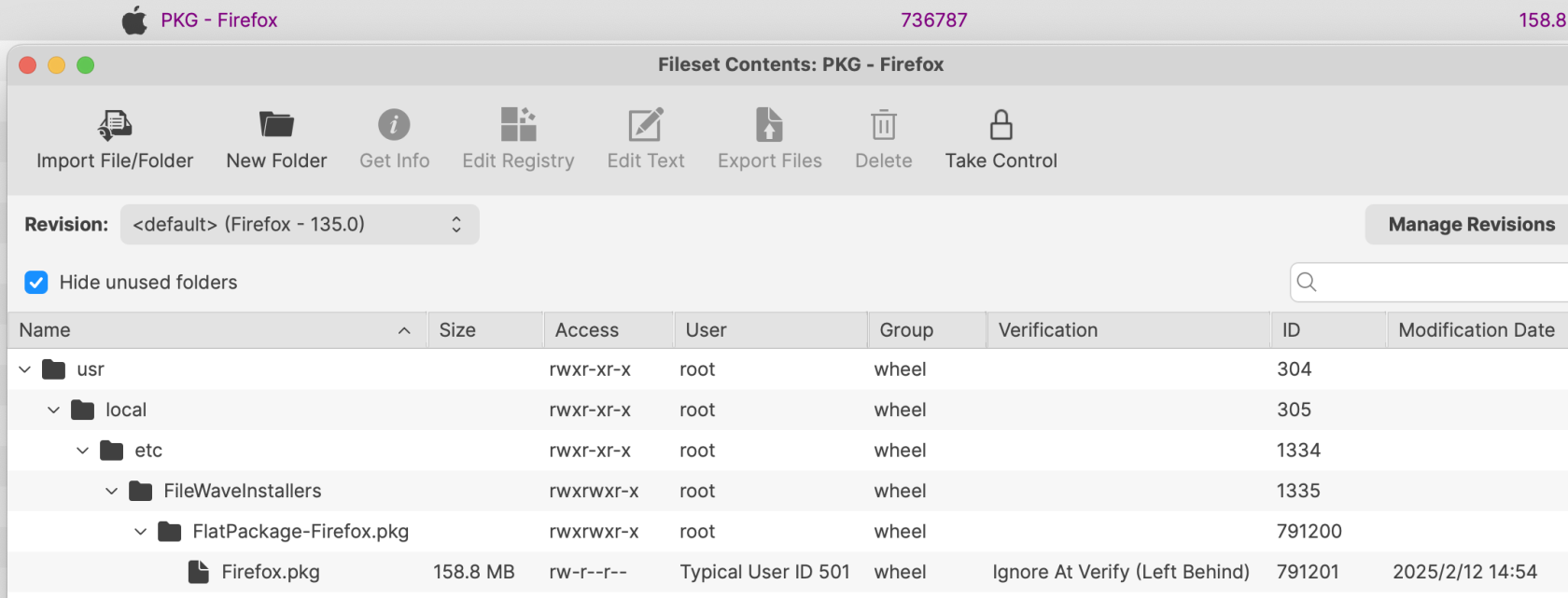](https://kb.filewave.com/uploads/images/gallery/2025-02/6ojD9S4X0N5yip78-image.png) The Fileset records the installer filename used when it was created.When you replace the installer manually inside a PKG or MSI Fileset, the new file must use the same filename as the installer it replaces.
### Revisions Use revisions to test a newer installer while preserving the current deployment and its additional Fileset content. There are two ways to create a new revision: - Drag and drop a new installer onto the existing Fileset - Open the existing Fileset, choose the option to Manage Revisions and from the button to add a new revision, choose to duplicate #### Drag & Drop When dragging a PKG installer onto a current PKG Fileset or an MSI onto a current MSI Fileset, a prompt similar to the below should be shown: [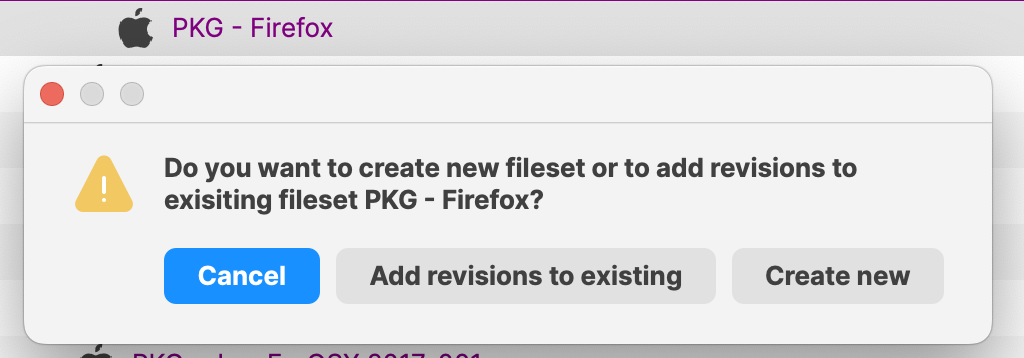](https://kb.filewave.com/uploads/images/gallery/2025-02/UULkHQ1A5CEXDqHa-image.png) Choose **Add revisions to existing** to create a revision with the new installer. The installer reaches devices only after you assign that revision or make it the default revision for the applicable associations.Name the new revision with the installer version so administrators can tell which package each assignment uses.
#### Duplication When choosing to Manage Revisions from within the Fileset, there is the option to duplicate a revision of choice. On doing so, everything from the prior Revision can be copied over to this new revision. [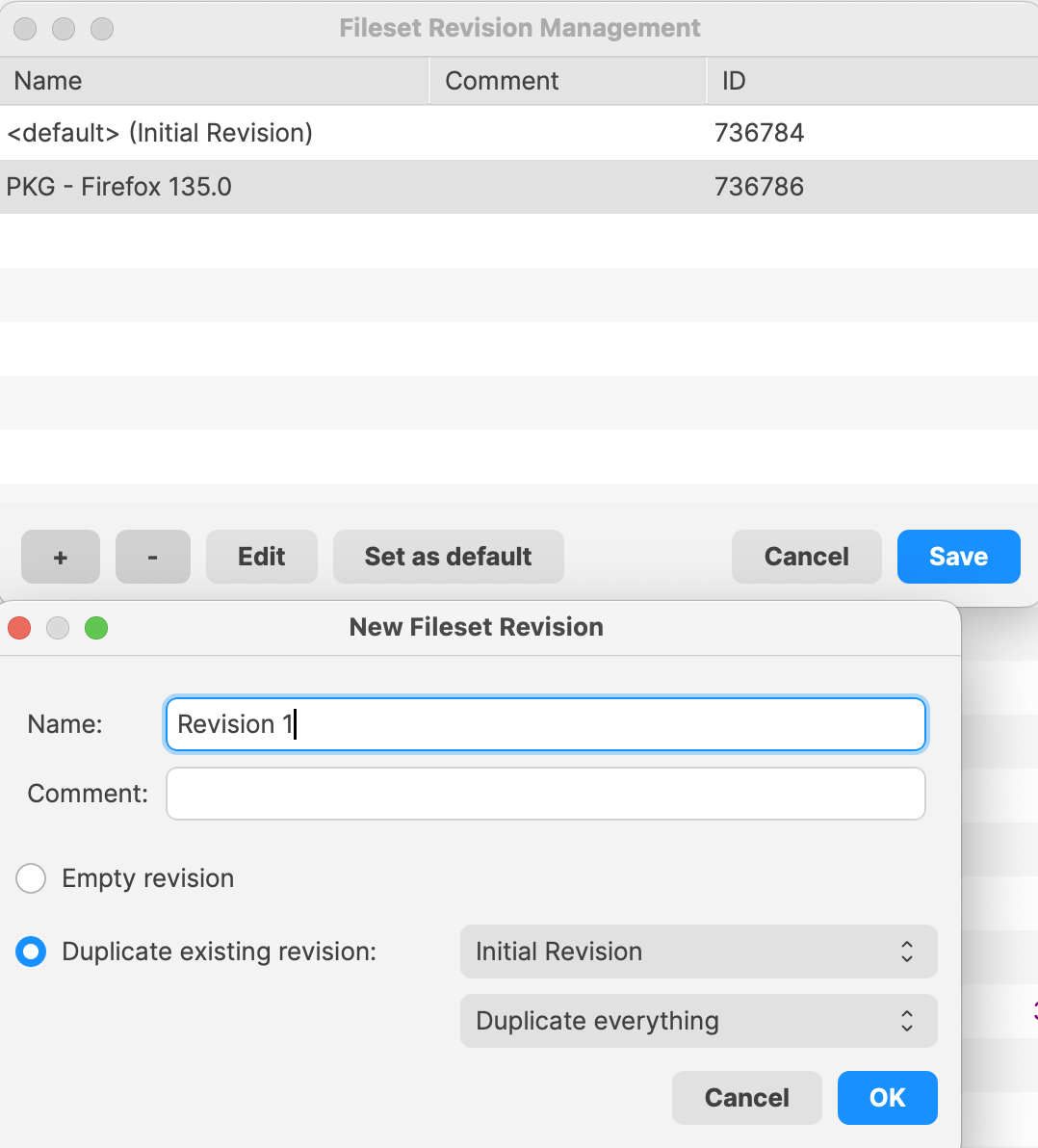](https://kb.filewave.com/uploads/images/gallery/2025-02/jaEvwtaKpwub0doQ-image.png) Duplicate a revision when the Fileset includes supporting files or settings that should carry forward. The installer filename rule still applies. When replacing the installer in a duplicated revision, **the new installer filename must match the filename already stored in the Fileset**.Before creating the first Fileset for a given installer, rename the installer to exclude the version number before uploading. Instead, add the version number into the name of the revision instead.
The name of the installer to be uploaded does not need to match, but the name of the installer within the Fileset must match. If the name of the installer file does not match before upload, 'copy' the name from within the Fileset, upload the new installer into the same folder as the original installer, delete the original installer and rename the new installer using 'paste'.
If the name of the initial installer uploaded includes the version number, when manually altering the revision, since the name must match, the newly uploaded version would have to be misnamed with a version number that does not make sense.
File Level Filesets (including PKG and MSI Filesets) can be exported for transfer to another FileWave server. They can also be compressed and stored for future use or archived.
Most installers only handle upgrade, not downgrade. If there is a desire to rollback to an older revision, it is likely the currently installed version on the device will need to be deleted beforehand.
After a successful installation, FileWave removes the local `.msi` staging file. [Uninstalling Filesets](https://kb.filewave.com/books/filesets-payloads/page/uninstalling-filesets-safely) explains the **Use MSI uninstaller** option. Use an empty Fileset when installation or removal requires custom switches or commands.
## Related Content - [Fileset Revisions](https://kb.filewave.com/books/filesets-payloads/chapter/fileset-revisions) - [Uninstalling Filesets](https://kb.filewave.com/books/filesets-payloads/page/uninstalling-filesets-safely)