Common search terms for this workflow include column filter, table search, data filter, find a device by asset tag, and filter the Devices view.
# Columns Adding and Removing (Customizing) ## What The Edit Fields tool lets you show or hide inventory columns beyond the default fields in FileWave Anywhere views. ## When/Why Use it when a value such as asset tag, location, owner, or a custom inventory field needs to be visible in the table. Once the column is shown, you can search or filter by that value.**FileWave 16.4 Deployment view:** Central and Anywhere share the predefined **Installation Type**, **License Assignment**, **Creation Date**, and **Tags** columns. Show the columns relevant to the review, then sort or filter the list. See [Deployments in FileWave Central](https://kb.filewave.com/books/filesets-payloads/page/deployments-in-filewave-central) for the meaning of each Deployment column.
## How You can Edit the fields in a view wherever you see the () icon on the right of the table (it is shown here horizontally, but is vertical in the web admin). In this example, the custom field *Asset Tag* is added to the Devices view. If a user reports an issue and gives the asset tag, the admin can filter the device list by that value instead of searching by name or serial number. 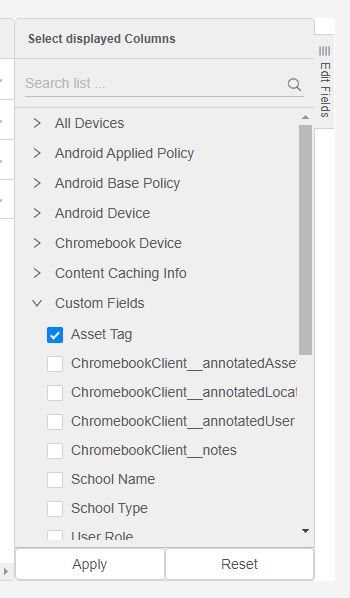 To remove a field from the view, clear its checkbox and save the view. # Pin Columns in FileWave Anywhere ## What Pin a column to keep it visible while you scroll horizontally through a FileWave Anywhere table. ## When/Why Pin identifiers you need for every row, such as **Device Name** or **Asset Tag**. Those columns stay in view while you inspect fields farther to the right. ## How Select the three-line menu () in a column header, then choose the pin option. Open the same menu to remove the pin. The video below shows **Device Name** being pinned and unpinned. # Columns Sorting & Moving ## What FileWave Anywhere tables can be sorted by column, and the columns themselves can be moved into the order that works best for the task. ## When/Why Use column sorting and moving when a table has the right data but the default order is not the most useful view. For example, sorting by **FileWave Client Version** can help you find older clients first, while moving that column closer to device name or status makes the table easier to scan. 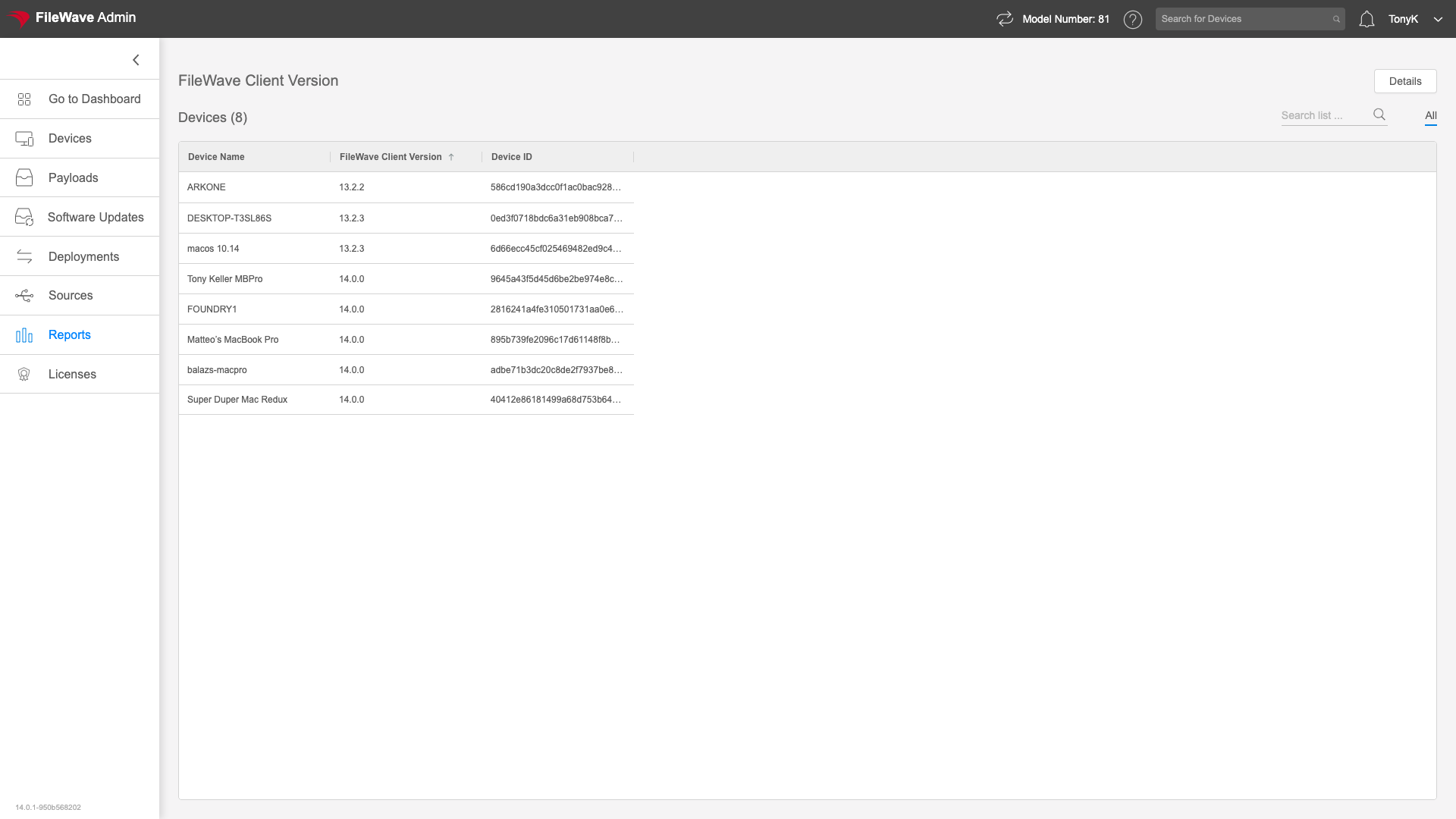 ## How To sort a table, click the column header. The arrow on the column shows whether the sort is ascending or descending. To move a column, drag the column header to the position you want.