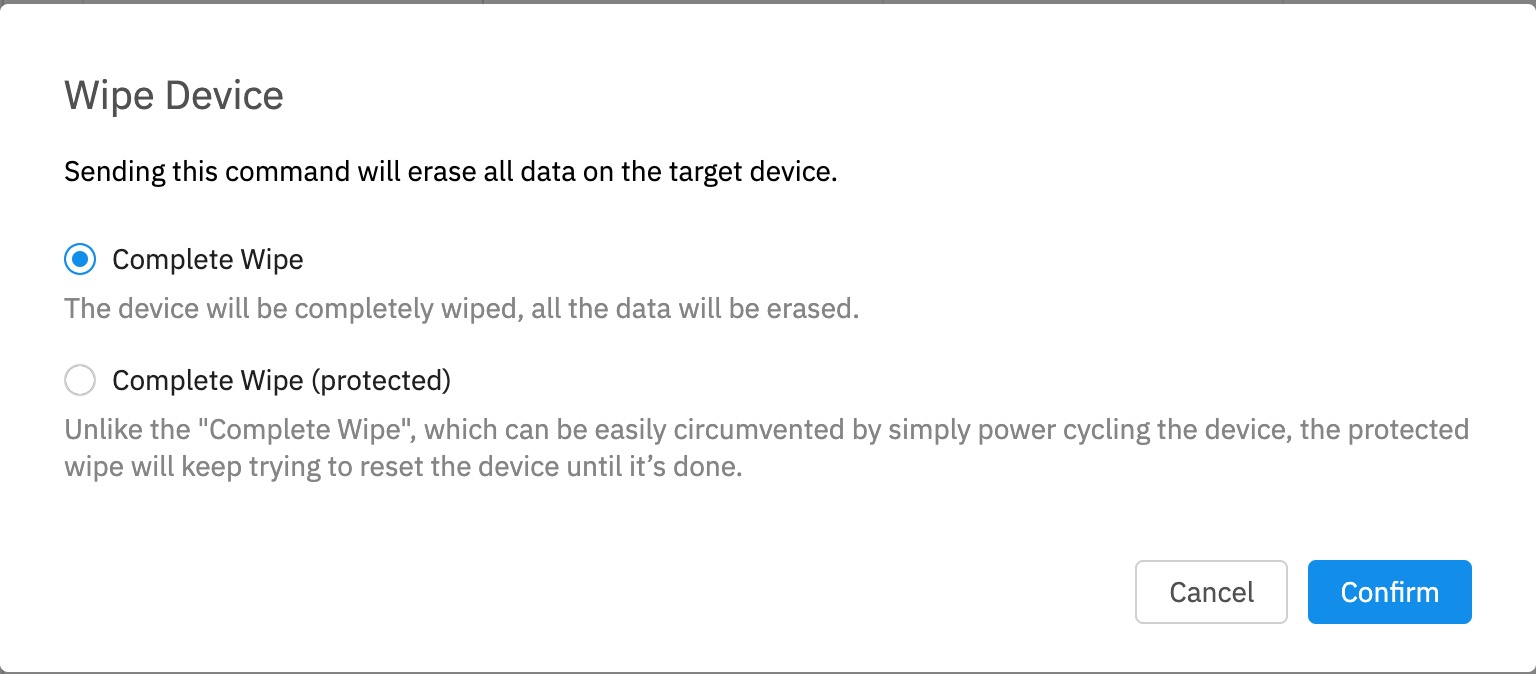
You can also configure Activation Lock behavior in the DEP/ADE profile.
# Clear Passcode ## What The Clear Passcode command is used to remove the current passcode that is assigned to a device. (Will not show unless a passcode is set on the device in question) ## When/Why You can use this command clear that passcode (if set). Particularly useful when the user "forgot" the passcode. ## How Use the ellipsis () to the right of the device in the [View - Devices](https://kb.filewave.com/books/filewave-anywhere-help-menus/chapter/view-devices "View - Devices") and select "Clear Passcode" # Clear Restrictions Passcode ## What The Clear Restrictions Passcode command removes a passcode that was set to prevent restrictions from being changed. A restrictions passcode must already be set on the device for this command to appear in FileWave Anywhere.You can also deploy an Apple Profile that prevents a restrictions passcode from being set.
## When/Why Use this command when a restrictions passcode was set and is unknown or forgotten. The device must be managed in a way that supports this command; for example, it cannot be sent to a User Enrollment BYOD device. ## How In FileWave Anywhere, go to [View - Devices](https://kb.filewave.com/books/filewave-anywhere-help-menus/chapter/view-devices "View - Devices"), open the ellipsis (...) menu to the right of the device, and select Clear Restrictions Passcode. # Copy to Group ## What Copy to Group creates another group membership for the same device in FileWave Anywhere. It does not create a new device record, erase inventory, or remove the device from its existing groups. ## When/Why Use this action when a device should appear in more than one group. For example, you might keep a device in its normal location group and also copy it into a temporary testing, repair, or rollout group without moving it out of the original group. ## How 1. Open the [Devices view](https://kb.filewave.com/books/filewave-anywhere-help-menus/chapter/view-devices "View - Devices") in FileWave Anywhere. 2. Find the device, open the ellipsis menu (...) to the right of the row, and choose **Copy to Group(s)**. 3. Select the destination group or groups, then confirm the copy. # Edit Device Fields ## What A device record can include both built-in inventory fields and custom fields. ## When/Why Use this option when you need to update fields for one device. For bulk changes, use the Upload Devices and/or Data workflow instead. For changing many devices at once, see [Upload Devices and/or Data](https://kb.filewave.com/books/filewave-anywhere-help-menus/page/upload-devices-andor-data "Upload Devices and/or Data"). ## How 1. In [View - Devices](https://kb.filewave.com/books/filewave-anywhere-help-menus/chapter/view-devices "View - Devices"), use the ellipsis () to the right of the device and select "Edit Device Fields". 2. In the Edit Device Fields window, add, edit, or delete field values as needed. 3. Select "Save" when you are done. 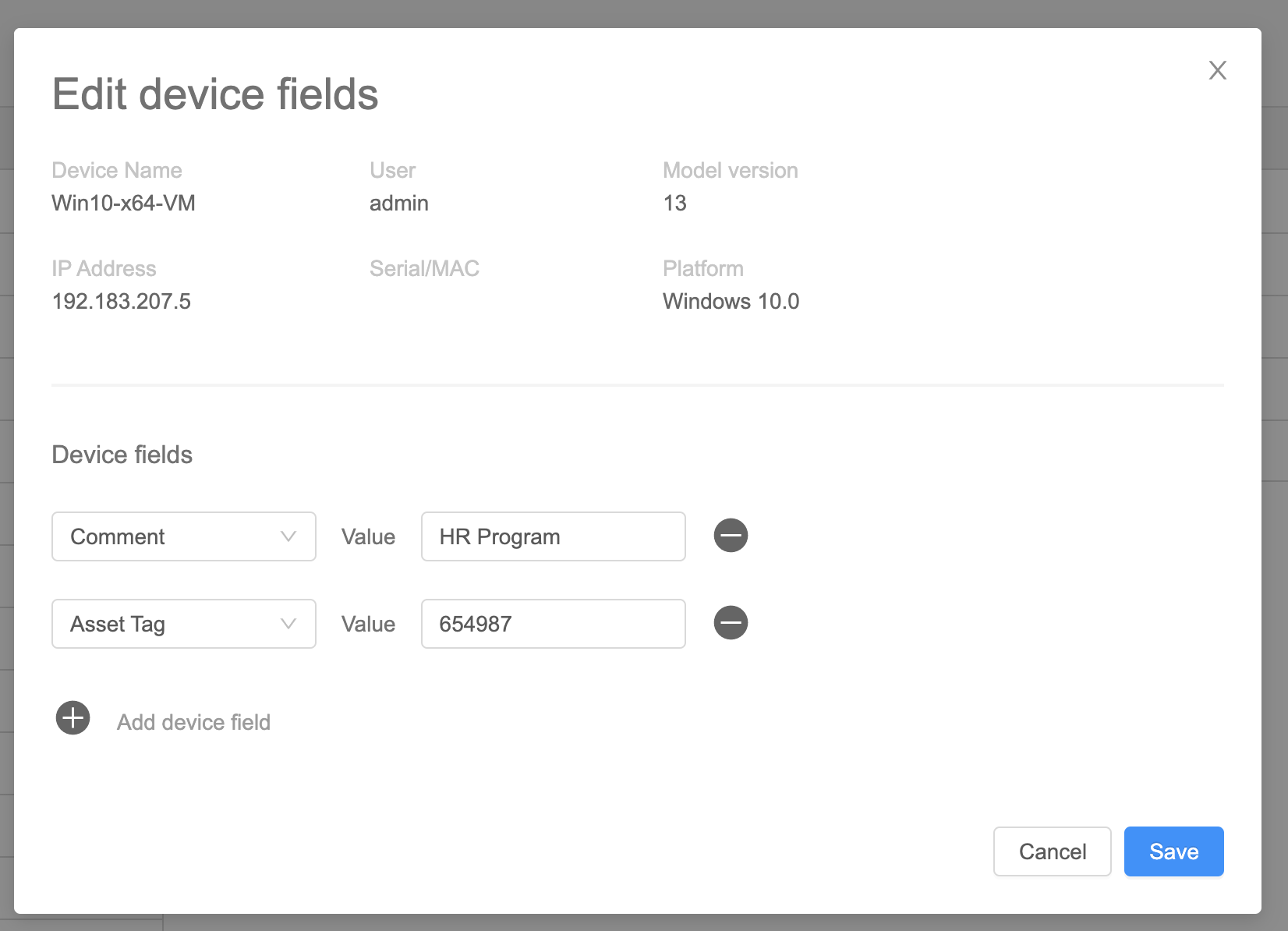 # Lock Device ## What You can use Lock device in FileWave Anywhere to remotely lock a managed iOS device. If the device already has a passcode, that same passcode is still required to unlock it. If no passcode exists, the device can be unlocked without one. ## When/Why Use this action when you need to lock a device immediately or confirm that the device can receive MDM commands. ## How In [View - Devices](https://kb.filewave.com/books/filewave-anywhere-help-menus/chapter/view-devices "View - Devices"), click the three-dot menu to the right of the device and select "Lock device". 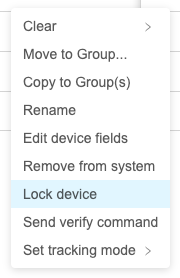 # Move to Group ## What The **Move to Group** command moves a selected device or group to another group. It is related to **Copy to Group**, but it changes the object's current group placement instead of adding another membership. Objects that come from Smart Groups can be copied, but not moved, because Smart Group membership is controlled by criteria. ## When/Why Use this command when you are reorganizing static groups or moving device records into a different location. Check assignments first: moving a device can change which Filesets, profiles, or deployments it receives when those items are assigned through group membership.**Quick answer:** Move to Group changes the selected object's group location. If you only need the device to appear in an additional group while keeping its current placement, use **Copy to Group** instead.
## How Use the ellipsis () to the right of the device in [View - Devices](https://kb.filewave.com/books/filewave-anywhere-help-menus/chapter/view-devices "View - Devices"), then select **Move to Group...** and choose the destination group. 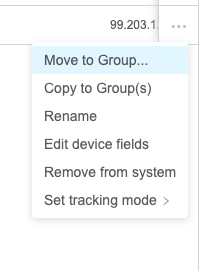 # Performing Actions on Multiple Devices ## What We are pleased to announce that in version 14.5+ of the FileWave WebAdmin console, you can now perform "Actions" on multiple devices at a time. ## When/Why When managing a large environment, it is a frequent occurrence to want to make the same change to multiple devices at one time. Version 14.5+ of the WebAdmin console now gives you the ability to perform like-actions on multiple devices at the same time. This is especially important when we want to do something like erase multiple iOS devices, or maybe bulk-change a custom field. ## How It is very simple to use this feature. In the Devices view, simply choose multiple devices by selecting the checkboxes in the tree-view as shown: 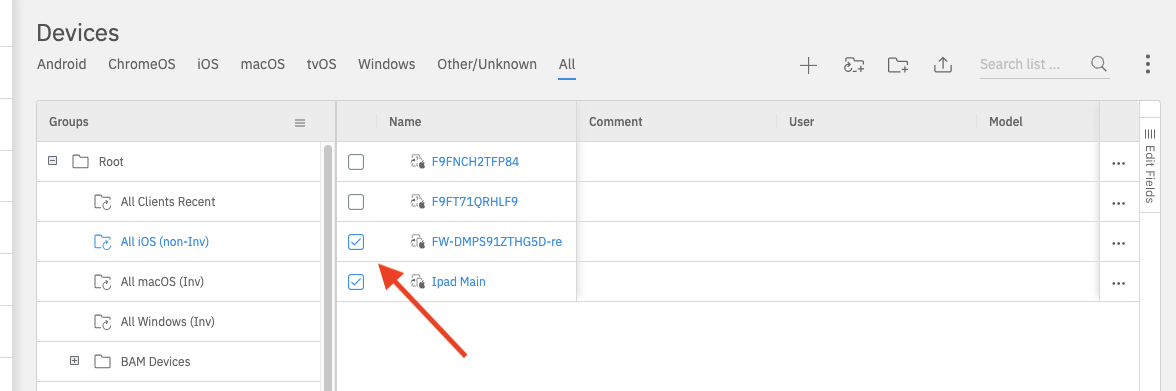 Then, when you select the Action menu, and possible bulk actions will be shown: 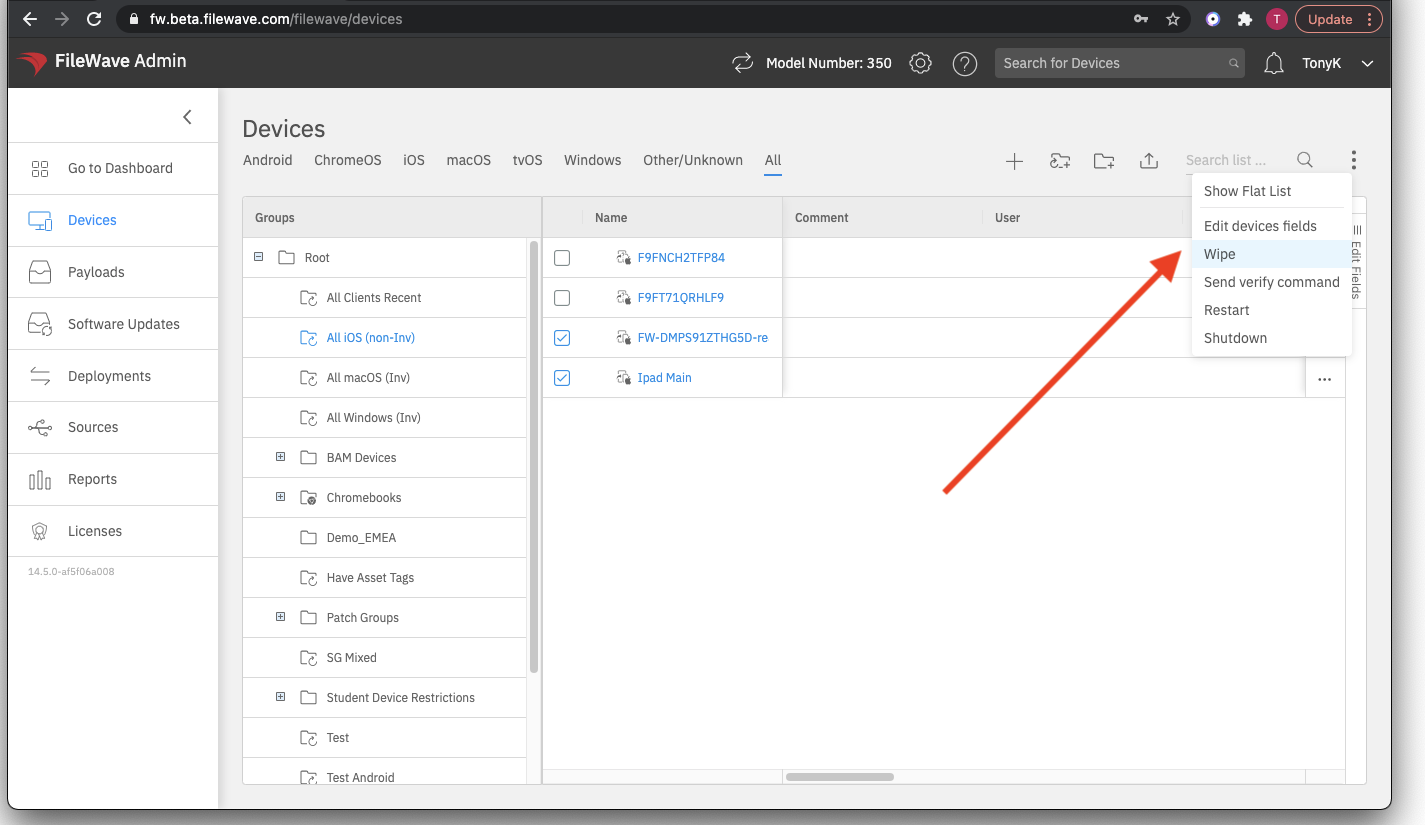Note that you will only see Actions that are available for the types of devices chosen. In the above case, because we have two iPads chosen, we see elements available for iPads, such as Wipe and Restart. If we were to mix client types though (such as Windows devices), the list of actions would not show either of those iPad-specific options.
# Remove from Group ## What Use "Remove from Group" when you want to remove one copy of a device from a manual group without deleting the device from FileWave. ## When/Why This is useful when a device no longer belongs in a specific manual group, or when that group should stop applying deployments to that copy. The device record remains in FileWave, other copies of the same device remain unchanged, and inventory data is preserved. If the group copy was receiving content through a deployment, removing the copy from the group also removes that group-based deployment path for the device. Use "Remove from system" only when you intend to delete the device record from FileWave. ## How Select a device copy in a manual group, open the (...) action menu, and choose "Remove from Group": 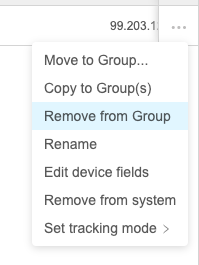 # Remove from System ## What The "Remove from System" command is what you might remember from the native FileWave admin as "Delete", and it has the same consequences. But, in the native admin Delete was the same for the original object and the copies, even though the result was different. The WebAdmin has split this into two commands to help clarify. ## When/Why The "Remove from System" command entirely (and destructively) removes a device and all of its copies from the system. Any payloads through deployments will be lost, and all inventory from this object will be removed from the system. In the case of an MDM-enrolled device, the deletion acts as an unenroll and can not be reversed. The model has to be updated in order to fully remove the device from the system.An un-enrol will be triggered, only if the following FileWave Central preference is enabled: Preferences > Mobile > 'Remove MDM profile from devices removed from FileWave model' This preference will send a command to remove the enrolment profile, which should be honored by devices, even if the enrolment profile is configured to be non-removable in DEP settings.
For client devices, they will check in again as long as a client remains installed but has to be onboarded again.Note; Remove from System is a destructive command, and should only be done when you are certain.
## How To perform this action, choose "Remove from System" from the Device action menu (...) and Update Model when finished. 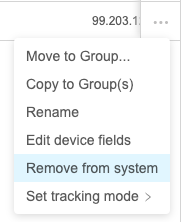 # Rename ## What Use the **Rename** device action when you need to update a device name from FileWave Anywhere. The result depends on the device platform, MDM restrictions, and whether FileWave can rename the device itself or only the FileWave record. ## When/Why For supported iOS/iPadOS devices, FileWave sends an MDM command to rename the device and also updates the FileWave device record. If the target is a computer client or an iOS/iPadOS device where renaming is restricted, FileWave updates only the record name. Use that record-only path carefully because a FileWave name that differs from the device's actual name can confuse troubleshooting.Plan bulk rename work before you run it. Test with a small set first, especially when device names are used for groups, reporting, certificates, or support workflows.
## How To send the command, choose **Rename** from the device action menu (...): 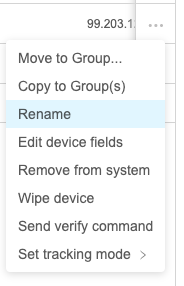 FileWave then prompts you for the device name to apply: 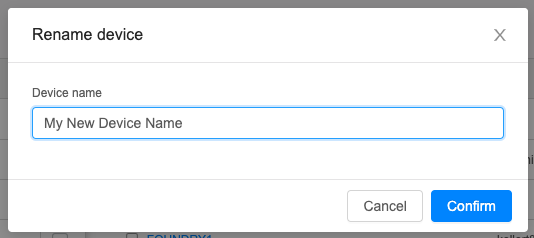 # Restart (Windows) ## What Use **Restart Windows Devices** when you need FileWave to remotely reboot one or more managed Windows computers from FileWave Central or FileWave Anywhere. ## When/Why A remote restart is useful when a Windows device needs to finish an installation, recover from a known issue, or complete an admin-approved maintenance task. ## How The action is available in both FileWave Central and FileWave Anywhere.There is no confirmation dialog when you issue the restart command. Choosing the command immediately starts the restart workflow.
### FileWave Central In FileWave Central, right-click one or more devices and choose **Restart Windows Devices**: 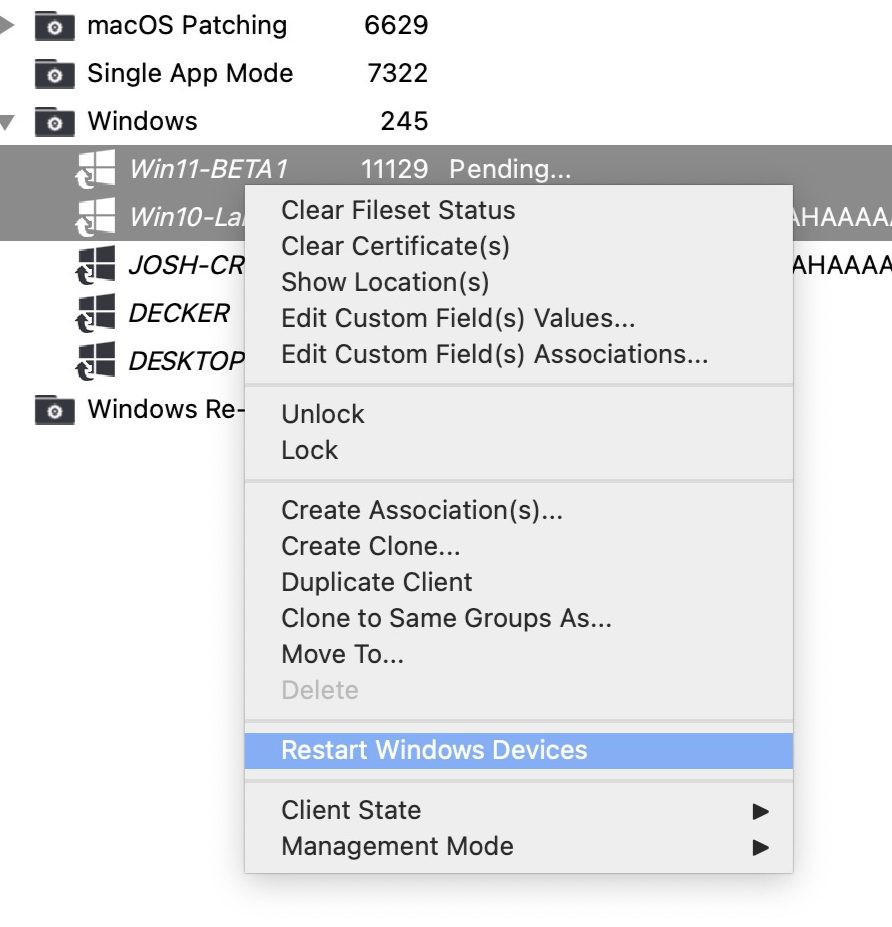 ### FileWave Anywhere In FileWave Anywhere, the same restart action is available from the device details action menu: 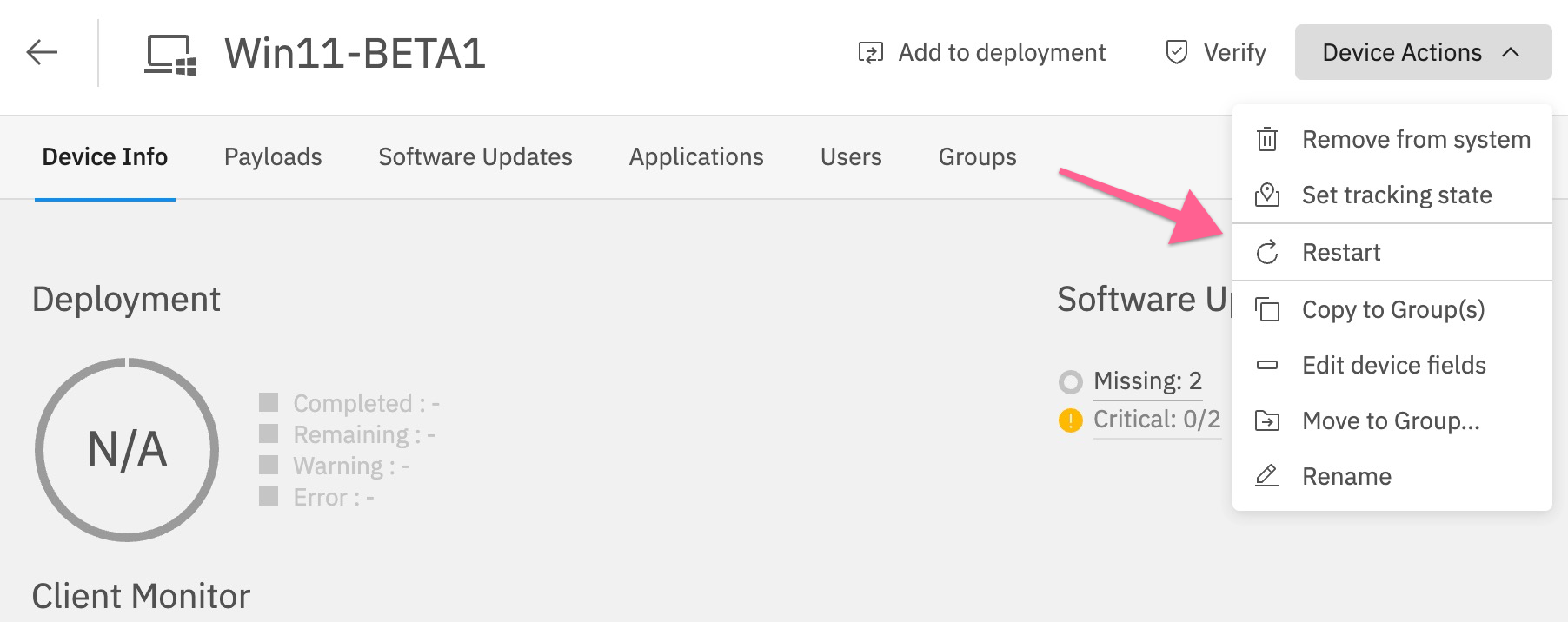 From the Devices view, select multiple Windows devices to restart them in one action:  After FileWave issues the restart command, any logged-in user sees a warning dialog similar to the first example below. The screenshots are from Windows 11, so the prompt may look slightly different on Windows 10. 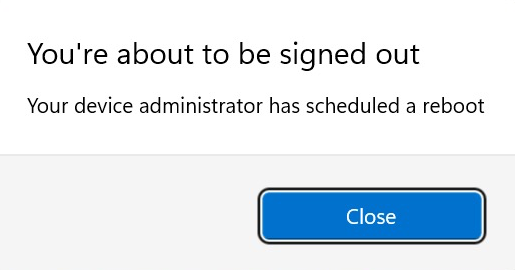 Three minutes after the first warning appears, FileWave shows a second warning. That second warning tells the user the Windows device will restart in 2 minutes. 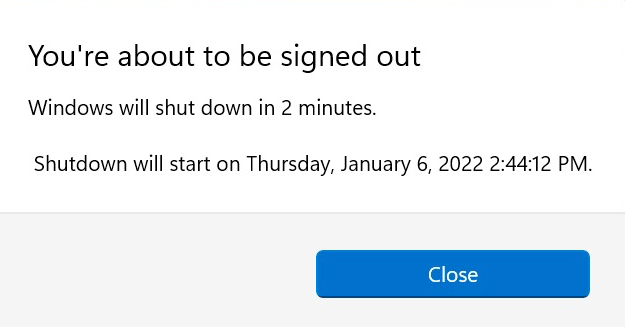 # Send Verify Command ## What Use Send Verify when you want a managed device to check in, refresh inventory, and process the inventory or MDM requests FileWave sends for that platform. ## When/Why Send Verify asks the selected device to report current inventory and process the relevant verify commands. The exact requests depend on device type and enrollment method, so a macOS client, a Windows client, and an MDM-enrolled mobile device will not all receive the same sequence. ## How Run **Send Verify** from the Device action menu (...) or from the device detail views (): 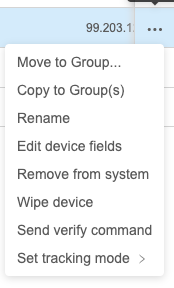 Note that we can watch the progress of this (and other) MDM commands from the Device Detail View Command History tab. ## Related Content - [NAT Support for Client Monitor/Verify](https://kb.filewave.com/books/filewave-anywhere-help-menus/page/nat-support-for-client-monitorverify "NAT Support for Client Monitor/Verify") # NAT Support for Client Monitor/Verify ## What FileWave can send a **Verify** command to managed devices even when the admin workstation does not have direct network line-of-sight to the client. This is useful for remote devices behind NAT, at home, or on networks where the admin console cannot directly reach the device. ## When/Why Use Verify when testing a new payload or Fileset, troubleshooting check-in behavior, or prompting a remote client to re-evaluate assigned content. Historically, Client Monitor workflows depended on direct network reachability. Current FileWave workflows provide a remote-friendly path from FileWave Anywhere, and the 16.0+ Client Monitor adds broader NAT-compatible monitoring. ## How From the **Devices** pane in FileWave Anywhere, open the device action menu and choose **Send verify command** for a single device: [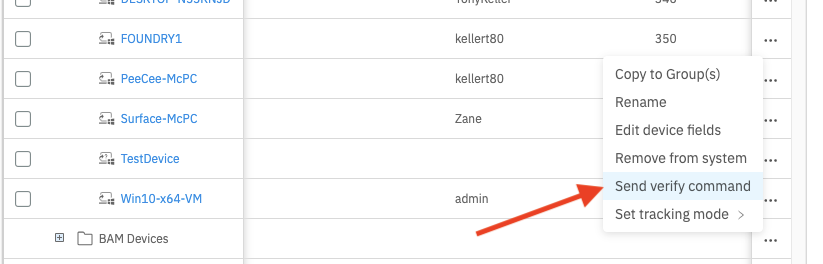](https://kb.filewave.com/uploads/images/gallery/2023-07/Fy44ZCJLrf47zpxN-image.png) You can also select multiple devices and send the same Verify command to the selected devices: [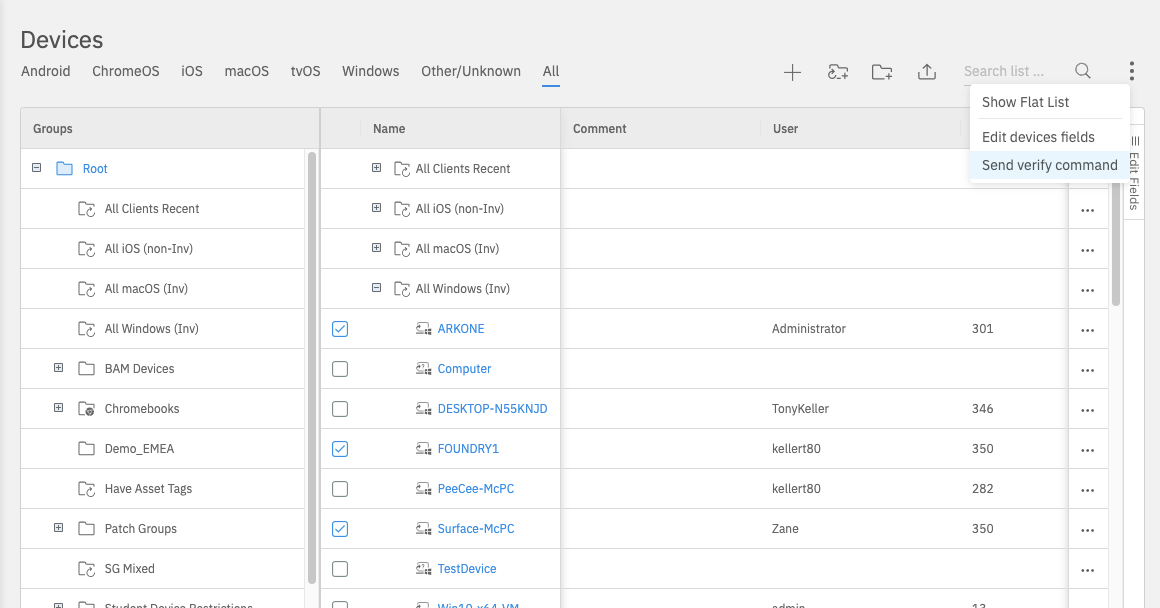](https://kb.filewave.com/uploads/images/gallery/2023-07/wiDFqxND8igMwAKQ-image.png) From an individual device page, use the **Verify** action in the device toolbar: [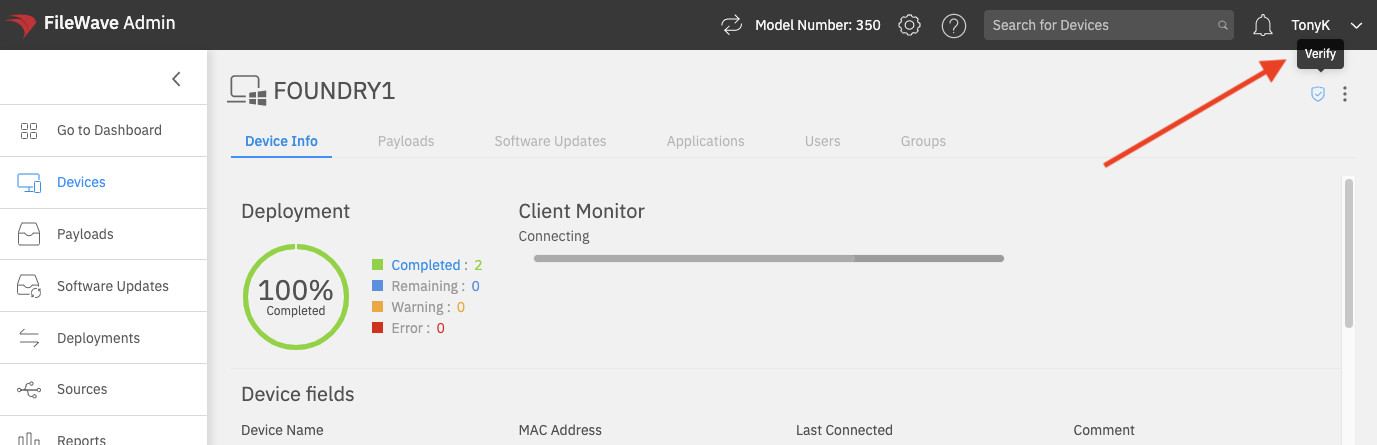](https://kb.filewave.com/uploads/images/gallery/2023-07/VjQTLrrizDTsYlJ8-image.png) Client Monitor includes additional troubleshooting tools beyond the Verify workflow shown here. For the current 16.0+ Client Monitor behavior, including NAT-compatible monitoring through the newer connection model, see the related Client Monitor article. ## Related Content - [Performing Actions on Multiple Devices](https://kb.filewave.com/books/filewave-anywhere-help-menus/page/performing-actions-on-multiple-devices "Performing Actions on Multiple Devices") - [Client Monitor (16.0+)](https://kb.filewave.com/books/filewave-central-anywhere/page/client-monitor-160 "Client Monitor (16.0+)") # Set Tracking Mode ## What Tracking Mode controls whether FileWave requests location information from a managed device. Location availability depends on the device platform, enrollment type, operating-system privacy controls, and user choices on the device, so results can vary. ## When/Why Some organizations use tracking for ongoing device-location visibility, but the most common practical use is **Missing** mode for supervised iOS and iPadOS devices that have been misplaced. FileWave Missing mode uses Apple's Lost Mode functionality to lock the device and help locate it. ## How From the device actions menu, choose **Set tracking mode**, then select one of these modes: - **Untracked:** The default mode. FileWave does not request ongoing location data. - **Tracked:** FileWave performs occasional location lookups when the platform and device settings allow it. - **Missing:** FileWave places supported supervised Apple devices into Missing/Lost Mode. 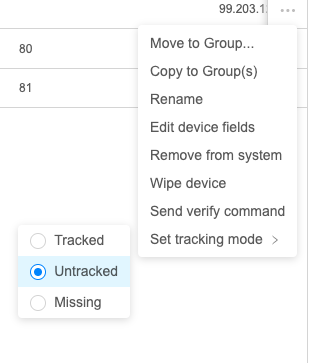Location data is treated as personally identifying information by operating systems and may require specific permissions, supervision, enrollment types, and end-user consent. Review [Location Tracking Setup](https://kb.filewave.com/books/filewave-client/page/location-tracking-setup) before relying on tracking for a workflow.
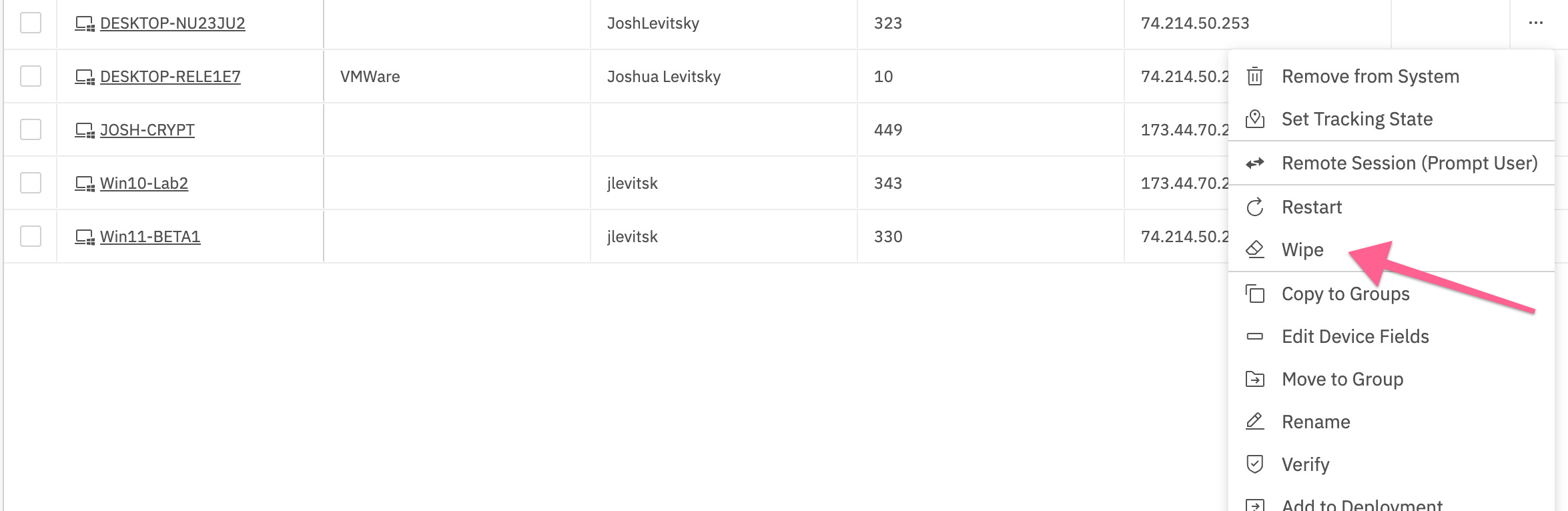
When FileWave receives location data from the device, the device appears on the map in the **Location** tab of Device Detail. # Wipe Device ## What The command name of "Wipe Device" is probably warning enough, but this command is a destructive command to erase the current device. In v14 of the WebAdmin, this command is restricted to iOS devices. ## When/Why With iOS devices, the Wipe command is the equivalent of being local to the device and clicking on the Erase all Contents and Settings command. This command is frequently used whenever you want to erase and re-enroll a device in FileWave MDM.As stated above, the Wipe Device command is a destructive command.
## How To execute the command, simply choose "Wipe Device" from the Device Action command (...): 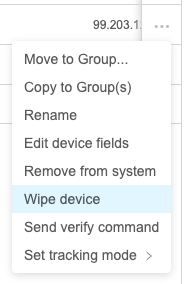 Note that there is a subsequent dialog to choose options: 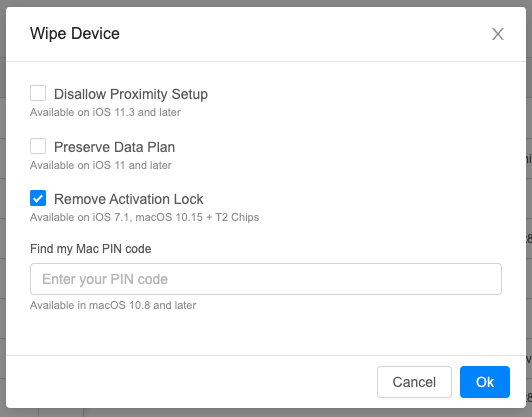 Remove Activation Lock is particularly important so that if an Activation Lock exists it will be removed during wipe...otherwise you are left with a device prompting for AppleID credentials.Activation Lock properties can now be set in DEP profiles to control when/if Activation Lock can be used.
## Related Content - [Apple ID prompt still appears even when Activation Lock Bypass Code is used during Remote Wipe](https://kb.filewave.com/books/ios-ipados/page/apple-id-prompt-still-appears-even-when-activation-lock-bypass-code-is-used-during-remote-wipe "Apple ID prompt still appears even when Activation Lock Bypass Code is used during Remote Wipe") # Windows MDM Wipe Command ## What FileWave Anywhere can send a Wipe command to Windows devices that are enrolled through Windows MDM. Windows MDM is separate from a standard FileWave Client (`fwcld`) enrollment; for enrollment context, see [Manually enrolling a device into FileWave Windows MDM](https://kb.filewave.com/link/177). ## When/Why Use the device action menu when you need to wipe an MDM-enrolled Windows device.The Wipe option is visible only for Windows devices that are enrolled through Windows MDM.
## How - Select the Windows device. - Open the ellipsis action menu. - Choose **Wipe**.