| **Targets** - What you want to receive **Groups** - Static, Smart Groups, and LDAP OUs to include **Devices** - Specific devices to include | 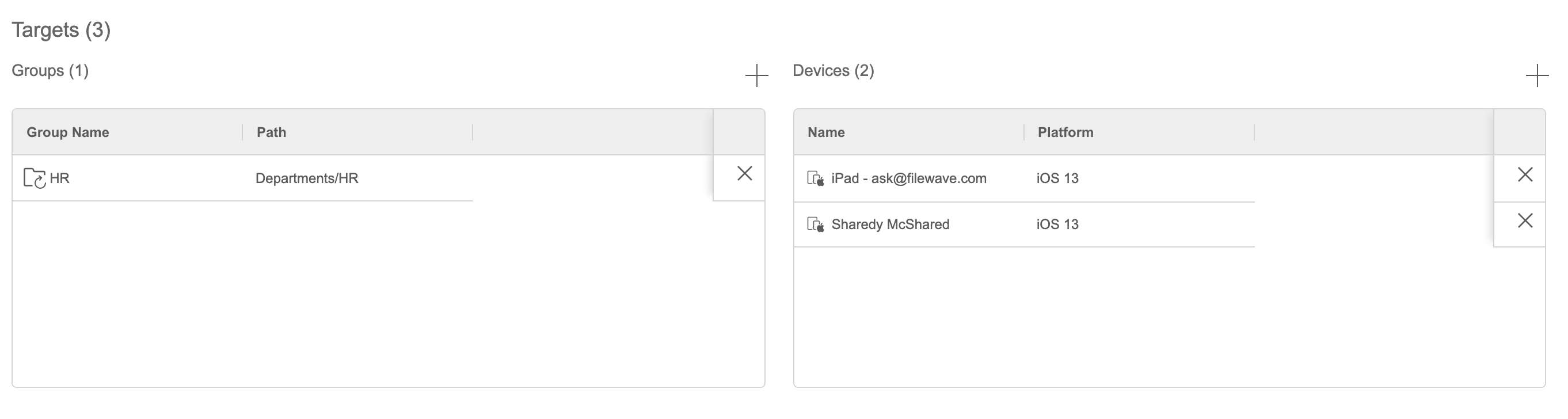 |
| **Exclusions** - What you don't want to receive **Groups** - Static, Smart Groups and LDAP OUs to exclude **Devices** - Specific devices to exclude | 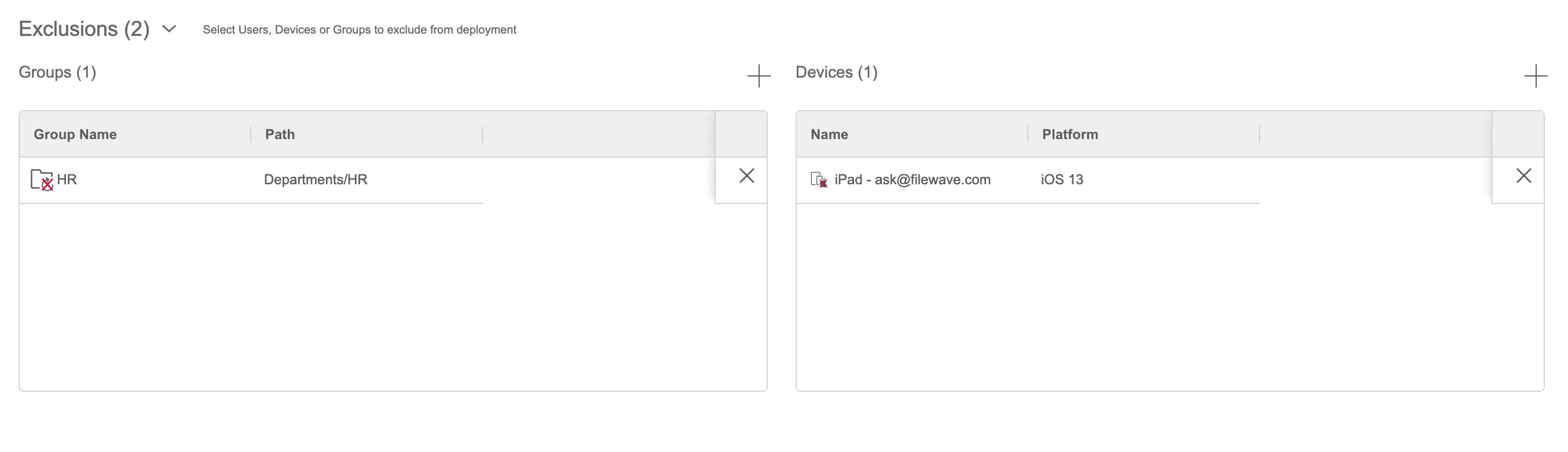 |
You can save a deployment without targets, but it will not deliver payloads until you add at least one target. This is useful when preparing a deployment for later use.
## How 1. Open the **Targets** tab. 2. Add the groups or individual devices that should receive every payload in the deployment. 3. Optional: add groups or devices under **Exclusions** when they should not receive the payloads. 4. Select **Save** to continue later or **Next** to continue creating the deployment. # Add and Remove Deployment Payloads in FileWave Anywhere ## What The Payloads tab selects the Filesets and profiles included in a FileWave Anywhere deployment. A deployment can contain one payload, several payloads, or no payloads while you are preparing it for later use. ## When/Why Add the content that every target should receive. You can change the payload list later: adding a payload schedules its installation, while removing one follows that payload's removal or uninstall behavior and verification settings. ## How 1. Select the plus () in the top right or **Add Payloads** in the center. 2. Select one or more payloads. 3. To remove a payload from the deployment, select its x (). 4. Select **Save** to continue later or **Next** to continue creating the deployment. # Deployment Options ## What The Options tab controls deployment behavior, including install type, timing, and VPP license assignment when the payload supports those settings. The available options depend on the payload type. ## When/Why For simple payloads, such as an iOS VPP app, you might leave the defaults alone. For a Windows MSI deployment that should install after 5 PM on Friday, you can use the timing options to control when FileWave offers or installs it. ## How 1. Select the install type: 1. **Direct**: installs automatically. 2. **Kiosk**: appears in the Kiosk for the user to install. 2. Optionally set timing. If no timing is selected, FileWave downloads and installs as soon as the deployment can run. 3. For VPP apps, optionally select license distribution: 1. Device 2. User # Review a Deployment Summary in FileWave Anywhere ## What The **Deployment Summary** shows the final target scope before you publish a deployment. It lists included devices and groups, standalone targets, exclusions, payloads, and the estimated data size per device. ## When/Why Review the summary before updating the Model. Confirm that the device count, target groups, exclusions, payload list, and download size match the deployment you intended. ## How The summary is read-only. If anything looks wrong, return to the Targets, Payloads, or Options step and correct the deployment before publishing it. 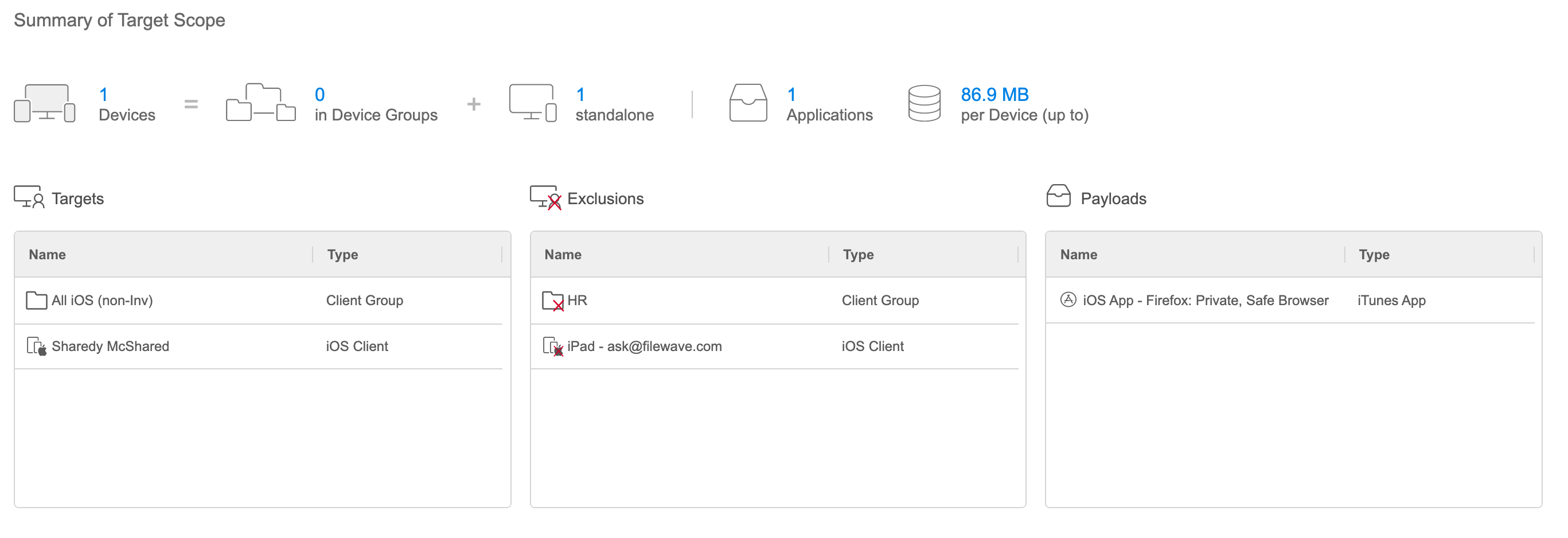 An explicit exclusion overrides an inclusion. For example, a device included through a target group will not receive the payload when that same device is explicitly excluded. # Deployment Drafts ## What When you create a deployment in FileWave Anywhere, an unfinished deployment may appear as a **Deployment draft** on the Deployments page. ## When/Why Deployment drafts protect work that you have started but not finished. If you close the browser, move to another task, or leave the deployment before saving it, FileWave Anywhere can keep the draft so you can return to it later. Drafts are stored for the user and browser that created them. For example, a draft created in Chrome will not appear if the same administrator signs in from Firefox. ## How Deployment drafts appear on the Deployments page. To continue a draft, click its name or use the **...** menu and choose **Edit**. To discard it, use the same menu and choose **Delete**. 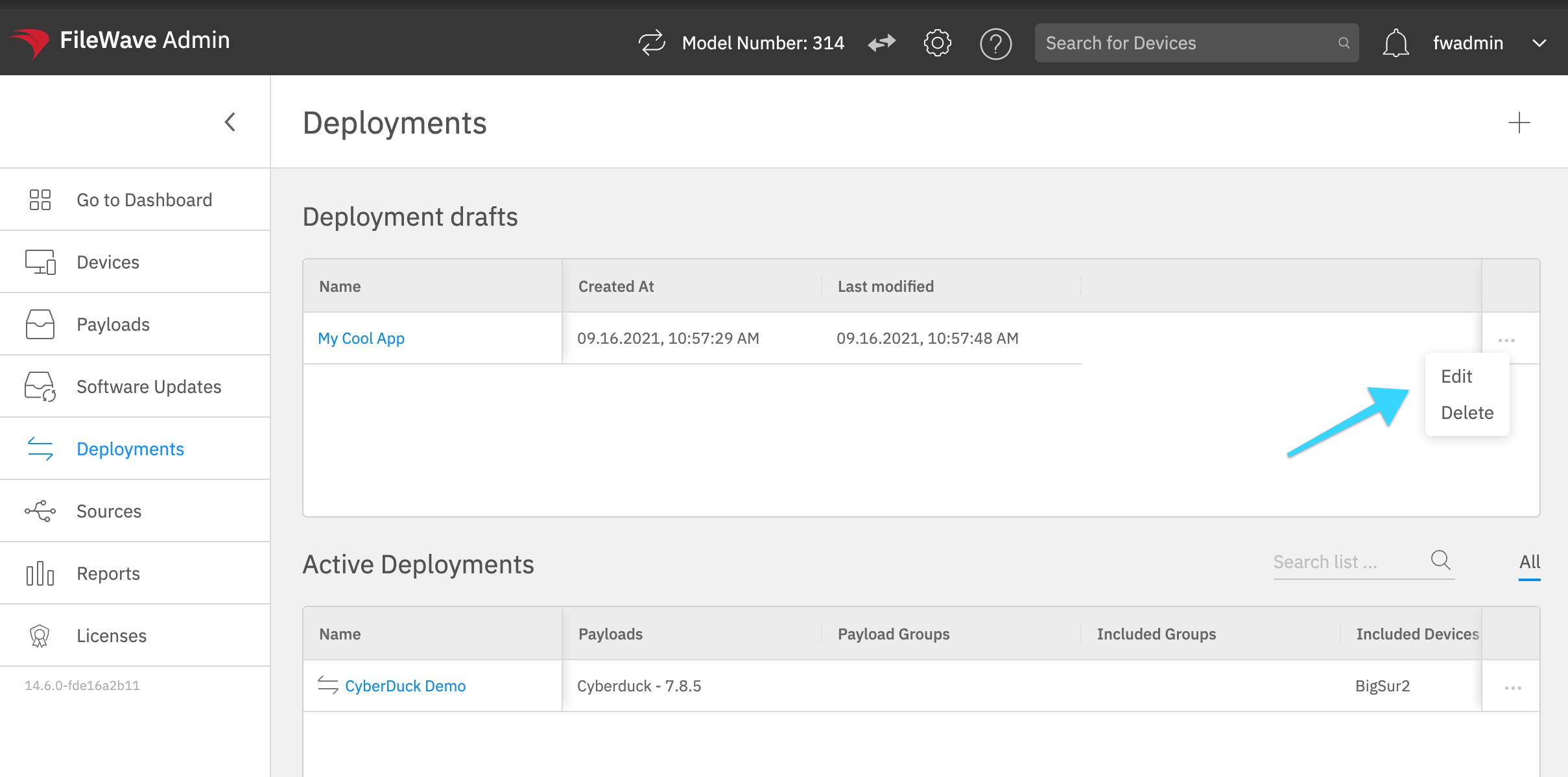 If you click **Cancel** while editing a draft, FileWave Anywhere asks whether to keep the draft for later or delete it now. 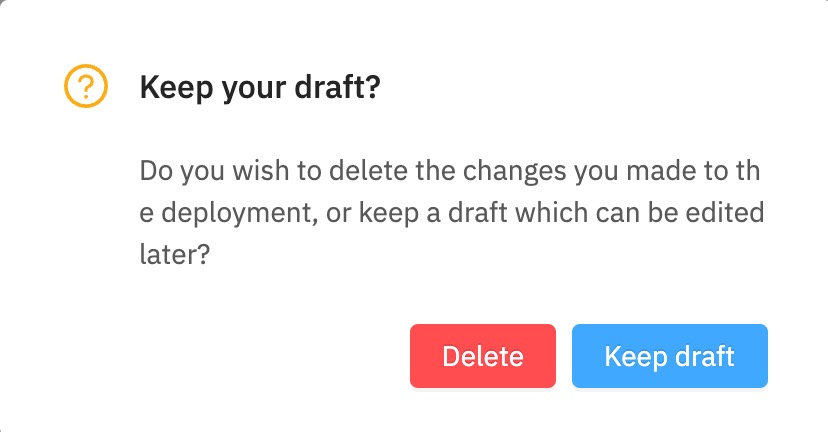 # Deployments Targeting LDAP Groups ## What FileWave Anywhere can target LDAP organizational units (OUs) directly when defining a deployment. That means you can deploy to directory-based groups without first building a separate Smart Group just to mirror the OU. ## When/Why Use this when the LDAP OU is the source of truth for the devices you want to include or exclude. Directory-based targeting works well when the directory data is reliable; if device membership in LDAP is stale, the deployment target will be stale too. ## How Target or exclude an LDAP OU in a deployment the same way you would target another deployment source. The example below shows the workflow: