# View - Payloads
Profiles allow you to control settings, features, and capabilities for Apple devices; iOS, macOS, iPadOS, TvOS. Devices may need profiles for initial configuration (like to allow them to join a network), in reaction to a request (like please disable the camera on the devices), or to configure settings at anytime.
# Profiles and Policies in FileWave Anywhere
## What
In FileWave Anywhere, profiles and policies are configuration payloads that apply managed settings to devices. The name and available settings depend on the target platform.
## When/Why
Open **Payloads** and choose **Create Configuration** to create an Apple profile, Windows MDM policy, Google policy, or FileWave policy.
## Configuration types
**Apple profiles** apply supported Apple configuration payloads to managed devices.
**Windows MDM policies** configure enrolled Windows devices. See [Windows MDM Policies (aka Profiles)](https://kb.filewave.com/books/microsoft-windows-mdm/page/windows-mdm-policies-aka-profiles "Windows MDM Policies (aka Profiles)").
**Google policies** configure supported ChromeOS settings.
**FileWave policies** configure FileWave-specific device behavior.
## Basic workflow
1. Open **Payloads** and select **Create Configuration**.
2. Choose the platform and configuration type that matches the target devices.
3. Configure the required settings and save the payload.
4. Assign it to a small test group, verify the result, and then expand the deployment.
# Add Profile
## What
Apple profiles let you control settings, features, and restrictions for iOS, iPadOS, macOS, and tvOS devices.
## When/Why
Use profiles for initial setup, requested restrictions, and ongoing configuration changes. Common examples include Wi-Fi settings, camera restrictions, wallpaper settings, certificates, privacy controls, and other managed-device behavior.
## How
Select the plus () in the top right to open the profile editor for a new profile.
### Basic Profile Properties
Every configuration profile needs a few basic properties before it can be saved. At minimum, set a profile name and add at least one payload category.
#### How
The three most common elements to set, or change from the default value, are highlighted below:
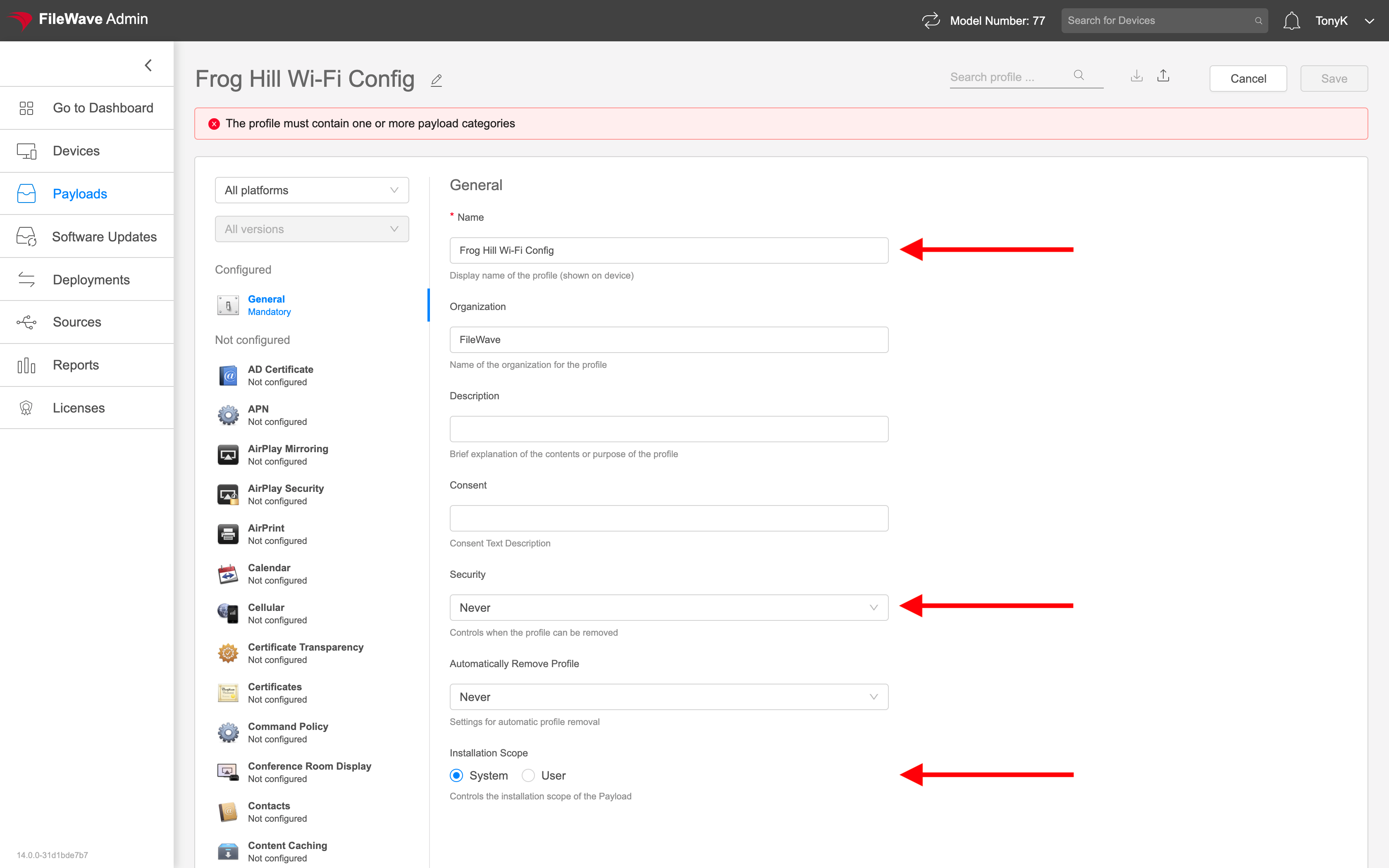
In order, those elements are:
- **Name:** Must be unique, should be descriptive, and cannot be left blank.
- **Security:** Specifies when this profile can be removed by the user.
- **Installation scope:** Defines whether the profile installs for the system or for the user of the device.
The highlighted warning in the screenshot is a reminder that the profile must contain at least one payload category before it can be saved.
### Navigating an Apple Profile
Configuration profiles are straightforward, but finding the right setting can take a minute. Use the platform, OS version, and search filters in the profile editor to narrow the list of available payload items.
#### How
For example, assume you want to set the wallpaper for an iOS device. Start by choosing the platform in the upper left:
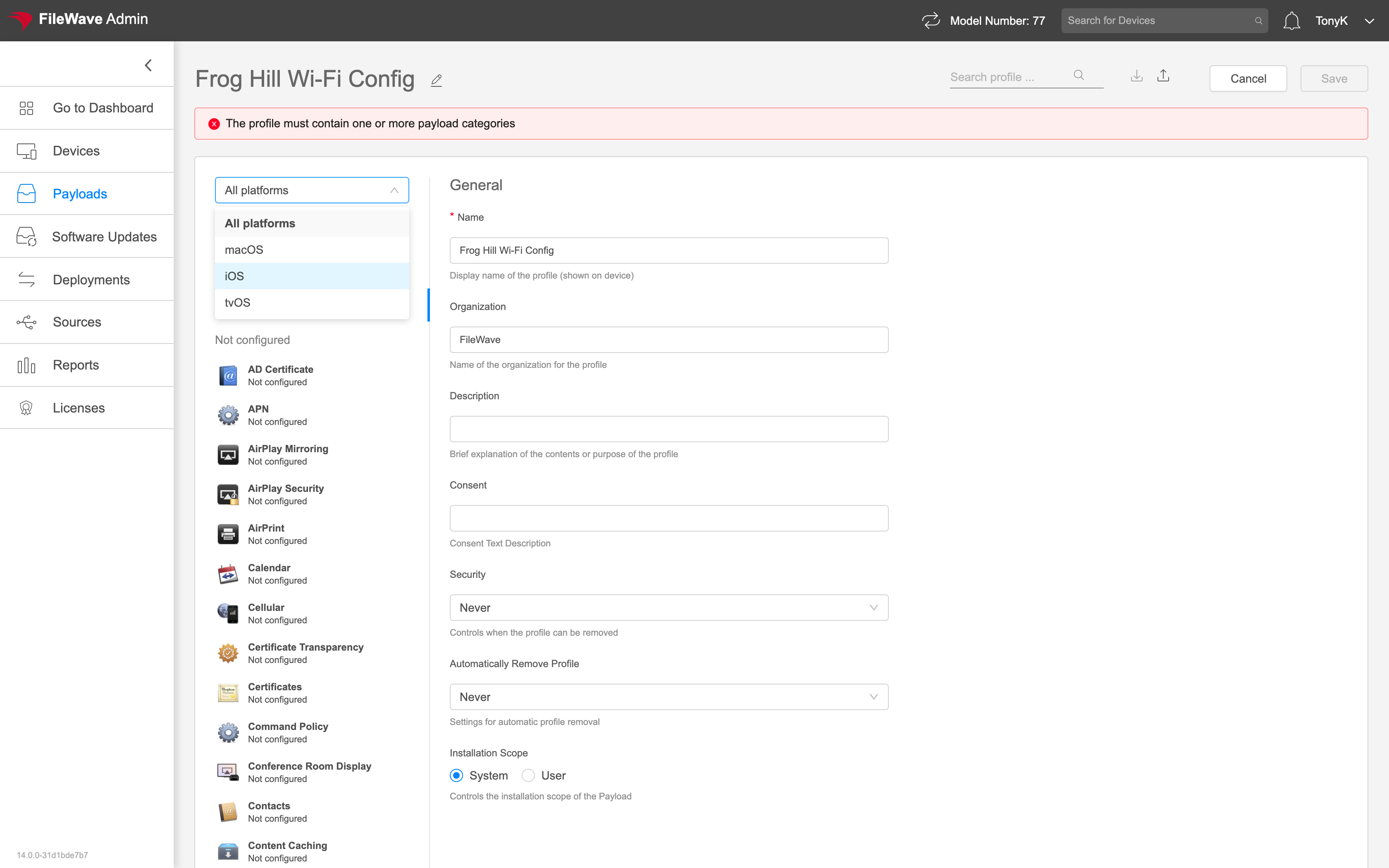
Once the platform is set, the list of profile categories becomes smaller. If you know a setting is tied to a specific OS version, you can also use the version filter, though most profile builds do not need it.
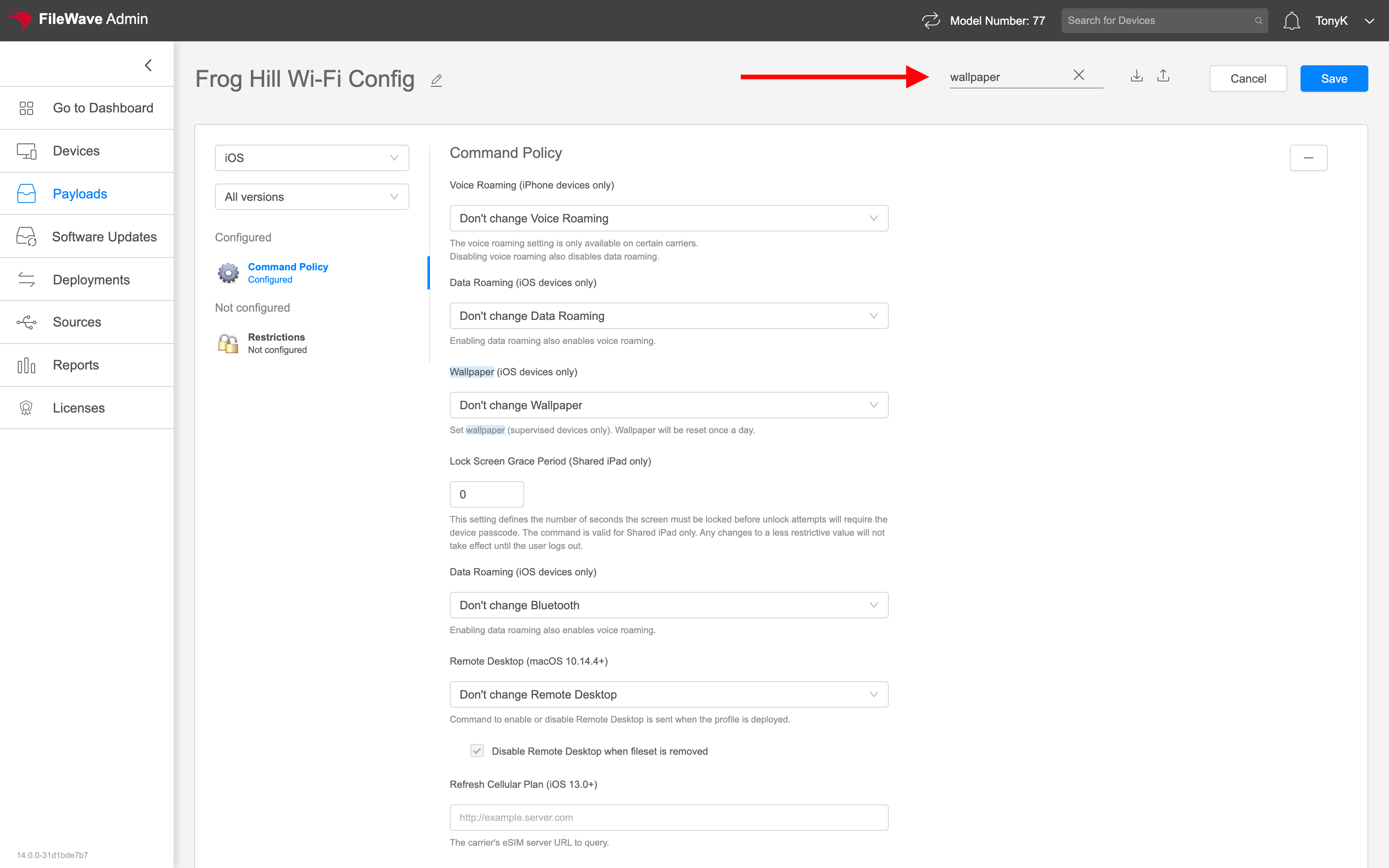
With the platform filter in place, search for `wallpaper` to narrow the payload list further. The matching payload names are highlighted in the editor:
### Setting Profile Payloads
The purpose of a configuration profile is to change endpoint configuration. The exact settings, and how they behave, depend on the payload you choose.
Profile work usually falls into two categories:
- Settings you have already built and tested before.
- New settings you have not worked with yet.
The first category is usually routine. For example, if you have already created Wi-Fi profiles for 41 locations, building the 42nd profile should be familiar.
For new settings, use both testing and documentation:
1. Experiment and test on a device you can inspect directly.
2. Use Apple's current device-management documentation:
- [Intro to device management profiles](https://support.apple.com/guide/deployment/intro-to-device-management-profiles-depc0aadd3fe/web)
- [Intro to device management payloads](https://support.apple.com/guide/deployment/intro-to-device-management-payloads-depd73c1b83c/web)
3. For third-party payloads or settings, use the vendor's documentation.
FileWave, like other MDM providers, exposes settings defined by Apple or the relevant vendor. Those references are the authoritative source for what a payload key means and which OS versions support it.
#### How
Defining every MDM payload is outside the scope of this Knowledge Base, but these practices will keep profile work safer:
- Build profiles, especially restrictions, as small and focused as possible. Avoid mixing unrelated settings in one profile when you can.
- This makes exceptions easier later because you do not have to split a large mixed profile apart.
- Test, test, and then test again against a device you control.
- Never create and deploy a profile directly to production without testing.
- Be especially careful when editing profiles that are already assigned, particularly Wi-Fi profiles or anything else where a mistake could disconnect devices or break management.
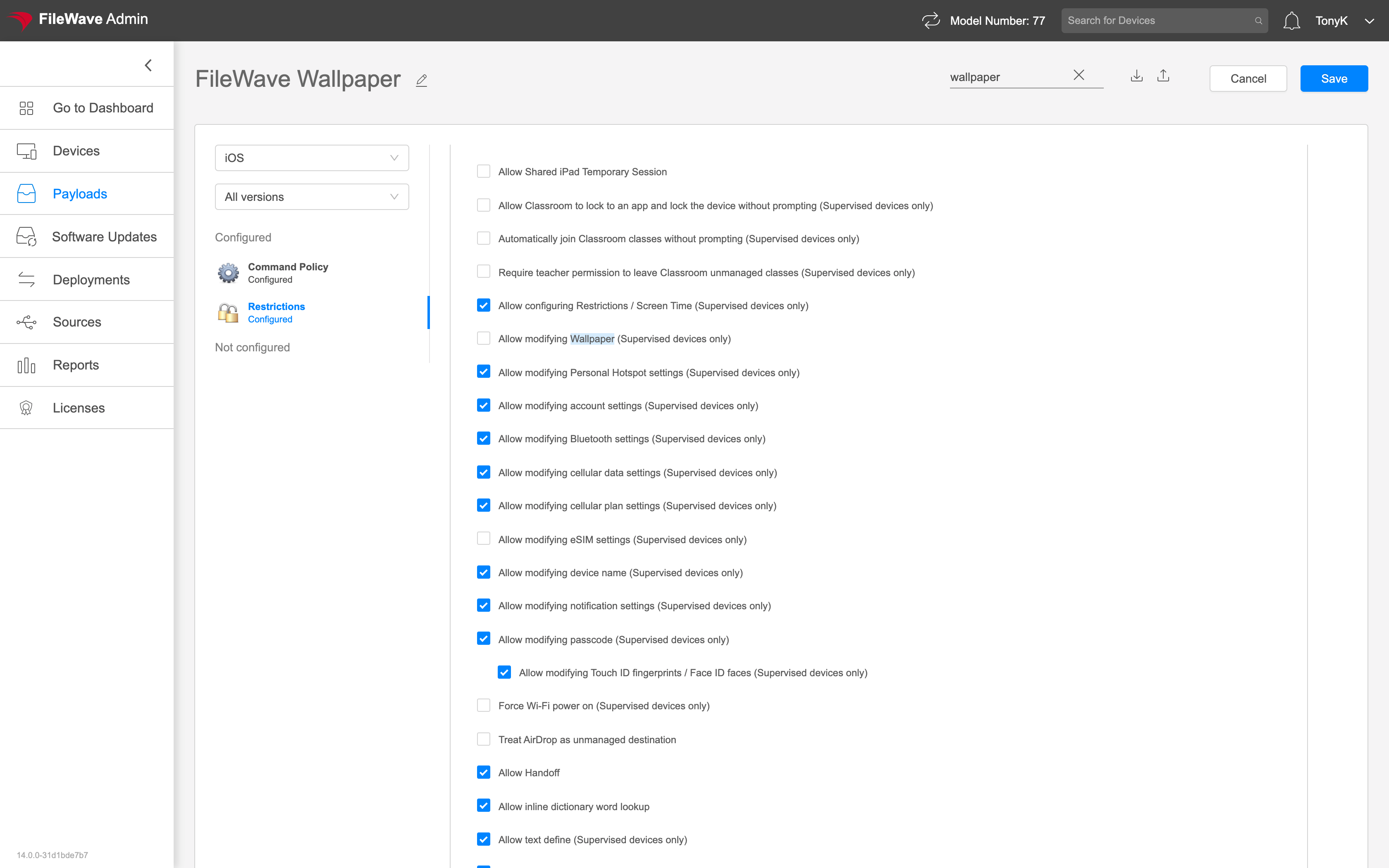
Here is a simple example that sets a wallpaper and prevents it from being changed. Notice that it uses two related payloads:
# Editing Payloads / Payload Properties
## What
In FileWave Anywhere, you can edit profile payloads, change properties for other payload types, and review basic payload deployment information.
## When/Why
Use the Payload view when you need to inspect a payload, check deployment status, or adjust payload properties.
## How
Select a payload to open its detail view:
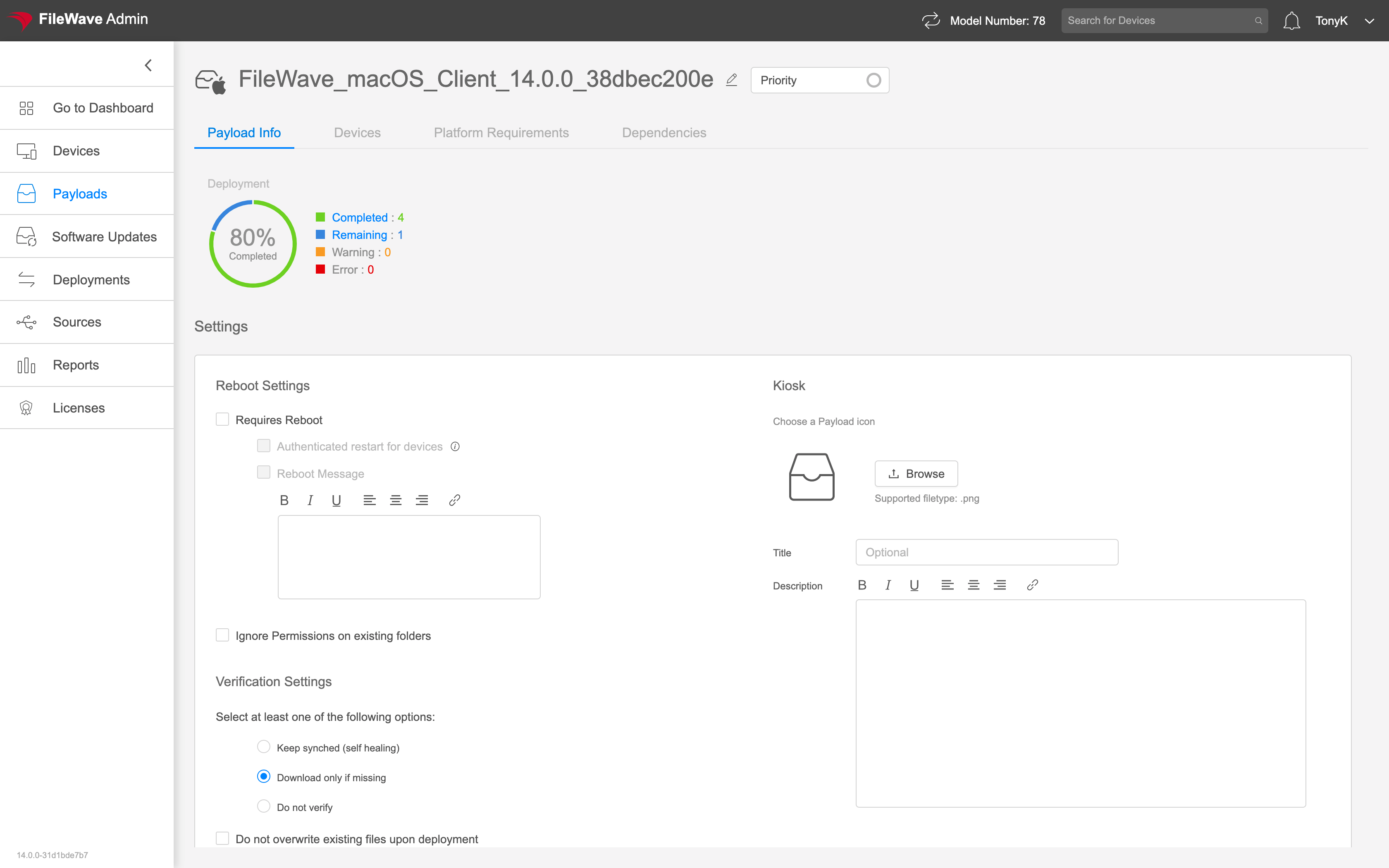
The available tabs depend on the payload type. For example, a VPP payload shows licensing information that does not appear for other Fileset types:
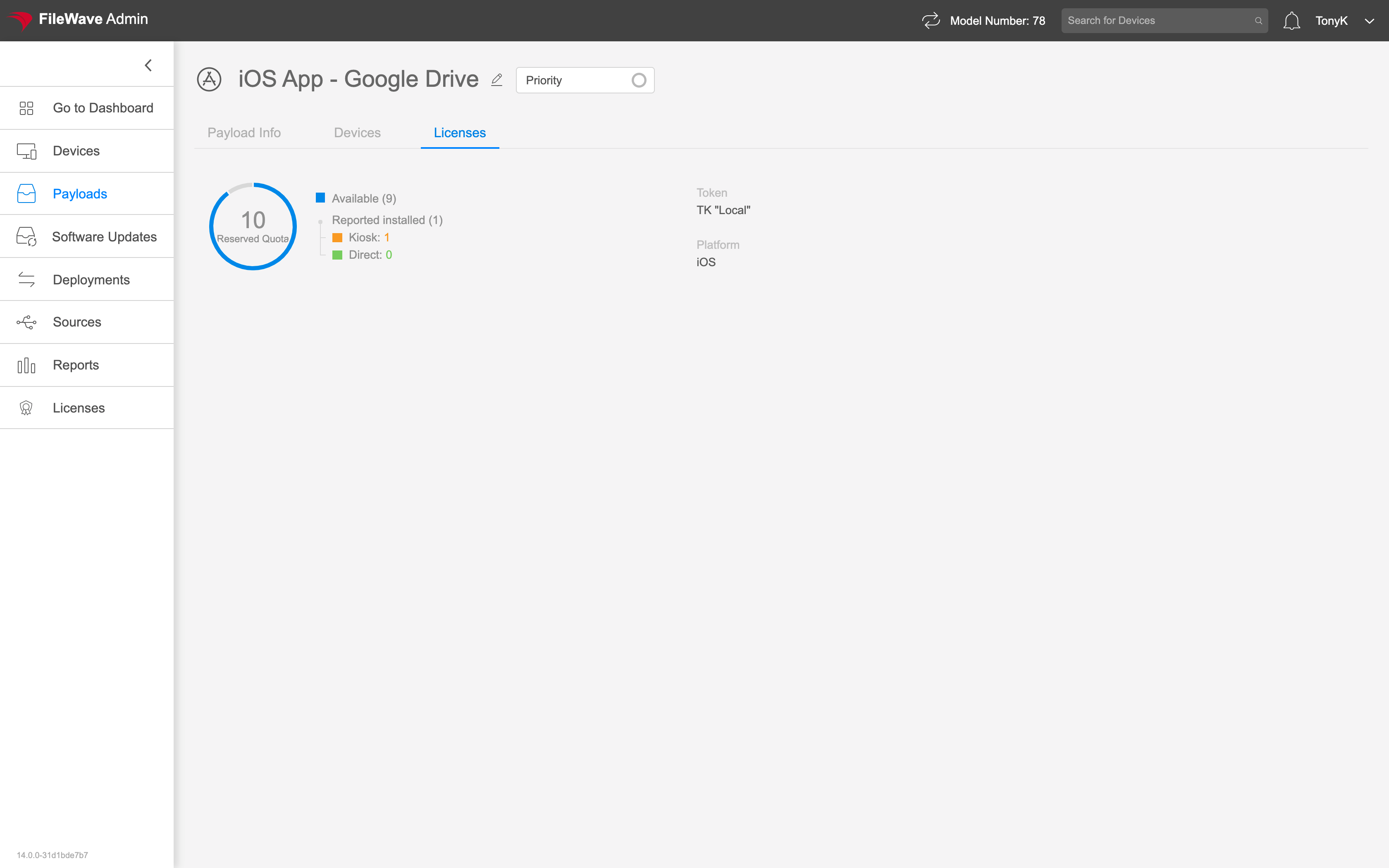
Payload properties do not have a separate Save button. Changes such as platform requirements are saved immediately and take effect after the next model update.
Payload Tab
Example
The Payload Info Tab shows:
- Summary information on deployment
- Verification Settings
- Kiosk Icon
- Reboot flag
# FileWave Anywhere Payload Script Editor
## What
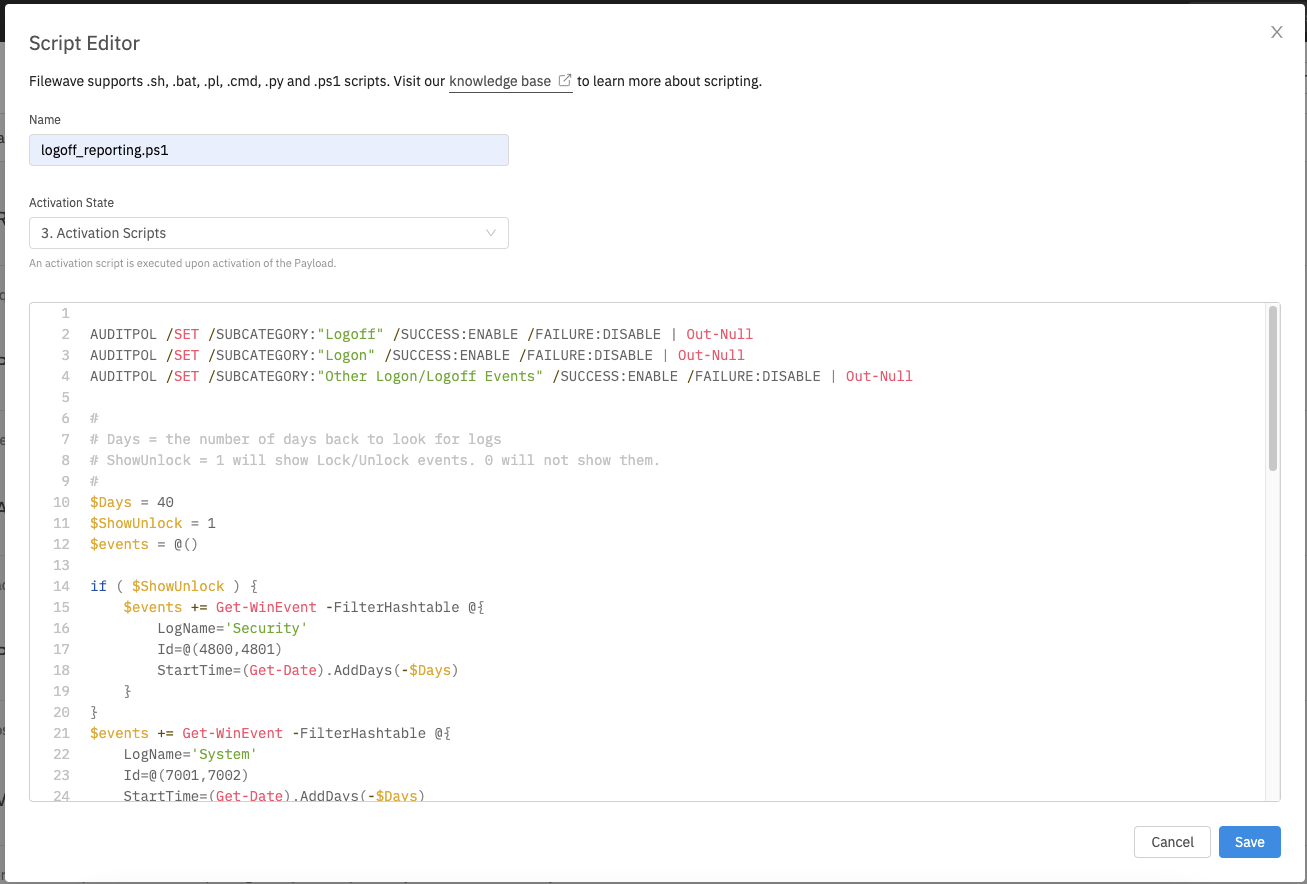
The FileWave Anywhere script editor lets you edit scripts inside payloads that support scripts, without leaving the web console.
## When/Why
Use this editor for quick payload-script changes. For larger edits, work in a code editor first, then paste the reviewed script back into FileWave Anywhere. Changes to published scripts are sent to affected devices on the next Model Update, so test before deployment.
## How
To open the script editor, go to the Scripts tab in a supported FileWave payload or Fileset and click the edit button for the script. From this view, you can also drag scripts between script types or remove them from the payload. The example below shows the editor in use:
## Related Content
- [Script Best Practices](https://kb.filewave.com/books/filewave-general-info/page/script-best-practices "Script Best Practices")
- [Fileset / Payload Script Exit Code Status](https://kb.filewave.com/books/filesets-payloads/page/fileset-payload-script-exit-code-status "Fileset / Payload Script Exit Code Status")
# Payload Actions (Move/Remove)
## What
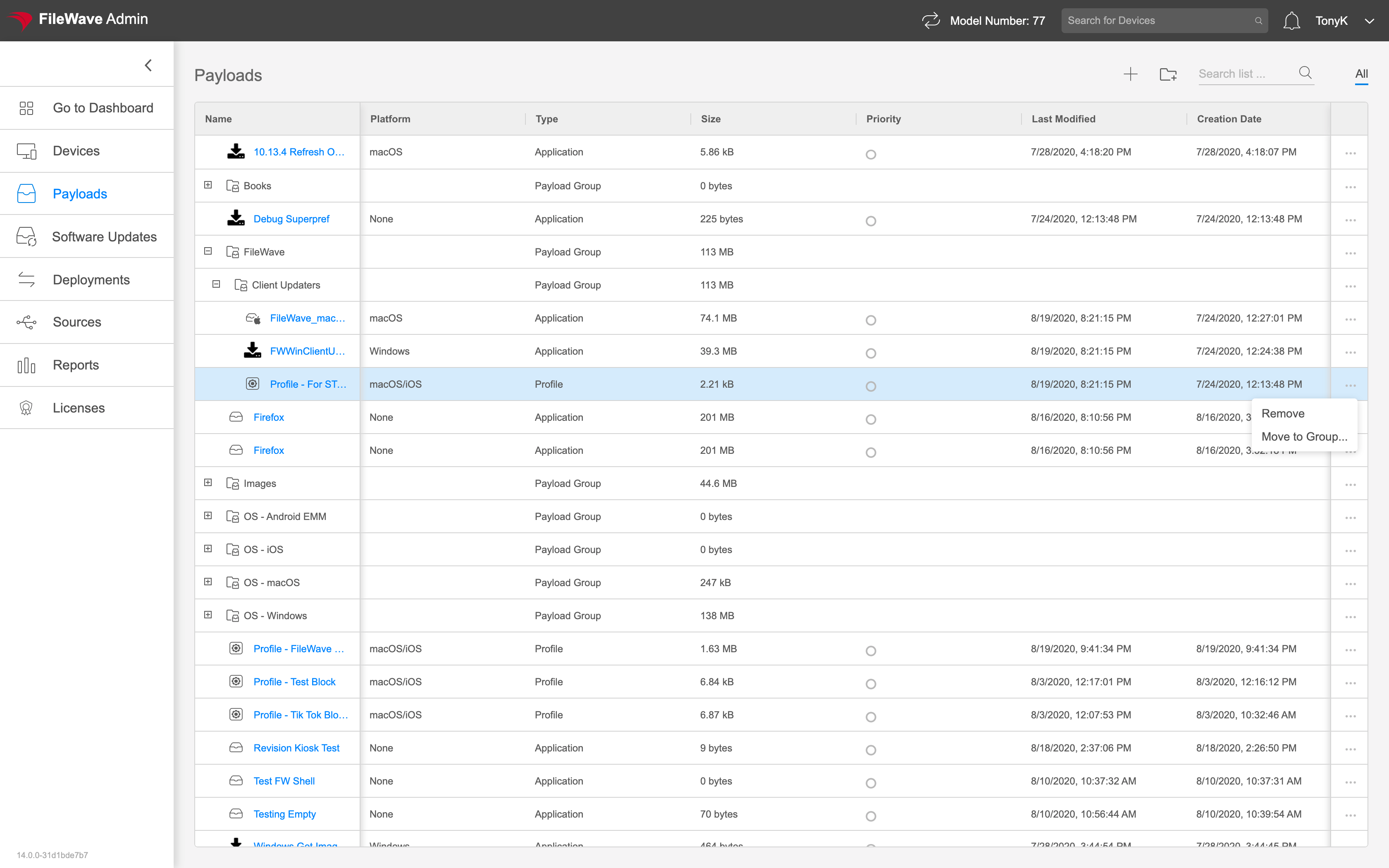
In FileWave Anywhere, payloads can be moved to another location or removed when they are no longer needed.
## When/Why
Move a payload when you are reorganizing payloads or when a payload was created in the wrong location.
## How
Use the ellipsis menu to the right of the payload, then choose the move or remove action:
# Organize and Deploy Payloads with Payload Groups
## What
Payload Groups organize related payloads and let you deploy several apps or profiles to devices through one association.
## When/Why
Use Payload Groups when several payloads belong to the same rollout, department, platform, or configuration set. Grouping keeps the Payloads view readable and lets one association target the whole set.
## How
In FileWave Anywhere, click the new group icon in the upper-right corner (). New groups are created at the root. Move a group afterward when you want to nest it under another Payload Group. The video shows group creation and moving a parent with its children:
Payload Group rules:
- Each Payload Group name must be unique.
- A new Payload Group is created at the root of the tree.
- You can move and nest Payload Groups after creation.
- When you move a Payload Group, all nested groups and payloads move with it.
# Upload a Configuration Profile in FileWave Anywhere
## What
FileWave Anywhere can import an existing Apple configuration profile in `.mobileconfig` format. Use this when a profile was created in another tool or supplied by a vendor and you do not need to rebuild its payloads in FileWave.
## When/Why
After import, review the profile name and payload settings before assigning it to devices.
## How
1. In the Payloads view, select **Create new profile** ().
2. Select the **Upload** icon in the upper-right corner, browse to the existing `.mobileconfig` file, and open it.
3. Review the imported profile, then select **Save**.
The video below shows the upload workflow.
# MSI & PKG Payloads
## What
FileWave Anywhere can create computer Payloads for MSI installers on Windows and PKG installers on macOS. Use this for straightforward installer uploads when you do not need the full FileWave Central Fileset workflow.
**Quick answer:** In FileWave Anywhere, open **Payloads**, create a new Payload, add the MSI or PKG file, and let the upload finish. The upload can continue while you leave the page or start another upload.
## When/Why
MSI and PKG installers are the normal package formats for Windows and macOS software deployment. FileWave Anywhere lets you upload those installer files directly from the web console, which is useful for simple app Payloads and remote admin work.
## How
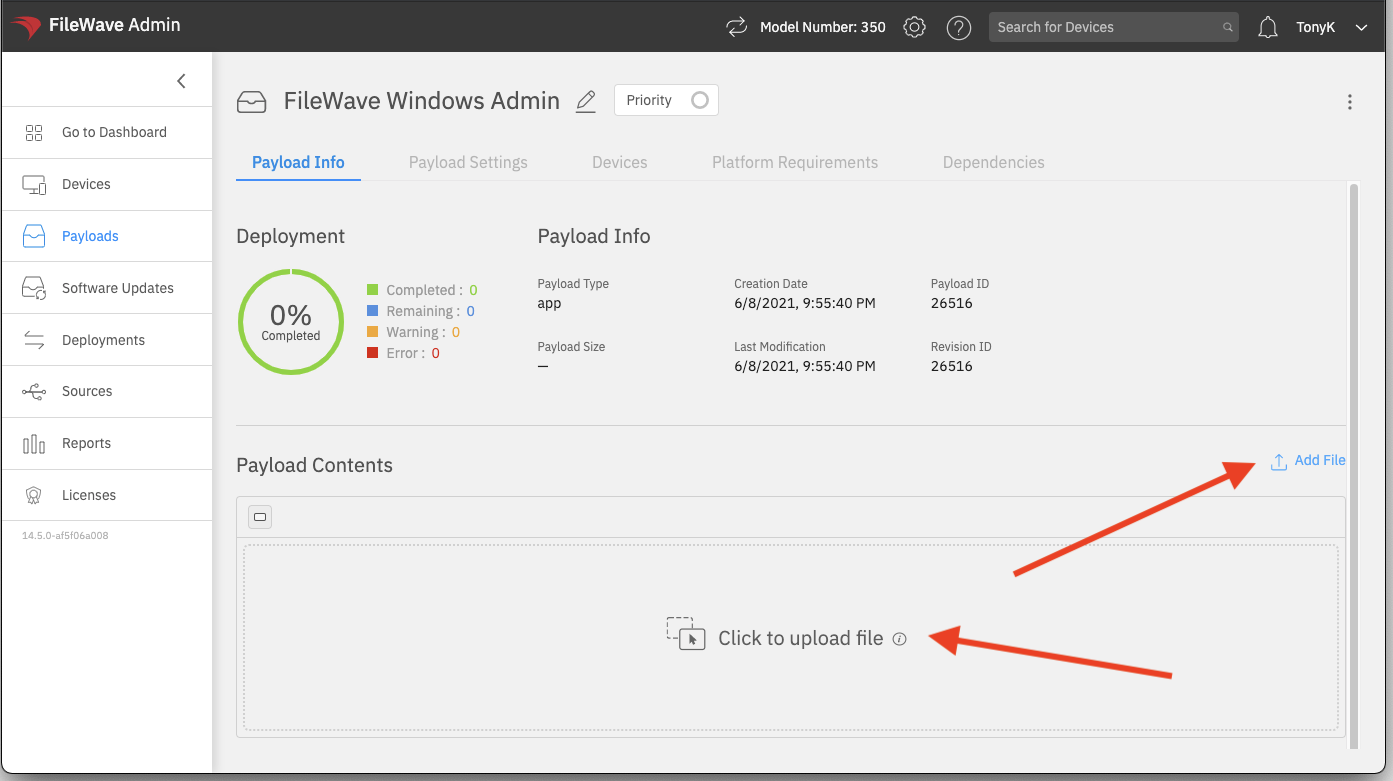
In the **Payloads** view, click the [](https://kb.filewave.com/uploads/images/gallery/2023-07/4wF3y2p6XtCU9Ia8-image.png) icon, name the new Payload, and choose one of the **Add File** options. The example below creates a Payload for the FileWave Central installer for Windows.
[](https://kb.filewave.com/uploads/images/gallery/2023-07/tzarfL7G81UCnYu1-image.png)
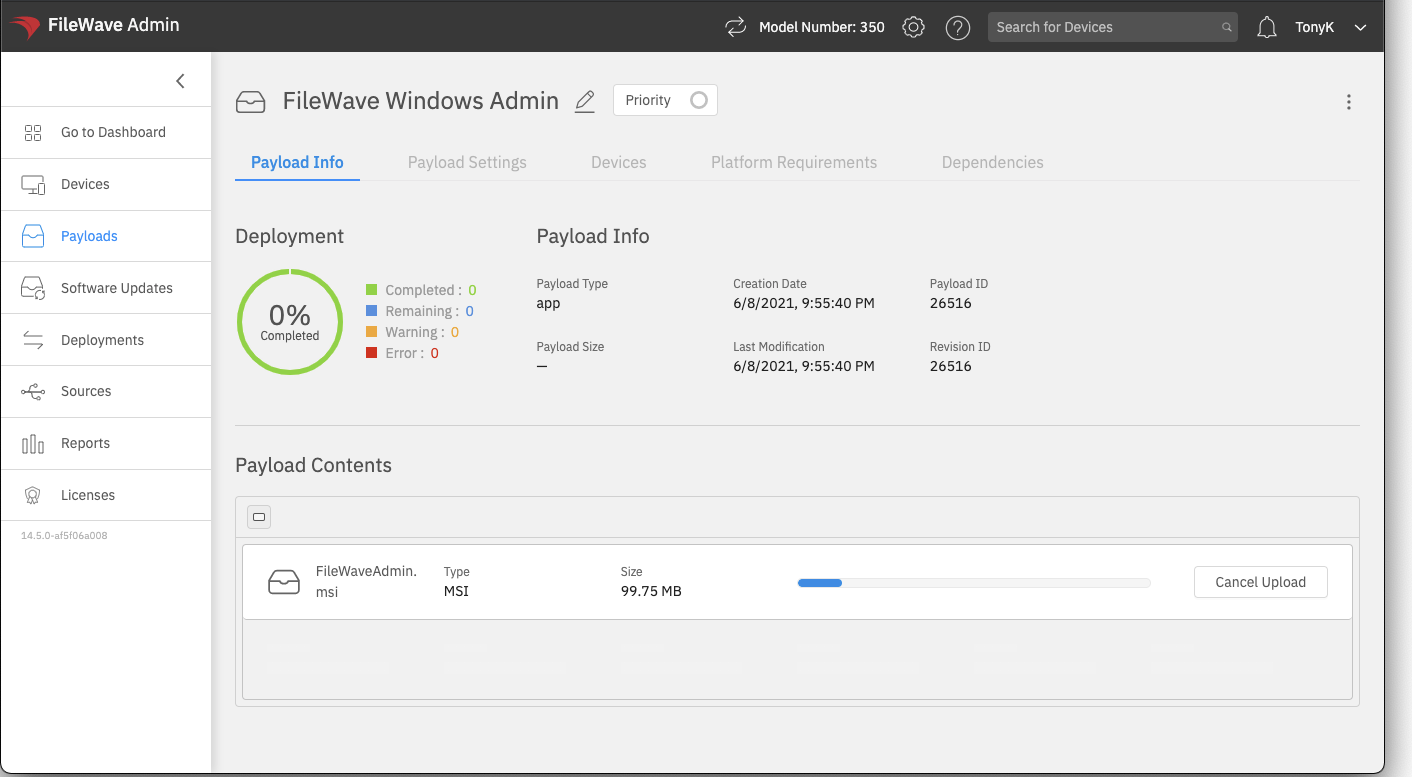
After you select the file, the upload starts immediately:
[](https://kb.filewave.com/uploads/images/gallery/2023-07/f2lYJq5O7dfiBdtr-image.png)
Uploads created this way have two practical advantages:
1. The upload can recover from a temporary network interruption.
2. You do not need to stay on the upload screen. You can move to another area of FileWave Anywhere or start another Payload upload while the first one continues.
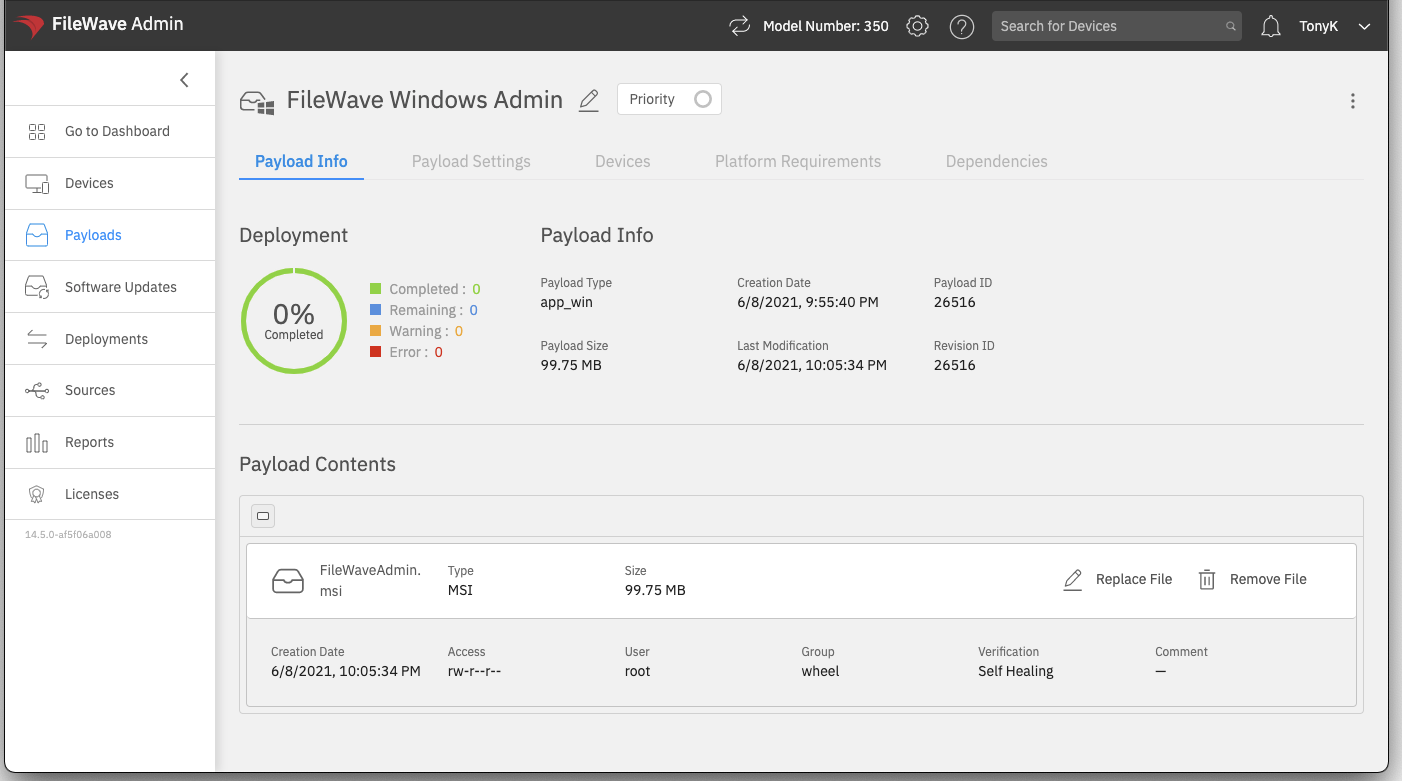
After the Payload uploads, you can make simple changes such as removing or replacing a file and setting installer properties:
[](https://kb.filewave.com/uploads/images/gallery/2023-07/W6CbxzlhvR5i8vP5-image.png)
For Payloads that need scripts, revisions, or more advanced file-level control, use FileWave Central. FileWave Anywhere is best for direct MSI and PKG installer Payloads.
**Need revisions for MSI or PKG installers?** Use FileWave Central and follow [Desktop PKG and MSI Filesets](https://kb.filewave.com/books/filesets-payloads/page/create-and-update-pkg-and-msi-filesets). For a PKG or MSI Fileset that only contains the installer, drag the new installer onto the existing Fileset and choose to add a revision. If you duplicate a revision because the Fileset also contains other files or scripts, keep the replacement installer filename the same as the original when you manually replace it.
Edits made to Payloads in FileWave Anywhere take effect immediately. There is no separate Save button for these modifications, so review the Payload before assigning it to devices.