# View - Reports
# View - Reports Overview
## What
Reports and Smart Groups both use conditions to identify devices. Use a Smart Group when the matching devices should receive an action, such as a deployment. Use a Report when you need to view or track matching devices, such as software rollout progress.
## When/Why
Use Reports to find problem areas, track ongoing projects, and feed aggregate dashboard widgets.
## How
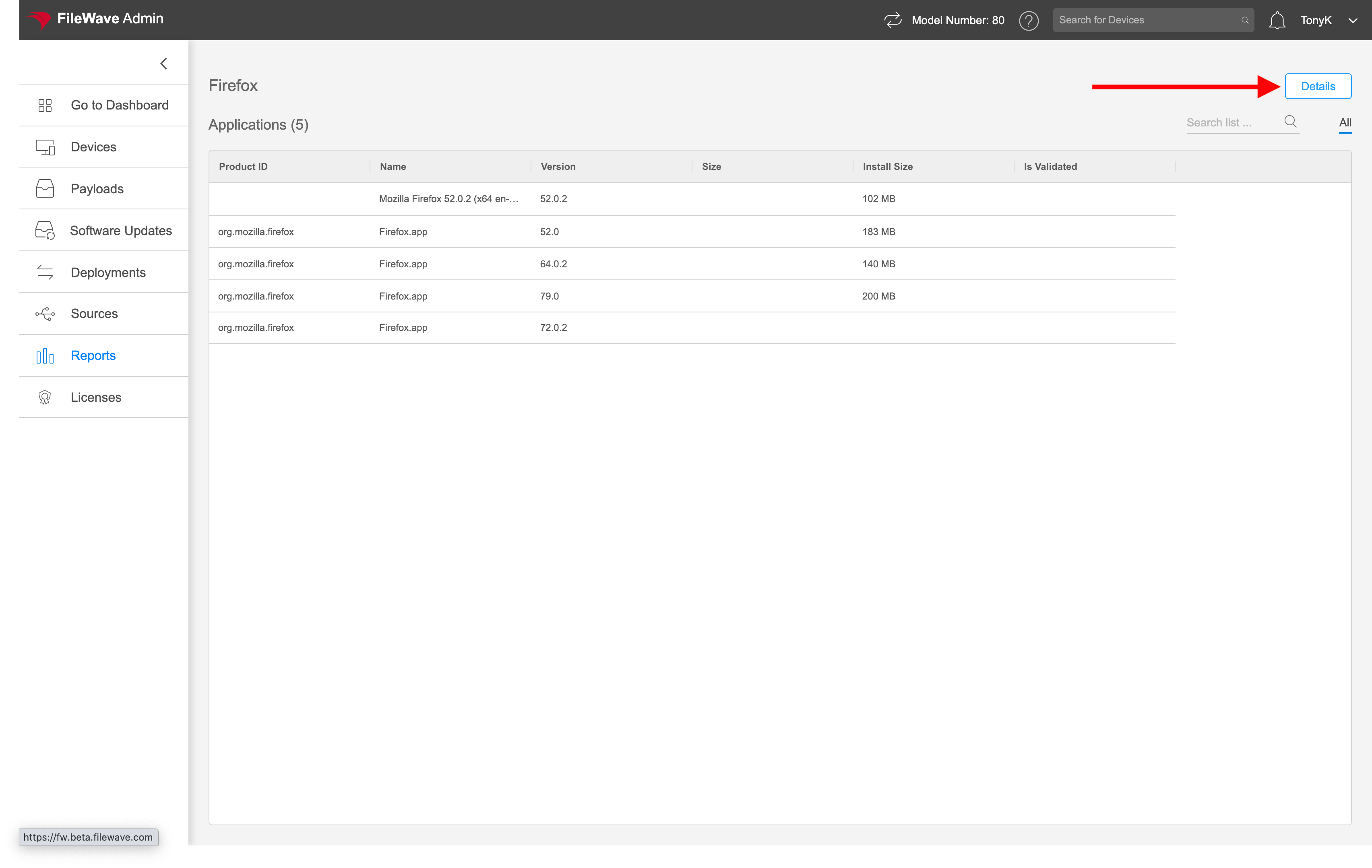
The video below shows a quick example of creating a Report to find Firefox across the environment.
Reports support several actions:
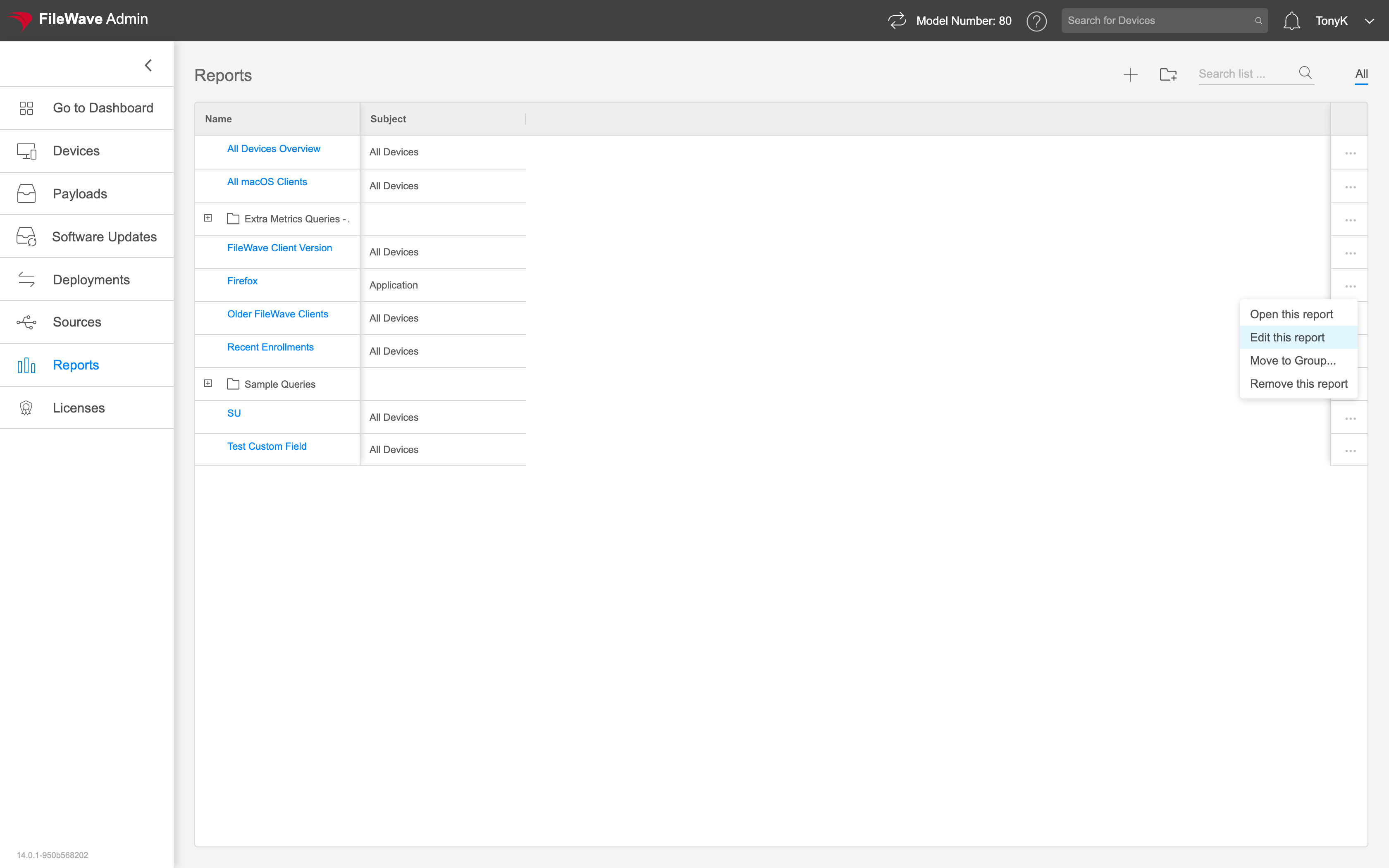
You can open a Report to view matching devices, edit it to change conditions, remove it, or move it into a group for organization.
# Report Creation/Editing
## What
Creation of a new report is used for the intent of reporting on some condition, like the version of an application or how much free space devices have.
## When/Why
We will typically use reports both for ourselves (to get a feel for the state of the environment), and they are also very useful for communicating "status" to senior management.
## How
We'll go into the details of building reports in the articles linked below, but we'll simply start with creation of the report and giving it a name.
Each report we create has the ability to report on one of the following:
- Devices (Lists devices based on a criteria)
- Applications (Useful for seeing what is installed)
- Licenses (For reporting on License utilization)
- Payloads (For showing information on items you are deploying)
- Boosters (For information about boosters)
# Preview Fields in Reports
## What
When you build a Smart Group or Report in FileWave Anywhere, the preview area shows live results from the current criteria. Preview fields are the columns shown in that preview, and the default columns are not always the device fields you need to verify the result.
## When/Why
Change the Report or Smart Group preview columns before you trust the criteria. For example, if a Report should find devices by FileWave Client version, show the **FileWave Client Version** field in the preview so you can verify the returned devices match the condition. This is faster and safer than assuming the filter is correct.
## How
The video below shows how to remove default preview fields and add **FileWave Client Version** to the preview.
# Report Condition Groups
## What
Condition Groups within Reports and Smart Groups are a method of isolating specific logic for data queries.
## When/Why
Condition groups are always used when you need to combine AND with OR logic within the same report. If you are familiar with SQL, Condition Groups in FileWave are the equivalent of parentheses in SQL. If you wanted a report that looked at all Windows or macOS devices, you wouldn't need a condition group, but as soon as we look for something like macOS or Windows ***AND*** Office is installed, then we need a condition group, because we need to combine AND with OR.
## How
Following our example from above, watch below as we create the more complex smart group/report using condition groups:
## Digging Deeper
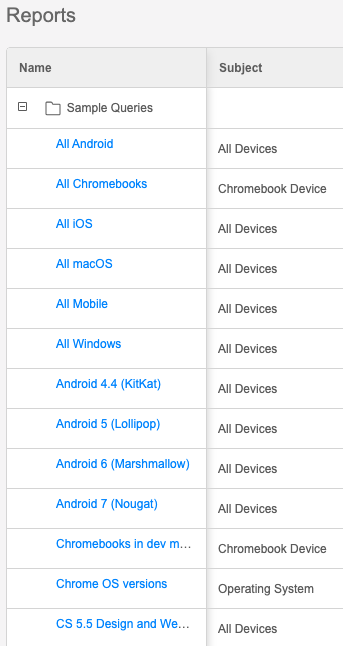
Note that you'll find some quite complex examples of advanced condition groups in the Reports view under Sample Queries:
# Report Conditions
## What
Report conditions define which devices, users, or other inventory items appear in a FileWave Anywhere Report or Smart Group result.
## When/Why
Most Reports and Smart Groups need at least one condition unless you intentionally want every device. Conditions narrow the result from everything in inventory to the exact set you care about, such as Windows devices running an older FileWave Client.
## How
The video below shows how to add criteria that match that example.
# Report Groups
## What
Report Groups are used for basic report organization.
## When/Why
Over time, you'll find that hundreds of reports will clutter up your Reports view. Report groups give you a way to organize reports into logical groups and enable us to navigate the user interface more easily. Report groups server no purpose other than organization, unlike payload groups which have dual purpose. Report groups can not be nested, and must all have a unique name.
## How
Creation of a report group is quite simple as you'll see below, where we both create a group and then Move a report into it:
# Viewing Reports
## What
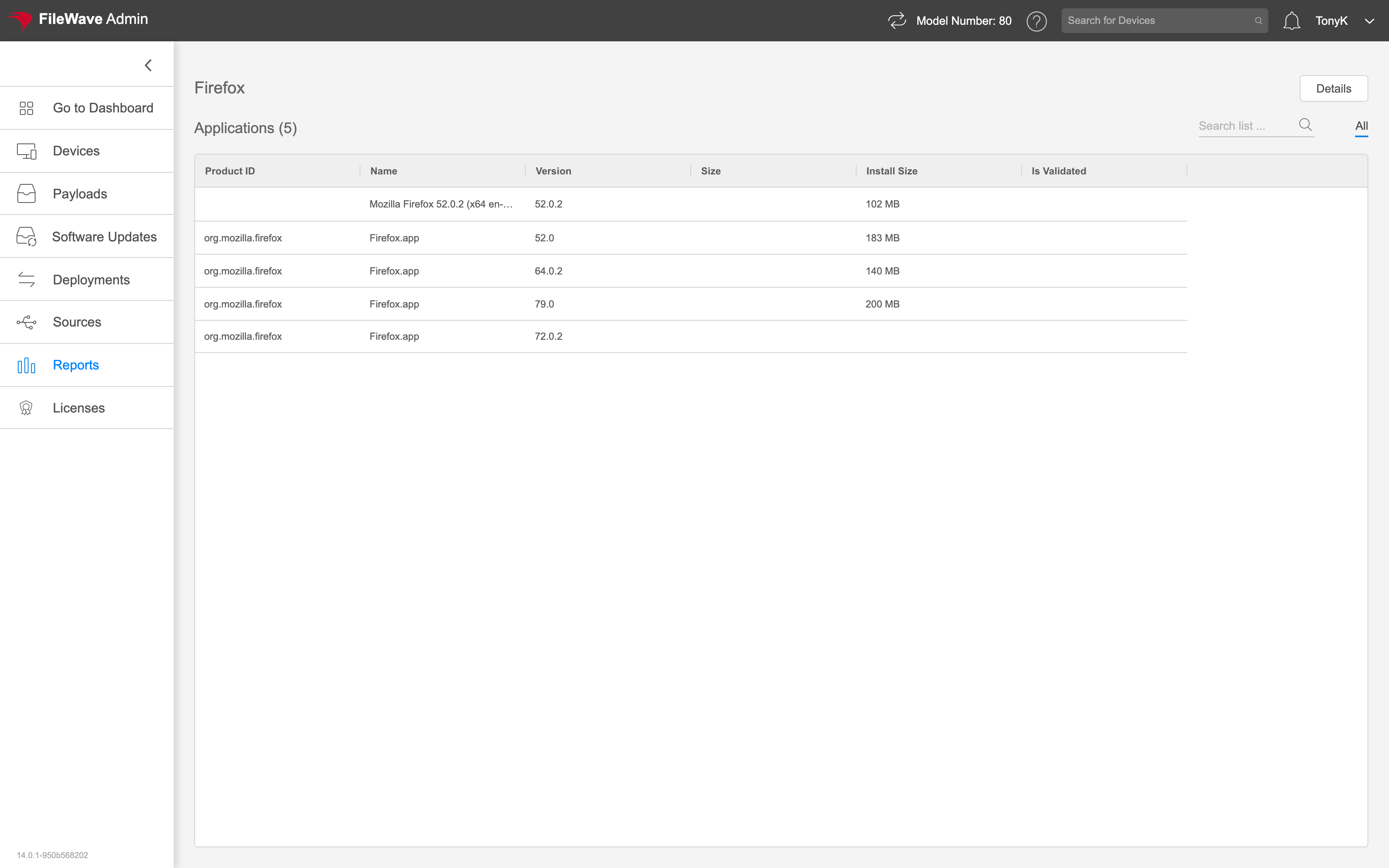
Opening a report lets you view the report results.
## When/Why
Use this view when you need to inspect the report's line items and decide what action to take. For example, a software report might show that Firefox payloads need updates for both Windows and macOS devices.
## How
Click the report name in the list to open it. You can also select the report and choose **Open Report** from the action menu. While viewing a report, click **Details** to open the report definition and edit it.