**ADE tokens expire after one year.** Renew the token before it expires, and use the same Apple MDM server record so the existing device assignments remain connected to FileWave.
## ADE Synchronization The FileWave Server synchronizes with Apple ADE services nightly. To synchronize sooner, select the token and click the sync icon (). Choose **Sync** for routine updates. Use **Full Sync** only when troubleshooting or when instructed by FileWave Support. 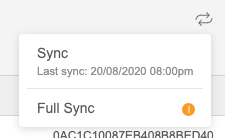 ## Related Content - [Add or Renewing Your ADE/DEP Account Token](https://kb.filewave.com/books/apple-school-business-manager/page/add-or-renewing-your-ade-dep-account-token) - [Apple Business Manager User Guide](https://support.apple.com/guide/apple-business-manager/manage-device-suppliers-axmf500c0851/web) # ADE Profile Workflows ## What Having ADE (formerly known as DEP) Profiles defined is one thing, but having them assigned to devices is another...and critical. ADE Profile workflows allow us to automatically assign ADE profiles based on programmatic criteria. ## When/Why As much as possible we always want to use automatic profile assigning rules. Automatic assignment saves us time from having to manually assign profiles, and ensures that even brand new devices that are still in shrink wrap will have a ADE profile assigned correctly.Reminder: ADE profile assignment, or changes in assignment impact nothing on the device's current state. Those changes are only pertinent the NEXT time the device goes through the setup assistant.
You might find you only need one workflow, or you may find you need many...it tends to be driven by the number of ADE profiles you have. In general, fewer ADE profiles is better (to reduce complexity). ## How Creating a new profile workflow is very similar to creating a smart group or a report. However, you'll notice in the below that we use the Operating System field from the ADE Devices table to assign our AppleTV profile to all AppleTV devices. We explicitly use that field because it comes directly from the ADE sync with Apple, and will always be populated, where FileWave normal inventory fields will only be populated AFTER enrollment. Watch below as we assign all AppleTVs to the AppleTV profile we created earlier: # ADE Profiles ## What The ADE (formerly known as DEP) Profile section allows us to create, edit and remove ADE (Apple Device Enrollment) profiles. ## When/Why There are a lot of different reasons for creating and editing ADE profiles, but in general ADE profiles control device setup behavior for Apple devices. With these profiles we can control what dialogs users see during device setup, force devices to enroll in our MDM environment, and even control device naming. ADE profiles are a critical part of setting up automated device enrollment and setup.Starting in FileWave 16.3.x, ADE profiles also support `do_not_use_profile_from_backup`, which lets a restored device ignore the ADE profile embedded in a backup and pull the current ADE assignment instead. FileWave 16.3.x also adds the **Age Based Safety Settings** skip key, while still keeping `AdditionalPrivacySettings` available because Apple's documentation is not yet fully consistent on whether the newer key fully replaces it.
## Managed Migration Assistant for macOS in FileWave 16.4 FileWave 16.4 adds Managed Migration Assistant settings to macOS ADE profiles. These settings let an organization control Mac-to-Mac data migration during Setup Assistant instead of leaving every migration choice to the user. - Enable managed migration for the ADE enrollment workflow. - Control transfer of Security & Privacy settings. - Exclude user accounts that should not be migrated. - Define files and directories that should be included or excluded. - Use the reported migration progress and completion state when validating the enrollment. The same Apple capability is available through a FileWave DDM Migration Assistant configuration. Use the ADE profile integration for the initial Setup Assistant experience and review [DDM Configurations](https://kb.filewave.com/books/ddm-apple/page/apple-device-management-ddm-configurations) for the declaration-based controls and conflict-avoidance guidance.Test the complete migration on representative source and destination Macs. A successful ADE enrollment does not prove that every selected account, file, privacy setting, or third-party application migrated as intended.
## How The below is a quick run-through of creating (and editing) a new ADE Profile targeting AppleTV devices. See the link below for more information on automatically assigning ADE profiles to devices. ## Related Content - [ADE Profile Workflows](https://kb.filewave.com/books/filewave-anywhere-help-menus/page/ade-profile-workflows "ADE Profile Workflows") # VPP Tokens ## What VPP (Volume Purchase Program) Tokens from Apple allow us to utilize licenses purchased for App store resources on our FileWave server. You may have one or many VPP tokens. ## When/Why In ABM/ASM (Apple Business Manager / Apple School Manager) terminology tokens are created and allow access to licenses purchased within a location. The VPP tokens section of the Sources View allows you to Add, Edit and Remove VPP tokens. ## How Adding a new token is done by simply clicking the plus icon (). Editing and removal are done through the actions menu, and removal is only possible if all payloads are removed beforehand. Whether adding a new, or refreshing an existing, token, the steps are the same, and and require the token from Apple: 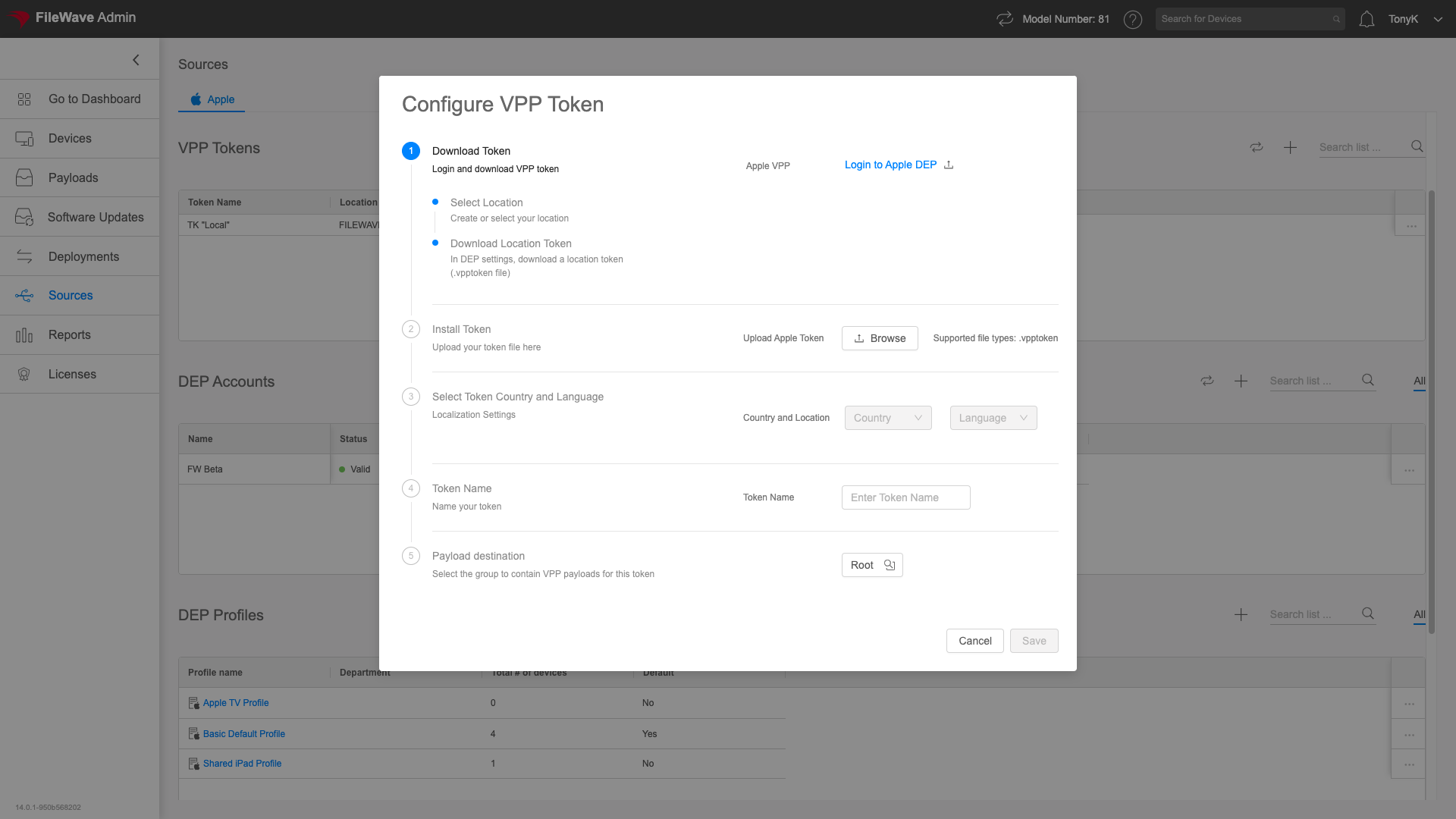 1. Download the appropriate location based token from ABM/ASM 2. Upload the Token to FileWave 3. Set the Country/Language as needed 4. Provide a local descriptive name for the Token 5. Specify where you would like VPP payloads to be created (default is root)| Be aware that if you attempt to import a VPP token already in use on another system, FileWave will warn you as shown:  Only import a token in this circumstance if you are certain it will not interfere with another MDM server. |