Wipe permanently erases the device. Review the target and every option in the confirmation dialog before selecting **OK**.
## How Open the device action menu (**...**) and choose **Wipe device**: 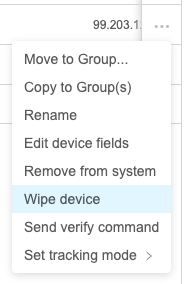 FileWave then shows the available wipe options. The list varies by platform and OS version: 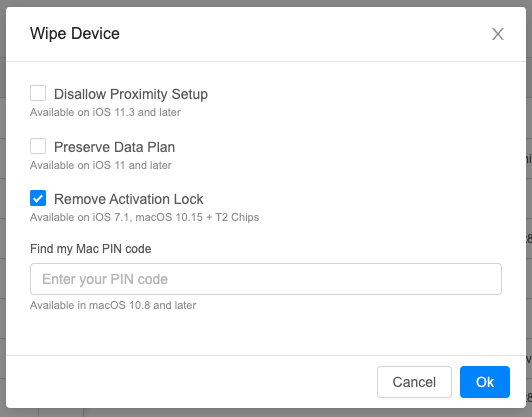 When **Remove Activation Lock** is available, select it if the device should return ready for reassignment. Otherwise, the device may still request the previous user's Apple Account (Apple ID) during activation.Activation Lock behavior can also be controlled in Automated Device Enrollment (ADE, formerly DEP) profiles.
## Related Content - [Apple ID prompt still appears even when Activation Lock Bypass Code is used during Remote Wipe](https://kb.filewave.com/books/ios-ipados/page/apple-id-prompt-still-appears-even-when-activation-lock-bypass-code-is-used-during-remote-wipe "Apple ID prompt still appears even when Activation Lock Bypass Code is used during Remote Wipe")