# Inventory Queries (Reports)

# Creating and Editing a query

This will discuss how to create and edit a query.

![](https://kb.filewave.com/uploads/images/gallery/2023-07/yfrOVsvUvcQysJpi-embedded-image-87buhwy7.png)

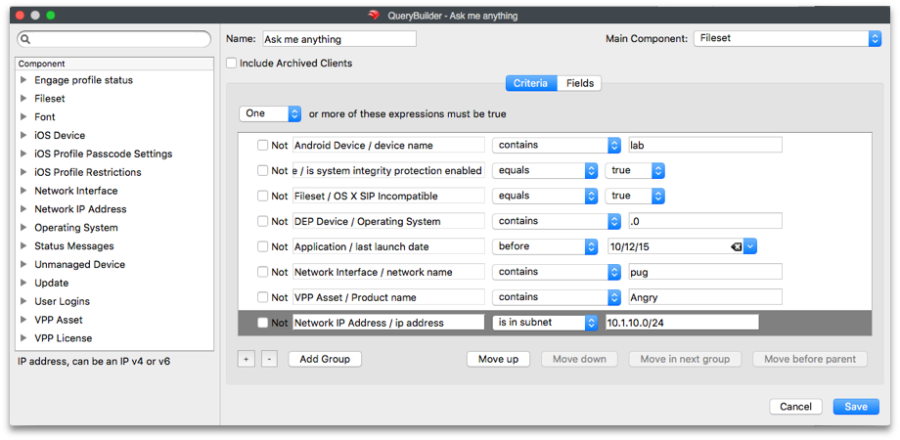
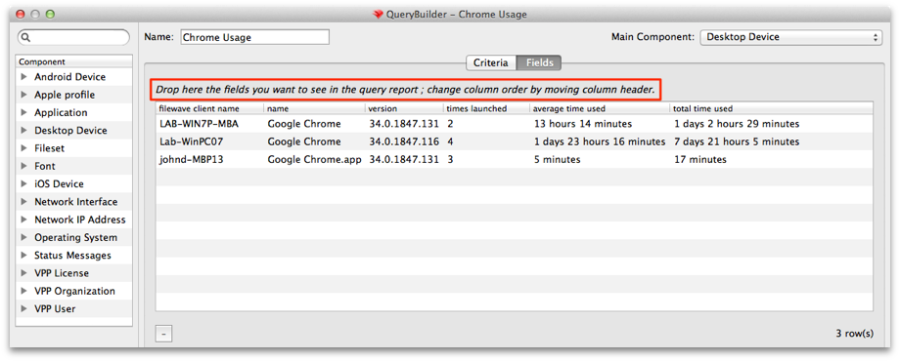
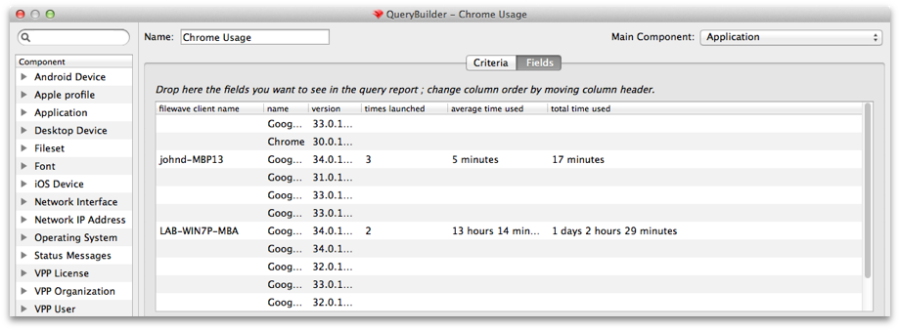
When you create a new query, you start by giving it a name and choosing a starting criteria - in this case, we want to have all of our clients report back if they have an application containing the name "chrome". Next, we decide what fields will be displayed when the query executes.
![](https://kb.filewave.com/uploads/images/gallery/2023-07/zCCuP2Mjp9IoBP7P-embedded-image-xdwqn2zh.png)

As you drag and drop component fields into the display window, FileWave immediately begins filling in the blanks with data from your Clients. You can re-order those fields by dragging them back and forth until you are satisfied with the results. You should choose a **Main Component,** which is the index field for the query. For example, in this query, if the main component was the *application*, then you would get a report that showed every instance of "chrome" that existed in the database. The results would display every instance of the Chrome application, even if it was stored away from the Applications folder and not being used.
![](https://kb.filewave.com/uploads/images/gallery/2023-07/5AxXinyw5g0Bc0mt-embedded-image-x7ooxvos.png)

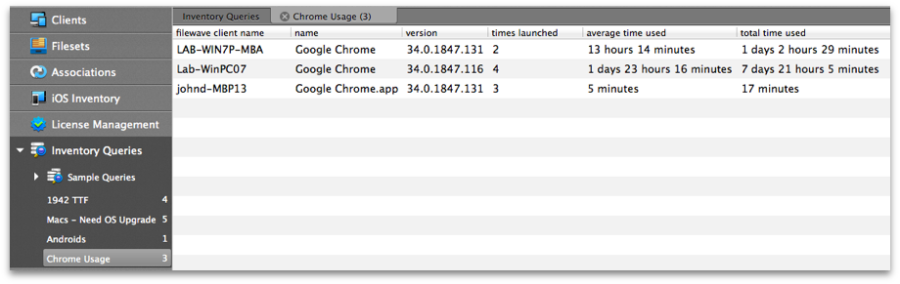
By choosing the correct component, and the right criteria, you can create queries that will tell you exactly what you want to know. In the main Inventory window, you can select your query so that it will display just by clicking on it.
![](https://kb.filewave.com/uploads/images/gallery/2023-07/xMDpUPFGrkPm7ntT-embedded-image-bky4nfqq.png)

## Components

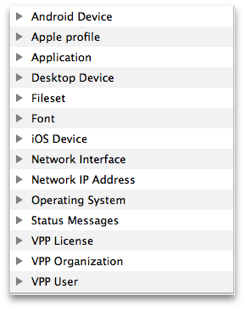
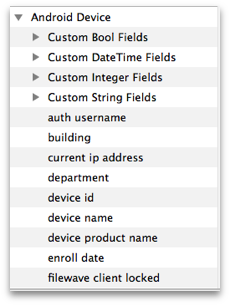
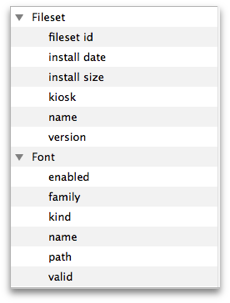
Key to being able to create a useful query is understanding the components you have access to. Here is a sampling of those items:

![](https://kb.filewave.com/uploads/images/gallery/2023-07/feuIBXyu8XDtysGN-embedded-image-3iozgcu3.png) ![](https://kb.filewave.com/uploads/images/gallery/2023-07/T7Ld9nc7NRjv8BxR-embedded-image-unghsjgt.png)

![](https://kb.filewave.com/uploads/images/gallery/2023-07/Yy6CCJ653DzYc3Lv-embedded-image-ns4qnnr1.png)

 ![](https://kb.filewave.com/uploads/images/gallery/2023-07/TCQpW5yOE2kOvneN-embedded-image-bwgone3h.png)

  
One of the most important new component types is the custom field. There are four different sets: *Boolean; DateTime; Integer; and, String*. You can create custom fields to go beyond the basic information provided by the Clients to look for unique combinations that include searching for files created prior to a certain date, or add marker files to clients that include a filename or text that meets custom criteria. You do this by passing arguments to the fwcld command.

The general format used to set any custom.ini value (including new keys) follows this format:

```
$ fwcld -custom_write -key <key_name> [-value <value_to_save] [-silent]
```

Examples  
Setting "custom\_bool\_13" to a false:

```
$ fwcld -custom_write -key custom_bool_13 -value 0
$ fwcld -custom_write -key custom_bool_13 -value false
```

Setting "custom\_bool\_13" to true:

```
$ fwcld -custom_write -key custom_bool_13 -value 1
$ fwcld -custom_write -key custom_bool_13 -value true
$ fwcld -custom_write -key custom_bool_13 -value something
```

Setting "custom\_date\_02" to a date:

```
$ fwcld -custom_write -key custom_date_02 -value 2014-02-20T15:22:43
```

To remove any key value, just leave off the -value parameter - so to reset the "custom\_date\_02" value back to it's default.

```
$ fwcld -custom_write -key custom_date_02 
```

Notes

1. When a provided key name matches integer, date or boolean custom field names - the program will validate the provided input. If this validation fails, an error message is printed and the program will exit without setting the custom.ini value.
2. When any failure to set a custom.ini value occurs, the program will exit with code 1, if setting the value succeeds the exit code is 0.

[Add FileWave Custom Inventory fields remotely using a Fileset](https://kb.filewave.com/books/custom-fields/page/add-filewave-custom-inventory-fields-remotely-using-a-fileset "Add FileWave Custom Inventory fields remotely using a Fileset")

## Expressions

When you add an expression, the logic generally revolves around "is this thing true or not?" What you actually get to work with is a list of possibilities, such as "this is exactly what I am asking for", "this contains the thing I am asking for somewhere in the field I am looking", "this begins/ends with the thing I am looking for", or the all time favorite "is null" - which means the field I am looking at has no value set at all. Of course, you also have the opposite of all these with *not - is not, does not, etc.*  
  
In this example, we are looking for any instance of an application where the name contains the text "minecraft" -

![](https://kb.filewave.com/uploads/images/gallery/2023-07/EplAvDGdxMWxqsAO-embedded-image-erjxuwc2.png)

## Field values

The whole purpose behind the query is to get useful information out of inventory. You do this by adding fields to display the results of answers to your query. In Inventory, you access the same components you use as criteria for the search as the display fields. In our example, we are looking for "minecraft" but if we left it at that, all we would get back from the FileWave database is "yup, I found it. Now what?"

![](https://kb.filewave.com/uploads/images/gallery/2023-07/5wm6N0OzqbWjkvJd-embedded-image-nuzw4jvr.png)

Here's the result without us asking for a more detailed result. This is the database telling us that it found "minecraft" with no clue as to where it is on any of the clients. So now, we are going to clean up the view and add the component "device name" so that our query will tell us what device this is on.

![](https://kb.filewave.com/uploads/images/gallery/2023-07/q0KQpFmEHYZcfyeT-embedded-image-rsdwhs23.png)

  
You can see how a simple query can be constructed, and that it can prove quite useful to just look for some simple answers. Next, we are going to look at some more powerful examples of queries that you can put to use.

## Example - Tracking application usage

A powerful tool in the Inventory / License Management is the ability to track application usage. You can create queries that display the amount of time any managed device is using any installed application. An easy example here would be to look at who is using a specific browser and how often.  
The query is built based on locating an application - in this case, Google's Chrome web browser. However, instead of just locating the application as we did in the first example, we are going to find out how often that item gets used. FileWave provides application usage components for this purpose. Here's the query with its display fields:

![](https://kb.filewave.com/uploads/images/gallery/2023-07/BLZb6JyAVAMJox37-embedded-image-nmzzlucb.png)

![](https://kb.filewave.com/uploads/images/gallery/2023-07/RagStWkdS5VI4HLy-embedded-image-yrhwlqwj.png)

You can see that adding the proper fields, as well as choosing the proper index or Main Component for the display, you get a good bit of information from this query.

## Example - Identifying VPP applications that support device assignment

With the functionality in Apple's VPP of directly assigning applications to FileWave client devices, you have the challenge of finding out which of your many applications support that feature. Here is a query you can set up to determine which of your deployed Filesets support device assignment.

![](https://kb.filewave.com/uploads/images/gallery/2023-07/9NT5djjw89yJNaQp-embedded-image-mre0cfn9.png)

The Fields include the *product name* and, most importantly, the *Device assignable flag*. The results don't show every VPP application and its status, only the ones that are already active.

# Demystifying Inventory Queries

## Description

Inventory queries are fundamental, both for reporting and Fileset deployment. For basic details for queries, please take a look at [Creating and Editing a query](https://kb.filewave.com/books/filewave-central-anywhere/page/creating-and-editing-a-query "Creating and Editing a query")

However, if the query isn't correct, then you could end up with incorrect reports or worse still incorrect Fileset deployments or removals.

## Information

So as well as the above section of the guide, additionally there are some example queries built into the Admin console: [What are Sample Queries?](https://kb.filewave.com/books/filewave-central-anywhere/page/what-are-sample-queries "What are Sample Queries?")

Sometimes though, you need something that is a little more complex or you can't quite get the right results. Some considerations when making queries:

- Do you need the query
- Does the criteria match the desired expectation
- What Main Component should be used
- What Fields do you need present

Following are some examples to demonstrate this.

1. Devices that do not have an application installed
2. Unexpected Entries
3. None and Not

#### 1) Devices that do not have an application installed

##### **Do you need the query?**

This seems like an odd question, but why is this required? If Filesets are associated they should be installed, if not already, at the next check-in from the device. If the software has failed, then this is already available through the Report window. Perhaps they aren't in the right groups to be associated though or maybe the device hasn't checked in for a long time. *Creating a Smart Group based upon an application that is not installed though, will not change the installation status if there is already an association and the App has failed to install.*

##### Does the criteria match the desired expectation?

In this case, we want the devices that do not have an application installed. Using Firefox on macOS as an Example.

Drag in 'Application' &gt; 'Name' to the criteria and set the following:

- Application/Name
- Is
- Firefox.App

Note we have 'Is' selected. Selecting 'Is Not', 'Does Not Contain', etc will not yield the desired results. Selecting 'Is Not' for instance, will list all devices that have any application on those devices that are not called Firefox.app. In essence, this will be all devices, those with and those without Firefox. Instead, we tick the Not box.

By using the Not box, it gives the reverse of the query. List all the devices that have Firefox and then give the opposite result (based on the Main Component, which will be covered next).

Since this is a MacOS query, then additionally the OS Type can be added:

- OS Type
- Is
- macOS

![FirefoxMissingQueryCriteria.png](https://kb.filewave.com/uploads/images/gallery/2023-06/uga9hadmaIJBIMBg-firefoxmissingquerycriteria.png)

##### **What Main Component should be used?**

The main component is the key ingredient that the criteria will be based upon. Imagine two fields: FileWave Client Name and Application &gt; Name

With the main component set to Application, the query will be:

- Show all Applications that are not Firefox.app

A query set up this way will therefore show all devices, as any App that is not Firefox.app will be a successful hit on this search

![FirefoxQueryMainComponentApplication.png](https://kb.filewave.com/uploads/images/gallery/2023-06/hGLNkJBMjoRHoRNs-firefoxquerymaincomponentapplication.png)

With the main component set to macOS/Windows Device, then the query will be:

- Show all devices that do not have Firefox.app

This will be a different set of results, as now any device that has Firefox installed will no longer show. This is the desired result.

![FirefoxQueryMainComponentmacOS.png](https://kb.filewave.com/uploads/images/gallery/2023-06/RBAbrhhdArsJaJPQ-firefoxquerymaincomponentmacos.png)

##### **What Fields do you *really* need present?**

The above has given the desired result, but there are multiple entries per device. From a Smart Group association point of view, strictly speaking, this should not matter. There is only one of each device in reality, but it makes it hard to read and does not work well as an Inventory Query for reporting. As such, removing any relationship that will create a 1:many relationship would be ideal, such that there is only one result per device.

![FirefoxQueryClientNameOnly.png](https://kb.filewave.com/uploads/images/gallery/2023-06/yIJp5Rzn4MksPgTi-firefoxqueryclientnameonly.png)

#### 2) Unexpected Entries

Sometimes some entries seem unexpected. This is usually related to one of the query items in the last example not being set as expected. From the last example, changing the Main Component to Application will still have an undesired result, as this will be searching the criteria against Application entries in the database even though that Field is not shown. There will still only be one entry visible per device, but the search is now listing all Applications that are not Firefox, so every device.

![FirefoxQueryClientNameOnlyByApplication.png](https://kb.filewave.com/uploads/images/gallery/2023-06/5RINe0XFsKQuhu3I-firefoxqueryclientnameonlybyapplication.png)

It is possible though, that with an incorrect Main Component and certain fields added, the output can appear confusing. Start with a fresh Inventory query and by setting the following, many entries can be seen with no FileWave Client Name:

- No Criteria
- Add FileWave Client Name as a Field
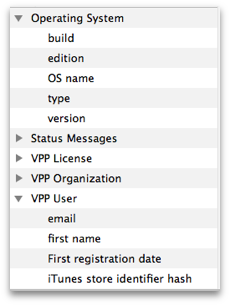
- Add Operating System as a Field (by dragging this in, all sub-inventory items for Operating System will be added to the Fields view).

With the Main Component set as Operating System, there will be many entries with no FileWave Client Name.

![AllOSInfoQuery.png](https://kb.filewave.com/uploads/images/gallery/2023-06/HuDa4x4nnhkck641-allosinfoquery.png)

This will be because entries have been made into the database from machines running these OS versions that are no longer appropriate for any of the active devices. Changing the Main Component can provide a true representation of the current installed OS versions.

![AllOSInfoQueryMainComponentmacOS.png](https://kb.filewave.com/uploads/images/gallery/2023-06/yw7GA5m5EPZY3wYA-allosinfoquerymaincomponentmacos.png)

Saving the above with the Main Component set as Operating System these entries can be seen to have no client. Right-click on an entry. As well as Copy, is there the option to Reveal Client:

![InventoryQueryRevealClient.png](https://kb.filewave.com/uploads/images/gallery/2023-06/Oz7UXTId7Zq6q9jy-inventoryqueryrevealclient.png)

![InventoryQueryCopyName.png](https://kb.filewave.com/uploads/images/gallery/2023-06/HgbWEbNwBJVpwtXJ-inventoryquerycopyname.png)

If there is no Client to Reveal, then there is no representable entry in the database. If you have a FileWave Client Name that shows but does not have the option to Reveal Client, it may be an old static record that will require manual removal. In this instance, you could contact support and they would be able to assist in tidying this up.

<p class="callout info">Inventory Only and Archived Clients  
When attempting to Reveal Clients, if the client is either Inventory Only or Archived, the relevant option to view these would need to be set through the contextual Menu Item</p>

#### 3) None and Not

Not can in many instances be more useful. A question was posed:

*"We would like an Inventory query to show devices that have multiple specific Filesets installed. The issue I am seeing is that if you try to enter multiple Fileset IDs to an inventory query it will show no results because I am guessing it is trying to look for every Fileset to have multiple IDs. So basically I want to find a device that has Fileset 1, 2, and 3, installed and they must have all 3 to go into the query."*

Taking from the information above, the negative logic will be seen to be the approach. Trying to search for each of these using positive logic will again not yield the correct results. Instead, Not can be used with desired results when mixed with None.

![InventoryQueryNoneNot.png](https://kb.filewave.com/uploads/images/gallery/2023-06/VbwCDS5XM0DFFsBy-inventoryquerynonenot.png)

Take some time to think about how this works. Understanding this will make Inventory Query building in general more successful and ensure you don't have unexpected results.

# What are Sample Queries?

We are frequently asked about the intention of the Sample Queries that you find in the Inventory Queries view in the FileWave Admin.

## Problem

For new users of FileWave, the intent of Sample Queries is sometimes a bit of a mystery. We'll clear that up here!

## Envioronment

Sample Queries are provided by default in the Inventory Query view of your FileWave Admin as you can see below:

![Sample Queries.png](https://kb.filewave.com/uploads/images/gallery/2023-06/gUaVWnzL4LALdD0u-sample-queries.png)

## Resolution

Sample Queries are actually provided for two primary reasons:

1. To provide you with pre-built common queries so you can get started quickly. These would be queries that are useful just as they are, such as All iOS or All Mobile.
2. To provide you with complex queries that you can use as examples to build your own queries. Sometimes it is just hard to get started on a complex query, like a query you might have to do for an Office Suite. These complex samples give you a starting point to building your own complex inventory queries.

## Additional Information

For best results, duplicate sample queries before you modify them so that you don't change the original. The Refresh Samples button in the Inventory Query view will put back any sample query that you may have deleted, but it will NOT over-write a modified query.

# How do I export the results of an Inventory query?

## Description

Results of Inventory Queries are viewable though the FileWave Central App. However, if other members of staff require these details, then those results may need exporting.

## Requirements

- Mainly, just the FileWave Central App
- Optionally (for Scheduled Reports), Email configured in FileWave Central &gt; Preferences
- Optionally (for API method), API token

## Steps

#### Export View

With any Inventory Query actively being viewed in FileWave Central, use the Drop Down menu option 'Export Current View':

[![image.png](https://kb.filewave.com/uploads/images/gallery/2025-12/scaled-1680-/ypP9UiplBZ9kdtSO-image.png)](https://kb.filewave.com/uploads/images/gallery/2025-12/ypP9UiplBZ9kdtSO-image.png)

On export, a Text file should be generated, consisting of a header line, including all included columns and preceding lines with the respective results:

[![image.png](https://kb.filewave.com/uploads/images/gallery/2025-12/scaled-1680-/LfOu8F2sbmIkk2Hz-image.png)](https://kb.filewave.com/uploads/images/gallery/2025-12/LfOu8F2sbmIkk2Hz-image.png)

#### Scheduled Reports

From the Assistants drop down menu, is an option Show Scheduled Reports:

[![image.png](https://kb.filewave.com/uploads/images/gallery/2025-12/scaled-1680-/Y65PW93U5WQdf7Ff-image.png)](https://kb.filewave.com/uploads/images/gallery/2025-12/Y65PW93U5WQdf7Ff-image.png)
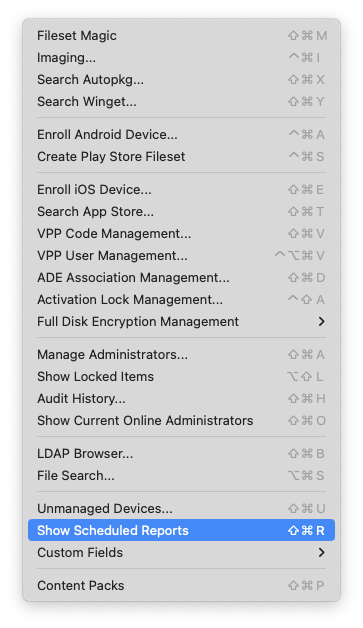
This method should periodically send emails to chosen recipients, for any included query set within the schedule definition.

Details of building out such a thing can be found in our KB: [Generating Scheduled Reports](https://kb.filewave.com/books/filewave-central-anywhere/page/generating-scheduled-reports)

#### API Queries

As demonstrated in our KB pages for [FileWave API](https://kb.filewave.com/books/application-programming-interface-api), it is possible to build out queries using the API as well as reporting on them. Please view the KB pages for extensive details.

# Generating scheduled reports

Being able to look at the various queries while logged in to the FileWave Admin is one thing. Being able to have the results of a query automatically sent to your or someone else's email inbox at the same time every week is much better. FileWave supports creating scheduled reports from queries and the process is very simple.

## How to create Scheduled Reports

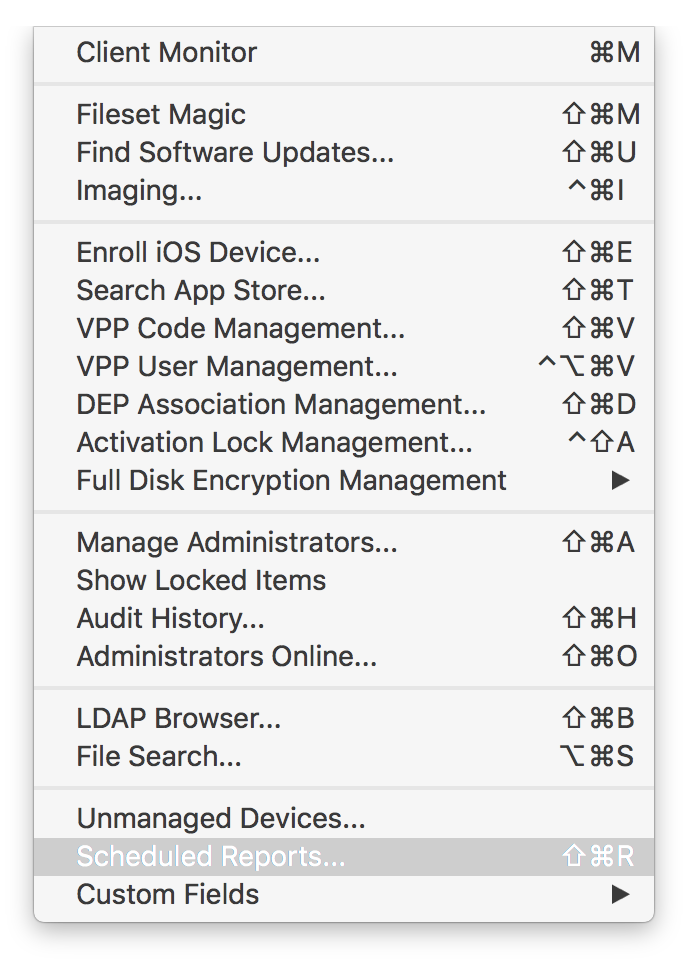
1. First, you select **Assistants → Scheduled Reports…** from the FileWave Admin menubar.

![](https://kb.filewave.com/uploads/images/gallery/2023-07/5A0UzVUvPwwI6U6s-embedded-image-7f3z4vee.png)

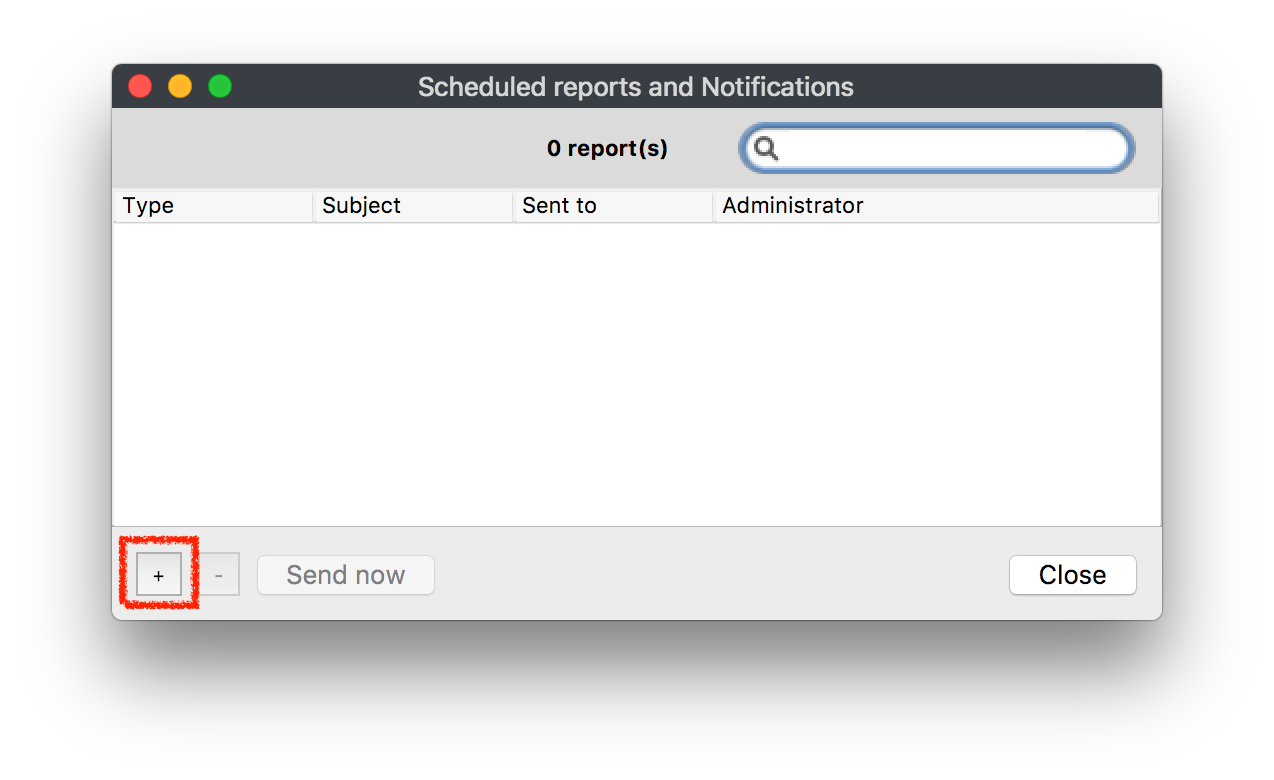
- Then click the "+" in the lower left of the window to create a new report. If you had existing reports they would be visible here.  
      
    ![](https://kb.filewave.com/uploads/images/gallery/2023-07/UtYKF9zSaC9gp1gD-embedded-image-yy3mwhio.png)![](https://kb.filewave.com/uploads/images/gallery/2023-07/Jadz8zy8bJWv90Xs-embedded-image-xzjaucax.png)
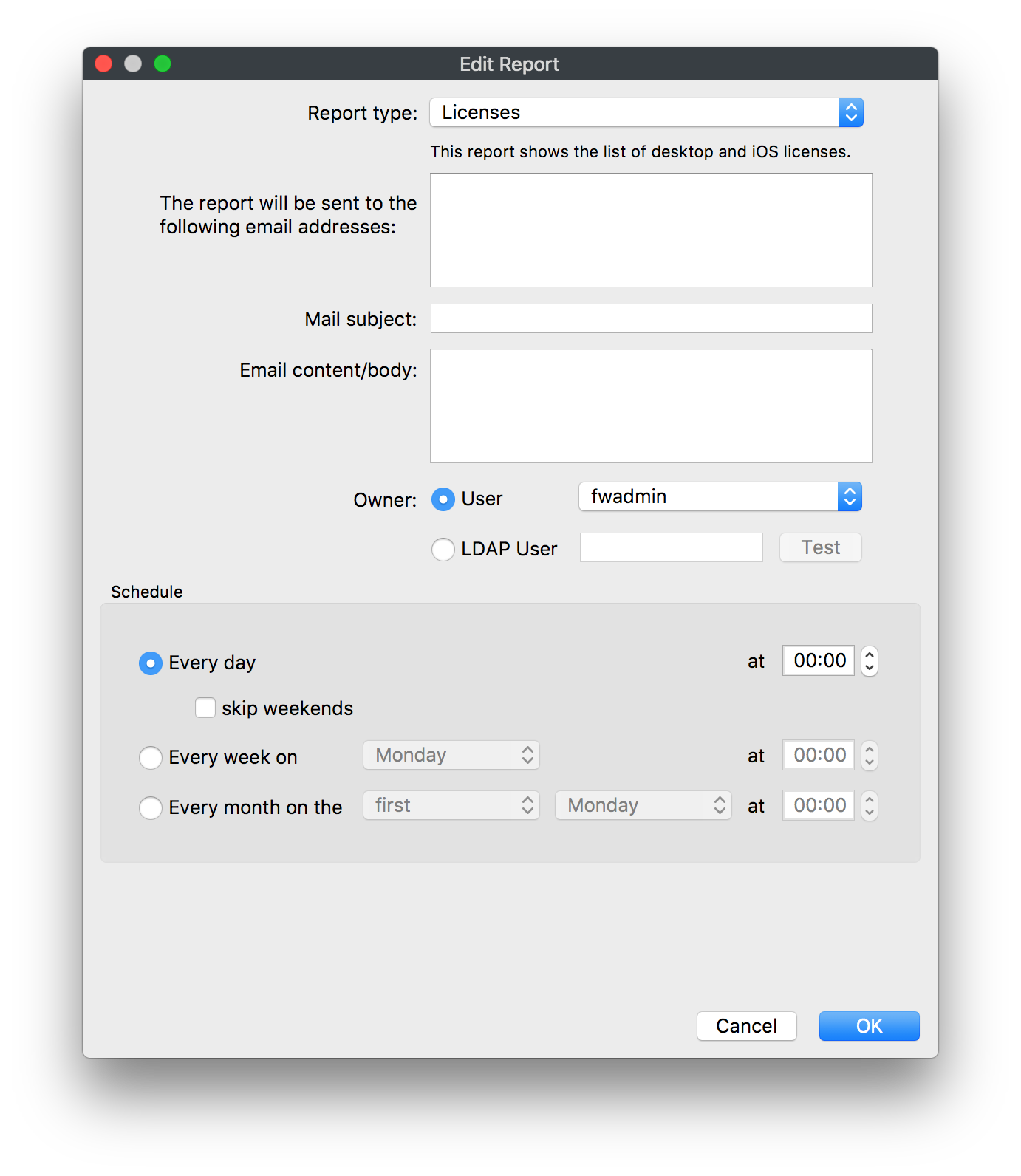
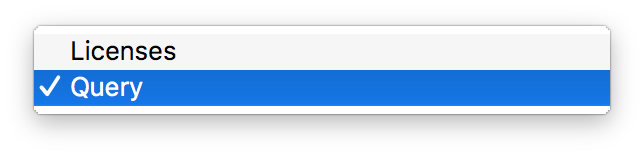
- You can now choose a **Report Type** which are a License or Query report. 
    - License: This will create a report of everything that is listed in your **License Management** section in FileWave. This includes all VPP licenses and manually created licenses from Filesets or inventory.
    - Query: This option will send a report with the results of a specific inventory query that was created in the **Inventory Management** section in FileWave.

![](https://kb.filewave.com/uploads/images/gallery/2023-07/davIcDQXPUzfU7Rw-embedded-image-2iyiwotm.png)

- Next is to type in what email address you want to send these reports too.

<table id="bkmrk-multiple-email-addre"><tbody><tr><td>**Multiple Email Addresses**

If you would like to send to multiple email addresses, you will need to separate the addresses by a semicolon.

</td></tr></tbody></table>

![](https://kb.filewave.com/uploads/images/gallery/2023-07/OGoDYSgy2577YuQp-embedded-image-aiqcxb7k.png)

- Then add in a **Mail Subject** and the **Email content/body**, these will give some definition to the reports sent.
- Next if you are signed into the FileWave Admin as the **Superuser** you will see a section for **Owner.** Whichever user account is selected will affect the results of the Scheduled Report based on that users permissions.   
    Example: If the user Greg Stevens was selected as the owner of this report for a query of all devices but Greg does not have access to see any iOS devices then the report will not show iOS.

<table id="bkmrk-if-you-are-not-the-s"><tbody><tr><td>If you are not the Superuser you will NOT see the **Owner** section at all; as you can see in the screenshots below, only the Superuser can assign a user to reports.

</td></tr></tbody></table>

![](https://kb.filewave.com/uploads/images/gallery/2023-07/Mzlxlwn823R3c2YY-embedded-image-xth9zu1a.png)![](https://kb.filewave.com/uploads/images/gallery/2023-07/Rfbof6kPm5lmosqE-embedded-image-tax0ys4q.png)

- After you have selected an **Owner** you will need to set when the report is going to be sent out 
    - Every day 
        - skip weekends
    - Every week on
    - Every month on
- Optional - if the **Report Type** is set to **Query** you will need to select which query the report will send

![](https://kb.filewave.com/uploads/images/gallery/2023-07/ouNKOHzbgvWgI1fY-embedded-image-qu0hvacw.png)

- Click **OK** to save this scheduled report, you will then be able to view any previously created reports as well as the option to send the report out immediately.

![](https://kb.filewave.com/uploads/images/gallery/2023-07/y1McqvCGQmNFY6gp-embedded-image-mklrsi73.png)

## Scheduled Reports Results

The reports that get sent will be tab-delimited text files that you can easily convert or import into any editor you like to use.

### Query Results

![](https://kb.filewave.com/uploads/images/gallery/2023-07/Ts8HPSaUSy37Alpj-embedded-image-uhrlqnh3.png)![](https://kb.filewave.com/uploads/images/gallery/2023-07/7rdKcsDPl3K6xVIr-embedded-image-05u3szij.png)

### License Results  
![](https://kb.filewave.com/uploads/images/gallery/2023-07/VlXgcopV91fhPVnJ-embedded-image-w1n9opru.png)![](https://kb.filewave.com/uploads/images/gallery/2023-07/wagfgKWhmWbRGVrO-embedded-image-xbwbzhuo.png)

# Sending Scheduled Reports to More Than One Address

If you want a scheduled report to go to more than one recipient, enter all email addresses in the recipient field and separate them with semicolons.

## Problem

Scheduled report results often need to go to more than one person. A shared mailbox can work, but sometimes you need to send the same report directly to several recipients.

## Environment

This applies to scheduled reports created from inventory queries and license reports.

## Resolution

In the recipient field, enter the addresses as a semicolon-delimited list, matching the format shown below.

`user1@mail.com;user2@mail.com;user3@mail.com;user4@mail.com`

## Additional Information

Scheduled reports are sent on their normal schedule, but you can also use **Send Now** in the Scheduled Report Assistant to confirm the report is delivered to all recipients before relying on the schedule.

![email-report.png](https://kb.filewave.com/uploads/images/gallery/2023-06/1cqwSLjmuLCvBLDJ-email-report.png)

# Filtering in Inventory Queries

## What

Historically inventory queries in FileWave did not allow you to filter for specific values. In v14(+) you can now filter for text objects in very much the same way you can filter in the Clients view.

## When/Why

We are going to want to filter whenever we need to get to data quickly. For instance, when a customer in the field calls with an issue and we ask them to give us the Asset Tag info for quick identification.

## How

Filtering in any inventory query view is as simple as entering search text in the upper right filter field when the query is open. Note that filters in FileWave admin are "sticky" and will remain even when you leave the view and come back to it. See example below:

<video controls="controls" height="300" width="600"><source src="https://kb.filewave.com/attachments/205"></source></video>

# Exporting & Importing Inventory Queries

## Description

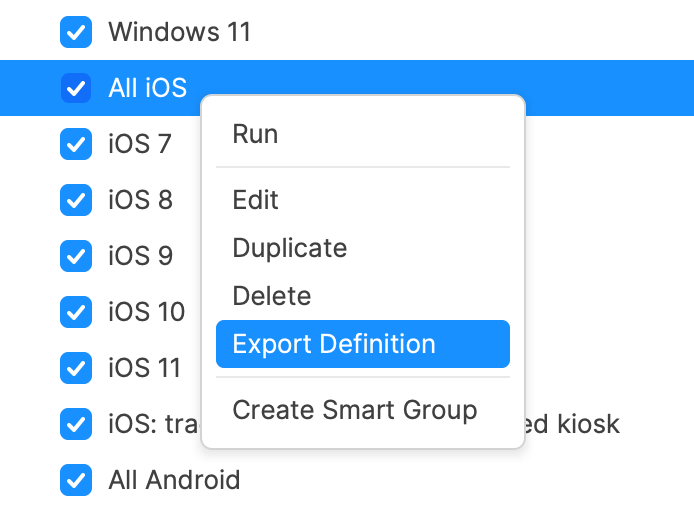
As of FileWave version 15.4, it is now possible to export and import Inventory Query definitions. This makes sharing them easier than ever.

<p class="callout success">Also export and share any included Custom Fields utilised in an exported query.</p>

[Importing &amp; Exporting Custom Fields](https://kb.filewave.com/books/custom-fields/page/importing-and-exporting-custom-field-files)

<p class="callout warning">Each Custom Field has a unique name: 'Internal Name'. When uploading a Custom Field, if another Custom Field already exists with the same Internal Name, the newly imported Custom Field Internal Name will be altered to prevent conflict.</p>

<p class="callout danger">Imported Inventory Queries referencing Custom Field Internal Names, will be referencing the Internal Name. Where a conflict has occurred, the Query must be updated to reference the new, altered Internal Name of the newly imported Custom Field.</p>

## Information

Prior to 15.4, sharing Inventory Queries relied upon a FileWave API command to grab the definition from one FileWave Server and then subsequently import that definition into another FileWave instance also using API. However, exporting and importing is now available via the right click contextual menu within the FileWave Central Admin Console.

## Directions

From the FileWave Central &gt; Inventory Queries view...

### Export Query

- Select a query from the main window
- Right click
- Choose Export

[![image.png](https://kb.filewave.com/uploads/images/gallery/2024-06/scaled-1680-/yynPRnD9AcyIoQ86-image.png)](https://kb.filewave.com/uploads/images/gallery/2024-06/yynPRnD9AcyIoQ86-image.png)

### Import Query

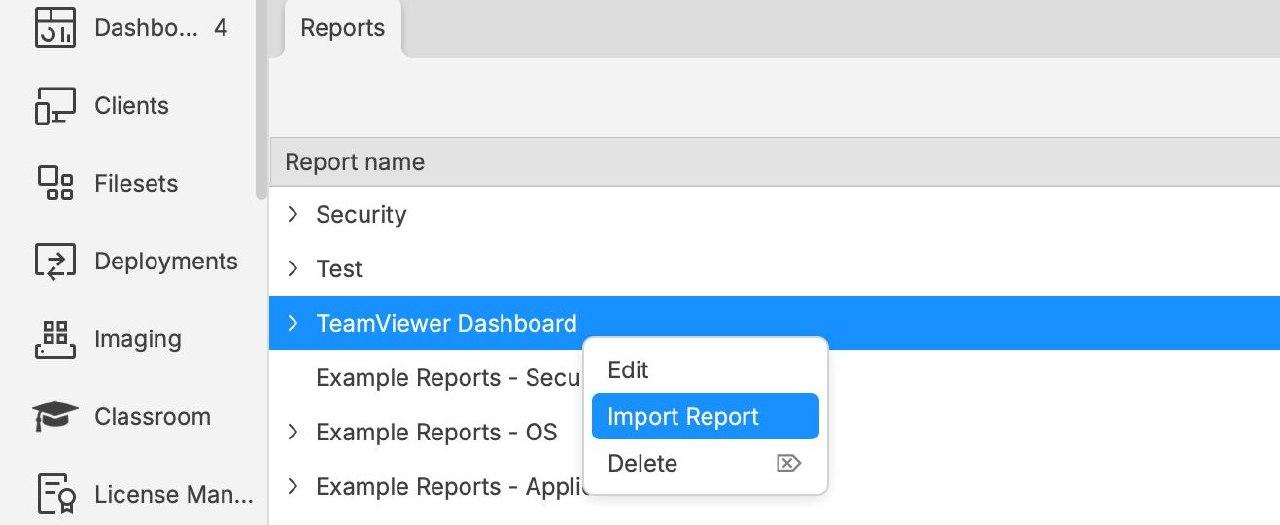
- Select a category to include the query for import
- Right click
- Choose Import Query

[![image.png](https://kb.filewave.com/uploads/images/gallery/2024-06/scaled-1680-/my1s0hqrosm8tjhr-image.png)](https://kb.filewave.com/uploads/images/gallery/2024-06/my1s0hqrosm8tjhr-image.png)

# Inventory of IP Addresses

## Description

Out of the many Inventory Items collected, IP addresses are included in those automatically provided. However, what does that mean. For device communication, many IPs exist for communication and there is more than one address obtained from some devices.

## Information

There are two distinct IP Inventory entries:

- All Devices &gt; IP Address
- Network IP Address &gt; IP Address

### All Devices IP

This IP is how the server sees the incoming traffic. As such, it isn't as much device inventory, but inventory of live traffic to the server.

### Network IP

The value reported as the Network IP Address, however, is inventory. Each network adapter will be included in the report back to the FileWave Server during the inventory phase; thus multiple entries per device.

<p class="callout info">Apple mobile devices will have a blank value, since this IP is provided by the FileWave Client</p>

## Considerations

### All Devices IP

Since the IP for All Devices is actually the IP of incoming traffic, in reality it is the last leg of the communication between devices and the FileWave server.

What does this mean for this inventory field. In many setups, not much and is really useful. By reporting the last leg of traffic, it immediately provides some information about the device. For example, if this was a company NAT address, the device is clearly talking back to the server from an alternate location. Yet, there are some other examples where this may not be the best.

#### Hosted

Where servers are cloud hosted, the last leg of traffic is from the Load Balancer to the FileWave Server. Since all traffic will be through the Load Balancer, then the reported IP will be the local IP of that Load Balancer.

#### Booster Routing

This has a similar consequence with Hosted. Since FileWave Client communication is through the Booster, the last leg of traffic (as viewed by the FileWave Server) will be the Booster (the last Booster if cascaded). On face value, this would appear initially as useful as first described. Immediately, it is clear that a client is either reporting directly to the server or through a Booster. In the latter case, which Booster if multiple exist. However, there is an additional complication.

Due to requests, the software was altered to provide the local client IP of devices routing through Boosters, with the intention of improving the experience of the Client Monitor.

<p class="callout warning">When a device using Booster Routing first checks in, the IP actually reported will initially be that of the Booster. From this communication, after a period of time, the value will be updated to reflect the Client IP instead. However, it may be likely that the communication will be re-established at a later date, causing the Booster IP to be reported again. As such, there will be a duration of time where the Booster address will be seen, before the Client local IP is shown instead.</p>

### Custom Fields

Scripted Custom Fields can return any value that is programatically obtainable. If a different value was desired, it may be possible for a Client Script or Client Command Line Custom Field to report an alternate chosen value.

<p class="callout info">Scripted Custom Fields are only available for computer devices: macOS &amp; Windows.</p>