# Smart Groups
# Smart Groups, Inventory and Application Version Numbers
## Description
FileWave stores software version values as text because vendors can include letters, build labels, or other non-numeric characters. If you need a Smart Group or inventory report to answer whether a macOS app is older than the approved version, use a Client Script Custom Field to normalize the comparison.
## Information
The example script compares a supplied app version with the value read from the app's Info.plist. It returns one short status string for inventory and Smart Group criteria. If the installed version contains letters, the script exits with Uncomparable rather than guessing.
Output should be one of:
- Newer - version on device is newer than supplied version to compare
- Outdated - version on device is older than the supplied version to compare
- Current - version is the same as the supplied version to compare
- NA - Supplied Application path was not found on device
- Uncomparable - Non numerical characters were found
The script accepts three Launch Arguments:
1. App path
2. Version to compare
3. Key/Value item to collect from Info.plist
Item 3, if not supplied, defaults to: CFBundleShortVersionString
## Directions
Create a [Custom Field](https://kb.filewave.com/books/custom-fields/page/custom-fields "Custom Fields").
- Name the script, e.g. Compare Chess Version
- Provided By: Client Script
- Data Type: String
- Client Script Type: macOS Shell
- Optional: Assign to all devices
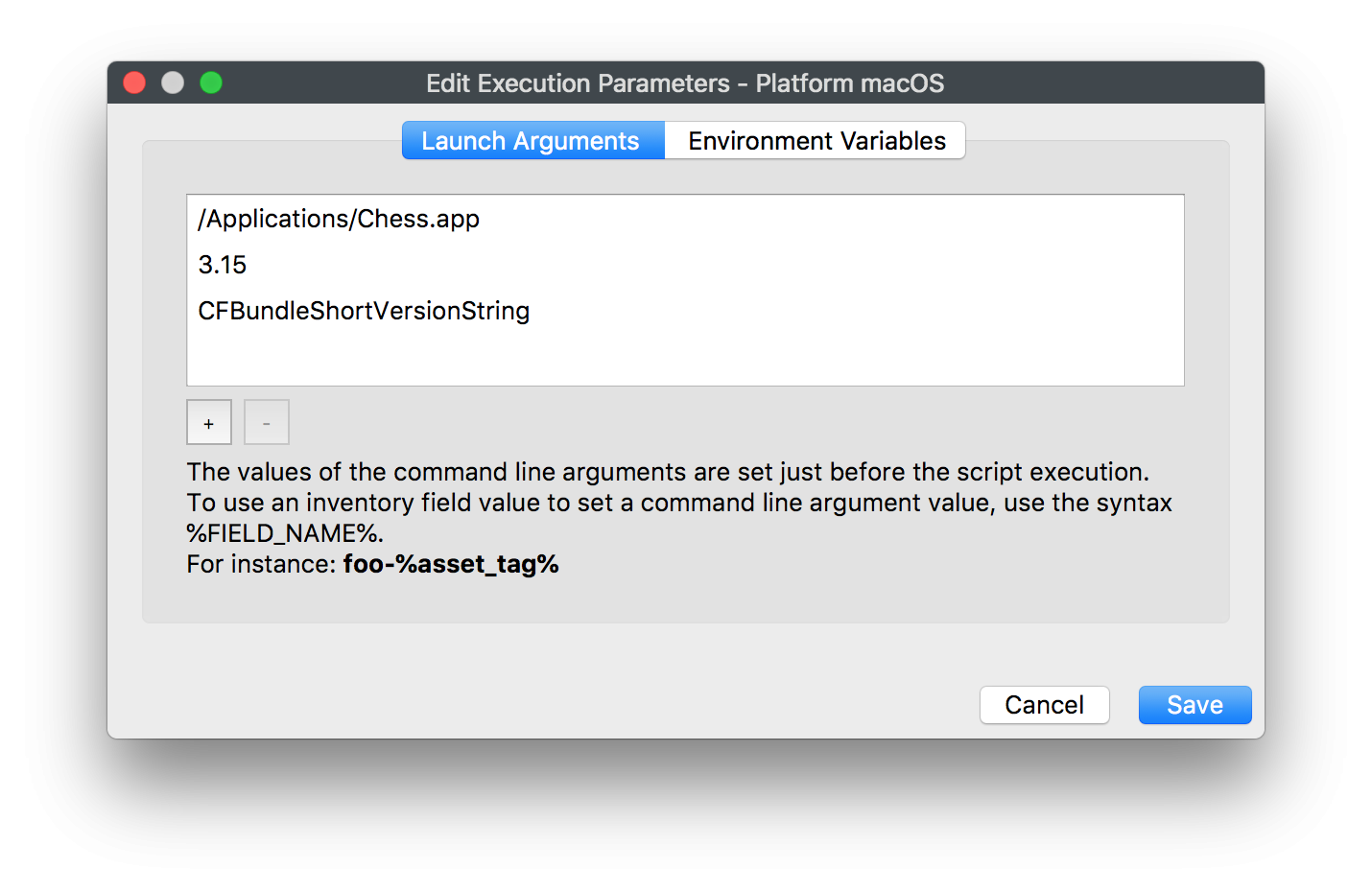
Launch Arguments:
1. /Applications/Chess.app
2. 3.15
3. CFBundleShortVersionString
[](https://kb.filewave.com/uploads/images/gallery/2023-07/7Mog3ILij34PZmI0-image.png)
Paste the following into the script window:
```bash
#!/bin/bash
# Compare version numbers of apps for Inventory Reporting and Smart Groups
# V1.0 -May 2019, sean.holden@filewave.com
# $1 - Application path, e.g: /Applications/Chess.app
# $2 - Version to compare against
# $3 - Version string, e.g.: CFBundleVersion, CFBundleShortVersionString
# Return Newer, Outdated, Current, NA or if non-numerical characters are used Uncomparable.
app_path="$1"
if [ ! -x "$app_path" ]
then
echo NA
exit 0
fi
dotted_check_version=$2
if [[ "$3" == "" ]]
then
# Default if not supplied: CFBundleShortVersionString"
version_string="CFBundleShortVersionString"
else
version_string="$3"
fi
dotted_installed_version=$(defaults read "${app_path}/Contents/Info.plist" "$version_string" )
if [[ "$dotted_installed_version" =~ [A-Za-z] ]]
then
echo "Uncomparable"
exit 0
fi
function convertVersion {
OLDIFS=$IFS
IFS='.' read -r -a array_add <<< "$1"
IFS=$OLDIFS
}
function compareVersion {
array_counter=0
while [ $# -gt 0 ]
do
compare_to_me=${check_version[$array_counter]}
if [[ $compare_to_me == "" ]]
then
compare_to_me=0
fi
if [ $1 -lt $compare_to_me ]
then
echo "Outdated"
break
fi
if [ $1 -gt $compare_to_me ]
then
echo "Newer"
break
fi
array_counter=$((array_counter + 1))
shift
if [ $# -eq 0 ]
then
echo "Current"
fi
done
}
convertVersion "$dotted_installed_version"
declare -a installed_version=("${array_add[@]}")
convertVersion "$dotted_check_version"
declare -a check_version=("${array_add[@]}")
while [ ${#check_version[@]} -gt ${#installed_version[@]} ]
do
installed_version+=('0')
done
compareVersion ${installed_version[@]}
exit 0
```
Save the Custom Field, let inventory update, then create a [Smart Group](https://kb.filewave.com/books/filewave-central-anywhere/page/using-queries-to-create-smart-groups "Using Queries to create Smart Groups") using the returned value.
# Using Queries to create Smart Groups
Outside of creating queries for informational purposes, FileWave can help you create powerful, dynamic Smart Groups. The concept behind a Smart Group is to gather clients together who meet certain criteria. That would be, for example, all of the devices residing on a certain IP subnet. By adding Inventory queries to the criteria, then adding Filesets to the Group, you can create a Smart Group that will gather a Client device due to its meeting specified criteria, perform Fileset actions on that device, and as a result, the client no longer meets the criteria and drops out of the Group.
**Note:** If a Smart Group needs faster membership updates for an enrollment, first-check-in, or other time-sensitive assignment workflow, see [Fast Smart Group Evaluation](https://kb.filewave.com/books/filewave-central-anywhere/page/fast-smart-group-evaluation). This article focuses on building Smart Groups from inventory query criteria.
## Example - Locating Filesets that contain SIP violations
Apple has released a security policy with OS X 10.11 called **System Integrity Protection**. In a nutshell, it says that no process will be able to have write access to any area of the OS that is protected. FileWave administrators may have scripts that violate this policy, and need to find out which are affected other than just seeing their Fileset(s) fail. There are two new fields in Inventory that identify whether or not a Mac has SIP active or not, and another field that identifies files that contain code that would violate the SIP rules. Here are the two query items:

If you use either one of these to create a Smart Group, you will be able to rapidly identify your Macs that have SIP active, or your Filesets that have incompatible code in them. As you repair the Filesets, they will drop from that Smart Group. If someone turns off the SIP settings (not an easy task), the affected Mac will drop off that Smart Group.
## Example - Removing contraband software
For example, you need to scan your clients for contraband software. If the client meets the criteria of having the software you are looking for, then you will have a Fileset execute that will remove that software. Since the Group is dynamic, as soon as the device responds that it no longer has the software and it has that Fileset installed, it will no longer qualify for that Group, and will drop out. Here is the workflow for setting this up:
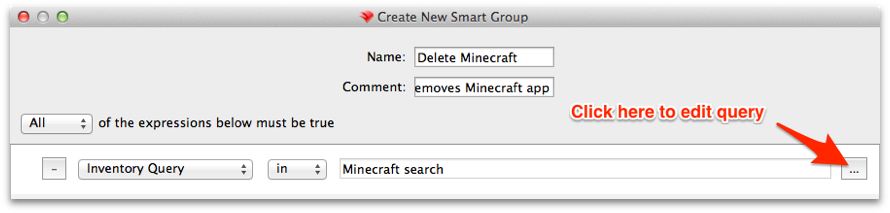
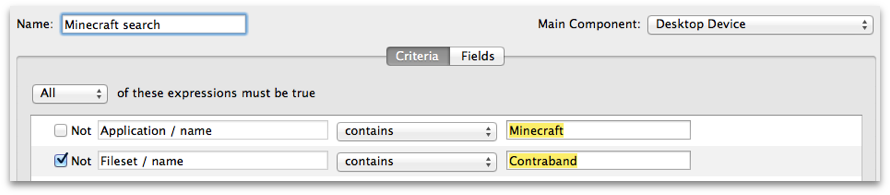
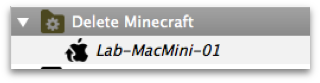
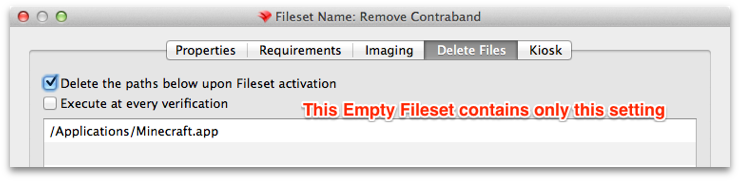
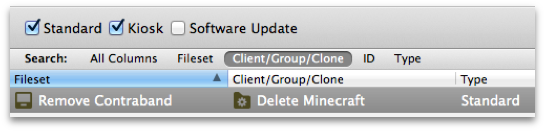
Once you have executed the **Update Model** command, the Fileset will execute and delete the software.
# Fast Smart Group Evaluation
## What
Fast Smart Group Evaluation lets selected Smart Groups evaluate on a shorter interval than normal Smart Groups. Use it when waiting for the normal Smart Group refresh would delay an important action, such as a newly enrolled device needing required assignments after its first check-in or inventory update.
## When to use it
Use fast evaluation for a small number of time-sensitive Smart Groups that drive initial device setup, enrollment cleanup, urgent remediation, or another workflow where group membership needs to update quickly.
Do not enable it on broad reporting groups or every deployment group. Fast evaluation does not make clients submit inventory faster; it evaluates eligible Smart Group membership more frequently once the server has the data needed to evaluate the criteria.
## Performance limit
Smart Group evaluation consumes server resources, especially in large environments or when criteria are complex. FileWave allows up to 3 Smart Groups with **Fast Smart Group Evaluation** enabled. This keeps fast evaluation useful for critical workflows without allowing many Smart Groups to add constant recurring load.
## Configure it
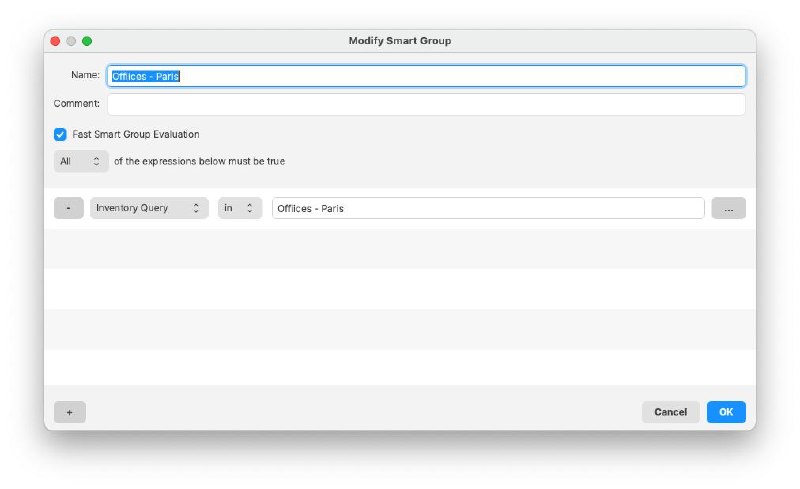
The **Fast Smart Group Evaluation** checkbox is available when creating or modifying a Smart Group.
[](https://kb.filewave.com/uploads/images/gallery/2026-05/V9dEE34I33TW0D3R-filewave-central-fast-smart-group-evaluation-checkbox-2026-05-01.jpg)
- Enable **Fast Smart Group Evaluation** on the Smart Group that needs faster membership updates.
- Set the server-wide fast interval in [Inventory preferences](https://kb.filewave.com/books/filewave-central-anywhere/page/configuring-inventory-preferences) using **Fast smart group refresh period**.
- If FileWave reports that the limit has been reached, review the existing fast-evaluation Smart Groups and disable it on a lower-priority group before enabling another one.
## Related Content
- [Configuring Inventory preferences](https://kb.filewave.com/books/filewave-central-anywhere/page/configuring-inventory-preferences)
- [Using Queries to create Smart Groups](https://kb.filewave.com/books/filewave-central-anywhere/page/using-queries-to-create-smart-groups)
- [Understanding FileWave Clients, Groups, and Smart Groups](https://kb.filewave.com/books/filewave-central-anywhere/page/understanding-filewave-clients-groups-and-smart-groups)
# Create a Smart Group from an Inventory Query (Report)
## What
Smart group creation in FIleWave has always been a duplicated effort if you wanted a smart group that was identical to an inventory query (report) that already existed. This duplication of effort was inefficient.
## When/Why
With version 14+ of FileWave, you can now directly create a new smart group from an existing inventory query. (and the crowds cheered!)
## How
Creating the smart group is easy:
- Right-click the Inventory Query you want to "copy" to a smart group
- Choose "Create Smart Group"
- Pick the destination where you want your smart group created
The newly created smart group will have no direct associations (deployments) assigned to it, but if you place it underneath a group that does have associations, the smart group will inherit them.
See example below:
## Related Content
- [Duplicating Smart Groups](https://kb.filewave.com/books/filewave-central-anywhere/page/duplicating-smart-groups "Duplicating Smart Groups")
# Duplicating Smart Groups
## What
Prior to version 14 of FileWave, creation of similar smart groups could be quite tedious. With version 14+, you can now duplicate a pre-existing smart group.
## When/Why
We are going to want to use this function whenever we have a very similar smart group to create. This is **VERY** useful, especially when combined with custom fields.
Consider the following:
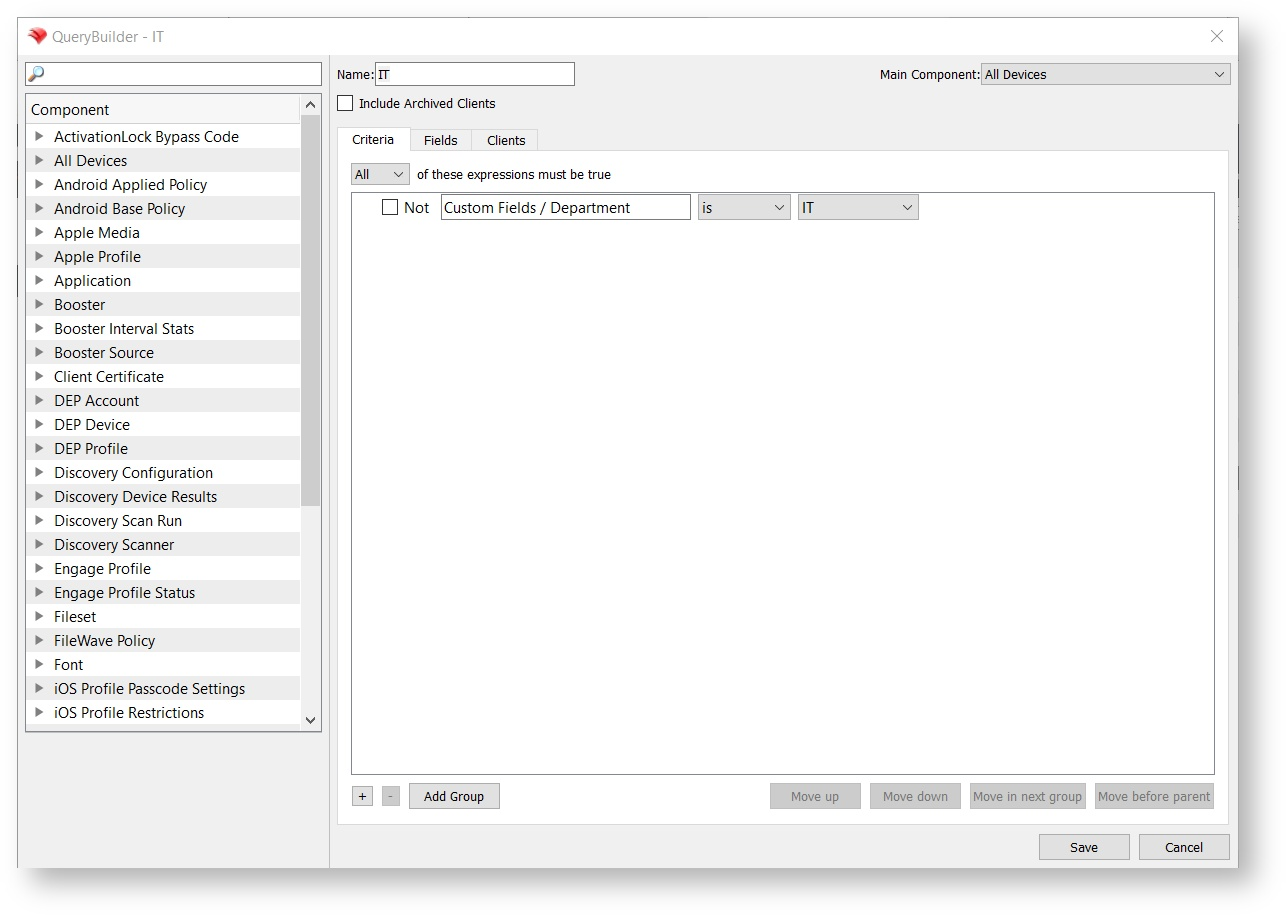
We have a smart group for "IT" based on a custom field called "Department":
[](https://kb.filewave.com/uploads/images/gallery/2023-07/QFK6RK228byRQ8bb-image.png)
Prior to v14, if we wanted to duplicate this smart group, we had to build the entire smart group from scratch, including the inventory query the smart group was built upon. Now, we can duplicate it, and just change the name and the criteria in the inventory query to create a new smart group for "HR". (see example video below)
## How
Duplicating the Smart Group is easy:
- Right-click the smart group you want to duplicate
- Choose "Duplicate Smart Group..." from the menu
- Change the name to be what you want
- Edit the now duplicated inventory query criteria
- Save
The new smart group is **ONLY** a copy of the original criteria. The new smart group will have ***nothing*** copied as far as associations or deployments to the original smart group are concerned.
See example below:
## Related Content
- [Create a Smart Group from an Inventory Query (Report)](https://kb.filewave.com/books/filewave-central-anywhere/page/create-a-smart-group-from-an-inventory-query-report "Create a Smart Group from an Inventory Query (Report)")
# Smart Group Preview
## What
When creating a smart group based on an inventory query, the number of results in the query preview can potentially be different from what will actually be in the smart group once you save it. This can happen for a number of reasons: For example if a device has been deleted from inventory, but a model update has not yet happened, it would show in preview because the inventory exists--but not show in the smart group, because it has already been deleted. This can create some confusion.
## When/Why
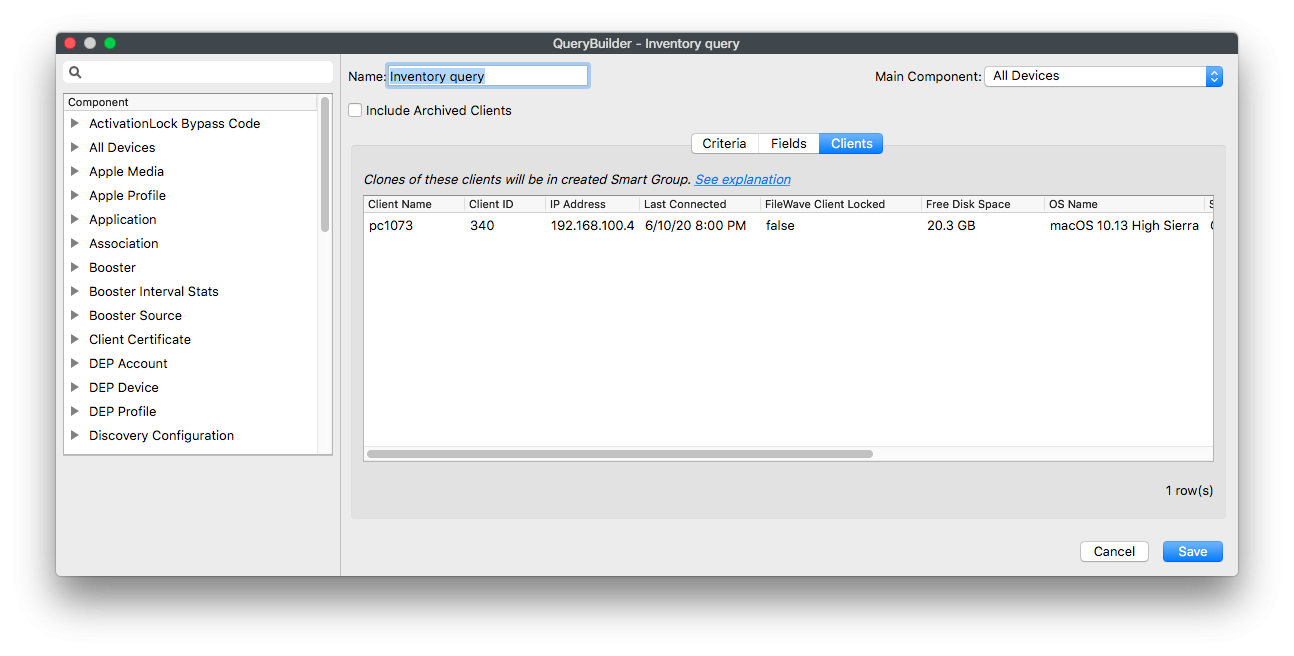
To address this in version 14(+) of FileWave, we have added an additional tab in the smart group editor, called "Clients" next to the "Fields" preview tab. This new tab previews ***only*** the clients that will be part of the smart group. The columns shown in this view are independent from those selected in the "Fields" tab and only include those relevant to identify a client.
## How
Examples illustrate this best:
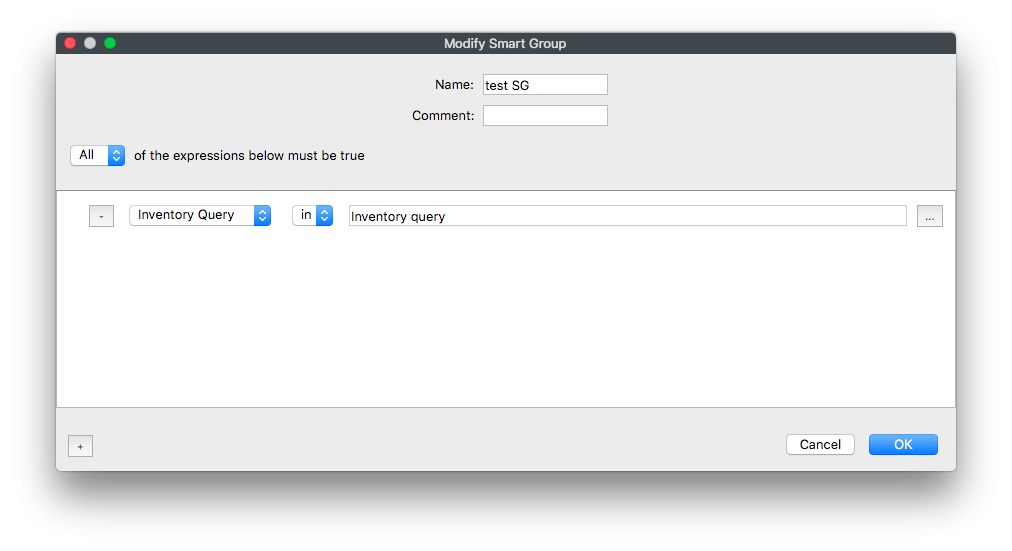
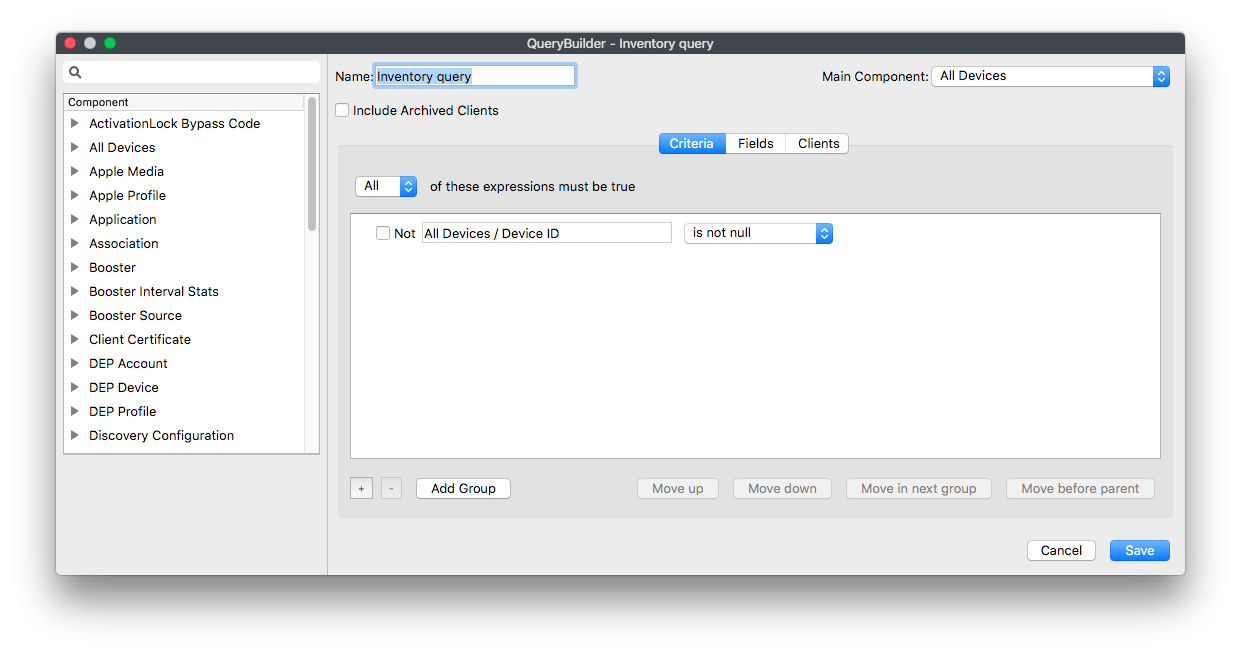
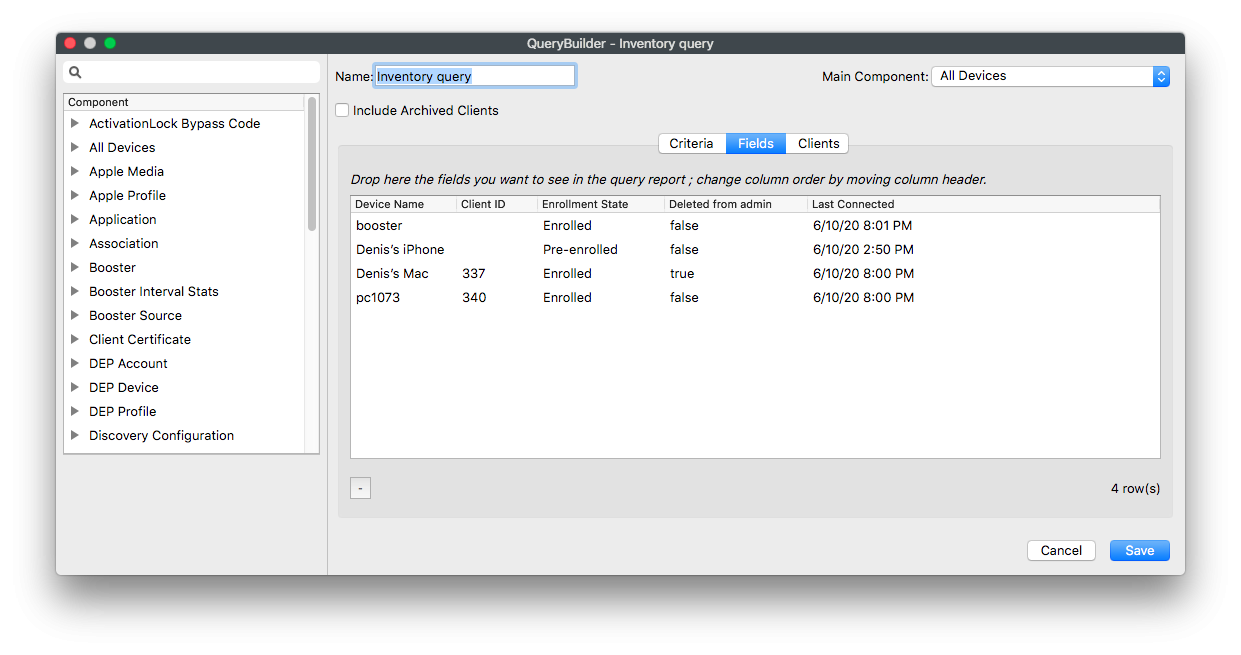
An Inventory Query is used in a Smart Group, criteria is "Device ID is not null". On the "Fields" tab enrolled clients, pre-enrolled clients, deleted clients and boosters are displayed (placeholders are filtered):
[](https://kb.filewave.com/uploads/images/gallery/2023-07/W0mbaLkYkFcG10om-image.png)
[](https://kb.filewave.com/uploads/images/gallery/2023-07/wH2Pw2tA50InFjQV-image.png)
[](https://kb.filewave.com/uploads/images/gallery/2023-07/xUrx1a58NVtbUV6p-image.png)
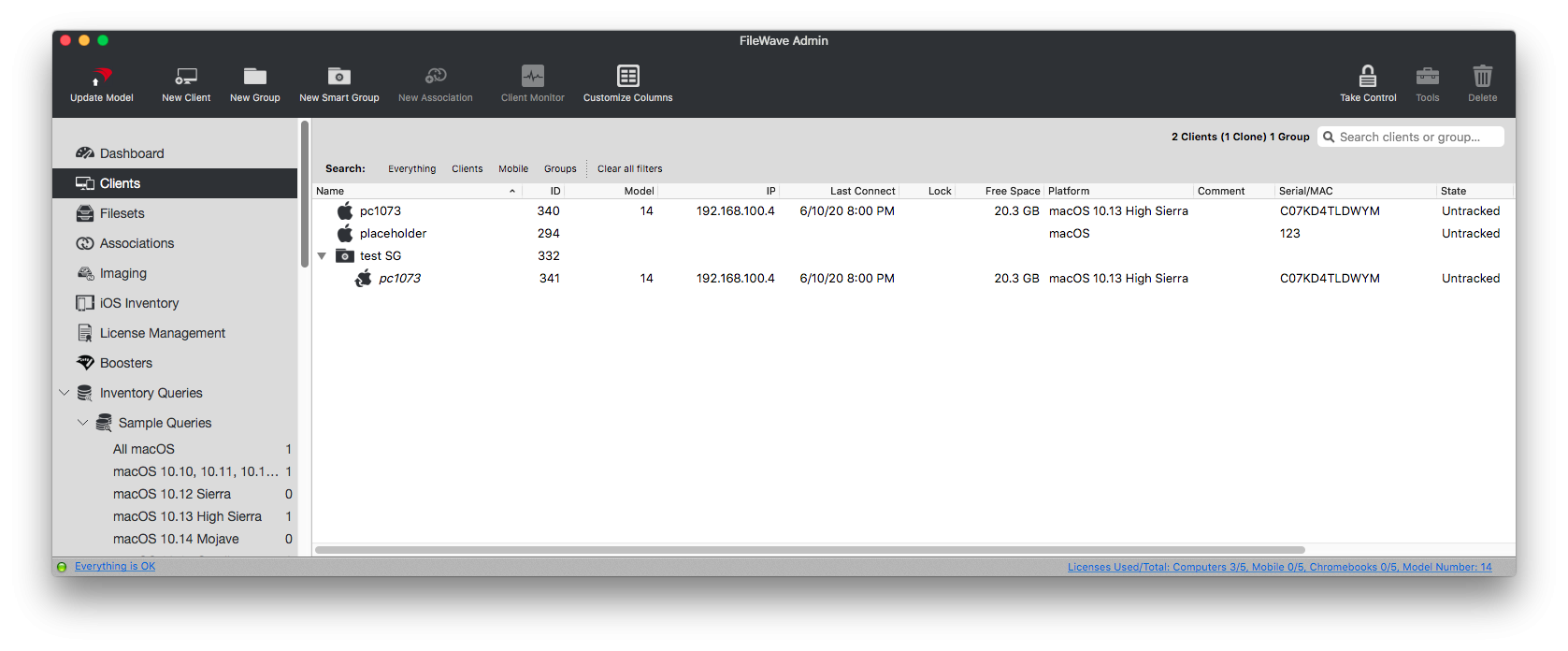
But see on the new "Clients" tab, only the enrolled client is displayed and this matches what will be in the Smart Group:
[](https://kb.filewave.com/uploads/images/gallery/2023-07/J481W7g1qN4AvOcg-image.png)
[](https://kb.filewave.com/uploads/images/gallery/2023-07/iFolccOH8GIyWZ6e-image.png)
Known Issue: if there are 2 records with the same filewave\_id, both of them will be displayed on new Clients tab today although only 1 client will be in created Smart Group. This will be addressed in a later update.