Troubleshooting
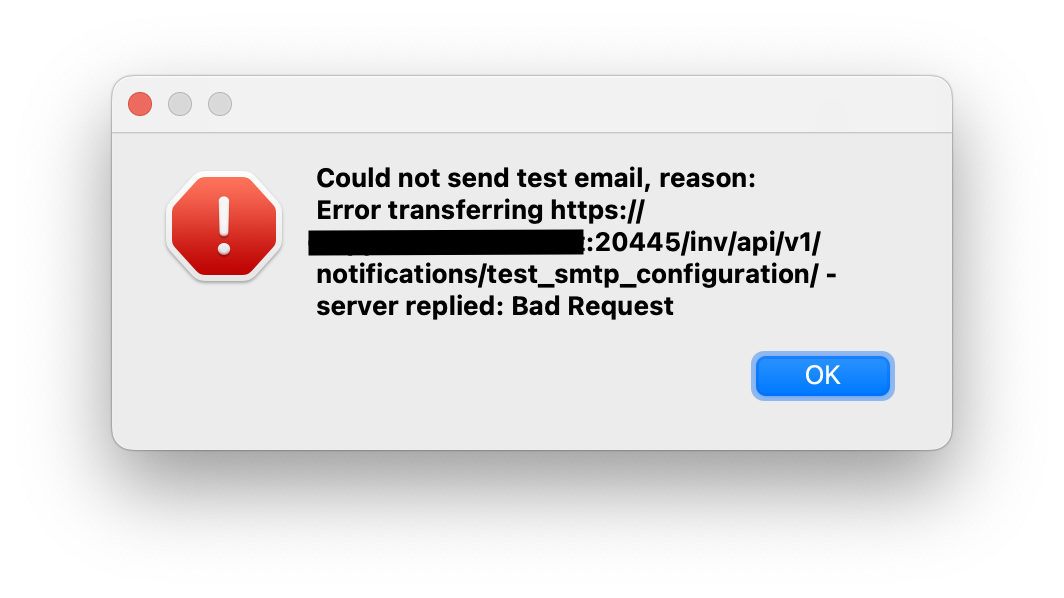
- FileWave Server Mail test receives Bad Request with Google SMTP Accounts
- Change the FileWave Anywhere Idle Timeout
- Could not create the /Volumes/XYZ directory error when opening client info
- Dashboard Warning levels and Descriptions
- Change the Language in FileWave Central or Anywhere (macOS)
- Opening FileWave Central / Anywhere in a Specific Language (Windows)
- What is the difference between Revert and Restore?
FileWave Server Mail test receives Bad Request with Google SMTP Accounts
What
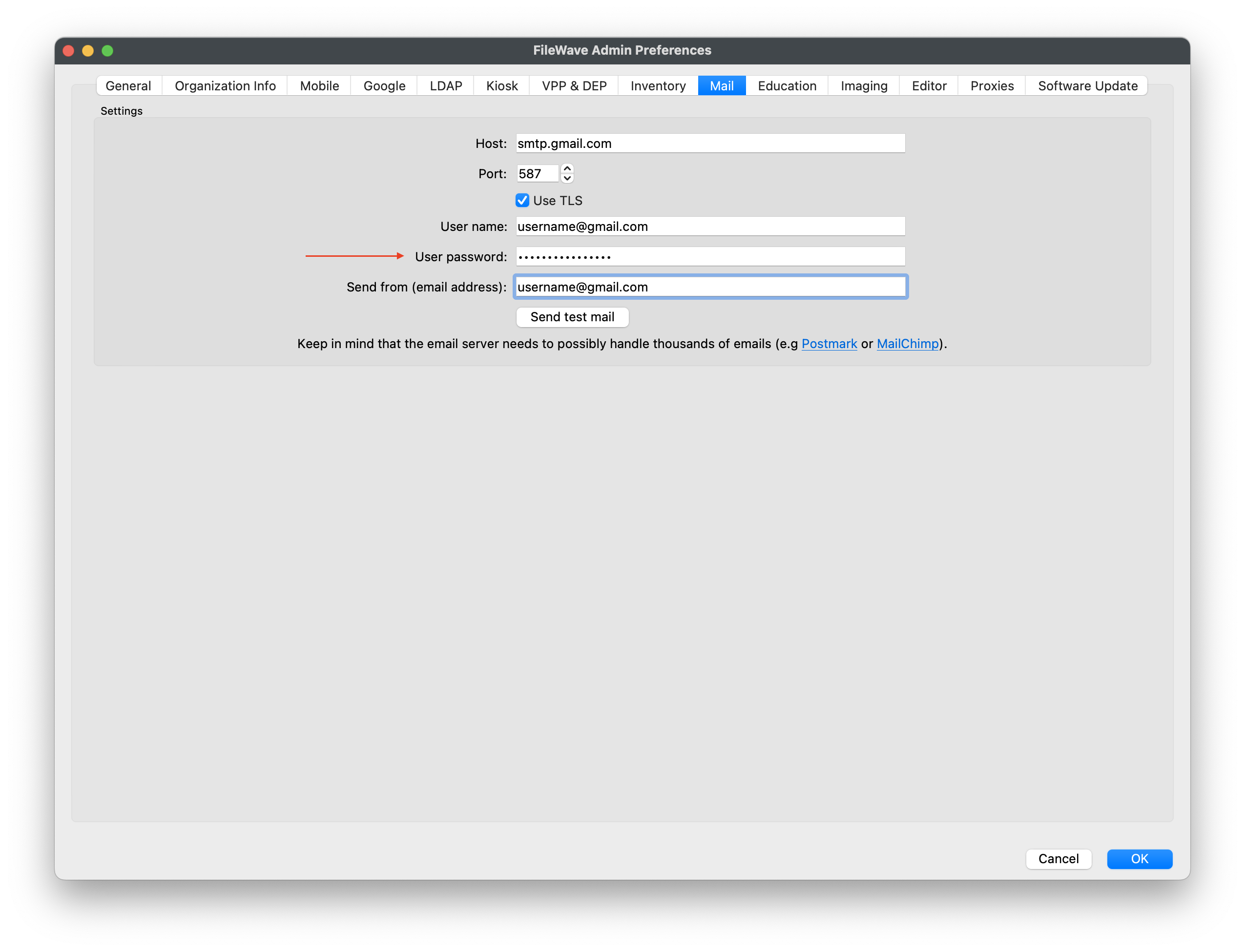
This troubleshooting article applies when Authentication Method is set to Manual Setup and a Google SMTP account returns a Bad Request error because the account is not ready for the app-password workflow below.
FileWave 16.4 also supports Google OAuth. Use OAuth when it matches the organization’s Google Workspace policy; use the app-password steps below only for a supported Manual Setup configuration. See Configuring FileWave Server Mail Preferences.
When/Why
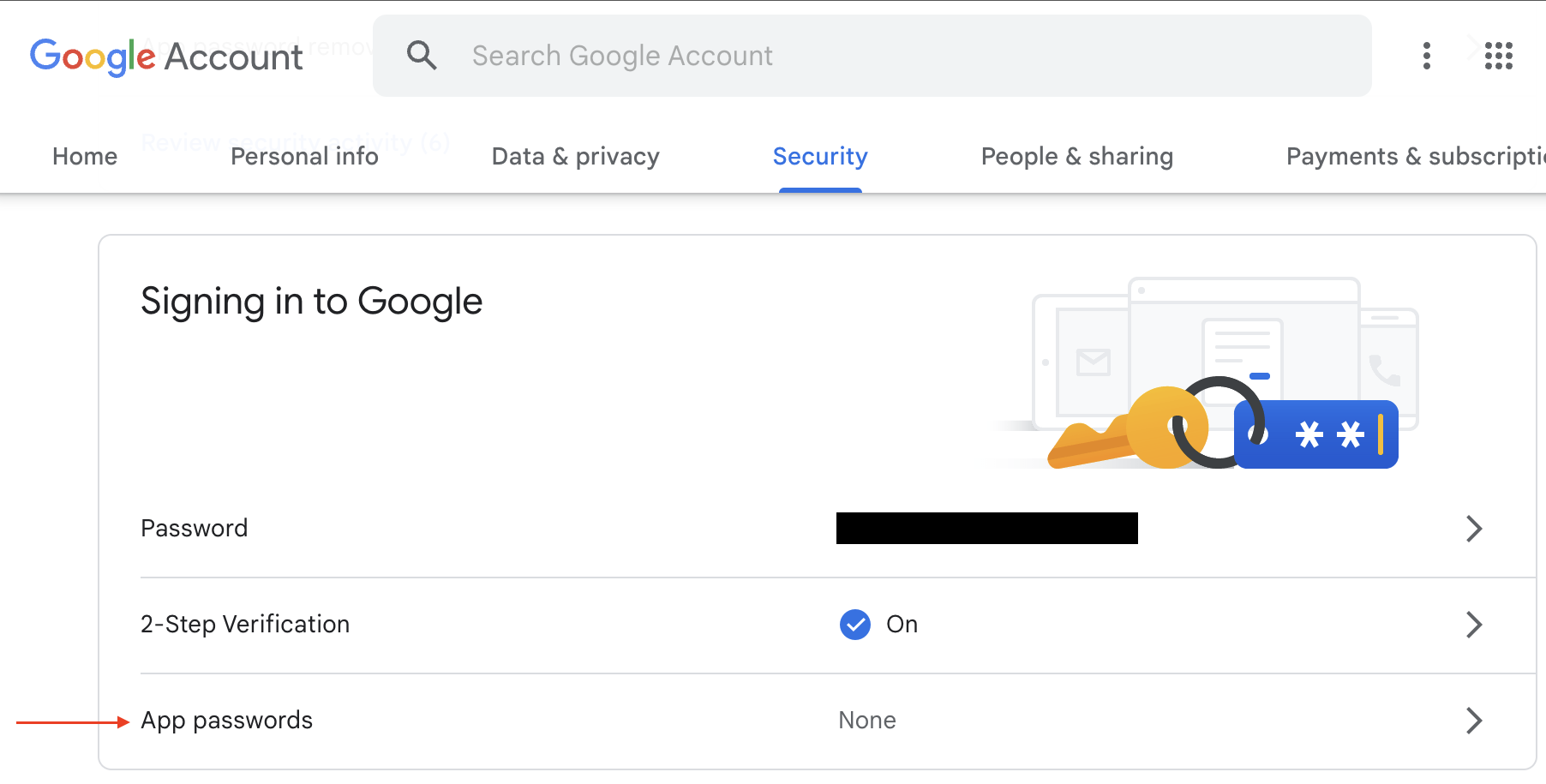
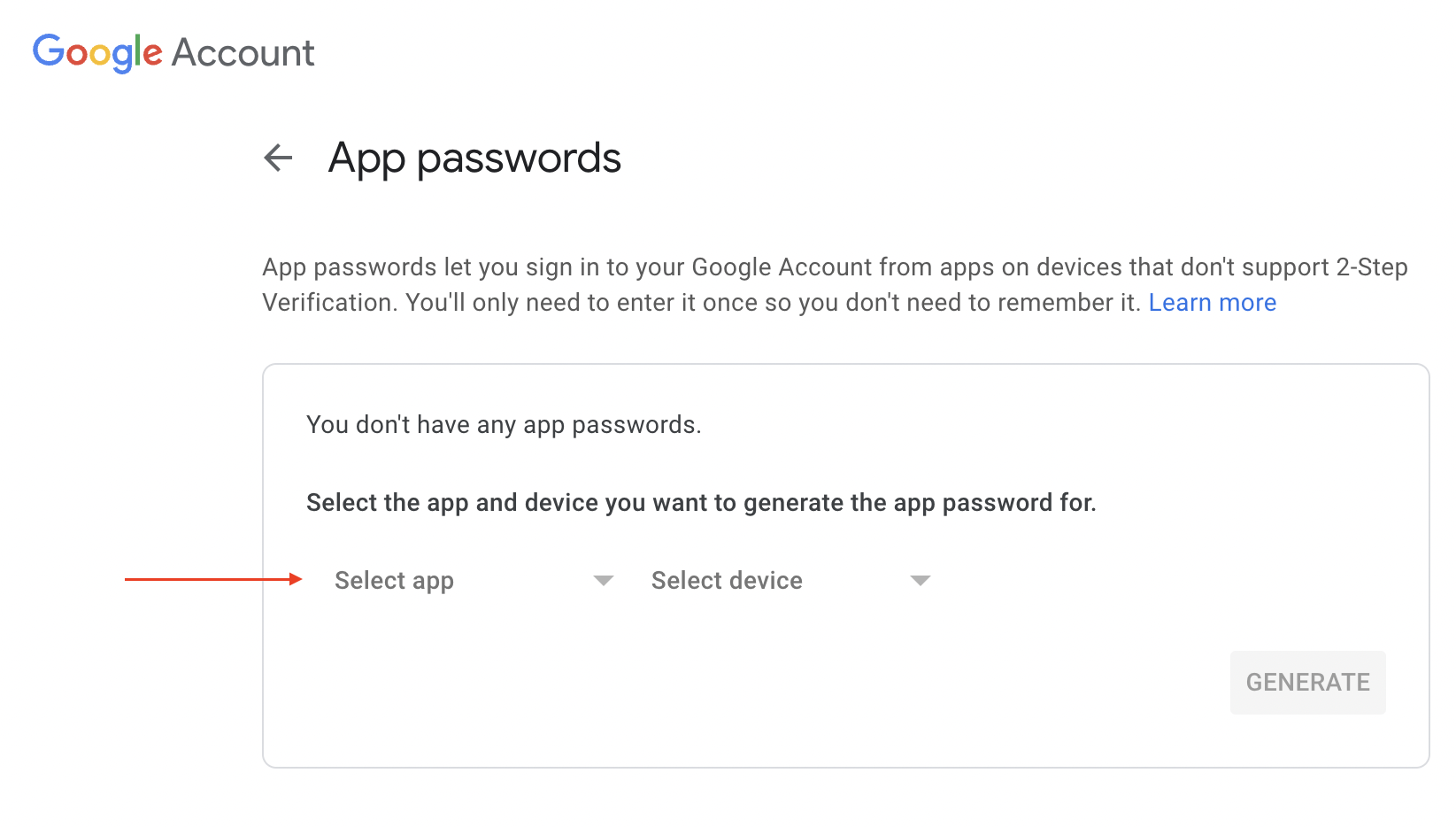
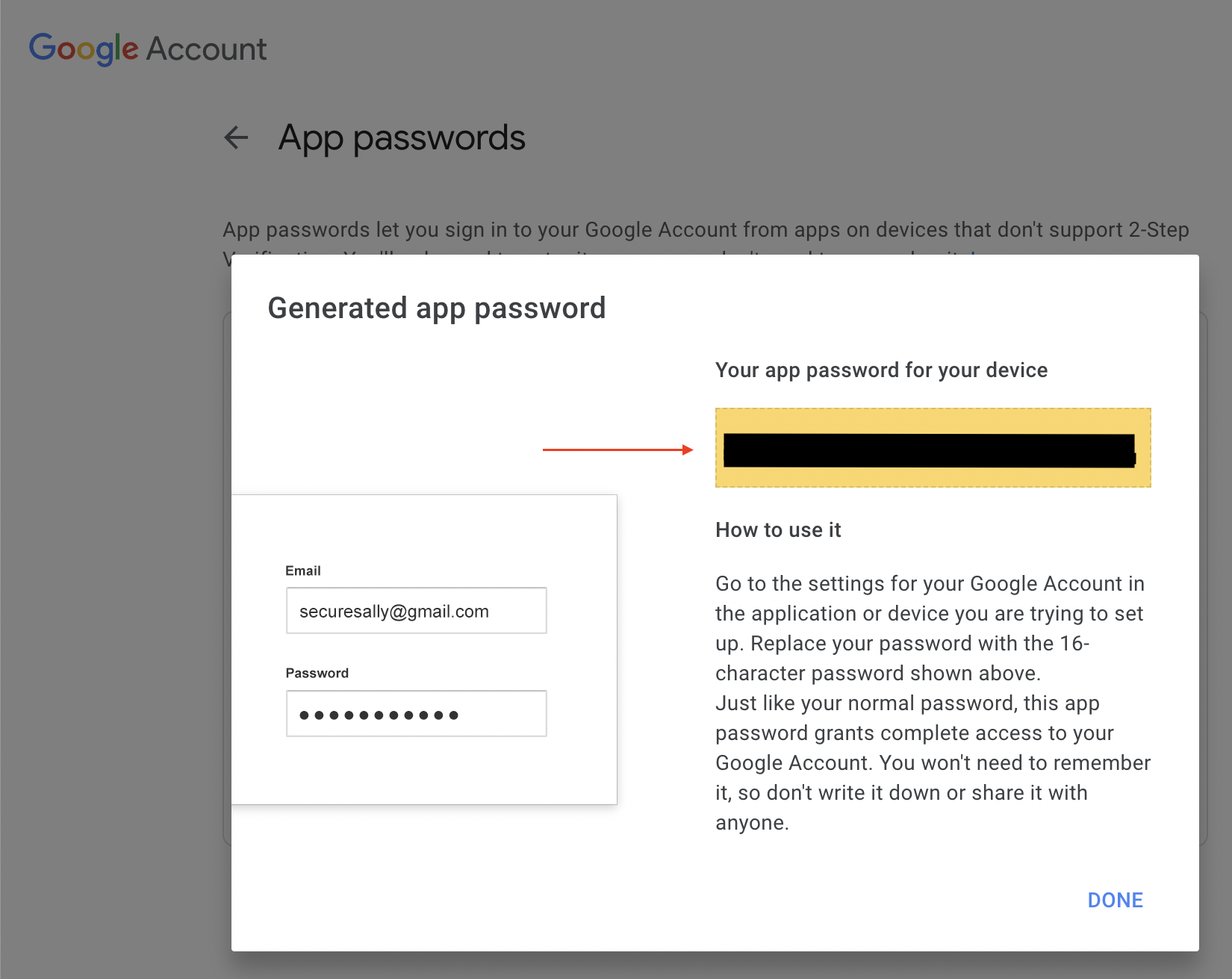
For Google accounts, enable 2-Step Verification and create a Google App Password for FileWave. Use that generated app password in FileWave mail preferences instead of the user's normal Google password.
How
In the Google account, open the security settings, confirm that 2-Step Verification is enabled, then create an app password. Google's current instructions are here: Sign in with app passwords. Copy the generated password into FileWave email preferences and keep it stored securely with your other service-account credentials.
Send another test email from FileWave to confirm that the Google account and app password are accepted.

Related Links
- Generating scheduled reports
- Sending Scheduled Reports to More Than One Address
- Configuring FileWave Server Mail Preferences
Change the FileWave Anywhere Idle Timeout
What
FileWave Anywhere logs an inactive administrator out after 25 minutes by default. Self-managed customers can change that server-wide timeout in /usr/local/filewave/django/filewave/settings_custom.py.
When/Why
Increase the value when normal administrative work is being interrupted by automatic logouts, or reduce it when your security policy requires a shorter unattended session.
A longer timeout leaves unattended sessions active for longer. Match the value to your organization's session-security policy and continue to sign out when using a shared computer.
How
On a self-managed FileWave Server, edit /usr/local/filewave/django/filewave/settings_custom.py.
Hosted FileWave: Hosted customers do not have direct server access. Contact FileWave Technical Support to request this change on a Hosted FileWave Server.
For a self-managed server:
- Open
/usr/local/filewave/django/filewave/settings_custom.pyin a text editor. - Add or modify the following line:
UI_INACTIVITY_TIMEOUT = 25 * 60 # seconds the UI can stay inactive before auto logoff - Replace the
25in this line with the number of minutes you want for your idle timeout. For instance, if you want the timeout to be 60 minutes, the line should read:UI_INACTIVITY_TIMEOUT = 60 * 60. - Save and close the file.
- To activate the change, you need to restart the server. Do this by running the following command in the terminal:
fwcontrol server restart.
After the FileWave Server restarts, sign in to FileWave Anywhere and confirm that the new inactivity timeout takes effect.
Could not create the /Volumes/XYZ directory error when opening client info
Problem
Client Info may show a "Could not create the directory" error when its last Export Current Tab location no longer exists. This commonly happens after exporting to an external drive and then disconnecting that drive. The path in the message will usually be different from the example below.

Solution
Select a new export location to clear the error:
- Open Client Info for a macOS or Windows client.
- Select "Export Current Tab" on the left side of the Client Info window.
- Choose a local folder on the computer, such as your desktop.
- Select "Save".

- Close Client Info and open it again. The directory error should no longer appear.
Dashboard Warning levels and Descriptions
Problem
The table below provides an overview of the information that is returned by the Dashboard in the FileWave Admin console.
Environment
FileWave Central Console
Resolution
| Item | Description |
|---|---|
| Free Disk Space | Free disk space on fwxserver (db location). Warning if < 50GB or < 20% Total space, Error if < 25GB or < 10% total space. |
| CPU Load | CPU Load on fwxserver. Always OK. |
| Google Cloud Messaging | Returns Google Cloud Messaging status. Cached 1 minute. Error if configuration is not correct. |
| Total Disk Space | Total disk space on fwxserver (db location). |
| Client distribution | Returns client OS distribution (OSX, Windows, iOS, Android...). Cached 1 minute. |
| Free RAM | Free RAM on fwxserver. Always OK as some systems like OSX will free memory on demand only. |
| APN for MDM | Returns APN certificate status for MDM. Cached 1 minute. Warning if certificate expires in less than 30 days. Error if certificate is missing, expired, or Root certificate is missing. |
| VPP Tokens | Returns VPP tokens status. Cached 5 minutes. Warning if token expires in less than 30 days. Error if token is expired or incorrect. |
| FileWave Client/Mobile License | Returns License Status. Cached 1 minute. If you have more than 50 licenses: warning if available count goes below 10, error when 0. If you have less than 50 licenses: warning if available count goes below 4, error when 0. |
| Entreprise app file (ipa) | Check ipa status. Cached 1 hour. Warning if IPA file is local but does not have expected size. Error is IPA file is not on disk for local IPA, or not reachable for external IPAs. |
| DEP Accounts | Returns DEP Accounts status. Cached 5 minutes. Warning if access token expires in less than 30 days. Error if token is expired or incorrect. |
| Email sent | Returns Email sent status for the 7 past days. Cached 5 minutes. Warning if mails are still in the queue (not sent) Error if mails could not be sent (SMTP error). Note that we can't check if the POP/IMAP server rejected the mail. returns the following dict : 'success': , 'pending': , 'error': : , ... |
| Email settings | Returns email settings status. Cached 5 minutes. Error if can't connect to SMTP server. |
| LDAP Extraction status | LDAP Extraction status. Warning if one or more servers have not been contacted yet, Error if there was an error during extraction. |
| Total RAM | Total RAM on fwxserver. |
| Smart Group Count | Number of evaluated SmartGroups. Warning if last report occurred more than 1h ago, error if 2h ago. |
Related Content
Change the Language in FileWave Central or Anywhere (macOS)
What
FileWave Central and FileWave Anywhere can use the system or browser language, or you can select another supported language.
When/Why
Use this when an administrator needs FileWave in a different language from the Mac or browser, such as running Central in English on a Mac configured for German.
How
FileWave 16.2.0 and later
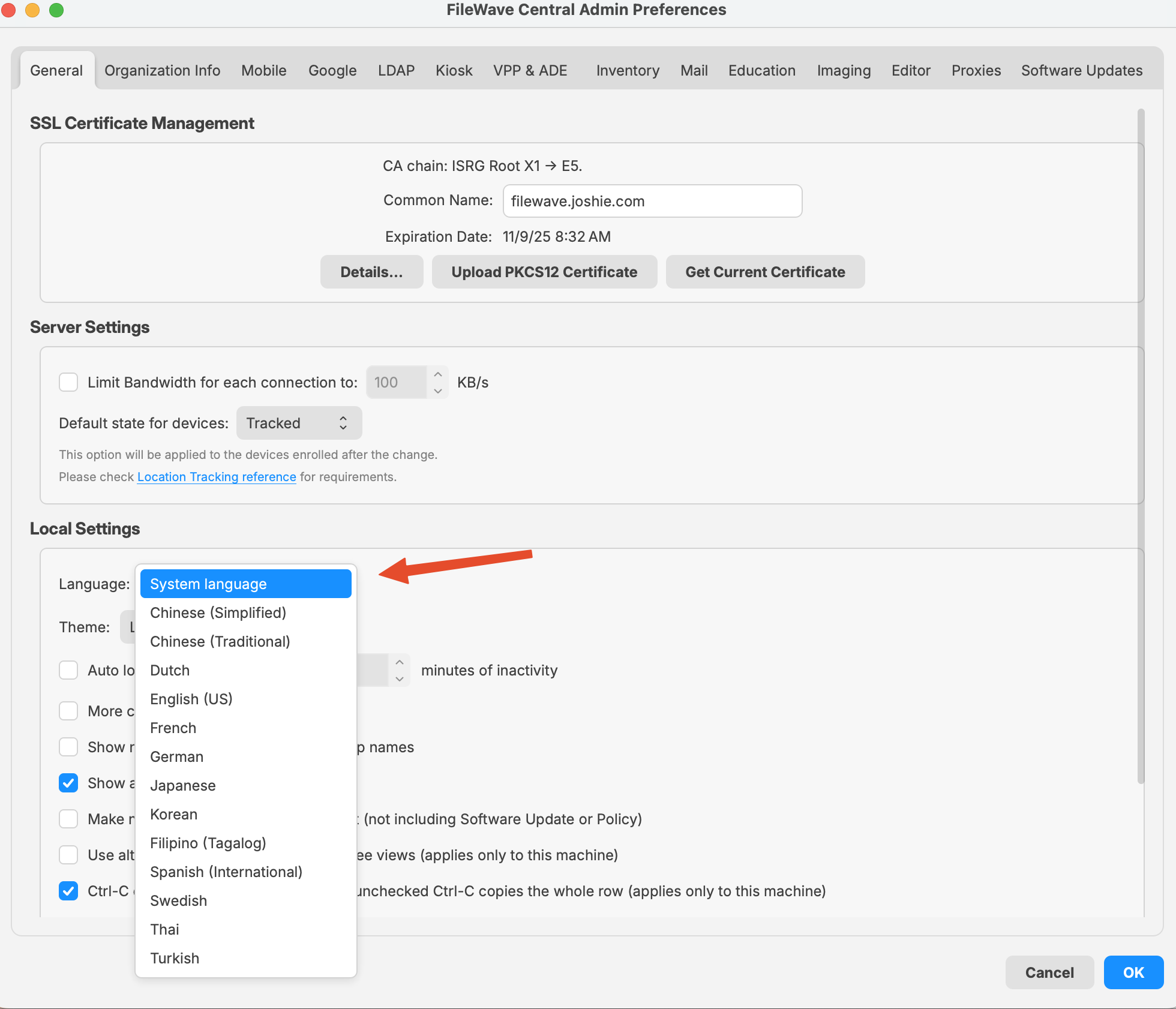
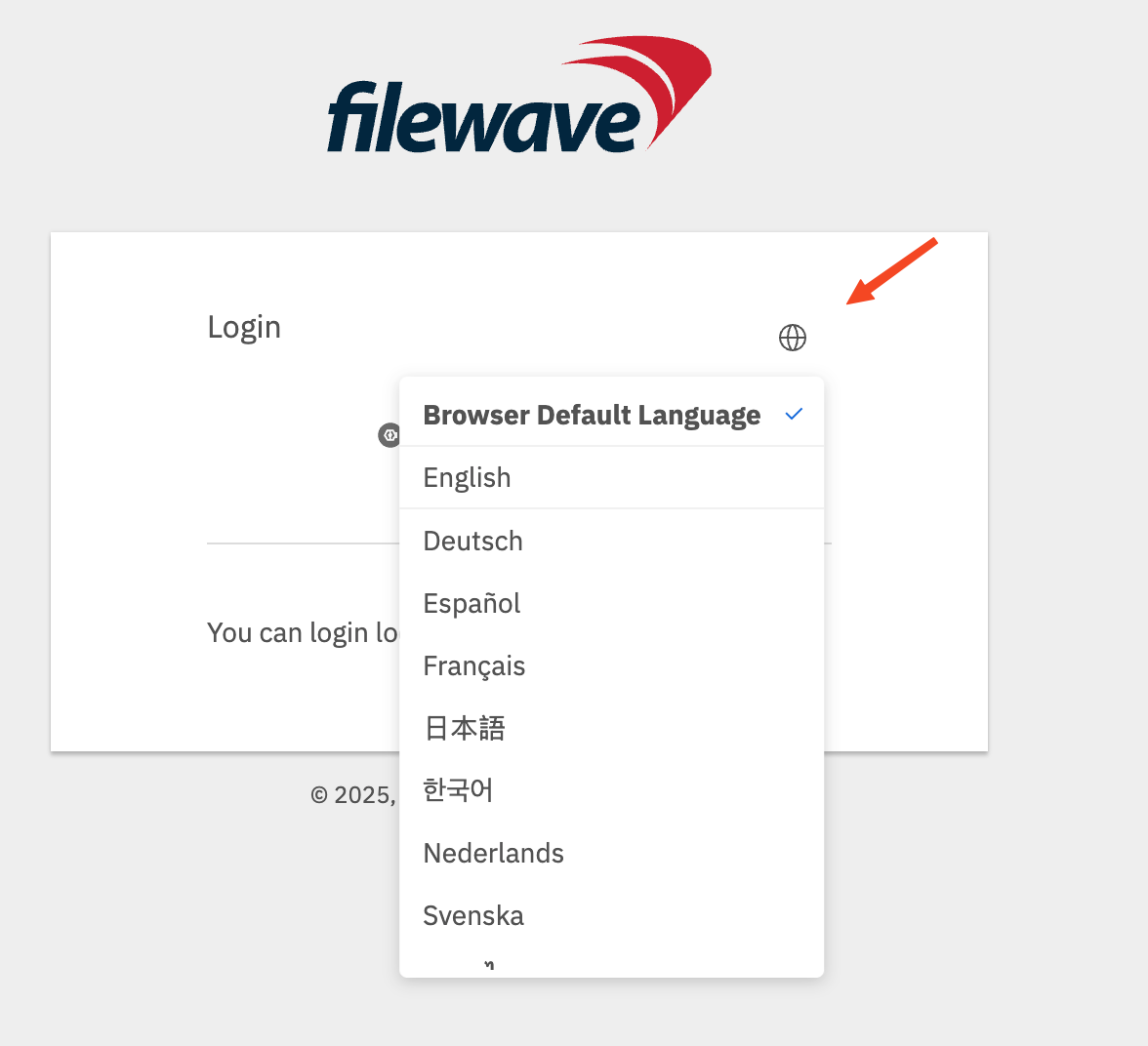
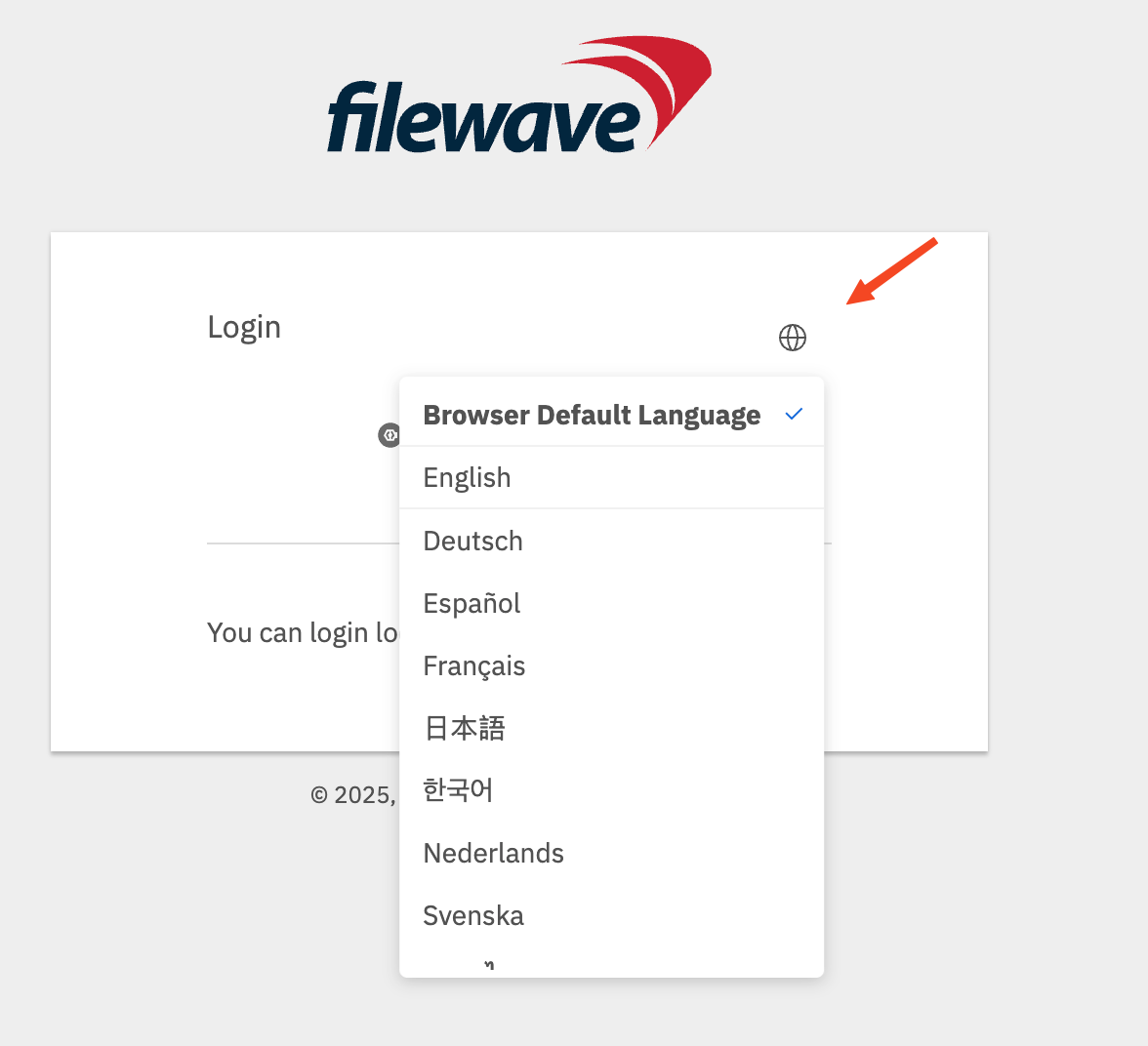
In FileWave Central, open Admin Preferences > General > Local Settings and choose a language. In FileWave Anywhere, select the globe on the login page, then choose Browser Default Language or a listed language. The Central control is also available on Windows.
 |
 |
FileWave 16.1.x and earlier on macOS
For FileWave versions earlier than 16.2.0, launch Central with the command below to override its language. FileWave Anywhere uses the browser language.
This example starts Central in US English. Replace en_US with another locale code from the table.
/Applications/FileWave/FileWave\ Admin.app/Contents/MacOS/FileWave\ Admin --lang en_US &|
Language |
Locale Code |
Notes |
|---|---|---|
|
English (US) |
en_US |
Use for American English. |
|
German |
de_DE |
Standard locale for German in Germany. |
|
French |
fr_FR |
Standard locale for French in France. |
|
Korean |
ko_KR |
Korean for South Korea. |
|
Japanese |
ja_JP |
Japanese for Japan. |
|
Chinese (Simplified) |
zh_CN |
For Mainland China. |
|
Chinese (Traditional) |
zh_TW |
For Taiwan. |
Opening FileWave Central / Anywhere in a Specific Language (Windows)
What
When you install FileWave Admin, it will automatically use the language you have set on your workstation (if not available, it will default to English). If you want to change FileWave to run in another language, you have to launch Central/Admin with an argument that specifies the desired language.
When/Why
Sometimes even though your computer is running in a language like German you may wish to run Central in English.
How
Windows (FW 16.2.0 and higher)
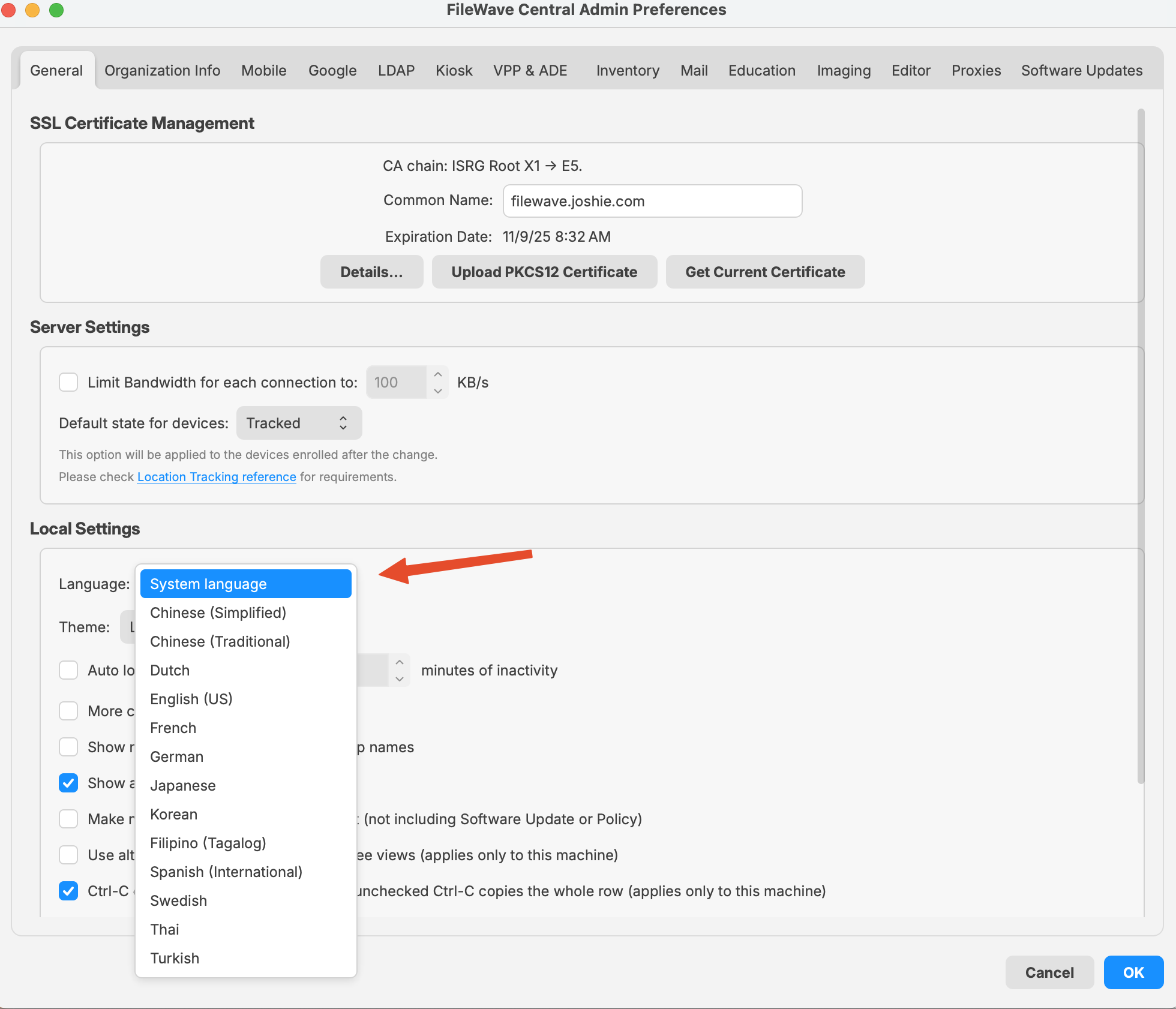
You can now pick a language other than the system on in both Central and Anywhere as shown below in the images. Although the image of Central is from macOS, it looks the same on Windows.
|
|
|
Windows (FW 15.4.2 and lower)
If you want to open the FileWave Central/Admin Application in a different Language, you would use the following command to launch. In this article, we’re going to automate the process so it opens with your preferred language every time using a Desktop Shortcut.
"C:\Program Files (x86)\FileWave\FileWaveAdmin.exe" --lang en_USWindows (FW v15.5.0 or higher until 16.2.0)
"C:\Program Files\FileWave\admin\FileWaveAdmin.exe" --lang en_USAvailable Language Options:
|
Language |
Locale Code |
Notes |
|---|---|---|
|
English (US) |
en_US |
Use for American English. |
|
German |
de_DE |
Standard locale for German in Germany. |
|
French |
fr_FR |
Standard locale for French in France. |
|
Korean |
ko_KR |
Korean for South Korea. |
|
Japanese |
ja_JP |
Japanese for Japan. |
|
Chinese (Simplified) |
zh_CN |
For Mainland China. |
|
Chinese (Traditional) |
zh_TW |
For Taiwan. |
What is the difference between Revert and Restore?
Problem
You need to undo FileWave model changes, but Revert to Last Model and fwcontrol server restore do different jobs.
Use revert when you want to discard changes that have not been published yet. Use restore when you need to make an older published model current again.
In FileWave Central, revert is available from Server > Revert to Last Model.

Restore is run from the command line:
sudo fwcontrol server restore [version]When you work in FileWave Central, your changes are made in the next model. They do not affect managed devices until you update the model.
Resolution
Revert
Revert discards unpublished model changes and returns FileWave Central to the currently deployed model.
For example, the deployed model is 10. You open FileWave Central and make changes that would become model 11 when published.
- You create a Fileset called My Fileset A.
- You delete a Fileset called Old Fileset B.
- You move the association for Fileset C from Group 1 to Group 2.
If you choose Revert to Last Model before updating the model, FileWave discards those unpublished changes and goes back to model 10.
If you already updated the model to 11, revert no longer helps because model 11 is now the current model.
Restore
Restore makes a previous published model current again.
Using the same example, if you published model 11 and then realized model 10 was the last good model, restore model 10:
sudo fwcontrol server restore 10The server keeps the last 20 models.
After the command finishes, quit FileWave Central and open it again. Model 10 is now restored. In this example:
- My Fileset A no longer appears in the Filesets view, although its uploaded data may still exist on the server.
- Old Fileset B appears again in the Filesets view, but its payload data is missing from the server.
- The association for Fileset C points back to Group 1.
Restoring a previous model does not restore deleted Fileset payload data. Use your backups for that.
Additional Information
If you need to recover from a major model mistake, contact FileWave Support before making more changes.