# OS Software Updates - Obsolete Filesets Cleanup

## What

In FileWave you can patch your Apple and Windows devices very easily but over time you will accumulate many Filesets related to OS patching. This feature that was added to FileWave 16.2.0 will allow you to perform a quick and easy cleanup.

## When/Why

While the updates don't occupy much space at all on your FileWave Server, you may not want to have hundreds or thousands of OS update Filesets in your Filesets view. In the past you would have to manually figure out what patches were old enough to want to purge. Now you can simply purge updates that have not been requested in a set amount of time.

## How

First it is important that your account has permissions to perform these actions. In Assistants -&gt; Manage Administrators as shown in the below image notice if you have Manage Updates enabled. If you'll be using Automations then ensure you have that right as well.

[![image.png](https://kb.filewave.com/uploads/images/gallery/2025-10/scaled-1680-/zyECvAtE8yZDYxuV-image.png)](https://kb.filewave.com/uploads/images/gallery/2025-10/zyECvAtE8yZDYxuV-image.png)

The next thing is to determine what you consider to be old enough to purge. In Preferences within FileWave Central you can pick 30, 60, 180, or 365 days. For most people 60 or 180 days is the best value. It gives an update enough time that it hasn't been requested. You'll want to go in to Preferences and pick a value.

[![image.png](https://kb.filewave.com/uploads/images/gallery/2025-09/scaled-1680-/lPlMZAyJkrS2MNoO-image.png)](https://kb.filewave.com/uploads/images/gallery/2025-09/lPlMZAyJkrS2MNoO-image.png)

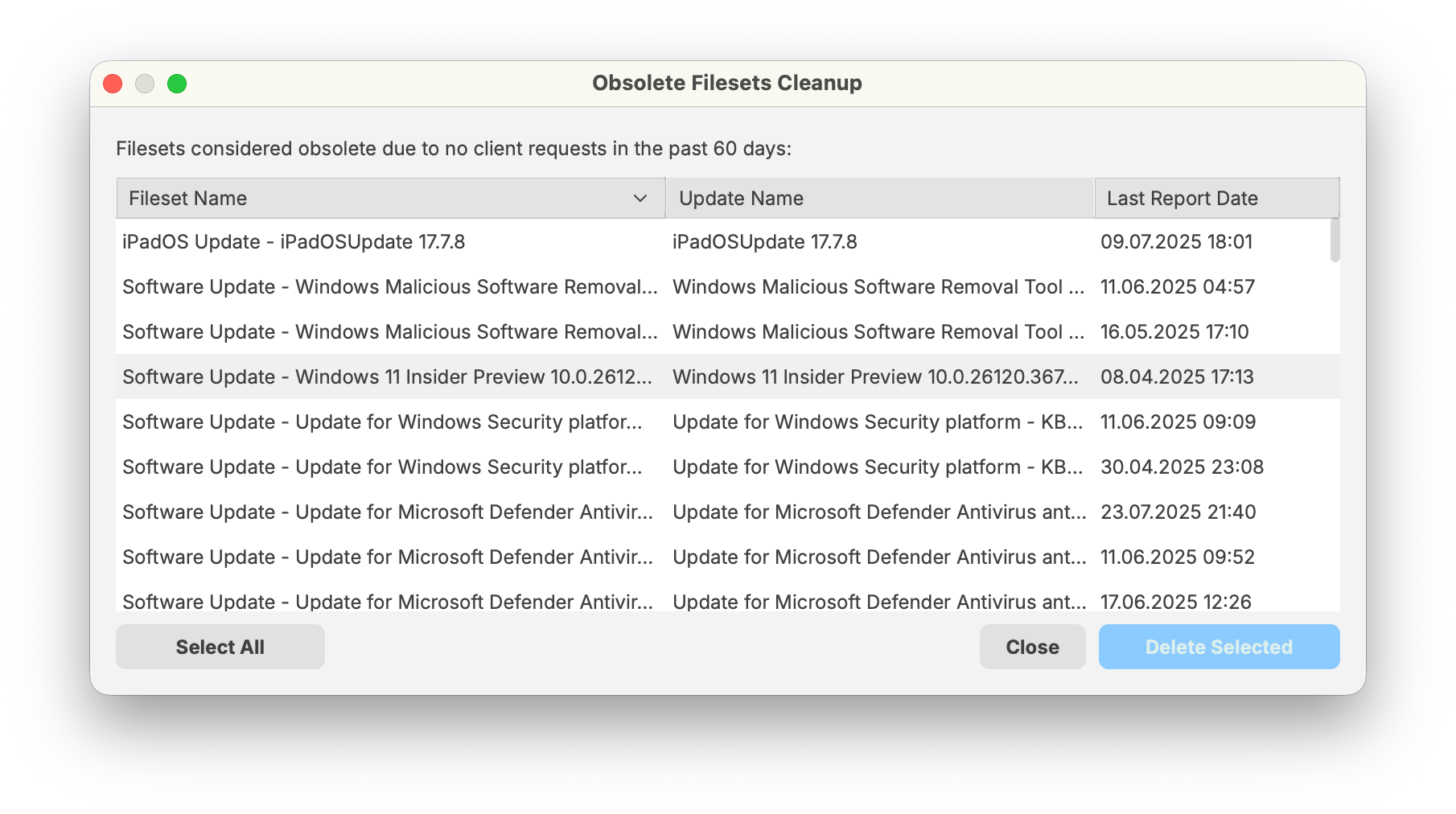
In the Software Updates section of Central, select **Obsolete Filesets Cleanup** in the toolbar. Review the candidates in the dialog. Use **Select All** only when every displayed candidate has been reviewed; otherwise select individual Filesets before choosing **Delete Selected**.

<p class="callout info">Note that this will only purge OS updates, but will purge both Apple as well as Windows OS patches. If a device later needs an update that was purged it will appear as New in the Software Updates section and you can make a Fileset for it again. For this reason it might be too aggressive to pick 30 days since you might find that updates are often purged and then need to be created again.</p>

[![image.png](https://kb.filewave.com/uploads/images/gallery/2025-09/scaled-1680-/dyWZqGHvCDpVG6eQ-image.png)](https://kb.filewave.com/uploads/images/gallery/2025-09/dyWZqGHvCDpVG6eQ-image.png)

### Review obsolete Filesets in FileWave 16.4

FileWave 16.4 adds better filtering and direct Fileset navigation from Software Update views. Use these tools to verify cleanup candidates before deleting them:

1. Filter the Software Updates view to narrow the platform, request state, Fileset status, or other relevant update criteria.
2. Locate the related Fileset or Fileset Group directly from the update view.
3. Check whether a Software Update Policy Fileset already covers the update and whether devices still request it.
4. Open **Obsolete Filesets Cleanup** and compare the candidates with the update view.
5. Select and delete only the Filesets that are genuinely outside your retention and deployment requirements.

<p class="callout warning">**Do not treat “obsolete” as “never needed again.”** If a managed device later requests a deleted update, it can return as a new Software Update and require a new Fileset.</p>

Cleanup remains a deliberate administrator action. Review the filtered candidates before using **Select All** or **Delete Selected**.

## Related Content

- [OS Software Updates - Automation Rules](https://kb.filewave.com/books/filewave-central-anywhere/page/os-software-updates-automation-rules "OS Software Updates - Automation Rules")
- [OS Software Updates](https://kb.filewave.com/books/evaluation-guide/page/os-software-updates "OS Software Updates")