Note: The installer instructions for the Linux server and Booster are also located on the same page of the web site. Server installation instructions are covered in [FileWave Server Installation](https://kb.filewave.com/books/filewave-server/chapter/filewave-server-installation-upgrade "FileWave Server Installation"). There is no Linux client.
## Installing the FileWave client Client installers for both macOS and Windows use the same general dialogs. You will need to read and accept the license agreement, and you will be presented with a dialog window asking you for specific information to connect your client. Note: on some Windows computers, the FileWave Client Installer Assistant window is positioned directly behind the installer window, which you need to move to get to the Installer Assistant to complete the installation. 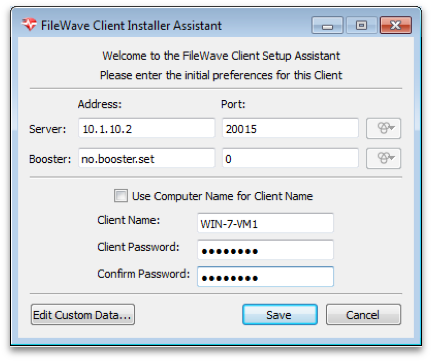 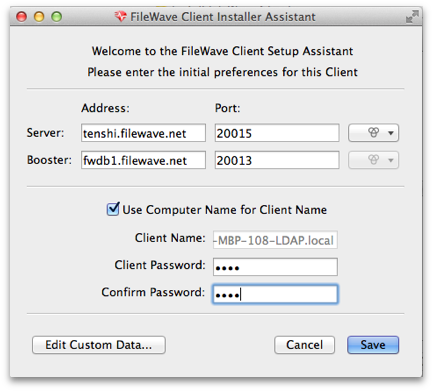 ## Installation Settings - ***Server address / port*** - Enter the IP address or FQDN of your FileWave server. Enter the TCP port number for the client to communicate with the server (default is 20015) - ***Booster address / port*** - If your client is going to get its Filesets from a Booster, enter the IP address or FQDN of the FileWave Booster. Enter the TCP port number for the client to communicate with the Booster (20013) Note: More on working with FileWave Boosters in [Boosters](https://kb.filewave.com/books/boosters "Boosters"). - ***Use Computer Name for Client Name*** - this box allows you to use the device's computer name as its FileWave client name. - ***Client Name*** - enter a valid name based on any criteria you have for your deployment. It is recommended that you do not use special characters in the client name. Dashes, underscores, and slashes are ok. - ***Client Password / Confirm****…* - enter a password used by FileWave administrative connections to the client. This does not need to be a local administrator password for that device. **Note: You must provide a password in order for the Remote Control/VNC relay to function.** ## Edit Custom Data… 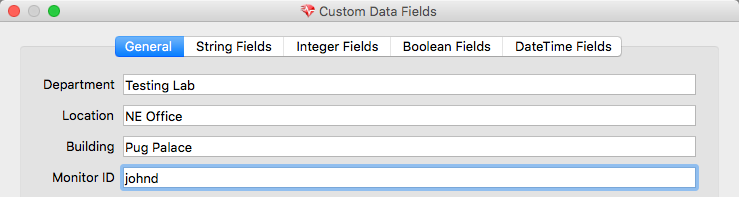 The custom fields consist of a series of optional Inventory data fields that can be used to provide more detailed information on any Client. This information cannot be set in the automated installer, and must be applied manually. The information provided will be displayed as part of **Client Info** in the **Clients** pane of FileWave Central by right-clicking any client and selecting **Client Info…**, and it can also appear in **Inventory Reports (formerly Queries)**. 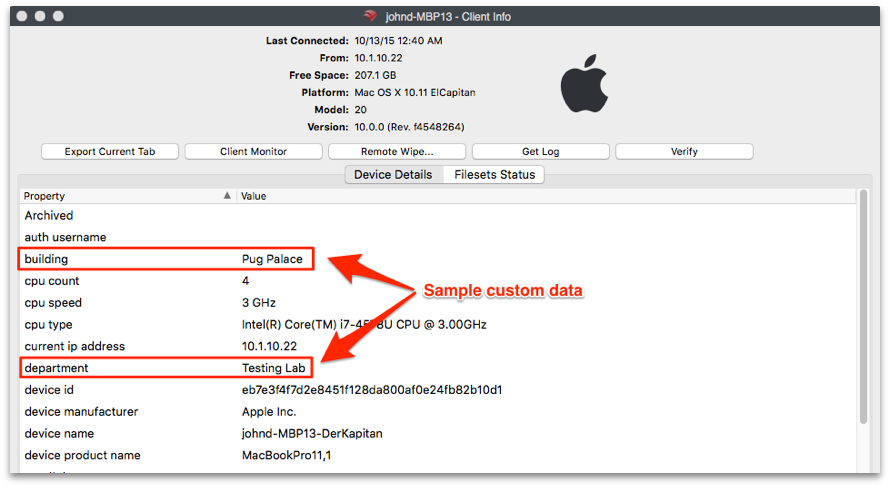 ## Automating installation with a custom client installer Manual installation works for small deployments. For larger rollouts, build a customized client installer with the connection settings already filled in: For macOS: [https://custom.filewave.com/py/custom\_client\_mac.py](https://custom.filewave.com/py/custom_client_mac.py) For Windows: [https://custom.filewave.com/py/custom\_client\_win.py](https://custom.filewave.com/py/custom_client_win.py)The customized macOS client is required for MDM/ADE support and must be uploaded in FileWave Central under Mobile preferences.
The form is shown on the next page. 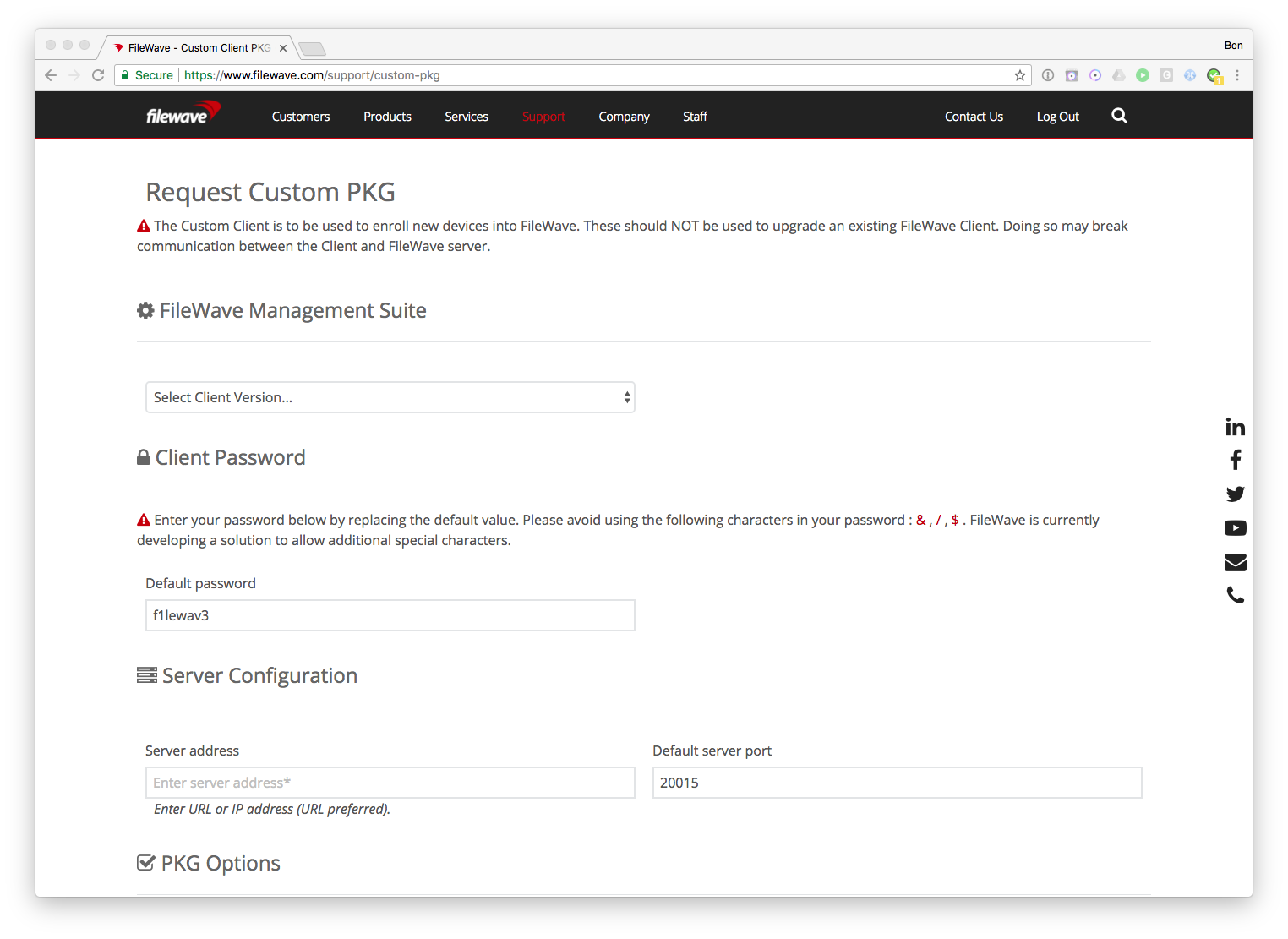 Many fields are required.Note: The default port setting is 20015. However, SSL is now required, and the system will automatically use port 20017 instead when 20015 is entered. **Do not manually set the port to 20017**. Always enter 20015, and the system will handle the SSL port change for you.
## Advanced Options 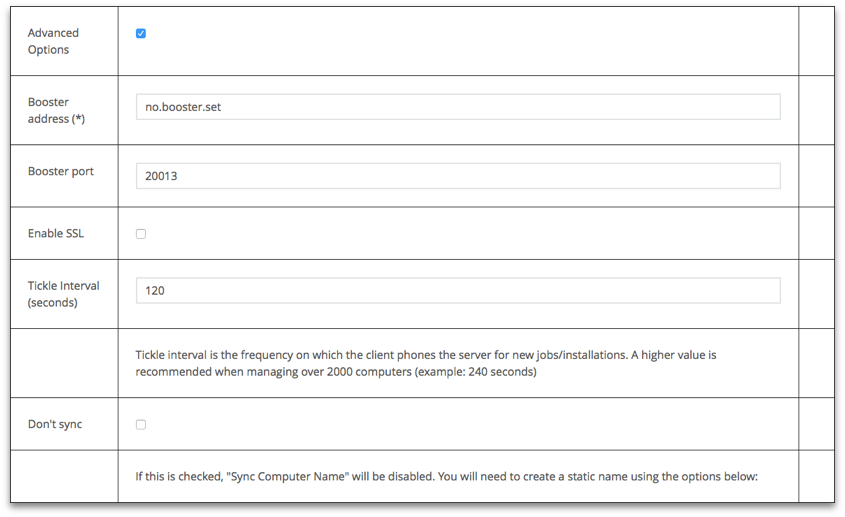 The custom installer does not ask the user for any device specific information, and can be distributed through several means: - Apple's Automated Device Enrollment (ADE) uses the custom installer to enroll institutionally purchased devices automatically with your FileWave Server. - Add the custom installer to an image set when doing direct or network mass imaging. - Use a remote installation tool, such as Apple Remote Desktop, to distribute the custom installer to large numbers of existing devices. - Use a 3rd party imaging tool, such as DeployStudio, to build a custom client set.Note: FileWave provides "recipes" of possible deployment workflows for the custom installer in the KB.
# Enrolling Computer Clients into FileWave Click the **New Client** toolbar icon to open the **Create New Client** window. Click **Desktop clients** to open **New Client From Server**, where computer clients appear after the FileWave Client on the device checks in with the FileWave Server specified in the client settings. Those settings are either entered manually during client installation or included when a custom client installer is built from the FileWave Support webpage. 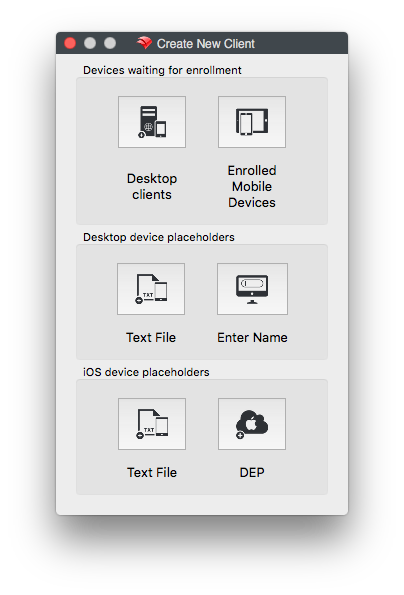For Text File see [Importing Computer Clients from a File](https://kb.filewave.com/books/filewave-client/page/importing-computer-clients-from-a-file "Importing Computer Clients from a File") |
| Column Name | Notes | |
| Name | The Client Name the computer is attempting to connect with (see Sync Computer Name) | |
| Address | The IP address the client is connecting from. This may be the device's internal address or a NAT address if the computer is connecting from the internet. | |
| Platform | The OS of the client; macOS or Windows | |
| Last Connect | The last time the FileWave Client attempted to check in with the server. The default check-in interval is every 2 minutes. | |
| Status | You will see one of three options:
- **New Client** - A new device with a valid certificate.
- **Invalid Certificate** - The device has no certificate, has a pre-13.1 client certificate, or has an invalid or damaged certificate.
- **Valid Certificate but a new Enrollment happened** - The certificate is valid, but the client's identity has changed.
All three status states can be approved by selecting and adding the client.
|
| **Code:** |
| set serverName=no.server.set set serverAddress="no.server.address" set clientPassword="filewave" set booster1="no.booster.set" set booster1Port="0" ::: set clientName="" |
| **Code:** |
| set serverAddress="[fwserver.filewave.us](http://fwserver.filewave.us)" set clientPassword="jelly" set booster1IP="[fwbooster.filewave.us](http://fwbooster.filewave.us)" set booster1Port="20013" ::: set clientName="" |
| ##### [FWClientPrefsWriter.zip](https://kb.filewave.com/attachments/109) | 668 B |
| Hosts | Ports | Protocol | OS | Description | Supports proxies |
| 17.248.128.0/18 | 443 | TCP | macOS only | Ticket delivery | — |
| 17.250.64.0/18 | 443 | TCP | macOS only | Ticket delivery | — |
| 17.248.192.0/19 | 443 | TCP | macOS only | Ticket delivery | — |
**Custom PKG Version 13.2.2** Version 13.2.2 Custom PKGs created prior to 4th March 2020 will not be notarised and will require re-creating if notarisation is required
Starting in FileWave 16.3, current FileWave binaries and applications are signed as **FileWave (USA), Inc.** (`UWMR88SA8G`) instead of **FileWave (Europe) Gmbh** (`83S2TRZ3CS`). The `spctl` examples below use an older FileWave Client 13.2.2 package, so they still show the previous signing identity. On current 16.3.x builds, expect the signer name and team identifier to reflect the newer FileWave (USA), Inc. identity.
## Confirmation The PKG may be tested for notarisation. On macOS 10.15.x you may observe the following: Before notarisation has been completed by Apple: ##### **Unnotarised** ```bash % spctl -a -vvv -t install FileWaveClient_13.2.2-fw.filewave.com-20-Feb-2020.pkg FileWaveClient_13.2.2-fw.filewave.com-20-Feb-2020.pkg: rejected source=Unnotarized Developer ID origin=Developer ID Installer: FileWave (Europe) Gmbh (83S2TRZ3CS) ``` After notarisation has been completed by Apple: ##### **Notarised** ```bash % spctl -a -vvv -t install FileWaveClient_13.2.2-fw.filewave.com-20-Feb-2020.pkg FileWaveClient_13.2.2-fw.filewave.com-20-Feb-2020.pkg: accepted source=Notarized Developer ID origin=Developer ID Installer: FileWave (Europe) Gmbh (83S2TRZ3CS) ``` # Apple MDM Enrolment Methods ## Description| Enrolling Apple devices involves the installation of an MDM Enrolment Profile. Installation may be initiated by either the user or the device. This same distinction also applies to the linking of the enrolment. | [](https://kb.filewave.com/uploads/images/gallery/2024-09/5OqlXf681tYfdH5E-image.png) |
Although definitions exist for all enrolment methods above, as of iOS18 and macOS15 Apple will no longer support profile-based user enrolment. This impacts the first described BYOD enrolment method, meaning BYOD with personal devices must action account-driven user enrolment.
### Account-Driven User Enrolment Although these are personal devices, this enrolment method requires the user to add credentials into Settings which must be a Managed Apple ID. Federated Authentication links a supported IdP with Apple, matching Managed Apples IDs with IdP usernames and passwords. [Federated Authentication](https://support.apple.com/en-gb/guide/apple-business-manager/axmb19317543/web)Initial support for Account-driven user enrolment is currently targeted for FileWave 15.5. Confirmation of inclusion should be available closer to release.
## Related Content - [Account-Driven User Enrolment for i(Pad)OS](https://kb.filewave.com/books/ios-ipados/page/account-driven-user-enrollment-for-iosipados-byod-devices-v150) - [Apple Automated Device Enrolment](https://kb.filewave.com/books/apple-school-business-manager/chapter/automated-device-enrollment-ade) - [Apple Manual Enrolment](https://kb.filewave.com/books/evaluation-guide/page/apple-manual-enrollment) # User Approved MDM Enrollment (macOS) ## Description Apple has introduced a new concept with macOS High Sierra, User Approved MDM Enrolment. This will only affect the management of settings that Apple deemed to be considered ‘security-sensitive. All other non-sensitive settings will continue to work, as previously, without User Approved Enrolment. This does not affect devices enrolled through DEP. There are two aspects to this. - User Approved MDM Enrolment - Configuration Profile payloads that will require User Approved MDM Enrolment. The first payload Apple has announced that will use these features is the Kernel Extensions payload. [**https://support.apple.com/en-us/HT208019**](https://support.apple.com/en-us/HT208019) Unlike other payloads, any ‘security-sensitive’ payload will be deliverable only by MDM and will rely on the MDM enrolment being User Approved. ## User Approved MDM Enrolment Currently, User Approved MDM Enrolment relies on the device being enrolled; the method of enrolment does not matter yet but will do in future releases. At this point, the enrolment must be either: - DEP enrolment (user approval not required) - User installing the enrolment profile manually - User accepts the enrolment profile through System Preferences > Profiles: [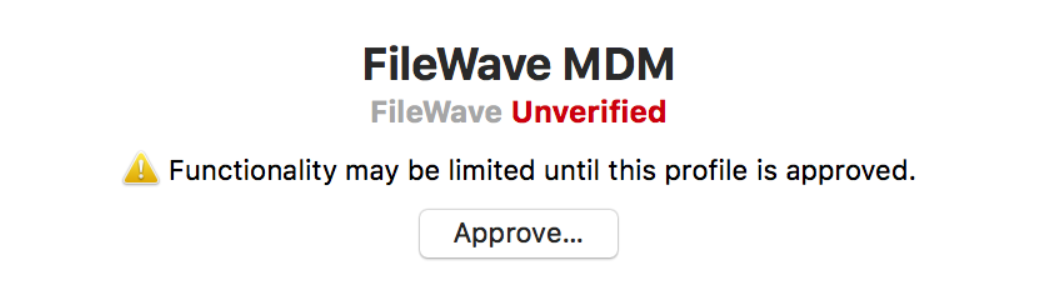](https://kb.filewave.com/uploads/images/gallery/2023-07/FWKkqX97VsRxoFhs-image.png) You will notice this approval box in 10.13.2, if the method of enrolment was hidden from the user, e.g. scripted. Devices enrolled on earlier versions and then upgraded will automatically be MDM enrolled as User Approved. ## Kernel Extensions Apple introduced a halfway house with the release of 10.13. Apple has now released version 10.13.4 which has full implementation of this feature. #### How does this affect kernel extensions? Attempts to install a Kernel Extension with a device that is not enrolled into MDM will be greeted with the following message: [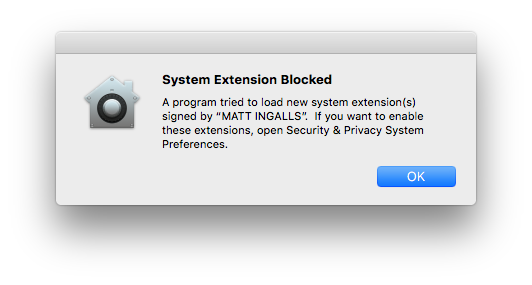](https://kb.filewave.com/uploads/images/gallery/2023-07/4Csm3CC95e4jf0zq-image.png) To approve the Kernel Extension will either require MDM enrolment or the user allowing the blocked Extension to run, via System Preferences > Security & Privacy > General: [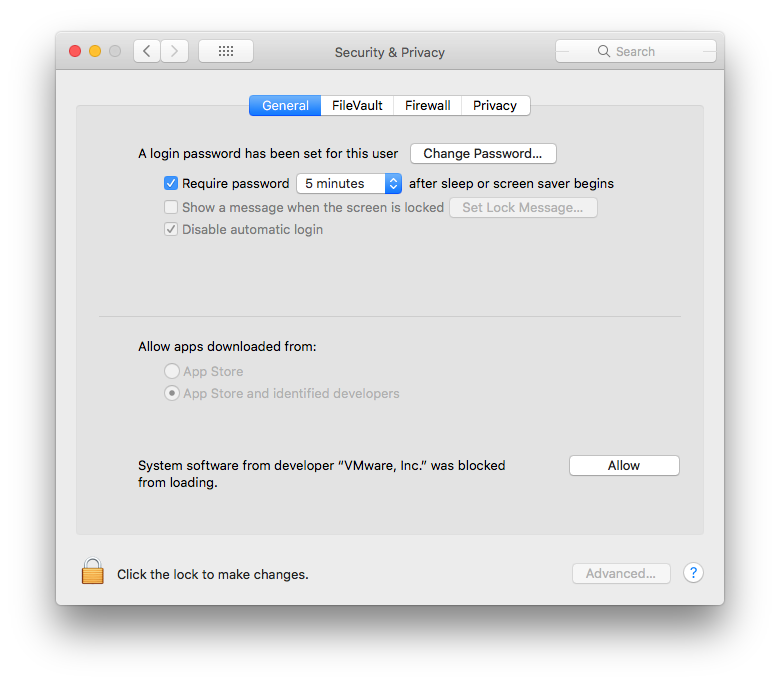](https://kb.filewave.com/uploads/images/gallery/2023-07/0vcxbRw70vqDSXYZ-image.png) #### **What happens if I already have kernel extensions installed?** Any extension installed prior to upgrading to 10.13 High Sierra will continue to work, only newly installed kernel extensions will be affected. Once a particular kernel extension is approved, subsequent upgrades to that kernel extension will automatically be user-approved. #### **Managing Kernel Extensions through MDM** Prior to version 10.13.4, there is no management beyond having the device enrolled into MDM. However, with 10.13.4, management is now available through the Kernel Extension Policy payload, allowing extension loading without user consent when enrolled appropriately; the payload can only be delivered with MDM, to devices that are User Approved MDM Enrolled. This could result in apps relying on kernel extensions to stop functioning properly (e.g. VPN clients, antivirus software). As of FileWave version 12.7.0, the Kernel Extensions payload was introduced. To allow Kernel Extensions requires either: 1. 'Team Identifier' 2. Individually using the 'Kernel Extension bundle ID'. These values are stored locally on a device after installation. Therefore, to find these values involves installing them on a device and then reading these values from a file, e.g., for a machine that has VMware Tools installed. One machine could have all Extensions installed prior to running the command to list all necessary Kernel Extensions. ```bash $ sqlite3 /var/db/SystemPolicyConfiguration/KextPolicy 'select team_id,bundle_id from kext_policy;' EG7KH642X6|com.vmware.kext.VMwareGfx EG7KH642X6|com.vmware.kext.vmhgfs ``` This lists the Team Identifier followed by the Bundle ID for two Kernel Extensions that have been added with the installation of VMware Tools. Both have the same Team Identifier, but have differing Bundle IDs. 1. To just use Team Identifier, add the returned Team Identifier from the command for the Kernel Extensions you wish to approve, to the 'Allowed Team Identifiers' whtielist. All Kernel Extensions with this Team Identifier will be whitelisted. 2. To only allow certain Kernel Extensions, instead use the 'Allowed Kernel Extensions' whitelist and add both Team Identifier and Bundle ID. Note, legacy Extensions may not have a Team Identifier. For those that don't, just supply the Bundle ID and leave the Team Identifier empty. There is also a community of users that are adding Identifiers and Bundle IDs which could save you having to instal in advance. ### Community Kernel Extensions List Data in this list is not checked in any way. As this is in place for security reasons and anyone can add information to this file, use with care: [Community Kernel Extensions List](https://docs.google.com/spreadsheets/d/1IWrbE8xiau4rU2mtXYji9vSPWDqb56luh0OhD5XS0AM/edit#gid=0) #### **Can I use User Approved Kernel Extension loading without MDM?** Yes. This however involves booting the computer into recovery mode and using the following command: > $ spctl See the man page for required options: [https://developer.apple.com/legacy/library/documentation/Darwin/Reference/ManPages/man8/spctl.8.html](https://developer.apple.com/legacy/library/documentation/Darwin/Reference/ManPages/man8/spctl.8.html) N.B. This is stored in NVRAM. If you reset the NVRAM, you will lose the ability to use User Approved Kernel Extension loading with this method until the steps are retraced. A firmware password could be set to prevent unauthorized NVRAM resets. #### Extensions Payload The Extensions payload should not be confused with the Kernel Extensions payload. [https://help.apple.com/profilemanager/mac/5.4/#/apd58550e429](https://help.apple.com/profilemanager/mac/5.4/#/apd58550e429) The Extensions payload controls those extensions visible through the Extensions System Preferences and will not affect Kernel Extensions # macOS MDM Enrollment State ## DESCRIPTION macOS devices are unique, in as much as they may be managed by both the FileWave Client and Apple's MDM process. The MDM Enrollment State is an inventory item which shows the current state of MDM enrollment.FileWave requires the FileWave Client for basic management of macOS devices. MDM is an additional extra to expand the management options, as provided by Apple. There is no MDM only option for macOS devices.
## INFORMATION ### MDM Enrollment State The state is a live report of the current status of the device's enrollment; imagine if a device was initially MDM enrolled, but the enrollment profile has been subsequently removed from the device. Status values include: - **Full Enrolled** – Device was MDM enrolled and all is good. This would be usual for DEP or OTA - **Server only** – Devices was MDM enrolled, but the device no longer has an enrollment profile installed - **Device only** – Device has an MDM enrollment profile installed, yet the database has no reference of this - **Undefined** – Device is running a version of FileWave older than 14.3.0 or has not yet reported back its state - **Not Enrolled** – Device has never been MDM enrolled and is managed purely by the FileWave Client ### Preliminary troubleshooting Before contacting FileWave Support, use the state value to narrow where the mismatch is happening: - **Server only**: FileWave has a server-side MDM record, but the Mac no longer has the FileWave MDM enrollment profile. Check Profiles/System Settings on the Mac for the FileWave MDM profile and note whether the device was recently archived, retired, wiped, migrated, or manually modified. Removing the MDM profile normally requires an MDM command, such as when a device is archived. - **Device only**: The Mac still has an MDM enrollment profile, but FileWave does not have the matching server-side record. This usually means enrollment did not complete or the server record no longer matches the device. Check the profile install date, APNs topic, and the custom fields below, then re-enroll the device if the server cannot match it. - **Logs**: On the FileWave Server, `/usr/local/filewave/log/filewave_django.log` includes MDM communication that can help explain enrollment and profile-removal behavior. DEBUG logging only helps for future actions after it is enabled, so collect the existing server log, the profile install time from the Mac, and any recent archive/re-enrollment actions before escalating. ### DIRECTIONS A query may be used to identify devices that are not in an expected state, for example, identify devices that no longer have an Enrollment Profile installed An example query could look something like: 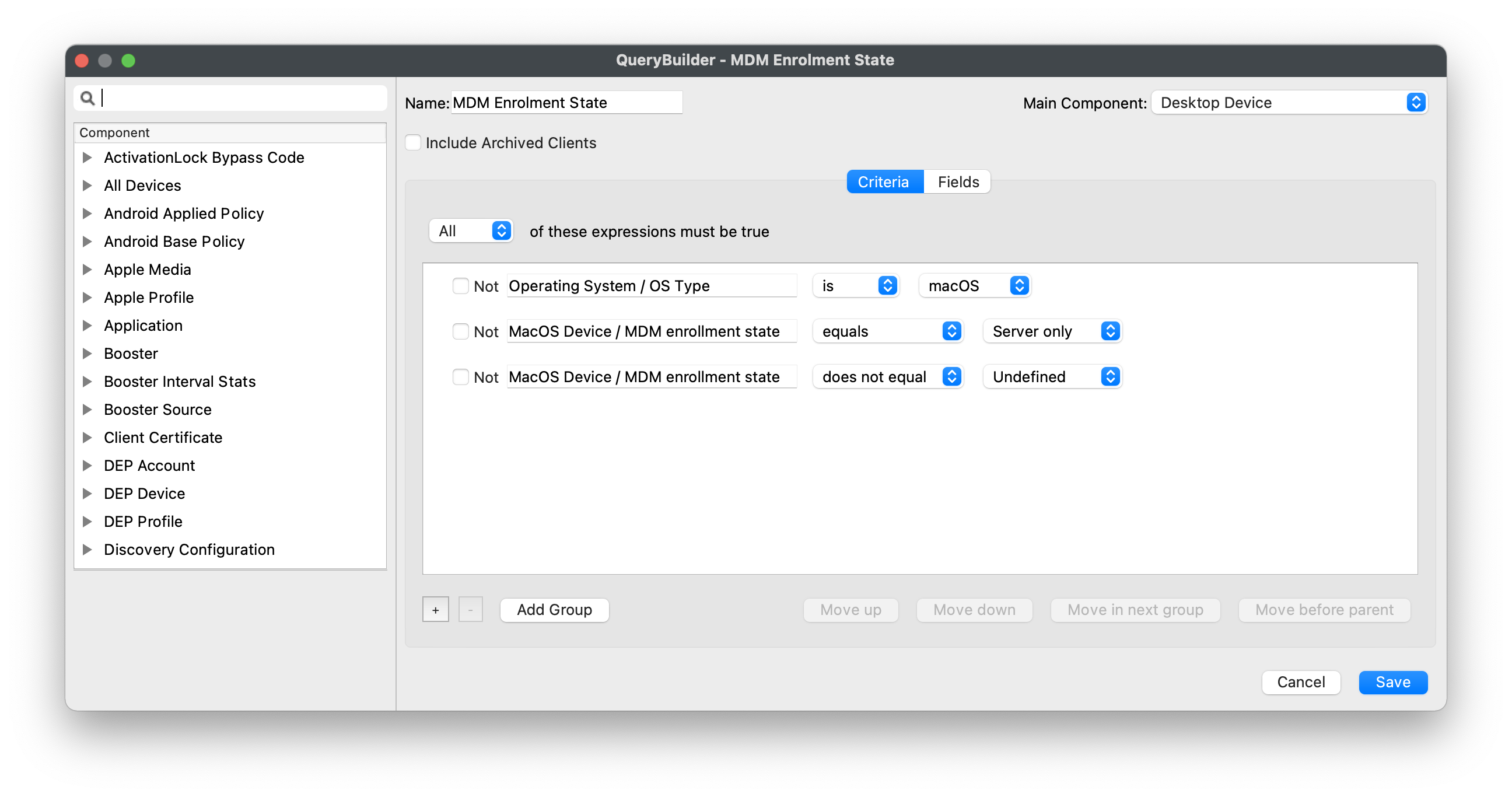 Add, edit or remove criteria to meet desired reporting. ### ADDITIONAL INFORMATION To assist identifying why a device may show as 'Device Only', the following Custom Fields may be added, reporting the Server Root Cert Name and the APNs of the enrollment profile: #### MDM Server Root Certificate Name| ↓ macOS |
| [](https://kb.filewave.com/attachments/157) |
| ↓ macOS |
| [](https://kb.filewave.com/attachments/158) |
Note: You cannot use the same VPP account token you are using on your FileWave server to distribute content!
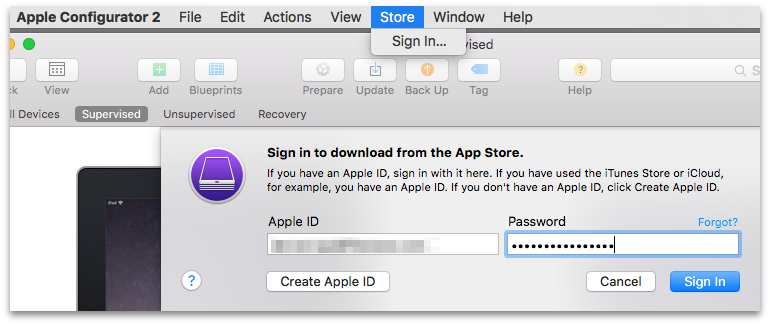 ### App Store account You can sign in to the App Store using the following: *Volume Purchase Program (VPP) account:* You log in with the Apple ID associated with your VPP account or the Apple ID associated with a purchaser you specify *Your personal account:* This is the iTunes account you use to purchase personal apps**WARNING:** If your VPP account is already associated with another instance of Apple Configurator 2 or an MDM solution, all app assignments from those previous associations will be revoked.
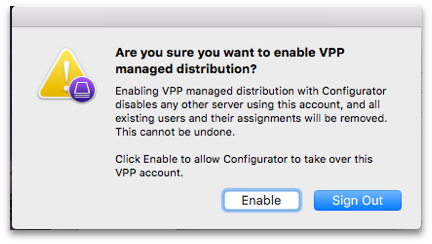 Once you have enrolled your mobile devices, and added them as clients in FileWave, you should see a set of installed profiles like the ones below. 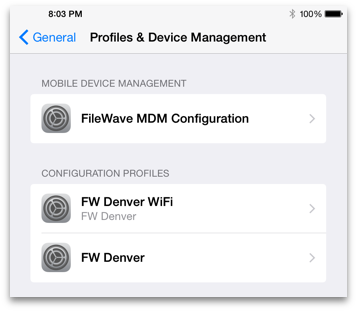 Using AC2 for direct assignment of applications allows you to preload your iOS devices with core applications without requiring user interaction. The workflow would create a layer in your deployment model that lets you preconfigure devices that will become FileWave Clients for all day-to-day operations and management; but come equipped with a starting set of tools. ## Mass Enrollment for iOS You can set up Apple Configurator for bulk enrollment of preconfigured iOS devices by using this option in the **Enroll iOS Device** assistant. The device **must** be connected to Wi-Fi already before this process will work. If not, then make sure you add a Wi-Fi profile to your Apple Configurator setup. This process is built into AC2 using the steps above, since it already supports setting up multiple devices simultaneously. [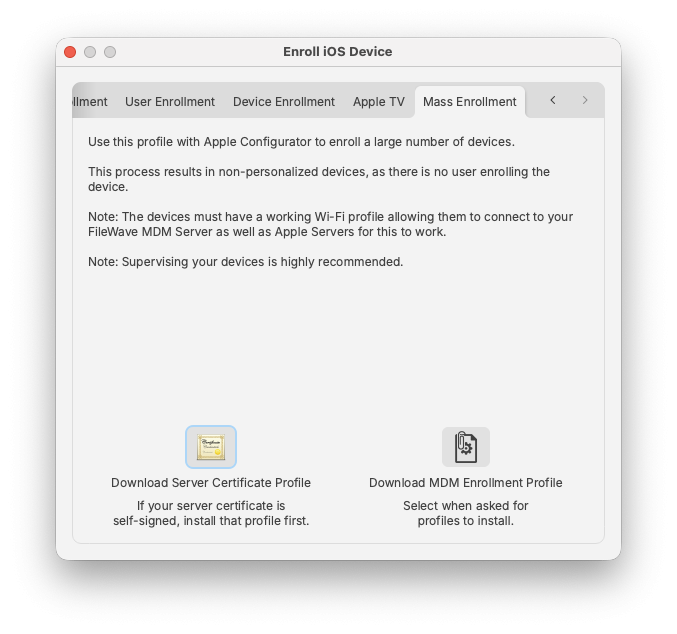](https://kb.filewave.com/uploads/images/gallery/2026-02/sRK8QueKPSdwcHVl-image.png) In this case, you would just download the MDM Enrollment profile, import it into Apple Configurator, and apply it to a set of iOS devices that were cloned with wireless settings, or a profile, already in place. ### FileWave Enterprise App Portal for iOS Starting with FileWave 8.5, iOS devices running iOS 7+ use a native iOS App Portal (Kiosk) instead of the web clip. iOS 8+ devices must use the App Portal. Instructions on how to deploy the App Portal are covered in Chapter **5** on mobile Filesets. When iOS devices are enrolled, they get the web clip version of the Kiosk. The new Enterprise App Portal automatically replaces the web clip and provides a more robust, responsive self-service tool. ### Activation Lock Bypass Since the introduction of iOS 7, device users have been able to enable a feature known as *Activation Lock* - which is linked to *Find My iPhone*. This feature ties a device to a specific Apple ID. In order to activate a device with an Activation Lock after a wipe or reset, the Apple ID credentials of the locking account are required. Where this can become problematical is having a 1:1 deployment where a user sets the Activation Lock on their device, then leaves without de-activating the lock. Prior to iOS 7.1, this issue was limited to unsupervised devices, since supervision inhibited the activation lock. Apple has provided a process now to supervise a device, yet still provide the activation lock - as well as a way to deactivate the lock when necessary. FileWave Admin contains a new Assistant labeled **Activation Lock Management.** When an iOS device is enrolled in the FileWave MDM, its activation lock is stored in the FileWave Server.  If a device is sent a remote wipe command, the activation lock can be disabled at the same time. 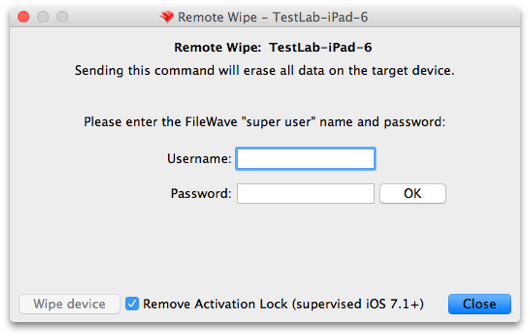 These lock bypass codes are stored in the FileWave server, and remain even when the device has been un-enrolled. The information concerning devices with bypass codes is even provided in Inventory queries. Best practice is to maintain the codes for institutional devices, regardless of the device's enrollment status, as a safety measure. If the device is no longer used, or taken offline, do **NOT** delete the device from your FileWave database, just archive the device. Once the device has been deleted, the activation lock information is deleted also.Note: In order to access the Activation Lock Bypass controls in FileWave Admin, you must login as the superuser (fwadmin).
You can also configure Activation lock in the ADE profile: [Working with Apple’s Automated Device Enrollment (ADE)](https://kb.filewave.com/books/apple-school-business-manager/page/working-with-apples-automated-device-enrollment-ade "Working with Apple’s Automated Device Enrollment (ADE)") |
| See [Placeholders](https://kb.filewave.com/books/filewave-client/page/placeholders "Placeholders") for what can be done with the imported devices |
Newer Apple Configurator versions may change individual dialogs, but the overall process remains similar.
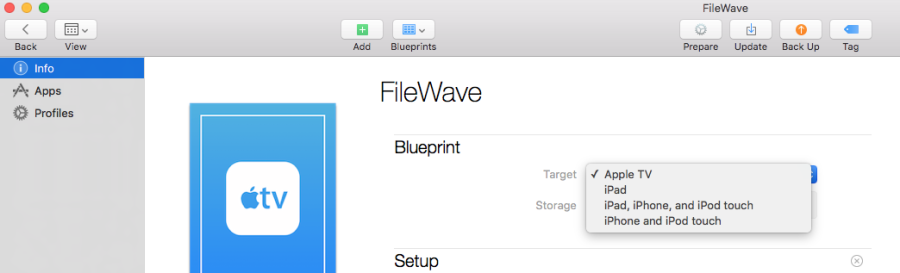 Click the **Prepare** icon. 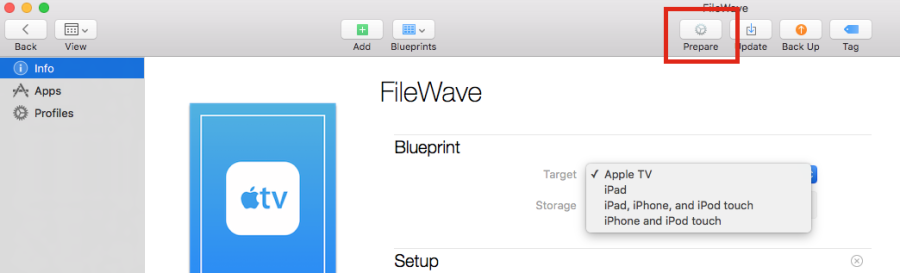 The Prepare Devices dialog opens. 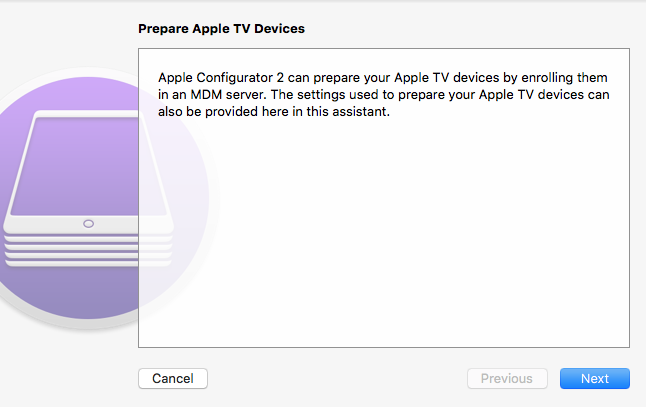 Click **Next**. Select **New server...** in the server selection box, then click **Next**. 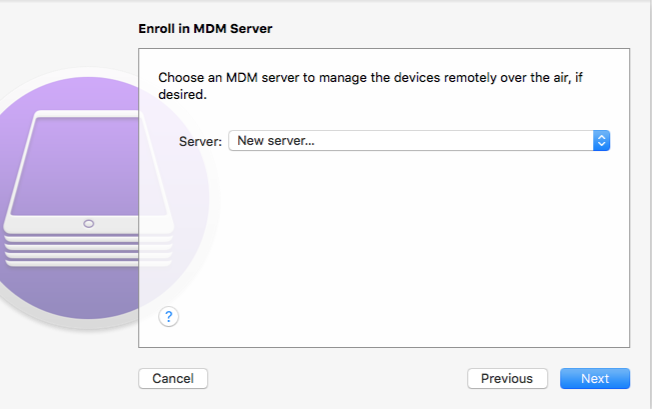 Enter a server name and the URL for over-the-air enrollment, including the required port number at the end of the URL, then click **Next**. The server name is only for identification in Apple Configurator and does not need to match DNS. 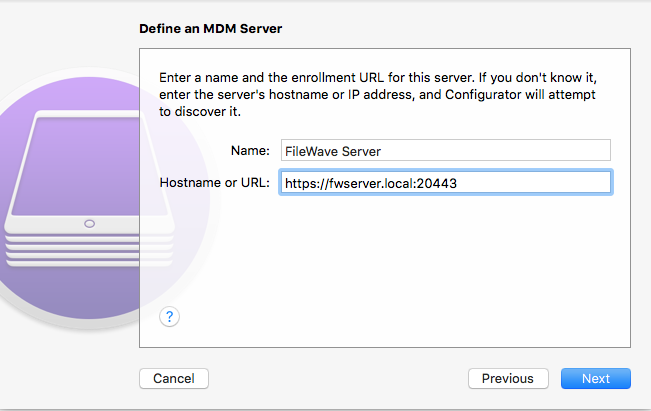 If Apple Configurator can connect to the FileWave Server, it shows the trust profile and FileWave Root Certificate. For the required enrollment profile, use FileWave Admin's **Enroll iOS Device** assistant and download the profile from the **Apple TV** tab. 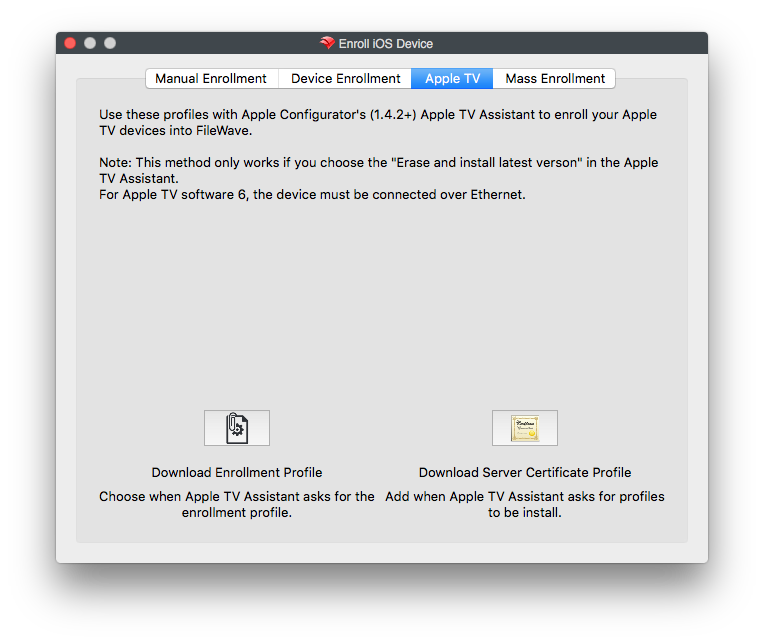 Click **Choose...** and select the enrollment profile you downloaded from FileWave Admin. 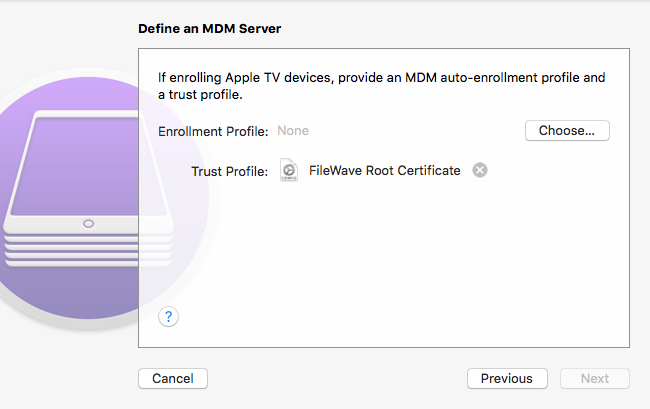 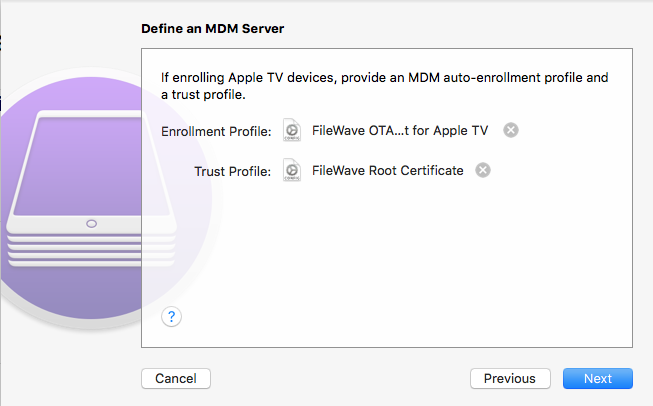 After the enrollment profile is selected, click **Next**. In FileWave, create a Wi-Fi profile with the SSID and password the Apple TV needs to join the wireless network. Add that Wi-Fi profile to the blueprint with **Choose...**. 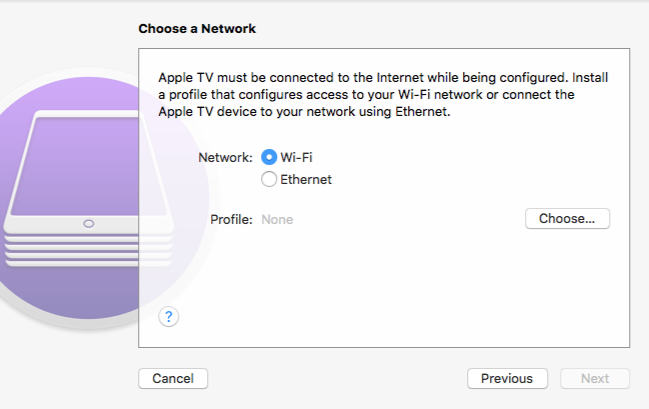 Click **Next**. 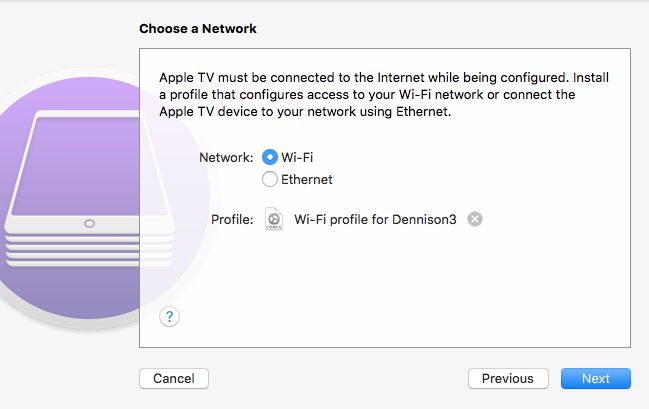 Select the language and diagnostic/usage-data options you want to use, then click **Prepare**. 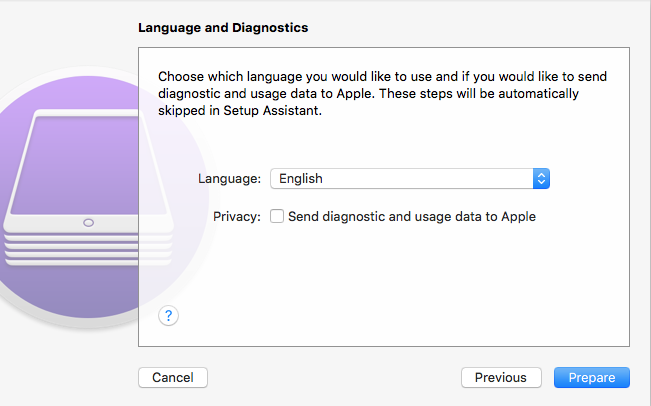 The blueprint now has the required pieces and can be applied to a connected Apple TV. 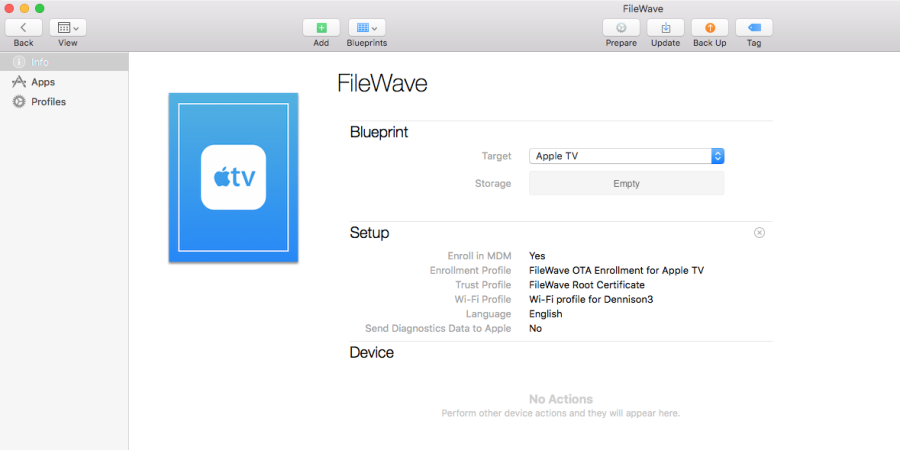 ## Related Content - [Enrolling Devices](https://kb.filewave.com/books/filewave-client/chapter/enrolling-devices "Enrolling Devices") - [Conflict Resolution](https://kb.filewave.com/books/filewave-central-anywhere/chapter/conflict-resolution "Conflict Resolution") # Importing Computer Clients from a File You can import a "tab-delimited" text file (not a CSV file). See [Placeholders](https://kb.filewave.com/books/filewave-client/page/placeholders "Placeholders") for more workflow information. Can be useful for - [Network Imaging Guide](https://kb.filewave.com/books/network-imaging-ivs "Network Imaging / IVS") - [Automated Device Enrollment (ADE)](https://kb.filewave.com/books/apple-school-business-manager/chapter/automated-device-enrollment-ade "Automated Device Enrollment (ADE)") - [Enrolling Mobile Devices into FileWave](https://kb.filewave.com/books/filewave-client/page/enrolling-mobile-devices-into-filewave "Enrolling Mobile Devices into FileWave") - [Working with FileWave Clients](https://kb.filewave.com/books/filewave-central-anywhere/page/working-with-filewave-clients "Working with FileWave Clients") The import location is in the **Create** **New Client** pane: 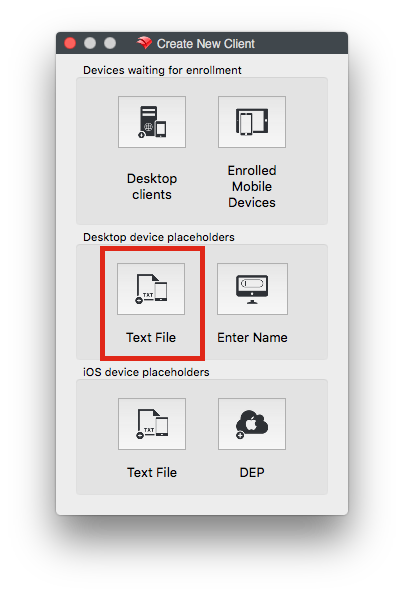 The new format looks like this: ``` Client NameIf the optional `Comment` field is blank, keep the trailing tab at the end of the row. Without that final delimiter, Central may not parse the last empty column as expected.
[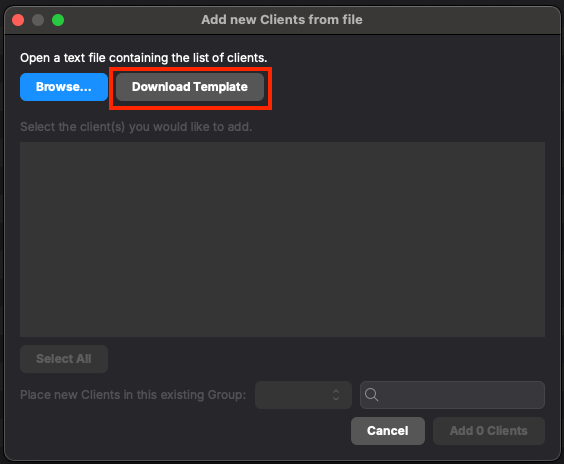](https://kb.filewave.com/uploads/images/gallery/2025-07/OkT3PKH0M98NJo41-screenshot-2025-07-31-at-12-46-15-pm.png) When creating your own file, remember to include a header row on the first line to define the column names, just like in the template.