# Troubleshooting

# Apple MDM Missing Enrolment Profile

## What

At times, MDM may appear slow or even worse, the MDM Enrolment Profile no longer seems to be apparent, preventing MDM management until re-enrolled.

## Why

Apple observed that osquery can cause such issues, depending upon configuration.

[osquery](https://github.com/osquery/osquery) is a tool to describe a device based upon SQL and can be used by management tools or similar, e.g. Malware detection software. It is a popular tool, as highlighted by a couple of example applications that use osquery: CrowdStrike and Microsoft Defender.

If you use ADE/DEP to enroll the macOS systems you may find that the following command restores the device's belief that it is supervised and in MDM. To run the command you must be logged in on the device as it will launch a notification to click on to re-confirm that the device should be in MDM;

```shell
sudo profiles renew -type enrollment
```

## Information

FileWave does not use osquery, so that may appear as if devices managed by FileWave could be immune, however, since other 3rd party software may do so, FileWave device management, as with any MDM, could be impacted.

Consider testing for devices running osquery, where MDM issues may arise or MDM Enrolment Profile is no longer present. If so, it would be recommended to communicate with the software vendor utilising osquery. Details imply a reduction in the aggressiveness of osquery should prevent this. Additionally, Apple were looking into mitigating against this issue.

## Related Content

- [https://www.osquery.io/](https://www.osquery.io/)

# Clearing FileWave Client Certs

In some situations, you may want to explicitly make the server clear and revoke a client certificate without deleting the client from FileWave, for instance if you are wiping a macOS client or reinstalling an IVS client.

## From FileWave Central

For desktop clients, you can right-click the client and choose "Clear Certificate(s)".

Note that the current administrator needs to have write permissions on the clients, and will need to enter credentials.

## From the Client

The first way is to use the client (13.1.1) certificate itself to authenticate, which is only possible if the certificate and its private key still exist on the client:

```bash
fwcld -clearCertificate [-serverHost <fwserver_address> -serverPort 20445]

```

This is the equivalent of the following command using curl (replace &lt;fwserver\_address&gt; with the address of your FileWave server):

```bash
sudo curl --key /private/var/FileWave/client.key --cert /private/var/FileWave/client.crt -X POST https://<fwserver_adress>:20445/auth/client/clear_certificate

```

The client will then be unable to communicate with the server (until a new CSR is created). This command can be used in the activation script of a macOS reinstall fileset to make the server properly clear the old client certificate.

Note that the command above uses the client certificate itself to identify the client. In case the certificate's private key is already lost, there is an alternative where you can authenticate with an administrator's token rather than with the client certificate:

```bash
fwcld -clearCertificate -token <application_token> [-serverHost <fwserver_address> -serverPort <fwserver_port>]

```

- &lt;fwserver\_address&gt;: The FileWave server address (optional)
- &lt;fwserver\_port&gt; : 20445 by default
- &lt;application\_token&gt;: An administrator application token, with write permissions on this client. Can be found in the Application Tokens tab of the Manage Administrators dialog (example: {1ca3fe82-a41d-8866-bd4d-f83f9f1a8dd5}).

Alternatively, you can also clear certificates en masse using the inventory superadmin token. In this case, you are allowed to clear the certificate of any client (*obviously use with caution*):

```bash
curl -X POST https://<fwserver_address>:20445/auth/client/clear_certificates -H 'Authorization: <application_token>' -H 'Content-Type: application/json' -d '["<serial_1>", "<serial_2>", ...]'

```

Included in 13.1.1 and above are the options to clear with 'MAC address' or 'Device ID':

```bash
curl -X POST https://<fwserver_address>:20445/auth/client/clear_certificates?identifier=mac -H 'Authorization: <application_token_base64>' -H 'Content-Type: application/json' -d '["<mac_address_1>", "<mac_address_2>", ...]'

```

```bash
curl -X POST https://<fwserver_address>:20445/auth/client/clear_certificates?identifier=device_id -H 'Authorization: <application_token_base64>' -H 'Content-Type: application/json' -d '["<device_id_1>", "<device_id_2>", ...]'

```

The identifier parameter is optional, its default value is serial\_number.

- &lt;fwserver\_address&gt;: The FileWave server address.
- &lt;serial\_1&gt;, ...: serial numbers of clients to revoke. Must match the serial\_number field from inventory.
- &lt;mac\_address\_1&gt;, ...: MAC addresses or clients to revoke.
- &lt;device\_id\_1&gt;, ...: device ids of clients to revoke.
- &lt;application\_token\_base64&gt;: base64-encoded value of an administrator application token, with write permission on this client. Can be found in the Application Tokens tab of the Manage Administrators dialog (example: ezFjYTNmZTgyLWE0MWQtODg2Ni1iZDRkLWY4M2Y5ZjFhOGRkNX0=\_).

A dict of lists of clients for: SUCCESS, NOT\_FOUND and ERROR statuses is returned.

- SUCCESS: the client certificate was successfully revoked.
- NOT\_FOUND: no certificate was found on the server for this client, or no such client was found. Maybe the certificate was already revoked, or the client had no certificate yet, or the client had not reported its MAC address or serial number yet, if you passed a MAC address or a serial number.
- ERROR: an unexpected error occurred. Please check server logs for details.

## Potential log entries

```bash
2019-06-12 7:12:02.481|main|FATAL|CLIENT|Unable to retrieve the contents of the cached custom field values: Error decrypting data
2019-06-12 7:12:02.833|main|INFO|CLIENT|CRL updated
2019-06-12 7:12:02.834|main|INFO|CLIENT|No certificate private key yet. Sending a certificate signing request to server my.FQDN.com.
2019-06-12 7:12:03.235|main|FATAL|CLIENT|Failed to send enrollment request (and CSR): error 400 a CSR for this client was already sent.
2019-06-12 7:12:03.235|main|INFO|CLIENT|Falling back to no certificate.

```

# FileWave Client notification for zsh running in the background

## What

When I upgraded my FileWave Client to 15.3.0 or newer I saw a popup saying "zsh is now running in the background".

## When/Why

This happens once when first going to version 15.3.0 or higher of the client on macOS. There is nothing to do. This popup is because the FileWave client needs permission to run zsh for scripting. It can be ignored and development is going to look at ways to suppress it so that in the future it should not show, but it should only happen 1 time on each machine and then even on newer versions of the clients you should not see it because it should already have the permission.

## Related Content

- [FileWave Version 15.3.1](https://kb.filewave.com/books/downloads/page/filewave-version-1531-unsupported "FileWave Version 15.3.1")

# FileWave Client Rename Behavior

Renaming a desktop client in the admin console will now change the Client Name inventory field to match the new name entered and also **change the client name "sync" setting in the client's preferences**. This ensures that the device is able to connect properly with FileWave instance without duplicated entries. (The Device Name inventory filed is not modified)

So, when a client is renamed, the "Sync Computer Name" settings is turned off:

[![image.png](https://kb.filewave.com/uploads/images/gallery/2023-07/scaled-1680-/Y59VAUWnCuWVrf9i-image.png)](https://kb.filewave.com/uploads/images/gallery/2023-07/Y59VAUWnCuWVrf9i-image.png)

### Further Details

- The FileWave Client uses its name as part of the identity of the client (see: [How the FileWave Client Communicates](https://kb.filewave.com/books/filewave-client/page/how-the-filewave-client-communicates "How the FileWave Client Communicates") for more)
- The FileWave Client has a configuration ([FileWave Client Configuration Settings](https://kb.filewave.com/books/filewave-client/page/filewave-client-configuration-settings "FileWave Client Configuration Settings")) to "Sync Computer Name" that can be changed one at a time (Via Client Monitor) or en masse ([Creating a Superprefs Fileset](https://kb.filewave.com/books/filewave-client/page/superprefs-fileset "Creating a Superprefs Fileset")).
- Renaming devices in the FW Admin (r-click → rename) has a different behavior depending on the device (see below)

# FileWave Client Status Check: How to ask the client what it is doing on macOS and Windows

## What

Use `fwcld -s` to ask the FileWave Client what it is currently doing on macOS or Windows. This is useful when you have local access to a device and need a quick status check without waiting for server-side inventory or logs.

## When/Why

The command shows client status, Filesets in inventory, Filesets not meeting requirements, and the current worklist.

You might find this feature beneficial when:

- You are diagnosing why a Fileset or profile is not applying as expected.
- The FileWave Client appears stuck and you want to see its current worklist.

## How

Run the command on the device you want to check:

### macOS

1. Open the Terminal application on the macOS device.
2. Run: `/usr/local/sbin/FileWave.app/Contents/MacOS/fwcld -s`

### Windows

1. Open the Command Prompt on the Windows device.
2. On current Windows clients, run: `"C:\Program Files\FileWave\client\fwcld.exe" -s`

After running the command, you will see output similar to the example below:

```
**************************
**FileWave Client Status**
**************************
User ID: 11354
Current Model Number: 660

Filesets in Inventory:

1. Fileset Mac MDM OS Update - macOS Monterey 12.6.3 12.6.3, revision ID 10148, ID 10148, revision ID 10148, version 1 - Apple MDM OS Update is not supported (0)
2. Fileset Mac MDM OS Update - Safari 16.3, revision ID 10149, ID 10149, revision ID 10149, version 1 - Apple MDM OS Update is not supported (0)
3. Fileset FileWave_macOS_Client_14.10.2_df52a47c77, revision ID 10169, ID 10169, revision ID 10169, version 1 - Active (0)
4. Fileset Profile - TeamViewerHost Allow Standard User, revision ID 10173, ID 10173, revision ID 10173, version 1 - Handled via MDM (0)
5. Fileset Profile - Microsoft  Defender - Kernel Extension, revision ID 10190, ID 10190, revision ID 10190, version 1 - Handled via MDM (0)
6. Fileset Profile - Microsoft Defender - Notifications, revision ID 10191, ID 10191, revision ID 10191, version 1 - Handled via MDM (0)
7. Fileset Profile - Microsoft Defender - Web Content Filter, revision ID 10192, ID 10192, revision ID 10192, version 1 - Handled via MDM (0)
8. Fileset Profile - Microsoft Defender - TCC, revision ID 10193, ID 10193, revision ID 10193, version 1 - Handled via MDM (0)
9. Fileset Profile - Microsoft Defender - Data Acceptance, revision ID 10194, ID 10194, revision ID 10194, version 1 - Handled via MDM (0)
10. Fileset Profile - Microsoft  Defender - System Extension, revision ID 10195, ID 10195, revision ID 10195, version 1 - Handled via MDM (0)
11. Fileset Profile - Microsoft  - Background Service, revision ID 10196, ID 10196, revision ID 10196, version 1 - Handled via MDM (0)
12. Fileset MS Defender macOS, revision ID 10197, ID 10197, revision ID 10197, version 1 - Active (0)
Filesets not meeting requirements:


Worklist:
```

The output provides the following information:

- User ID (the FileWave device ID) and Current Model Number
- Filesets currently in the device's inventory, including their status
- Filesets not meeting requirements
- Current worklist

Use this output to confirm what the FileWave Client is processing before you move on to logs or server-side troubleshooting.

## Related Content

- [FileWave Log File Locations](https://kb.filewave.com/books/filewave-general-info/page/filewave-log-file-locations "FileWave Log File Locations")
- [Using PowerShell to Remotely Check the Windows FileWave Client Status](https://kb.filewave.com/books/filewave-client/page/using-powershell-to-remotely-check-the-windows-filewave-client-status "Using PowerShell to Remotely Check the Windows FileWave Client Status")

# FileWave Windows Network Sweeper

## What

FileWave Windows Network Sweeper is a troubleshooting bundle for finding Windows clients that are online but not communicating correctly with the FileWave Server, then attempting a targeted repair. Typical causes include misconfiguration, user intervention, or a previously failed client upgrade.

## When/Why

Run this during a normal peak-online window when you want to identify Windows devices that have recently checked in but have since gone quiet. A Group Policy deployment can enforce enrollment and check-in for many environments; the [Client Deployment via GPO](https://foundry.filewave.com/mod/scorm/view.php?id=10) training gives one example of that approach, and the same general pattern can support other compliance checks.

## How

Start with a small test group before running the process against a large exported list.

#### Prerequisites

- Run PowerShell as a user with administrative rights on the target Windows devices, usually a domain admin or an equivalent delegated admin account.
- The devices you are trying to catch must be online and reachable on the network.
- The process assumes the `C$` admin share is reachable and that device names resolve correctly. Dynamic DNS needs to be working if you are relying on names instead of IP addresses.
- Know the FileWave Server FQDN and have a valid FileWave API token available.
- Download and unzip the Windows Network Sweeper bundle:

<table id="bkmrk-windows-network-swee" style="border-collapse:collapse;width:19.2593%;"><colgroup><col style="width:100%;"></col></colgroup><tbody><tr><td class="align-center" style="background-color:rgb(206,212,217);">**Windows Network Sweeper**</td></tr><tr><td>[![Download Windows Network Sweeper](https://kb.filewave.com/uploads/images/gallery/2023-06/scaled-1680-/LhUDCHKqr6dGiaoG-filewave-download.png)](https://kb.filewave.com/attachments/388 "Network Sweeper")</td></tr></tbody></table>

<p class="callout info">PSTools is included in the download for convenience. You can also download the current PSTools package directly from Microsoft: [PSTools download](https://learn.microsoft.com/en-us/sysinternals/downloads/pstools).</p>

<p class="callout warning">Before using the repair script broadly, confirm that the bundled `FileWaveClient.msi` is the client version you intend to install, or replace it with the correct installer for your environment. Also review the expected client version in `3_Check_Status.ps1` before treating its status output as authoritative.</p>

#### Process Overview

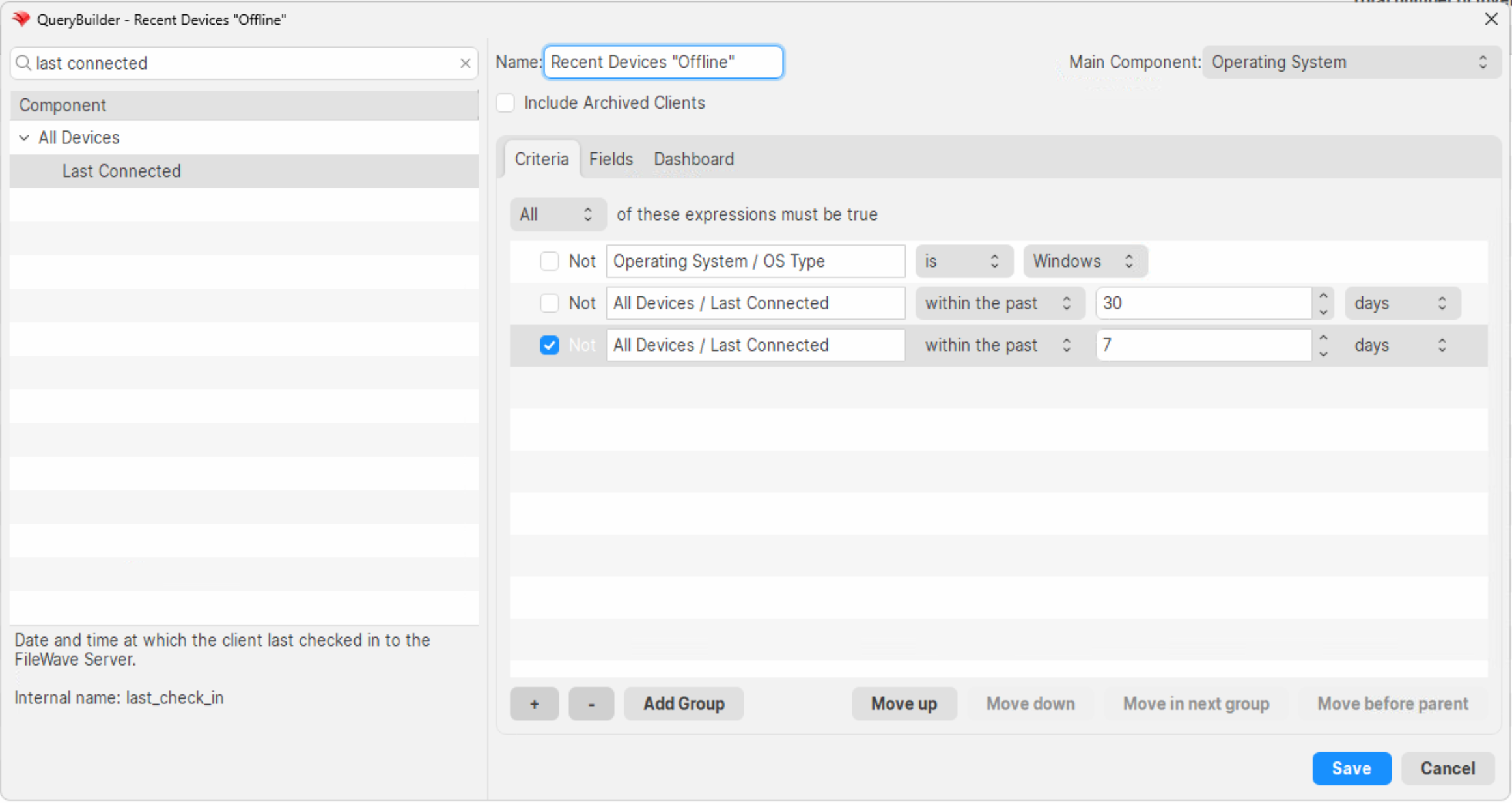
1. Create an inventory query for Windows devices that have not checked in recently. A common starting point is **OS Type = Windows** and **Last Connected** within the past 30 days but not within the past 7 days. Adjust both date ranges for your environment.

[![Inventory query criteria for recently offline Windows devices](https://kb.filewave.com/uploads/images/gallery/2024-09/scaled-1680-/iIIhBsjbl4PaK1FT-image.png)](https://kb.filewave.com/uploads/images/gallery/2024-09/iIIhBsjbl4PaK1FT-image.png)
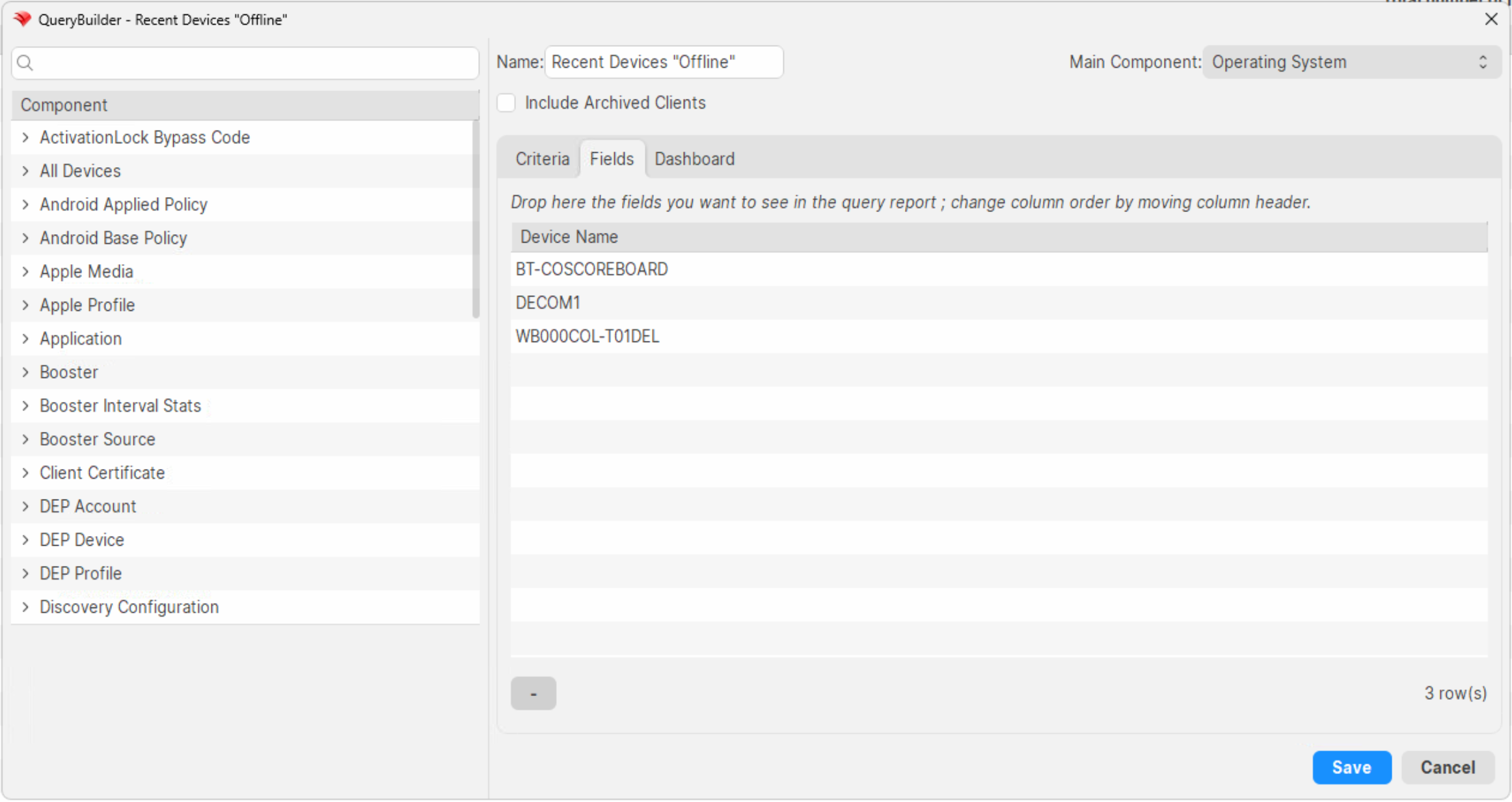
2. Set the query output to include **Device Name** only. You can export IP addresses from the client view, but avoid using IP addresses from an inventory query in DHCP-heavy environments because the address may no longer belong to the same device.

[![Inventory query report with Device Name output](https://kb.filewave.com/uploads/images/gallery/2024-09/scaled-1680-/AoBkCX6WmijN9VN4-image.png)](https://kb.filewave.com/uploads/images/gallery/2024-09/AoBkCX6WmijN9VN4-image.png)
3. Export the query results into the `offline.txt` file included in the ZIP. **View &gt; Export Current View** is useful for this. Remove the header line that says `Device Name`.
4. Run `1_get_online.ps1` to test which exported devices are currently reachable. Reachable devices are written to `online.txt`.
5. If devices are found, run `2_repair_clients.ps1` to attempt the repair. This script uses PSExec to copy and run `fix_fwclient.bat` on the target device.
6. Run `3_Check_Status.ps1` to double-check repaired devices and identify anything that still needs manual remediation.

## Related Content

- [Client Deployment via GPO](https://foundry.filewave.com/mod/scorm/view.php?id=10)
- [Creating a Superprefs Fileset](https://kb.filewave.com/books/filewave-client/page/superprefs-fileset "Creating a Superprefs Fileset")
- [Inventory Queries (Reports)](https://kb.filewave.com/books/filewave-central-anywhere/chapter/inventory-queries-reports "Inventory Queries (Reports)")

## Digging Deeper

The download contains the scripts used in this workflow. Review them before running the bundle in your environment, test against a small set of known devices first, and keep the generated `online.txt`, `output.txt`, `double_check.txt`, and `still_bad.txt` files as your working record for follow-up remediation.

# PSExec as a Helper in Troubleshooting

## What

Microsoft PsTools includes **PsExec**, a remote command-line tool that can help troubleshoot a Windows device when the FileWave Client is not responding through normal FileWave channels.

## When/Why

Use PsExec when you need an interactive command prompt on a Windows client to inspect services, logs, processes, network state, or user sessions. The examples below focus on FileWave Client troubleshooting, but the same approach is useful for other Windows service issues.

## How

<p class="callout info">**Assumptions for the examples below:**  
1) You downloaded PsTools and unzipped it.  
2) You launched Command Prompt as a domain admin or another account with the needed rights on the remote device.  
3) You changed into the directory where PsTools is located.</p>

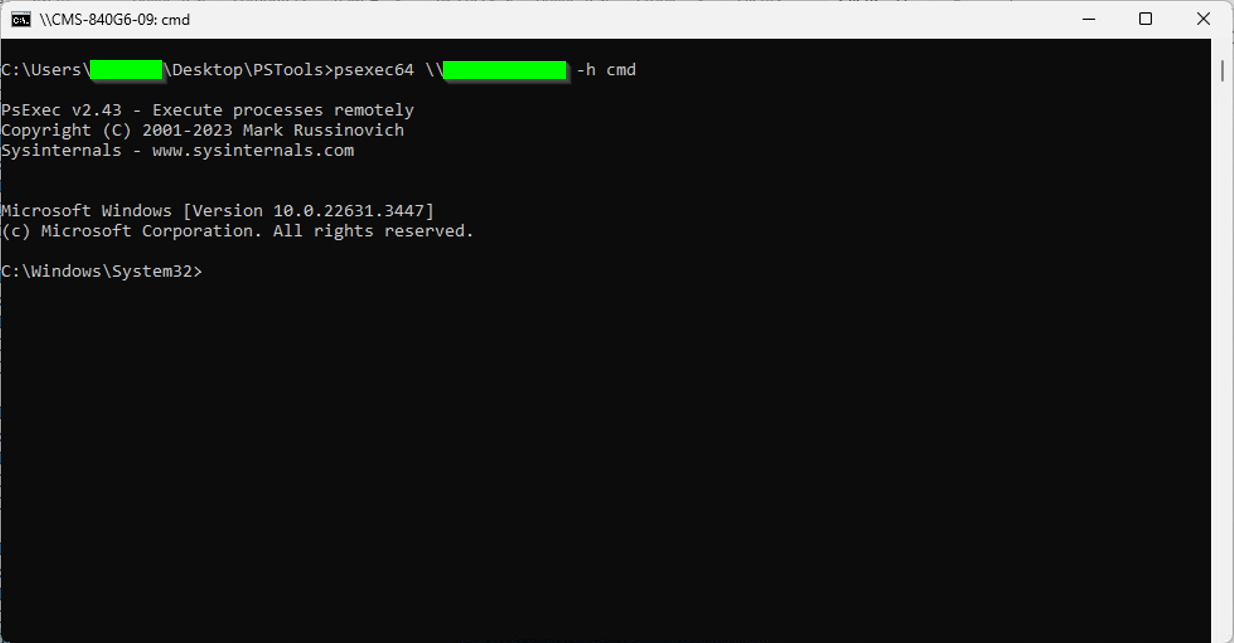
Connect to the remote computer by name in an interactive PsExec shell:

```
psexec64 \\computername -h cmd
```

You should end up in a shell like the one below. Type `exit` to leave the remote shell.

[![Interactive PsExec command prompt on a remote Windows device](https://kb.filewave.com/uploads/images/gallery/2024-05/scaled-1680-/CwfTGWcpSghoTMos-image.png)](https://kb.filewave.com/uploads/images/gallery/2024-05/CwfTGWcpSghoTMos-image.png)
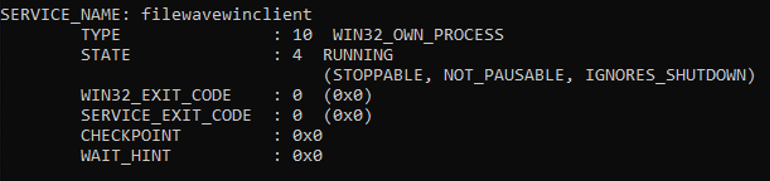
From that shell, you can run normal Windows command-line tools on the remote device. These examples are useful when a Windows client is not reporting correctly.

1. Check the FileWave Client service: 
    - ```
        sc query filewavewinclient
        ```
        
        [![Querying the FileWave Client service from PsExec](https://kb.filewave.com/uploads/images/gallery/2024-05/scaled-1680-/EFH8hn8CF60dOUD2-image.png)](https://kb.filewave.com/uploads/images/gallery/2024-05/EFH8hn8CF60dOUD2-image.png)
2. Stop the FileWave Client service: 
    - ---
        
        ```
        sc stop filewavewinclient
        ```
3. Start the FileWave Client service: 
    - ---
        
        ```
        sc start filewavewinclient
        ```
4. If the service will not start or stop, identify and stop the process directly: 
    1. Find the FileWave Client process. 
        - ```
            tasklist | findstr fwcld
            ```
        - [![Finding the fwcld process ID with tasklist](https://kb.filewave.com/uploads/images/gallery/2024-05/scaled-1680-/ahddHIXSHiUMjOuZ-image.png)](https://kb.filewave.com/uploads/images/gallery/2024-05/ahddHIXSHiUMjOuZ-image.png)

    2. Kill the process by PID. 
        - ```
            taskkill /PID 16264 /F
            ```
        - <p class="callout info">The same pattern can help with a stuck Windows Update agent. When Windows Update hangs and the service will not stop, `tasklist /svc | findstr wuauserv` identifies the process that owns the service. A reboot can also clear the condition, but it interrupts whoever is using the device.</p>
5. Check the FileWave Client log for entries from today: 
    - ```
        type c:\programdata\filewave\fwclient\fwcld.log | findstr mm-dd
        ```
    - Replace `mm-dd` with today's month and day, such as `05-16`.
6. Get the IP address of the workstation: 
    - ```
        ipconfig
        ```
7. Restart the device immediately. This interrupts any active user session, so check before running it on a device in use. 
    - ```
        shutdown -r -t 0 -f
        ```
8. Check whether other users are logged in: 
    - ```
        quser
        ```
    - [![Checking logged-in users with quser](https://kb.filewave.com/uploads/images/gallery/2024-05/scaled-1680-/fbQGBi4UEdXl5b3a-image.png)](https://kb.filewave.com/uploads/images/gallery/2024-05/fbQGBi4UEdXl5b3a-image.png)

9. Get the last boot time: 
    - ```powershell
        Get-CimInstance -ClassName Win32_OperatingSystem | Select-Object LastBootUpTime
        ```
    - [![Getting the last Windows boot time with PowerShell](https://kb.filewave.com/uploads/images/gallery/2024-05/scaled-1680-/elLO7EOAz4KuwdN1-image.png)](https://kb.filewave.com/uploads/images/gallery/2024-05/elLO7EOAz4KuwdN1-image.png)

## Related Content

- [PS Tools](https://learn.microsoft.com/en-us/sysinternals/downloads/pstools)
- [Windows command-line reference (SS64)](https://ss64.com/nt/)
- [wmic deprecation](https://techcommunity.microsoft.com/blog/windows-itpro-blog/wmi-command-line-wmic-utility-deprecation-next-steps/4039242)

# Troubleshooting Windows Client Upgrade Fileset Issues

## What

The FileWave Windows Client upgrade fileset uses a more orchestrated process than a typical Windows software deployment.

For most Windows software deployments, the `FileWaveWinClient` service runs the installer as the local system account. A client upgrade has an extra challenge: it must remove the existing FileWave Client, install the updated one, and keep the process moving even though the service that normally performs installs has to be stopped and replaced.

To handle this, the upgrade fileset installs a temporary upgrade helper, creates a scheduled task, stops the existing FileWave Client service, runs the new client MSI, starts the upgraded service, and then removes the temporary upgrade pieces. This also helps the device continue the upgrade workflow and report back to FileWave when the upgrade completes.
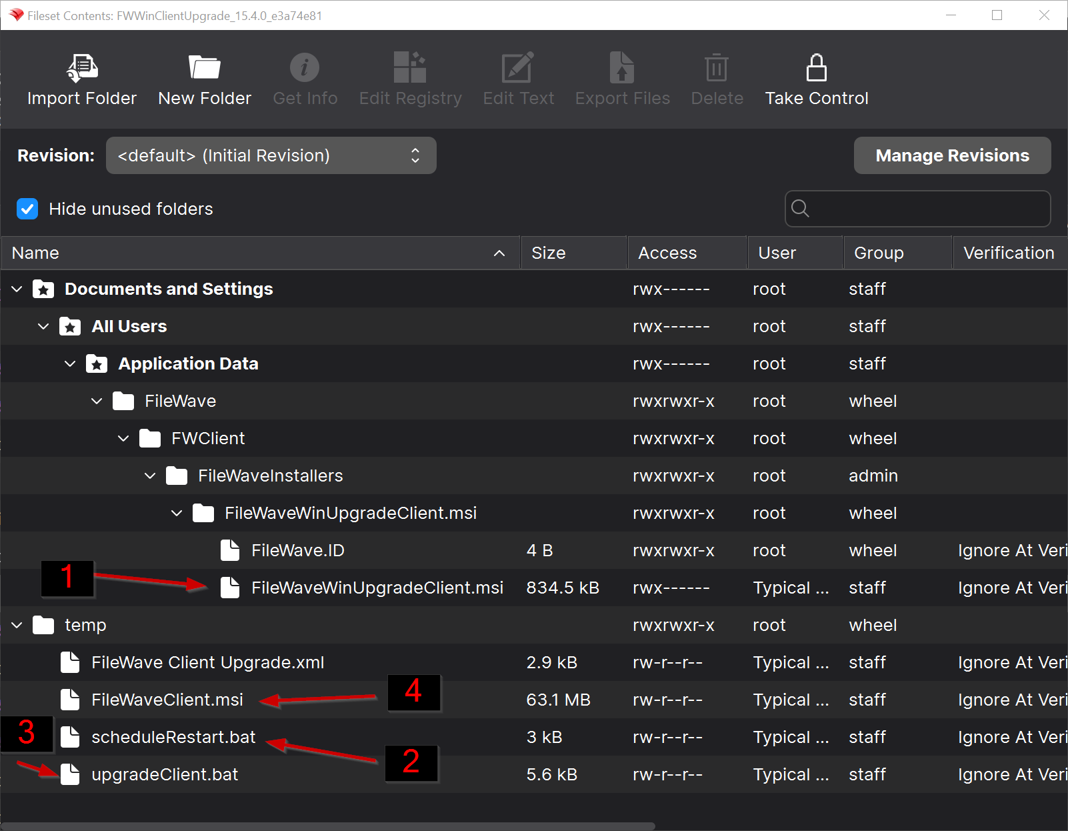
![Example Windows Client upgrade fileset contents](https://kb.filewave.com/uploads/images/gallery/2026-05/scaled-1680-/QpCdU8Ejm710ZloZ-windows-client-upgrade-fileset-components.png)

The example above shows the main upgrade fileset components:

- `FileWaveWinUpgradeClient.msi`: installs the temporary upgrade helper.
- `scheduleRestart.bat`: creates the scheduled task that starts the upgrade process.
- `upgradeClient.bat`: handles most of the upgrade workflow.
- `FileWaveClient.msi`: installs the target FileWave Windows Client version.

## When/Why

Use this article when a FileWave Windows Client upgrade fileset does not complete, the client version does not update in inventory, the Windows client service does not restart after an upgrade, or a device is left with a non-functional FileWave Client after an attempted upgrade.

If the issue is that the upgrade fileset did not import correctly, does not show the expected files, or was extracted incorrectly before deployment, start with [Troubleshooting Deployment Issues with the FileWave Upgrade Fileset](https://kb.filewave.com/books/filewave-client/page/troubleshooting-deployment-issues-with-the-filewave-upgrade-fileset).

This article is also useful before a broad Windows Client upgrade rollout, because most upgrade issues are easier to find and fix during a small pilot than after the fileset has been deployed widely.

## How

### 1. Understand the upgrade flow

The Windows Client upgrade fileset normally works in this order:

1. `FileWaveWinUpgradeClient.msi` runs first and installs a temporary upgrade helper.
2. `scheduleRestart.bat` creates the `FileWave Client Upgrade` scheduled task.
3. `upgradeClient.bat` checks the target version, disables automatic service restart during the upgrade, stops the existing `FileWaveWinClient` service, and starts the client installer.
4. `FileWaveClient.msi` installs the new FileWave Windows Client.
5. The upgrade process removes the scheduled task and temporary upgrade files after the installer completes.

If the old client service is hung, the upgrade script retries the stop process and may need to terminate the service process. That is expected behavior during this upgrade, but it can expose device-specific problems such as a stuck service, pending Windows Installer issue, or previous failed upgrade cleanup.

### 2. Collect the upgrade logs

Collect these logs before retrying the upgrade or manually cleaning up the device when possible. They are usually the fastest way to tell whether the issue is the upgrade workflow or the Windows MSI installer.

The primary logs are in `C:\temp`:

- `UpgradeClient.log`: shows the upgrade script flow, including version checks, scheduled task behavior, service stop attempts, and cleanup.
- `FileWaveClientUpgraderUninstall.log`: shows removal of the temporary upgrade helper.
- `FileWaveClient.log`: verbose MSI log for the new FileWave Windows Client installer.

Also check the Windows Application log in Event Viewer for Windows Installer errors, such as `1603` or `1638`. The normal FileWave Client log may be less useful during the upgrade because the client service is intentionally stopped as part of the process.

### 3. Check the common failure points

Most failed Windows Client upgrades fall into one of these categories:

- The existing `FileWaveWinClient` service is hung and does not stop cleanly.
- A previous failed upgrade left behind the scheduled task or temporary upgrade helper.
- The new `FileWaveClient.msi` launched, but Windows Installer failed to complete the install.
- The device has a local Windows issue that would also affect a manual client MSI install, such as a pending reboot, Windows Installer problem, security software interference, or an existing conflicting client install state. In some cases, Windows Installer blocks the new client install until the system restarts, and that condition is not always obvious before the upgrade starts.

If `FileWaveClient.log` shows an MSI failure, troubleshoot it as a Windows Installer/client MSI issue first. In many cases, the same failure would happen if the MSI were run manually on the device.

### 4. Clean up leftovers from a previous failed upgrade

Use these commands only when the logs or device state indicate that a previous failed upgrade left behind the scheduled task or temporary upgrade helper. Run them from an elevated Command Prompt.

Delete the scheduled task:

```cmd
schtasks /delete /f /tn "FileWave Client Upgrade"
```

Remove the temporary upgrade helper:

```cmd
start /wait msiexec /l*v C:\temp\FileWaveClientUpgraderUninstall.log /qn /norestart /x "{E3DC560D-C698-41DF-8B6C-EEA0BEFC44EF}"
```

Start the FileWave Windows Client service if it is installed and should be running:

```cmd
sc start filewavewinclient
```

After cleanup, retry the upgrade on the affected device or move the device back into a small test group before attempting broader deployment.

### 5. Isolate MSI installer issues

On a device that has not yet completed the upgrade, run the full `FileWaveClient.msi` manually to test the installer outside of the upgrade fileset workflow.

This removes the scheduled task, temporary helper, and service-stop logic from the test. If the manual MSI install fails the same way, focus on the MSI error, the Windows Application log, and the device state rather than the upgrade fileset.

### 6. Recover a non-functional client

If the FileWave Client is no longer functional and cannot receive a normal fileset, use remote administrative tools to inspect the device, collect logs, restart services, or run cleanup commands.

For one supported approach, see [PSExec as a Helper in Troubleshooting](https://kb.filewave.com/books/filewave-client/page/psexec-as-a-helper-in-troubleshooting).

### 7. Roll out upgrades in phases

<p class="callout danger"><strong>Deployment warning:</strong> Do not deploy a Windows Client upgrade fileset globally as the first test.</p>

Start with a small pilot group. After deployment, run a Verify and confirm that inventory reports the expected FileWave Client version. If that pilot succeeds, expand to a larger test group. Move to broad deployment only after the larger group is also successful.

This takes more time up front, but it is much easier than recovering many Windows clients after a failed broad rollout.

## Related Content

- [PSExec as a Helper in Troubleshooting](https://kb.filewave.com/books/filewave-client/page/psexec-as-a-helper-in-troubleshooting)
- [Using PsExec to Remotely Restart the FileWaveWinClient Service](https://kb.filewave.com/books/filewave-client/page/using-psexec-to-remotely-restart-the-filewavewinclient-service)
- [Troubleshooting Deployment Issues with the FileWave Upgrade Fileset](https://kb.filewave.com/books/filewave-client/page/troubleshooting-deployment-issues-with-the-filewave-upgrade-fileset)
- [Using Native Windows Tools to Troubleshoot](https://kb.filewave.com/books/microsoft-general-info/page/using-native-windows-tools-to-troubleshoot)

# Using PsExec to Remotely Restart the FileWaveWinClient Service

## **What**

Using PsExec to remotely restart the "FileWaveWinClient" Windows service allows you to remotely manage the FileWave client on Windows devices. This can be useful in situations where the client is not functioning properly and needs to be restarted in order to resolve the issue.

## **When/Why**

There may be a variety of reasons why you would need to remotely restart the FileWaveWinClient service on a Windows device. Some common reasons include:

- The service has stopped functioning properly and needs to be restarted in order to resolve the issue
- The service needs to be restarted in order to apply a configuration change
- The service needs to be restarted as part of a troubleshooting process

## **How**

To use PsExec to remotely restart the FileWaveWinClient service, you will first need to download and install PsExec on the device from which you will be initiating the restart. PsExec can be downloaded from the Microsoft TechNet website ([https://docs.microsoft.com/en-us/sysinternals/downloads/psexec](https://docs.microsoft.com/en-us/sysinternals/downloads/psexec) ).

Once you have PsExec installed, you can use the following command to remotely restart the FileWaveWinClient service:

psexec \\\[remote device\] -u \[username\] -p \[password\] net start "FileWaveWinClient"

Replace \[remote device\] with the hostname or IP address of the remote device, and \[username\] and \[password\] with the appropriate credentials for the remote device.

## **Related Content**

- Microsoft TechNet: PsExec ([https://docs.microsoft.com/en-us/sysinternals/downloads/psexec](https://docs.microsoft.com/en-us/sysinternals/downloads/psexec) )

## **Digging Deeper**

In addition to using PsExec to remotely restart the FileWaveWinClient service, you can also use the "net" and "sc" command-line tools to query and change Windows services.

To query a service using "net", you can use the following command:

net start \[service name\]

This will display the status of the specified service.

To start or stop a service using "net", you can use the following commands:

net start \[service name\] net stop \[service name\]

To change the startup type of a service using "net", you can use the following command:

net start \[service name\] \[startup type\]

Valid startup types include: boot, system, auto, demand, disabled

To query a service using "sc", you can use the following command:

sc query \[service name\]

This will display detailed information about the specified service, including its status, startup type, and binary path.

To start or stop a service using "sc", you can use the following commands:

sc start \[service name\] sc stop \[service name\]

To change the startup type of a service using "sc", you can use the following command:

sc config \[service name\] start=\[startup type\]

Valid startup types include: boot, system, auto, demand, disabled

Keep in mind that you will need to have the appropriate permissions on the remote device in order to use these commands. You can also use PsExec to execute these commands remotely, as described in the previous section.

# Network Proxy, Content Filter, and SSL Inspection Troubleshooting

## What

FileWave components need reliable network access to the destinations listed in [Default TCP and UDP Port Usage](https://kb.filewave.com/books/filewave-general-info/page/default-tcp-and-udp-port-usage). Depending on the workflow, that may include the FileWave Server, FileWave Boosters, FileWave cloud services, vendor services from Apple, Google, or Microsoft, licensing and notification services, remote-control services, cloud Fileset storage, or Kiosk/App Portal download locations. That traffic is encrypted. Proxies, web filters, secure web gateways, firewalls, and content filters can block or alter that traffic, which can cause the affected FileWave feature to fail even when the FileWave Server itself is working correctly.

This can happen with products such as Lightspeed Filter, GoGuardian Admin, Securly Filter, Linewize Filter, ContentKeeper, iboss, Cisco Umbrella, Zscaler Internet Access, Netskope, Fortinet/FortiGate, Palo Alto Networks, Sophos Firewall, WatchGuard, Check Point, and similar proxy or filtering systems. The exact product name is less important than the behavior: if the product blocks the required host, blocks an unknown or uncategorized URL, or performs SSL/TLS inspection on traffic that must remain end-to-end trusted, the FileWave feature that depends on that destination may not be able to communicate.

The Kiosk IPA URL `https://fw-kiosk-v2-ipas.filewave.cloud/` is one example because blocking it can prevent Kiosk installation. The same principle applies to any FileWave address or vendor address required by the workflow and listed in the port usage article.

## When/Why

Use this article when FileWave behavior changes depending on the network, filtering policy, or proxy path. Common examples include:

- The FileWave Client checks in on one network but not another.
- Devices stop reporting inventory or processing manifests.
- The FileWave Kiosk or App Portal does not appear or does not install.
- iOS/iPadOS Kiosk installation fails with an error like:

```
Could not validate manifest..An SSL error has occurred and a secure connection to the server cannot be made.
```

- A content filter shows FileWave URLs as blocked, uncategorized, unknown, newly seen, or unclassified.
- Security logs show a FileWave destination from [Default TCP and UDP Port Usage](https://kb.filewave.com/books/filewave-general-info/page/default-tcp-and-udp-port-usage) being blocked or inspected, such as the FileWave Server hostname, `*.filewave.cloud`, `fw-kiosk-v2-ipas.filewave.cloud`, cloud Fileset storage, notification services, or Apple/Google/Microsoft service endpoints.

FileWave communication relies on encrypted, certificate-based connections. On macOS and Windows, modern FileWave Client communication uses mutual TLS for client/server trust. Apple, Google, Microsoft, and FileWave cloud services also expect valid TLS connections. If a filtering product performs SSL inspection, HTTPS inspection, TLS inspection, SSL decryption, certificate inspection, deep packet inspection, DPI, or a similar feature that replaces the remote certificate with a filtering certificate, the connection may fail because the device is no longer seeing the certificate it expects.

This is not limited to one vendor. Lightspeed is a common example in schools, and Lightspeed environments that block `Unknown` or `Uncategorized` sites may block a FileWave cloud URL until it is recategorized or explicitly allowed. Other web filters and secure web gateways can create the same symptom under different names.

## How

### 1. Map the symptom to the FileWave feature

Before changing proxy or firewall rules, identify which FileWave feature is failing. Then use [Default TCP and UDP Port Usage](https://kb.filewave.com/books/filewave-general-info/page/default-tcp-and-udp-port-usage) to find the destinations and ports used by that feature.

<table id="bkmrk-symptom-destinatio" style="width:100%;border-collapse:collapse;"><thead><tr><th style="width:34%;">Symptom</th><th style="width:66%;">Destinations to check first</th></tr></thead><tbody><tr><td>Client does not check in, inventory is stale, or manifests do not process</td><td>FileWave Client, Server, and Booster destinations/ports. Make sure the device can reach the configured FileWave Server and any Booster it is expected to use.</td></tr><tr><td>Kiosk/App Portal does not appear or fails to install</td><td>Kiosk/App Portal destinations, the FileWave Server, `*.filewave.cloud`, and any specific Kiosk download host listed or referenced for the installed FileWave version.</td></tr><tr><td>Filesets do not download or install</td><td>Server/Booster traffic and, for hosted customers using cloud Filesets, the cloud Fileset storage destinations in the port article.</td></tr><tr><td>Remote control, notifications, license checks, version checks, AutoPkg, or Central/Anywhere features fail</td><td>The service-specific outbound destinations listed for those features in the port article.</td></tr><tr><td>Apple, Android, Chromebook, or Windows MDM/EMM workflows fail</td><td>The FileWave MDM/EMM ports plus the Apple, Google, or Microsoft service endpoints required by that platform.</td></tr></tbody></table>

A browser test is useful, but it is not the whole test. FileWave background services may run outside the user’s browser session, may not be able to answer a proxy authentication prompt, and may use ports or TLS behavior that a browser test does not exercise.

### 2. Confirm whether the filter or proxy is involved

Start by comparing a working and failing path.

- Test the affected device on a network that does not use the same proxy or content filter, such as a known-good test VLAN or temporary hotspot.
- Check the proxy, firewall, or web-filter logs for the affected device at the time of failure.
- Look for blocked or inspected traffic to the FileWave Server hostname, FileWave Booster hostname, FileWave cloud URLs, Apple services, Google services, or Microsoft services used by the platform.
- If only one network or policy fails, the issue is likely in the network path rather than the FileWave Server itself.

### 3. Allow the required FileWave destinations

Use [Default TCP and UDP Port Usage](https://kb.filewave.com/books/filewave-general-info/page/default-tcp-and-udp-port-usage) as the source of truth. Identify which FileWave component, platform, or workflow is failing, then verify every destination and port listed for that area. A blocked Kiosk download host breaks Kiosk installation, but a blocked license, notification, remote-control, cloud Fileset, Apple, Google, Microsoft, Server, or Booster destination can break the feature that depends on that traffic.

Common destinations to review include:

- The customer’s FileWave Server hostname or FQDN used by clients and enrolled devices.
- Any FileWave Booster hostnames used by clients.
- `*.filewave.cloud`
- `https://fw-kiosk-v2-ipas.filewave.cloud/`
- Hosted-customer cloud Fileset storage destinations listed in [Default TCP and UDP Port Usage](https://kb.filewave.com/books/filewave-general-info/page/default-tcp-and-udp-port-usage), when applicable.
- Apple, Google, and Microsoft endpoints required for the platform being managed.

Do not rely only on a port being open. Category-based filtering can still block an allowed port if the destination is classified as unknown, uncategorized, newly registered, or otherwise not allowed by policy.

Examples: blocking the FileWave Server or Booster can break check-in, inventory, manifests, or Fileset downloads; blocking `*.filewave.cloud` or `fw-kiosk-v2-ipas.filewave.cloud` can break Kiosk/App Portal downloads; blocking cloud Fileset storage can break hosted Fileset delivery; blocking licensing, notification, TeamViewer/remote-control, AutoPkg, or version-check destinations can break those specific services; and blocking Apple, Google, or Microsoft endpoints can break platform enrollment, app management, software updates, or MDM/EMM workflows.

### 4. Check common proxy/filter failure patterns

Proxies and filters can break FileWave traffic in several different ways. Check for all of these, not just a simple block/allow result:

- Category or reputation blocking: the destination is marked unknown, uncategorized, newly seen, or not in an allowed category.
- SSL/TLS interception: the filter replaces the real certificate with its own certificate so the device no longer trusts the connection.
- Authenticated proxy or captive portal requirements: browser traffic works after a user signs in, but FileWave background services cannot answer the prompt.
- Transparent proxy behavior: the proxy handles normal web browsing but not FileWave service traffic, NATS, Booster traffic, or other non-browser connections.
- DNS or SNI filtering: the device resolves or reaches a different path than expected, or the filter blocks based on hostname before the connection is established.
- Different rules by network, VLAN, device type, user group, time, or off-site/on-site policy.

### 5. Bypass SSL/TLS inspection for FileWave management traffic

For FileWave Client, Kiosk, MDM, Booster, and FileWave cloud traffic, allow the traffic without certificate replacement or HTTPS decryption. For Apple, Google, and Microsoft services used by managed-device workflows, follow the vendor network guidance and avoid inspection where the vendor requires direct TLS trust.

Depending on the product, this setting may be called:

- SSL inspection
- SSL decryption
- TLS inspection
- HTTPS inspection
- HTTPS proxy/content inspection
- Certificate inspection
- Deep packet inspection or DPI
- Secure web gateway inspection
- Man-in-the-middle inspection

The goal is the same: FileWave-managed devices must see the real certificate presented by the FileWave Server or cloud service, not a substitute certificate generated by the filtering product.

### 6. Lightspeed-specific example: Unknown or Uncategorized destinations

In Lightspeed environments, check whether the affected URL is listed as `Unknown` or blocked by an `Unknown` / `Uncategorized` category rule. Apply that check to the FileWave and vendor destinations required by the failing workflow. For FileWave Kiosk 15.3.1 and later, one known example is:

```
https://fw-kiosk-v2-ipas.filewave.cloud/
```

If Lightspeed is blocking this URL, the Kiosk installation may fail with a manifest validation or SSL error even though other FileWave functions appear normal. If a different FileWave feature is failing, check the corresponding destinations from the port usage article instead of focusing only on the Kiosk URL.

### 7. Test from the affected network

From macOS or Windows on the same filtered network, test the specific destination that matches the failing workflow. For the Kiosk IPA host, for example:

```
curl -Iv https://fw-kiosk-v2-ipas.filewave.cloud/
```

A successful connection should complete a TLS handshake and return an HTTP response from the destination. A failure may show certificate validation errors, proxy-generated certificates, connection resets, block pages, authentication prompts, or timeouts.

For iOS/iPadOS, use the filter logs and a browser test from the same network or policy where possible. The device may not expose the same command-line testing tools, so the proxy/filter logs are often the best evidence.

### 8. Retest FileWave behavior

After updating allow/bypass rules:

- Retry the FileWave Kiosk or App Portal installation.
- Force or wait for the FileWave Client to check in.
- Confirm inventory, manifests, and Fileset downloads behave normally.
- Review filter logs again to verify the FileWave traffic is allowed and not being decrypted.

### 9. If it still fails, collect evidence before escalating

If the traffic still fails after allow and inspection-bypass rules are updated, collect enough detail to show where the failure occurs:

- The affected FileWave feature, platform, and device name or serial number.
- The network, VLAN, proxy/filter policy, and whether the same device works on another network.
- The timestamp of the failure and the corresponding proxy/firewall log entry.
- The blocked destination, category, action, and whether SSL/TLS inspection was applied.
- Any command output, such as `curl -Iv`, showing the connection, certificate, block page, reset, timeout, or proxy-generated response.
- Relevant FileWave Client, Kiosk/App Portal, or MDM logs for the same time window.

## Related Content

- [Default TCP and UDP Port Usage](https://kb.filewave.com/books/filewave-general-info/page/default-tcp-and-udp-port-usage)
- [How the FileWave Client Communicates](https://kb.filewave.com/books/filewave-client/page/how-the-filewave-client-communicates)
- [Resolving SSL and Manifest Validation Errors with FileWave Kiosk Installation (15.3+)](https://kb.filewave.com/books/kiosk/page/resolving-ssl-and-manifest-validation-errors-with-filewave-kiosk-installation-153)
- [Bypassing DPI for Apple Traffic in MDM Communication](https://kb.filewave.com/books/apple-general-info/page/bypassing-dpi-for-apple-traffic-in-mdm-communication)
- [Customer Technical Support](https://kb.filewave.com/books/community-engagement/page/customer-technical-support)

# Using PowerShell to Remotely Check the Windows FileWave Client Status

## What

The FileWave Client on Windows is like any other software service...the service can be impacted by computer uptime, user interference, crashes, etc. This article gives you a way to INDEPENDENTLY check that a list of devices has the FileWave Client, and it is in working order (or not).

## When/Why

Will you need this frequently? Unlikely, but all the same, it is a great tool for sweeping a network to look for devices and confirm the FileWave client (for Windows only). The code here does make some assumptions about your environment, but those are called out below.

## How

So, you think the FileWave client may be broken or missing on some endpoints? Wouldn't it be great if you could verify that remotely rather than having to confirm the devices by hand. The following allows you to do just that.

```powershell
#import a list of computers
$mypath=$MyInvocation.MyCommand.Path
$mypath=Split-Path $mypath -Parent
try {
    $computers=Get-Content $mypath\computers.txt -ErrorAction Stop
} catch {
    #no computers.txt file found
    write-host "`nTo use this utility, a text file called computers.txt must exist in the same location as the script.  The file should contain one computer name or IP per line"
    break
}

foreach ($computer in $computers) {
    $online=$false
    try{
        #try to resolve the name
        $online = Resolve-DnsName $computer -quicktimeout -ErrorAction Stop
        $online = $true
    }catch{
        #Catching errors...machine offline
        $online= $false
    }

    if (!$online) {
        #device not online...show it in UI so that we see progress, but don't write it to the results file since it isn't actionable
        write-host "$computer, Not online"
    } else {
        #device online, so let's just see if the service is there
        $fw_service=""
        try{
            #Getting service ...sometimes device might not allow collection (if RPC is unavailable for instance)
            $fw_service = Get-Service -ComputerName $computer  -Name 'FilewaveWinClient' -ErrorAction Stop
            $fw_service=$fw_service.Status
        }catch{
            #Catching errors...no filewave service
            $fw_service="no"
        }

        if ($fw_service -eq "no") {
            #no need to look further since we either can't talk to RPC, or there is no FW service
            write-host "$computer, No FW Service or RPC unavailable" 
            Add-Content -Path $mypath\output.txt -Value "$computer, FW Needs Installed or RPC Unavailable"

        } else {
            #fw is there as a service, so let's return status, version, and server address            
            try {
                #using C$ share, which won't require winrm
                $TargetPath = "\\$computer\C$\Program Files (x86)\FileWave\fwcld.exe"
                $fw_version = [System.Diagnostics.FileVersionInfo]::GetVersionInfo($TargetPath)
                $fw_version = $fw_version.ProductVersion       
            } catch {
                #Catching errors
                $fw_version="version not readable"
            }

            #get fw server address from registry
            try {
                #read server address from registry
                #we need remote registry turned on to read, but we'll turn it back off
                #note this does not account for an environment where remote-registry is on by default...if so, comment out the remote registry lines
                Get-Service -ComputerName $computer -Name RemoteRegistry | Set-Service -StartupType Manual -PassThru| Start-Service

                $Reg = [Microsoft.Win32.RegistryKey]::OpenRemoteBaseKey('LocalMachine', $computer)
                $RegKey= $Reg.OpenSubKey("SOFTWARE\\WOW6432Node\\FileWave\\WinClient")
                $fw_server = $RegKey.GetValue("Server")

                #turn remote registry back off
                Get-Service -ComputerName $computer -Name RemoteRegistry | Set-Service -StartupType Disabled -PassThru| Stop-Service
                
            } catch {
                #Catching errors...no registry
                $fw_server="server address not readable"
            }

            #write the output
            write-host "$computer, $fw_service, $fw_version, $fw_server"
            Add-Content -Path $mypath\output.txt -Value "$computer, $fw_service, $fw_version, $fw_server"
            
        }
    }
}

```

<p class="callout info">**Assumptions made in the above code:**  
1. There is a text file called computers.txt in the same location as the Powershell script  
2. That computers.txt file contains a computer name or IP per line (name is better if you have dynamic DNS)  
3. That the Powershell itself is running from a Domain Admin account...this avoids any credential related issues  
4. It is assumed that WinRM is not enabled in your environment (if it is this code could easily be made more elegant)</p>

Note that this script could easily be modified to look at other services, to authenticate differently, and to take remediation. As provided, it simply provides a list of results of device name, FW service status, FW client version, and FW server address assigned. All very useful information for troubleshooting. PSEXEC is highly recommended for taking corrective action.

## Related Content

- [Script Best Practices](https://kb.filewave.com/books/filewave-general-info/page/script-best-practices "Script Best Practices")
- [Using PsExec to Remotely Restart the FileWaveWinClient Service](https://kb.filewave.com/books/filewave-client/page/using-psexec-to-remotely-restart-the-filewavewinclient-service "Using PsExec to Remotely Restart the FileWaveWinClient Service")
- [FileWave Client Status Check: How to ask the client what it is doing on macOS and Windows](https://kb.filewave.com/books/filewave-client/page/filewave-client-status-check-how-to-ask-the-client-what-it-is-doing-on-macos-and-windows "FileWave Client Status Check: How to ask the client what it is doing on macOS and Windows")

## Digging Deeper

If you want a resource to pre-sweep the device list for devices that are online separately, you can use the following. A refined list will just make the above script run a bit faster.

```powershell
#Let's just look for a list of devices online

#import a list of computers
$mypath=$MyInvocation.MyCommand.Path
$mypath=Split-Path $mypath -Parent
$computers=Get-Content $mypath\online_test.txt

foreach ($computer in $computers) {
    $online=$false
    try{
        #try to resolve 
        $online = Resolve-DnsName $computer -quicktimeout -ErrorAction Stop
        $online = $true
        write-host $computer
    }catch{
        #Catching errors...machine offline
        $online= $false
    }
}
```

# When does the inventory client run scans?

## Inventory

The FileWave Client runs an inventory scan at startup, every time you execute a verify on the client, and every 24 hours.

<div id="bkmrk-"><div class="highlighter-context page view" data-inline-comments-target="true" data-testid="page-content-only" id="bkmrk--1"><div class="_1bsb1osq _19pkidpf _2hwx1wug _otyridpf _18u01wug"><div class="css-h9aozg e5xcnr80" data-test-appearance="full-page" data-testid="pageContentRendererTinyRendererTestId"><div class="page view" data-testid="TinyMCEClientRendererTestId" id="bkmrk--2"><div class="wiki-content" data-inline-comments-target="true" id="bkmrk--3"></div><div>  
</div><div data-test-id="tinymce-editor-loaded">  
</div></div></div></div></div></div>

# Troubleshooting Deployment Issues with the FileWave Upgrade Fileset

<div id="bkmrk-if-you%E2%80%99re-experienci">If you’re experiencing issues deploying the Upgrade Fileset to devices, the resolution steps depend on the target operating system.</div><p class="callout info">**Scope:** This article covers upgrade fileset deployment, redeploy, and Windows import/extraction issues. If the Windows upgrade fileset imports and deploys but the client upgrade itself does not complete, the client version does not update in inventory, or the service does not restart, see [Troubleshooting Windows Client Upgrade Fileset Issues](https://kb.filewave.com/books/filewave-client/page/troubleshooting-windows-client-upgrade-fileset-issues).</p>

## macOS Deployment

##### Issue: Devices show that the latest FileWave Client is not installed despite deploying the Fileset.

##### Solutions:

<div class="elementToProof" id="bkmrk-1.-reinstall-on-sele">1. **Reinstall on Selected Devices**:</div>- <div class="elementToProof">Navigate to the Upgrade Fileset in FileWave Admin Central.</div>
- <div class="elementToProof">Select **Fileset Report** from the top menu.</div>
- <div class="elementToProof">Highlight all devices listed.</div>
- <div class="elementToProof">Choose **Reinstall on Selected Devices**.</div>

<div class="elementToProof" id="bkmrk-2.%C2%A0redeploy-the-file">**2. Alternatively, you can Redeploy the Fileset**:</div>- <div class="elementToProof">Remove the Fileset Association from all devices, or remove targets from the Deployment.</div>
- <div class="elementToProof">Perform model update after removing the association/deployment.</div>
- <div class="elementToProof">Re-add to deployment or recreate association, Update Model.</div>

##### Cause:

<div id="bkmrk-this-issue-occurs-du">This issue occurs due to the **Privacy Preferences Profile (v3)** required for the FileWave Client. The profile must install first, but it cannot complete until the FileWave Client is deployed. Redeploying ensures proper installation order.</div><div id="bkmrk-">  
</div><div id="bkmrk-note%3A-this-should-be">**Note**: This should be a one-time occurrence unless a new profile is required with a major macOS update post-Sequoia.</div>## Windows Deployment

##### Issue: Errors occur when deploying the Fileset due to improper extraction during setup.

##### Solution:

<div id="bkmrk-1.-remove-and-recrea">1. **Remove and Recreate the Fileset**:</div>- Remove the Fileset association from devices.
- Delete the current Fileset from FileWave.

<div id="bkmrk-2.-redownload-and-ex">2. **Redownload and Extract the Fileset**:</div>- Download the Upgrade Fileset again.
- Right-click the downloaded file and select **Extract All**.
- Open the extracted folder, which should look like this: ~Upgrade\_Fileset\_for\_Windows.fileset.
- Inside, you’ll find another folder with the same name. **Drag and drop this inner folder into FileWave** to create the new Fileset.

##### Verification:

<div id="bkmrk-after-importing-the-">After importing the Fileset, ensure its contents are correctly displayed in FileWave.</div>
##### Examples:

<div class="elementToProof" id="bkmrk-broken-example%3A">**Broken Example:**</div><div id="bkmrk--1">  
</div><div class="elementToProof" id="bkmrk-%E2%80%A2-windows%3A-the-extra">• **Windows fileset**: The extracted folder contains only a single ~Upgrade_Fileset_for_Windows.fileset folder containing unusable files.</div><div id="bkmrk--2"></div>[![image.png](https://kb.filewave.com/uploads/images/gallery/2024-11/scaled-1680-/Rb6ZptLoHSnodegT-image.png)](https://kb.filewave.com/uploads/images/gallery/2024-11/Rb6ZptLoHSnodegT-image.png)

<div id="bkmrk--4">  
</div><div class="elementToProof" id="bkmrk-working-example%3A">**Working Example:**</div><div id="bkmrk--5">  
</div><div class="elementToProof" id="bkmrk-%E2%80%A2-windows%3A-the-extra-1">• **Windows fileset**: The extracted folder includes only the temp folder, containing scripts/MSI required to update the Client, which is imported into FileWave as the Fileset.</div><div id="bkmrk--6"></div>[![image.png](https://kb.filewave.com/uploads/images/gallery/2024-11/scaled-1680-/4w8O8a0KFKQGbOP8-image.png)](https://kb.filewave.com/uploads/images/gallery/2024-11/4w8O8a0KFKQGbOP8-image.png)

<div id="bkmrk--8">  
</div><div id="bkmrk-by-following-these-s">By following these steps and verifying with the examples, you can ensure successful deployment of the FileWave Upgrade Fileset. If further assistance is needed, please contact [FileWave Support](https://kb.filewave.com/books/community-engagement/page/customer-technical-support "Customer Technical Support").</div>

# First FileWave Client 15.1.0+ Upgrade Requires Reboot on macOS 14+

## What

This article explains why, on macOS 14.0 or higher, a FileWave Client upgrade from a version <span class="s2">**prior to 15.1.0**</span> to <span class="s2">**15.1.0 or higher**</span> does not appear to complete until after the next system reboot. This is due to new Apple privacy restrictions (TCC) that block the script responsible for restarting the FileWave Client as part of the upgrade process.

## When/Why

This scenario occurs on the <span class="s2">**first upgrade**</span> to FileWave Client 15.1.0 or higher on any Mac running macOS 14.0 or later, if the device is upgrading from a version lower than 15.1.0.

- After the upgrade process runs, the *previous* FileWave Client version continues to operate and check in normally.
- The upgraded client is present on disk but will not run until the next reboot.
- Once the device is restarted, the new FileWave Client version launches, and—if the device is MDM-enrolled—the necessary TCC profile is deployed automatically. This resolves the restart issue for <span class="s1">**all future upgrades**</span>.

## How

**Recommended steps for best results:**

- <span class="s1">**Upgrade the FileWave Client to 15.1.0 or newer before updating to macOS 14**</span>, if possible. This ensures full compatibility and a seamless upgrade experience.
- <span class="s1">**MDM-enroll your macOS devices.**</span> FileWave 15.1.0+ will automatically deploy the needed TCC profile through MDM, which allows future upgrades to restart and activate the new client version immediately, even on macOS 14 or higher.
- **If you have already upgraded to macOS 14 before installing FileWave Client 15.1.0 or newer,**<span class="s1"> no action is needed:</span>
    
    
    - The older client will continue to run until the next system reboot.
    - After a reboot, the new client will be active, and upgrades going forward will complete as expected.

## Related Content

- [FileWave Release History](https://kb.filewave.com/books/downloads/page/filewave-release-history "FileWave Release History")