# Superprefs Fileset

## What

When you create a Custom Client installer, the FileWave Client preferences are packaged into that installer: server name, ports, Boosters, and related client settings. That is useful for the base configuration, but one preference set is not always right for every device.

A Superprefs file lets you deploy selected FileWave Client preference changes to macOS or Windows devices after the client is installed. You can use one Superprefs Fileset for a broad change, or multiple Superprefs Filesets for different groups of devices.

<p class="callout success">Only the settings included in the Superprefs file are changed. Settings that are not included remain untouched on the client.</p>

## When to use this

- Changing client logging level for troubleshooting
- Adjusting Booster or communication preferences for a specific group of devices
- Applying a new client preference without rebuilding and redeploying the Custom Client installer
- Returning temporary troubleshooting settings back to standard values after testing

## Ingredients

- FileWave Clients on macOS or Windows
- FileWave Superprefs Editor
- FileWave Central Admin App

## Create the Superprefs plist

The Superprefs Editor is installed with the FileWave Central Admin App:

<table id="bkmrk-macos%2Fapplications%2Ff" style="border-collapse:collapse;width:100%;"><colgroup><col style="width:50%;"></col><col style="width:50%;"></col></colgroup><tbody><tr><td>macOS</td><td>/Applications/FileWave/Superprefs Editor.app</td></tr><tr><td>Windows</td><td>C:\\Program Files (x86)\\FileWave\\FileWaveSuperPrefsEditor.exe</td></tr></tbody></table>

<p class="callout info">When the editor opens, it may ask you to open an existing plist. Cancel that window if you are creating a new Superprefs file.</p>

Only settings that you add or edit in the Superprefs Editor are written into the plist. This keeps the deployment focused and avoids overwriting unrelated client preferences.

### Example: set Debug Level to 99

Debug Level has three common values:

<table id="bkmrk-10standard-logging-%28" style="border-collapse:collapse;width:100%;"><colgroup><col style="width:50%;"></col><col style="width:50%;"></col></colgroup><tbody><tr><td>10</td><td>Standard logging (default)</td></tr><tr><td>99</td><td>Debug logging</td></tr><tr><td>101</td><td>Trace logging</td></tr></tbody></table>

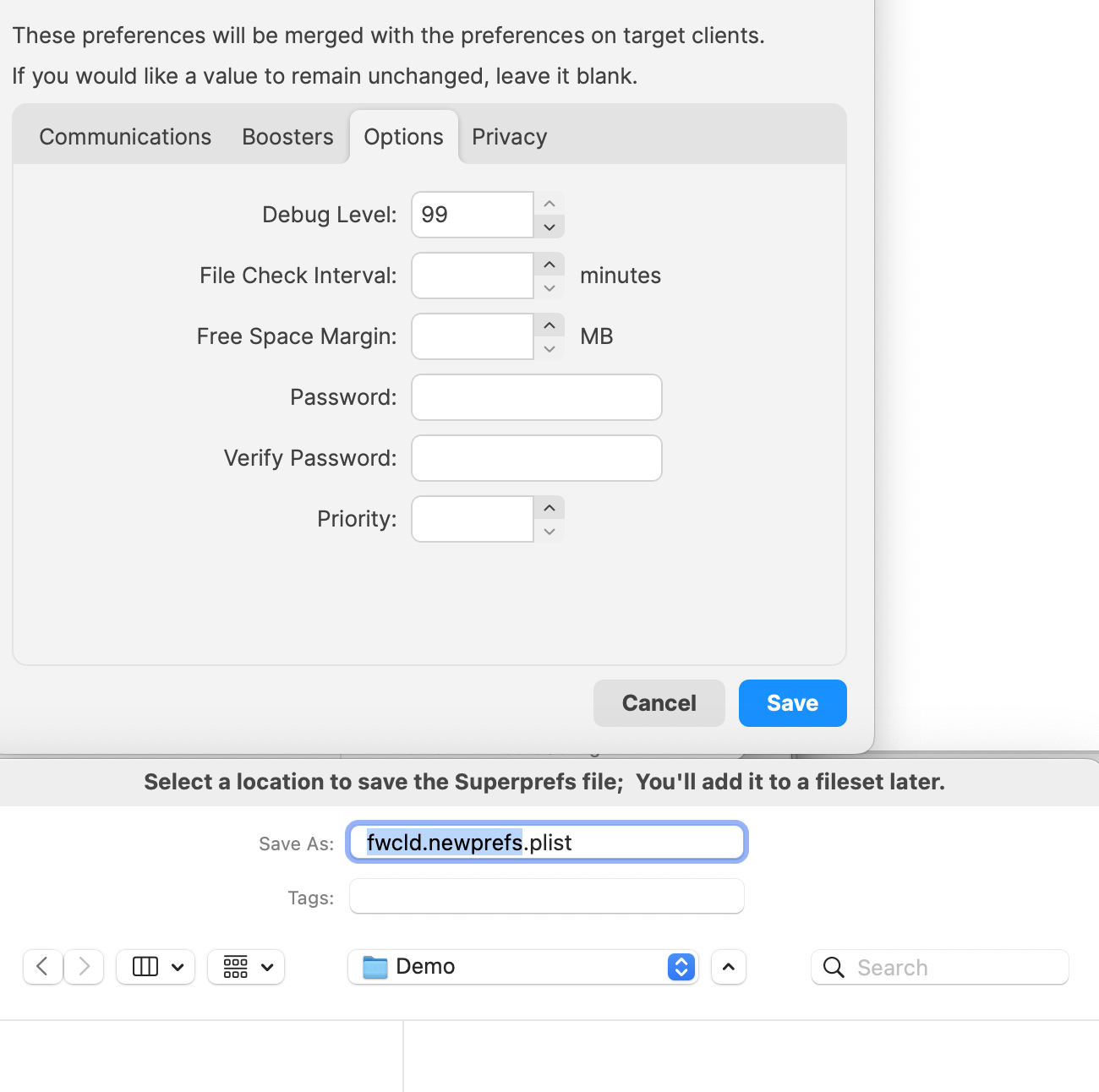
To enable debug logging, open the Superprefs Editor, cancel the Finder or Explorer window if you are creating a new file, go to the **Options** tab, set **Debug Level** to **99**, and save the file.

<p class="callout warning">The file must be named **fwcld.newprefs.plist**.</p>

[![Superprefs Editor Options tab with Debug Level set to 99 and saved as fwcld.newprefs.plist](https://kb.filewave.com/uploads/images/gallery/2024-11/scaled-1680-/SPAlw4crnUZBmFQ0-image.png)](https://kb.filewave.com/uploads/images/gallery/2024-11/SPAlw4crnUZBmFQ0-image.png)

The saved plist should contain only the changed key:

```
Dict {
    debugLevel = 99
}
```

## Package the plist in a Fileset

The **fwcld.newprefs.plist** file can be placed in any reasonable path inside the Fileset. A dedicated Superprefs folder makes the purpose clear and lets you keep separate folders for different preference sets.

<table id="bkmrk-macos%2Fusr%2Flocal%2Fetc%2F" style="border-collapse:collapse;width:100%;"><colgroup><col style="width:21.428571%;"></col><col style="width:78.571429%;"></col></colgroup><tbody><tr><td>macOS</td><td>/usr/local/etc/Superprefs/debug/fwcld.newprefs.plist</td></tr><tr><td>Windows</td><td>C:\\ProgramData\\FileWave\\Superprefs\\debug\\fwcld.newprefs.plist</td></tr></tbody></table>

You can add the file to an existing Fileset, but a dedicated Fileset is usually easier to target, test, and remove later.

From the FileWave Central Admin App:

- Create a new **Empty** Fileset and name it clearly.
- Open the Fileset and disable **Hide unused folders**.
- Select or create the desired location for the plist file.
- Drag **fwcld.newprefs.plist** from Finder or Explorer into that location in the Fileset.

Using the debug logging example for macOS, the Fileset could look like this:

[![Fileset contents showing fwcld.newprefs.plist in a Superprefs debug folder](https://kb.filewave.com/uploads/images/gallery/2024-11/scaled-1680-/52bR7hfZkkQXEryG-image.png)](https://kb.filewave.com/uploads/images/gallery/2024-11/52bR7hfZkkQXEryG-image.png)

When the Fileset activates on a client, Debug Level should switch to 99 and the client log should reflect the change.

<p class="callout success">Always test with one device or a small pilot group before associating the Superprefs Fileset more broadly.</p>

<p class="callout info">For temporary troubleshooting, create a matching Superprefs Fileset that returns Debug Level to the standard value of 10 when analysis is complete.</p>

## GUI observation

Some Superprefs Editor entries are Boolean values, such as Booster Routing. Boolean entries can be set to **True**, set to **False**, or left unset. A dash means the value is not included in the Superprefs file.

[![Superprefs Editor Privacy tab showing Boolean settings with unset values](https://kb.filewave.com/uploads/images/gallery/2024-11/scaled-1680-/twDU0dMYgYJFzi8o-image.png)](https://kb.filewave.com/uploads/images/gallery/2024-11/twDU0dMYgYJFzi8o-image.png)
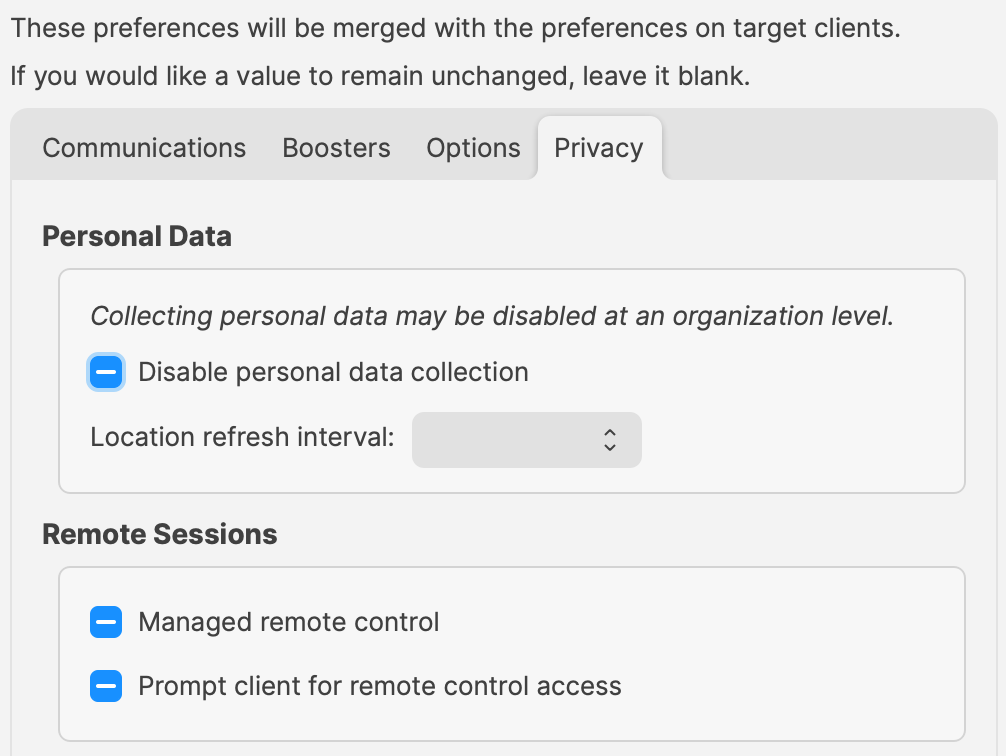
The three states appear as:

<table id="bkmrk-false-true-unset" style="border-collapse:collapse;width:100%;"><colgroup><col style="width:50%;"></col><col style="width:50%;"></col></colgroup><tbody><tr><td>[![Unchecked Boolean value](https://kb.filewave.com/uploads/images/gallery/2024-11/scaled-1680-/xPsuDQILYmx5k9uq-image.png)](https://kb.filewave.com/uploads/images/gallery/2024-11/xPsuDQILYmx5k9uq-image.png)

</td><td>False</td></tr><tr><td>[![Checked Boolean value](https://kb.filewave.com/uploads/images/gallery/2024-11/scaled-1680-/IoAX5eEP8d5VABk5-image.png)](https://kb.filewave.com/uploads/images/gallery/2024-11/IoAX5eEP8d5VABk5-image.png)

</td><td>True</td></tr><tr><td>[![Unset Boolean value](https://kb.filewave.com/uploads/images/gallery/2024-11/scaled-1680-/Tw6Jzp8HSZsC3NoQ-image.png)](https://kb.filewave.com/uploads/images/gallery/2024-11/Tw6Jzp8HSZsC3NoQ-image.png)

</td><td>Unset</td></tr></tbody></table>

## Related Content

- [FileWave Client Configuration Settings](https://kb.filewave.com/books/filewave-client/page/filewave-client-configuration-settings)
- [FileWave Fileset Types](https://kb.filewave.com/books/filesets-payloads/page/filewave-fileset-types)
- [How the FileWave Client Communicates](https://kb.filewave.com/books/filewave-client/page/how-the-filewave-client-communicates)