# Scripting

# Execute macOS scripts as Defined User

## Description

By default, the FileWave Client executes scripts and tasks with elevated permissions (root on macOS). The below shows a method to launch a command as an alternate user when ran through FileWave.

## Ingredients

- Text editor
- FileWave Central

## Directions

The sudo command may be used to define a user to run a command. Launchctl may also be used to define a user. In some instances only one of these options may be successful. However, both may be defined in the same command at the same time, increasing the chances of success.

The below method not only shows a method to define the user, but grabs the current 'console' user.

```bash
#!/bin/zsh
current_user=$(stat -f%Su /dev/console)
current_user_id=$(id -u $current_user)

whoami

launchctl asuser $current_user_id sudo -u $current_user whoami
```

When ran through FileWave, the output of the above will show the output of the 'whoami' command has altered, by first echoing the root username and then the name of the active console user of the device.

If the current user logged in where 'sholden', the output should show:

```
root
sholden
```

# Execute Powershell Scripts as Defined User

## Description

By default, the FileWave Client executes scripts and tasks with elevated permissions (System on Windows). The below shows a method to launch a command as an alternate user.

## Ingredients

- Text editor
- FileWave Central

## Directions

<p class="callout danger">This method requires the username and password of the user to run the command. Do not add usernames and passwords directly in scripts.</p>

Credentials of a user may be passed to Invoke-Command.

Due to the above warning, add the username and password as Environment Variables to the Script in the Fileset.

For example, with a device named DESKTOP-N05SO1D:

[![image.png](https://kb.filewave.com/uploads/images/gallery/2024-10/scaled-1680-/YHlhJohQx9MJLeZE-image.png)](https://kb.filewave.com/uploads/images/gallery/2024-10/YHlhJohQx9MJLeZE-image.png)
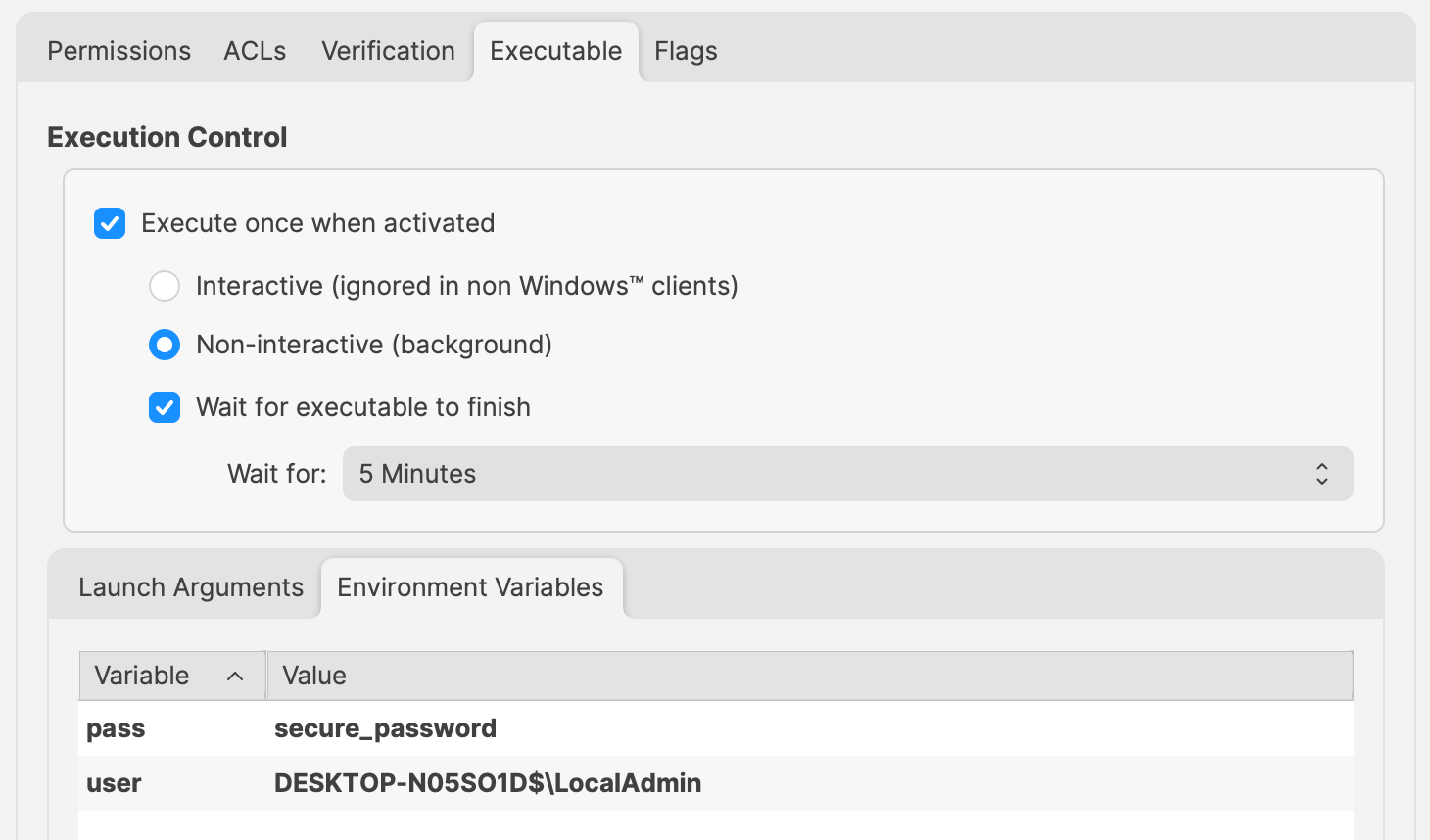
Change 'secure\_password' and 'user' values to required entries.

These will be referenced in the Powershell Script as:

- $Env:pass
- $Env:user

For example:

```
$securePassword = ConvertTo-SecureString $Env:pass -AsPlainText -Force
$credential = New-Object System.Management.Automation.PSCredential ($Env:user, $securePassword)

echo "$Env:UserName"

Invoke-Command -ComputerName localhost -Credential $credential -ScriptBlock {
  # Code to action by the defined user should be added here
  echo "$Env:UserName"
}
```

The output of the above will show that the username has altered, by first echoing the System name and then the name of the user within the script block:

```
DESKTOP-N05SO1D$
LocalAdmin
```

<p class="callout info">The above relies upon 'winrm'. If there are any issues when running the command, winrm can be checked with the following command: winrm quickconfig</p>

<p class="callout warning">This method will not work if the defined network is 'Public', as winrm will not allow this.</p>

# macOS 10.15+ and zsh shell for scripting

## Description

Apple announced changes to the default shell for macOS 10.15:

[https://support.apple.com/HT208050](https://support.apple.com/HT208050)

## Information

For years now, Apple has appeared to avoid any tools that are covered by the [GPL v3 Licence](https://www.gnu.org/licenses/gpl-3.0.html) as well as remove any that were in use over time. Bash is one of these. In the early releases of 10.x Apple initially used tcsh shell as default, but soon moved to bash; so this is not the first time Apple has made a change of this kind.

In order to avoid newer versions of bash covered by GPL v3 licensing, it can be seen how old bash is on a macOS device:

```bash
$ bash -version
GNU bash, version 3.2.57(1)-release (x86_64-apple-darwin18)
Copyright (C) 2007 Free Software Foundation, Inc.

```

Run the same command on a modern Linux system, e.g. the FileWave Linux Server Appliance and you will see a much newer version:

```bash
$ bash -version
GNU bash, version 4.2.46(2)-release (x86_64-redhat-linux-gnu)
Copyright (C) 2011 Free Software Foundation, Inc.
License GPLv3+: GNU GPL version 3 or later <http://gnu.org/licenses/gpl.html>

This is free software; you are free to change and redistribute it.
There is NO WARRANTY, to the extent permitted by law.

```

GPL v3 license has implications for Apple. zsh is licensed under [MIT](https://en.wikipedia.org/wiki/MIT_License), which does not involve these same implications.

Considerations

#### Specifying the shell

The first line of a script should indicate which shell is used when a script runs.

For example, for bash this could typically be either of the following (this is known as the 'shebang'):

```bash
#!/bin/bash

```

```bash
#!/usr/bin/env bash

```

By providing this, the script will run from a shell of the specified type. Any scripts created should have this set. If this is not set, then the script will run in the shell type that is currently set for that shell's session. Apple's changes will have an impact on any scripts not specified by default. The best practice is to always add the shebang at the beginning of any script to ensure expected behavior.

#### Bash vs zsh

Bash and zsh are very similar, but there are some differences that may interfere with scripts that were written for bash but are then run as zsh. Scripts should therefore be analyzed for behavior if the shell type of the script is changed.

#### Examples

##### Arrays

The first item of an array differs when being referenced:

- bash reference of the first item in an array: index 0
- zsh reference of the first item in an array: index 1

There is also a difference in deleting items from an array. The following produces the same output from the same original array, but note differences on the item being indexed and the method of removal:

##### bash arrays

```bash
#!/bin/bash


myarray=("one" "two" "three")
echo ${myarray[@]}
echo "First item in array: "${myarray[0]}

echo "Remove first item in array, item 0..."
unset myarray[0]
echo ${myarray[@]}

exit 0

# Script output:
one two three
First item in array: one
Remove first item in array, item 0...
two three

```

##### zsh arrays

```bash
#!/bin/zsh

myarray=("one" "two" "three")
echo ${myarray[@]}
echo "First item in array: "${myarray[1]}

echo "Remove first item in array, item 1..."
myarray[1]=()
echo ${myarray[@]}

exit 0

# Script output:
one two three
First item in array: one
Remove first item in array, item 1...
two three

```

##### Variable Expansion

Word splitting on variable expansion differs between bash and zsh. For example, bash will print the following, one line per word, whilst zsh will print the whole variable as one line. Note also, that bash, by default, will not expand aliases when the shell is not interactive, unlike zsh.

##### bash variable expansion

```bash
#!/bin/bash

# Expand aliases
shopt -s expand_aliases

alias printvar="printf '%s\n'"
myvar='one two'
printvar $myvar

exit 0

# Script output:
one
two

```

##### zsh variable expansion

```bash
#!/bin/zsh

alias printvar="printf '%s\n'"
myvar='one two'
printvar $myvar

exit 0

# Script output
one two

```

zsh does have the ability to set an option to change this behavior, but consider converting to an array instead.

Apple has chosen zsh over bash since the overlap on script compatibility is high. However, as seen there can be differences and so it is prudent to check all scripts for behavior. The above are just examples; other differences may be experienced and will require addressing appropriately.

# Referencing Launch Arguments in Scripts

## Description

Scripts ran through FileWave have the option to supply 'Launch Arguments'. These are referenced from the script but are not included in the body of the script.

They may be supplied to any of the following:

- [Fileset Scripts](https://kb.filewave.com/books/filesets-payloads "Filesets / Payloads")
- [Custom Fields](https://kb.filewave.com/books/custom-fields/page/custom-fields "Custom Fields")
- Policy Blocker Scripts

Often Admins feel that there is a limit of 9 'Launch Arguments' through FileWave, but the below will demonstrate this is not the case.

## Information

The Launch Arguments, known as [Positional Parameters](https://www.gnu.org/savannah-checkouts/gnu/bash/manual/bash.html#Positional-Parameters), are referenced as follows:

<table id="bkmrk-%C2%A0-macos%2Flinux-window" style="width: 58.8889%; height: 148.984px;"><tbody><tr style="height: 29.7969px; background-color: rgb(251, 238, 184);"><td style="width: 27.013%; height: 29.7969px;"> </td><td style="width: 21.0757%; height: 29.7969px;">macOS/Linux</td><td style="width: 30.8486%; height: 29.7969px;">Windows Powershell</td><td style="width: 20.7957%; height: 29.7969px;">Windows Bat</td></tr><tr style="height: 29.7969px;"><td style="width: 27.013%; height: 29.7969px;">First Argument</td><td style="width: 21.0757%; height: 29.7969px;">$1</td><td style="width: 30.8486%; height: 29.7969px;">`$args[0]`</td><td style="width: 20.7957%; height: 29.7969px;">%1</td></tr><tr style="height: 29.7969px;"><td style="width: 27.013%; height: 29.7969px;">Second Argument</td><td style="width: 21.0757%; height: 29.7969px;">$2</td><td style="width: 30.8486%; height: 29.7969px;">`$args[1]`</td><td style="width: 20.7957%; height: 29.7969px;">%2</td></tr><tr style="height: 29.7969px;"><td style="width: 27.013%; height: 29.7969px;">Third Argument</td><td style="width: 21.0757%; height: 29.7969px;">$3</td><td style="width: 30.8486%; height: 29.7969px;">`$args[2]`</td><td style="width: 20.7957%; height: 29.7969px;">%3</td></tr></tbody></table>

More may be added and each is referenced in turn by its positional place as in the above table.

## Considerations

Certain shell types behave differently. This may particularly show when referencing the 10th or higher supplied argument.

<p class="callout success">Although two solutions have been supplied, zsh is recommended to stay in line with Apple's policy: [https://support.apple.com/en-gb/HT208050](https://support.apple.com/en-gb/HT208050)</p>

### bash and sh

The following example was hoped to print the first 3 positional parameters, followed by the 10th and 11th.

**bash\_test.sh**

```shell
#!/bin/bash

echo $1
echo $2
echo $3
echo $10
echo $11

exit 0
```

However, if the character '1' was supplied as single argument the following would be observed when ran:

**bash\_test.sh**

```shell
./bash_test.sh 1
1


10
11
```

The bash and sh shells are examples which treat $10 as ${1}0, $11 as ${1}1, etc.; returning the value of $1 and then appending the additional character (0 or 1 in this example).

Additional reference:

- [https://www.oreilly.com/library/view/bash-cookbook/0596526784/ch05s07.html](https://www.oreilly.com/library/view/bash-cookbook/0596526784/ch05s07.html)
- [https://www.oreilly.com/library/view/bash-cookbook/0596526784/ch05s04.html](https://www.oreilly.com/library/view/bash-cookbook/0596526784/ch05s04.html)

As such the above output is equivalent to:

<table id="bkmrk-%C2%A0-description-output" style="width: 64.0741%;"><tbody><tr style="background-color: rgb(251, 238, 184);"><td style="width: 9.41704%;"> </td><td style="width: 76.9058%;">Description</td><td style="width: 13.6771%;">Output</td></tr><tr><td style="width: 9.41704%;">$1</td><td style="width: 76.9058%;">Returns first argument</td><td style="width: 13.6771%;">1</td></tr><tr><td style="width: 9.41704%;">$2</td><td style="width: 76.9058%;">Returns second argument</td><td style="width: 13.6771%;">2</td></tr><tr><td style="width: 9.41704%;">$3</td><td style="width: 76.9058%;">Returns nothing, no third argument</td><td style="width: 13.6771%;"> </td></tr><tr><td style="width: 9.41704%;">$10</td><td style="width: 76.9058%;">Returns first argument, followed by the '0' character</td><td style="width: 13.6771%;">10</td></tr><tr><td style="width: 9.41704%;">$11</td><td style="width: 76.9058%;">Returns first argument, followed by the '1' character</td><td style="width: 13.6771%;">11</td></tr></tbody></table>

To ensure the correct positional parameters are referenced, the variables must be explicitly set to achieve the correct output.

The following shows the corrected script.

**bash\_test.sh**

```shell
#!/bin/bash

echo $1
echo $2
echo $3
echo ${10}
echo ${11}

exit 0
```

Now when executed with 11 positional parameters, the expected output is displayed:

**bash\_test.sh**

```shell
./bash_test.sh var1a var2b var3c var4d var5e var6f var7g var8h var9i var10j var11k
var1a
var2b
var3c
var10j
var11k
```

### zsh

Not all shells act the same. An alternate to the above would be zsh. Taking the above example as a zsh script:

**zsh\_test.sh**

```shell
#!/bin/zsh

echo $1
echo $2
echo $3
echo $10
echo ${11}

exit 0
```

Given the same 11 arguments, this would output:

**zsh\_test.sh**

```shell
./zsh_test.sh var1a var2b var3c var4d var5e var6f var7g var8h var9i var10j var11k
var1a
var2b
var3c
var10j
var11k
```

Unlike bash and sh, zsh considers $10 to be the 10th argument, $11 the 11th argument and so on and so forth. Notice zsh may use either format.

## Conclusion

Often admins are confused with output results when using 10 or more arguments. Armed with the above knowledge, this should assist structuring scripts.

## Related Content

- [Custom Fields](https://kb.filewave.com/books/custom-fields/page/custom-fields "Custom Fields")
- [Filesets / Payloads](https://kb.filewave.com/books/filesets-payloads "Filesets / Payloads")

# Script Best Practices

## Description

Tips and tricks for running Filesets with scripts

## Don't put passwords in scripts

The scripts are stored locally on devices. For security reasons, usernames and passwords should not be included within the body of scripts.

For example:

**Example: password in command**

```shell
somecommand -u "USERNAME_HERE" -p "PASSSWORD_HERE"
```

Additionally, DO NOT use Launch Arguments to provide passwords to scripts. Launch Arguments are visible in the process list during script execution. Instead supply the username and password as **Environment Variables**:

![leaked_password.png](https://kb.filewave.com/uploads/images/gallery/2023-07/xlF44by6TkQonzow-leaked-password.png)![environment_variable_password.png](https://kb.filewave.com/uploads/images/gallery/2023-07/S8LWrfFBkwZ9KmjC-environment-variable-password.png)

During script execution, the Launch Argument is seen:

**Example: Visible Password**

```shell
$ ps -ef | grep secure
    0 73010   155   0  9:51am ??         0:00.01 /bin/zsh /var/scripts/532417/unsecure_la.sh secure_password_leaked
```

Using the example Environment Variables from the image, they would be addressed as:

<table id="bkmrk-%C2%A0-%C2%A0-%C2%A0-os-script-type" style="width: 88.0247%;"><tbody><tr style="background-color: rgb(251, 238, 184);"><td style="width: 24.3768%;">OS</td><td style="width: 15.8449%;">Script Type</td><td style="width: 59.7232%;">Command</td></tr><tr><td style="width: 24.3768%;">macOS</td><td style="width: 15.8449%;">shell</td><td style="width: 59.7232%;">```shell
somecommand -u $username -p $my_pass
```

</td></tr><tr><td style="width: 24.3768%;">Windows</td><td style="width: 15.8449%;">Powershell</td><td style="width: 59.7232%;">```powershell
somecommand -u $Env:username -p $Env:my_pass
```

</td></tr><tr><td style="width: 24.3768%;">  
</td><td style="width: 15.8449%;">Batch</td><td style="width: 59.7232%;">```powershell
somecommand -u %username% -p %my_pass%
```

</td></tr><tr><td style="width: 24.3768%;">  
</td><td style="width: 15.8449%;">Batch</td><td style="width: 59.7232%;">In order to not transmit the password to a log file accessible on the device, add @echo off before the line containing %my\_pass% and @echo on as the next line. Example:

@<span class="s1">echo</span> off

<span class="s2">%SystemRoot%</span>\\System32\\Reg.exe ADD "HKLM\\SOFTWARE\\Microsoft\\Windows NT\\CurrentVersion\\Winlogon" /v "DefaultPassword" /d "<span class="s2">%my\_pass%</span>" /t REG\_SZ /f

<span class="s3">@</span>echo<span class="s3"> on</span>

</td></tr><tr><td style="width: 24.3768%;">mac0S &amp; Windows</td><td style="width: 15.8449%;">Python</td><td style="width: 59.7232%;">```python
import os
 
os.getenv('username')
os.getenv('my_pass')
```

</td></tr></tbody></table>

## Keep Requirements Scripts Small

Requirements scripts are pulled from a fileset and sent before the remainder of the fileset.

It behaves this way because if a requirements script fails, there is no point in downloading and installing the remainder of the fileset.

<p class="callout warning">A fileset whose requirements have failed will not even show up in the kiosk.</p>

Where possible, avoid piping commands. This increases overhead on the scripts. If pipes are required, try to reduce the quantity of pipes. If nothing else, this makes the scripts easier to read.

```shell
$ time system_profiler SPHardwareDataType | grep "Model Identifier" | awk '{print $NF}'
MacBookPro11,4


$ system_profiler SPHardwareDataType | awk '/Model Identifier/ {print $NF}'
MacBookPro11,4
```

And other commands may achieve the same result more efficiently without the need to pipe.

```shell
$ time system_profiler SPHardwareDataType | grep "Model Identifier" | awk '{print $NF}'
MacBookPro11,4

real	0m0.192s
user	0m0.071s
sys	0m0.049s


$ time sysctl -n hw.model
MacBookPro11,4

real	0m0.004s
user	0m0.001s
sys	0m0.002s
```

Consider this for all scripts beyond just requirement scripts.

## Log Script Output

By default, Fileset scripts built through the Scripts button are logged. All output is redirected to a unique file per script.

If desired, additional information could be redirected to an alternate file.

<p class="callout success">Redirecting output to the FileWave Client log, allows the viewing of those details via the 'Get Log' feature</p>

<p class="callout warning">Redirecting to the FileWave Client log is not possible on windows, since the log file is locked by the client writing to the file.</p>

#### Redirecting Output

Output may be redirected using one of the following:

macOS:

```
echo "hello" >> /tmp/tmp_log_file.log
```

Windows:

```
echo "hello" | Out-File -Append -Encoding Ascii C:\Temp\my_temp_file.log
```

Better than just redirecting output, consider using the tee/Tee-Object command, such that the FileWave generated log and the redirected log both show the output.

macOS:

```
echo "hello" | tee -a /tmp/tmp_log_file.log
```

Windows:

```
echo "hello" | Tee-Object -Variable out | Out-File -InputObject $out -append -encoding Ascii C:\Temp\my_temp_file.log
```

On macOS, all output can be redirected by using the following at the beginning of the file:

```shell
#!/bin/zsh
exec 1>>/var/log/fwcld.log
exec 2>>/var/log/fwcld.log


... rest of script
```

## Testing Scripts

Scripts run by FileWave are run by root or System. As such, scripts should be tested using the same user context to prevent erroneous results. Many commands will yield the same result regardless, but this cannot be relied upon.

### Windows

E.g. Running the following command will provide a different output, when ran on a 32bit Windows environment as opposed to a 64bit Windows environment:

```
 (Get-ItemProperty "HKLM:\SOFTWARE\Microsoft\Windows NT\CurrentVersion").EditionId
```

64bit:

```powershell
 (Get-ItemProperty "HKLM:\SOFTWARE\Microsoft\Windows NT\CurrentVersion").EditionId
Professional
```

32bit:

```powershell
 (Get-ItemProperty "HKLM:\SOFTWARE\Microsoft\Windows NT\CurrentVersion").EditionId
Enterprise
```

Similarly, the user executing a script can have an impact on the outcome. Username itself is a relatively obvious example:

```
$Env:UserName
```

When ran locally through a shell, it should report the name of the current user. However, when ran through FileWave, it should report the System name.

Prior to FileWave 15.5, the Windows client was 32bit, but since then, a 64bit client is supplied. Either way, the user executing any scripts is the System user. As such, all tests should be ran in that same context:

<table border="1" id="bkmrk-version-user-bit-fil" style="border-collapse: collapse; width: 100%;"><colgroup><col style="width: 50%;"></col><col style="width: 25%;"></col><col style="width: 25%;"></col></colgroup><tbody><tr><td>Version</td><td>User</td><td>Bit</td></tr><tr><td>FileWave 15.5+</td><td>System</td><td>64</td></tr><tr><td>FileWave 15.4.x-</td><td>System</td><td>32</td></tr></tbody></table>

<p class="callout info">Fileset Properties has the option to specify 32 or 64bit, setting the executing environment.</p>

<p class="callout success">Although FileWave 15.5.0 now provides 64bit options by default, current scripts will automatically be set as 32bit</p>

<p class="callout warning">Custom Fields and Blocker Scripts in 15.5.0 are still currently 32bit only. This should be addressed in an upcoming release.</p>

<p class="callout success">PsTools: This relies on downloading and installing, onto the test machine, [PsTools](https://docs.microsoft.com/en-us/sysinternals/downloads/pstools).</p>

#### Running Environment

##### Prior to FileWave 15.5

Take a look at [Getting a CMD prompt as SYSTEM in Windows Vista and Windows Server 2008](https://blogs.technet.microsoft.com/askds/2008/10/22/getting-a-cmd-prompt-as-system-in-windows-vista-and-windows-server-2008/) for details about running scripts as System. Note, that by default, this will start an executable as 64-bit, for native 64-bit OS.

From a device with the PsTools installed, start by opening a Command Shell as an Administrator. From that shell, another command should be run to open yet another shell, but this time in the chosen environment.

The below example shows launching the 32bit version of PowerShell as the System user:

```powershell
PSEXEC  -i -s -d C:\Windows\SysWOW64\windowsPowerShell\v1.0\powershell.exe
```

To open a command shell in that same environment would use the following:

```powershell
PSEXEC -i -s -d %windir%\SysWoW64\cmd.exe
```

Similarly, when attempting to run some commands, it may be necessary to ensure Windows is using the correct version of a binary with the '[sysnative](https://docs.microsoft.com/en-us/windows/desktop/winprog64/file-system-redirector)' redirect. An example would be Bitlocker's 'manage-bde.exe'. To use this in a Fileset, try the following:

```powershell
C:\Windows\sysnative\manage-bde.exe -status
```

If you have a requirement to run a particular command through the 64-bit version of Powershell this can be achieved as follows:

```powershell
If ( [IntPtr]::Size * 8 -ne 64 )
{
    C:\Windows\SysNative\WindowsPowerShell\v1.0\PowerShell.exe -File $MyInvocation.MyCommand.Path
}
Else
{
    # Add code here
}
```

Testing scripts designed to be ran with the 64bit FileWave Client, still requires the above actions, to ensure that the System account has been targeted, but this time with a 64bit application.

Opening a 64bit version of PowerShell as the System user:

```
PSEXEC  -i -s -d C:\Windows\System32\windowsPowerShell\v1.0\powershell.exe
```

#### Example 32bit to 64bit

The below demonstrates running a 64bit script, but from the 32bit FileWave Client, which will create a new administrator. Additionally, the FileSet &gt; Get Info &gt; Environment Variables are being used to supply the name and password to the script.

Two Fileset Environment Variables are being supplied, for the user 'rstephens' with a password of 'filewave'

<table id="bkmrk-%C2%A0-%C2%A0-variable-value-u" style="width: 31.1111%;"><tbody><tr style="background-color: rgb(251, 238, 184);"><td style="width: 50%;">Variable</td><td style="width: 50%;">Value</td></tr><tr><td style="width: 50%;">username</td><td style="width: 50%;">rstephens</td></tr><tr><td style="width: 50%;">password</td><td style="width: 50%;">filewave</td></tr></tbody></table>

Those Parameters may then be referenced from within the script and have them defined for the launching of the 64bit executable within this 32bit script.

```powershell
Param ( 
    [string]$MyUsername = $Env:username,
    [string]$MyPassword = $Env:password
)


If ( [IntPtr]::Size * 8 -ne 64 )
{
    C:\Windows\SysNative\WindowsPowerShell\v1.0\PowerShell.exe -File $MyInvocation.MyCommand.Path -MyUsername $MyUsername -MyPassword $MyPassword
}
Else
{
    (New-LocalUser -AccountNeverExpires:$true -Password ( ConvertTo-SecureString -AsPlainText -Force $MyPassword) -Name $MyUsername | Add-LocalGroupMember -Group administrators)
}
```

#### Troubleshooting PowerShell scripts

As a best practice, always check the "**Disable Windows 32-bit on Windows 64-bit redirection**" checkbox in the Properties tab for your fileset priot to FileWave 15.5.0. From 15.5.0 and beyond make sure to uncheck the new "**Run as 32 Bit**" checkbox so that the Fileset will be truely 64-bit. This ensures that any scripts in the fileset will be run in a 64-bit session and built-in Windows executables triggered by those scripts will call the 64-bit versions. A common reason for why your script might not be performing the expected results could be due to **64-bit Only Modules or Cmdlets**: Some PowerShell modules or cmdlets are available only for the 64-bit version of PowerShell. If a script relies on these 64-bit modules, it must run in a 64-bit shell.

[![image.png](https://kb.filewave.com/uploads/images/gallery/2024-10/scaled-1680-/MmdQoZiPiZQkSeWt-image.png)](https://kb.filewave.com/uploads/images/gallery/2024-10/MmdQoZiPiZQkSeWt-image.png)

### macOS

On macOS, running commands as sudo is not necessarily the same as actually becoming root.

#### Root vs As Root

E.g. Run the following commands to evaluate the local variable $HOME, once using sudo and once as root.

```shell
$ whoami
auser
$ sudo echo $HOME
/Users/auser
$ sudo su -
$ whoami 
root
$ echo $HOME
/var/root
```

#### Paths

Similarly, the paths used to locate executable files will differ, since FileWave is a service ran as root and is not the root account. On an example device:

<table border="1" id="bkmrk-user-account-root-ac" style="border-collapse: collapse; width: 100%;"><colgroup><col style="width: 33.333333%;"></col><col style="width: 33.333333%;"></col><col style="width: 33.333333%;"></col></colgroup><tbody><tr><td>User Account</td><td>Root Account</td><td>FileWave Client</td></tr><tr><td>```
% echo $PATH | tr ":" "\n"
/opt/homebrew/bin
/opt/homebrew/sbin
/var/root/.cask/bin
/usr/local/sbin
/usr/bin
/bin
/usr/sbin
/sbin
```

  
</td><td>```
% echo $PATH | tr ":" "\n"
/usr/local/bin
/System/Cryptexes/App/usr/bin
/usr/bin
/bin
/usr/sbin
/sbin
/Applications/VMware Fusion.app/Contents/Public
/Library/Apple/usr/bin
/var/run/com.apple.security.cryptexd/codex.system/bootstrap/usr/local/bin
/var/run/com.apple.security.cryptexd/codex.system/bootstrap/usr/bin
/var/run/com.apple.security.cryptexd/codex.system/bootstrap/usr/appleinternal/bin
```

  
</td><td>```
/usr/bin
/bin
/usr/sbin
/sbin
```

</td></tr></tbody></table>

As such, consider always using the full path within a script to an executable, to be explicit, and ensure the executable is found.

For example, it can be seen from the above that homebrew is installed.

```
 % ls -al /usr/local/bin/brew 
lrwxrwxrwx  1 root  _developer  28 Mar 23  2023 /usr/local/bin/brew -> /usr/local/homebrew/bin/brew
```

Running the following command would work as the user or root account, but would fail through FileWave, since the FileWave Client does not search /usr/local at all for executables:

`brew -v`

To ensure the script works and targets the correct brew, the full path should be entered:

`/usr/local/bin/brew -v`

##### Plist

It is common to see plist files edited with the 'defaults' command. However, this command is unique when it comes to ownership and permissions of files. The 'defaults' command will both take ownership and change permissions of files when used to write to plist files:

```shell
$ whoami   
root
$ ls -al /tmp/example_plist.plist
-rw-r--r--  1 rstephens  staff  66 Feb 28 10:03 /tmp/example_plist.plist
$ defaults write /tmp/example_plist Label example_plist
$ ls -al /tmp/example_plist.plist
-rw-------  1 root  wheel  66 Feb 28 10:05 /tmp/example_plist.plist
```

As such, ensure to add a repair to scripts to reset permissions and ownership after the command has been used or consider using the following command instead (Note the full path is required if /usr/libexec is not in the paths list:

```shell
/usr/libexec/PlistBuddy
```

## Related Content

- [Custom Fields](https://kb.filewave.com/books/custom-fields/page/custom-fields "Custom Fields")
- [Filesets / Payloads](https://kb.filewave.com/books/filesets-payloads "Filesets / Payloads")
- [Fileset / Payload Script Exit Code Status](https://kb.filewave.com/books/filesets-payloads/page/fileset-payload-script-exit-code-status "Fileset / Payload Script Exit Code Status")

# Scripting Languages supported in FileWave

## Description

FileWave provides the ability to leverage certain scripting languages on macOS and Windows. This includes:

<table id="bkmrk-%C2%A0-macos-windows-perl" style="width: 33.8272%;"><tbody><tr style="background-color: rgb(251, 238, 184);"><td style="width: 39.2857%;"> </td><td class="align-center" style="width: 27.6786%;">macOS</td><td class="align-center" style="width: 33.0357%;">Windows</td></tr><tr><td style="width: 39.2857%;">Perl</td><td class="align-center" style="width: 27.6786%;">![green-checkmark.png](https://kb.filewave.com/uploads/images/gallery/2023-07/M1eeGIiPkzG0CJIn-green-checkmark.png)</td><td class="align-center" style="width: 33.0357%;">![green-checkmark.png](https://kb.filewave.com/uploads/images/gallery/2023-07/M1eeGIiPkzG0CJIn-green-checkmark.png)</td></tr><tr><td style="width: 39.2857%;">Python</td><td class="align-center" style="width: 27.6786%;">![green-checkmark.png](https://kb.filewave.com/uploads/images/gallery/2023-07/M1eeGIiPkzG0CJIn-green-checkmark.png)</td><td class="align-center" style="width: 33.0357%;">![green-checkmark.png](https://kb.filewave.com/uploads/images/gallery/2023-07/M1eeGIiPkzG0CJIn-green-checkmark.png)</td></tr><tr><td style="width: 39.2857%;">Shell</td><td class="align-center" style="width: 27.6786%;">![green-checkmark.png](https://kb.filewave.com/uploads/images/gallery/2023-07/M1eeGIiPkzG0CJIn-green-checkmark.png)</td><td class="align-center" style="width: 33.0357%;"> </td></tr><tr><td style="width: 39.2857%;">Bat</td><td class="align-center" style="width: 27.6786%;"> </td><td class="align-center" style="width: 33.0357%;">![green-checkmark.png](https://kb.filewave.com/uploads/images/gallery/2023-07/M1eeGIiPkzG0CJIn-green-checkmark.png)</td></tr><tr><td style="width: 39.2857%;">PowerShell</td><td class="align-center" style="width: 27.6786%;"> </td><td class="align-center" style="width: 33.0357%;">![green-checkmark.png](https://kb.filewave.com/uploads/images/gallery/2023-07/M1eeGIiPkzG0CJIn-green-checkmark.png)</td></tr></tbody></table>

FileWave does not include these languages, they are either installed by the OS vendor or will need to be installed separately.

<p class="callout info">Apple indicated they would be deprecating pre-installation of certain runtimes, for example:   
[https://developer.apple.com/documentation/macos-release-notes/macos-catalina-10\_15-release-notes](https://developer.apple.com/documentation/macos-release-notes/macos-catalina-10_15-release-notes)</p>

When testing any scripts locally prior to deployment through FileWave, it is imperative that they are tested in the same context/environment as if they were being ran by FileWave, as indicated in our [Script Best Practices](https://kb.filewave.com/books/filewave-general-info/page/script-best-practices "Script Best Practices") KB.

### Script Extensions

Fileset scripts are best added using the Script button from the Fileset view. Doing so, ensures the script will also log all output automatically, as well as setting a default [shebang](https://en.wikipedia.org/wiki/Shebang_(Unix)) for macOS shell scripts.

Additionally, when defining the name of the script, the extension is required to match the language.

<p class="callout success">Only one of the following extensions will allow the editing of the Executable tab, regardless of how they the scripts are added.</p>

<table border="1" id="bkmrk-language-extension-p" style="border-collapse: collapse; width: 100%;"><colgroup><col style="width: 50%;"></col><col style="width: 50%;"></col></colgroup><tbody><tr><td style="background-color: rgb(251, 238, 184);">Language</td><td style="background-color: rgb(251, 238, 184);">Extension</td></tr><tr><td>Perl</td><td>.pl</td></tr><tr><td>Python</td><td>.py

</td></tr><tr><td>Shell</td><td>.sh</td></tr><tr><td>Batch</td><td>.bat or .cmd</td></tr><tr><td>PowerShell</td><td>.ps1</td></tr></tbody></table>

<p class="callout success">EXE files may also benefit from the Executables tab</p>

<p class="callout info">Specify the type of Shell script, by way of the shebang. To keep in line with Apple, FileWave will automatically add ZSH as the default shebang: #!/bin/zsh</p>

## Example

The below provides examples of how to instal Python on endpoints. This is one way to achieve this goal, but by no means the only way. Professional Services requests can be raised for items beyond standard FileWave Support if desired.

### Ingredients

- FileWave Central
- Windows EXE

Installers available from either:

- [https://www.python.org/ftp/python/](https://www.python.org/ftp/python/)
- [https://www.python.org/downloads/windows/](https://www.python.org/downloads/windows/)

### Directions

#### macOS Python Installer

<details id="bkmrk-macos-python-apple-p"><summary>macOS Python</summary>

Apple used to provide a version of Python pre-installed, however as noted, this was an old version and is now deprecated. It is possible to download Python installers, however Apple provide Python in the Xcode Command Line Tools. The following method demonstrates how the softwareupdate mechanism may be used to list (and therefore instal) the command line tools:

```shell
# touch /tmp/.com.apple.dt.CommandLineTools.installondemand.in-progress
# softwareupdate -l
Software Update Tool
 
Finding available software
Software Update found the following new or updated software:
* Label: Command Line Tools for Xcode-12.4
    Title: Command Line Tools for Xcode, Version: 12.4, Size: 440392K, Recommended: YES,
* Label: Command Line Tools for Xcode-13.2
    Title: Command Line Tools for Xcode, Version: 13.2, Size: 577329K, Recommended: YES, 
* Label: Command Line Tools for Xcode-12.5
    Title: Command Line Tools for Xcode, Version: 12.5, Size: 470966K, Recommended: YES,
* Label: Command Line Tools for Xcode-12.5
    Title: Command Line Tools for Xcode, Version: 12.5, Size: 470820K, Recommended: YES,
* Label: macOS Big Sur 11.6.2-20G314
```

Note that more than one version may be returned. If Xcode is installed a version may already be in place, so care should be taken if Xcode is already installed. After installing the chosen version, the temporary file created may then be removed.

#### Instal Python Packages

Python scripts import packages, not all of which will be installed by default. Any additional packages will require installation. PIP may achieve this and may be used in a Fileset script; PIP is also installed when installing the Command Line tools (or Xcode)

It is possible to check pip with the following command, note it may require upgrading, but again take careful consideration if Xcode is installed:

```shell
# pip3 list
Package    Version
---------- -------
pip        20.2.3
setuptools 49.2.1
six        1.15.0
wheel      0.33.1
WARNING: You are using pip version 20.2.3; however, version 23.1.2 is available.
You should consider upgrading via the '/Library/Developer/CommandLineTools/usr/bin/python3 -m pip install --upgrade pip' command.
```

For example, to instal pyobjc:

```shell
# Instal pyobjc
pip3 install pyobjc-core
pip3 install pyobjc-framework-Cocoa
pip3 install pyobjc-framework-Quartz
pip3 install pyobjc-framework-SystemConfiguration
```

<p class="callout warning">In some instances, pip3 may fail. This can be due to the link created in:  
/Library/Developer/CommandLineTools/SDKs  
Remove and recreate the link to the correct installed version if need be.</p>

The above could be packaged into a single script which could:

- Touch the temporary file
- Run Software Update
- Obtain the desired version from the list
- Instal that version
- Remove the temporary file
- Remove the link if incorrect
- Use PIP to instal other desired packages
- Recreate the link if removed above

<div class="code panel pdl conf-macro output-block" data-hasbody="true" data-macro-id="bfcced0f-0700-49e8-ba9c-9d9d8fd991a8" data-macro-name="code"><div class="codeContent panelContent pdl"><div><div class="syntaxhighlighter sh-confluence nogutter  bash" id="bkmrk-"></div></div></div></div><div class="code panel pdl conf-macro output-block" data-hasbody="true" data-macro-id="e90c6802-f1a2-4d42-b502-1ba29385d6ec" data-macro-name="code"><div class="codeContent panelContent pdl"><div><div class="syntaxhighlighter sh-confluence nogutter  bash" id="bkmrk--1"></div></div></div></div><div class="code panel pdl conf-macro output-block" data-hasbody="true" data-macro-id="ff087eb3-db62-45b8-abe0-7b7663c0439b" data-macro-name="code"><div class="codeContent panelContent pdl"><div><div class="syntaxhighlighter sh-confluence nogutter  bash" id="bkmrk--2"></div></div></div></div></details>#### Windows Python Installer

<details id="bkmrk-windows-python-downl"><summary>Windows Python</summary>

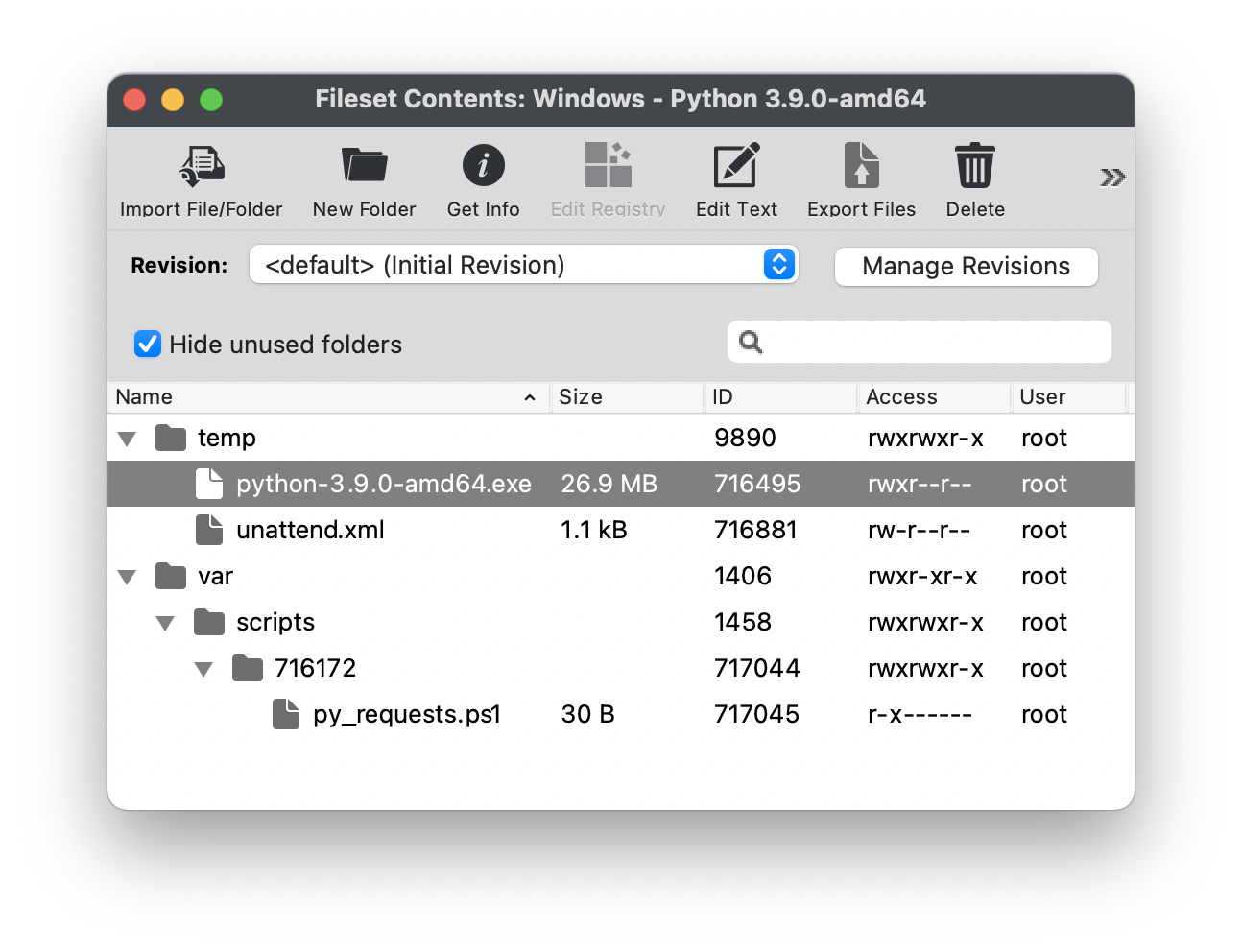
1. Download the appropriate python installer EXE
2. Create a new empty Fileset
3. Choose a location to store the installer and drag the EXE into this location
4. Highlight this EXE and from the Get Info window choose Executable
5. Tick the option to 'Execute once when activated'
6. Set two Launch Arguments as per the screen shot: /quiet and .\\unattend.xml

[![windows_launch_arguments.png](https://kb.filewave.com/uploads/images/gallery/2023-07/scaled-1680-/0wEcV2mI9zUWsTEO-windows-launch-arguments.png)](https://kb.filewave.com/uploads/images/gallery/2023-07/0wEcV2mI9zUWsTEO-windows-launch-arguments.png)

Supporting File

An unattend.xml file may be used to pre-determine aspects of the installation, e.g. instal PIP during installation or set Paths

1. Use an editor to create a file called unattend.xml
2. Edit this file with the below details, editing to meet desired needs
3. Place this file in the Fileset within the same folder location as the EXE installer

An example could look as follows (see the [Python documentation](https://docs.python.org/3/using/windows.html) for a list and description of available options):

```xml
<Options>
<Option Name="InstallAllUsers" Value="1" />
<Option Name="TargetDir" Value="C:\Program Files\Python39" />
<Option Name="DefaultAllUsersTargetDir" Value="C:\Program Files\Python39" />
<Option Name="DefaultJustForMeTargetDir" Value="C:\Program Files\Python39" />
<Option Name="DefaultCustomTargetDir" Value="C:\Program Files\Python39" />
<Option Name="AssociateFiles" Value="1" />
<Option Name="CompileAll" Value="1" />
<Option Name="PrependPath" Value="1" />
<Option Name="Shortcuts" Value="1" />
<Option Name="Include_doc" Value="1" />
<Option Name="Include_debug" Value="1" />
<Option Name="Include_dev" Value="1" />
<Option Name="Include_exe" Value="1" />
<Option Name="Include_launcher" Value="1" />
<Option Name="InstallLauncherAllUsers" Value="1" />
<Option Name="Include_lib" Value="1" />
<Option Name="Include_pip" Value="1" />
<Option Name="Include_symbols" Value="1" />
<Option Name="Include_tcltk" Value="1" />
<Option Name="Include_test" Value="1" />
<Option Name="Include_tools" Value="1" />
<Option Name="LauncherOnly" Value="0" />
<Option Name="SimpleInstall" Value="0" />
<Option Name="SimpleInstallDescription"></Option>
</Options>
```

Edit the above example as desired, for example, set the target directory paths as desired.

Instal Python Packages

Python scripts import packages, not all of which will be installed by default. Any additional packages will require installation. PIP may achieve this and may be used in a post flight script, if the option above to include pip at installation was configured.

1. Create a PostFlight script within the Fileset
2. Edit the script to include any desired packages, e.g. to instal the 'requests' package:

```shell
python -m pip install requests
```

<p class="callout info">The command 'pip list' may be used to list ALL additional packages installed.  
The command 'pip freeze' may be used to list packages installed by PIP.</p>

The final Fileset will may look something like:

[![windows_python_fileset.png](https://kb.filewave.com/uploads/images/gallery/2023-07/scaled-1680-/g1VSscMDVVvWyD7u-windows-python-fileset.png)](https://kb.filewave.com/uploads/images/gallery/2023-07/g1VSscMDVVvWyD7u-windows-python-fileset.png)
<p class="callout info">Packages, including PIP itself, may require updating over time.</p>

</details>#### Testing

The following download is a simple Python Custom Field for both macOS and Windows. It should report the date when ran.

[![image.png](https://kb.filewave.com/uploads/images/gallery/2023-07/scaled-1680-/5XsHz9QL6ItIWrUM-image.png)](https://kb.filewave.com/uploads/images/gallery/2023-07/5XsHz9QL6ItIWrUM-image.png)

<table id="bkmrk-%E2%86%93-macos%2Fwindows"><tbody><tr><td style="background-color: rgb(251, 238, 184);">**↓ macOS/Windows**</td></tr><tr><td>[![FileWave Download.png](https://kb.filewave.com/uploads/images/gallery/2023-06/LhUDCHKqr6dGiaoG-filewave-download.png)](https://kb.filewave.com/attachments/51)</td></tr></tbody></table>

If desired, use the Custom Field Assistant window to Import this unzipped, Custom Field example, called 'Date Time'

# Using PsExec to Test PowerShell 32bit Scripts on Windows with FileWave

## What

FileWave is a Unified Endpoint Management tool that allows organizations to manage and deploy software and settings to macOS, Windows, iOS, iPadOS, tvOS, Chrome, and Android devices. When deploying PowerShell scripts through FileWave, it is important to test the scripts on a Windows device beforehand to ensure that they will function correctly when run through FileWave.

## When/Why

FileWave runs all PowerShell scripts in 32bit PowerShell and runs them as SYSTEM. By testing the scripts on a Windows device using PsExec and executing the .ps1 script as SYSTEM with 32bit PowerShell, organizations can gain a better understanding of how the script will function when run through FileWave. This can help prevent potential issues and ensure that the scripts function as intended when deployed to devices.

## How

1. Download PsExec from the Sysinternals Suite ([https://docs.microsoft.com/en-us/sysinternals/downloads/psexec](https://docs.microsoft.com/en-us/sysinternals/downloads/psexec) )
2. Open a Command Prompt or PowerShell window with Administrator privileges
3. Navigate to the folder where PsExec is located
4. Use the following command to run the PowerShell script as SYSTEM with 32bit PowerShell: `pPSEXEC  -i -s -d C:\Windows\SysWOW64\windowsPowerShell\v1.0\powershell.exe -file "path\to\script.ps1"`

Example:

```powershell
PSEXEC  -i -s -d C:\Windows\SysWOW64\windowsPowerShell\v1.0\powershell.exe -file "C:\test\testscript.ps1"
```

## Related Content

- **[PsExec - Sysinternals | Microsoft Learn](https://docs.microsoft.com/en-us/sysinternals/downloads/psexec)**
- **[Script Best Practices](https://kb.filewave.com/books/filewave-general-info/page/script-best-practices "Script Best Practices")**

## Digging Deeper

### PsExec Switches

- `-i` : runs the program in the interactive mode (the user is prompted to confirm the action)
- `-s` : runs the program as the SYSTEM account
- `-d` : runs the program as a background process, without interaction
- `-accepteula` : automatically accepts the PsExec license agreement

### Using 64bit PowerShell in a 32bit PowerShell script

Sometimes, certain tasks cannot be accomplished using 32bit PowerShell. To overcome this limitation, the following code can be used to run a 64bit PowerShell script within a 32bit PowerShell script.

```powershell
If ( [IntPtr]::Size * 8 -ne 64 )
{
    C:\Windows\SysNative\WindowsPowerShell\v1.0\PowerShell.exe -File $MyInvocation.MyCommand.Path
}
Else
{
    # Add code here
}
```

This code block checks whether the processor architecture is 64-bit or not and runs the script in 64-bit mode and the main script can be run here. It is important to note that running the script in 64-bit mode should only be done when it is not possible to accomplish a task using 32bit PowerShell.

It is always recommended to test the script in a test environment to avoid any misconfigurations, and to make sure it is working as expected.