| Error | Context | Explanation | Solution |
| -8 | During Database Verification | There are some orphaned objects in the database | The first thing to do is to run a DB compact. You can run it from Xserver monitor which is in /Applications/FileWave. This should solve the issue. If the compact is not fixing it, then we must be missing a certain type of cleanup in that operation. Generally, this doesn't pose a problem. If you'd like, you can stop the server and zip up the /fwxserver/Data Folder/\*dat and\*idx files and post them to our ftp site. |
| -1 | While doing a Model Update you see a blank window | error creating Fileset File: XXXXXX, folderID: YYYYYYY not found, database damaged, call FileWave Tech Support 889|0xb0513000|FATAL|Error: -1 when updating filesets during model update | This issue is fixed in FileWave version 4.1.1. If you are hitting this issue please upgrade Filewave Admin to 4.1.1. |
| 14 | Error 14 on file, found process: fwxserver/XXXXX exiting due to database error: 14 (Only Applicable to Server 3.7.4) | This is a soft database failure caused by a hard restart of the FileWave Server, it doesn't actually reflect a serious issue, but will cause the server to stop. | Upgrade to 3.7.5 to 4.0.X |
| ` fwxserver conflicts with fw-mdm-server-10.1.1-1.0.x86_64 ` | upgrading to FileWave 11.x from a previous version | This is normally caused by upgrading from a system that originally installed filewave with two packages: fw-mdm-server fwxserver | As of version 11, FileWave installs both servers with just the single fwxserver installer.
To fix this simply remove the mdm component before updating the server.
This will not remove any of your MDM data
` sudo yum remove -y fw-mdm-server ` |
| Error | Context | Explanation | Solution |
| -150 | the file size downloaded to disk does not match the file size stored in the database of the FileWave Server | Delete this file from the Fileset and add a fresh copy from the Admin's hard disk | |
| -125 | Client downloading fileset | Booster does not have the file to serve to the client yet and so the client will try again later | Please wait |
| -13 | fwgui is not running | On the client fwgui process is not running | Restart the filewave client from terminal :
**macOS / Linux**
` sudo fwcontrol client restart ` |
| -3 | During Admin File Upload | On slow networks an upload may timeout. | |
| -1 | Not in inventory | That comes from a client attempting to activate a fileset before it has downloaded it. After the model update, it adds the activation action back into the queue | Please wait for sometime as the client is still downloading the fileset and once it has finished downloading it will activate |
| 2 | reading file from disk | This error is due to a wrong offset request | Upgrade to 3.7.5 or 4.0.4 will solve this issue |
| 15 | This could happen if there is no or very less disk space left on the booster that the client is downloading the filesets from | Please check if the booster has enough free disk space. If the disk space is enough and still you are seeing this error contact support [help.filewave.com](https://help.filewave.com/) | |
| 32 | while trying to send file data XXXXXD (Where XXXXX is the file ID) | Error 32 means broken pipe in the network. Generally this error should resolve by itself if everything in the network is fine. Troubleshooting : check to ping from the booster/server to client and vice versa and check if the problem doesn't exist in the network | 1. If you see this error for long time try to remove the association of this fileset with the client and than associate again. This should solve the problem. 2. Update to latest Filewave 3.7.X or 4.0.X |
| Failed CRC Validation | A CRC check is a form of a checksum which is used to make sure data in files is the same on the client as on the server. The error "failed CRC validation" means that files on the client for whatever reason are being altered compared to what is on the server. | Please send the client log file from the client exhibiting this issue to support [help.filewave.com](https://help.filewave.com) | |
| Kiosk Errors | See: [VPP Kiosk Errors](https://kb.filewave.com/books/apple-school-business-manager/page/vpp-kiosk-error-details "VPP Kiosk Error Details") |
| Error | Context | Explanation | Solution |
| Failed CRC Validation | A CRC check is a form of a checksum which is used to make sure data in files is the same on the client as on the server. The error "failed CRC validation" means that files on the client for whatever reason are being altered compared to what is on the server | Please send the booster log file from the booster exhibiting this issue to [help.filewave.com](https://help.filewave.com/) |
**How to read the tables:** The **File** column lists the log filename or filename pattern, and the **Location** column lists where that file is stored. When sending logs to a collector, combine the directory and filename pattern. A trailing `*` means rotated log files may also exist, for example `nats-booster.err.log`, `nats-booster.err.log.1`, and `nats-booster.err.log.2`.
## FileWave Admin ### FileWave Admin Logs| **Details** | **File** | **Location** |
| **FileWave Admin Log** Logs all FileWave Admin Connection Activity | FileWaveAdmin.log, FileWaveAdmin.log.\* | macOS `~/Library/Application Support/FileWave/FileWaveAdmin.log` Windows `C:\ProgramData\FileWave\FileWaveAdmin.log` |
| **Client Logs** Retrieved Client Logs | ClientLog\_**$IP\_$Port\_$date**.log | macOS `~/Library/Application Support/FileWave/Client Logs/` Windows `C:\ProgramData\FileWave\Client Logs\` |
| **Server Logs** Retrieved Server Logs FileWave Admin > Server > Get Logfile | fwxserver\_**$timestamp**.log | macOS `~/Library/Application Support/FileWave/Server Logs/` Windows `C:\ProgramData\FileWave\Server Logs\` |
| **Details** | **File** | **Location** |
| **FileWave Admin Settings** Settings for the local FileWave Admin App | **macOS** - com.filewave.FileWaveAdmin.plist - com.filewave.admin.plist **Windows** - Registry | macOS `~/Library/Preferences/` Windows `HKCU\Software\FileWave\FileWave Admin` |
| **Exported Views** Views saved from FileWave Admin: \* Views > Export Current View | Filesets Export (**$date**).txt | macOS `~/Library/Application Support/FileWave/Exports` Windows `C:\ProgramData\FileWave\Exports` |
| **Details** | **File** | **Location** |
| **Booster Log** Global Booster activity | fwbooster.log | macOS/Linux `/private/var/log/fwbooster.log` Windows `C:\ProgramData\FileWave\FWBooster\fwbooster.log` |
| **NATS** NATS Booster Logs | **macOS/Linux** - nats-booster.err.log\* - nats-booster.out.log\* **Windows** - nats-booster.log | macOS/Linux `/private/var/log/` Windows `C:\ProgramData\FileWave\FWBooster\NATS\nats-booster.log` |
| **Discovery Log** Only exists when discovery configured and run | **macOS/Linux** - fwdiscovery.log | macOS/Linux `/private/var/log/fwdiscovery.log` |
| **NGINX** Only for Boosters connecting to Hosted FW Servers | **macOS/Windows/Linux** - fwbooster\_nginx\_access.log - fwbooster\_nginx\_error.log | macOS/Linux `/private/var/log/` Windows `C:\FWBooster\Data Folder\` |
| **Details** | **File** | **Location** |
| **Client Logs** Global Client activity | fwcld.log | macOS `/var/log/fwcld.log` Windows `C:\ProgramData\FileWave\FWClient\fwcld.log` |
| **Kiosk Logs** Kiosk application activity | **Kiosk V1** - FWGUI.log | macOS `~/Library/Application\ Support/FileWave/FWGUI.log` Windows `C:\ProgramData\FileWave\FWGUI.log` |
| **Kiosk V2** - kiosk.log | macOS `~/Library/Application\ Support/FileWave/kiosk.log` Windows `C:\ProgramData\FileWave\kiosk.log` | |
| **Fileset Script Logs** Logs generated by Fileset scripts | macOS **$Fileset\_ID**/**$script\_name\_from\_fileset**.log Windows **$Fileset\_ID**\\**$script\_name\_from\_fileset**.log | macOS `/var/log/fwcld/` Windows `C:\ProgramData\FileWave\log\fwcld\` |
| **Custom Field Logs** Logs generated by Custom Fields | custom\_field\_script.**$script\_type**.log e.g. - custom\_field\_script.ps1.log - custom\_field\_script.sh.log | macOS `/var/log/fwcld/1/` Windows `C:\ProgramData\FileWave\log\fwcld\1\` |
| **Fileset Blocker Script Logs** Logs generated by Blocker Scripts | blocker\_script.**$script\_type**.log e.g. - blocker\_script.py.log - blocker\_script.bat.log | macOS `/var/log/fwcld/1/` Windows `C:\ProgramData\FileWave\log\fwcld\1\` |
| **Installer (PKG / MSI) Logs** Logs generated from PKG/MSI Filesets | **$Fileset\_ID**.log | macOS `/usr/local/etc/FileWaveInstallerLogfiles/` Windows `C:\ProgramData\FileWave\FileWaveInstallerLogfiles\` |
| **Upgrade Logs** Windows Filewave Client Upgrade Log | upgradeClient.log FileWaveClient.log | For Upgrade Client log on Windows `C:\temp\upgradeClient.log` For MSI log of FW Client Install `C:\temp\filewaveclient.log` |
| **Details** | **File** | **Location** |
| **FileWave Client Settings** Settings for the FileWave Client | **macOS** - fwcld.plist **Windows** - Registry | macOS `/usr/local/etc/` Windows `HKLM\SOFTWARE\Wow6432Node\Filewave\WinClient` |
| **FileWave Client Preferences** Preference file containing unique client details | **macOS** - com.filewave.Client.plist **Windows** - client.ini | macOS `/Library/Preferences/` Windows `C:\ProgramData\FileWave\` |
| **FileWave Client Certificate** Unique certificate & key per client | - client.crt - client.key | macOS `/var/FileWave/` Windows `C:\ProgramData\FileWave\FWClient\` |
| **Trust Store** Store for self-signed certificates | \*.crt | macOS `/private/var/FileWave/trust_store` Windows `C:\ProgramData\FileWave\FWClient\trust_store` |
Cells highlighted in blue indicate files that are unique per client. These files should not be included when copying or migrating clients from one machine to another. To de-personalise a device, without removing the FileWave Client, some files would require editing, whilst others would need to be removed. If it was felt this was a requirement, consider contacting support to assist with this process.
## FileWave Imaging Server (IVS) ### IVS Logs| **Details** | **File** | **Location** |
| **Django Imaging Server Logs** Django logs for requests regarding Serial numbers, names etc. made by netbooted clients | filewave\_imaging\_server\*.log | `/imaging/logs/` |
| **Windows Image Upload Logs** Captured Windows image uploads | fwadmin.log | `/imaging/logs/fwadmin.log` |
| **Windows Image Upload Logs** Captured Windows image uploads | fwadmin-dlog.log | `/var/log/fwadmin-dlog.log` |
| **Messages Logs** Netboot/PXE Queries & Responses,TFTP transfers, NFS Mounts | dnsmasq Log | CentoS `/var/log/messages` Debian `/var/log/syslog` |
| **Apache Imaging Server Logs** Apache logs for requests regarding Serial numbers, names etc. made by netbooted clients | netboot\_\*.log | `/imaging/logs/` |
| **Client Imaging Logs** Client logs - indicating progress of imaging operation of netbooted clients | **$Serial/$Mac-$Date** | `/imaging/logs/` |
| **FileWave Client Log** IVS FileWave Client Log | fwcld.log | `/var/log/fwcld.log` |
| **Details** | **File** | **Location** |
| **Apache Logs** Server Apache logs | - access\_log, access\_log.\* - error\_log, error\_log.\* - forensic\_log - httpd.pid | `/usr/local/filewave/apache/logs/` |
| **Apache Exporter Logs** Server Apache Exporter Logs | - apache\_exporter.out.log - apache\_exporter.err.log | `/usr/local/filewave/log/` |
| **Alert Manager Logs** Server Alert Manager logs | - alertmanager.out.log - alertmanager.err.log | `/usr/local/filewave/log/` |
| **FileWave Admin Audit Logs** Audit logs from FileWave Admin | audit.log | `/usr/local/filewave/log/audit.log` |
| **FileWave Admin Audit Logs** Audit logs from FileWave Admin | fwaaudit-\[date\].txt | `/private/var/log/FWAdmin Audit/` |
| **FileWave Dotenv file** Environment variable like configs across services. | \*.env | `/usr/local/etc/filewave/.env` |
| **Django Logs** Server Django logs, including FileWave Anywhere, MDM enrollment, VPP, and Classroom activity. For MDM enrollment failures such as *enrolling with management server failed* or secure-connection errors, start with `filewave_django.log` and its rotated files. | - filewave\_django.log, filewave\_django.log.\* - filewave\_django\_vpp.log - filewave\_django\_classroom.log | `/usr/local/filewave/log/` |
| **LDAP Logs** Logs from LDAP | fwldap.log, fwldap.log.\* | `/private/var/log/` |
| **Software Update Logs** Software Update logs | fwsu.log | `/private/var/log/fwsu.log` |
| **FWX Process Logs** Various fwx process logs | - fwxadmin.log - fwxother.log - fwxserver.log | `/private/var/log/` |
| **Model Update Service Log** | model\_update\_service.log | `/usr/local/filewave/log/` |
| **Migration Logs** Server migration logs | fwxserver-migration-\* | `/var/log/fwxserver-migration-*` |
| **Grafana Logs** | - grafana.log - grafana.out.log | `/usr/local/filewave/log/` |
| **Installer Logs** Linux installer logs | install.log | `/private/var/log/install.log` |
| **mtail Logs** Server mtail logs | - mtail.out.log - mtail.err.log | `/usr/local/filewave/log/` |
| **NATS Logs** NATS logs | - nats-server.out.log - nats-server.err.log - nats-server-jwt.out.log - nats-server-jwt.err.log | `/usr/local/filewave/log/` |
| **Web Admin Logs** | - node\_exporter.out.log - node\_exporter.err.log - task\_executor.log | `/usr/local/filewave/log/` |
| **Postgres Exporter Logs** | - postgres\_exporter.out.log - postgres\_exporter.err.log | `/usr/local/filewave/log/` |
| **Postgres Database Logs** | postgresql-**$day**.log | `/usr/local/filewave/fwxserver/DB/pg_data/pg_log/*.log` |
| **Prometheus Logs** | - prometheus\_pushprox.out.log - prometheus\_pushprox.err.log - prometheus.out.log - prometheus.err.log - redis\_exporter.out.log - redis\_exporter.err.log - redis.out.log - redis.err.log - redis.log | `/usr/local/filewave/log/` |
| **FileWave Server Logs** | request\_errors.log | `/usr/local/filewave/log/` |
| **SQL Logs** | sql.log | `/usr/local/filewave/log/` |
| **Update Controller Logs** Removed in FileWave 14.10 | - update\_controller\_access.log - update\_controller.log | `/usr/local/filewave/log/` |
| **Client Monitor** | client\_monitor.log | `/usr/local/filewave/log/` |
| **FileWave Log Messages** | task\_executor.log | `/usr/local/filewave/log/` |
| **Scheduler Log Messages** | huey.log | `/usr/local/filewave/log/` |
Starting in FileWave 16.3 on macOS Server, `fwcontrol` uses **supervisord** under the hood for FileWave service control and status reporting. The commands below stay the same. The main change is that status and service detail output is clearer and no longer reflects the older LaunchDaemon-based behavior.
At a command prompt: ``` sudo fwcontrol server stop sudo fwcontrol server start ``` You can also accomplish the same end goal by performing a single command: ``` sudo fwcontrol server restart ``` It is a matter of preference, but some admins will prefer to execute a stop, then a manual start so that they can see all processes are indeed stopped. Subcomponents can be individually stopped as follows: ``` sudo fwcontrol apache start|stop|restart sudo fwcontrol postgres start|stop|restart sudo fwcontrol scheduler start|stop|restart sudo fwcontrol client start|stop|restart sudo fwcontrol booster start|stop|restart ``` ### Troubleshooting If you find that the fwcontrol control command is not found, you re-create the alias by inputting this command and then try the fwcontrol commands again: ```shell alias fwcontrol='/usr/local/bin/fwcontrol' ``` # Resolving Network Issues with FileWave Server or Boosters on macOS when using Carbon Black EDR Extension ## **What** FileWave has observed network issues when the Carbon Black EDR (Endpoint Detection and Response) system extension and network filter are installed on a FileWave Server or Booster running on macOS. The most common symptom is that the Booster stops responding, which can interrupt device check-ins and content delivery. ## **When/Why** This is most likely to appear under high network traffic, where the Carbon Black network filter is inspecting traffic on the same macOS system that is serving FileWave clients. That combination can create performance or connectivity problems for FileWave services. ## **How** If FileWave network issues begin after Carbon Black EDR is installed on the same macOS Server or Booster, check whether the Carbon Black system extension and network filter are active. On macOS, use this command in Terminal.app: ``` systemextensionsctl list ``` The output will appear like this: ``` --- com.apple.system_extension.endpoint_security enabled active teamID bundleID (version) name [state] * * 7AGZNQ2S2T com.vmware.carbonblack.cloud.se-agent.extension (3.7.2fc81/3.7.2fc81) com.vmware.carbonblack.cloud.se-agent.extension [activated enabled] ``` Check the output for the Carbon Black EDR extension or network filter. If removing or disabling the extension restores FileWave service responsiveness, work with your security team and Carbon Black/Broadcom support before redeploying it to the FileWave Server or Booster. ## **Related Content** - [General Troubleshooting and Errors](https://kb.filewave.com/books/general-troubleshooting-and-errors "General Troubleshooting and Errors") - [FileWave Log File Locations](https://kb.filewave.com/books/filewave-general-info/page/filewave-log-file-locations "FileWave Log File Locations") - [Booster Installation](https://kb.filewave.com/books/boosters "Boosters") - [Broadcom Carbon Black EDR system extension and network filtering](https://techdocs.broadcom.com/us/en/carbon-black/edr/edr-sensors/index/sensor-ig-edr/GUID-91738780-17C1-4C1F-AD01-2319A35B2F11-en/GUID-9D8CA91D-B508-4AF1-BB8F-691769DCB272-en/GUID-5F99CAF5-7F4E-4280-8F94-2C35BEBB3ADE-en.html "Broadcom Carbon Black EDR macOS system extension and network filtering") ## **Digging Deeper** Modern macOS security products often use System Extensions and Network Extensions instead of older kernel extensions. Carbon Black EDR uses this model on current macOS versions so it can inspect endpoint and network activity. That inspection can still affect network-heavy systems. FileWave Servers and Boosters handle repeated client communication and content delivery, so they are more sensitive to anything inserted into the local network path. The `systemextensionsctl list` command is a quick way to confirm whether the Carbon Black extension is active. Treat this as a troubleshooting signal, not a request to remove security tooling without approval. If you need to exclude a FileWave Server or Booster from the Carbon Black network filter, coordinate that decision with the customer security owner and Carbon Black/Broadcom support. # What is Compatibility Mode? FileWave 13.1 introduced new security options and a mode to allow older clients to connect.Compatibility Mode was removed in FileWave 15.4.0 in favor of only using secure connections.
## Problem I don't know what compatibility mode is and what enable and disable do for me. 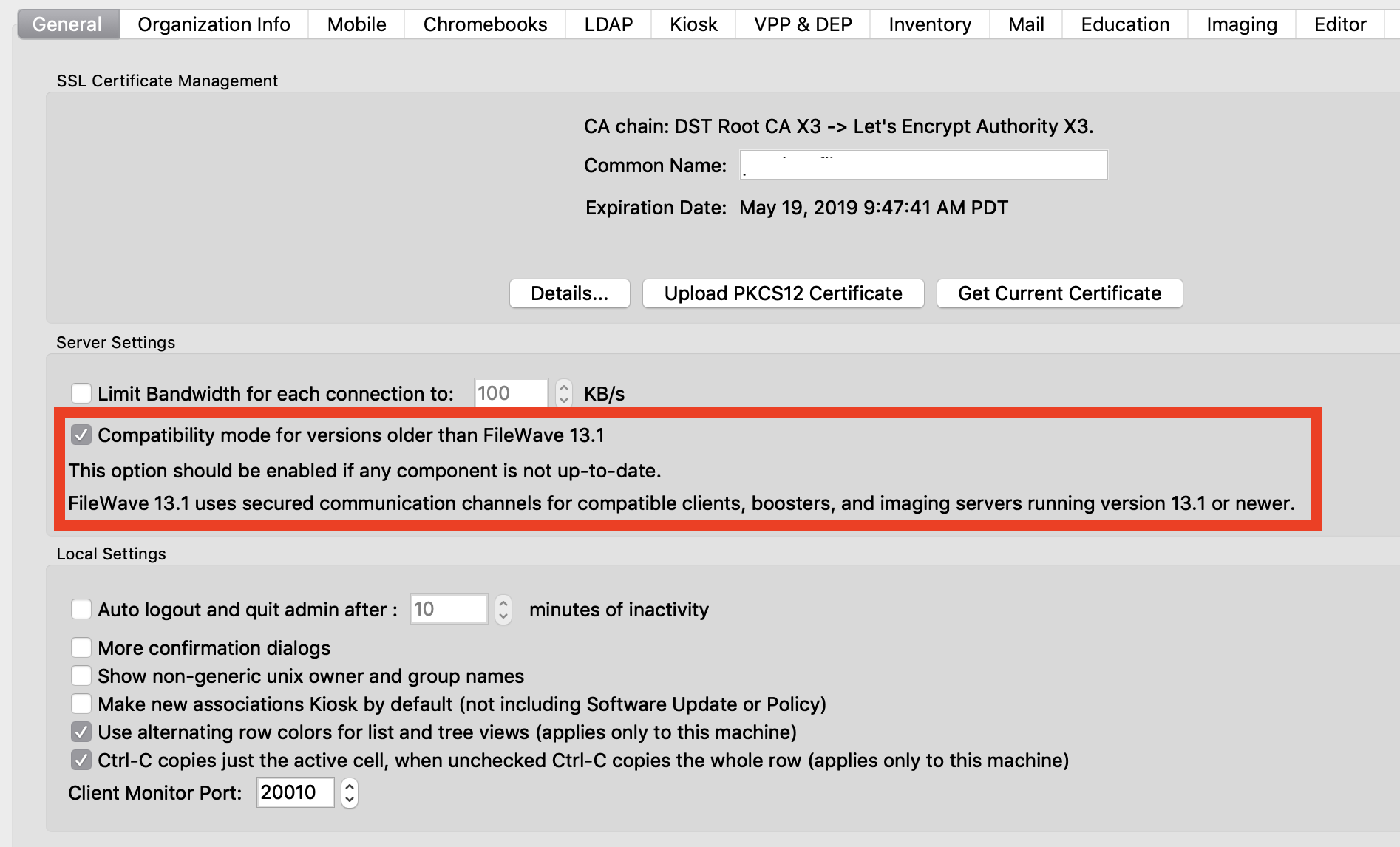 ## Environment FileWave 13.1 introduces a new method of certificate-based security for communication between components (client, booster, server and IVS). Only 13.1 and greater components are able to generate and properly use certificates to communicate with other components using the new method. Therefore, if your server is running 13.1 but you have components that are older than 13.1 they can not generate the needed certificates to have the highest level of security, and will not be able to communicate together. ## Resolution ##### Compatibility Mode Enabled The server allows older clients, boosters, and IVS to communicate with the server with or without valid certificates ##### Compatibility Mode Disabled The server will not allow any client, booster, or IVS to communicate with the server unless it has a valid and unique certificate. Boosters and clients are also checking peer certificates and will only communicate if the peer certificate is valid. ## Additional Information When you disable compatibility mode (uncheck the box in preferences) you will receive a warning of clients, boosters, and imaging appliances (AKA IVS), that may potentially be disconnected by you enabling this mode. If you get this warning, it is recommended that you cancel, and resolve the issue before compatibility mode is disabled. 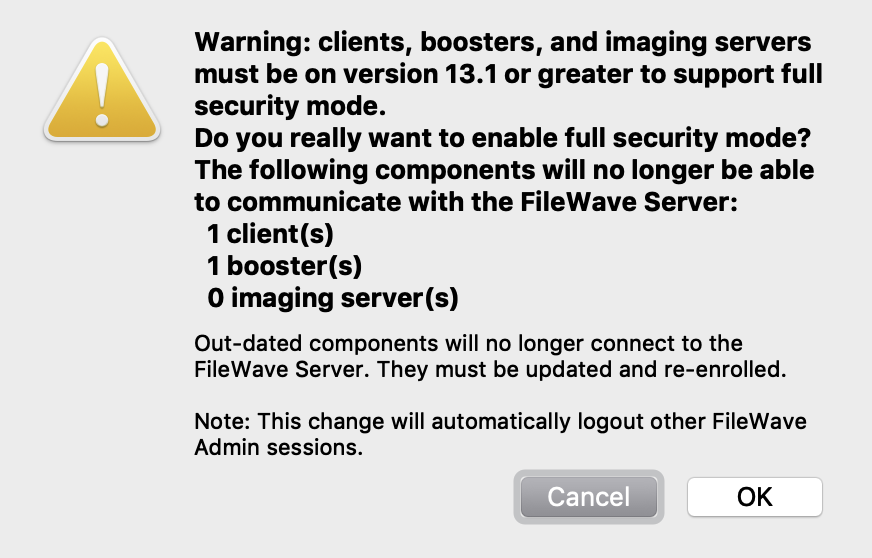 ## Related Content - For approving devices see: [Enrolling Computer Clients](https://kb.filewave.com/books/filewave-client/page/enrolling-computer-clients-into-filewave "Enrolling Computer Clients in to FileWave") - For approving boosters see: [Booster installation](https://kb.filewave.com/books/boosters/page/booster-installation "Booster Installation") # FileWave Automation ScriptsThis article contains the scripts used by the Downloads page. The scripts are here for documentation purposes. Note that you don't need to directly deal with this page aside from reference documentation. Each download page has the right 1-liner for upgrading to that version.
FileWave provides supported upgrade scripts to help you safely upgrade FileWave components on Debian-based systems. These scripts automate required checks, ensure compatibility, and guide you through the correct upgrade path for your environment. The scripts have been used internally and by customers for many releases. This page explains **what they do**, **how they behave**, and **what to expect during an upgrade**. ## What the Upgrade Scripts Do At a high level, each upgrade script: - Detects the currently installed FileWave version (if present) - Validates system requirements and available disk space - Applies the requested FileWave upgrade - Applies recommended Debian OS updates when appropriate - Handles required service restarts and pre-upgrade checks - Writes a detailed log file to /var/log - Schedules a system reboot when required The scripts are designed to be **safe to re-run** and will stop early if an unsupported upgrade or downgrade is detected. ## Interactive and Unattended Use The scripts support both interactive and unattended operation: - When run interactively, progress is displayed on screen and the script may pause briefly before rebooting. - You may press **Enter** to reboot immediately. - You may press **Ctrl-C** to cancel the reboot. - When run unattended, the script proceeds automatically and reboots without waiting for user input. The scripts work correctly when run: - Over SSH - From a local console - Inside a screen session - Using wget | bash Running upgrades inside a screen session is strongly recommended. --- ## FileWave Server: Important Upgrade Behavior (16.3.0 and Later) Starting with **FileWave Server 16.3.0**, significant changes were introduced, including: - An upgrade of the underlying operating system from **Debian 12 to Debian 13** - New PostgreSQL components used by FileWave Server Because of these changes, the FileWave Server upgrade script includes additional safety logic. ### Staged Upgrade Requirement (Older Versions) If your system is running a **very old FileWave Server version** (prior to 16.0.0): - The script will **first upgrade the server to FileWave Server 16.2.3** - The upgrade will then **stop and reboot** - You must verify that FileWave Server 16.2.3 is working correctly - After verification, re-run the upgrade script to proceed to **16.3.0 or newer** This staged approach is required to ensure database compatibility and prevent data loss. ### Why This Is Necessary - Older FileWave Server versions used older PostgreSQL components - FileWave Server 16.0–16.2 introduced newer PostgreSQL components while retaining compatibility for upgrades - FileWave Server 16.3.0 and later remove older PostgreSQL libraries and introduce newer database components - Attempting to skip directly from very old versions to 16.3.0 is not supported The upgrade script automatically enforces this safe upgrade path and clearly explains what is happening when a staged upgrade is required. --- ## Operating System Upgrades - FileWave Server versions **prior to 16.3.0** run on **Debian 12** - FileWave Server **16.3.0 and later** upgrade the system to **Debian 13** as part of the process The script will only perform a Debian OS upgrade when required by the target FileWave version. --- ## Logging and Troubleshooting Each script writes a detailed log file that can be used for troubleshooting or when opening a support case: - **FileWave Server:** /var/log/filewave\_server\_update.log - **FileWave IVS:** /var/log/filewave\_ivs\_update.log - **FileWave Booster:** /var/log/filewave\_booster\_update.log If you contact FileWave Support, include the relevant log file along with a brief description of what you were upgrading to. --- ## Best Practices - Always ensure you have a current backup before upgrading - Run upgrades during a maintenance window - Use a screen session for long upgrades - Allow the system to reboot when prompted - Follow any on-screen instructions if a staged upgrade is required --- ## Scripts ### FileWave Server Upgrade [fwxserver\_upgrade.sh](https://kb.filewave.com/attachments/411) - This script is used by the Download page fro FileWave Server upgrades on Debian. Some details; To run this script, use the following 1-liner for example: ```shell sudo DEBIAN_FRONTEND=noninteractive bash -c 'set -e; apt-get update -y; apt-get install -y -o Dpkg::Options::="--force-confdef" -o Dpkg::Options::="--force-confold" screen wget; ts=$(date +%Y%m%d%H%M%S); scr=fwxserver_upgrade_$ts; tmp=/tmp/fwxserver_upgrade_$ts.sh; wget -qO "$tmp" https://kb.filewave.com/attachments/411; chmod +x "$tmp"; echo "Starting upgrade in screen session: $scr"; echo "Detach with Ctrl-A then D, reattach with: sudo screen -r $scr"; exec screen -S "$scr" bash -lc "\"$tmp\" -v 16.3.0 -r 1 -p -y"' ``` --- ### FileWave Booster Upgrade [fwbooster\_upgrade.sh](https://kb.filewave.com/attachments/412) - This script is used by the Download page fro FileWave Booster upgrades on Debian. Some details; To run this script, use the following 1-liner for example: ```shell sudo DEBIAN_FRONTEND=noninteractive bash -c 'set -e; apt-get update -y; apt-get install -y -o Dpkg::Options::="--force-confdef" -o Dpkg::Options::="--force-confold" screen wget; ts=$(date +%Y%m%d%H%M%S); scr=fwbooster_upgrade_$ts; tmp=/tmp/fwbooster_upgrade_$ts.sh; wget -qO "$tmp" https://kb.filewave.com/attachments/412; chmod +x "$tmp"; echo "Starting upgrade in screen session: $scr"; echo "Detach with Ctrl-A then D, reattach with: sudo screen -r $scr"; exec screen -S "$scr" bash -lc "\"$tmp\" -v 16.3.0 -r 1 -p -y"' ``` --- ### FileWave IVS Upgrade [ivs\_upgrade.sh](https://kb.filewave.com/attachments/408) - This script is used by the Download page for IVS upgrades on Debian. Some details; To run this script, use the following 1-liner for example: ```shell sudo DEBIAN_FRONTEND=noninteractive bash -c 'set -e; apt-get update -y; apt-get install -y -o Dpkg::Options::="--force-confdef" -o Dpkg::Options::="--force-confold" screen wget; ts=$(date +%Y%m%d%H%M%S); scr=ivs_upgrade_$ts; tmp=/tmp/ivs_upgrade_$ts.sh; wget -qO "$tmp" https://kb.filewave.com/attachments/408; chmod +x "$tmp"; echo "Starting upgrade in screen session: $scr"; echo "Detach with Ctrl-A then D, reattach with: sudo screen -r $scr"; exec screen -S "$scr" bash -lc "\"$tmp\" -v 16.3.0 -r 1 -p -y"' ``` ### Universal One Liner You can also use this more universal one liner that doesn't hard code anything and you can just enter what you want to do. ```shell sudo DEBIAN_FRONTEND=noninteractive bash -c 'set -e; read -p "Component (Server/Booster/IVS): " c; case "${c,,}" in server) att=411; name=fwxserver ;; booster) att=412; name=fwbooster ;; ivs) att=408; name=ivs ;; *) echo "Invalid component"; exit 1 ;; esac; read -p "Version (e.g. 16.3.0): " v; [[ "$v" =~ ^[0-9]+\.[0-9]+\.[0-9]+$ ]] || { echo "Invalid version format"; exit 1; }; read -p "Release (Prod/Dev/Beta): " r; case "${r,,}" in prod) f=-p ;; dev) f=-d ;; beta) f=-b ;; *) echo "Invalid release type"; exit 1 ;; esac; apt-get update -y; apt-get install -y -o Dpkg::Options::="--force-confdef" -o Dpkg::Options::="--force-confold" screen wget; ts=$(date +%Y%m%d%H%M%S); scr=${name}_upgrade_$ts; tmp=/tmp/${name}_upgrade_$ts.sh; wget -qO "$tmp" https://kb.filewave.com/attachments/$att; chmod +x "$tmp"; echo "Starting upgrade in screen session: $scr"; echo "Detach with Ctrl-A then D, reattach with: sudo screen -r $scr"; exec screen -S "$scr" bash -lc "\"$tmp\" -v $v -r 1 $f -y"' ```