This method requires the username and password of the user to run the command. Do not add usernames and passwords directly in scripts.
Credentials of a user may be passed to Invoke-Command. Due to the above warning, add the username and password as Environment Variables to the Script in the Fileset. For example, with a device named DESKTOP-N05SO1D: [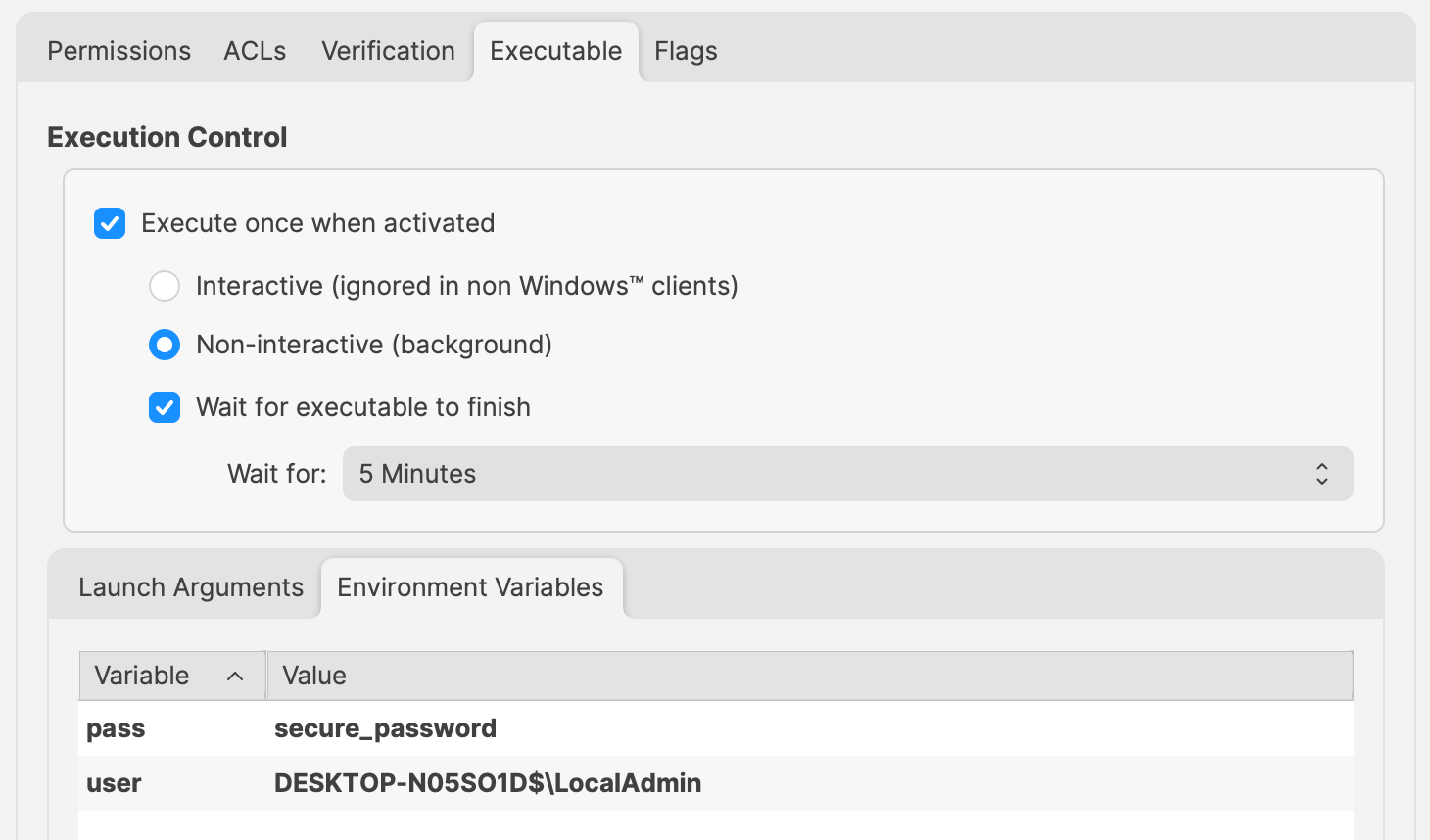](https://kb.filewave.com/uploads/images/gallery/2024-10/YHlhJohQx9MJLeZE-image.png) Change 'secure\_password' and 'user' values to required entries. These will be referenced in the Powershell Script as: - $Env:pass - $Env:user For example: ``` $securePassword = ConvertTo-SecureString $Env:pass -AsPlainText -Force $credential = New-Object System.Management.Automation.PSCredential ($Env:user, $securePassword) echo "$Env:UserName" Invoke-Command -ComputerName localhost -Credential $credential -ScriptBlock { # Code to action by the defined user should be added here echo "$Env:UserName" } ``` The output of the above will show that the username has altered, by first echoing the System name and then the name of the user within the script block: ``` DESKTOP-N05SO1D$ LocalAdmin ```The above relies upon 'winrm'. If there are any issues when running the command, winrm can be checked with the following command: winrm quickconfig
This method will not work if the defined network is 'Public', as winrm will not allow this.