Run PowerShell Commands as a Specified Windows User
Description
The FileWave Client normally runs Windows scripts as System. This example uses PowerShell remoting to run a specific command block with credentials for another Windows account.
Ingredients
- Text editor
- FileWave Central
Directions
Credentials are required. Never hard-code a username or password in the PowerShell body. Use a dedicated account with only the permissions required by the task, and rotate its password according to your organization's credential policy.
PowerShell Invoke-Command accepts a PSCredential for the specified account.
In the Fileset script properties, configure the username and password as environment variables rather than placing the values in the script body.
For example, with a device named DESKTOP-N05SO1D:
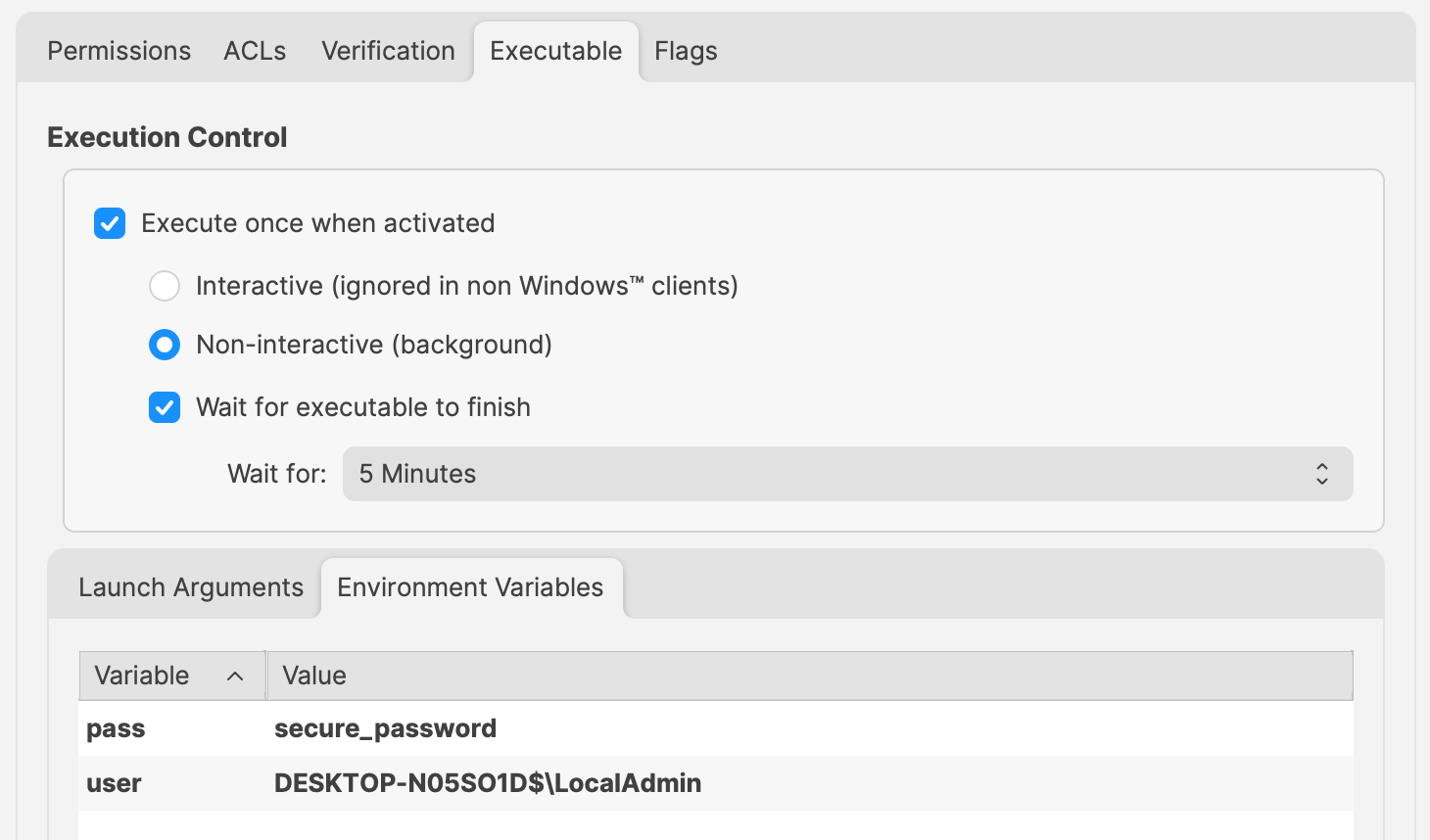
Change 'secure_password' and 'user' values to required entries.
Reference those values in the PowerShell script as:
- $Env:pass
- $Env:user
For example:
$securePassword = ConvertTo-SecureString $Env:pass -AsPlainText -Force
$credential = New-Object System.Management.Automation.PSCredential ($Env:user, $securePassword)

echo "$Env:UserName"

Invoke-Command -ComputerName localhost -Credential $credential -ScriptBlock {
  # Code to action by the defined user should be added here
  echo "$Env:UserName"
}
The example first prints the System account name, then prints the specified account name from inside the command block:
DESKTOP-N05SO1D$
LocalAdmin
WinRM dependency. This example uses Windows Remote Management. If the command fails, check the WinRM configuration from an elevated prompt:winrm quickconfig
WinRM blocks this workflow when the active Windows network profile is Public. Verify the intended network profile and organizational remoting policy before changing WinRM settings.