# Scripting Languages and File Extensions in FileWave
## Supported script types
FileWave Filesets can run scripts on macOS and Windows when the required interpreter is installed on the device. The table below shows the script types available in the Fileset editor.
FileWave does not install the scripting runtimes. Use the version supplied by the operating system or deploy and maintain the required runtime separately.
Apple indicated they would be deprecating pre-installation of certain runtimes, for example:
[https://developer.apple.com/documentation/macos-release-notes/macos-catalina-10\_15-release-notes](https://developer.apple.com/documentation/macos-release-notes/macos-catalina-10_15-release-notes)
Test scripts in the same account, architecture, working-directory, and environment context that FileWave will use. See [Script Best Practices](https://kb.filewave.com/books/filewave-general-info/page/script-best-practices "Script Best Practices") before production deployment.
### Script extensions
Add Fileset scripts with the **Script** button in the Fileset view. FileWave then captures script output in its Fileset script log and adds the default [shebang](https://en.wikipedia.org/wiki/Shebang_(Unix)) for a new macOS shell script.
Name the script with the extension that matches its language.
The extensions in the following table enable the **Executable** tab. Other filename extensions do not expose those settings.
Language
Extension
Perl
.pl
Python
.py
Shell
.sh
Batch
.bat or .cmd
PowerShell
.ps1
EXE files may also benefit from the Executables tab
Specify the type of Shell script, by way of the shebang. To keep in line with Apple, FileWave will automatically add ZSH as the default shebang: #!/bin/zsh
## Example
The examples below show one way to install Python on managed endpoints. Choose and maintain a runtime version that matches your scripts and operating-system support requirements. FileWave Professional Services can help design deployment workflows that fall outside standard Support.
### Ingredients
- FileWave Central
- Windows EXE
Installers available from either:
- [https://www.python.org/ftp/python/](https://www.python.org/ftp/python/)
- [https://www.python.org/downloads/windows/](https://www.python.org/downloads/windows/)
### Directions
#### macOS Python Installer
macOS Python
Apple used to provide a version of Python pre-installed, however as noted, this was an old version and is now deprecated. It is possible to download Python installers, however Apple provide Python in the Xcode Command Line Tools. The following method demonstrates how the softwareupdate mechanism may be used to list (and therefore instal) the command line tools:
```shell
# touch /tmp/.com.apple.dt.CommandLineTools.installondemand.in-progress
# softwareupdate -l
Software Update Tool
Finding available software
Software Update found the following new or updated software:
* Label: Command Line Tools for Xcode-12.4
Title: Command Line Tools for Xcode, Version: 12.4, Size: 440392K, Recommended: YES,
* Label: Command Line Tools for Xcode-13.2
Title: Command Line Tools for Xcode, Version: 13.2, Size: 577329K, Recommended: YES,
* Label: Command Line Tools for Xcode-12.5
Title: Command Line Tools for Xcode, Version: 12.5, Size: 470966K, Recommended: YES,
* Label: Command Line Tools for Xcode-12.5
Title: Command Line Tools for Xcode, Version: 12.5, Size: 470820K, Recommended: YES,
* Label: macOS Big Sur 11.6.2-20G314
```
Note that more than one version may be returned. If Xcode is installed a version may already be in place, so care should be taken if Xcode is already installed. After installing the chosen version, the temporary file created may then be removed.
#### Instal Python Packages
Python scripts import packages, not all of which will be installed by default. Any additional packages will require installation. PIP may achieve this and may be used in a Fileset script; PIP is also installed when installing the Command Line tools (or Xcode)
It is possible to check pip with the following command, note it may require upgrading, but again take careful consideration if Xcode is installed:
```shell
# pip3 list
Package Version
---------- -------
pip 20.2.3
setuptools 49.2.1
six 1.15.0
wheel 0.33.1
WARNING: You are using pip version 20.2.3; however, version 23.1.2 is available.
You should consider upgrading via the '/Library/Developer/CommandLineTools/usr/bin/python3 -m pip install --upgrade pip' command.
```
For example, to instal pyobjc:
```shell
# Instal pyobjc
pip3 install pyobjc-core
pip3 install pyobjc-framework-Cocoa
pip3 install pyobjc-framework-Quartz
pip3 install pyobjc-framework-SystemConfiguration
```
In some instances, pip3 may fail. This can be due to the link created in:
/Library/Developer/CommandLineTools/SDKs
Remove and recreate the link to the correct installed version if need be.
The above could be packaged into a single script which could:
- Touch the temporary file
- Run Software Update
- Obtain the desired version from the list
- Instal that version
- Remove the temporary file
- Remove the link if incorrect
- Use PIP to instal other desired packages
- Recreate the link if removed above
#### Windows Python Installer
Windows Python
1. Download the appropriate python installer EXE
2. Create a new empty Fileset
3. Choose a location to store the installer and drag the EXE into this location
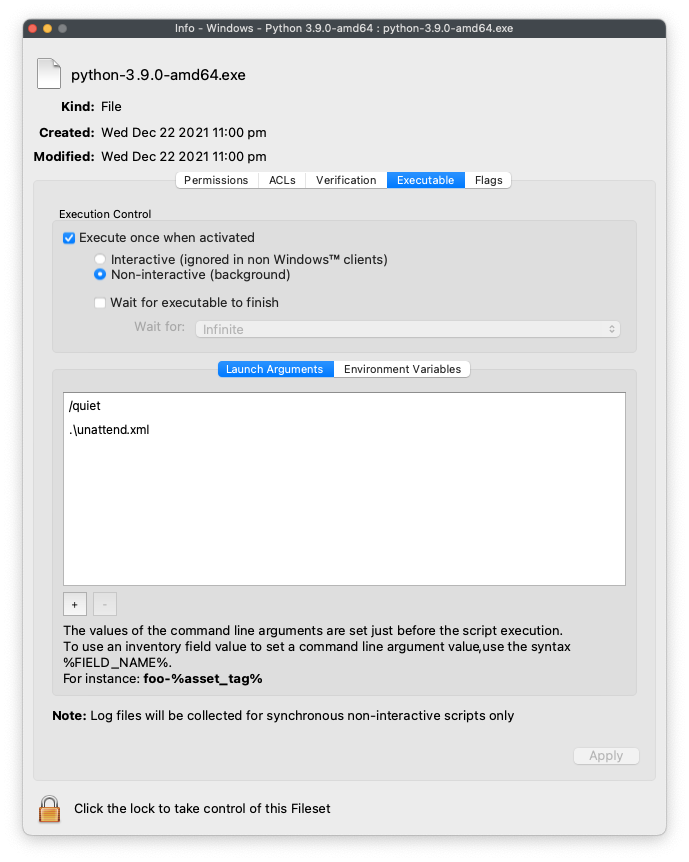
4. Highlight this EXE and from the Get Info window choose Executable
5. Tick the option to 'Execute once when activated'
6. Set two Launch Arguments as per the screen shot: /quiet and .\\unattend.xml
[](https://kb.filewave.com/uploads/images/gallery/2023-07/0wEcV2mI9zUWsTEO-windows-launch-arguments.png)
Supporting File
An unattend.xml file may be used to pre-determine aspects of the installation, e.g. instal PIP during installation or set Paths
1. Use an editor to create a file called unattend.xml
2. Edit this file with the below details, editing to meet desired needs
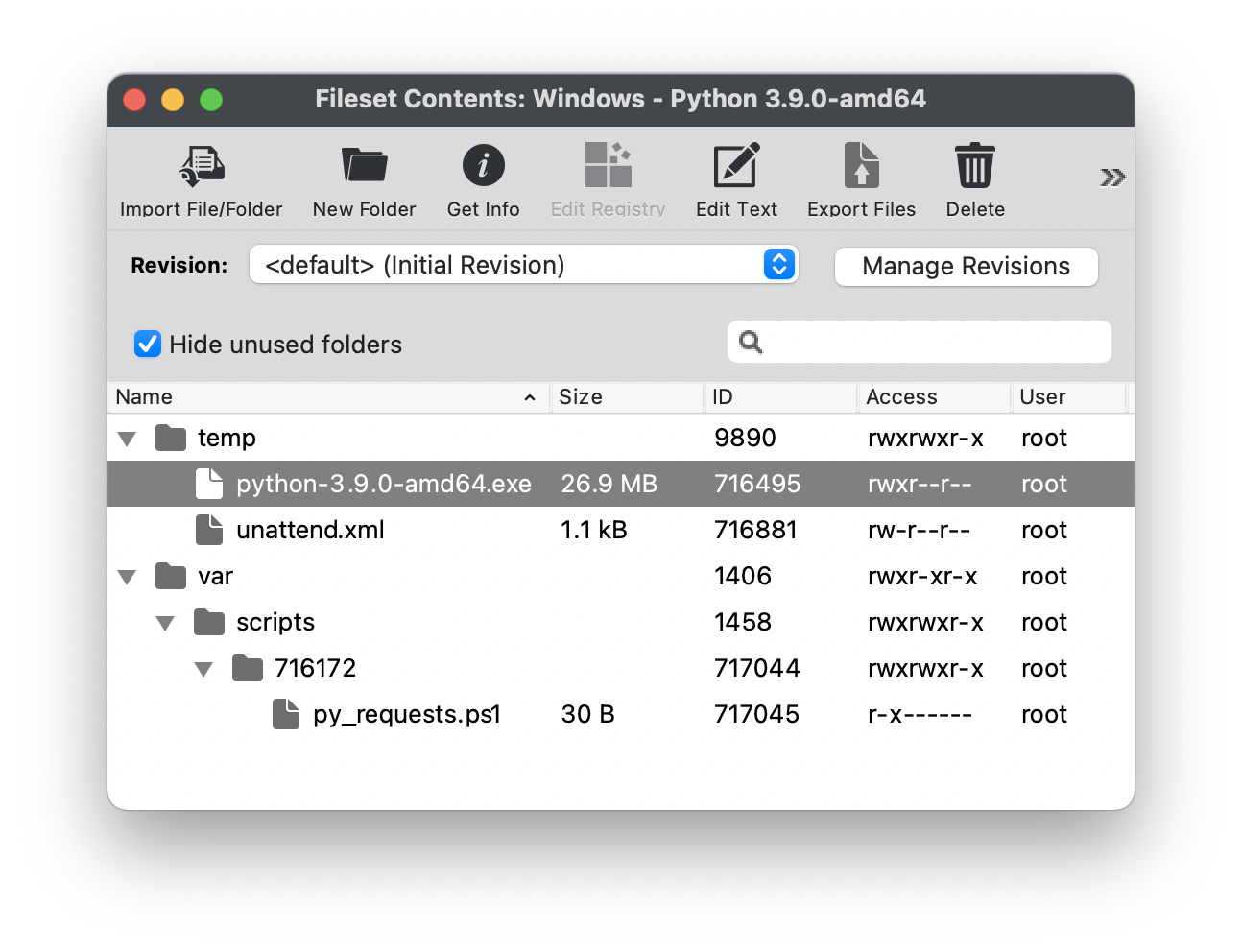
3. Place this file in the Fileset within the same folder location as the EXE installer
An example could look as follows (see the [Python documentation](https://docs.python.org/3/using/windows.html) for a list and description of available options):
```xml
```
Edit the above example as desired, for example, set the target directory paths as desired.
Instal Python Packages
Python scripts import packages, not all of which will be installed by default. Any additional packages will require installation. PIP may achieve this and may be used in a post flight script, if the option above to include pip at installation was configured.
1. Create a PostFlight script within the Fileset
2. Edit the script to include any desired packages, e.g. to instal the 'requests' package:
```shell
python -m pip install requests
```
The command 'pip list' may be used to list ALL additional packages installed.
The command 'pip freeze' may be used to list packages installed by PIP.
The final Fileset will may look something like:
[](https://kb.filewave.com/uploads/images/gallery/2023-07/g1VSscMDVVvWyD7u-windows-python-fileset.png)
Packages, including PIP itself, may require updating over time.
#### Testing
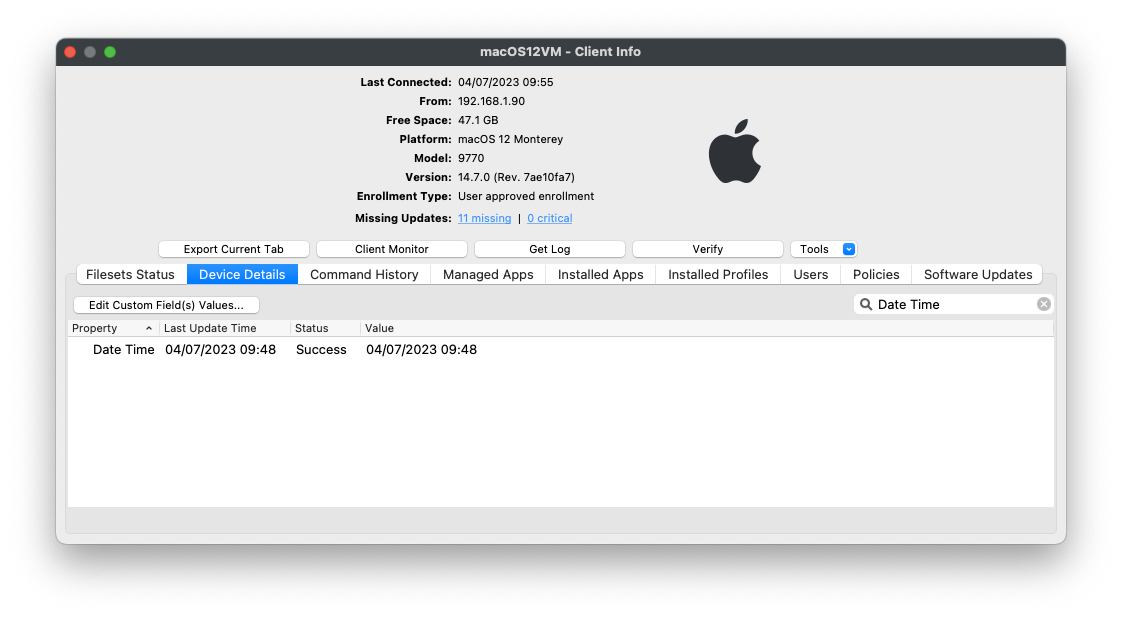
The following download is a simple Python Custom Field for both macOS and Windows. It should report the date when ran.
[](https://kb.filewave.com/uploads/images/gallery/2023-07/5XsHz9QL6ItIWrUM-image.png)