FileWave 15.5.0 and later appliances use the **fwadmin** account and force a password change at first login. The **root** account is disabled on these appliances, but Webmin remains available and can change the **fwadmin** password.
Use this procedure to change the appliance administrator password through Webmin. Select **fwadmin** on FileWave 15.5.0 and later appliances or **root** on version 12.x through 15.4.x. Perform the change from a trusted administrator workstation and do not leave the default password in place.The screenshots show the legacy **root** workflow. The Webmin controls are the same on newer appliances, but select **fwadmin** instead.
## Change the password in Webmin 1. Use the virtual machine console to identify the appliance's management address, as shown below. 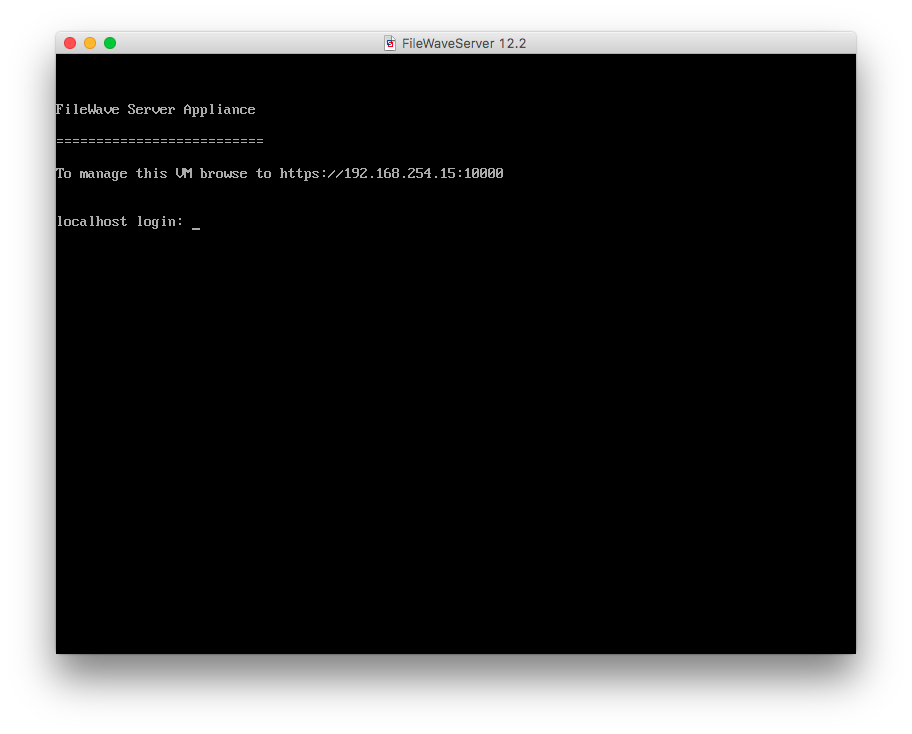 2\. Open the displayed address in a browser. A factory appliance can present a self-signed certificate warning. Before proceeding, confirm that the hostname or IP address matches the appliance console and that you are on the intended administrative network. 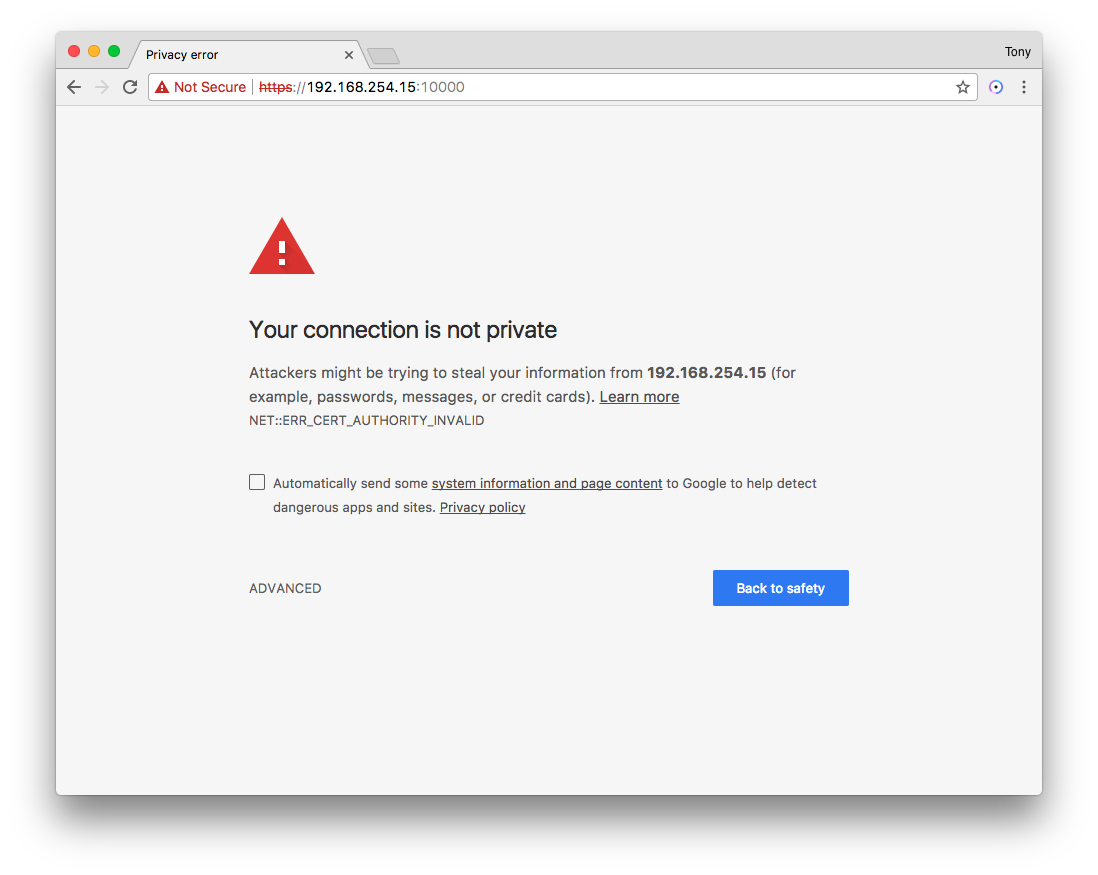Webmin uses TCP port `10000`. Allow access only from the administrator workstation or trusted management network, and remove any temporary firewall rule after the password change.
3\. Sign in to Webmin with the appliance administrator account and its current password: use `fwadmin` on FileWave 15.5.0 and later, or `root` on version 12.x through 15.4.x. The factory password is `filewave`; replace it immediately if it is still in use. 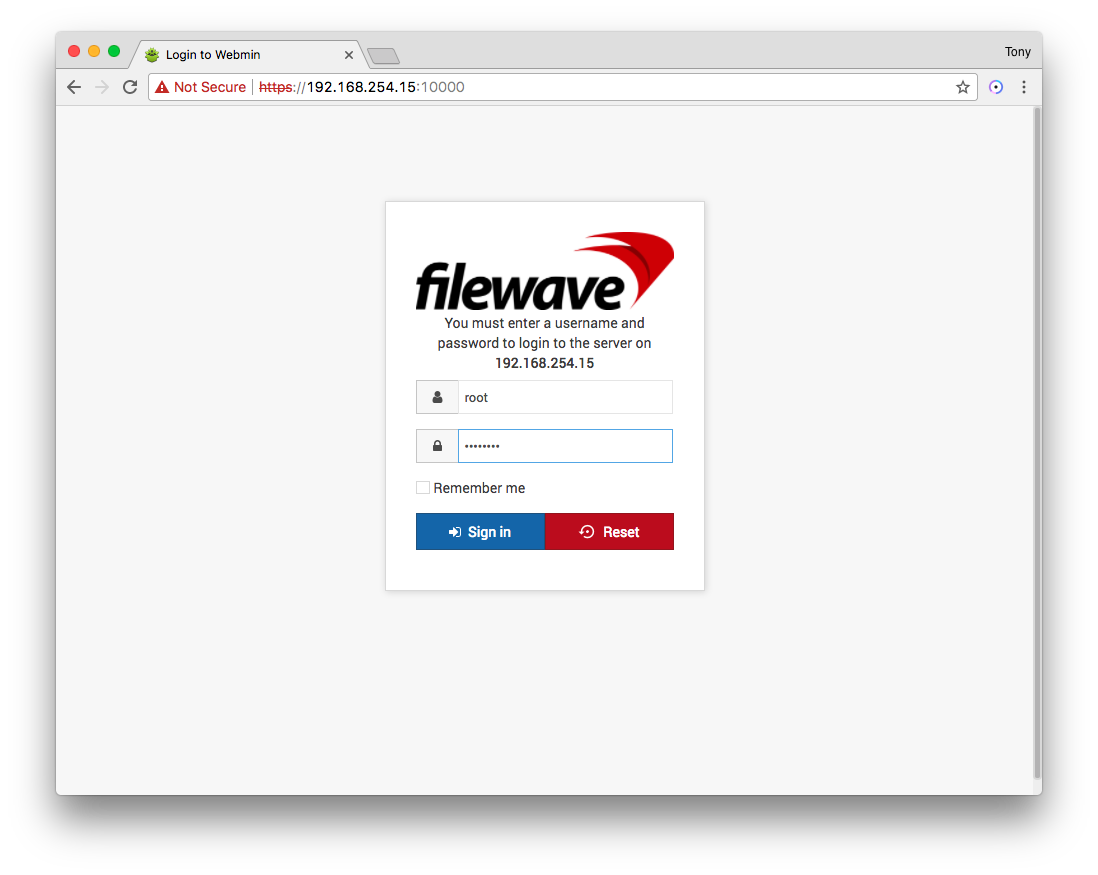 4\. Open **System** and select **Change Passwords**. 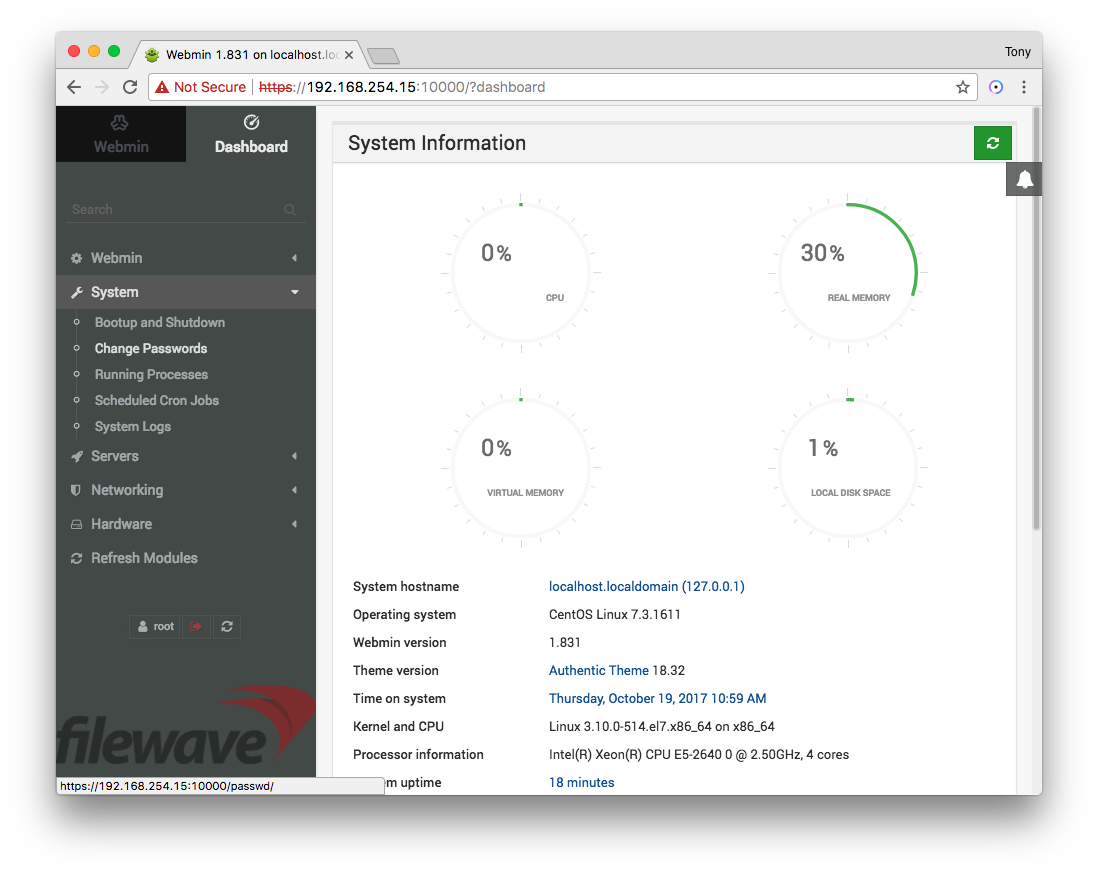 5\. Select **fwadmin** on FileWave 15.5.0 and later, or **root** on version 12.x through 15.4.x. The **root** account is disabled on newer appliances, so changing its password does not change the appliance administrator password. 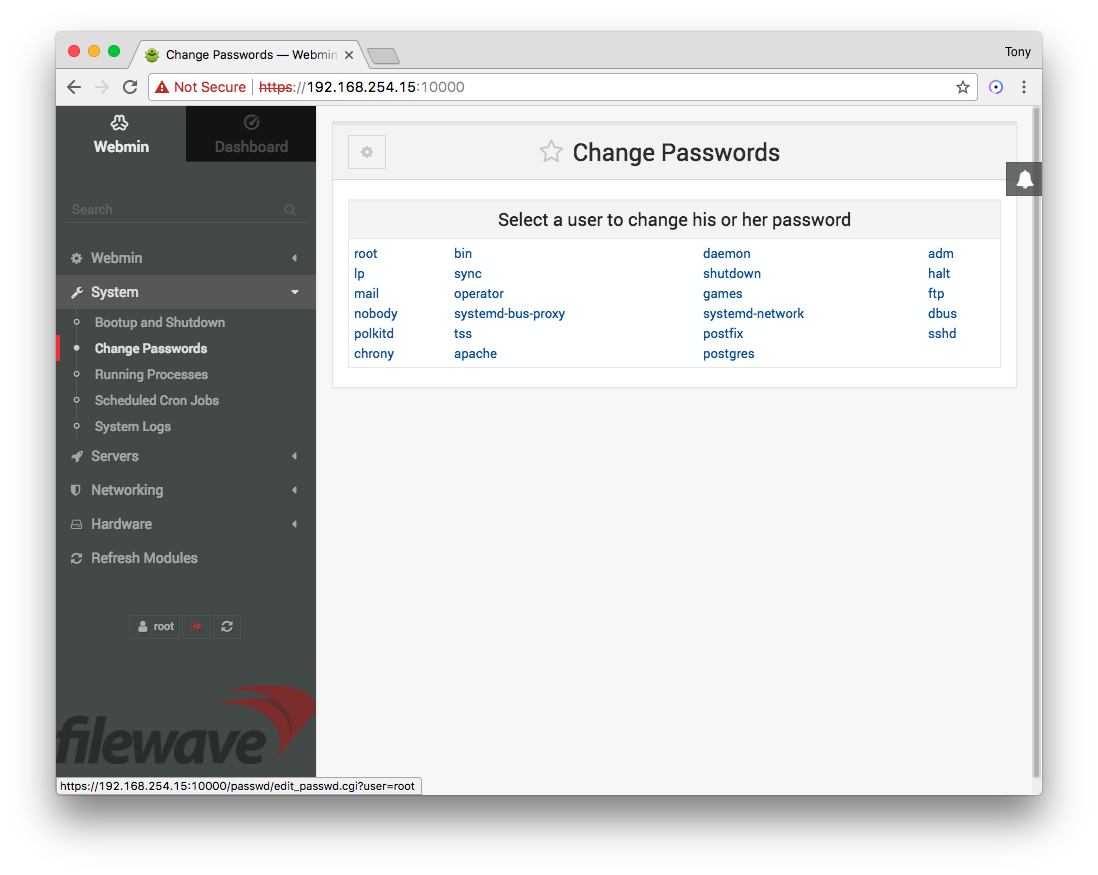 6\. Enter and confirm a unique password, then select **Change**. Store it in your organization's approved credential manager. 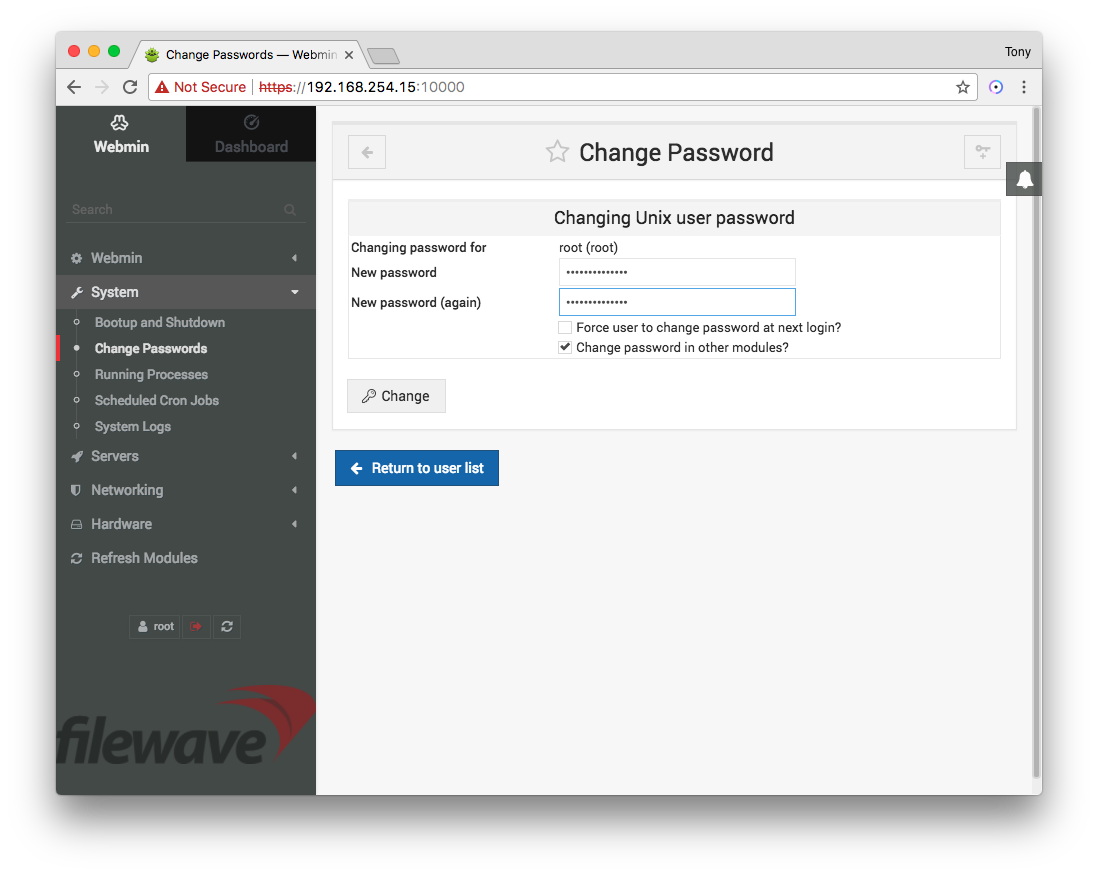 7\. Confirm that Webmin reports the password change as successful. 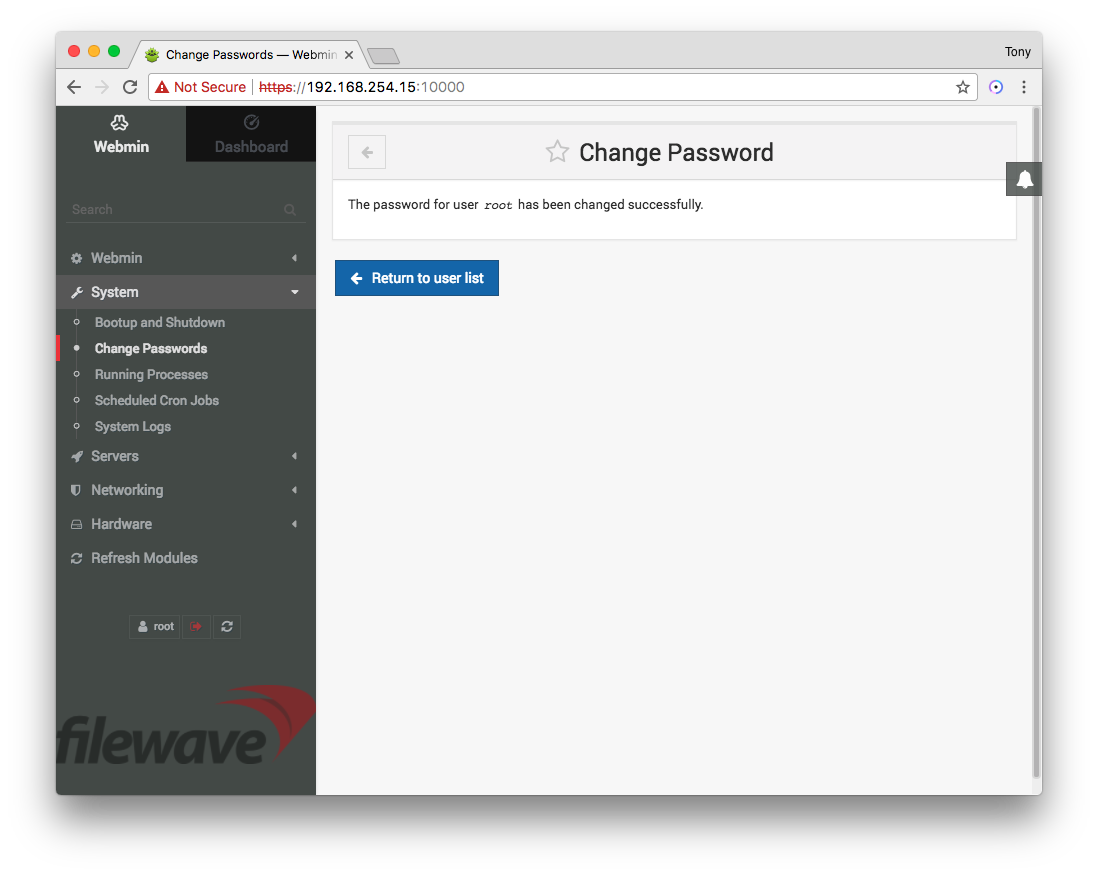 8\. Sign out of Webmin, then sign back in with the same account and the new password before closing the maintenance window.