# Your Hosted FileWave Server Has Been Upgraded - What Are Your Next Steps?
## What
The FileWave Operations Team has upgraded your hosted FileWave Server. Use this checklist to confirm the environment and update the administrator tools, Boosters, Imaging Virtual Servers, clients, Kiosk, and enrollment packages that remain under your control.
If your FileWave server is On-Premise and **not** hosted by FileWave, you may review the KB article here: [Upgrading your On-Premise FileWave Server](https://kb.filewave.com/books/filewave-server/page/upgrading-your-on-premise-filewave-server "Upgrading your On-Premise FileWave Server")
## When/Why
The FileWave Operations Team will email you with the scheduled upgrade date and time. After the hosted Server upgrade is complete, follow the steps below. FileWave maintains the hosted Server, but you remain responsible for FileWave Central, customer-managed Boosters and Imaging Virtual Servers, enrolled clients, and enrollment packages.
## How
After you receive confirmation that the hosted Server upgrade is complete, begin by updating FileWave Central.
#### 1. Upgrade FileWave Central (native administrator app)
FileWave Anywhere is updated automatically with the FileWave Server.
**Beginning with FileWave 16.3.0, FileWave Central for macOS and Windows checks the Server version when connecting.** If Central is older than the FileWave Server, it offers to upgrade to the matching version. You normally do not need to download and install FileWave Central manually.
1. Launch FileWave Central and connect to the upgraded FileWave Server.
2. When Central reports that a newer matching version is available, accept the upgrade.
3. Follow the macOS or Windows installer prompts. The existing version does not need to be uninstalled first.
4. Relaunch FileWave Central and reconnect to the Server.
FileWave Central should match the FileWave Server version unless the release notes explicitly state otherwise.
#### 1.1 Manual FileWave Central upgrade
Use the manual fallback
Use this workflow only if the automatic upgrade is unavailable, you previously declined it, or FileWave Support or the release notes direct you to install Central manually.
1. Open the [FileWave Downloads page](https://kb.filewave.com/books/downloads "Downloads") and select the FileWave version running on the Server.
2. Expand **macOS Downloads** or **Windows Downloads**.
3. Download **macOS Admin** or **Windows Admin** for your workstation.
4. Run the PKG or MSI and follow the installer prompts. You do not need to uninstall the existing version first.
5. Launch FileWave Central and reconnect to the upgraded Server.
Launch FileWave Central to Confirm the Upgrade
The next step once the FileWave Central/Admin application is upgraded is to launch the Central/Admin application to connect to the newly upgraded server. After an upgrade, you always want to connect to the server and verify everything is running and working correctly. This will allow you to spot any issues quickly and, if necessary, contact our FileWave Support Team for assistance.
Do not hesitate to [contact our Support Team](https://help.filewave.com/) quickly if you think there may be an issue as that will help us get you back up and running as quickly as possible.
1. Check the warning light in the bottom left-hand corner. You are looking for it to say "Everything is OK" as shown below. If you see the light as yellow or red please select the message to view the error. If you’re unsure how to resolve an error, please contact Support.

2. Make sure Filesets are showing. Select the Filesets tab and make sure you see your Filesets and structure. If you are having issues contact our support team.
3. If you have iOS devices, Select "iOS Inventory" to make sure you see rows of iOS device information. Also, select "Refresh" from the top menu to make sure this information refreshes. While in this tab as well please select an iOS device you know is on to make sure it is trying to check in. If you receive any errors or information is not showing please contact our Support team.
4. Go to the Clients tab of the FileWave Admin and make sure you see your correct group structure and your Clients showing. Remember your FileWave Clients should still be locked so they will not be getting any changes yet.
5. Update the Model, If this fails please contact our Support team
6. Go back to the FileWave client tab and look at one or two clients that you know are on to make sure they are checking in correctly.
7. If everything looks good, move on to upgrading your Boosters and Clients if needed.
Upgrading your FileWave Boosters
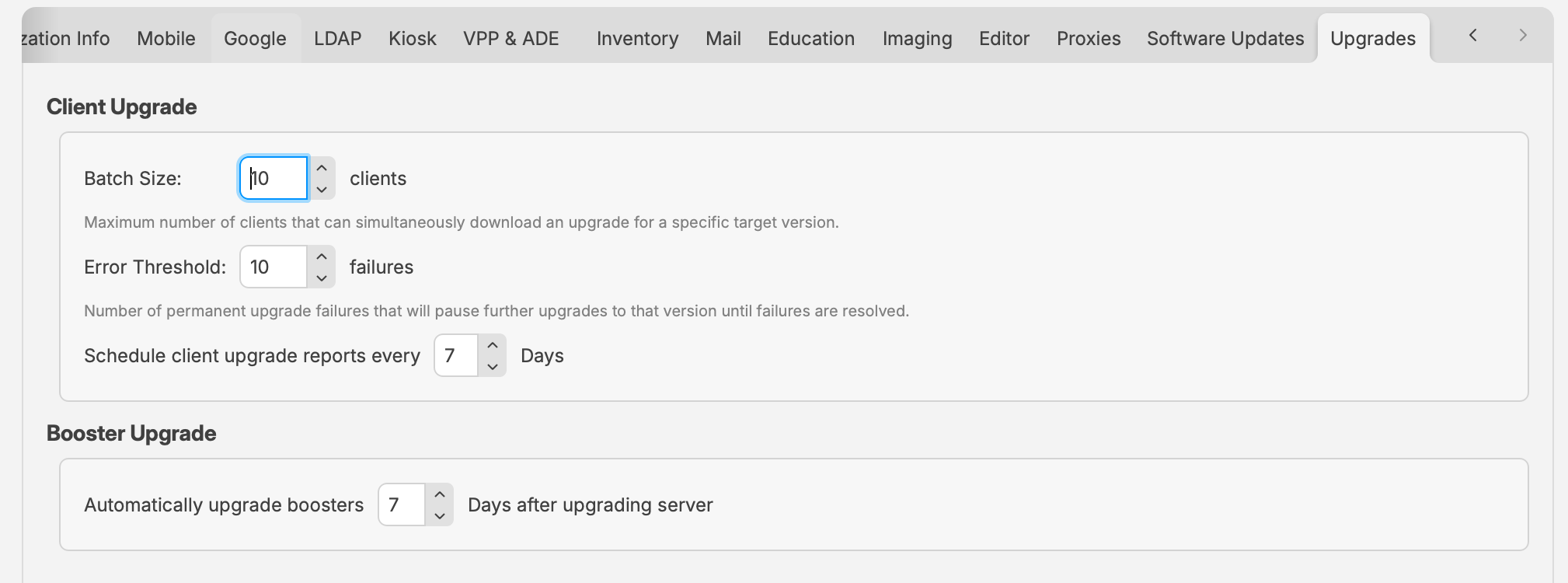
FileWave Server 16.4 automatically schedules eligible customer-managed Boosters for upgrade after the Server upgrade. The default delay is seven days.
In FileWave Central, open **Preferences > Upgrades** to review or change the delay. The same pane contains the client-upgrade batch size, error threshold, and report schedule.
[](https://kb.filewave.com/uploads/images/gallery/2026-07/uDJ1CnzK9q0cqbFF-hosted-server-16-4-upgrade-settings.png)
*FileWave Central 16.4 centralizes client-upgrade controls and the automatic Booster-upgrade delay.*
FileWave 16.4 validates both the reported upgrade state and the installed Booster version. Failed automatic upgrades are retried within defined limits, and one failed Booster does not cancel upgrades for the remaining Boosters.
- Use the **Boosters** view to monitor upgrade availability, scheduled work, and results.
- Investigate Boosters that remain below the target version or report repeated failures.
- Contact [FileWave Support](https://help.filewave.com/) if a hosted upgrade leaves customer-managed Boosters unable to update.
FileWave Servers earlier than 16.4 continue to use their version-specific manual Booster upgrade workflow.
Review and upgrade Imaging Virtual Servers (IVS)
If your environment uses FileWave Network Imaging, include each customer-managed Imaging Virtual Server in the post-upgrade review. The hosted FileWave Server upgrade does not upgrade the IVS appliance.
**Do not use the IVS Upgrade action in FileWave Central for an IVS connected to a FileWave-hosted Server.** Hosted customers must upgrade each IVS from the appliance console or a stable SSH session using the IVS one-line command on the matching FileWave Downloads page.
1. Confirm that no image capture or deployment operation is running.
2. Open the Downloads page for the version now running on the hosted FileWave Server. For FileWave 16.4.0, open [FileWave Version 16.4.0 — Debian Linux Downloads](https://kb.filewave.com/books/downloads/page/filewave-version-1640#bkmrk-debian-linux-downloa).
3. Expand **Debian Linux Downloads** and locate **Upgrading a IVS**. Use the IVS command—not the FileWave Server or Booster command.
4. Open the IVS console or connect over SSH as `fwadmin`, then run the published command with `sudo`. Keep the generated `screen` session running until the upgrade and any required Debian work finish.
5. After the IVS reboots, confirm that Central reports the intended IVS version and healthy Imaging status.
6. Run a controlled imaging validation before returning the IVS to normal production use.
**Do not begin an IVS upgrade while image capture or deployment is active.** Allow those operations to finish before maintenance.
- FileWave IVS 16.3.0 and later require Debian 13. The current one-line upgrade command handles the supported Debian upgrade when needed.
- If a customer-managed IVS connected to a hosted FileWave Server cannot enroll or upgrade, contact [FileWave Support](https://help.filewave.com/).
See [FileWave Network Imaging / IVS Overview](https://kb.filewave.com/books/network-imaging-ivs/page/filewave-network-imaging-ivs-overview) for the hosted and on-premises workflow boundaries.
**Do not use a custom client PKG or MSI to upgrade an already enrolled device.** Custom client packages are for new installations and enrollment. Use integrated client upgrades or the appropriate Upgrade Fileset.
#### 5.1 Integrated upgrades for clients running 16.3 or later
Upgrade clients through Software Update
When the FileWave Server is running 16.4 or later, macOS and Windows clients already running FileWave Client 16.3 or later can be upgraded through **Software Updates > Client Upgrades**.
**Only clients already running 16.3.0 or later appear in Client Upgrades.** Clients earlier than 16.3.0 are absent and still require the Upgrade Fileset bridge. The message **All Clients Up to Date** means no eligible client has a pending integrated upgrade; it does not prove that every managed client is current.
**Early Access/Beta:** The toolbar scheduling action is for non-Beta upgrades. To install the Beta client, select the eligible client or group, right-click it, and choose **Schedule Beta Upgrade**.
The integrated workflow stages upgrades in controlled batches, monitors progress, retries transient failures, pauses a target version when the configured permanent-failure threshold is reached, and provides reporting.
1. Review **Preferences > Upgrades** and confirm the batch size, error threshold, and report schedule.
2. Open **Software Updates > Client Upgrades** and select the target client version.
3. Start with a representative pilot group.
4. Monitor download, installation, retry, and failure status before expanding the rollout.
Before declaring the fleet current, use an Inventory Report to find clients earlier than 16.3.0. See [Upgrading FileWave Clients](https://kb.filewave.com/books/filewave-client/page/upgrading-filewave-clients) for the complete eligibility, empty-state, production, and Beta workflow.
Bridge clients running versions earlier than 16.3
Clients running versions earlier than FileWave Client 16.3 must first use the macOS or Windows Upgrade Fileset from the FileWave Downloads page. The FileWave 16.4 Upgrade Filesets include a client-version requirement and are skipped on clients already running 16.3 or later.
1. Open the [FileWave Downloads page](https://kb.filewave.com/books/downloads "Downloads") and download the macOS or Windows Upgrade Fileset for the target FileWave version.
2. Import the downloaded `.fileset` into FileWave Central.
3. Deploy it to a small test group of clients running versions earlier than 16.3 and update the Model.
4. Confirm that the test clients upgraded successfully before expanding the deployment.
5. After the bridged clients reach 16.3 or later, manage future upgrades through the integrated Software Update workflow.
Each Upgrade Fileset also includes operating-system requirements. A client on an unsupported operating system remains on its original FileWave Client version.
**Windows upgrade troubleshooting:** If a Windows Client Upgrade Fileset does not complete, inventory does not show the new version, or the client service does not restart, see [Troubleshooting Windows Client Upgrade Fileset Issues](https://kb.filewave.com/books/filewave-client/page/troubleshooting-windows-client-upgrade-fileset-issues).
Confirm iOS/iPadOS Kiosk licensing
FileWave Kiosk for iOS and iPadOS is distributed through the Apple App Store as a **VPP/Apps and Books** application. Before upgrading, confirm that FileWave is synchronizing with Apple School Manager or Apple Business Manager and that enough free FileWave Kiosk licenses have been acquired.
See [Automatic updating of iOS/iPadOS Kiosk](https://kb.filewave.com/books/kiosk/page/automatic-updating-of-iosipados-kiosk "Automatic updating of iOS/iPadOS Kiosk") for the complete workflow.
Prepare client packages for new enrollments
FileWave uses custom macOS and Windows client packages for initial enrollment and new installations. These packages are not the upgrade mechanism for already enrolled clients.
##### FileWave Server 16.4 or later
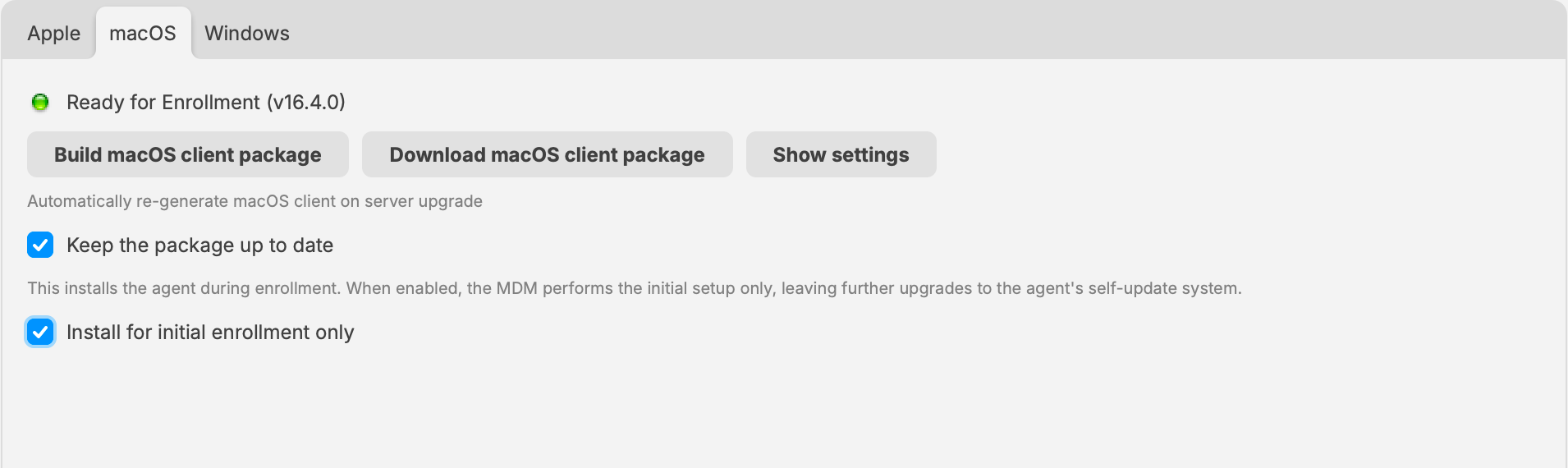
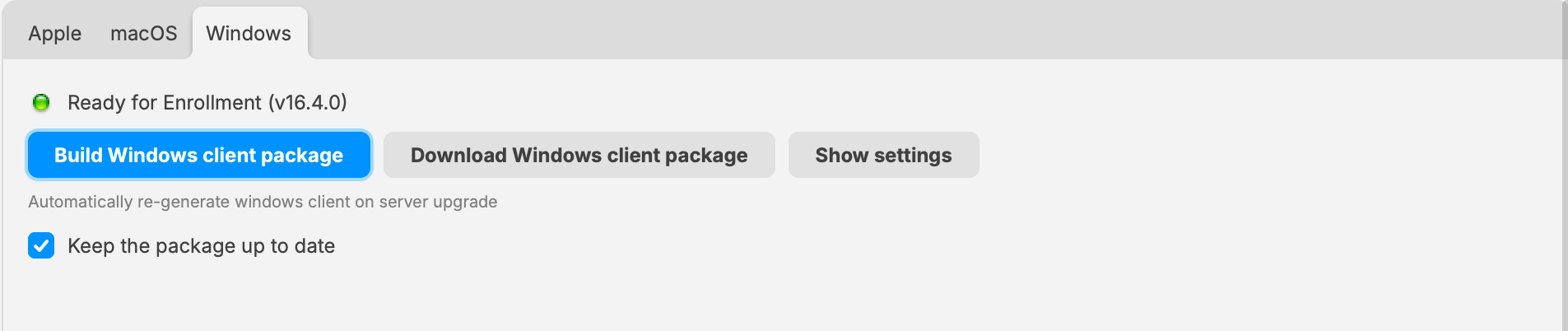
1. In FileWave Central, open **Preferences > Mobile**.
2. Select **macOS** or **Windows**.
3. Select **Show settings** and review the package configuration.
4. Select **Build macOS client package** or **Build Windows client package**.
5. After the build completes, use the corresponding **Download** button when you need the installer for a new deployment.
6. Enable **Keep the package up to date** when FileWave should rebuild the package after future Server upgrades.
[](https://kb.filewave.com/uploads/images/gallery/2026-07/MdCAKPOaxdukA7CE-hosted-server-16-4-macos-client-package.png)
*FileWave Server 16.4 manages the macOS enrollment package directly in FileWave Central.*
[](https://kb.filewave.com/uploads/images/gallery/2026-07/XiFWnBzY4UOlucAE-hosted-server-16-4-windows-client-package.png)
*FileWave Server 16.4 manages the Windows enrollment package directly in FileWave Central.*
##### FileWave Server earlier than 16.4
Earlier supported FileWave Server versions continue to use [custom.filewave.com](https://custom.filewave.com/) until the Server is upgraded to 16.4.
1. Build the required custom PKG or MSI at [custom.filewave.com](https://custom.filewave.com/).
2. Download and unzip the package.
3. In FileWave Central, open **Preferences > Mobile** and select the applicable macOS or Windows pane.
4. Upload the unzipped installer, wait for the successful-upload message, then select **OK**.
5. Update the Model when the change requires distribution.
**Do not deploy either package to an already enrolled device as an upgrade.** Use the client-upgrade workflow described in section 5.