⚠️ **Platform Support**: IdP Custom Fields are supported on **macOS, iOS, and iPadOS**. Windows devices currently do not leverage usernames for IdP-based fields in the same way they do with LDAP.
## How 1. Navigate to **Assistants > Custom Fields** > **Edit Custom Field Definitions** in FileWave Central. 2. Create a new field: - **Name/Internal Name:** Define as with any other custom field. - **Provided By:** Select **IdP**. - **Assigned to all devices:** Usually check this to ensure the field applies across your environment. 3. Set the **Data Type** (commonly **String**). 4. In the **IdP Reference** section, specify the **Attribute JSONPath** — this should match the attribute name from your IdP (e.g., email, displayName, department). [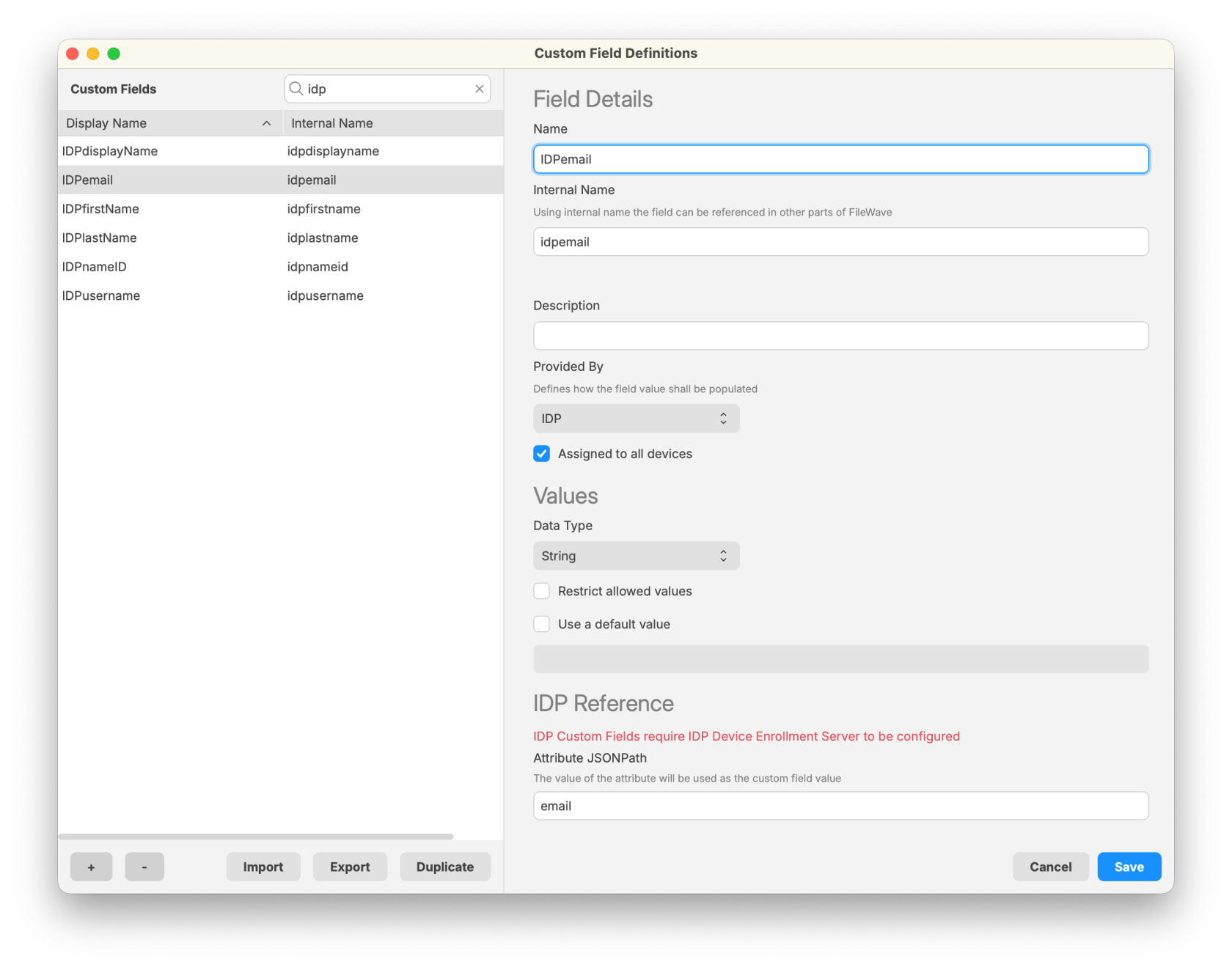](https://kb.filewave.com/uploads/images/gallery/2025-10/AT7oXh8YAyDLt6HF-filewave-admin-2025-10-03-10-51-41.png) 5. Save the Custom Field. 6. Ensure that devices are linked to users: - FileWave uses the **Enrollment Username** field to associate IdP data with a device. - This can be set manually (right-click device > Set Enrollment Username), automatically via **ADE enrollment**, or through **API/import** methods. ## Related Content - [Custom Fields in FileWave](https://kb.filewave.com/books/evaluation-guide/page/custom-fields "Custom Fields in FileWave") - [Working with Groups and Smart Groups](https://kb.filewave.com/books/filewave-anywhere-help-menus/page/working-with-groups-and-smart-groups "Working with Groups and Smart Groups") - [Using Parameters in Apple iOS/macOS Profiles](https://kb.filewave.com/books/profiles-apple/page/using-parameters-in-apple-iosmacos-profiles "Using Parameters in Apple iOS/macOS Profiles") - [Apple ADE Enrollment](https://kb.filewave.com/books/evaluation-guide/page/apple-ade-enrollment "Apple ADE Enrollment")