**Platform support:** IdP Custom Fields are supported on **macOS, iOS, and iPadOS**. Windows devices do not use Enrollment Username for IdP Custom Fields in the same way they use LDAP.
IdP Custom Fields synchronize selected identity attributes only. They do not replace every LDAP-based workflow for directory synchronization, group membership, or administrator access. ## How 1. Navigate to **Assistants > Custom Fields** > **Edit Custom Field Definitions** in FileWave Central. 2. Create a new field: - **Name/Internal Name:** Enter the display name and stable internal name you want to use in reports, Smart Groups, profiles, or API work. - **Provided By:** Select **IdP**. - **Assigned to all devices:** Select this when the field should apply across the environment; otherwise scope it to the devices that need the value. 3. Set the **Data Type** (commonly **String**). 4. In **IdP Reference**, enter the **Attribute JSONPath** supplied by your IdP, such as `email`, `displayName`, or `department`. [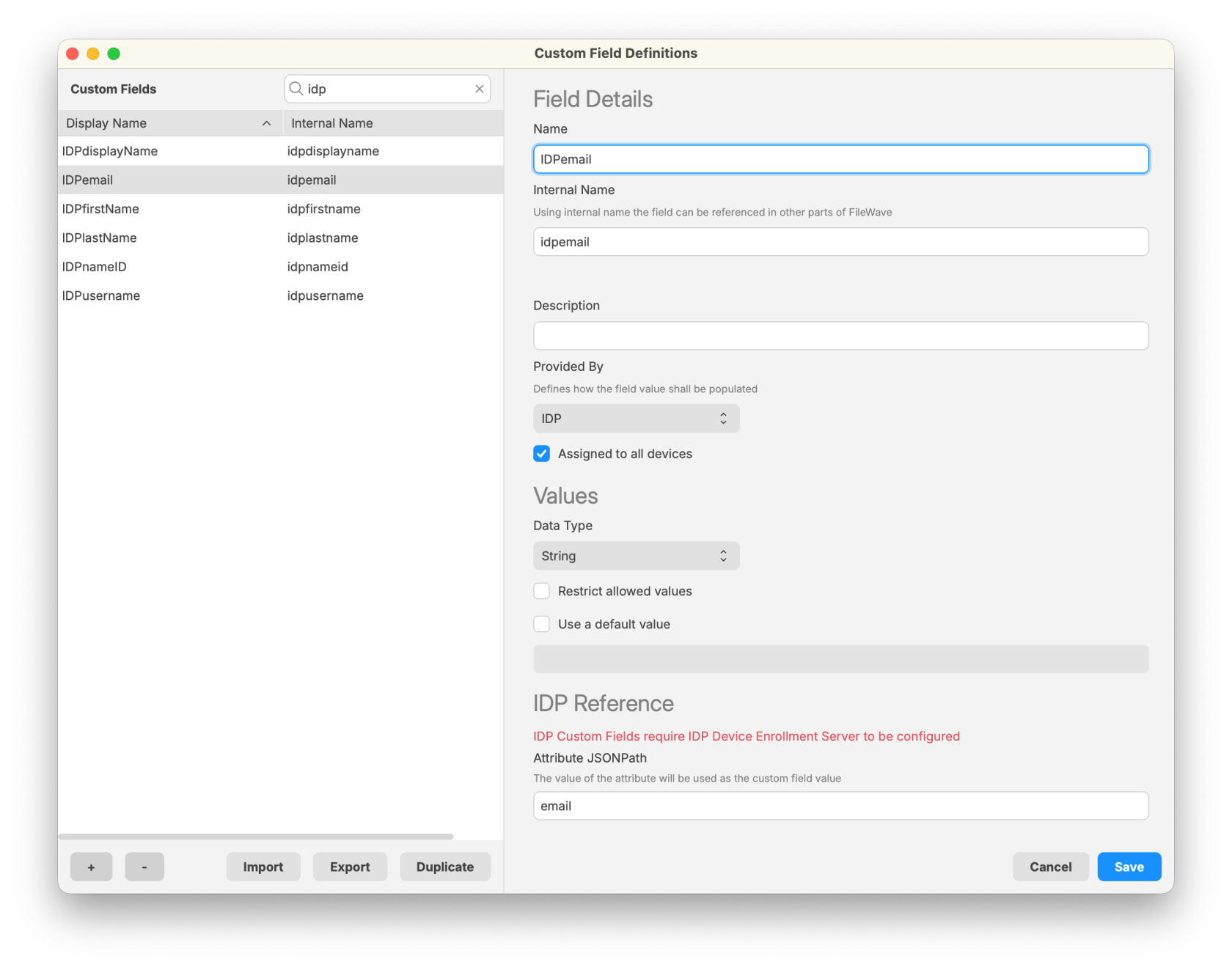](https://kb.filewave.com/uploads/images/gallery/2025-10/AT7oXh8YAyDLt6HF-filewave-admin-2025-10-03-10-51-41.png) 5. Save the Custom Field. 6. Ensure that devices are linked to users: - FileWave matches IdP data to a device through its **Enrollment Username**. - Set the username manually with **Set Enrollment Username**, collect it during ADE enrollment, or supply it through an API or import workflow. ## Related Content - [Custom Fields in FileWave](https://kb.filewave.com/books/evaluation-guide/page/custom-fields "Custom Fields in FileWave") - [Working with Groups and Smart Groups](https://kb.filewave.com/books/filewave-anywhere-help-menus/page/working-with-groups-and-smart-groups "Working with Groups and Smart Groups") - [Using Parameters in Apple iOS/macOS Profiles](https://kb.filewave.com/books/profiles-apple/page/using-parameters-in-apple-iosmacos-profiles "Using Parameters in Apple iOS/macOS Profiles") - [Apple ADE Enrollment](https://kb.filewave.com/books/evaluation-guide/page/apple-ade-enrollment "Apple ADE Enrollment")