If many existing associations need the same change, use the Associations view to edit them in bulk.
# iOS BYOD User Enrollment Overview ## What With Version 14(+) of FileWave, you can now BYOD (bring-your-own-device) enroll a device without giving total management of the device to the system admin. ## When/Why Typically, this option works best if the device to be supported is not company owned. For instance, an employee with their own iPhone may want to BYOD enroll a device to allow distribution of company-owned app licenses, but without giving their company the ability to manage their phone in other ways. ## How BYOD enrollment is off by default in FileWave, and must be enabled on the Mobile tab in preferences as shown below: 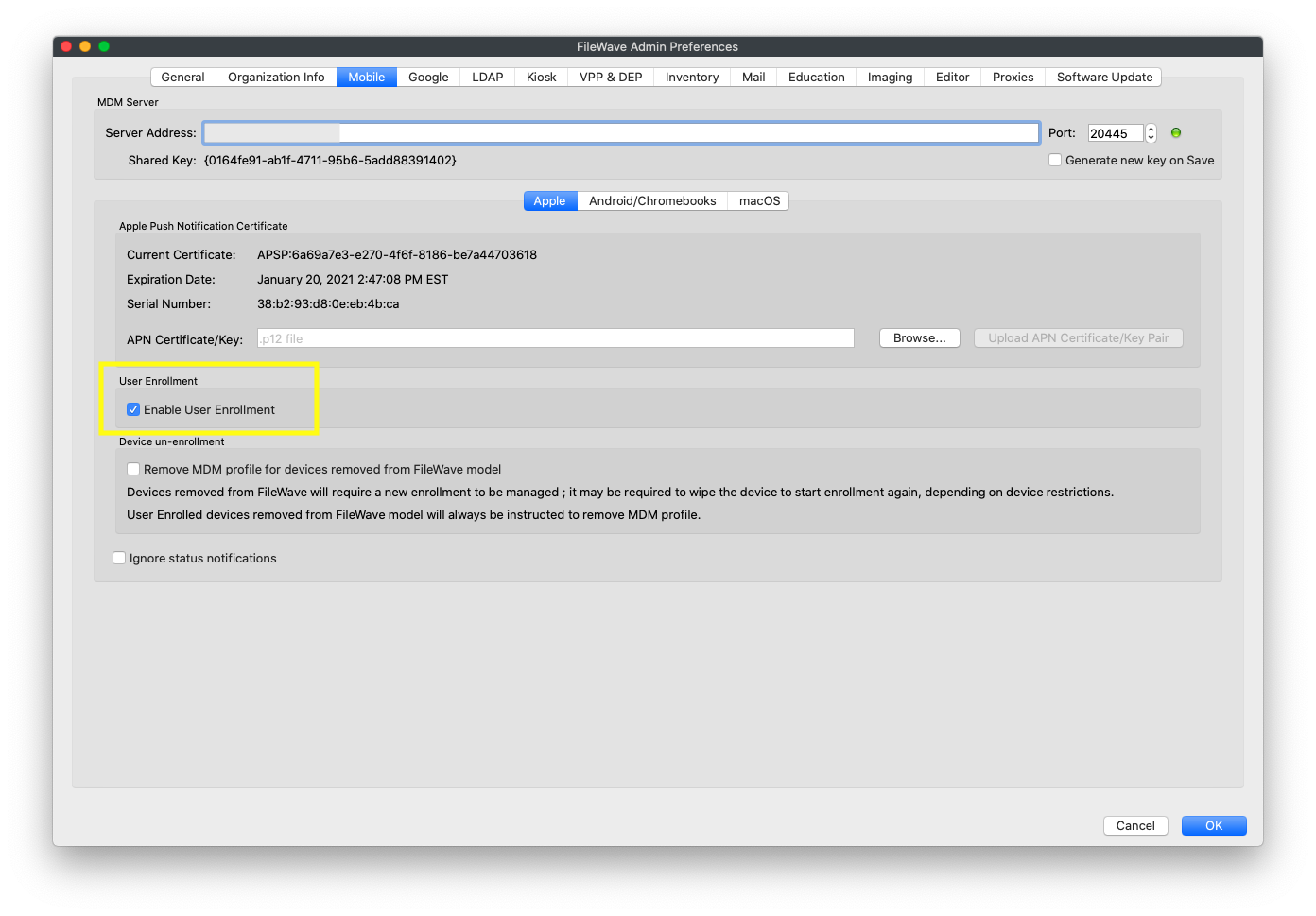 Once enabled, a new tab will be added to the "Enroll iOS Device..." Assistant: 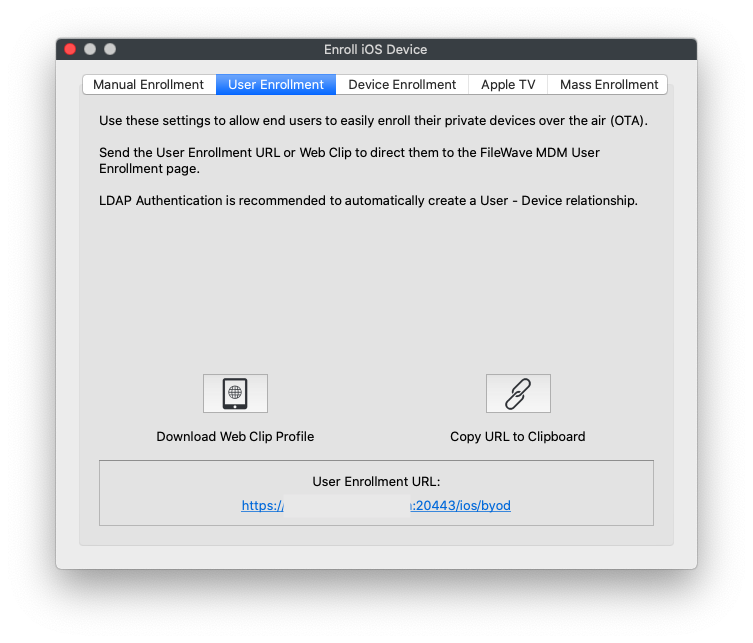 And, once user enrollment is enabled, you can go to [https://my.server.address:20443/ios/byod](https://my.server.address:20443/ios/byod) to see the user enrollment page: 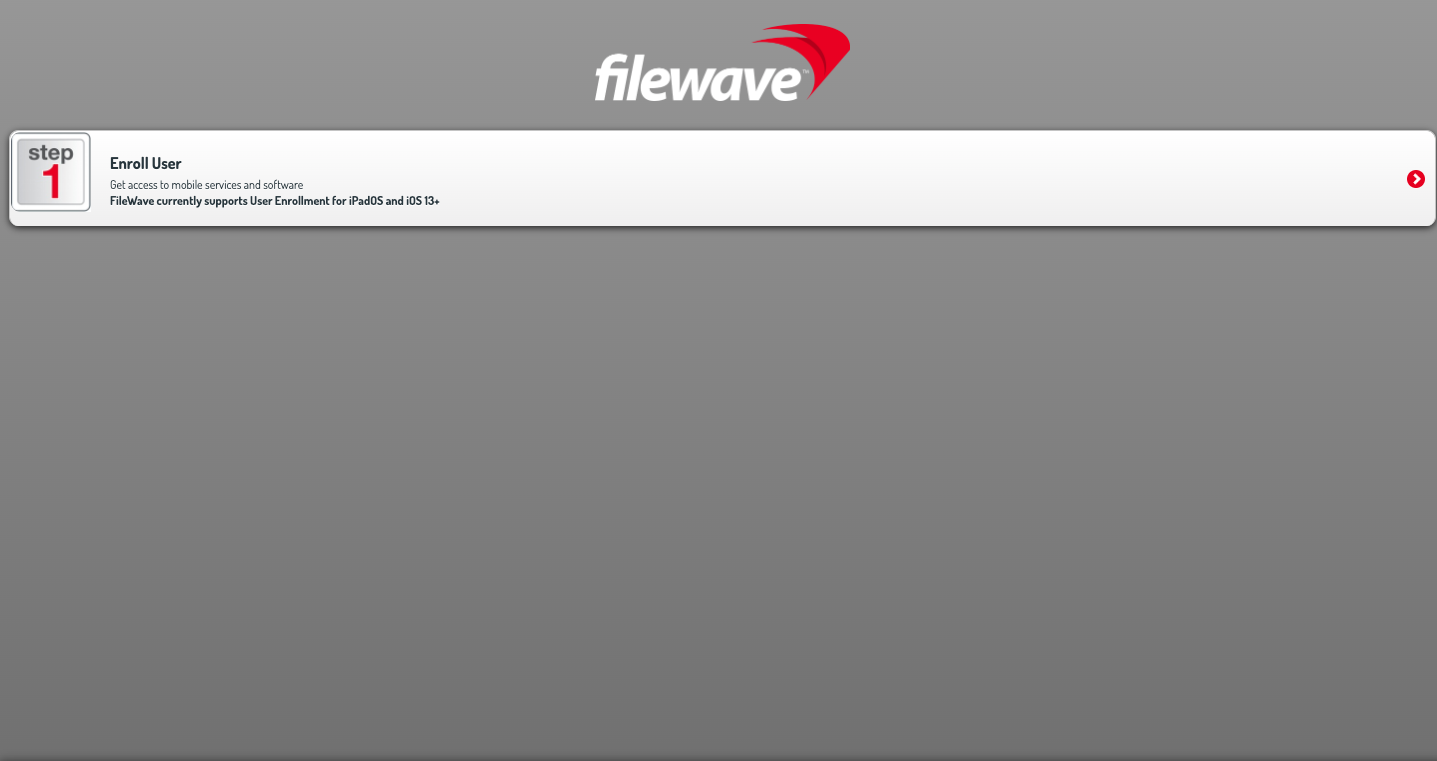 Note that by BYOD's very nature the only way you will enroll BYOD devices is through this page. (i.e. it won't be through ADE). BYOD enrollment **does** require the use of managed apple ids from either Apple School, or Apple Business, Manager. See below video of a BYOD device enrollment:Unlike a ADE enrollment, you don't have to wipe the device first to BYOD enroll it. However, trying to enroll a device with a managed Apple ID that is already logged into iCloud on the device will result in an error.
# Account-Driven User Enrollment for iOS/iPadOS BYOD Devices (v15.0+) ## What In 2021, Apple introduced [**Account-Driven User Enrollment**](https://support.apple.com/guide/deployment/user-enrollment-and-mdm-dep23db2037d/web), a new method for initiating Bring Your Own Device (BYOD) enrollments. With the releases of **iOS 17** and **iPadOS 17**, profile-based User Enrollment is deprecated, and starting with **iOS 18** and **iPadOS 18**, it is no longer supported. To align with these changes, **FileWave 15.5** now supports Account-Driven User Enrollment (ADUE), enabling organizations to securely enroll BYOD devices using this new workflow. ## When/Why #### **When to Use** - **BYOD Environments**: When employees use their personal iOS or iPadOS devices for work purposes and need access to corporate resources. - **Transitioning from Profile-Based Enrollment**: As profile-based User Enrollment is being phased out, organizations should begin migrating to Account-Driven User Enrollment to ensure compatibility with future iOS and iPadOS versions. #### **Why This Feature Matters** Apple aims to enhance the security and privacy of BYOD deployments. Account-Driven User Enrollment offers several benefits: - **Improved Security**: Separates personal and corporate data more effectively, protecting user privacy and corporate assets. - **Simplified Enrollment**: Users can enroll their devices by signing in with their Managed Apple ID, streamlining the enrollment process. - **Modern Authentication**: Utilizes OAuth 2.0 and OpenID Connect for authentication, providing a more secure and standardized method. - **Organizational Control**: Shifts the responsibility of secure enrollment to the organization, allowing for better compliance with internal policies. Account-Driven Enrollment relies on the [**Well-known URI**](https://en.wikipedia.org/wiki/Well-known_URI) mechanism for Mobile Device Management (MDM) discovery, ensuring that devices can locate the MDM server securely and efficiently. ## How #### **Enrolling a Device Using Account-Driven User Enrollment** To enroll an iOS or iPadOS device using Account-Driven User Enrollment with FileWave 15.5: - **On their iPhone or iPad, the user navigates to** Settings > General > VPN & Device Management **and taps** Sign In to Work or School Account. [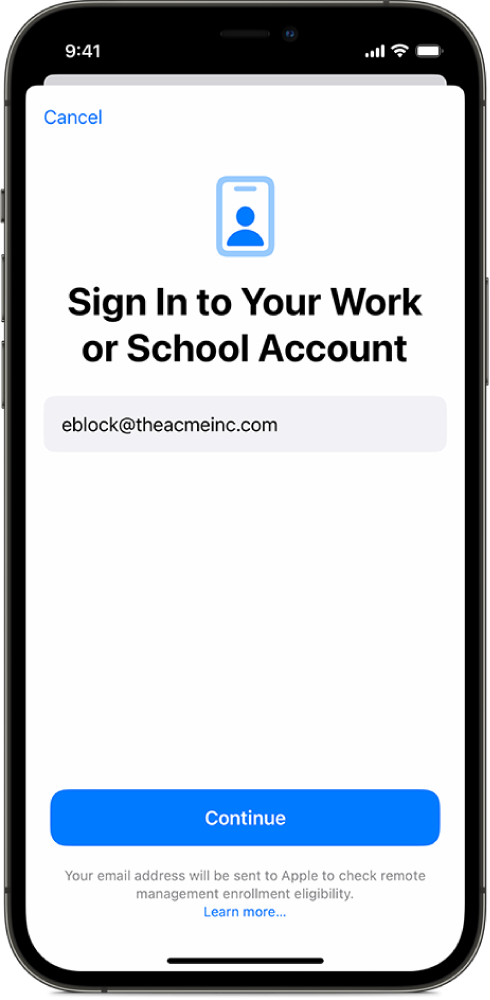](https://kb.filewave.com/uploads/images/gallery/2024-10/5oC3vsAbEKfDJLK9-image.png) The email entered is used by the device to discover the MDM server. For example, if you enter “pn@widget.ch”, the device queries the widget.ch domain, specifically at https://widget.ch/.well-known/com.apple.remotemanagement. This endpoint must return a specific JSON message containing all the information required to proceed with MDM BYOD enrollment. Therefore, organizations must have control over this URL, which could be an issue for those who completely outsource their website management (see below for potential workarounds). **FileWave Setup** The existing User Enrollment option in FileWave now enables both legacy BYOD and the new Account-Driven Enrollment (ADUE): [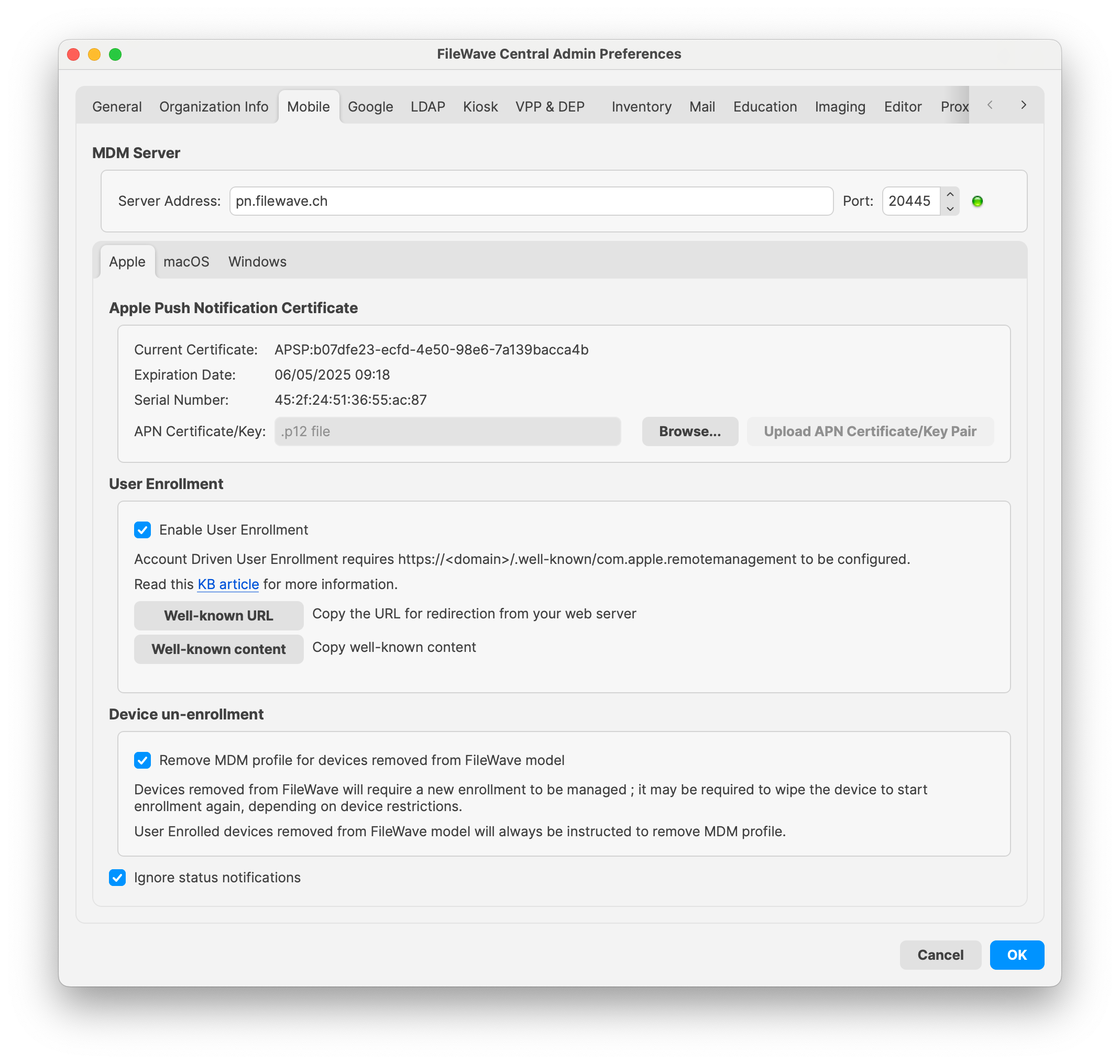](https://kb.filewave.com/uploads/images/gallery/2024-10/yGZsdBdXSA9XEO0r-image.png) FileWave cannot manage your domain but provides some helpful options: 1. **Retrieving the Well-Known Content (JSON):** - If you prefer to host the required file yourself, you can easily obtain the necessary JSON content from FileWave. - Click the **“Well-known content”** button in the FileWave interface. The following JSON will be copied to your clipboard: ```json {"Servers": [{"Version": "mdm-byod", "BaseURL": "https://pn.widget.ch:20445/ios/byod/enroll/"}]} ``` - Create a file containing this JSON and serve it from your web server at the appropriate URL (https://yourdomain/.well-known/com.apple.remotemanagement). 2. **Setting Up a Redirection to the FileWave Server Endpoint:** - Alternatively, you can configure your web server to redirect requests from https://yourdomain/.well-known/com.apple.remotemanagement to the FileWave server endpoint. - Retrieve the endpoint URL by clicking the **“Well-known URL”** button in FileWave. For example, the endpoint might be: ``` https://pn.widget.ch:20445/ios/byod/well-known/ ``` - Consult your web server documentation for details on setting up the redirection. For instance, to configure Apache, add the following directive inside the VirtualHost section: ``` RewriteRule ^/.well-known/com.apple.remotemanagement https://pn.widget.ch:20445/ios/byod/well-known/ [R=301,L] ``` ## Related Content - [Apple: User Enrollment and MDM](https://support.apple.com/guide/deployment/user-enrollment-and-mdm-dep23db2037d/web) - [Well-known URI](https://en.wikipedia.org/wiki/Well-known_URI) - [Apple MDM Enrolment Methods](https://kb.filewave.com/books/filewave-client/page/apple-mdm-enrollment-methods "Apple MDM Enrolment Methods") ## Digging Deeper #### **Device Enrollment Process Workflow**| Navigate to Settings, General | [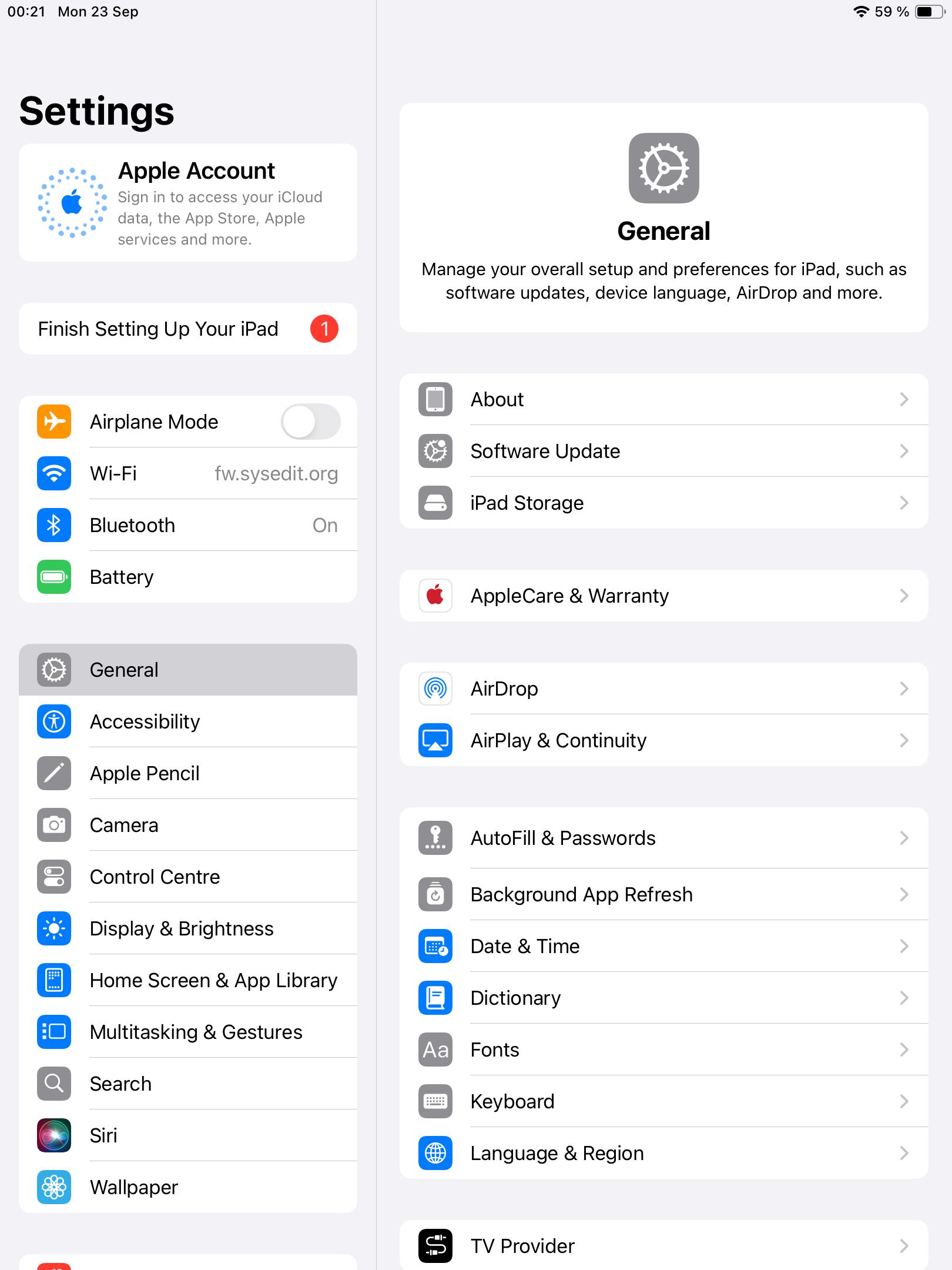](https://kb.filewave.com/uploads/images/gallery/2024-10/tq2PCb6gCuqRphTW-image.png) |
| Navigate to VPN & Device Management | [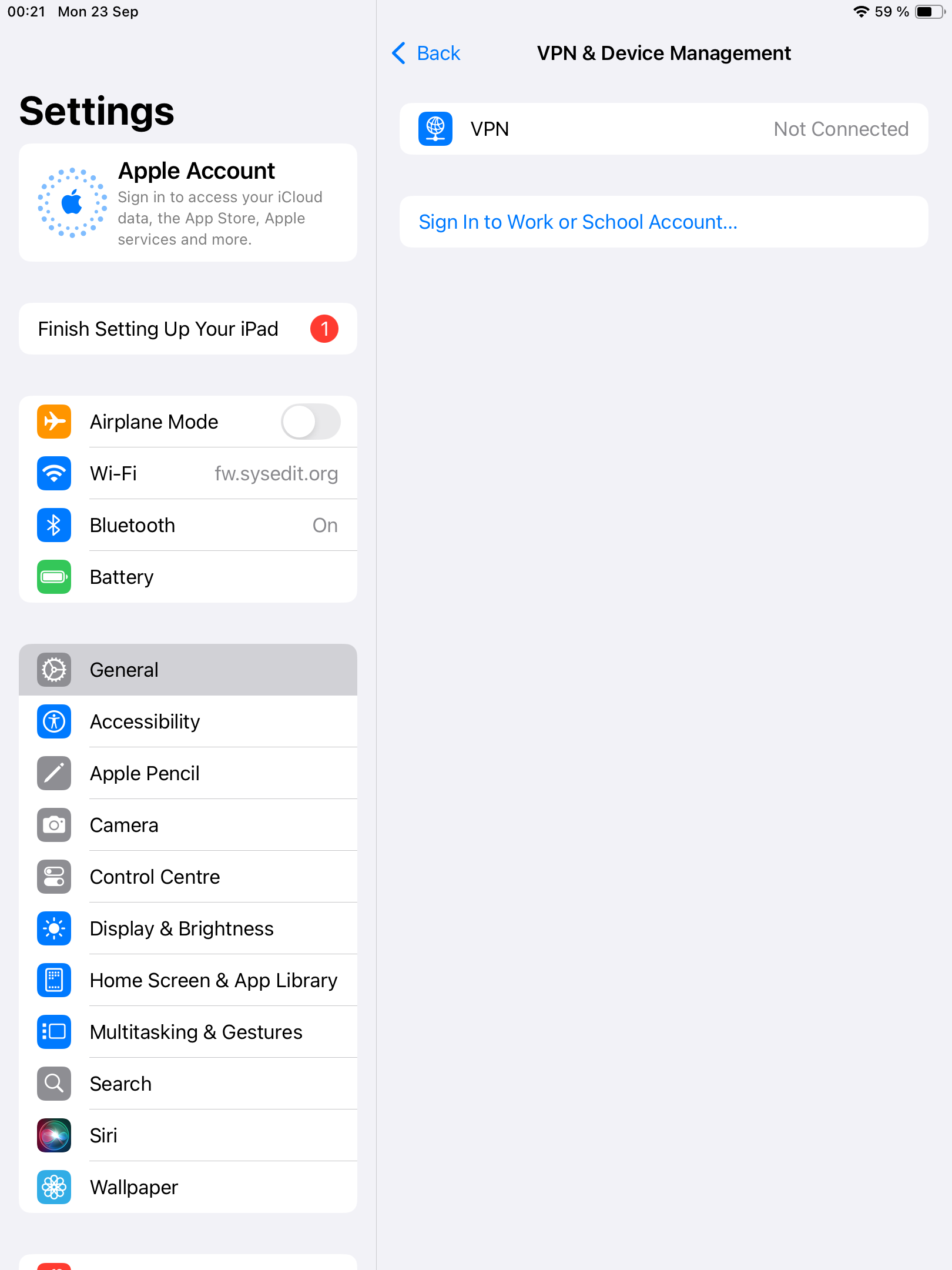](https://kb.filewave.com/uploads/images/gallery/2024-10/hyAItT9cxY7Kf4dO-image.png) |
| Tap Sign In to Work or School Account… | [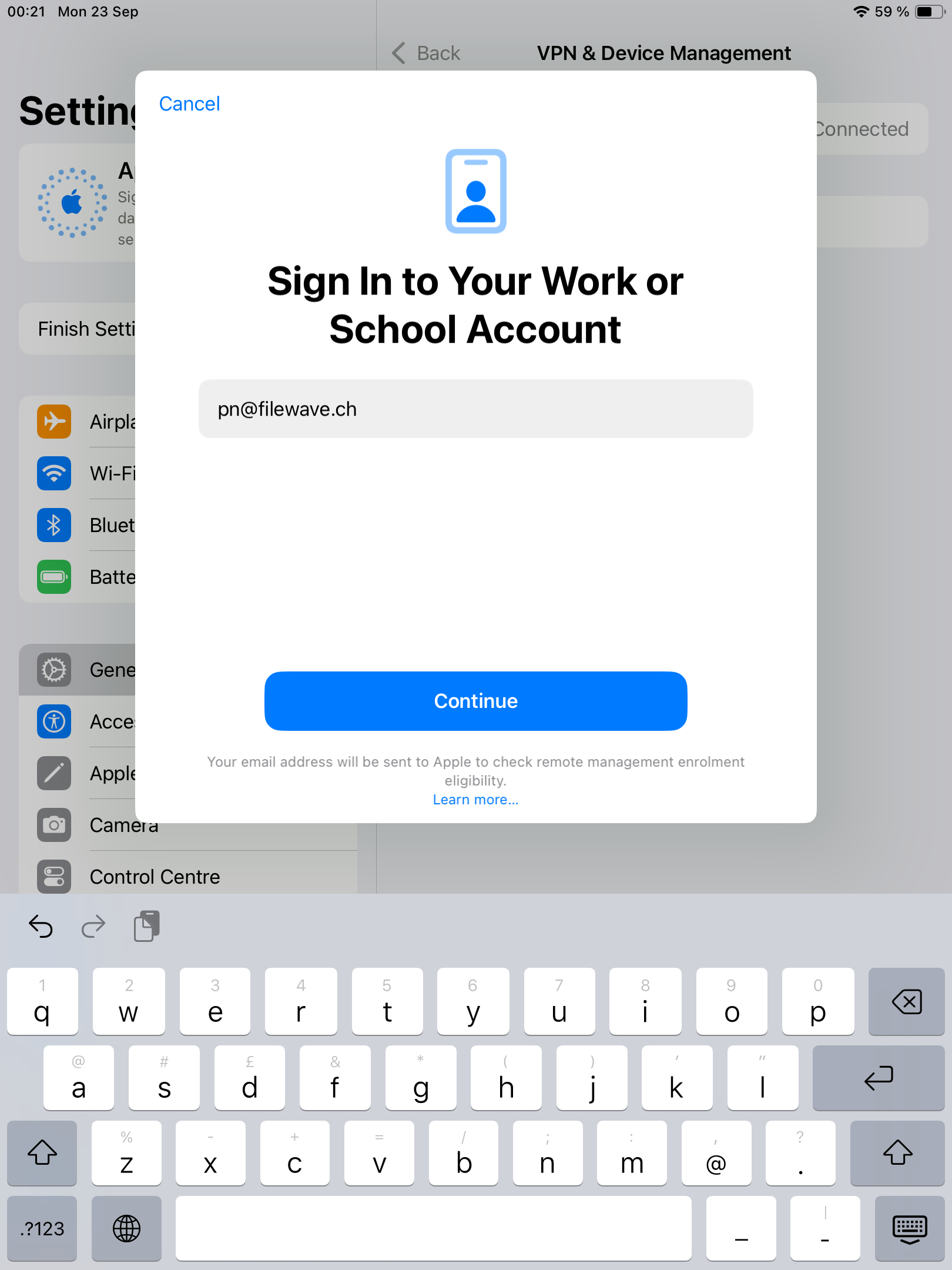](https://kb.filewave.com/uploads/images/gallery/2024-10/bBqsiNY4erlle5Is-image.png) |
| Enter your Managed Apple Account, press Continue. | [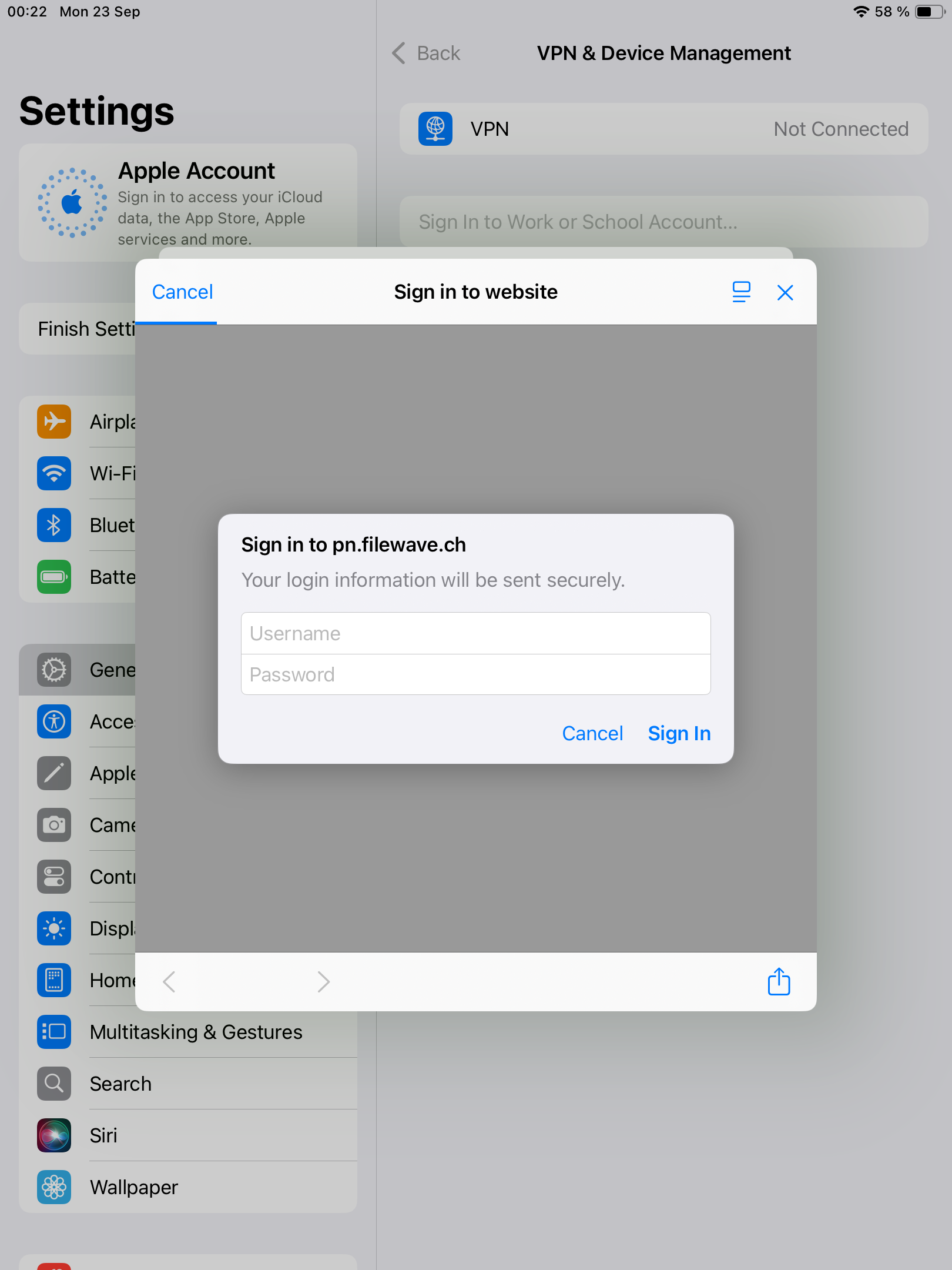](https://kb.filewave.com/uploads/images/gallery/2024-10/kXiGF0wE1t4cdBMg-image.png) |
| The device will now display the standard authentication page if configured; IDP login is also supported. Enter your credentials and tap **Sign In**. | [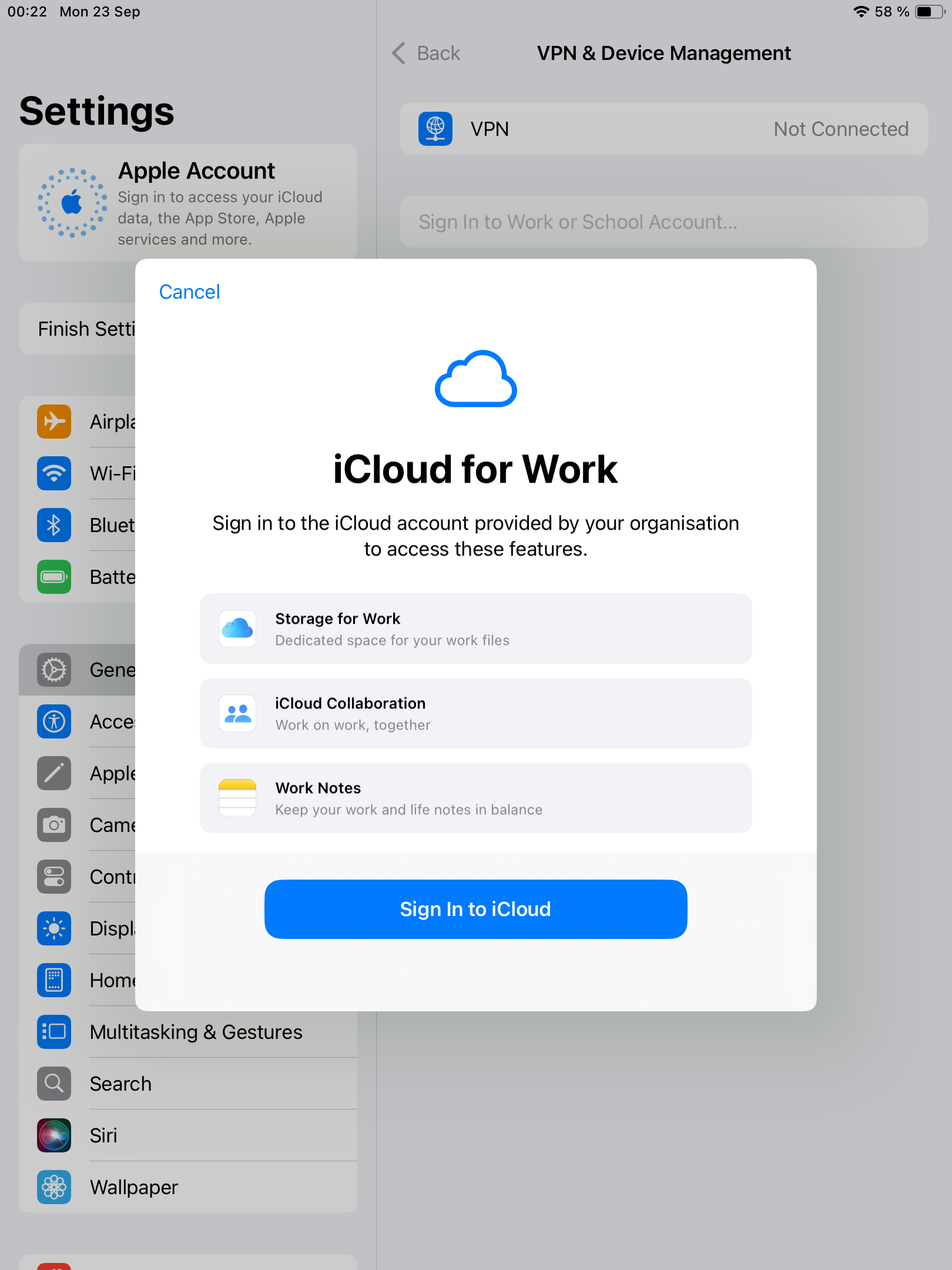](https://kb.filewave.com/uploads/images/gallery/2024-10/oa2AAiixc6YiMbsD-image.png) |
| After a few seconds, the device will prompt you to sign in to iCloud. Tap the button and enter your Managed Apple ID password. | [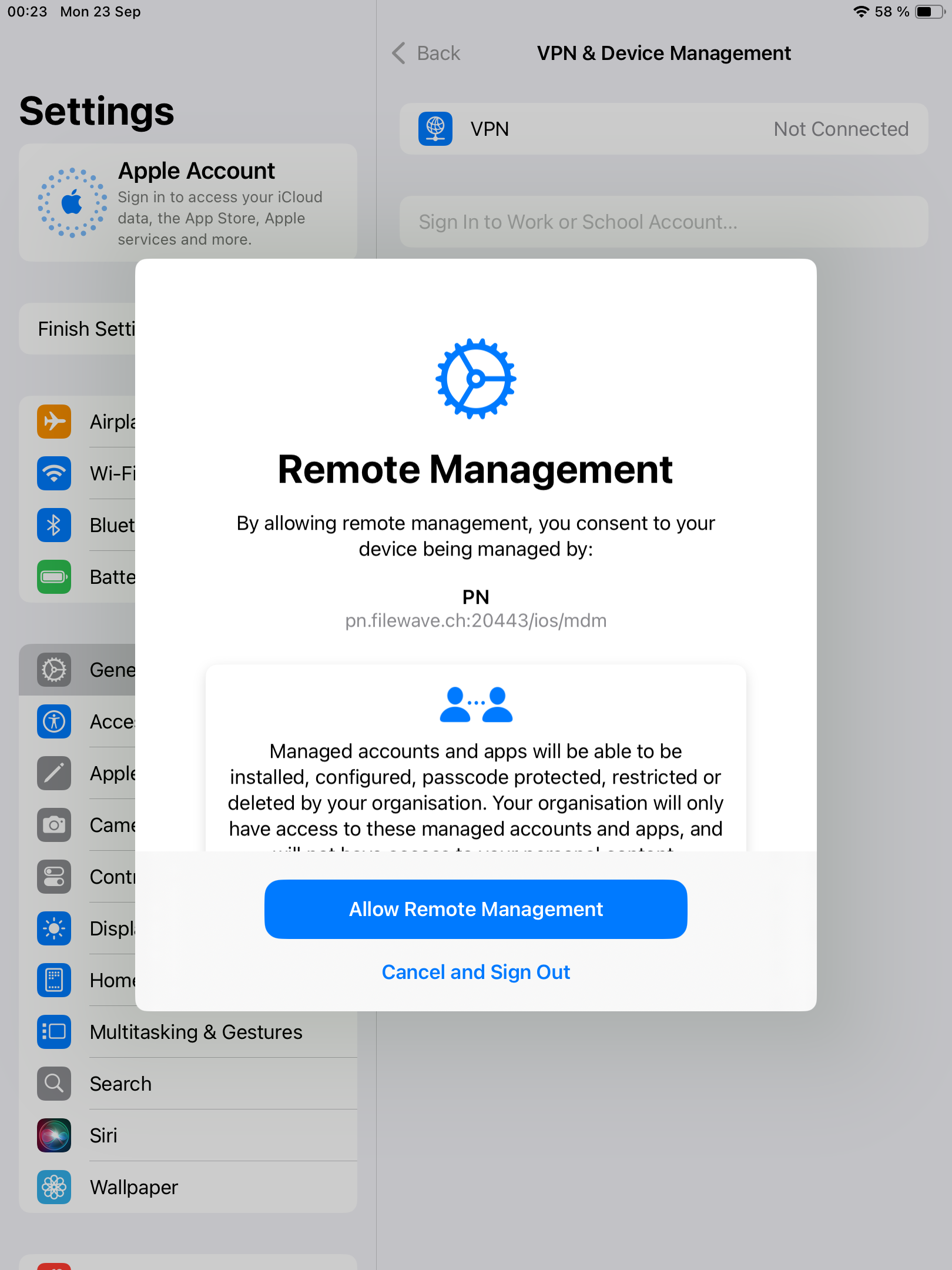](https://kb.filewave.com/uploads/images/gallery/2024-10/KHCgfQfrpAqvdT4y-image.png) |
| And then, press Allow Remote Management to start enrollment. | [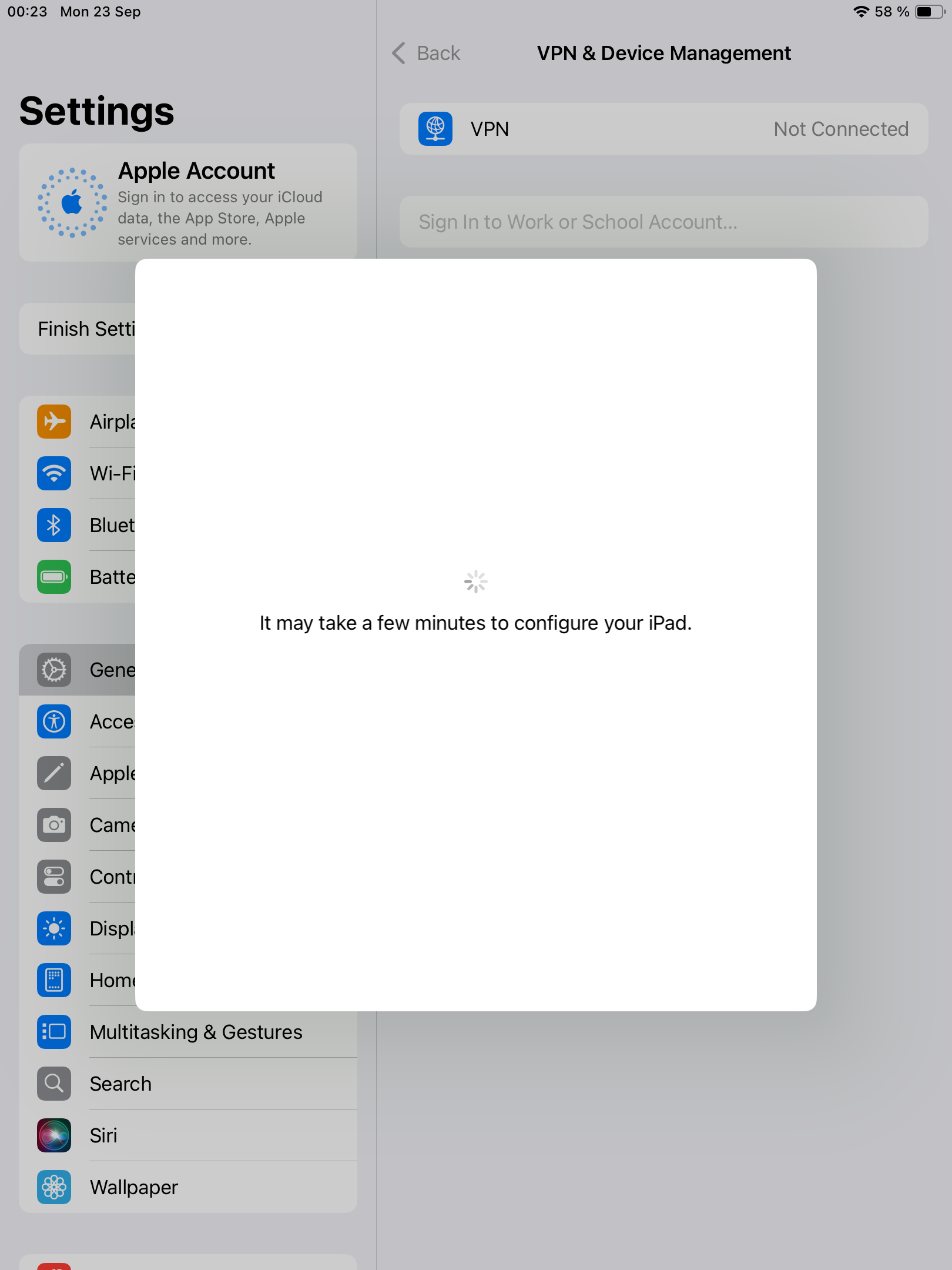](https://kb.filewave.com/uploads/images/gallery/2024-10/Aty7A0bIdtXDjgL4-image.png) [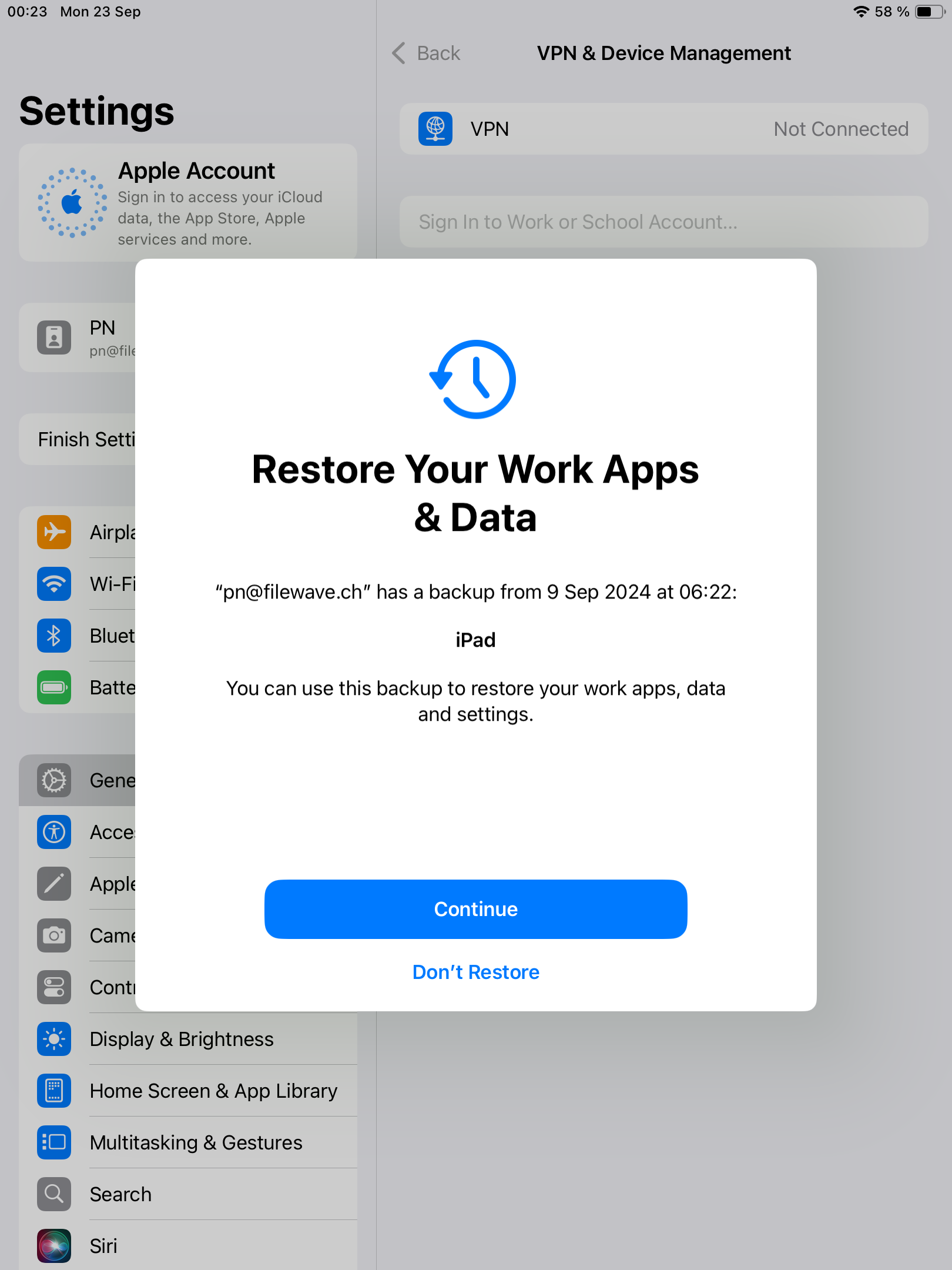](https://kb.filewave.com/uploads/images/gallery/2024-10/1hI6sInR8VIY54Ei-image.png) |
| After enrollment, device may prompt to restore iCloud data. | [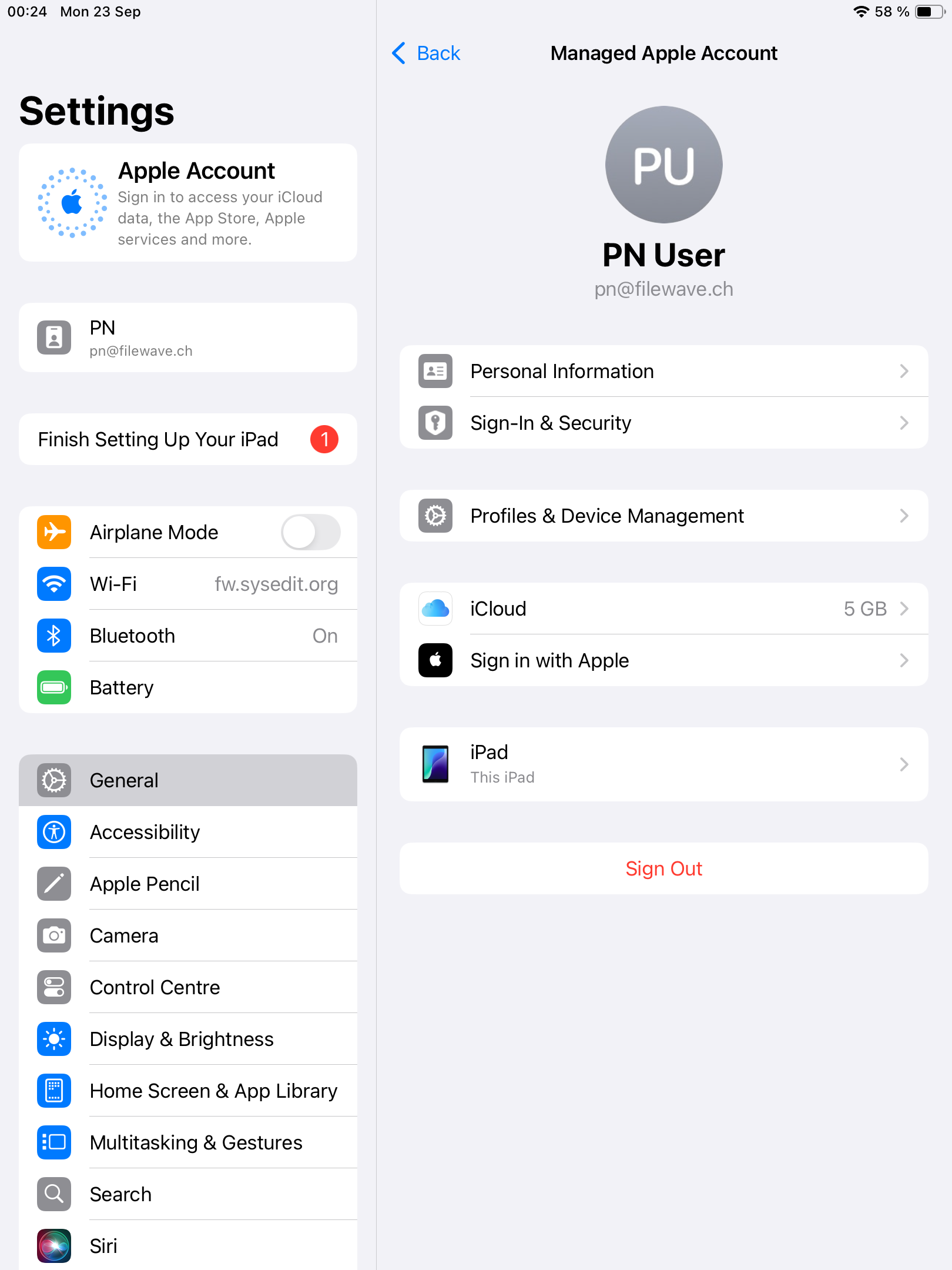](https://kb.filewave.com/uploads/images/gallery/2024-10/0Hra65EMqheLcVga-image.png) |
You may be saying to yourself: "If I have to assign these licenses to the user, doesn't that mean I'll have to create VPP users in FileWave and invite them?" And the answer to that is thankfully, no. For User Enrollment, FileWave will automatically register and associate VPP users for each associated VPP asset on demand.
# New Inventory Item -- Enrollment Type ## What There are now several methods of enrolling devices into FileWave and a new inventory field has been created to record the enrollment method. ## When/Why This field can be helpful when assigning content to devices. The field in question is called Enrollment Type as you'll see below: 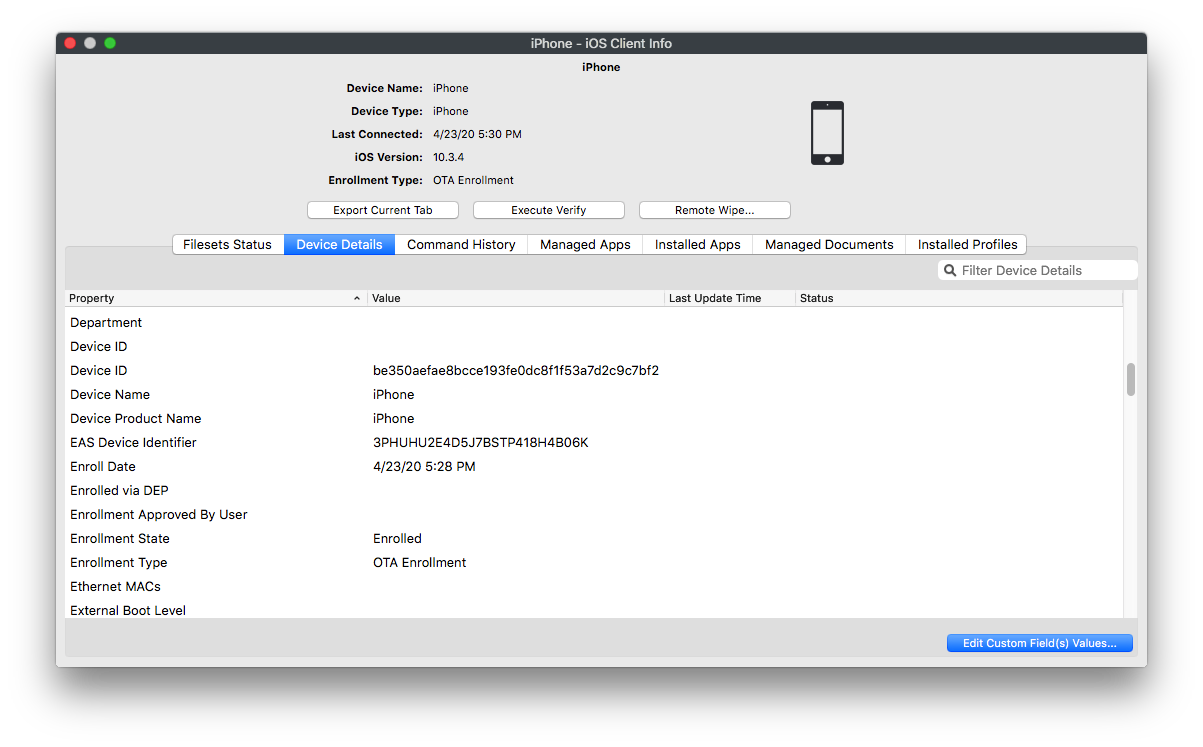 ## How There is nothing special about access the item...you can do it in any query or smart group, but the following are the breakdown of the values for the field:| Displaying information | Number | Description |
| Enrollment via APK | 0 | Device was manually enrolled via installation of FileWave application |
| Enrollment via EMM\_API | 1 | Device was enrolled via the Android Management API (through NFC or a QRcode) |
| OTA Enrollment | 2 | Device was enrolled over-the-air |
| User Enrollment | 3 | Device was enrolled BYOD |
| DEP Enrollment | 4 | Device was enrolled via Apple DEP |
| Enrollment via fwcld | 5 | Device was enrolled via fwcld |
| Enrolled | 6 | Enrollment of Chromebook |
| User approved enrollment | 7 | Device was enrolled over-the-air and approved by user |
| Presumed DEP Enrollment | 9 | Device is supervised iOS client that was enrolled before v14. "Presumed DEP" because there is no absolute concrete criteria to determine if it is DEP or Apple Configurator. |
| Not available | 8 | Enrollment type is not determined |