Since the FileWave process runs at root or system level on computers, the end user does not need to be a local administrator in order to install applications and content through the Kiosk.
### Computer Clients User access to the Kiosk is by way of a macOS Menu Bar or Windows System Tray icon. The Kiosk is activated on computers by installing the FileWave client and having at least one Fileset configured as a Kiosk item associated with that Client.If no Kiosk association exists, the macOS menu bar or Windows system tray will not include the Kiosk icon.
If an association exists and the icon still does not appear, check operating-system icon visibility rules. For example, macOS or Windows may hide extra menu bar or system tray icons when space is limited.
You can also open Kiosk from the command line, as described here: [Manual Trigger of FileWave Kiosk for macOS and Windows](https://kb.filewave.com/books/kiosk/page/manual-trigger-of-filewave-kiosk-for-macos-and-windows-153)
### Mobile clients On mobile devices, users access Kiosk through the automatically installed FileWave App Portal app. The Kiosk is activated on a mobile device when that device enrolls with the FileWave MDM. ### Associations Any Fileset, including App Store apps, can be configured as a Kiosk item and placed into categories such as department, class, or application type. #### Apple VPP An Apple VPP Kiosk item contains the link to the store. The application or book is downloaded from Apple, directly to the device, when the user clicks Install.VPP licenses can be returned for reuse only after all related standard or Kiosk associations/deployments are removed.
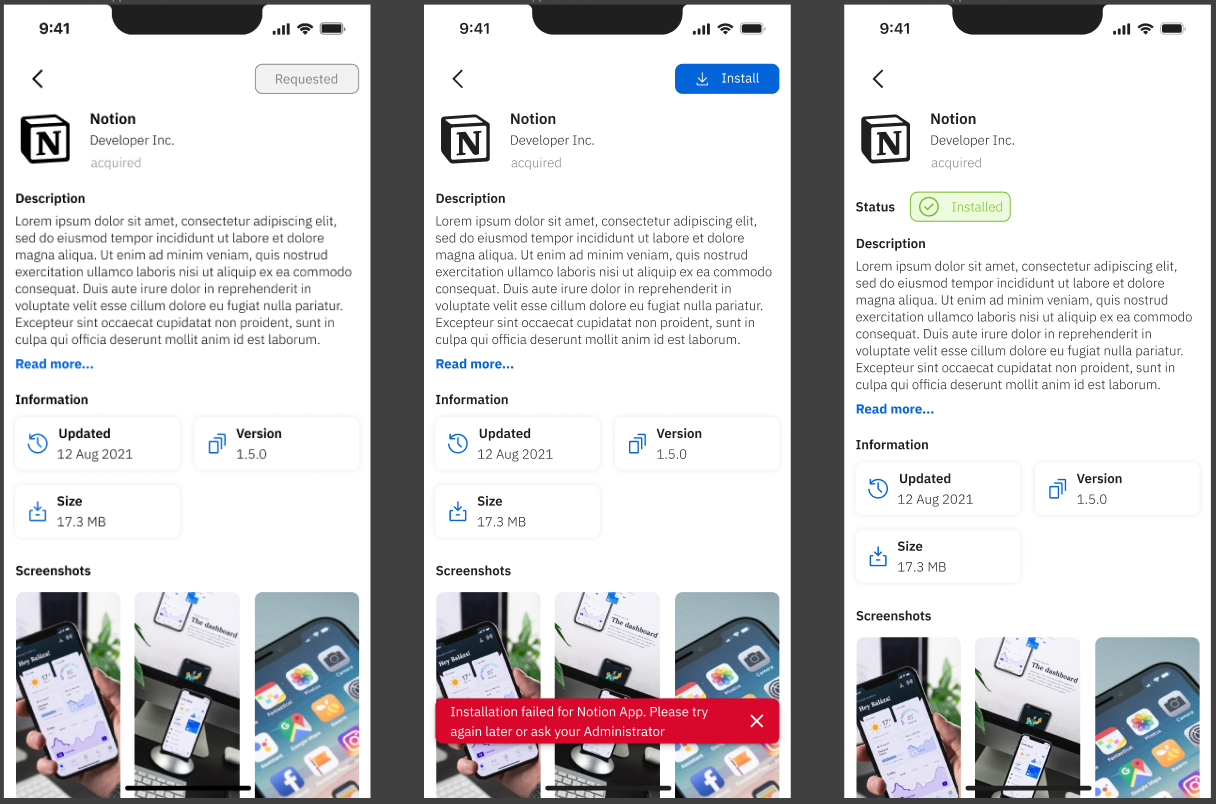
## Mobile Kiosk versus Desktop Kiosk - Mobile: [FileWave Kiosk for iOS/iPadOS overview](https://kb.filewave.com/books/kiosk/page/filewave-kiosk-for-iosipados-overview-153 "FileWave Kiosk for iOS/iPadOS overview") - Desktop: [FileWave Kiosk for macOS and Windows overview](https://kb.filewave.com/books/kiosk/page/filewave-kiosk-for-macos-and-windows-overview-153 "FileWave Kiosk for macOS and Windows overview") ## Related Content - [Setting the Primary Colour, Name and Logo in Kiosk/App Portal (16.0+)](https://kb.filewave.com/books/kiosk/page/setting-the-primary-colour-name-and-logo-in-kioskapp-portal-160 "Setting the Primary Colour, Name and Logo in Kiosk/App Portal (16.0+)") - [Applications Preventing Reboot (macOS/Windows)](https://kb.filewave.com/books/kiosk/page/applications-preventing-reboot-macoswindows "Applications Preventing Reboot (macOS/Windows)") # FileWave Kiosk for macOS and Windows overview (15.3+) This article will explain the details of the refreshed Kiosk for macOS and Windows that is included in FileWave 15.3+. ## Browse Payloads/Filesets The "Browse Payloads/Filesets" screen is a central feature within the app that enables users to explore and discover a diverse array of payloads/filesets available for access or download. Much like the experience of browsing through the Android Play Store or the Apple App Store, this screen offers users an organized and visually appealing interface that showcases different payloads/filesets, each accompanied by relevant details and information. Key components and elements commonly found on the "Browse Payloads/Filesets" screen include: - **Company Logo:** The visual representation of the company's logo, reinforcing brand identity and providing a familiar visual reference. - **Device Info:** A button leading to the "Device Information" page provides users with quick access to essential insights about specific devices, such as company details, enrollment information, verification status, and app version. - **Payload/Fileset icon:** Each payload/fileset is represented by an icon that provides a visual cue of its content or purpose. - **Payload/Fileset Name:** The name of the payload/fileset is displayed alongside the corresponding thumbnail. This gives users a quick understanding of the payload's/fileset's context. - **Install/Uninstall Button:** This view includes an "Install"/”Uninstall” button that users can click to initiate the installation/uninstallation process of the selected payload/fileset, streamlining the user's interaction and providing a clear call to action. - **Reinstall Button:** This button is visible in two cases (for non-VPP filesets): - When the user tried to install fileset, and installation failed for some reason: - When the fileset is already installed on the device. - **Button Behavior:** The installation process is now accompanied by clear button states, reflecting the various stages: - **Install:** Initiates the installation process. - **Requested:** Indicates that an installation request is pending. - **Uninstall:** Allows users to uninstall the selected payload/fileset. [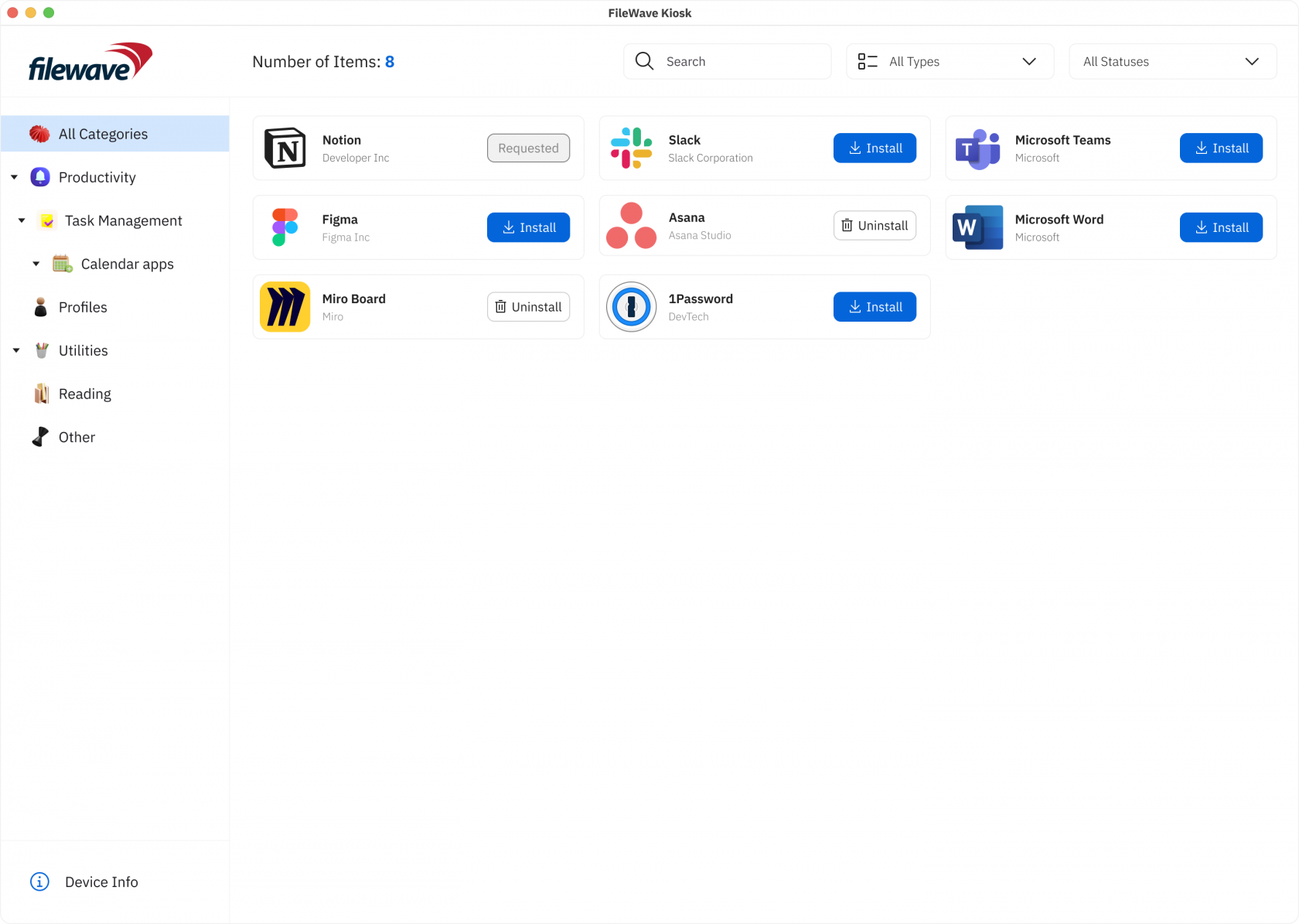](https://kb.filewave.com/uploads/images/gallery/2024-04/8bmUA9XWoYX1TJyd-image.png) - **Number of items:** The number of items shows how many items are visible on the screen. - **Search Box:** A search box is conveniently integrated, empowering users to quickly locate specific payloads/filesets based on keywords. This feature enhances precision and accelerates the search process. - **Scalable Left Sidebar:** Responding to user preferences, the left sidebar is now scalable, allowing users to customize its width, expanding or minimizing it based on their preference. This flexibility enables users to optimize their workspace, with the left sidebar scalable up to 50% of the screen size. [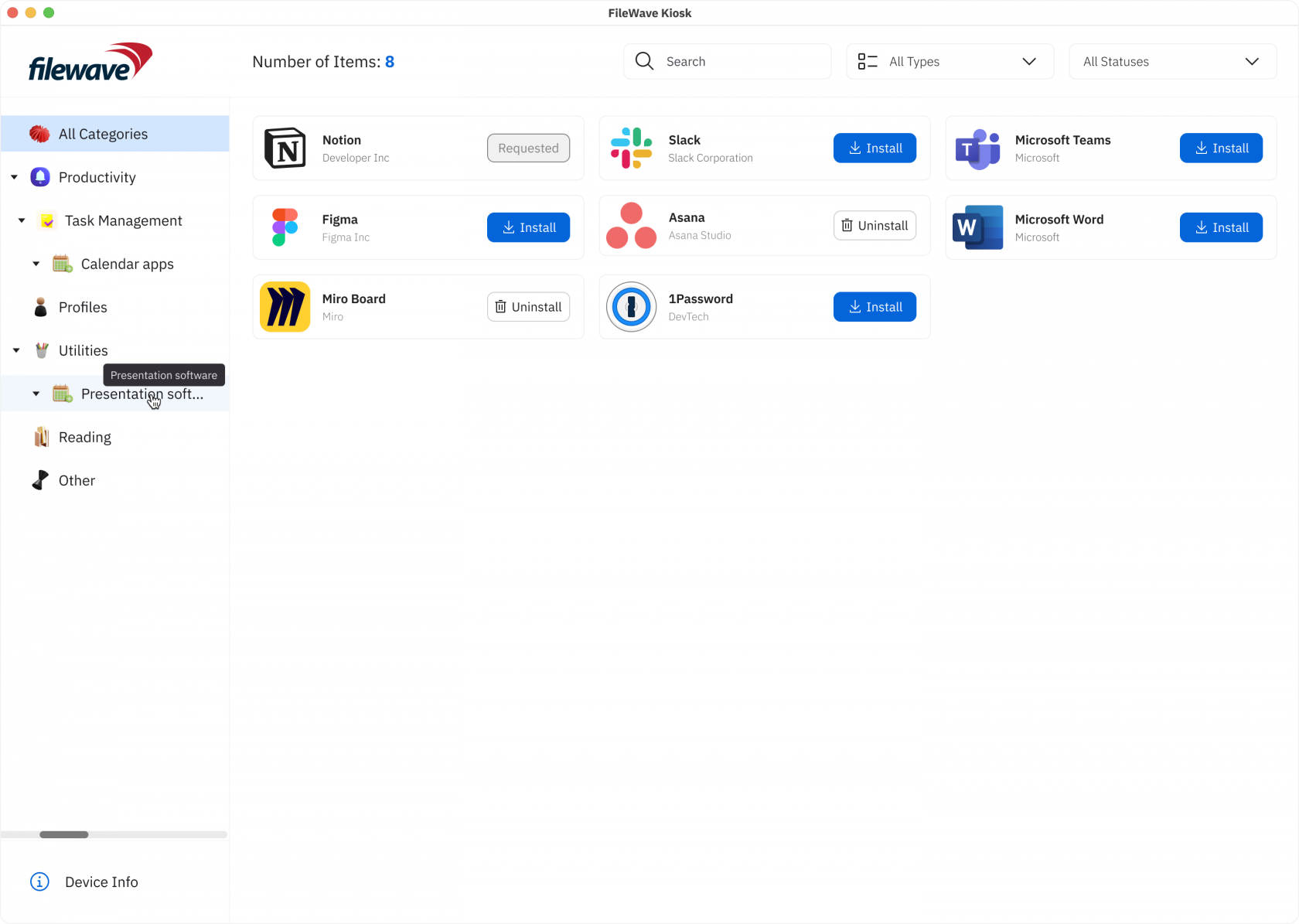](https://kb.filewave.com/uploads/images/gallery/2024-04/cECiQXVrVtxHiqjU-image.png) [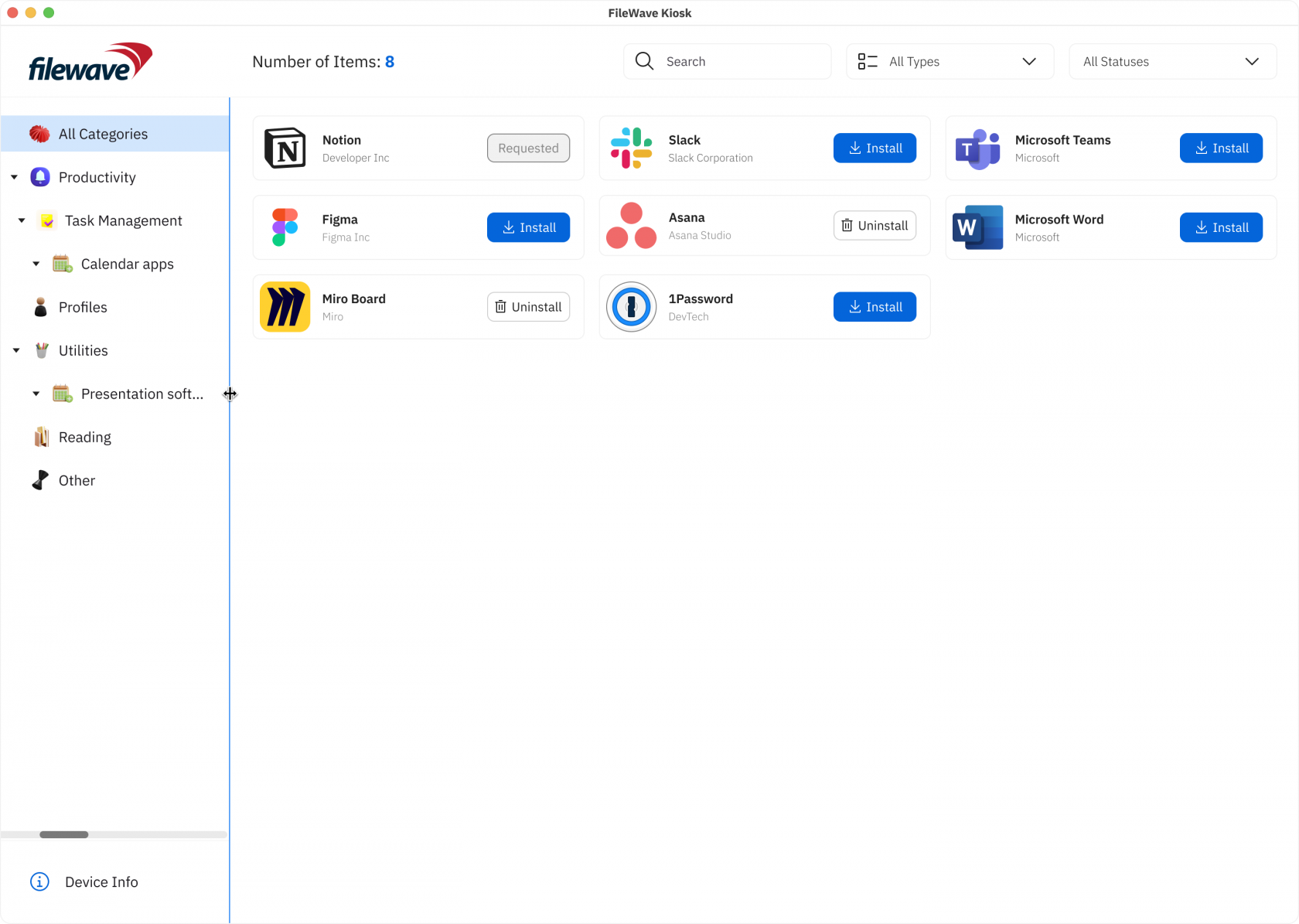](https://kb.filewave.com/uploads/images/gallery/2024-04/9qccCLr1EiLuDF6w-image.png) - **Left Side Menu:** Categories are prominently featured in the left side menu, allowing users to effortlessly navigate and filter payloads/filesets based on their specific interests. This user-friendly approach enhances efficiency and ease of use. Double click, or clicking on the icon on the left side of the category will expand the category and subcategories will be shown. - **Statuses Filter:** Filter payloads/filesets based on their installation status (Installed, Not Installed). - **Types Filter:** Tailor the view by filtering payloads/filesets according to types such as "Applications," "Books," "Documents," and more. These enhancements not only simplify the user experience but also provide a comprehensive set of tools for effective payload/fileset management. By incorporating these features, we aim to empower users with a more personalized and efficient approach to navigating and managing their payloads/filesets within FileWave. - **Payload/Fileset Cards:** Each payload/fileset is usually presented as a card containing its icon and name. Tapping on a card leads to a more detailed page for the payload/fileset. - **Pagination:** If there are numerous payloads/filesets available, an infinite scrolling mechanism helps users navigate through multiple pages of listings. - **Scrolling Animations:** Fluid scrolling animations and transitions contribute to a smooth browsing experience, enhancing users' engagement while exploring different payloads/filesets. - **Loading Animation:** During data retrieval, a loading animation provides users with visual feedback, indicating that the app is actively fetching and populating the content. - **Error Handling:** Robust error handling mechanisms ensure that clear and user-friendly error messages guide users in case of connectivity issues or technical glitches. - **Flags for Enhanced Communication**: In the pursuit of transparent communication, we've introduced flags that offer clear insights into specific aspects of payloads/filesets. These flags include: - **Restart Needed:** A flag signaling that the installation or update of a payload/fileset requires a system restart for the changes to take effect. This ensures users are promptly informed about necessary actions for seamless functionality. - **Software Update:** This flag indicates that the payload/fileset represents a software update. Users will receive relevant messages, guiding them through the update process and ensuring they stay informed about crucial software enhancements. [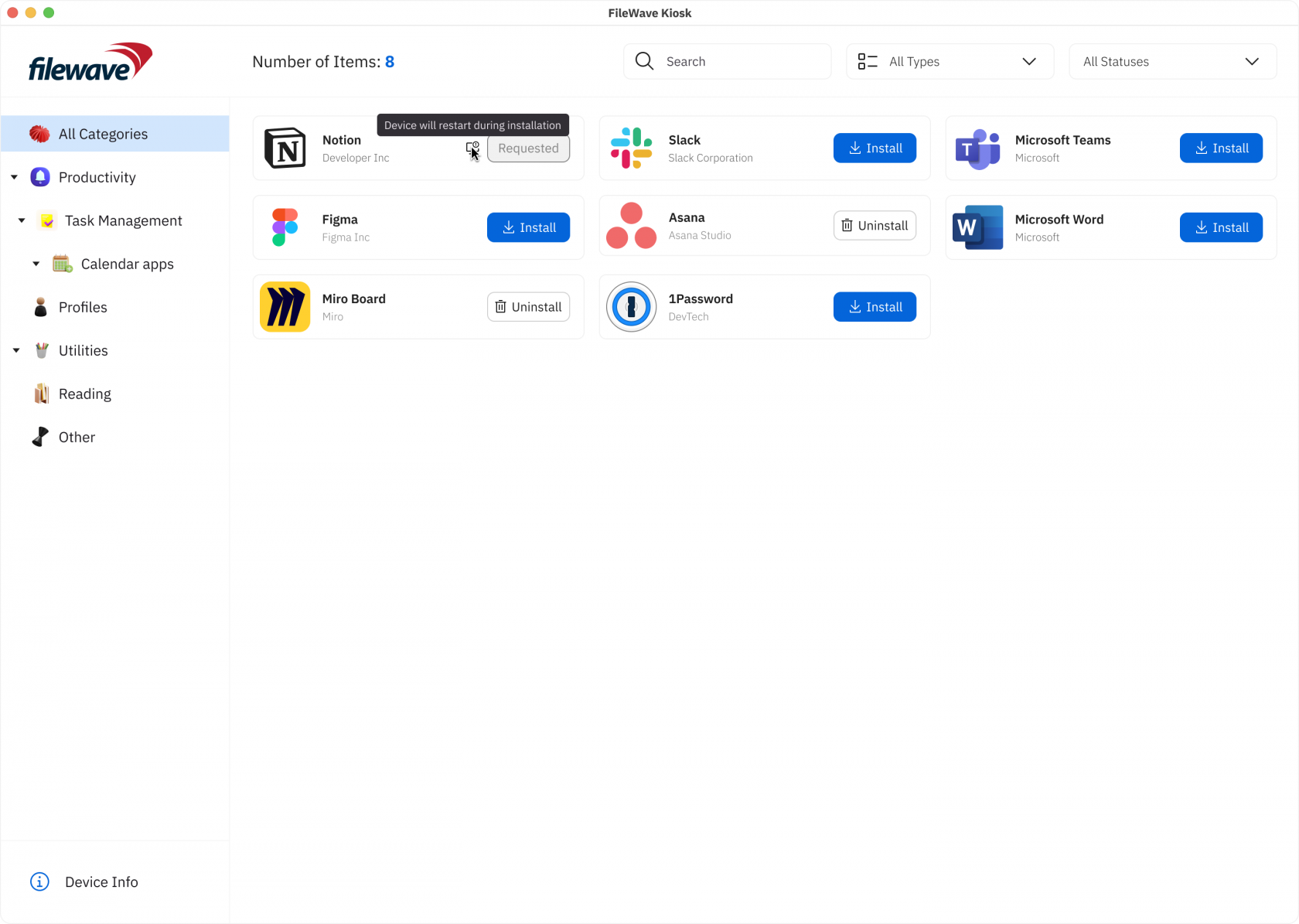](https://kb.filewave.com/uploads/images/gallery/2024-04/xuz6xYX7vNhUTIKS-image.png) [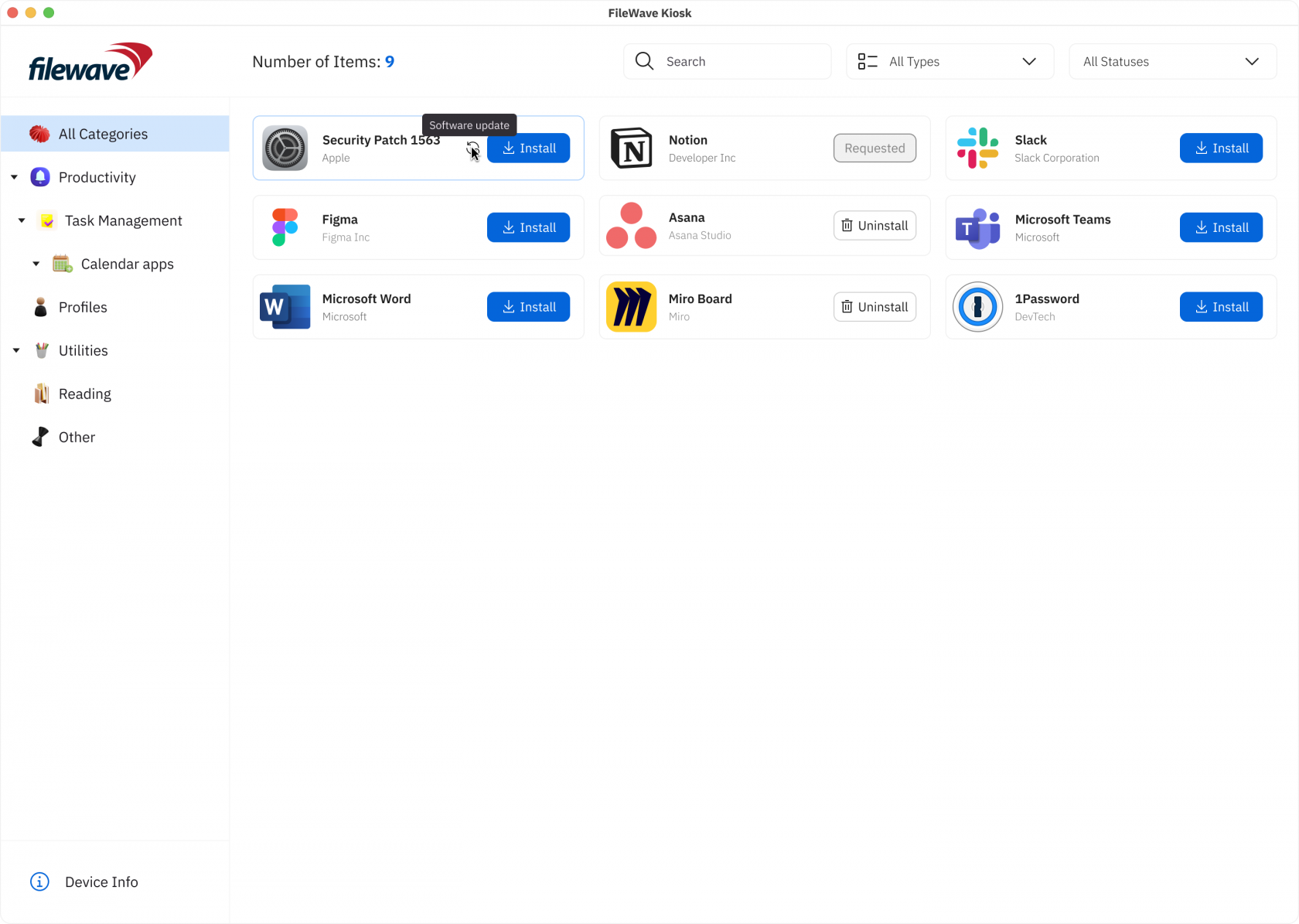](https://kb.filewave.com/uploads/images/gallery/2024-04/Oj1gvhS7gIHoST8u-image.png) - **VPP support (macOS):** - **JOIN Modal for Organization Selection:** - macOS users accessing the JOIN section will encounter a modal displaying a comprehensive list of organizations available for joining. This intuitive interface simplifies organization selection and facilitates seamless integration with VPP. - **Streamlined Registration Process:** - Upon selecting the "Join" button, macOS users will seamlessly transition to the App Store app to complete the registration process. This streamlined workflow minimizes user effort and enhances efficiency in finalizing organization registration. - **Dynamic Organization Visibility:** - Upon successful registration with an organization, it will be automatically removed from the list of available organizations. This dynamic update ensures that macOS users are presented with accurate and relevant options, optimizing their selection process. - **User-Friendly Interface:** - If there are no more organizations available for joining, the list at the bottom right will intelligently hide, providing a cleaner interface for macOS users. This decluttered view enhances user experience and facilitates focused decision-making. - **Compatibility with VPP Versions:** - Registration functionality is fully compatible with both VPP v1 and VPP v2, ensuring seamless integration and operation across different VPP versions for macOS users. - **Error handling (in case installation failed):** - Icons with error text tooltips are shown in the Apps List page, providing users with quick access to error information. [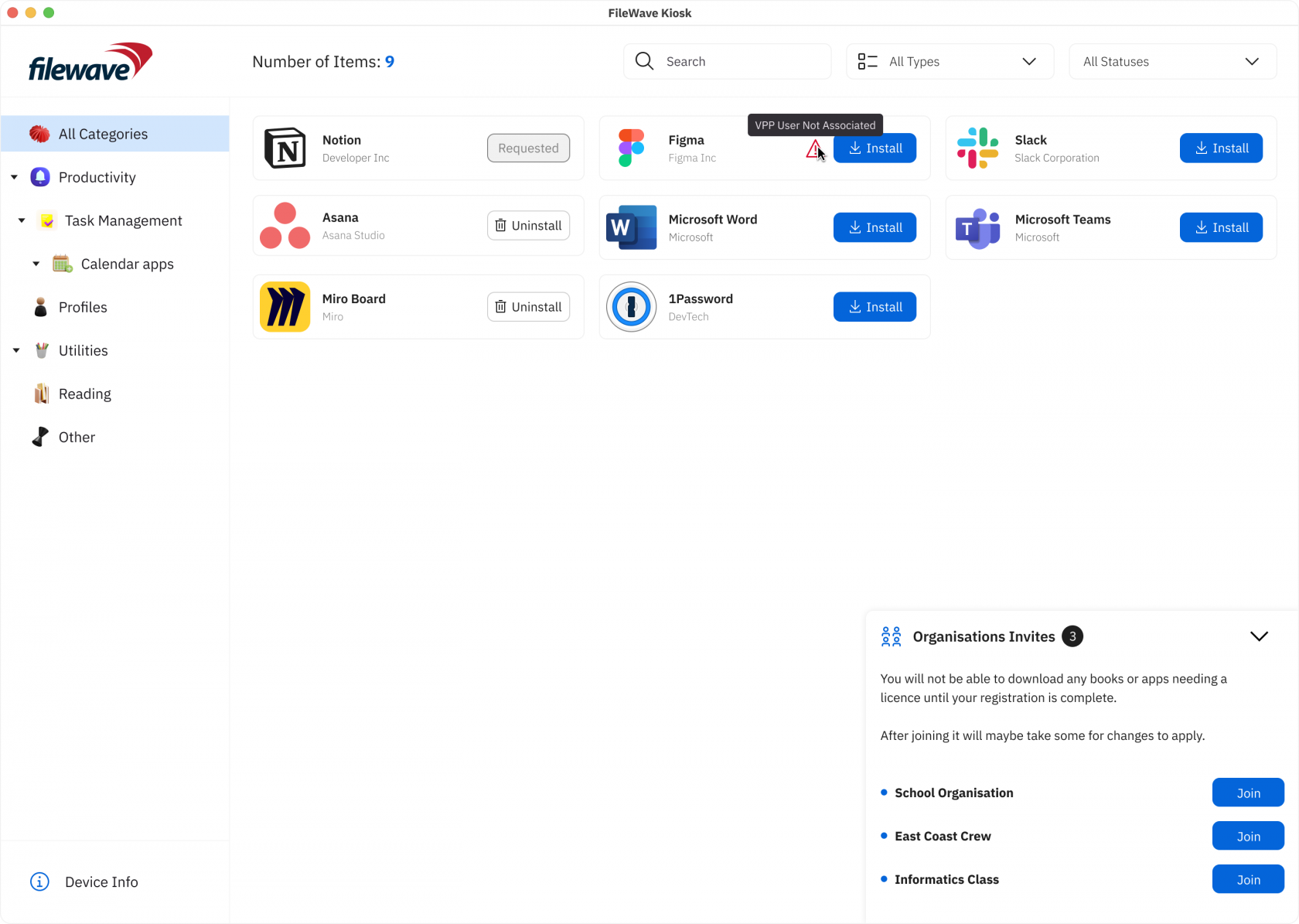](https://kb.filewave.com/uploads/images/gallery/2024-04/C6SVzqHerxpNGqz5-image.png) ## Payload/Fileset details view We are excited to introduce significant enhancements to the Desktop Kiosk versions, mirroring the user-centric improvements made for iOS/iPadOS. With these updates, users can expect a more intuitive and informative experience when interacting with filesets and payloads on their desktop devices. **Key Features:** - **Details View Redesign:** - The "Details View" on Desktop Kiosk now mirrors the comprehensive and informative interface seen on iOS/iPadOS. Users encounter a screen that offers in-depth information about selected filesets/payloads, empowering them to make informed decisions. - **Key Elements and Components:** - **Fileset/Payload Icon:** Visual identifiers help users quickly recognize the selected fileset/payload. - **Fileset/Payload Name:** Clear titles provide clarity about the content or purpose. - **Creator Information:** Details about the developer or source establish credibility and context. - **Description:** Comprehensive descriptions outline functionality, features, and benefits. - **Information:** Users can access details like the last update date, version, and size of the fileset. - **User Interaction Buttons:** Interactive buttons allow users to initiate actions such as installation, with progress updates visible until completion. - **Return to Browse:** A back button facilitates seamless navigation back to the previous browsing screen. - **Scrolling Animations:** Fluid animations enhance the browsing experience, providing engaging transitions between content. - **Loading Animation:** Visual feedback informs users of data retrieval processes, ensuring they are aware of ongoing operations. - **Error Handling:** Robust error messages guide users through connectivity issues or technical glitches, maintaining a smooth user experience. [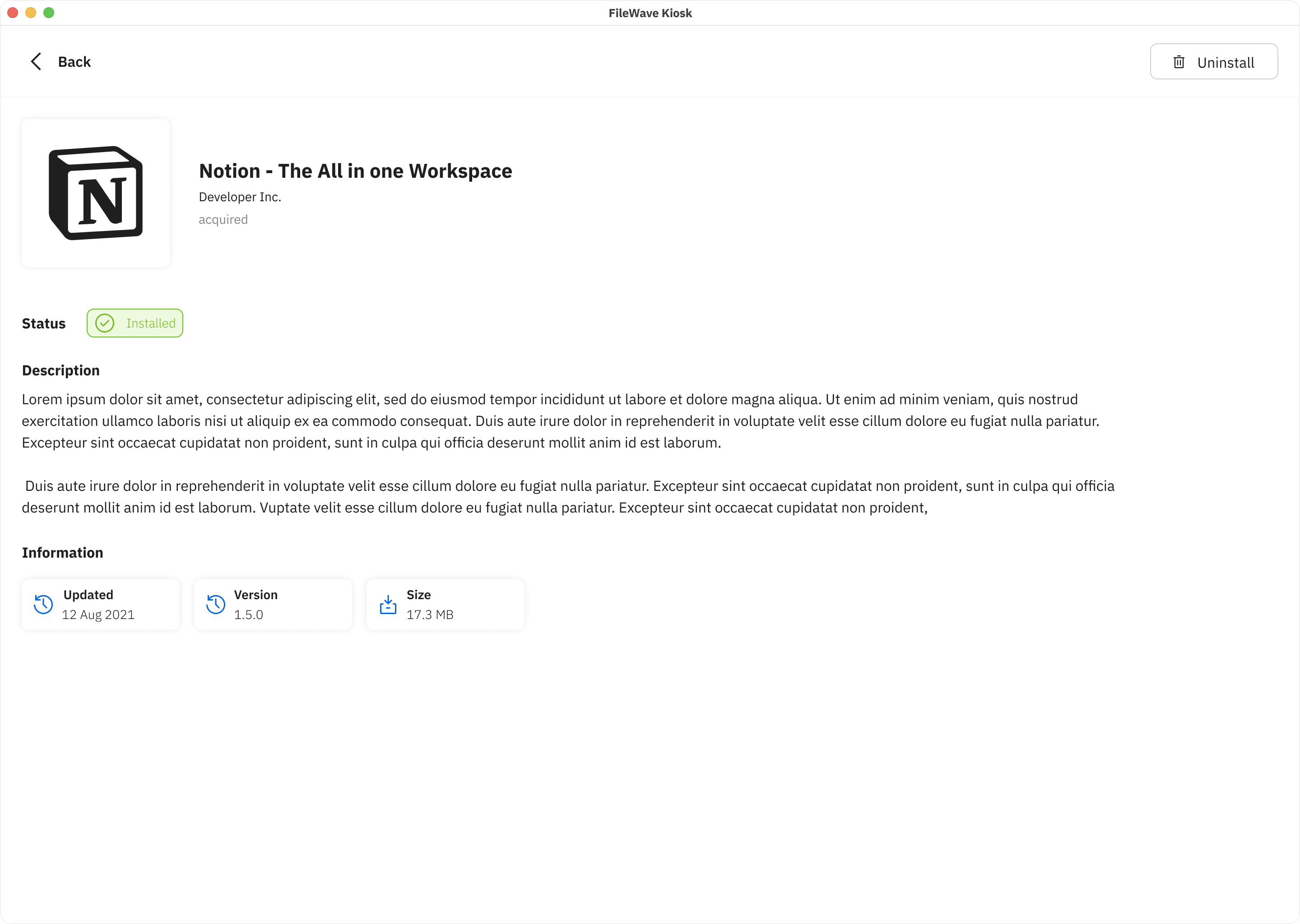](https://kb.filewave.com/uploads/images/gallery/2024-04/M7G90wXPSmRVq8Pf-image.png) These enhancements aim to streamline the desktop browsing experience, aligning it closely with the intuitive interface seen on iOS/iPadOS. By providing users with comprehensive information and intuitive navigation, the Desktop Kiosk versions empower users to make informed decisions and maximize productivity. ## Device Information view We're thrilled to unveil enhancements to the Device Information view on Desktop Kiosk, paralleling the user-centric improvements made for iOS/iPadOS. This revamped interface provides users with a comprehensive overview of vital device details, fostering transparency and effective management within the app's ecosystem. **Key Features:** - **Header Navigation:** - Users can easily navigate back to the Browse Apps view using the back button located in the header, ensuring seamless transitions between different sections. - The last verified date provides users with the latest verification status of the device, facilitating real-time monitoring. - A prominent "Verify Device" button in the header enables users to manually trigger a device verification process, ensuring up-to-date validation. - **Device Information Section:** - The "Device Information" page now offers an exhaustive display of essential device details, empowering users with crucial insights. This section includes: - Name: Unique identifier for the device. - Address: Network address associated with the device. - Version: Operating system version installed on the device. - Platform: Platform type (e.g., Windows, macOS). - Model Version: Device model information. - Tickle Interval: Frequency of communication between the device and the server. - File Check Interval: Interval for checking file updates or changes. - **Server Information Section:** - Additionally, users can access pertinent server-related information for seamless integration. This section comprises: - FileWave Server (IP Address): Server address for file management. - SSL: Indication of Secure Socket Layer (SSL) protocol status. - Status: Current server connection status. - Server Connection: Details about the server connectivity. - **Booster Section:** - Users can now conveniently view and manage boosters directly from the Desktop Kiosk interface. This section presents a comprehensive list of boosters along with their corresponding IP addresses, streamlining booster management tasks. These enhancements bolster transparency and facilitate efficient device management within the Desktop Kiosk environment. By providing users with a holistic overview of device and server information, coupled with booster management capabilities, the Desktop Kiosk version empowers users to make informed decisions and optimize their workflows with ease. [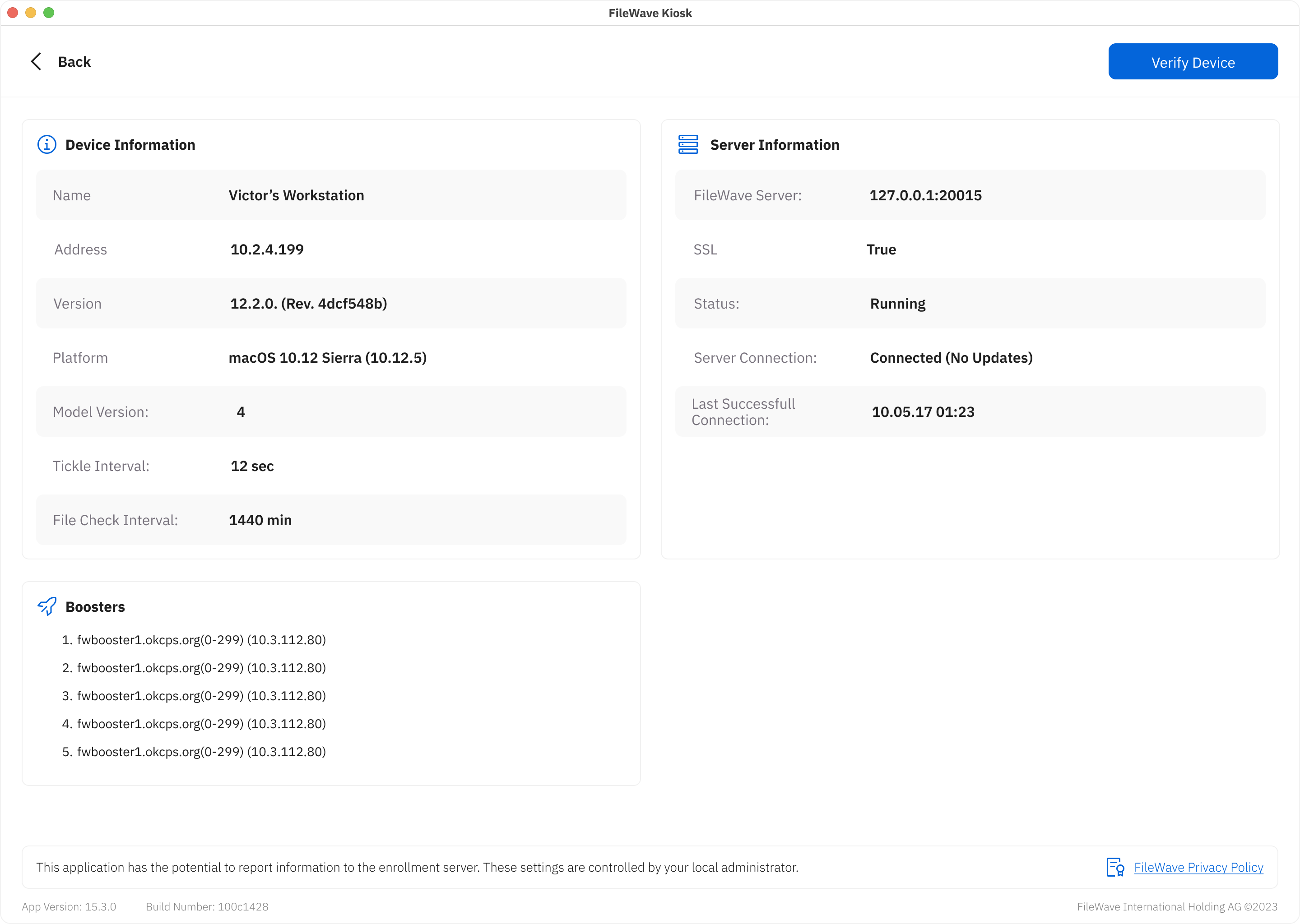](https://kb.filewave.com/uploads/images/gallery/2024-04/XeWLxscCLy8V6tnV-image.png) ## Logo and primary color selection The Adding Logo and Primary Color Selection feature enhances customization within the app by enabling users to personalize the visual representation of their profiles or entities. This feature allows users to define their brand identity and establish a cohesive look and feel throughout the app. Here's how the feature works: - **Logo Upload:** Users can upload their company or entity logo, which serves as a distinctive visual identifier. The logo could be in various formats, such as JPEG, PNG,... Once uploaded, the logo is displayed in relevant sections of the app where the user's profile or entity is showcased. - **Primary Color Selection:** Users can choose a primary color that resonates with their brand's identity. This color becomes the dominant hue used for interface elements such as buttons, headers, and accents throughout the app. Users can select the color from a color palette or enter a custom color code. - **Visual Consistency:** The uploaded logo and selected primary color are applied consistently across various sections of the app. This ensures a coherent and visually pleasing experience for users and anyone interacting with their profiles or entities within the app. - **Personalization:** By allowing users to upload their logos and select a primary color, the app offers a personalized touch, making users' presence and contributions stand out within the app's environment. - **Branding Impact:** The combination of a unique logo and primary color strengthens brand recognition and recall, creating a strong visual association with users' profiles or entities. - **User-Friendly Interface:** The process of adding a logo and selecting a primary color is designed to be intuitive, with clear instructions and user-friendly controls that guide users through the customization process. - **Flexibility:** Users can update or modify their logo and primary color selection at any time to reflect changes in their branding or preferences. The "Add Logo and Primary Color Selection" feature empowers users to infuse their identity into the app's interface, enhancing recognition, and contributing to a personalized and engaging experience for both users and their audiences. ## Related Content - [App Portal / Kiosk v2 transition](https://kb.filewave.com/books/kiosk/page/app-portal-and-kiosk-2-transition-history "App Portal / Kiosk v2 transition") - [Setting the Primary Colour, Name and Logo in Kiosk/App Portal (16.0+)](https://kb.filewave.com/books/kiosk/page/setting-the-primary-colour-name-and-logo-in-kioskapp-portal-160 "Setting the Primary Colour, Name and Logo in Kiosk/App Portal (16.0+)") # FileWave Kiosk for iOS/iPadOS overview (15.3+) ## What The [Self-Service Kiosk](https://kb.filewave.com/books/kiosk/page/self-service-kiosk-overview "Self-Service Kiosk Overview") is FileWave's self-service experience for iOS and iPadOS devices. It lets users browse Kiosk-associated applications, profiles, books, and other approved content without IT having to assign every item directly to each iPad or iPhone. The newer iOS/iPadOS Kiosk experience started with [FileWave 15.3](https://kb.filewave.com/books/downloads/page/filewave-version-1531-unsupported), but the deployment method changed again in **FileWave 16.3.0**. On 16.3.0 and later, the iOS/iPadOS Kiosk is the **Apple App Store** version of FileWave Kiosk, deployed as a **VPP / Apps and Books** app. This article focuses on the Kiosk interface and user experience after the app is installed. For deployment, upgrade behavior, and the required **ASM/ABM** app-license preparation for 16.3.0+, use [Automatic updating of iOS/iPadOS Kiosk (15.3+)](https://kb.filewave.com/books/kiosk/page/automatic-updating-of-iosipados-kiosk "Automatic updating of iOS/iPadOS Kiosk (15.3+)") as the source of truth. ### Important for FileWave 16.3.0 and later - the iOS/iPadOS Kiosk is delivered from the Apple App Store as a VPP / Apps and Books app - FileWave must be syncing with **Apple School Manager (ASM)** or **Apple Business Manager (ABM)** - the **FileWave Kiosk** app must already be acquired there if you want the transition to happen promptly after upgrade ## When/Why The transition from Technical Preview version 15.1 to the Production version 15.3 of our app signifies a major leap forward in terms of user experience and visual appeal, much like the transformation seen when comparing the Android Play Store and the App Store. In this upgrade, the primary focus has been on completely revamping the user interface (UI) to provide a sleek, modern, and highly intuitive platform that caters to our users' evolving expectations. With version 15.3.1, the app undergoes a stunning visual makeover, drawing inspiration from the aesthetic excellence of both the Android Play Store and the App Store: 1. **Unified Design Paradigm:** Our new UI design unifies elements from both the Android Play Store and the App Store, creating a harmonious blend of familiarity and innovation. This design consistency ensures that users across various platforms feel comfortable while navigating the app. 2. **Intuitive Navigation:** Introduces a reimagined navigation system. Users can effortlessly explore and discover content thanks to intuitive menus, recognizable icons, and seamless navigation flows, akin to the ease of navigation in both app marketplaces. 3. **Visual Delight:** The new UI is not just about functionality; it's a visual treat. Engaging animations, subtle transitions, and tastefully curated visuals combine to make every interaction with the app a delightful experience, echoing the immersive nature of the Android Play Store and the App Store. 4. **Enhanced Customization:** Introduces enhanced customization options, allowing users to personalize their interface just as they would within the Android Play Store and the App Store. Users can arrange and prioritize content according to their preferences, granting them a sense of ownership over their app experience. 5. **Responsive Design:** Much like the Android Play Store and the App Store's responsiveness across devices, our app now adapts seamlessly to various screen sizes and orientations. This ensures a consistent and optimized experience whether users are browsing on smartphones, tablets, or desktops. By transitioning to the 15.3 release of the Kiosk, with a UI overhaul reminiscent of the Android Play Store and the App Store, our app solidifies its commitment to delivering an unparalleled user experience. This transformation isn't just about aesthetics; it's a testament to our dedication to meeting the evolving needs of our users in an engaging, intuitive, and visually striking manner. As we bridge the gap between the old and the new, version 15.3 sets the stage for a future where our app continues to evolve in tandem with user expectations and industry trends. ## How ### Browse Payloads/Filesets The "Browse Payloads/Filesets" screen is a central feature within the app that enables users to explore and discover a diverse array of Payloads/Filesets available for access or download. Much like the experience of browsing through the Android Play Store or the Apple App Store, this screen offers users an organized and visually appealing interface that showcases different Payloads/Filesets, each accompanied by relevant details and information. Key components and elements commonly found on the "Browse Payloads/Filesets" screen include: - **Company Logo:** The visual representation of the company's logo, reinforcing brand identity and providing a familiar visual reference. - **Device Information:** A button leading to the "Device Information" page provides users with quick access to essential insights about specific devices, such as company details, enrollment information, verification status, and app version. - **Payload/Fileset icon:** Each Payload/Fileset is represented by icon that provides a visual cue of its content or purpose. - **Payload/Fileset Name:** The name of the Payload/Fileset is displayed alongside the corresponding thumbnail. This gives users a quick understanding of the payload's/Fileset's context. - **Install Button:** This view includes an "Install" button that users can click to initiate the installation process of the selected Payload/Fileset, streamlining the user's interaction and providing a clear call to action. If the Payload/Filesets is already installed, button will not be visible. - **Category Filters:** Users can typically filter Payloads/Filesets by Types such as "Applications," "Books," "Documents," and more. Filtering is possible by Categories (these should be configured in FileWave Central) and also by Status (Installed, Not Installed). This categorization helps users narrow down their search based on their specific interests.| iPhone | iPad |
| [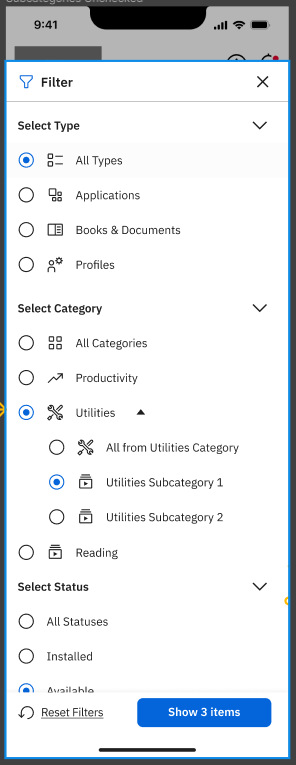](https://kb.filewave.com/uploads/images/gallery/2023-09/7u5iVMTf20H10LJH-image.png) | [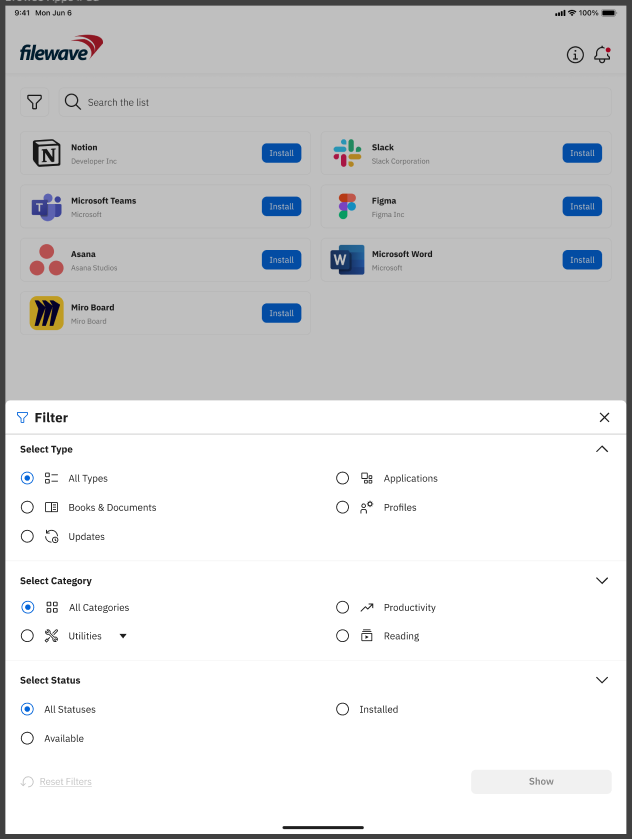](https://kb.filewave.com/uploads/images/gallery/2023-09/TVD2xpxNRhqaEUK4-image.png) |
| iPhone | iPad |
| [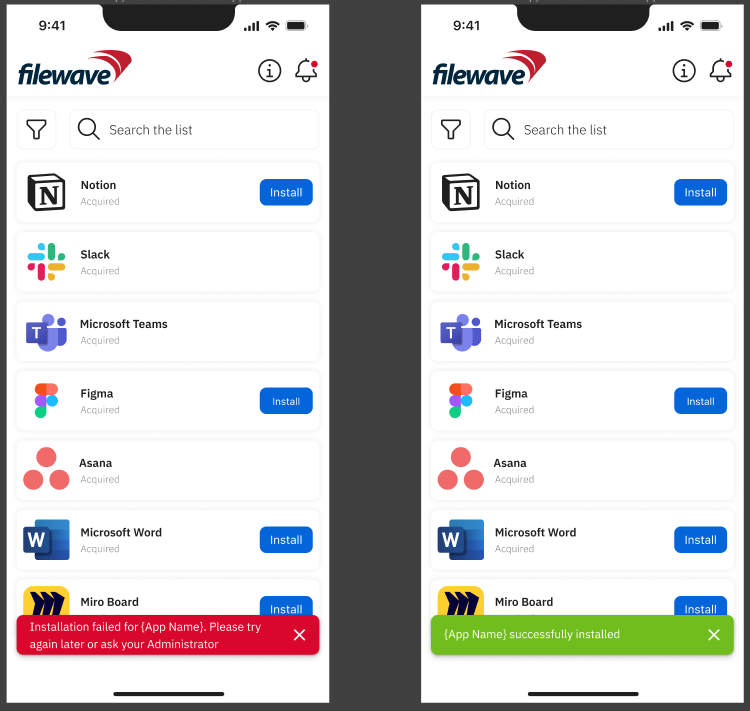](https://kb.filewave.com/uploads/images/gallery/2023-09/kqRlOklF3VXG7xh0-image.png) | [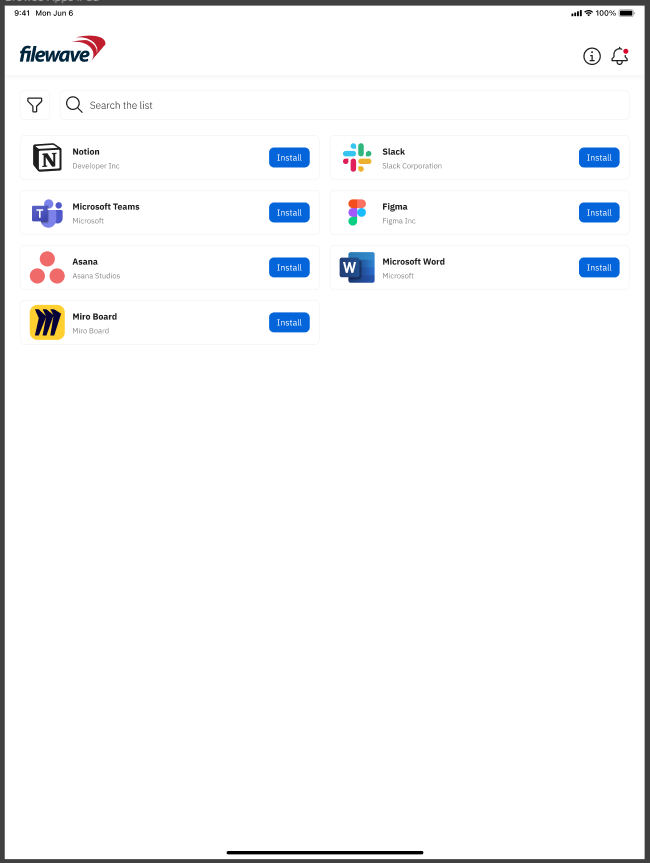](https://kb.filewave.com/uploads/images/gallery/2023-09/YSgdFSmLSdfi72di-image.png) |
| iPhone | iPad |
| [](https://kb.filewave.com/uploads/images/gallery/2023-09/EMz1SoOzzdY5tE2Y-image.png) | [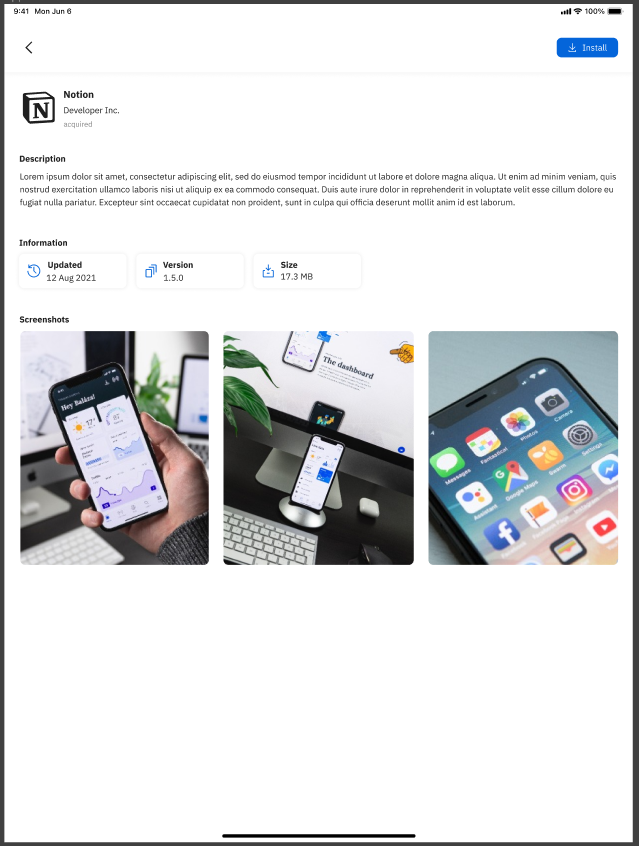](https://kb.filewave.com/uploads/images/gallery/2023-09/bMJRDO676usCTd6p-image.png) |
| iPhone | iPad |
| [](https://kb.filewave.com/uploads/images/gallery/2023-09/PiGkmZbXJ58GGlEs-image.png) | [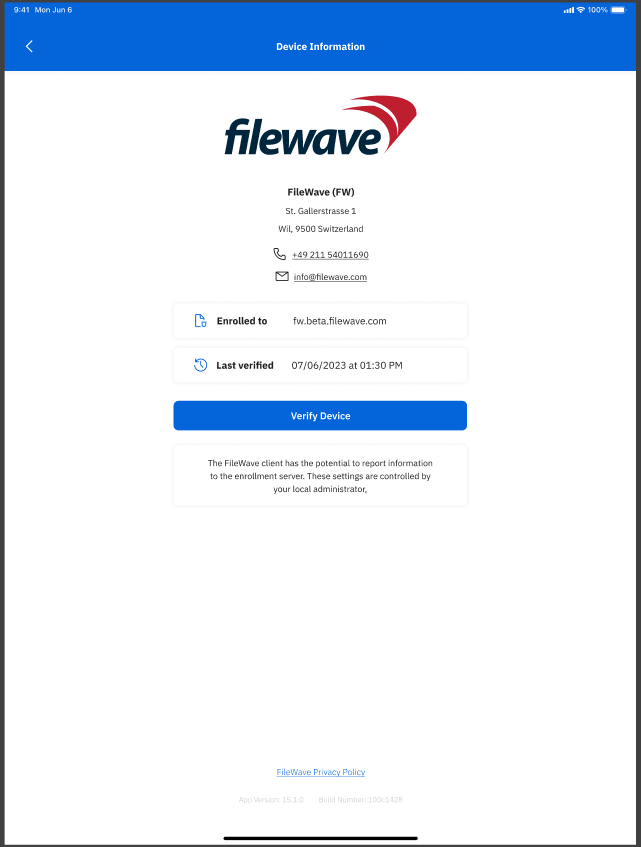](https://kb.filewave.com/uploads/images/gallery/2023-09/U0YXtgRwtQMy69Ui-image.png) |
FileWave 16 removed Kiosk 1 from macOS and Windows clients. Kiosk 2 is the current desktop self-service application, and [Kiosk 1 is end of life](https://kb.filewave.com/link/911).
## What changed in FileWave 15.3 1. **Supported iOS/iPadOS application:** App Portal moved from technical preview to the supported self-service workflow. 2. **Updated desktop interface:** Kiosk 2 replaced the original macOS and Windows Kiosk design. 3. **Reboot visibility:** Kiosk can tell users when an assigned Fileset requires a restart. ## Desktop Kiosk for macOS and Windows Kiosk 2 introduced a redesigned desktop interface for browsing and installing administrator-approved content on macOS and Windows. The transition affected interface behavior and older customization files: 1. **Navigation:** Kiosk 2 uses the current browsing and item-detail layout. 2. **Screen sizes:** The interface adapts to different window and device sizes. 3. **Branding:** Current color, name, and logo settings replace older desktop customization methods. 4. **Legacy cleanup:** Pre-15.3 Kiosk customization files may have no effect after the transition. 5. **Duplicate Kiosk icons:** One older customization can leave both Kiosk versions visible during a legacy transition; use the cleanup article below. If an assigned Fileset requires a restart, Kiosk displays that requirement before installation so the user can plan for the interruption.If you still maintain a pre-15.3 desktop Kiosk configuration, remove obsolete customization files before troubleshooting branding or duplicate Kiosk icons.
## Related Content - [Removing pre-15.3 Kiosk Customizations (macOS/Windows)](https://kb.filewave.com/books/kiosk/page/removing-pre-153-kiosk-customizations-macoswindows "Removing pre-15.3 Kiosk Customizations (macOS/Windows)") - [Setting the Primary Colour, Name and Logo in Kiosk/App Portal (16.0+)](https://kb.filewave.com/books/kiosk/page/setting-the-primary-colour-name-and-logo-in-kioskapp-portal-160 "Setting the Primary Colour, Name and Logo in Kiosk/App Portal (16.0+)") - [Applications Preventing Reboot (macOS/Windows)](https://kb.filewave.com/books/kiosk/page/applications-preventing-reboot-macoswindows "Applications Preventing Reboot (macOS/Windows)") # FileWave App Portal for iOS (IPA Install)This legacy IPA installation workflow is retired. Do not create new IPA-based FileWave Kiosk / App Portal filesets for iOS or iPadOS. For current guidance, see [IPA-based FileWave Kiosk for iOS/iPadOS - EOL](https://kb.filewave.com/link/1162).
## Current guidance FileWave 16.3.0 and later deploy iOS/iPadOS Kiosk through the Apple App Store version of FileWave Kiosk, using Apps and Books / VPP licenses from Apple School Manager or Apple Business Manager. - Upgrade to **FileWave 16.3.x or later** for iOS/iPadOS Kiosk deployments. - Acquire the free **FileWave Kiosk** app in ASM/ABM Apps and Books. - Delete the legacy `iOS App - FileWave Kiosk` fileset if it exists. - Remove any remaining associations to older IPA-based Kiosk/App Portal filesets. - Run a **Model Update**, then run an **Apps and Books / VPP sync**. ## Related Content - [IPA-based FileWave Kiosk for iOS/iPadOS - EOL](https://kb.filewave.com/link/1162) - [Automatic updating of iOS/iPadOS Kiosk](https://kb.filewave.com/link/822) - [FileWave Kiosk for iOS/iPadOS overview](https://kb.filewave.com/link/742) # Automatic updating of iOS/iPadOS Kiosk ## What FileWave Kiosk on iOS and iPadOS is the self-service application that lets users open Kiosk, view Kiosk-associated content, install available items, and trigger actions such as Verify. Starting with **FileWave 16.3.0**, the current delivery method for iOS/iPadOS Kiosk is the **Apple App Store** version of the app, deployed as a **VPP / Apps and Books** app. As long as FileWave is correctly syncing with **Apple School Manager (ASM)** or **Apple Business Manager (ABM)** and the required **FileWave Kiosk** licenses have already been acquired there, the FileWave server will push the App Store Kiosk to managed devices and replace the older Kiosk. App Store listing: [FileWave Kiosk on the Apple App Store](https://apps.apple.com/lv/app/filewave-kiosk/id6754608883) ## When/Why This is the current and recommended behavior for **FileWave 16.3.0 and later**. The move to the App Store / VPP model aligns Kiosk deployment with Apple's current best practices and with the way other MDM and UEM platforms typically deliver managed iOS and iPadOS applications. The most important operational change is that administrators should not treat the Kiosk upgrade as fully self-contained anymore. Before upgrading to FileWave 16.3.0 or later, make sure FileWave is connected to ASM/ABM for app-license sync and that enough free **FileWave Kiosk** licenses have already been obtained. If those preconditions are in place, the transition is straightforward. If they are not, Kiosk deployment can be delayed or fail to appear when expected. The steps below describe the **current behavior in FileWave 16.3.0 and later**. If you are still running **FileWave 15.3.0 through 16.2.x**, or need to compare the older workflow, see the reference section later in this article. ## How ### Current behavior in FileWave 16.3.0 and later Before upgrading to FileWave 16.3.0 or later: - make sure FileWave is syncing Apps and Books / VPP licenses from **ASM** or **ABM** - acquire free licenses for **FileWave Kiosk** in ASM/ABM before the upgrade - obtain licenses for **more devices than are currently managed** so normal growth does not create an avoidable shortage A practical example is to acquire about **1500 licenses** if you currently manage **1000 devices**. If the licenses are already present before the upgrade and are not reserved by a legacy Kiosk fileset, devices remove the older enterprise Kiosk and install the new App Store Kiosk shortly afterward, typically within a few minutes. **Upgrade note for customers coming from 16.2.x:** It is fine, and recommended, to acquire the free **FileWave Kiosk** licenses in ASM/ABM before upgrading to **16.3.0**. The important part is making sure those licenses are not already reserved by the older Kiosk fileset workflow. If you acquire and sync the licenses while still on **16.2.x**, FileWave may prompt you to create an `iOS App - FileWave Kiosk` fileset. That legacy fileset is **not required** for the **16.3.0+** App Store Kiosk workflow and can reserve the available VPP licenses. - There is no fileset or fileset association required for normal iOS/iPadOS Kiosk deployment in **16.3.0 and later**. - If the old `iOS App - FileWave Kiosk` fileset exists, delete it before relying on the **16.3.0+** App Store Kiosk workflow. - After deleting the legacy Kiosk fileset, run a **Model Update**, then run an **Apps and Books / VPP sync** with Apple so FileWave recalculates the available licenses. - Do not create a new association, or keep an existing one, just to make the **16.3.0+** workflow function. ### Preventing or recovering from reserved Kiosk licenses If the legacy Kiosk fileset exists before the 16.3.0 upgrade, the server may reserve the FileWave Kiosk VPP licenses against that fileset. After upgrading, the 16.3.0+ Kiosk deployment can then appear not to push because FileWave believes there are no free licenses available for the new workflow. To prevent or recover from this state: 1. Delete the legacy `iOS App - FileWave Kiosk` fileset if it exists. 2. Run a **Model Update**. 3. Run an **Apps and Books / VPP sync** with Apple. 4. Verify the affected devices, or allow them to check in during their normal verification cycle. If the licenses are only acquired after the upgrade, the change is less immediate. In that case, purchase the licenses, run a **Model Update**, run an **Apps and Books / VPP sync**, and then **Verify** the affected devices. If some other model change is made and pushed, that should also trigger verification. Without that follow-up activity, devices may not receive the new Kiosk until their next normal verify cycle, which can be up to **24 hours** later. There is currently no in-product warning that tells administrators they upgraded without the needed Kiosk licenses. If VPP is configured but the app has not been acquired in ASM/ABM, one useful clue is in `filewave_django.log`, which can show: - `No VPP organizations have the App Store Kiosk purchased.` ### Permissions and profile updates Because the App Store Kiosk is a **new app**, iOS/iPadOS treats it as a different application even though it serves the same purpose. Administrators should expect permission prompts such as **notifications** or **location services** to appear again after the transition. The new iOS/iPadOS Kiosk app uses this bundle identifier: - `com.filewave.ios.app.kiosk3` If you deploy a configuration profile that forces notifications or uses any other app-specific payload for Kiosk, review and update that profile for the new bundle identifier before or during the FileWave 16.3.0 transition. ### Reference: behavior in FileWave 15.3.0 through 16.2.x From **FileWave 15.3.0 through 16.2.x**, FileWave automatically deployed the newer iOS/iPadOS Kiosk through the older built-in workflow rather than the App Store / VPP model used in 16.3.0 and later. In that earlier behavior: - FileWave automatically installed the new Kiosk on managed iOS/iPadOS devices - the older App Portal web clip was removed from devices - filesets of the previous native App Portal were not automatically removed, so administrators could remove those associations if they wanted only the newer Kiosk present - newer Kiosk releases continued to be deployed automatically through that same pre-16.3.0 workflow ## Related Content - [IPA-based FileWave Kiosk for iOS/iPadOS - EOL](https://kb.filewave.com/link/1162) - [Setting the Primary Colour, Name and Logo in Kiosk/App Portal (16.0+)](https://kb.filewave.com/books/kiosk/page/setting-the-primary-colour-name-and-logo-in-kioskapp-portal-160) - [Resolving SSL and Manifest Validation Errors with FileWave Kiosk Installation (15.3+)](https://kb.filewave.com/books/kiosk/page/resolve-filewave-kiosk-ssl-and-manifest-validation-errors-153) - [Default TCP and UDP Port Usage](https://kb.filewave.com/books/filewave-general-info/page/default-tcp-and-udp-port-usage) # FileWave Kiosk Displays Company Information ## What FileWave Kiosk / App Portal can display Company Information configured in FileWave Central. Use this to give users a consistent place to find your organization name, support contact details, address, or other help desk information from macOS, Windows, iOS, and iPadOS devices. ## Where to configure it In FileWave Central, open **Preferences** and select the **Organization Info** tab. Update the organization details you want users to see in Kiosk / App Portal. [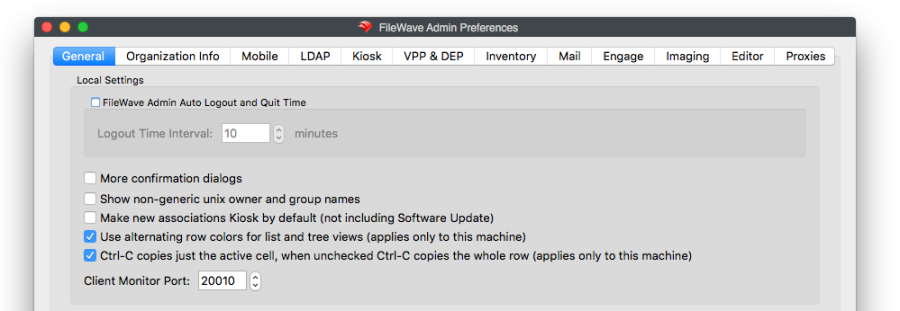](https://kb.filewave.com/uploads/images/gallery/2024-06/Ok2VATbEZVJVfeWO-image.png) ## What users see ### macOS and Windows On macOS and Windows computers, the Company Information panel appears in the Kiosk / App Portal device information view. [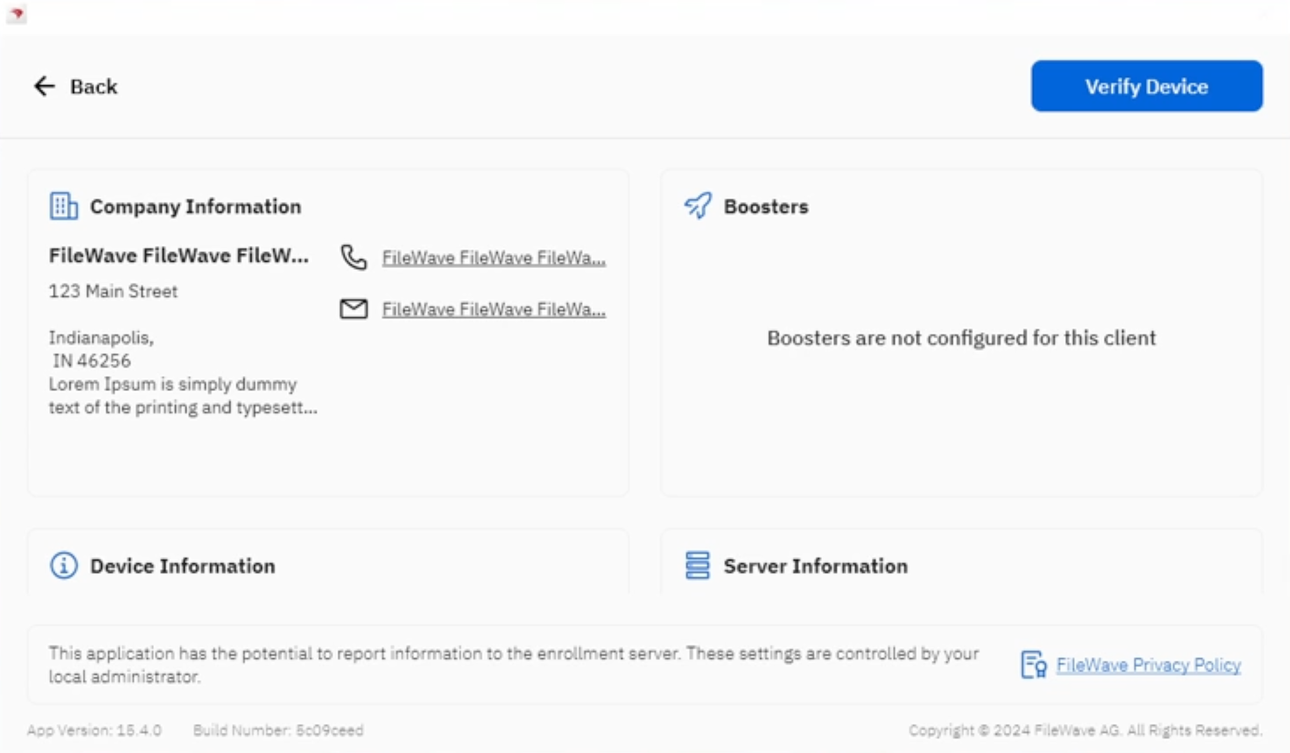](https://kb.filewave.com/uploads/images/gallery/2024-06/8GtxdbfK6j4gRr0s-image.png) ### iOS and iPadOS On iOS and iPadOS devices, the same organization details appear in the Device Information view along with enrollment and verification information. [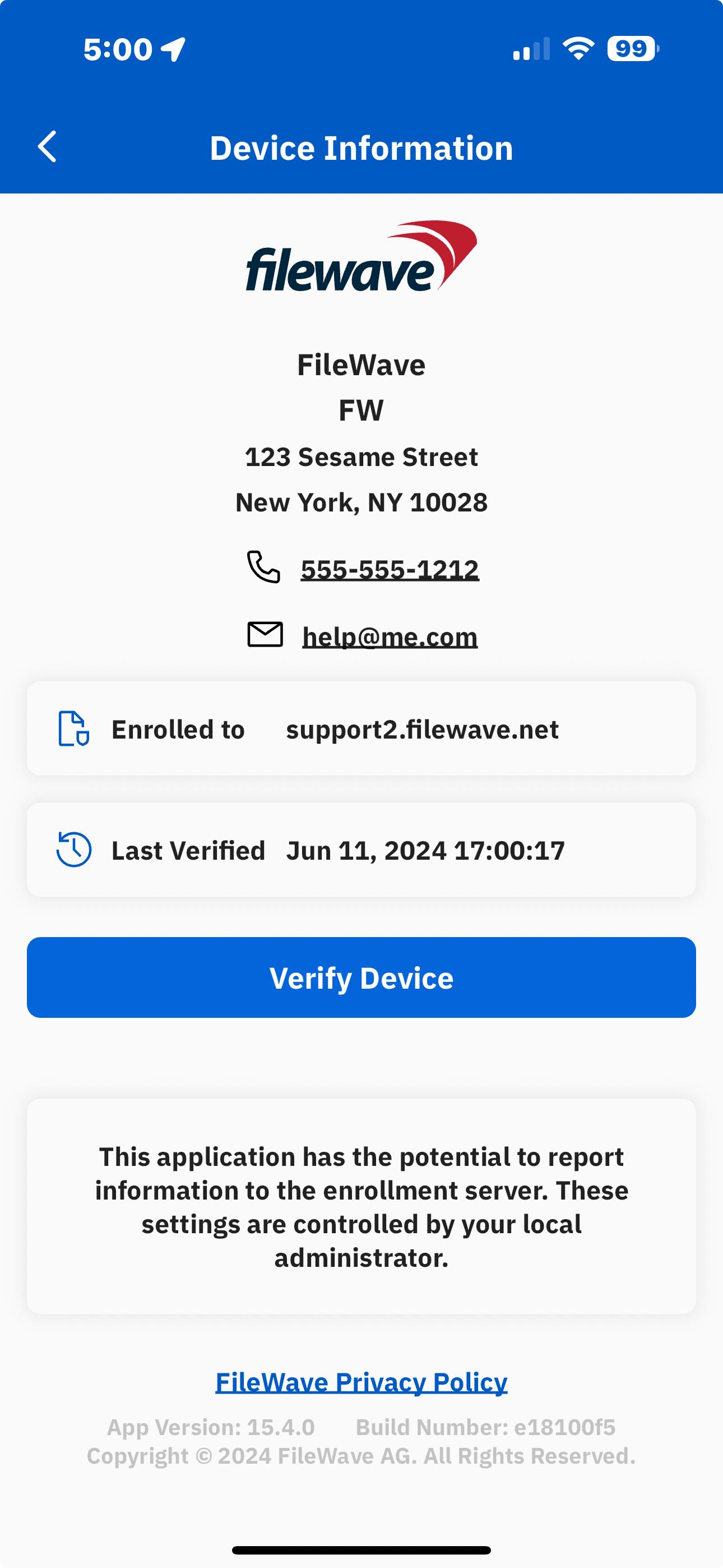](https://kb.filewave.com/uploads/images/gallery/2024-06/v0apx5O3MtliibEs-app-portal-comp-info.jpeg) # Kiosk Package Updates Category (macOS PKG) ### Description Kiosk can show **Package Updates** for associated PKG Filesets when an older version of the same PKG is already installed on the device. 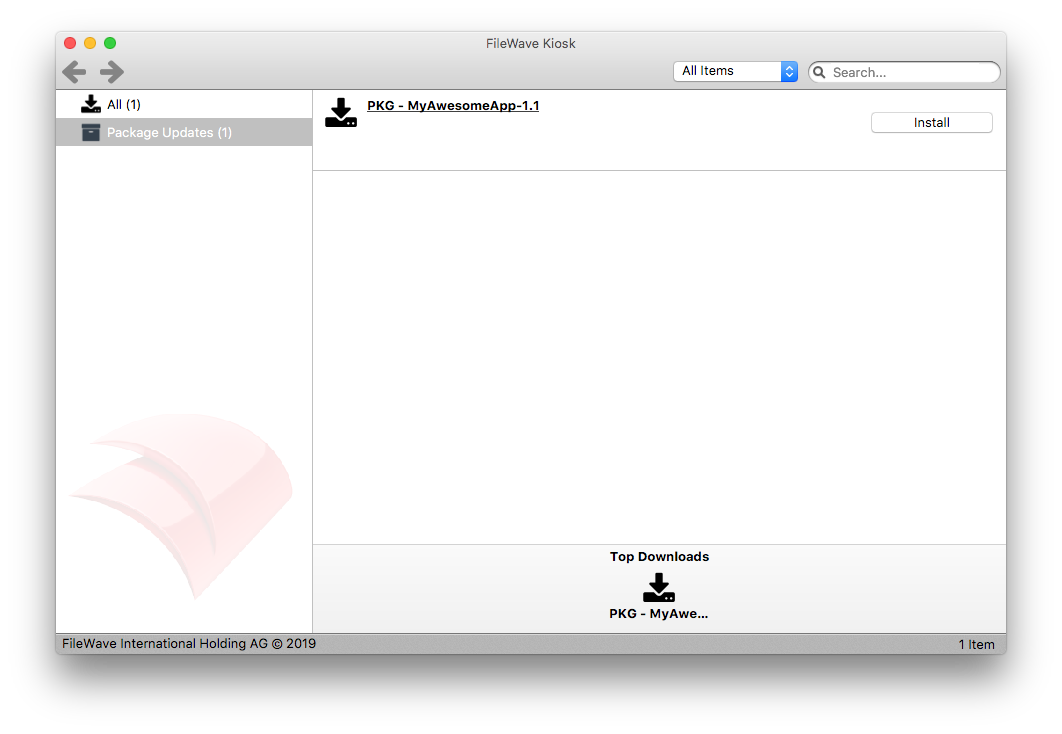 ### Information When a PKG Fileset is associated to a device as a Kiosk item, the FileWave Client checks the PKG receipts on that device. If it finds a matching receipt and the installed version is older, Kiosk lists the newer item under **Package Updates**. This category is generated automatically, so it does not appear in either location below: - FileWave Central > Preferences > Kiosk > Categories - FileWave Central > Fileset > Properties > Kiosk > Category For example, a device may already have version 1.0 of My Awesome App installed from a PKG. 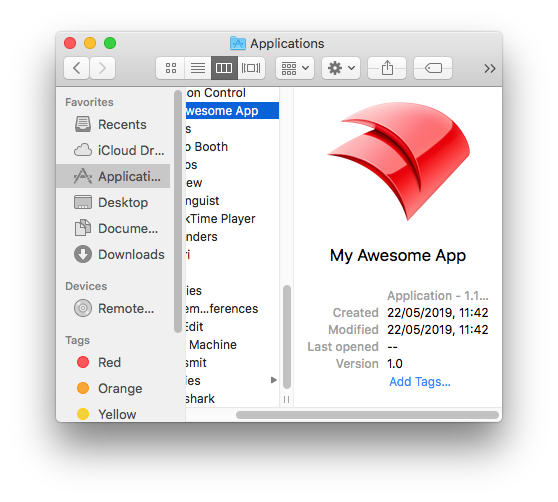 Because the app was installed by PKG, the device should have a package receipt. If you know the PKG identifier, you can confirm the installed version in Terminal: ``` # pkgutil --pkg-info com.myawesomeapp.pkg.app package-id: com.myawesomeapp.pkg.app version: 1.0 ``` Upload the newer PKG and create a Kiosk association for it. 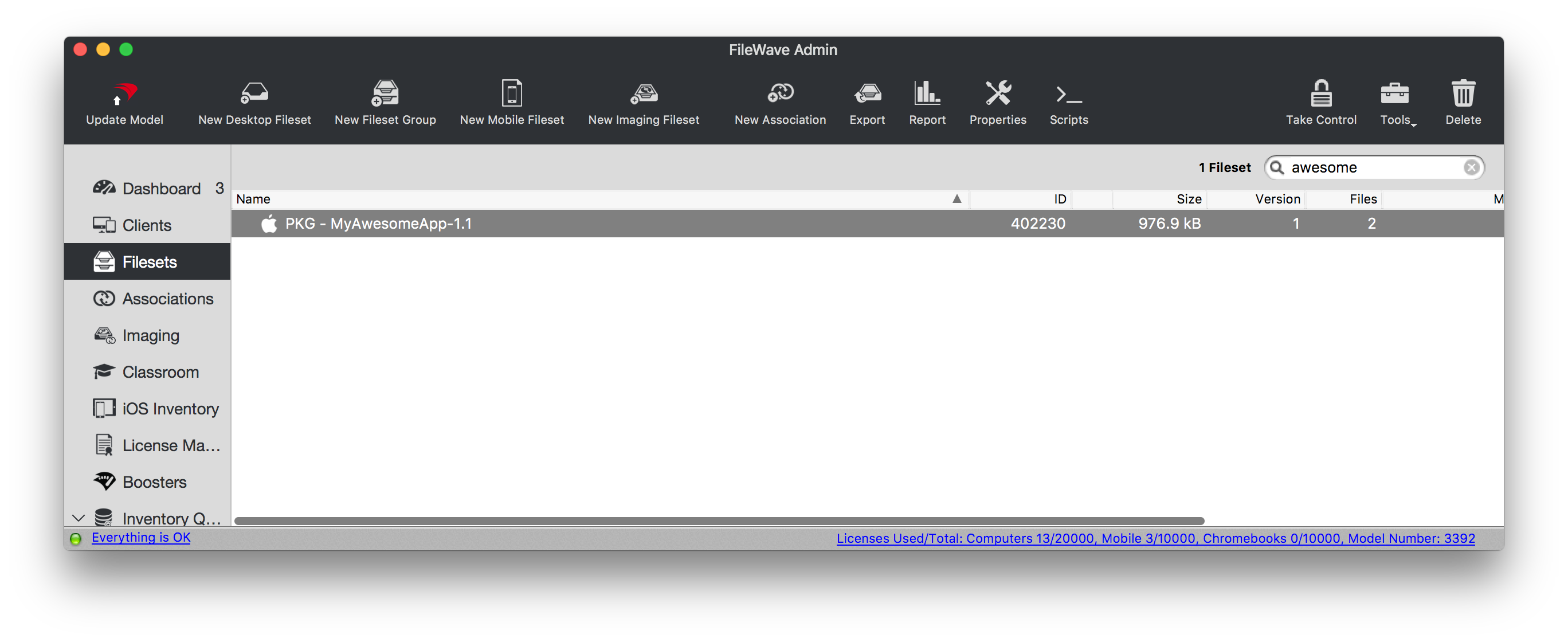 When the device receives the association, the Kiosk drop-down menu adds **Available Updates**: 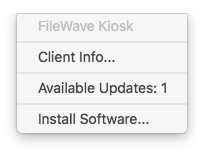 Selecting that option opens the Kiosk Installer window and shows the **Package Updates** category.The older PKG can have been installed through FileWave or locally. This is useful when users can install their own PKGs but you still want Kiosk to show that FileWave is offering a newer version.
PKG version is set inside the PKG by the package developer. If the developer does not increase the package version from the previous release, FileWave cannot show the newer Fileset as a **Package Update**. PKG installers have their own version, and that version does not have to match the app version shown in Finder.
# Control Which Apps Appear in Kiosk (15.3+) FileWave Kiosk shows apps and other content assigned for self-service installation. A standard app assignment does not make the app appear in Kiosk, even when **Allow removal** is enabled. ## What changed in FileWave 15.3 Before FileWave 15.3, an app with a standard assignment and **Allow removal** could also appear in Kiosk as a reinstall path after the user removed it. From FileWave 15.3 onward, that fallback listing is gone: only content with a Kiosk assignment appears in self-service. ## Behavior in FileWave 15.3 and later - An app with a Kiosk assignment appears as self-service content. - An app with only a standard assignment does not appear in Kiosk. - A standard assignment and a Kiosk assignment serve different purposes. If the standard assignment remains active and still requires the app, a successful Fileset Verify can reinstall the missing app; it does not add the app to Kiosk. - Removing the Kiosk assignment removes the item from self-service after the model update reaches the device. ## If an app is missing from Kiosk 1. Confirm that the app has a Kiosk assignment to the intended device or group. 2. Confirm that the assignment or Deployment is active. 3. For Apple Apps and Books content, confirm that the correct token has available licenses. 4. Update the model and allow the device to check in and refresh Kiosk. ## Related Content - [Self-Service Kiosk Overview](https://kb.filewave.com/books/kiosk/page/self-service-kiosk-overview) - [FileWave Kiosk for iOS/iPadOS Overview](https://kb.filewave.com/books/kiosk/page/filewave-kiosk-for-iosipados-overview-153) - [Automatic Updating of iOS/iPadOS Kiosk](https://kb.filewave.com/books/kiosk/page/automatic-updating-of-iosipados-kiosk) # Setting the Primary Colour, Name and Logo in Kiosk/App Portal (16.0+) ## What This article provides step-by-step instructions for configuring the new Kiosk2 and App Portal introduced in FileWave 16.0, including how to set a primary colour, name, and logo for the App Portal / Kiosk on FileWave v16.0+. ## When/Why For brand consistency, options exist (depending on device type) for configuring: - Colour - Name of Kiosk Window (Computers only) - Shortcut icon in macOS Menu Bar or Windows System Tray - Logo image shown in macOS/iOS/iPadOS/Windows Kiosk application ## How FileWave 16+ now offers a Policy Fileset for Kiosk customisation. Default configurations are applied when no custom Fileset is associated: - Name the Kiosk - Custom Logo, which appears in the App when launched, for all devices. (Default to FileWave Logo if no custom logo set) - Theme Colour From the Create New Fileset option, select Policy: [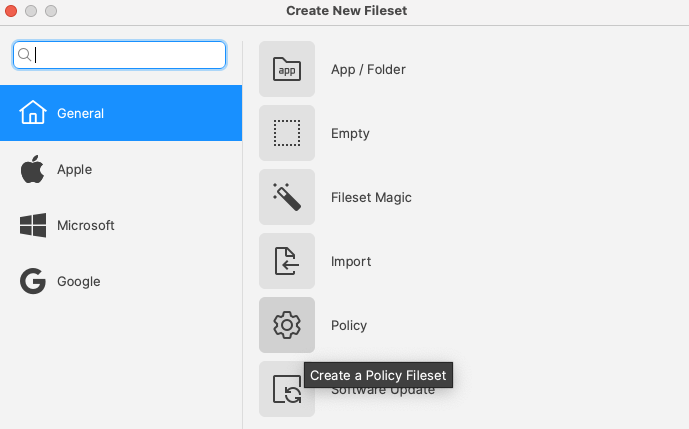](https://kb.filewave.com/uploads/images/gallery/2025-02/aPTygHOM464s0kuQ-image.png) Kiosk is the newly added feature:[ 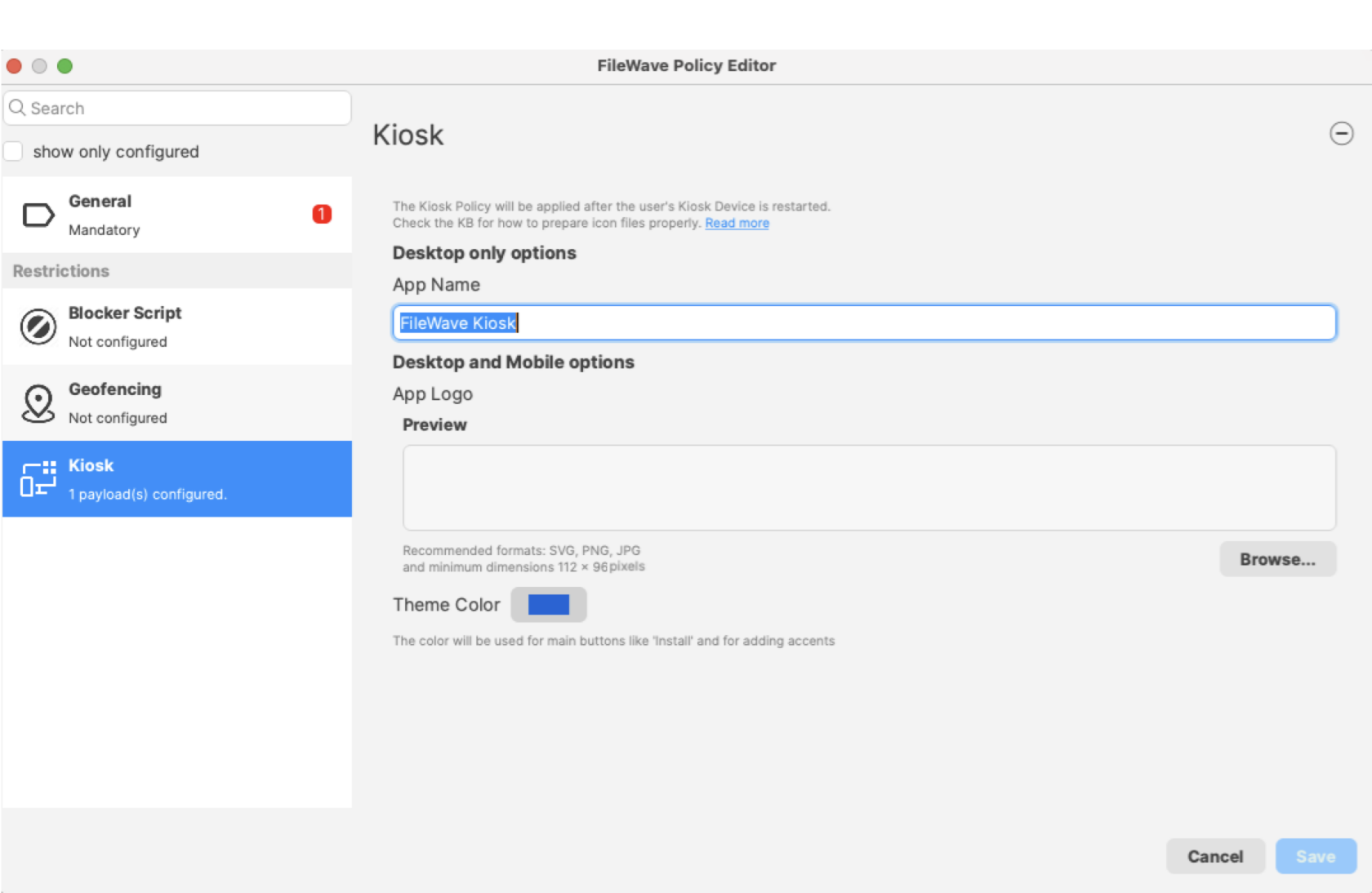](https://kb.filewave.com/uploads/images/gallery/2025-02/HZBGEStyr01jkatH-image.png)The expected minimum image size for custom logo is: 112 x 96, 8-bit/colour RGBA, non-interlaced.
File formats accepted are: SVG, PNG, JPG.SVG, by their nature, should provide the best looking image, regardless of screen resolution: https://www.w3schools.com/graphics/svg\_intro.asp
At this time, the macOS Menu Bar or Windows System Tray Icon requires an additional Fileset. Details included below.
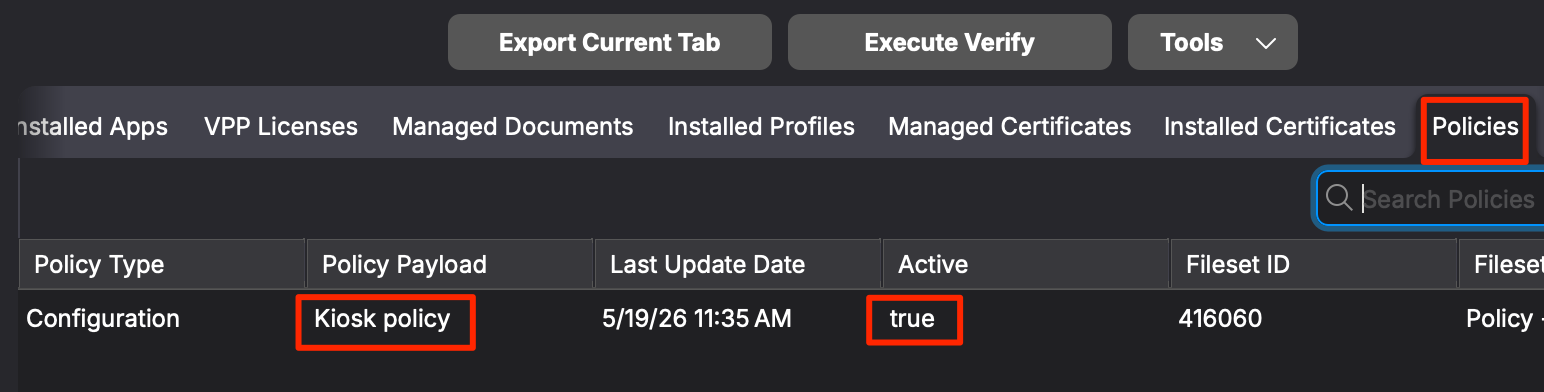
Note: For iOS/iPad, you will not see an entry in Fileset Status tab for the Kiosk Policy. After deployment, look under Client Info > Policies tab, and verify that the Kiosk Policy displays "true" in the Active column. If customizations do not display, force quit the Filewave Kiosk app and re-open to initiate the policy.
[](https://kb.filewave.com/uploads/images/gallery/2026-05/J7vSMURs0mIblSFt-image.png) #### Example Customisation Options Displayed in the below image: - Logo [](https://kb.filewave.com/uploads/images/gallery/2025-02/PzSG5SxfPZDfnFcQ-image.png) - Primary Colour: Green [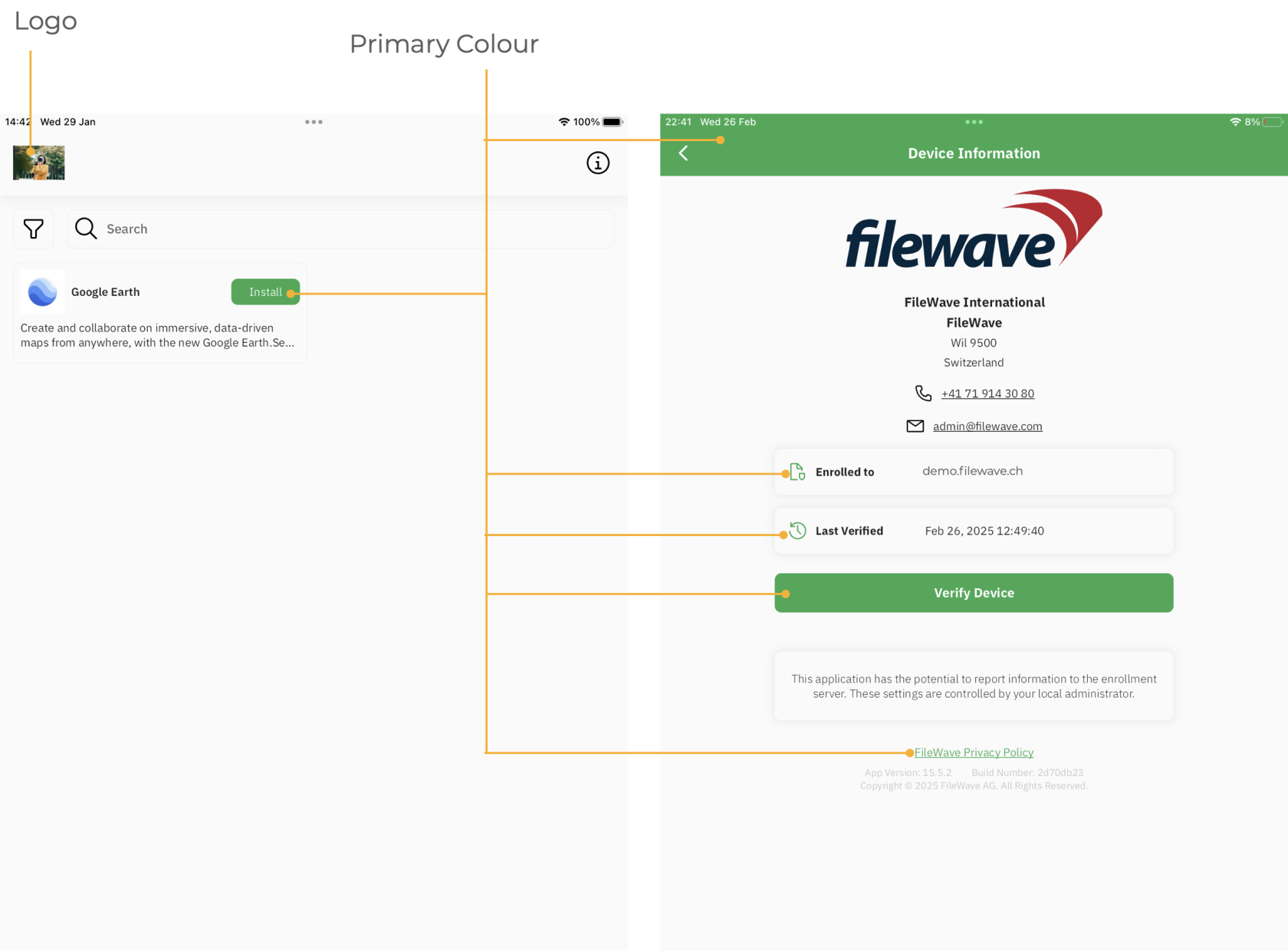](https://kb.filewave.com/uploads/images/gallery/2025-02/QxlGpmYo4U6ejWnH-image.png)The Menu Bar Extra Icon will show in black or white alone.
macOS may automatically hide one or more Menu Bar Extras to prevent crowding of the Menu Bar.
[FileWave Kiosk2 Menu Bar Icon.fileset.zip](https://kb.filewave.com/attachments/352) The Fileset needs to be edited prior to deployment. Out of the two files shown, the chosen custom image should be named to match the first png: 'tray-icon-macos.png'. Leave the other file in place. [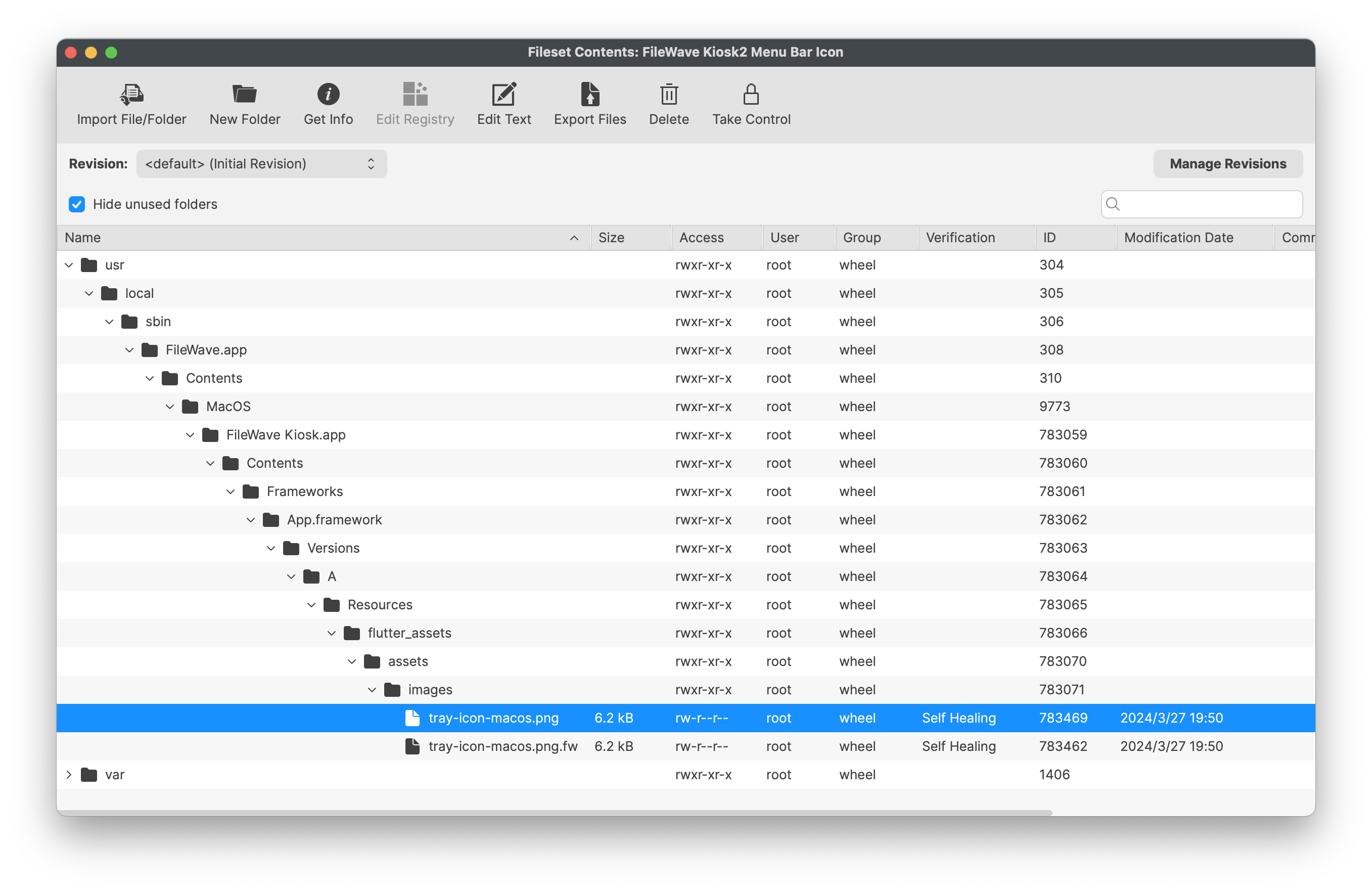](https://kb.filewave.com/uploads/images/gallery/2024-05/9RnVuVUgfWt1JLlN-image.png) Dragging the custom icon over the shown file should prompt a message as below. Select Replace. [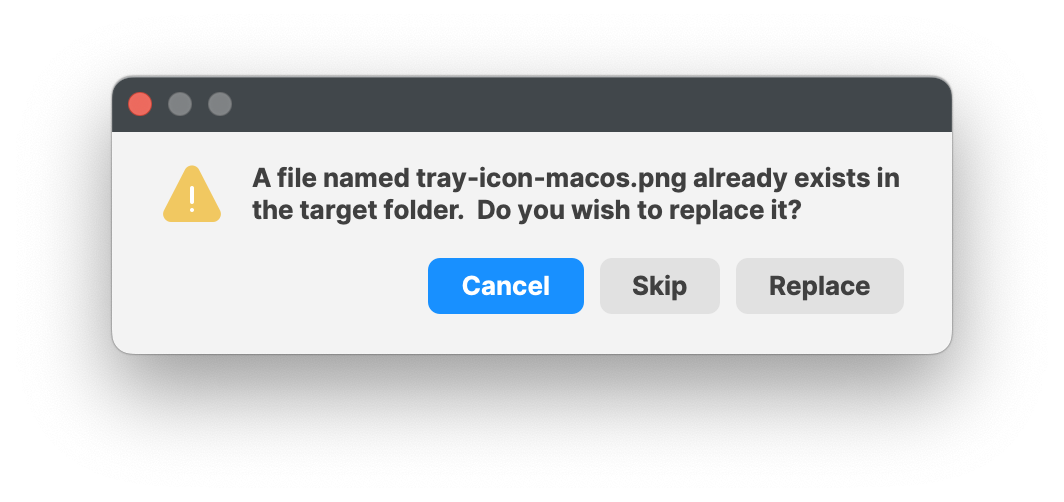](https://kb.filewave.com/uploads/images/gallery/2024-05/amQ1bWqAPhoSNJH6-image.png) Associate with a test device, and once happy with the look, you can broaden the association. The Fileset is designed to: - Restart the Kiosk after activation, automatically ensuring the user is immediately presented with the new logo - On de-activation, the '`tray-icon-macos.png.fw`' file will be copied to replace the custom logo (resetting the default) and again restarting the Kiosk for immediate change.Unlike the other images, the Windows System Tray is using '.ico' files. These need to be of equal size, e.g. 256x256, 128x128, etc.
Consider exporting the current 'ico' files, editing them with the chosen logo and then upload, if unsure how to create '.ico' files.
FileWave 15.4- (FileWave Client 32bit) [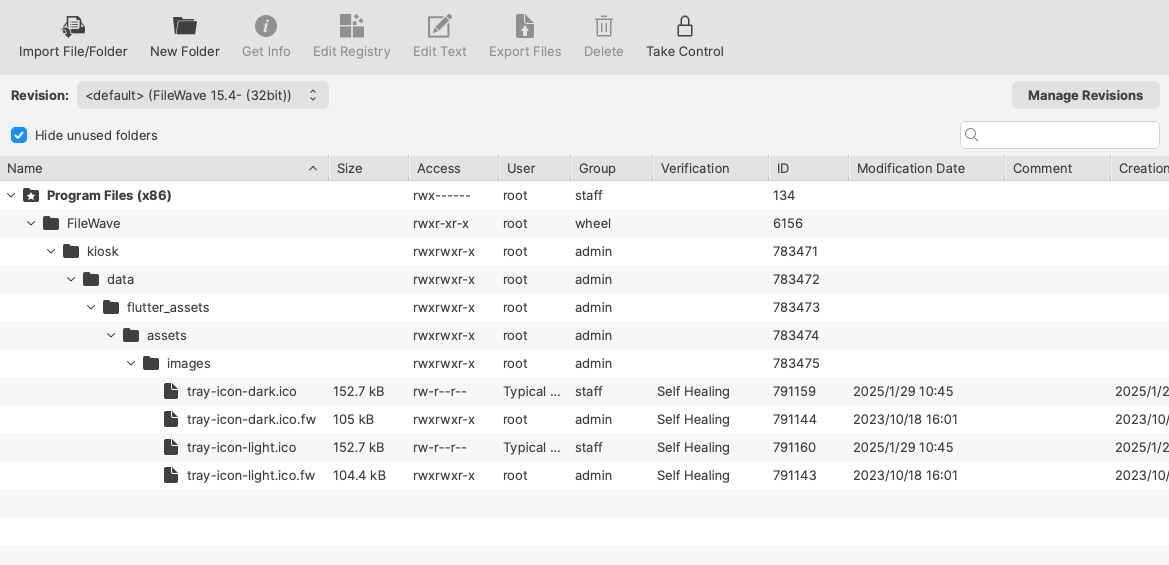](https://kb.filewave.com/uploads/images/gallery/2025-01/be4WbIYnjD538Xx5-image.png) FileWave 15.5+ (FileWave Client 64bit) [](https://kb.filewave.com/uploads/images/gallery/2025-01/tkVOwySFCUUalzW9-image.png) Dragging the custom icon over the shown files should prompt a message as below. Select Replace. [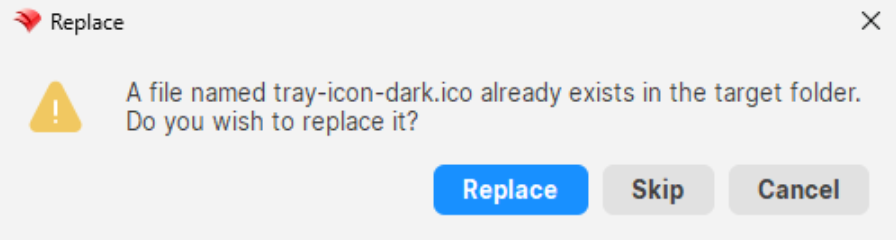](https://kb.filewave.com/uploads/images/gallery/2024-05/5YtOwr6I4T9tOVZa-image.png) Associate the relevant revision with a test device and once happy broaden the association.The new image will not show until the FileWave Client is restarted or the user logs out and back in.
If you are a [Hosted Customer](https://kb.filewave.com/books/community-engagement/page/cloud-hosting-product-information "Cloud Hosting Product Information") then you will need [Technical Support](https://kb.filewave.com/books/community-engagement/page/customer-technical-support "Customer Technical Support") to assist with these changes for now.
Direct editing of the IPA is not feasible. As such, the logo needs to be hosted from the FileWave Server. The chosen image needs to be placed in the following location: `/usr/local/filewave/django/static/kiosk2/images/` For the IPA to utilise this image, edit the the following file: `/usr/local/filewave/django/filewave/settings_custom.py` The line may be added to the bottom of the custom settings file and needs to include the FQDN of the FileWave Server, along with the named image in the format: *KIOSK\_LOGO\_URL = 'https://\[fully\_qualified\_domain\_name\]/filewave/static/kiosk2/images/\[file name\]'* For example, imagine those details are: - image.svg - demo.filewave.ch The line added will then appear as: `KIOSK_LOGO_URL = 'https://demo.filewave.ch/filewave/static/kiosk2/images/image.svg'` Supported file formats are: ``` - SVG - JPEG - PNG - GIF - Animated GIF - WebP - Animated WebP - BMP - WBMP ``` ### Customise Colour Colour may be customised by editing the same custom settings file. The colour should be presented in hex of either 6 or 8 characters. The line to add (again this may be added to the bottom of the custom settings file), should be of the format: *KIOSK\_PRIMARY\_COLOR = '\[hex colour\]'* For example: ``` KIOSK_PRIMARY_COLOR = '#e580ff' ``` or ``` KIOSK_PRIMARY_COLOR = '#FF0000CC' ```The FileWave Server Service should be restarted after modification of the custom settings python file.
| **Key Name** | **Key Value** | **Default** |
| logo\_url | URL path to hosted custom image | FileWave Logo |
| primary\_color | Colour in hex format, e.g. #RRGGBB | \#0465DA |
| kiosk\_app\_name | Text Name of opened Kiosk Window | FileWave Kiosk |
It may be necessary to reboot the computer or log out and back in, before changes take effect; particularly if customisation of the older Version 1 Kiosk was removed at the same time that the new Version 2 Kiosk and customisation is applied.
If the custom icon is added as per the instructions for i(Pad)OS devices, the same URL may be used in the above settings.
#### macOS Menu Bar Extra Icon The following method provides a pre-configured Fileset for customising this icon with a local file.The Menu Bar Extra Icon will show in black or white alone.
macOS will automatically hide one or more Menu Bar Extras to prevent crowding of the Menu Bar.
[FileWave Kiosk2 Menu Bar Icon.fileset.zip](https://kb.filewave.com/attachments/352) The Fileset needs to be edited prior to deployment. Out of the two files shown, the chosen custom image should be named to match the first png: 'tray-icon-macos.png'. Leave the other file in place. [](https://kb.filewave.com/uploads/images/gallery/2024-05/9RnVuVUgfWt1JLlN-image.png) Dragging the custom icon over the shown file should prompt a message as below. Select Replace. [](https://kb.filewave.com/uploads/images/gallery/2024-05/amQ1bWqAPhoSNJH6-image.png) Associate with a test device, and once happy with the look, you can broaden the association. The Fileset is designed to: - Restart the Kiosk after activation, automatically ensuring the user is immediately presented with the new logo - On de-activation, the '`tray-icon-macos.png.fw`' file will be copied to replace the custom logo (resetting the default) and again restarting the Kiosk for immediate change.| **Key Name** | **Key Value** | **Default** |
| logo\_url | URL path to hosted custom image | FileWave Logo |
| primary\_color | Colour in hex format, e.g. #RRGGBB | \#0465DA |
| kiosk\_app\_name | Text Name of opened Kiosk Window | FileWave Kiosk |
It may be necessary to reboot the computer before changes take effect; particularly if customisation of the older Kiosk was removed at the same time that the new Kiosk and customisation is added.
If the custom icon is added as per the instructions for i(Pad)OS devices, the same URL may be used in the above settings.
#### Windows System Tray Icon The following method provides a pre-configured Fileset for customising this icon with a local file. [FileWave Kiosk2 Sytem Tray Icon.fileset.zip](https://kb.filewave.com/attachments/427) The provided Fileset contains two revisions: - FileWave Client version 15.4- (32bit FileWave Client) - FileWave Client version 15.5+ (64bit FileWave Client) [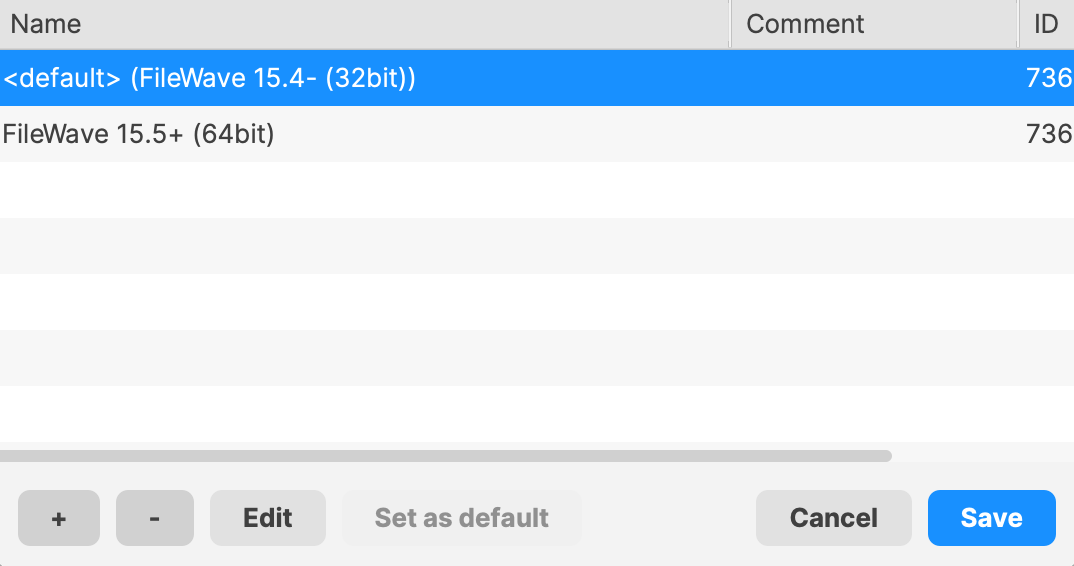](https://kb.filewave.com/uploads/images/gallery/2024-08/ZolzIDi5VqyuYZ1O-image.png) The Fileset needs to be edited prior to deployment. Out of the four files shown, the chosen custom icon should be named to match the two icon files: 'tray-icon-dark.ico' and 'tray-icon-light.ico'. Leave the other two files in place.Unlike the other images, the Windows System Tray is using '.ico' files. These need to be of equal size, e.g. 256x256, 128x128, etc.
Consider exporting the current 'ico' files, editing them with the chosen logo and then upload, if unsure how to create '.ico' files.
FileWave 15.4- (FileWave Client 32bit) [](https://kb.filewave.com/uploads/images/gallery/2025-01/be4WbIYnjD538Xx5-image.png) FileWave 15.5+ (FileWave Client 64bit) [](https://kb.filewave.com/uploads/images/gallery/2025-01/tkVOwySFCUUalzW9-image.png) Dragging the custom icon over the shown files should prompt a message as below. Select Replace. [](https://kb.filewave.com/uploads/images/gallery/2024-05/5YtOwr6I4T9tOVZa-image.png) Associate the relevant revision with a test device and once happy broaden the association.The new image will not show until the FileWave Client is restarted or the user logs out and back in.
The Missing Device message appears only when the user opens Kiosk. If users need instructions before they open Kiosk, also send a FileWave End-User Notification.
## When/Why This is useful for end-of-year student device returns, overdue loaner laptops, leased-device turn-ins, or any managed device that should display clear return instructions when the user opens Kiosk. For example, a school can set the message to “End of Year Reminder: Please return your device to the school’s IT office.” A corporate IT team can use the same state to tell an employee where to return a loaner or lease-replacement device. ## How In FileWave Central, right-click the macOS or Windows client, select **Client State > Missing**, and run a **Model Update**. The next time the user opens FileWave Kiosk, Kiosk shows the Missing Device message instead of normal self-service content. For example, in an educational setting, the Kiosk might display a custom message like: *“End of Year Reminder: Please return your device to the school’s IT office. This device is needed for inventory and future student use.”* Configure this text in FileWave Central under **Preferences > Organization Info**. You can set the Lost Mode Message, add a Lost Mode Footnote, and include an organization contact number that appears as a clickable link.Kiosk shows the Missing Device message only after Kiosk opens. If you need the user to see return instructions immediately, send a pop-up through [FileWave End-User Notifications](https://kb.filewave.com/books/kiosk/page/filewave-end-user-notifications-155 "FileWave End-User Notifications") and include a link to your return form or internal instructions.
While the device remains in the Missing state, Kiosk blocks installation, uninstallation, and normal self-service access until the device is recovered, replaced, or moved out of the Missing state. ## Notes on the Missing Device message - When a macOS or Windows client is marked as **Missing** in FileWave Central, a **Missing Device** message appears in Kiosk, similar to the Device Locked message. - The Missing Device message includes any custom **Lost Mode Message** and **Lost Mode Footnote** set in FileWave Central under **Preferences > Organization Info**. - By default, if no custom message is set, the following message appears: “This device is currently marked as missing. Self-service Kiosk is not available. Please contact your administrator.” - **Kiosk restrictions:** While in the Missing state, Kiosk prevents installation, uninstallation, and normal access to self-service options, similar to Device Lock behavior. - To set the displayed text, open FileWave Central and go to **Preferences > Organization Info**: - If only the **Lost Mode Message** is set, it will display alone. - If only the **Lost Mode Footnote** is set, the default lost mode message will appear with the custom footnote. - If an organization contact number is set, it will be displayed as a clickable link for easy access. [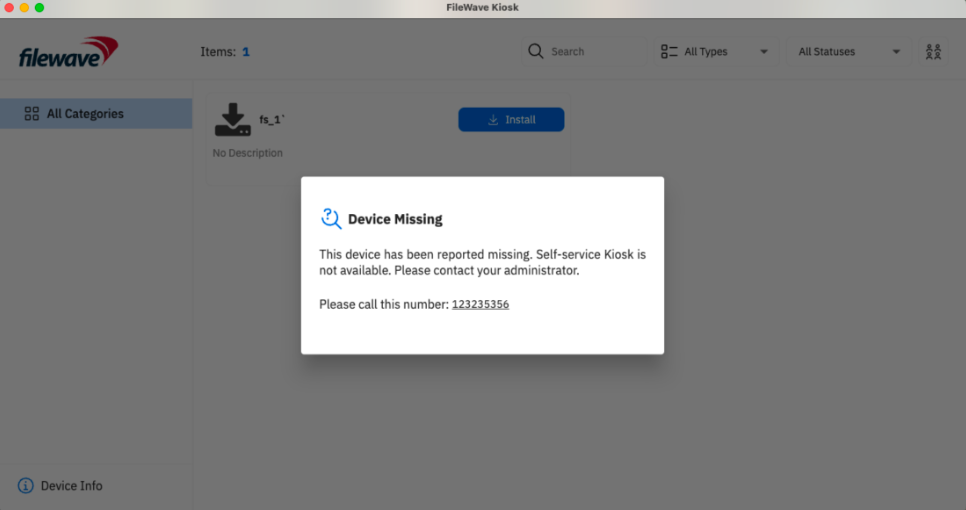](https://kb.filewave.com/uploads/images/gallery/2025-02/dJLIG2vAttPSKUQ7-image.png) [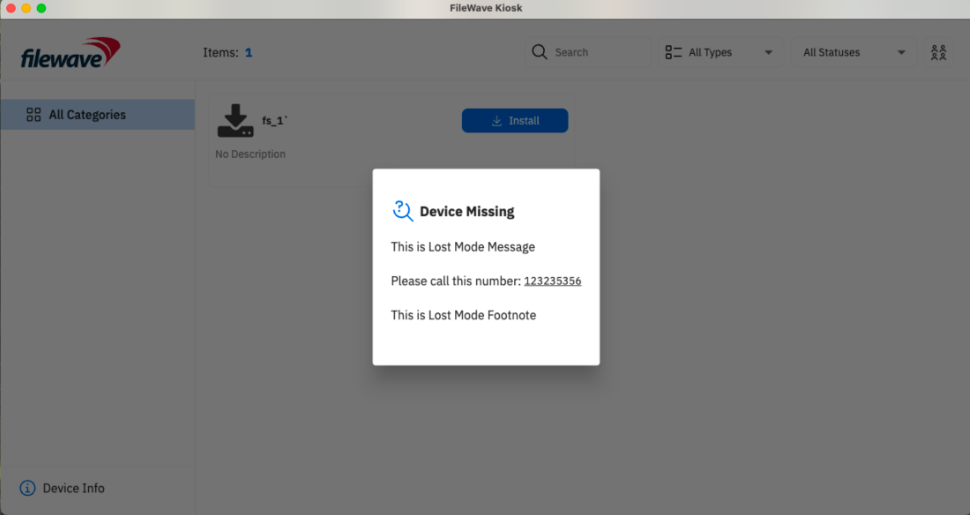](https://kb.filewave.com/uploads/images/gallery/2025-02/5ZenF5VC3OaxrhP5-image.png) ## Related Content - [FileWave End-User Notifications](https://kb.filewave.com/books/kiosk/page/filewave-end-user-notifications-155 "FileWave End-User Notifications") # App Portal on iOS/iPadOS devices that don't support the application (15.3+) ## What If you have an iOS/iPadOS device that is older than what is officially supported by FileWave and you are working ok but you can't get the Kiosk (App Portal) to install. ## When/Why You can revert for now to the old WebClip using the documented process here. This is a temporary workaround. ## How It is possible to activate Web Clip of an old App Portal on devices which don't support new App Portal. 1. Create new Apple Profile → Web Clip Profile (can be done in both FileWave Central and Anywhere) [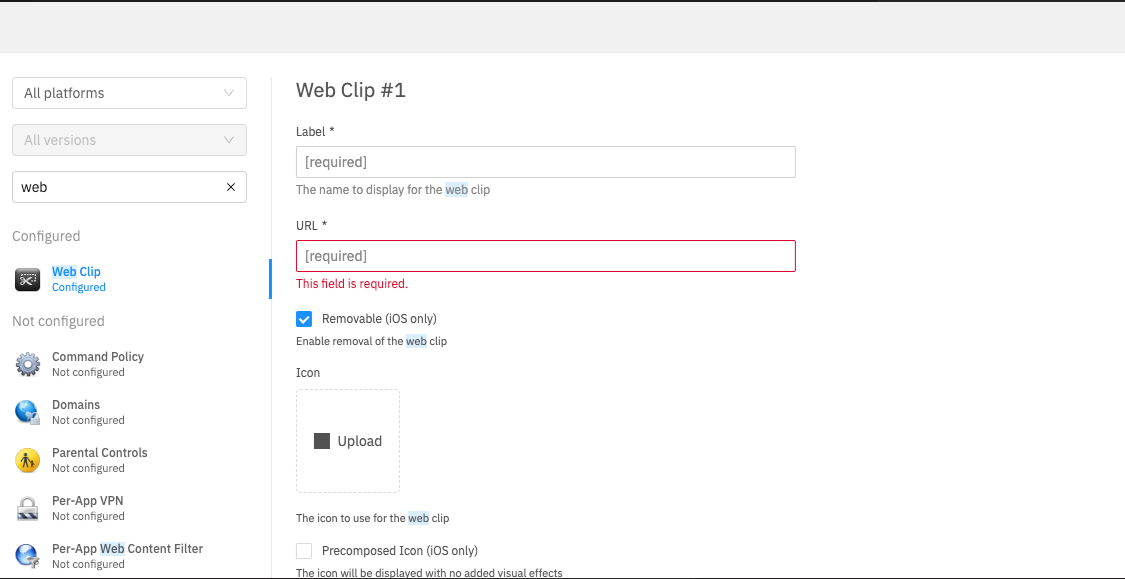](https://kb.filewave.com/uploads/images/gallery/2024-03/XI9P69wTFQqUogdq-image.png) 2. Fill in URL field with: `https://fqdn:20443/ios/recommended_apps/%device_id%#apps` replacing "fqdn" with your server's DNS name. 3. Deploy profile to desired device(s). ## Related Content - [Automatic updating of iOS Kiosk (15.3+)](https://kb.filewave.com/books/kiosk/page/automatic-updating-of-iosipados-kiosk "Automatic updating of iOS Kiosk (15.3+)") # Applications Preventing Reboot (macOS/Windows) ## Description When a Fileset requires a reboot, the FileWave client can warn the user to "Quit All Running Processes" before the restart continues. Some apps and background processes do not respond cleanly when FileWave Kiosk uses "Quit all" or "Quit Application". A process may restart immediately through LaunchDaemon, or it may ignore the signal FileWave sends. When that happens, users can be blocked from installing Filesets that have the *Requires Reboot* flag set. ## Information The warning itself is expected, but some listed processes can be surprising. For example: 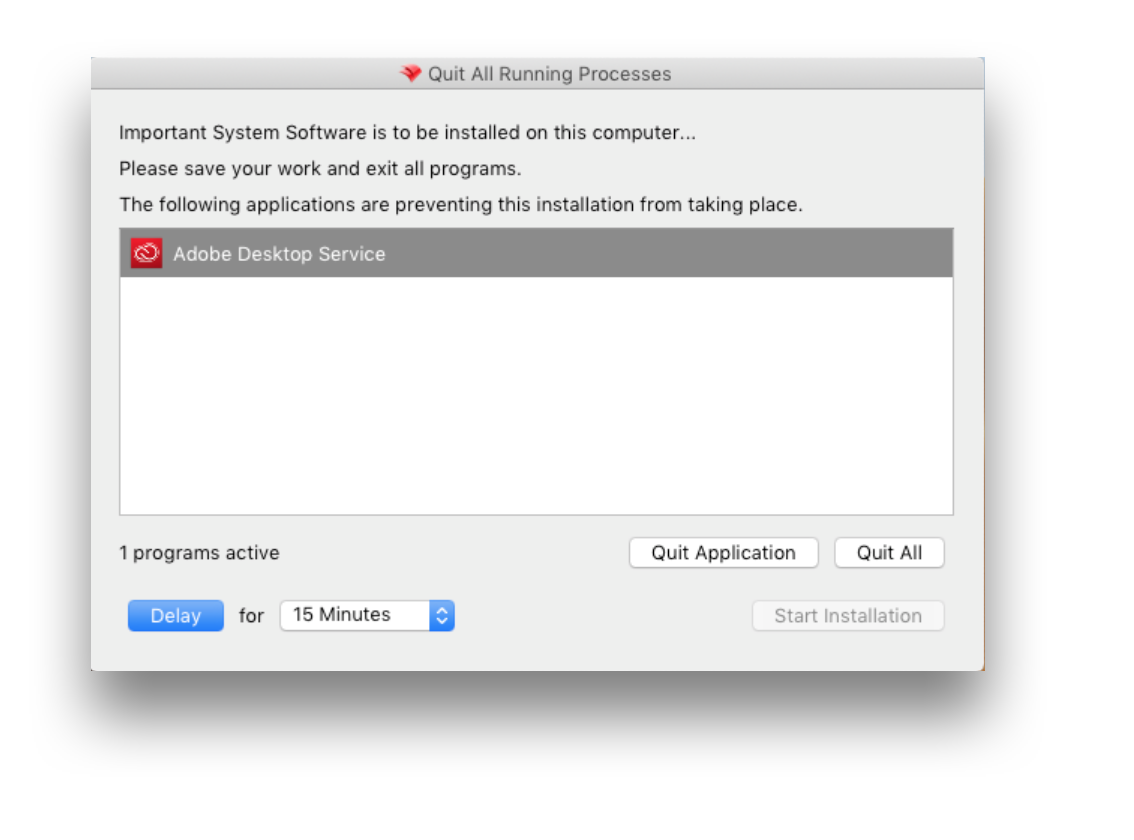 A background service can appear even when the user is not actively using the related application. ## Solution Requirements to prevent this experience are: - Customized Kiosk Fileset - macOS client: bundle ID of the app or service to exclude - Windows client: process name to exclude You can configure `settings.ini` to ignore specific apps or processes. Create a Fileset containing `settings.ini`, then associate it with the target clients. The destination folder depends on the operating system: ##### **macOS** ``` /usr/local/sbin/FileWave.app/Contents/Resources/fwGUI.app/Contents/custom ``` ##### **Windows (FW v15.4.2 or lower)** ``` C:\Program Files (x86)\FileWave\custom ``` ##### **Windows (FW v15.5.0 or higher)** ``` C:\Program Files\FileWave\kiosk\custom ``` The desktop Kiosk reads these changes after the user logs out and logs in again. To stop an unexpected process from blocking the reboot, first identify the listed app's bundle ID on macOS or process name on Windows. ### Obtain Bundle ID or Process Name #### Windows - Send any Fileset with Fileset Properties set to *Requires Reboot* to the test machine. - Hover over the desired process to exclude 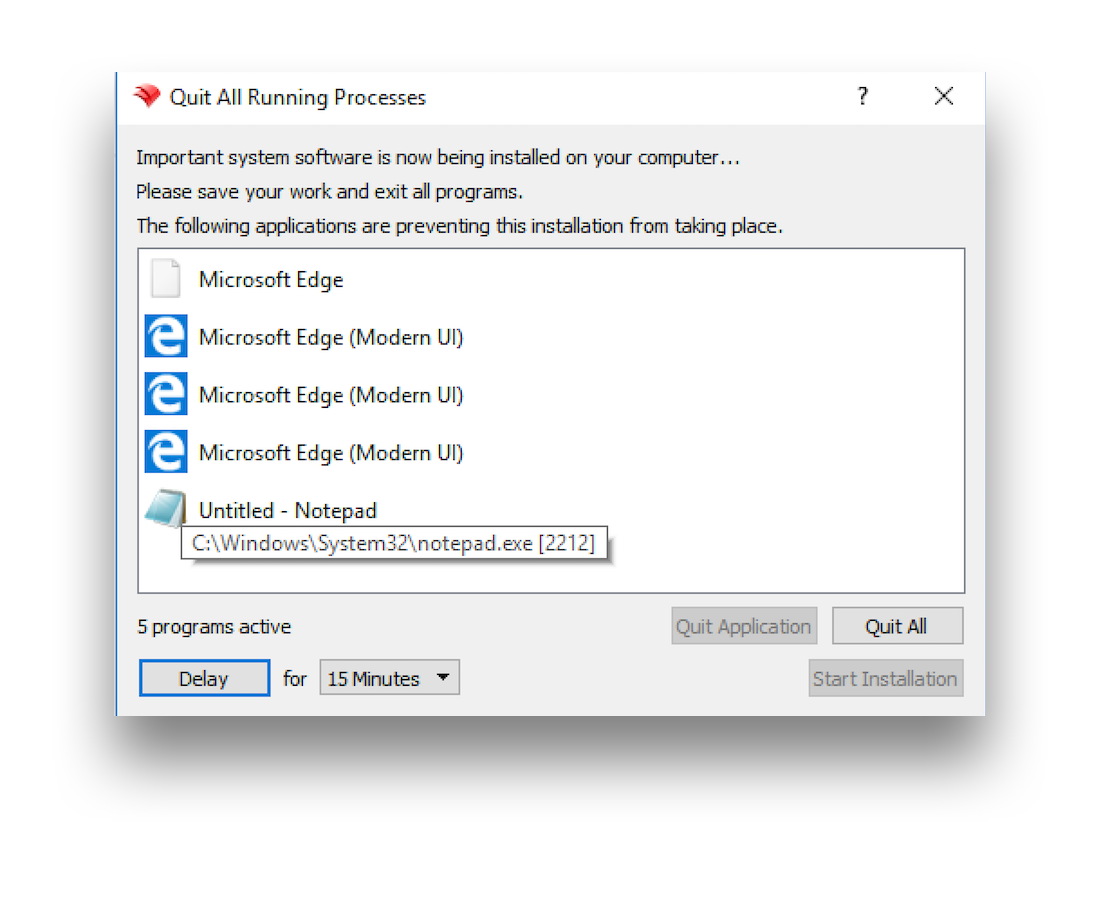 In this example, excluding Notepad requires `notepad.exe`. #### macOS - Change a test device's Debug Level to 99 through the [Client Monitor](https://kb.filewave.com/books/filewave-central-anywhere/page/working-with-filewave-clients "Working with FileWave Clients") - Send any Fileset with Fileset Properties set to *Requires Reboot* to the test machine. - When the device prompts the user to quit applications, open `FWGUI.log` in the user's Application Support directory. ``` ~/Library/Application\ Support/FileWave/FWGUI.log ``` There should be lines similar to the following, for each process that has prevented the reboot: ``` |DEBUG|INSTALLER|[addProcessInfo] new process added /Applications/Utilities/Terminal.app pid 67345 bundleID com.apple.Terminal |DEBUG|INSTALLER|[addProcessInfo] new process added /Applications/Preview.app pid 73400 bundleID com.apple.Preview |DEBUG|INSTALLER|[addProcessInfo] new process added /Applications/TextEdit.app pid 73718 bundleID com.apple.TextEdit ``` ### Configure 'settings.ini' Configure `settings.ini` with the following format. Use a comma-separated list for bundle IDs or process names: ``` [General] ignoredApplications=com.bar, com.foo ``` For the example of Windows Notepad, it should read: ``` [General] ignoredApplications=notepad.exe ```For common Windows shell processes that can appear during reboot prompts, consider ignoring the following:
``` [General] ignoredApplications=StartMenuExperienceHost.exe,SearchApp.exe,TextInputHost.exe ``` For the example of macOS TextEdit, it should read: ``` [General] ignoredApplications=com.apple.TextEdit ``` Combining this with current generic settings, it may look something like: ``` show_top_downloads=false window_title="My Customized Kiosk" hide_system_tray=false [General] ignoredApplications=com.adobe.acc.AdobeDesktopService,com.apple.TextEdit ``` ### Deployment Deploy `settings.ini` to the following locations: #### **macOS** ``` /usr/local/sbin/FileWave.app/Contents/Resources/fwGUI.app/Contents/custom ``` #### **Windows (FW 15.4.2 and lower)** ``` C:\Program Files (x86)\FileWave\custom ``` #### **Windows (FW 15.5.0 and higher)** ``` C:\Program Files\FileWave\kiosk\custom ``` # Manual Trigger of FileWave Kiosk for macOS and Windows (15.3+) ## What By default, the Kiosk icon is only shown when one or more assignments between Filesets and Devices are created; set as Kiosk installation. It may be desirable to view the Kiosk even where Kiosk assignments do not exist, since the Kiosk also shows other details, which may be useful to the user, e.g. device information. [](https://kb.filewave.com/uploads/images/gallery/2025-01/9gvMU2ootVgCDuhh-image.png) [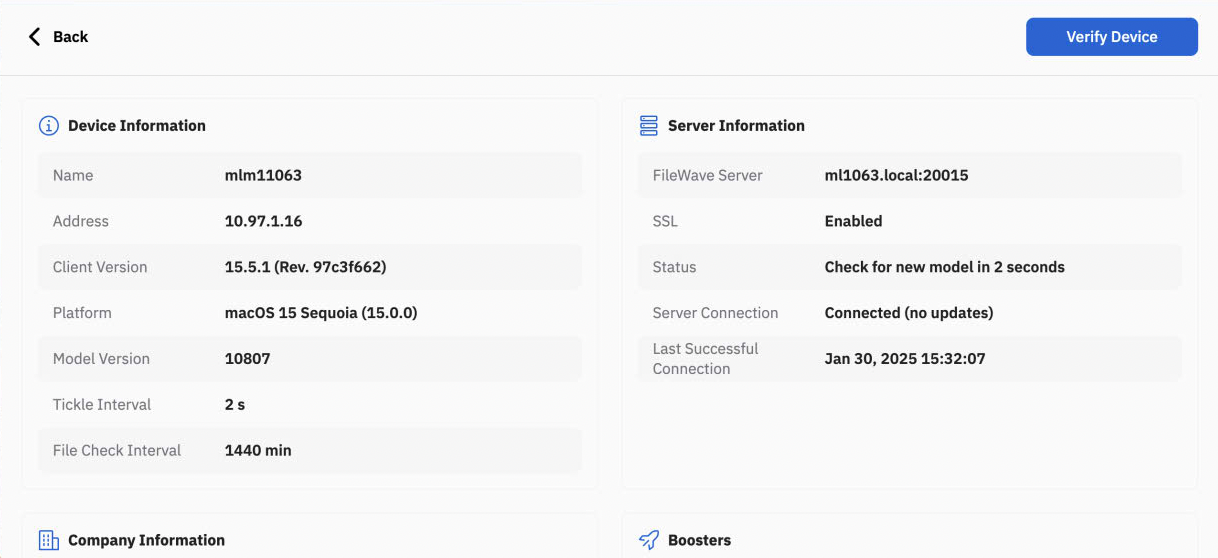](https://kb.filewave.com/uploads/images/gallery/2025-01/hO8ONX4jRgbLpBwl-image.png) The following provides information for triggering the Kiosk manually. ## When Prior to Kiosk v2, it was possible to provide a custom file to show the Kiosk icon, regardless of assignments. Currently Kiosk v2 has no similar option. ## How For both macOS and Windows, the executable file may be targeted directly from a shell: macOS (shell): ``` /usr/local/sbin/FileWave.app/Contents/MacOS/FileWave\ Kiosk.app/Contents/MacOS/FileWave\ Kiosk ``` Windows (PowerShell): ``` & "C:\Program Files\FileWave\client\kiosk\FileWaveKiosk.exe" ``` ### GUI As a script line, this isn't the most user friendly method for users to execute and of course the obvious place to have something for users to self trigger would be in the FileWave Kiosk, but clearly that is nonsensical. There are alternatives though. #### macOS There is already a KB on integration of the amazing 3rd party tool: 'Hello-IT' - [Hello-IT](https://kb.filewave.com/books/integrations/page/hello-it-integration-with-filewave-macos) Through this tool, it could be possible to provide users with another method to open the Kiosk, where Kiosk assignments do not exist: [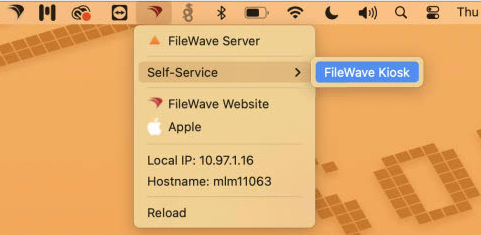](https://kb.filewave.com/uploads/images/gallery/2025-01/HbvvSjHf5X7XKczC-image.png) By following the provided guide on Hello-IT, the small one-liner script could be added as one of the sub menu items. When clicked, FileWave Kiosk would launch. #### Windows A similar trick could be used on Windows with another amazing 3rd party tool: 'About My Device' - [About My Device Instructions](https://www.systanddeploy.com/2021/03/about-my-device-systray-tool-for-that.html) - [About My Device Repo](https://github.com/damienvanrobaeys/About_my_device) Although it doesn't immediately offer the option to add scripts in the way Hello-IT does, it can be hijacked to do so. One of the features is an option to trigger a script to provide logs: [](https://kb.filewave.com/uploads/images/gallery/2025-01/hOVwlKFxTclvHLzw-image.png) However, by editing the configuration and script files, this could be renamed and the script altered to include the PowerShell one-liner from above: AboutMyDevice\_Systray.ps1 [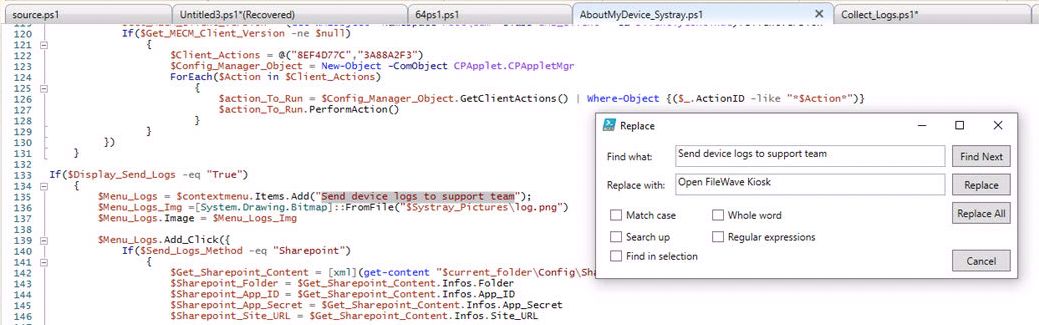](https://kb.filewave.com/uploads/images/gallery/2025-01/8yyBpsVEXBxfs8a6-image.png) Collect\_Logs.ps1 [](https://kb.filewave.com/uploads/images/gallery/2025-01/8bDx3TqB7I3lIayN-image.png) Example [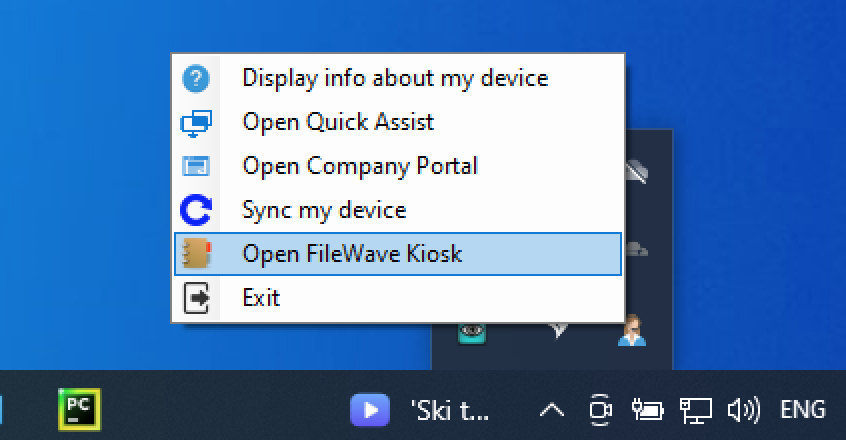](https://kb.filewave.com/uploads/images/gallery/2025-01/97CwD6tOyl39rAoG-image.png) Of course, it might be desirable to keep the option to send logs, so choose the best method for adaption to suit requirements. Additionally, there may be other 3rd party tools that could be of consideration. Do please let other FileWavers know if other tools could be considered as appropriate or better. # FileWave End-User Notifications # FileWave End-User Notifications (15.5+) ## What With the release of FileWave version **15.5.0** and onward, administrators can now send custom messages to enrolled devices directly from FileWave Anywhere, FileWave Central, or through API calls. These messages appear as system notifications on users’ devices, allowing administrators to communicate important information efficiently and effectively, thereby enhancing user engagement and experience. #### Key Functionality - **User-Friendly Interface**: Administrators can easily send notifications by selecting one or multiple devices or groups and accessing the **“Send Notification”** action. - **Customizable Content**: Personalize notifications with a title, author, message content, and optional links to provide context and additional resources. - **Expiration Date**: Set an expiration date and time for notifications to ensure they are timely and relevant. - **Platform Compatibility**: Notifications are supported across multiple platforms, including macOS, Windows, iOS, iPadOS, ChromeOS, and Android devices. - **Client Compatibility**: This feature requires devices to have the FileWave Client version **15.5.0** or newer installed. - **Audit History**: Sent notifications are recorded and can be reviewed in the Audit History for compliance and tracking purposes. - **Validation and Error Handling**: The system ensures that all mandatory fields are filled out and provides clear error messages if issues arise, such as invalid input or unsupported devices.Send Notification requires Permissions granted within the Managed Administrator view. 'fwadmin' account will automatically be granted such permissions, but other accounts or groups should be enabled as desired.
## When/Why #### When to Use - **Urgent Announcements**: Quickly inform users about critical updates, security alerts, or system maintenance. - **Company Communications**: Share company news, policy changes, or reminders directly to users’ devices. - **Event Notifications**: Notify users about upcoming events, meetings, or deadlines. - **Support and Guidance**: Provide users with immediate assistance or instructions when issues are detected. #### Why Use This Feature - **Direct Communication**: Bypass email clutter and ensure important messages are seen by delivering them straight to the user’s device. - **Improved Engagement**: Enhance user experience by keeping users informed and engaged with timely notifications. - **Cross-Platform Support**: Reach users regardless of the device or platform they are using. - **Efficient Administration**: Streamline the process of sending notifications to multiple devices or groups simultaneously. ## How #### Sending a Notification 1. In FileWave Central right click on a Client, Group or Smart Group and pick **Send Notification...** 2. Ensure that all of the options are set how you want. **Author:** Your name **Title:** The title of the notification dialog **Text:** The detailed text to display **Add Link:** This allows you to have a clickable link on the notification **Expiration date:** After this date and time the system will not continue to try to get the notification to the selected devices. [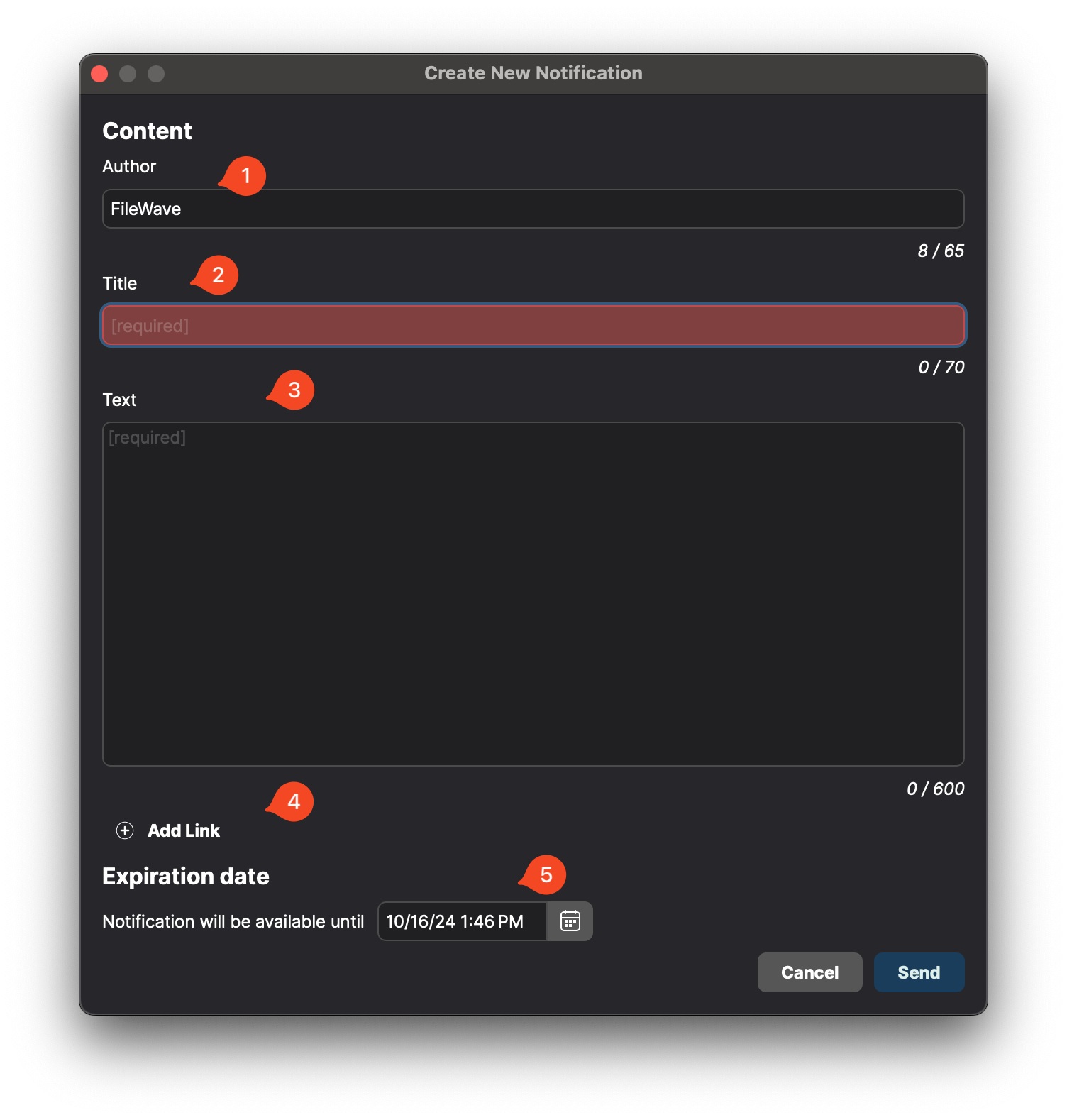](https://kb.filewave.com/uploads/images/gallery/2024-10/4RRZZZUGUkSrI86L-image.png) 3. A confirmation dialog will ask you to confirm sending and tell you the number of devices being messaged. Check that the number reflects what you think it should be. If it says 500 but you meant to message 5 devices then click **Back** and then **Cancel** if you want to try to pick devices again. Once you click the final **Send** button on the confirmation dialog there is no canceling it.If you selected a Group or Smart Group it is important to know that the targets will be the devices that were in that group at the time you sent the message. If a device enters the group tomorrow it will not get the message even if the message has not expired yet. Similarly if a device leaves the group after you already sent the message it will still receive the message when it comes online.
#### User Experience - **System Notification**: Users will receive the notification as a system alert on their devices. - **Notification Details**: Clicking on the notification will display the full message and any included links. - **Confirmation Dialog**: After sending, administrators receive a confirmation dialog confirming the notification was successfully sent. - **Timing of notification:** It will display as soon as the device either gets an OS driven notification which should be within a few minutes of it coming online. #### Examples of what is seen by users| **iPadOS / iOS** | [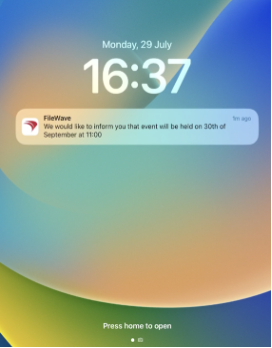](https://kb.filewave.com/uploads/images/gallery/2024-12/aKhtelgYi3qf0FE2-image.png) |
| **macOS** | [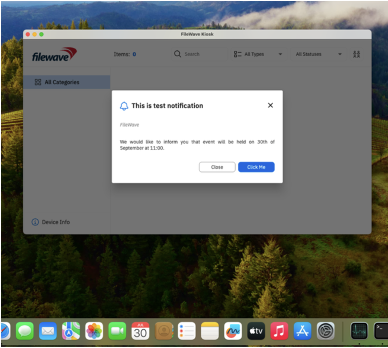](https://kb.filewave.com/uploads/images/gallery/2024-12/0ySLh9BOeP7oqDBn-image.png) |
| **Android** | [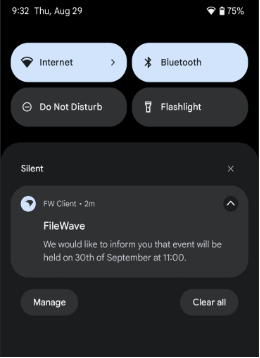](https://kb.filewave.com/uploads/images/gallery/2024-12/YjMrMw6I5EROcUZ8-image.png) |
| **Windows** | [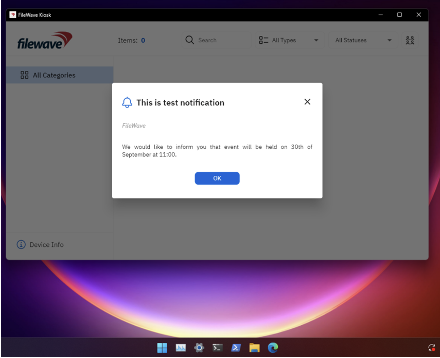](https://kb.filewave.com/uploads/images/gallery/2024-12/78LnXOeejkPpUVem-image.png) |
| **ChromeOS** | [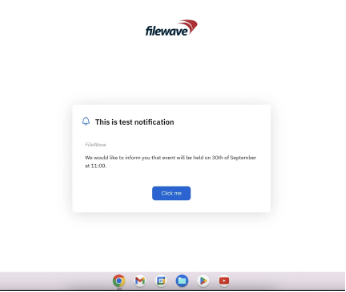](https://kb.filewave.com/uploads/images/gallery/2024-12/8qWSTdOB5fwaubpQ-image.png) |
FileWave Central will show the local timezone of the computer running FileWave Central. FileWave Server will convert the set time as UTC instead and expire the notification at that UTC time.
##### Platform-Specific Behaviors - **iOS/iPadOS**: - **Delivery to Active Users**: Notifications are only delivered to the user currently logged in on the device on Shared iPad. 1:1 users can receive notifications at Lock Screen. - **Session-Specific**: Notifications received by one user are not visible to other users who log in later. - **Expiration Handling**: If a notification is valid on Apple’s servers but expired on the device, it will display, but clicking it will only open the App Portal without showing the full message. - **macOS**: - **Logged-Out Users**: Users who are logged out will not receive notifications sent during their absence. - **Multiple Users**: All users on a device will receive the notification individually. - **Unread Notifications**: Unread, valid notifications will reappear in the Notification Center if it is cleared or the device restarts, after a new notification arrives. - **Expiration Cleanup**: After the expiration time, macOS may take up to an hour to remove the notification from the Notification Center. - **Kiosk Visibility**: If the Kiosk is not normally visible, it will temporarily appear when displaying notification details and will be removed once closed. - **Enabling Notifications**: Administrators can enforce notifications using an [Apple Profile](https://kb.filewave.com/books/kiosk/page/force-enable-notifications-on-ios-and-macos-for-filewave-kiosk "Force Notifications on macOS for FileWave Kiosk"), preventing users from disabling them. - **Windows**: - **Multiple Users**: Similar to macOS, all users on a device will receive the notification. - **Notification Persistence**: Unread notifications will reappear after the Notification Center is cleared or the device restarts, as long as they are still valid. - **Kiosk Visibility**: The Kiosk app behaves the same as on macOS regarding temporary visibility. - **ChromeOS**: - **User Limitations**: If one user reads a notification, it becomes unavailable to other users on the same device due to ``` 2026-01-02 15:42:08.820 [P:60]Example Filesets that you might have used to push out these settings: Windows (64) - [Kiosk\_Customizer\_for\_Windows64.fileset.zip](https://kb.filewave.com/attachments/13) Windows (32) - [Kiosk\_Customizer\_for\_Windows32.fileset.zip](https://kb.filewave.com/attachments/14) macOS - [Kiosk\_Customizer\_for\_macOS.fileset.zip](https://kb.filewave.com/attachments/15) macOS/Windows - [Applications Preventing Reboot](https://kb.filewave.com/books/kiosk/page/applications-preventing-reboot-macoswindows "Applications Preventing Reboot (macOS/Windows)")
# Customizable icons You might have included icon files that you used to replace them in Kiosk before 15.3. These icons will not appear in 15.3 or newer.| File name | Description | Example | Pixel Size |
| action\_back.png | Icon for the "Back" action in the Software Installation dialog |  | 48x48 |
| action\_forward.png | Icon for the "Forward" action in the Software Installation dialog |  | 48x48 |
| background\_icon.png | Icon used for the watermark | (FileWave icon) | 512x512 |
| rating\_star\_half.png | Icon for half a rating star |  | 40x40 |
| rating\_star\_off.png | Icon for a rating star that is off |  | 40x40 |
| rating\_star\_on.png | Icon for a rating star that is on |  | 40x40 |
| tray\_icon.png | System tray icon. If missing, the background\_icon.png is used. | (FileWave icon) | 16x16 |
| warning.png | Warning icon, displayed when a fileset has problems (e.g. missing VPP user) |  | 64x64 |
Use cautiously
Without Metal support, the Kiosk will not open and the user logs may show messages like these: ``` 2024-05-13 10:40:15.324 FileWave Kiosk[1241:5674] Could not acquire Metal device. 2024-05-13 10:40:25.936 FileWave Kiosk[1241:5674] Unable to create FlutterView; no MTLDevice or MTLCommandQueue available. ``` ## Configuration Shut down the VM before editing its configuration. Do not edit the file while the VM is running or paused. Open the folder that contains the VM and find its `.vmx` file. For example, if the VM folder is named `macOS 12.vmwarevm`, the VMX file may be named `macOS 12.vmx`: ``` /Users/sholden/Documents/Virtual\ Machines/macOS\ 12.vmwarevm/macOS\ 12.vmx ``` Add these two lines: ``` appleGPU0.present = "TRUE" svga.present = "FALSE" ``` Start the VM after saving the file. To undo the change, shut down the VM again and remove the same two entries. You may also need to define the display size in the same file. This example uses 1920 x 1080: ``` appleGPU0.screenWidth="1920" appleGPU0.screenHeight="1080" ```This workaround may let the Kiosk launch in a VMware test VM, but in practice the VM often crashed or became unusable. Because the host Mac may also kernel panic, avoid this configuration unless the test requires it. Remove the entries when the test is complete.
# Resolve FileWave Kiosk SSL and Manifest Validation Errors (15.3+) ## What FileWave Kiosk installation can fail on macOS or Windows with a manifest validation error followed by an SSL error. The example below was first documented with Kiosk 15.3.1. ## When/Why This usually means the device cannot reach or trust the Kiosk package host. Common causes include a content filter that classifies the host as unknown, a proxy or firewall block, or SSL inspection that changes the certificate chain. ``` "InstallApplication command error 2024-04-22T07:36:38 2024-04-22T07:36:38 Could not validate manifest..An SSL error has occurred and a secure connection to the server cannot be made. com.filewave.ios.app.kiosk2 " ``` ## How Check the network path used by the affected device: 1. **Check the proxy, firewall, and content filter:** Confirm that they allow the Kiosk package host and do not replace its certificate with an untrusted chain. 2. **Allow the required URLs:** Add the following entries to the appropriate allowlist: - `https://fw-kiosk-v2-ipas.filewave.cloud/` - `*.filewave.cloud` The exact rule depends on your network security product. Apply the change to the same network path used by the affected devices. 3. **Retry the installation:** After the network rule is active, send the installation again and check the device command history. ```shell # Example command to verify if the URL is accessible from your network curl -Iv https://fw-kiosk-v2-ipas.filewave.cloud/ ``` Run the command from the same network path as an affected device when possible. If the host is reachable but certificate validation still fails, inspect SSL/TLS interception and the device's trusted certificate chain. ## Related Links - [Default TCP and UDP Port Usage](https://kb.filewave.com/books/filewave-general-info/page/default-tcp-and-udp-port-usage "Default TCP and UDP Port Usage") ## Digging Deeper The combined log message points to a network or trust failure while the device validates the Kiosk manifest. Fix reachability and certificate trust first, then retry the Kiosk command.