# Setting the Primary Colour, Name and Logo in Kiosk/App Portal (16.0+)

## What

This article provides step-by-step instructions for configuring the new Kiosk2 and App Portal introduced in FileWave 16.0, including how to set a primary colour, name, and logo for the App Portal / Kiosk on FileWave v16.0+.

## When/Why

For brand consistency, options exist (depending on device type) for configuring:

- Colour
- Name of Kiosk Window (Computers only)
- Shortcut icon in macOS Menu Bar or Windows System Tray
- Logo image shown in macOS/iOS/iPadOS/Windows Kiosk application

## How

FileWave 16+ now offers a Policy Fileset for Kiosk customisation. Default configurations are applied when no custom Fileset is associated:

- Name the Kiosk
- Custom Logo, which appears in the App when launched, for all devices. (Default to FileWave Logo if no custom logo set)
- Theme Colour

From the Create New Fileset option, select Policy:

[![image.png](https://kb.filewave.com/uploads/images/gallery/2025-02/scaled-1680-/aPTygHOM464s0kuQ-image.png)](https://kb.filewave.com/uploads/images/gallery/2025-02/aPTygHOM464s0kuQ-image.png)

Kiosk is the newly added feature:[  
![image.png](https://kb.filewave.com/uploads/images/gallery/2025-02/scaled-1680-/HZBGEStyr01jkatH-image.png)](https://kb.filewave.com/uploads/images/gallery/2025-02/HZBGEStyr01jkatH-image.png)

<p class="callout success">The expected minimum image size for custom logo is: 112 x 96, 8-bit/colour RGBA, non-interlaced.  
</p>

File formats accepted are: SVG, PNG, JPG.

<p class="callout success">SVG, by their nature, should provide the best looking image, regardless of screen resolution: https://www.w3schools.com/graphics/svg\_intro.asp</p>

<p class="callout info">At this time, the macOS Menu Bar or Windows System Tray Icon requires an additional Fileset. Details included below.</p>

<details id="bkmrk-ios-%26-ipados-app-por"><summary>iOS &amp; iPadOS</summary>

App Portal is the name of the Kiosk on Apple mobile devices. As of FileWave 15.3, the App Portal IPA is not only automatically delivered to devices, but will also update automatically.

### Example Customisation Options

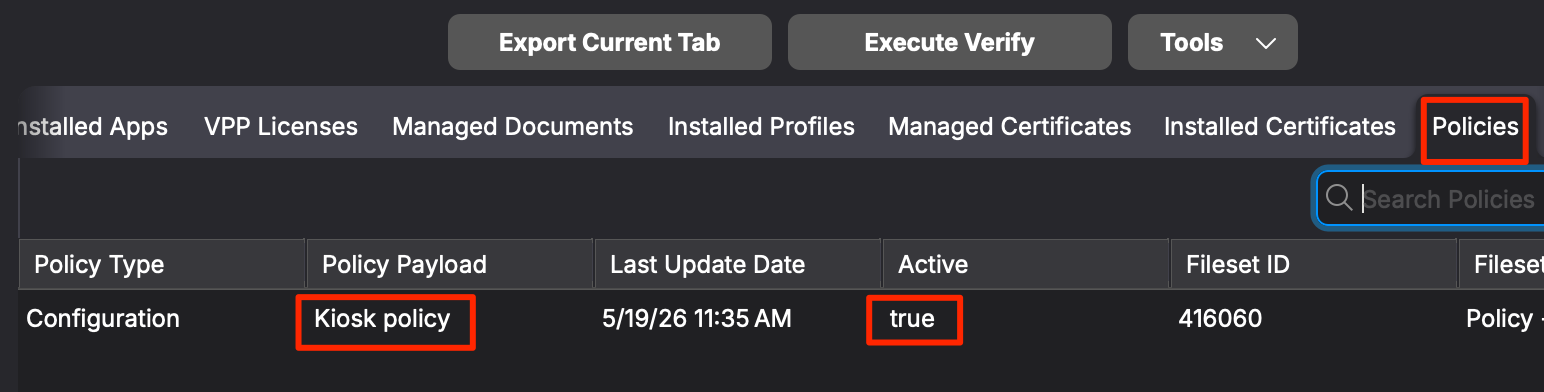
<p class="callout success">Note: For iOS/iPad, you will not see an entry in Fileset Status tab for the Kiosk Policy. After deployment, look under Client Info &gt; Policies tab, and verify that the Kiosk Policy displays "true" in the Active column. If customizations do not display, force quit the Filewave Kiosk app and re-open to initiate the policy.</p>

[![image.png](https://kb.filewave.com/uploads/images/gallery/2026-05/scaled-1680-/J7vSMURs0mIblSFt-image.png)](https://kb.filewave.com/uploads/images/gallery/2026-05/J7vSMURs0mIblSFt-image.png)

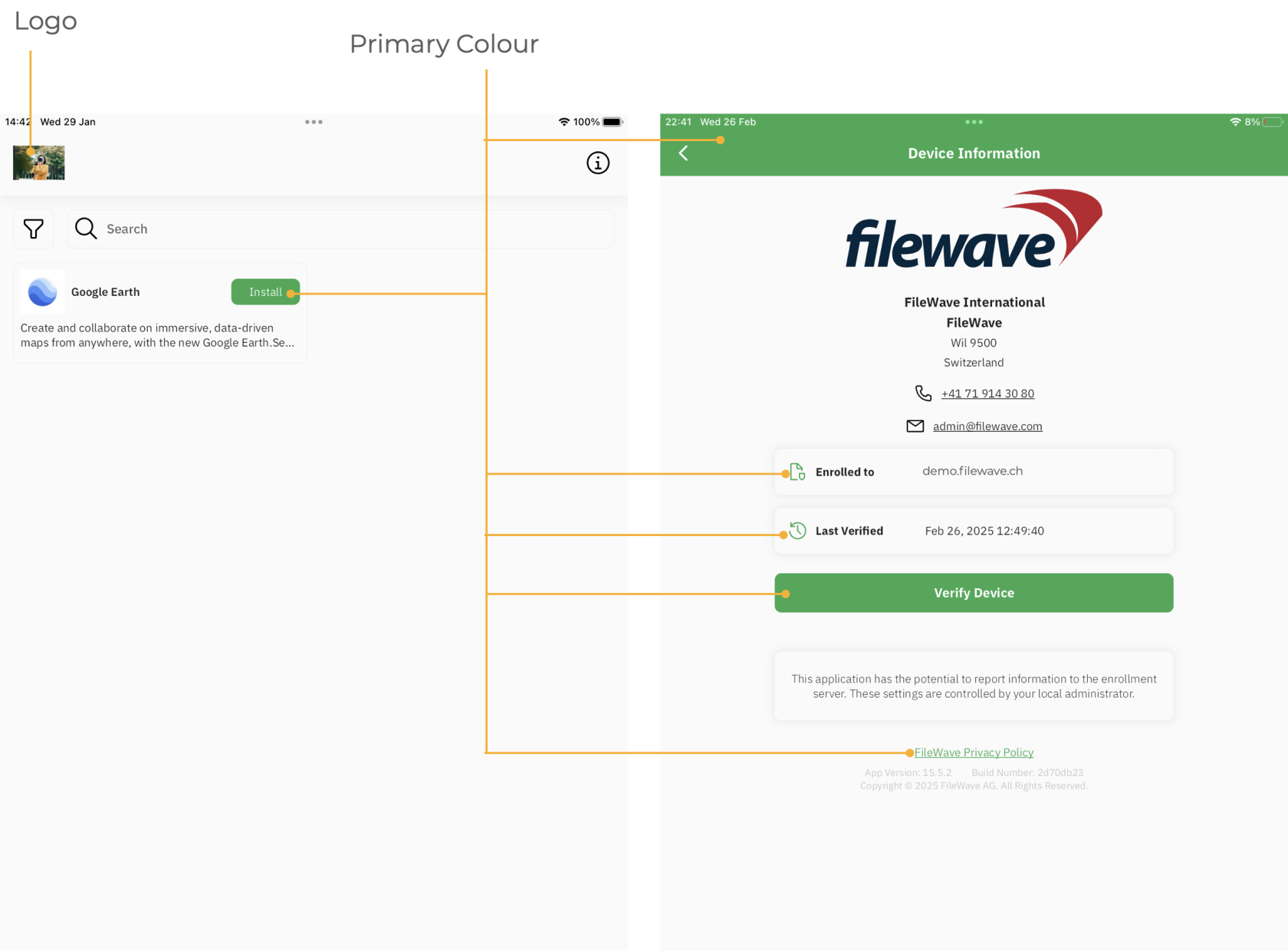
#### Example Customisation Options

Displayed in the below image:

- Logo [![image.png](https://kb.filewave.com/uploads/images/gallery/2025-02/scaled-1680-/PzSG5SxfPZDfnFcQ-image.png)](https://kb.filewave.com/uploads/images/gallery/2025-02/PzSG5SxfPZDfnFcQ-image.png)
- Primary Colour: Green

[![image.png](https://kb.filewave.com/uploads/images/gallery/2025-02/scaled-1680-/QxlGpmYo4U6ejWnH-image.png)](https://kb.filewave.com/uploads/images/gallery/2025-02/QxlGpmYo4U6ejWnH-image.png)
</details><details id="bkmrk-macos-%26-windows-maco"><summary>macOS</summary>

Kiosk access is via Menu Bar.

#### Example Customisation Options

Displayed in the below image:

- Logo [![image.png](https://kb.filewave.com/uploads/images/gallery/2025-02/scaled-1680-/PzSG5SxfPZDfnFcQ-image.png)](https://kb.filewave.com/uploads/images/gallery/2025-02/PzSG5SxfPZDfnFcQ-image.png)
- Primary Colour: Blue
- Kiosk Name: Custom Kiosk Name
- Menu Bar Icon - Union Jack Flag

[![image.png](https://kb.filewave.com/uploads/images/gallery/2025-02/scaled-1680-/Wt7JX36w9662JuDF-image.png)](https://kb.filewave.com/uploads/images/gallery/2025-02/Wt7JX36w9662JuDF-image.png)

#### macOS Menu Bar Extra Icon

The following method provides a pre-configured Fileset for customising this icon with a local file.

<p class="callout info">The Menu Bar Extra Icon will show in black or white alone.</p>

<p class="callout warning">macOS may automatically hide one or more Menu Bar Extras to prevent crowding of the Menu Bar.</p>

[FileWave Kiosk2 Menu Bar Icon.fileset.zip](https://kb.filewave.com/attachments/352)

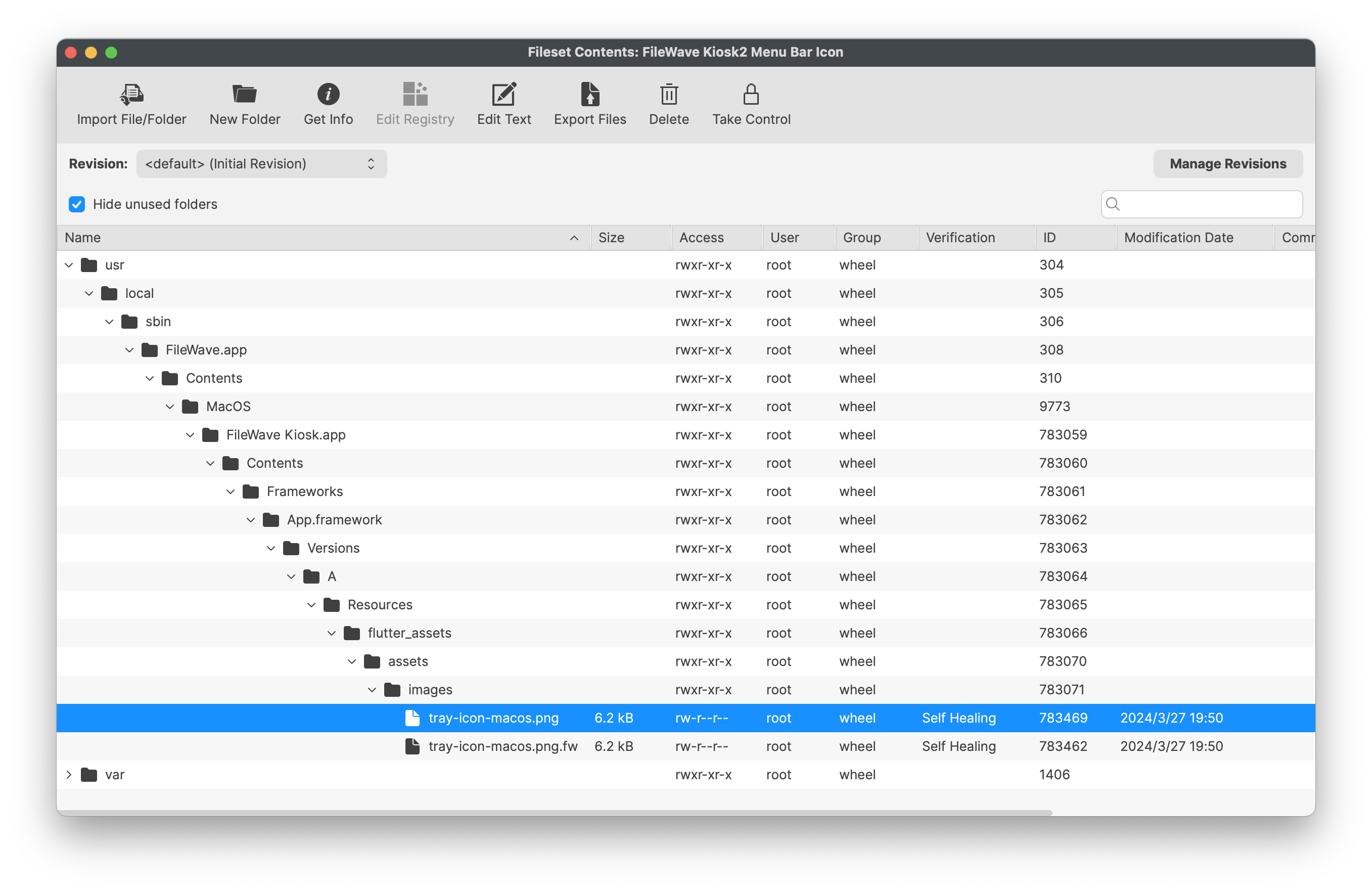
The Fileset needs to be edited prior to deployment. Out of the two files shown, the chosen custom image should be named to match the first png: 'tray-icon-macos.png'. Leave the other file in place.

[![image.png](https://kb.filewave.com/uploads/images/gallery/2024-05/scaled-1680-/9RnVuVUgfWt1JLlN-image.png)](https://kb.filewave.com/uploads/images/gallery/2024-05/9RnVuVUgfWt1JLlN-image.png)
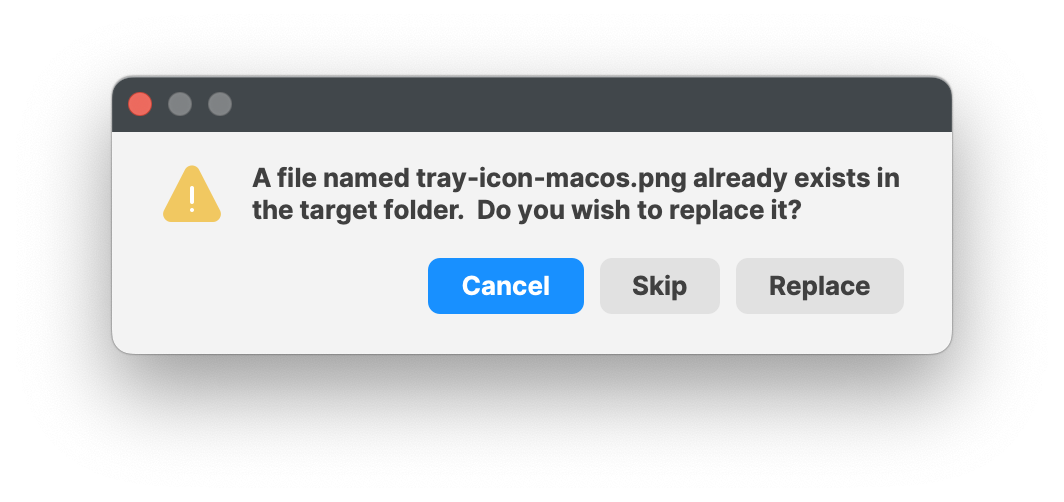
 Dragging the custom icon over the shown file should prompt a message as below. Select Replace.

[![image.png](https://kb.filewave.com/uploads/images/gallery/2024-05/scaled-1680-/amQ1bWqAPhoSNJH6-image.png)](https://kb.filewave.com/uploads/images/gallery/2024-05/amQ1bWqAPhoSNJH6-image.png)
Associate with a test device, and once happy with the look, you can broaden the association.

The Fileset is designed to:

- Restart the Kiosk after activation, automatically ensuring the user is immediately presented with the new logo
- On de-activation, the '`tray-icon-macos.png.fw`' file will be copied to replace the custom logo (resetting the default) and again restarting the Kiosk for immediate change.

</details><details id="bkmrk-windows-macos-and-wi"><summary>Windows</summary>

Kiosk is accessed via the System Tray icon.

#### Example Customisation Options:

Displayed in the below image:

- Logo [![image.png](https://kb.filewave.com/uploads/images/gallery/2025-02/scaled-1680-/PzSG5SxfPZDfnFcQ-image.png)](https://kb.filewave.com/uploads/images/gallery/2025-02/PzSG5SxfPZDfnFcQ-image.png)
- Primary Colour: Green
- Kiosk Name: Custom Kiosk Name
- System Tray Icon - Union Jack flag

[![image.png](https://kb.filewave.com/uploads/images/gallery/2025-02/scaled-1680-/PjWvpbncKQ9mNGoj-image.png)](https://kb.filewave.com/uploads/images/gallery/2025-02/PjWvpbncKQ9mNGoj-image.png)

#### Windows System Tray Icon

The following method provides a pre-configured Fileset for customising this icon with a local file.

[FileWave Kiosk2 Sytem Tray Icon.fileset.zip](https://kb.filewave.com/attachments/427)

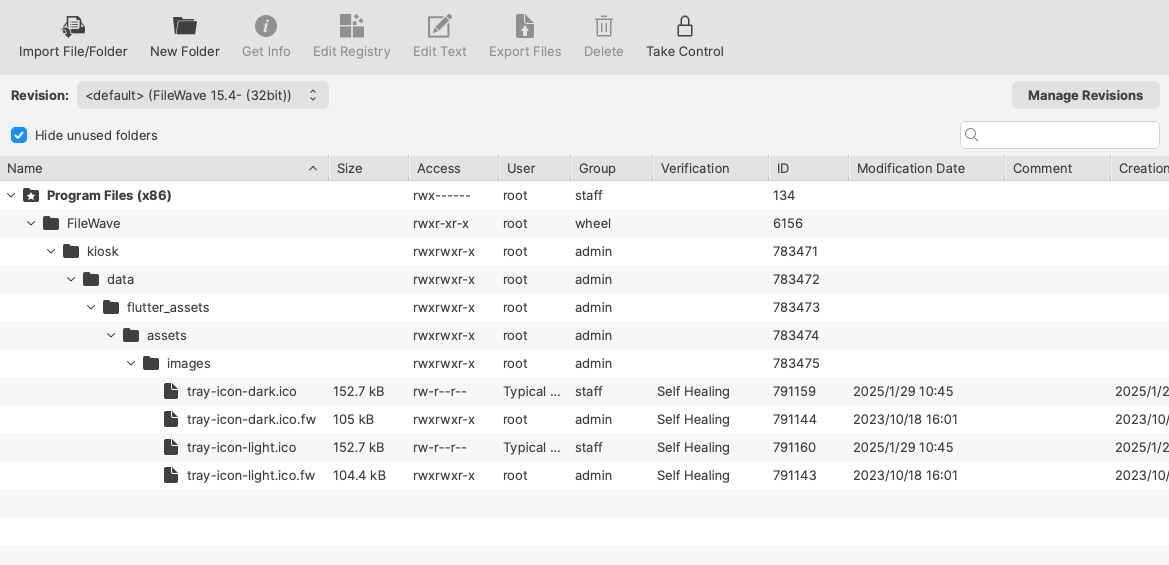
The provided Fileset contains two revisions:

- FileWave Client version 15.4- (32bit FileWave Client)
- FileWave Client version 15.5+ (64bit FileWave Client)

[![image.png](https://kb.filewave.com/uploads/images/gallery/2024-08/scaled-1680-/ZolzIDi5VqyuYZ1O-image.png)](https://kb.filewave.com/uploads/images/gallery/2024-08/ZolzIDi5VqyuYZ1O-image.png)

The Fileset needs to be edited prior to deployment. Out of the four files shown, the chosen custom icon should be named to match the two icon files: 'tray-icon-dark.ico' and 'tray-icon-light.ico'. Leave the other two files in place.

<p class="callout info">Unlike the other images, the Windows System Tray is using '.ico' files. These need to be of equal size, e.g. 256x256, 128x128, etc.</p>

<p class="callout success">Consider exporting the current 'ico' files, editing them with the chosen logo and then upload, if unsure how to create '.ico' files.</p>

FileWave 15.4- (FileWave Client 32bit)

[![image.png](https://kb.filewave.com/uploads/images/gallery/2025-01/scaled-1680-/be4WbIYnjD538Xx5-image.png)](https://kb.filewave.com/uploads/images/gallery/2025-01/be4WbIYnjD538Xx5-image.png)
FileWave 15.5+ (FileWave Client 64bit)

[![image.png](https://kb.filewave.com/uploads/images/gallery/2025-01/scaled-1680-/tkVOwySFCUUalzW9-image.png)](https://kb.filewave.com/uploads/images/gallery/2025-01/tkVOwySFCUUalzW9-image.png)

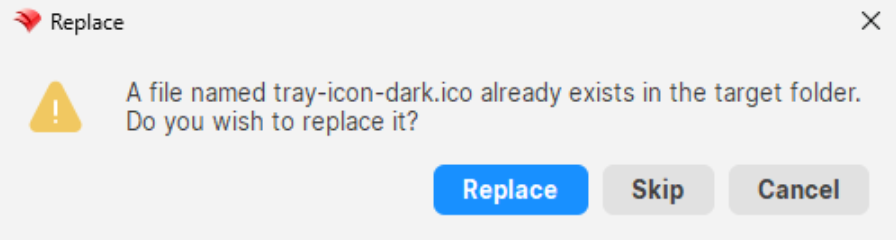
Dragging the custom icon over the shown files should prompt a message as below. Select Replace.

[![image.png](https://kb.filewave.com/uploads/images/gallery/2024-05/scaled-1680-/5YtOwr6I4T9tOVZa-image.png)](https://kb.filewave.com/uploads/images/gallery/2024-05/5YtOwr6I4T9tOVZa-image.png)
Associate the relevant revision with a test device and once happy broaden the association.

<p class="callout info">The new image will not show until the FileWave Client is restarted or the user logs out and back in.</p>

</details>## FileWave 15.3 - Pre 16.0

The below was introduced in FileWave 15.3. For for FileWave 16+ please use the above information.

## How

<details id="bkmrk-ios-%26-ipados-devices"><summary>iOS &amp; iPadOS</summary>

Devices of this nature use the App Portal. As of FileWave 15.3, the App Portal IPA is automatically delivered to devices and will automatically update.

### Customisation Options:

- Logo (Default to FileWave Logo if no custom logo set)
- Colour

[![image.png](https://kb.filewave.com/uploads/images/gallery/2025-01/scaled-1680-/Y2Zvn9et2I2xLCJc-image.png)](https://kb.filewave.com/uploads/images/gallery/2025-01/Y2Zvn9et2I2xLCJc-image.png)

### Logo Customisation

<p class="callout info">If you are a [Hosted Customer](https://kb.filewave.com/books/community-engagement/page/cloud-hosting-product-information "Cloud Hosting Product Information") then you will need [Technical Support](https://kb.filewave.com/books/community-engagement/page/customer-technical-support "Customer Technical Support") to assist with these changes for now.</p>

Direct editing of the IPA is not feasible. As such, the logo needs to be hosted from the FileWave Server. The chosen image needs to be placed in the following location:

`/usr/local/filewave/django/static/kiosk2/images/`

For the IPA to utilise this image, edit the the following file:

`/usr/local/filewave/django/filewave/settings_custom.py`

The line may be added to the bottom of the custom settings file and needs to include the FQDN of the FileWave Server, along with the named image in the format:

*KIOSK\_LOGO\_URL = 'https://\[fully\_qualified\_domain\_name\]/filewave/static/kiosk2/images/\[file name\]'*

For example, imagine those details are:

- image.svg
- demo.filewave.ch

The line added will then appear as:

`KIOSK_LOGO_URL = 'https://demo.filewave.ch/filewave/static/kiosk2/images/image.svg'`

Supported file formats are:

```
- SVG
- JPEG
- PNG
- GIF
- Animated GIF
- WebP
- Animated WebP
- BMP
- WBMP
```

### Customise Colour

Colour may be customised by editing the same custom settings file. The colour should be presented in hex of either 6 or 8 characters. The line to add (again this may be added to the bottom of the custom settings file), should be of the format:

*KIOSK\_PRIMARY\_COLOR = '\[hex colour\]'*

 For example:

```
KIOSK_PRIMARY_COLOR = '#e580ff'
```

or

```
KIOSK_PRIMARY_COLOR = '#FF0000CC'
```

<p class="callout info">The FileWave Server Service should be restarted after modification of the custom settings python file.</p>

</details><details id="bkmrk-macos-kiosk-access-i"><summary>macOS</summary>

Kiosk access is via Menu Bar.

[![image.png](https://kb.filewave.com/uploads/images/gallery/2025-01/scaled-1680-/Su1XGNtOWz7X6n9X-image.png)](https://kb.filewave.com/uploads/images/gallery/2025-01/Su1XGNtOWz7X6n9X-image.png)

### macOS Kiosk App

#### Customisation Options:

- Logo (Default to FileWave Logo if no custom logo set)
- Colour
- Kiosk App Name
- Menu Bar Icon - See below: [Local macOS Logo](#bkmrk-local-logo)

3 items can be specified through a single file:

macOS:

`/usr/local/sbin/FileWave.app/Contents/MacOS/FileWave\ Kiosk.app/Contents/custom/settings.json`

The contents should appear similar to:

```
{
    "logo_url": "https://buffer.com/cdn-cgi/image/w=1000,fit=contain,q=90,f=auto/library/content/images/size/w1200/2023/10/free-images.jpg",
    "primary_color": "#0465DA",
    "kiosk_app_name": "Custom Kiosk Name"
}
```

Defined as:

<table style="border-collapse: collapse; width: 100%;"><colgroup><col style="width: 33.333333%;"></col><col style="width: 33.333333%;"></col><col style="width: 33.333333%;"></col></colgroup><tbody><tr><td>**Key Name**</td><td>**Key Value**</td><td>**Default**</td></tr><tr><td>logo\_url</td><td>URL path to hosted custom image</td><td>FileWave Logo</td></tr><tr><td>primary\_color</td><td>Colour in hex format, e.g. #RRGGBB</td><td>\#0465DA</td></tr><tr><td>kiosk\_app\_name</td><td>Text Name of opened Kiosk Window</td><td>FileWave Kiosk</td></tr></tbody></table>

<p class="callout info"> It may be necessary to reboot the computer or log out and back in, before changes take effect; particularly if customisation of the older Version 1 Kiosk was removed at the same time that the new Version 2 Kiosk and customisation is applied.</p>

<p class="callout success">If the custom icon is added as per the instructions for i(Pad)OS devices, the same URL may be used in the above settings.</p>

#### macOS Menu Bar Extra Icon

The following method provides a pre-configured Fileset for customising this icon with a local file.

<p class="callout info">The Menu Bar Extra Icon will show in black or white alone.</p>

<p class="callout warning">macOS will automatically hide one or more Menu Bar Extras to prevent crowding of the Menu Bar.</p>

[FileWave Kiosk2 Menu Bar Icon.fileset.zip](https://kb.filewave.com/attachments/352)

The Fileset needs to be edited prior to deployment. Out of the two files shown, the chosen custom image should be named to match the first png: 'tray-icon-macos.png'. Leave the other file in place.

[![image.png](https://kb.filewave.com/uploads/images/gallery/2024-05/scaled-1680-/9RnVuVUgfWt1JLlN-image.png)](https://kb.filewave.com/uploads/images/gallery/2024-05/9RnVuVUgfWt1JLlN-image.png)

 Dragging the custom icon over the shown file should prompt a message as below. Select Replace.

[![image.png](https://kb.filewave.com/uploads/images/gallery/2024-05/scaled-1680-/amQ1bWqAPhoSNJH6-image.png)](https://kb.filewave.com/uploads/images/gallery/2024-05/amQ1bWqAPhoSNJH6-image.png)

Associate with a test device, and once happy with the look, you can broaden the association.

The Fileset is designed to:

- Restart the Kiosk after activation, automatically ensuring the user is immediately presented with the new logo
- On de-activation, the '`tray-icon-macos.png.fw`' file will be copied to replace the custom logo (resetting the default) and again restarting the Kiosk for immediate change.

</details><details id="bkmrk-windows-kiosk-is-acc"><summary>Windows</summary>

Kiosk is accessed via the System Tray icon.

[![image.png](https://kb.filewave.com/uploads/images/gallery/2025-01/scaled-1680-/KrwHIF8ZrbWXOUlW-image.png)](https://kb.filewave.com/uploads/images/gallery/2025-01/KrwHIF8ZrbWXOUlW-image.png)

### Windows Kiosk App

#### Customisation Options:

- Logo (Default to FileWave Logo if no custom logo set)
- Colour
- Kiosk App Name
- System Tray Icon - See Windows System Tray Icon

All 3 items can be specified through a single file:

Windows (32bit FileWave Client: 15.4-):

`C:\Program Files (x86)\FileWave\kiosk\custom\settings.json`

Windows (64bit FileWave Client: 15.5+):

`C:\Program Files\FileWave\client\kiosk\custom\settings.json`

The contents should appear similar to:

```
{
   "logo_url": "https://my.company/logo.svg",
   "primary_color": "#0465DA",
   "kiosk_app_name": "My Kiosk"
}
```

Defined as:

<table style="border-collapse: collapse; width: 100%;"><colgroup><col style="width: 33.333333%;"></col><col style="width: 33.333333%;"></col><col style="width: 33.333333%;"></col></colgroup><tbody><tr><td>**Key Name**</td><td>**Key Value**</td><td>**Default**</td></tr><tr><td>logo\_url</td><td>URL path to hosted custom image</td><td>FileWave Logo</td></tr><tr><td>primary\_color</td><td>Colour in hex format, e.g. #RRGGBB</td><td>\#0465DA</td></tr><tr><td>kiosk\_app\_name</td><td>Text Name of opened Kiosk Window</td><td>FileWave Kiosk</td></tr></tbody></table>

<p class="callout info"> It may be necessary to reboot the computer before changes take effect; particularly if customisation of the older Kiosk was removed at the same time that the new Kiosk and customisation is added.</p>

<p class="callout success">If the custom icon is added as per the instructions for i(Pad)OS devices, the same URL may be used in the above settings.</p>

#### Windows System Tray Icon

The following method provides a pre-configured Fileset for customising this icon with a local file.

[FileWave Kiosk2 Sytem Tray Icon.fileset.zip](https://kb.filewave.com/attachments/427)

The provided Fileset contains two revisions:

- FileWave Client version 15.4- (32bit FileWave Client)
- FileWave Client version 15.5+ (64bit FileWave Client)

[![image.png](https://kb.filewave.com/uploads/images/gallery/2024-08/scaled-1680-/ZolzIDi5VqyuYZ1O-image.png)](https://kb.filewave.com/uploads/images/gallery/2024-08/ZolzIDi5VqyuYZ1O-image.png)
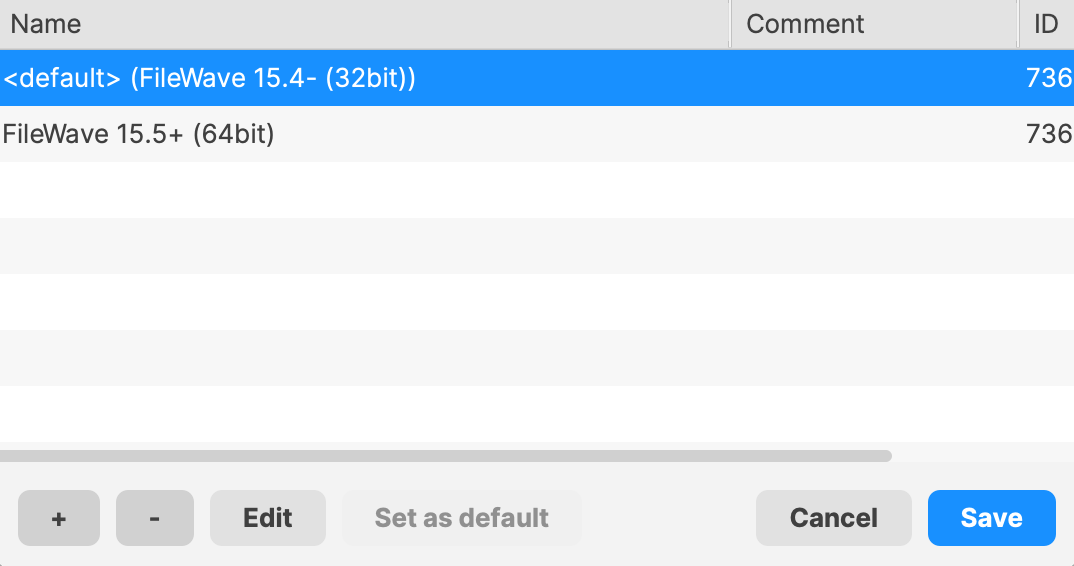
The Fileset needs to be edited prior to deployment. Out of the four files shown, the chosen custom icon should be named to match the two icon files: 'tray-icon-dark.ico' and 'tray-icon-light.ico'. Leave the other two files in place.

<p class="callout info">Unlike the other images, the Windows System Tray is using '.ico' files. These need to be of equal size, e.g. 256x256, 128x128, etc.</p>

<p class="callout success">Consider exporting the current 'ico' files, editing them with the chosen logo and then upload, if unsure how to create '.ico' files.</p>

FileWave 15.4- (FileWave Client 32bit)

[![image.png](https://kb.filewave.com/uploads/images/gallery/2025-01/scaled-1680-/be4WbIYnjD538Xx5-image.png)](https://kb.filewave.com/uploads/images/gallery/2025-01/be4WbIYnjD538Xx5-image.png)

FileWave 15.5+ (FileWave Client 64bit)

[![image.png](https://kb.filewave.com/uploads/images/gallery/2025-01/scaled-1680-/tkVOwySFCUUalzW9-image.png)](https://kb.filewave.com/uploads/images/gallery/2025-01/tkVOwySFCUUalzW9-image.png)

Dragging the custom icon over the shown files should prompt a message as below. Select Replace.

[![image.png](https://kb.filewave.com/uploads/images/gallery/2024-05/scaled-1680-/5YtOwr6I4T9tOVZa-image.png)](https://kb.filewave.com/uploads/images/gallery/2024-05/5YtOwr6I4T9tOVZa-image.png)

Associate the relevant revision with a test device and once happy broaden the association.

<p class="callout info">The new image will not show until the FileWave Client is restarted or the user logs out and back in.</p>

</details>## Related Links

- [FileWave Kiosk for macOS and Windows overview (15.3+)](https://kb.filewave.com/books/kiosk/page/filewave-kiosk-for-macos-and-windows-overview-153 "FileWave Kiosk for macOS and Windows overview (15.3+)")
- [Removing pre-15.3 Kiosk Customizations (macOS/Windows](https://kb.filewave.com/books/kiosk/page/removing-pre-153-kiosk-customizations-macoswindows "Removing pre-15.3 Kiosk Customizations (macOS/Windows)")