# Customised Screen Saver (macOS)
## Description
Use this example Fileset to install a custom macOS screen saver (.saver) that displays a static image or custom HTML/JavaScript, then set it as the login window screen saver with a profile.
## Ingredients
- FileWave Central
- Example Fileset: [Example\_FileWave.saver.zip](https://kb.filewave.com/attachments/156)
Taken from: [https://github.com/tlrobinson/WebSaver](https://github.com/tlrobinson/WebSaver)
## Directions
### Fileset Installation
1. Download and unzip the `Example_FileWave.saver.zip` attachment from this article.
2. Import the Fileset in FileWave Central.
### Customize the screen saver name (optional)
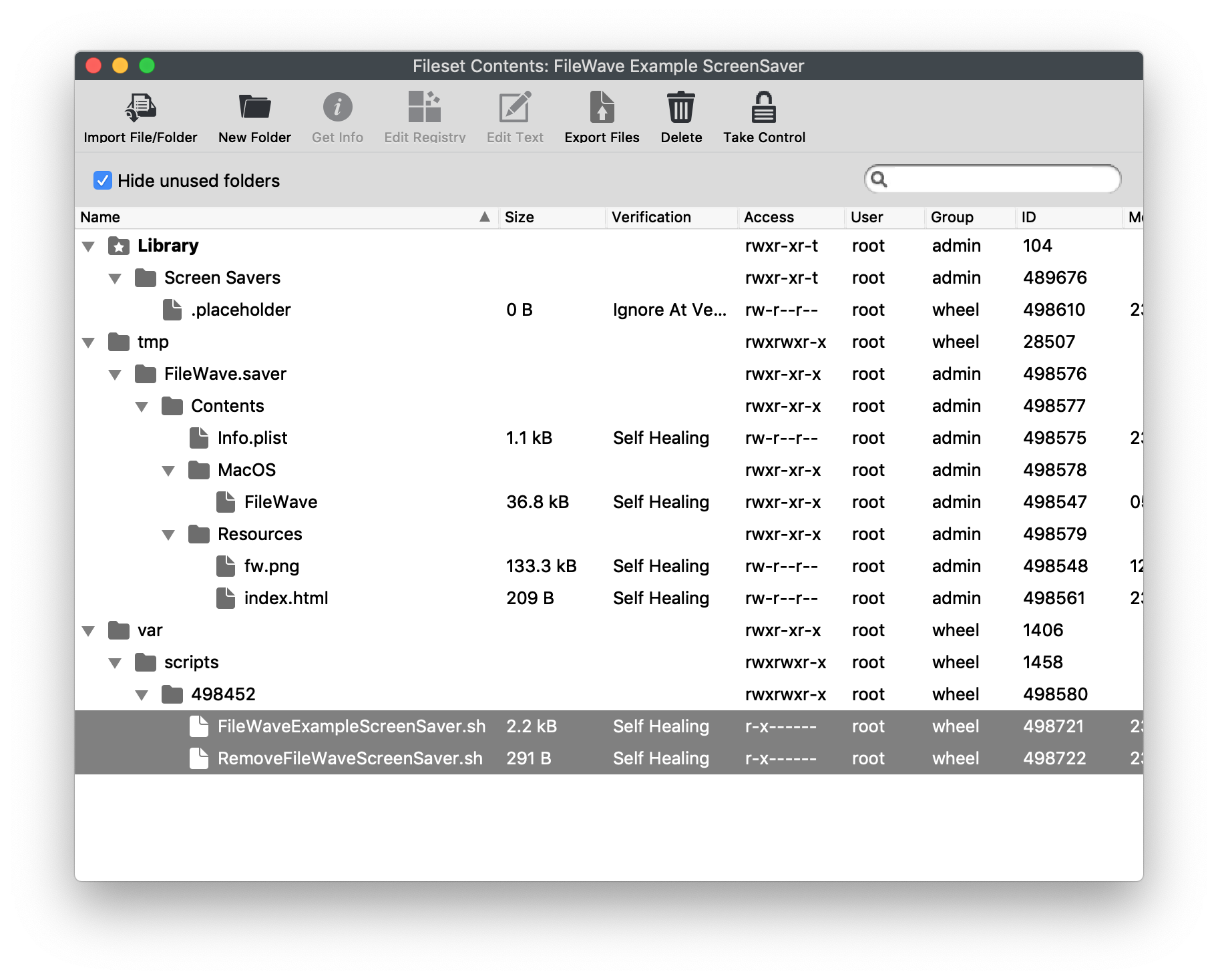
- Open the Fileset contents.
- Expand `/var/scripts/498452`. The number will differ in your Fileset.
- Select `FileWaveExampleScreenSaver.sh`.
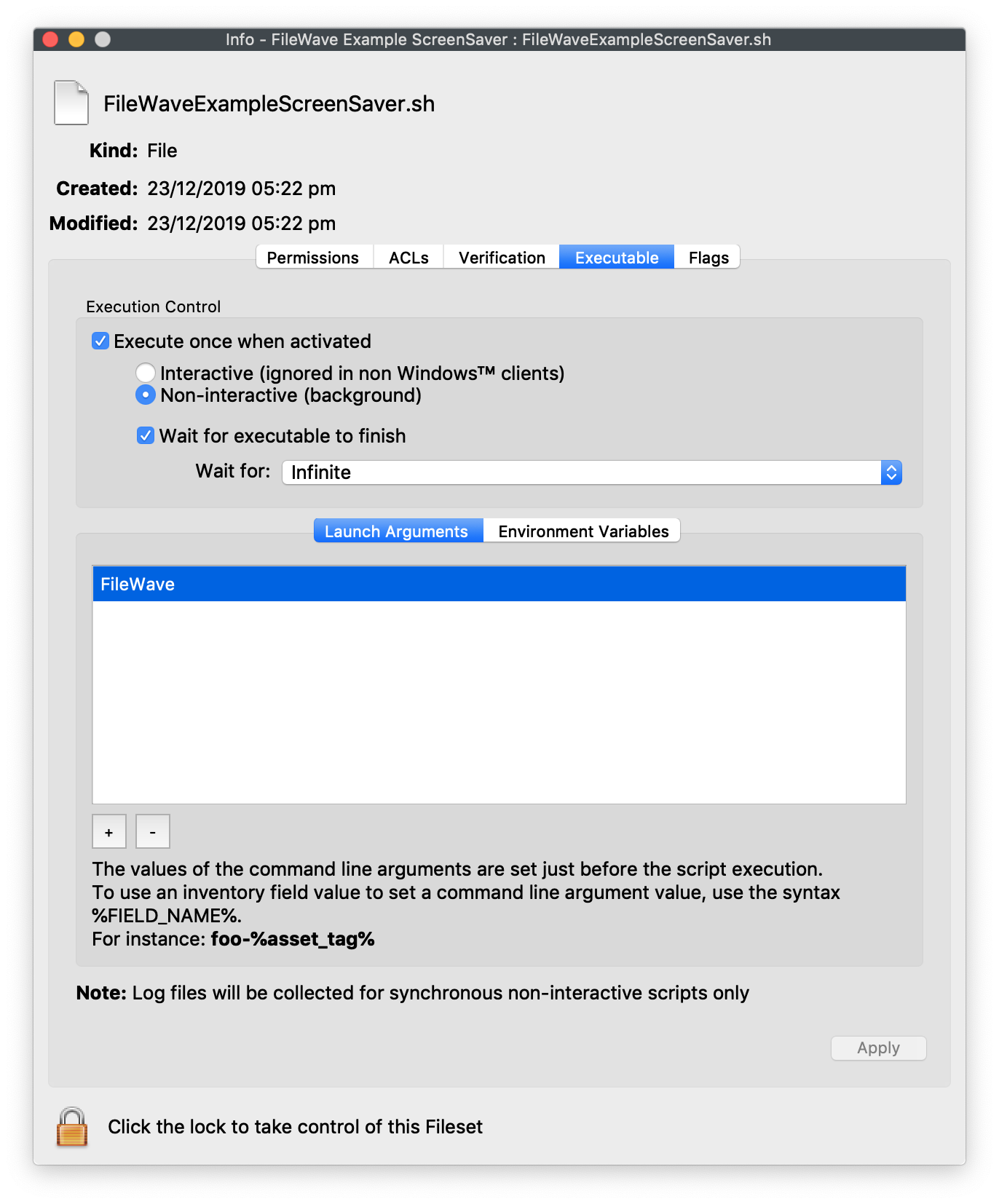
- Select **Get Info > Executable**.
- Set **LaunchArgument 1** to the desired screen saver name, replacing `FileWave`.
- Repeat the same LaunchArgument change for `RemoveFileWaveScreenSaver.sh`.
### Customize the source file (optional)
- Replace `/tmp/FileWave.saver/Contents/Resources/fw.png` with the image you want to display.
- Edit `/tmp/FileWave.saver/Contents/Resources/index.html` and replace `fw.png` with the new image filename.
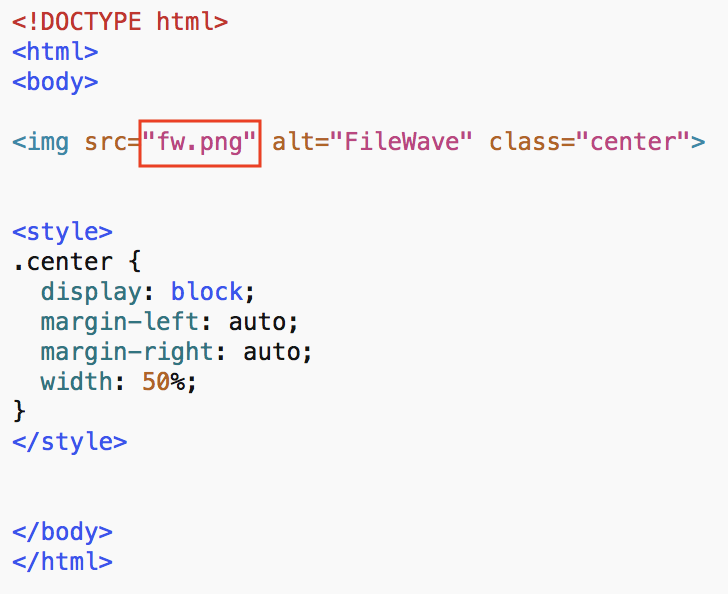
**Optional** You can replace the entire contents of `index.html` with your own HTML/JavaScript if the screen saver should show more than a static image.
### Test
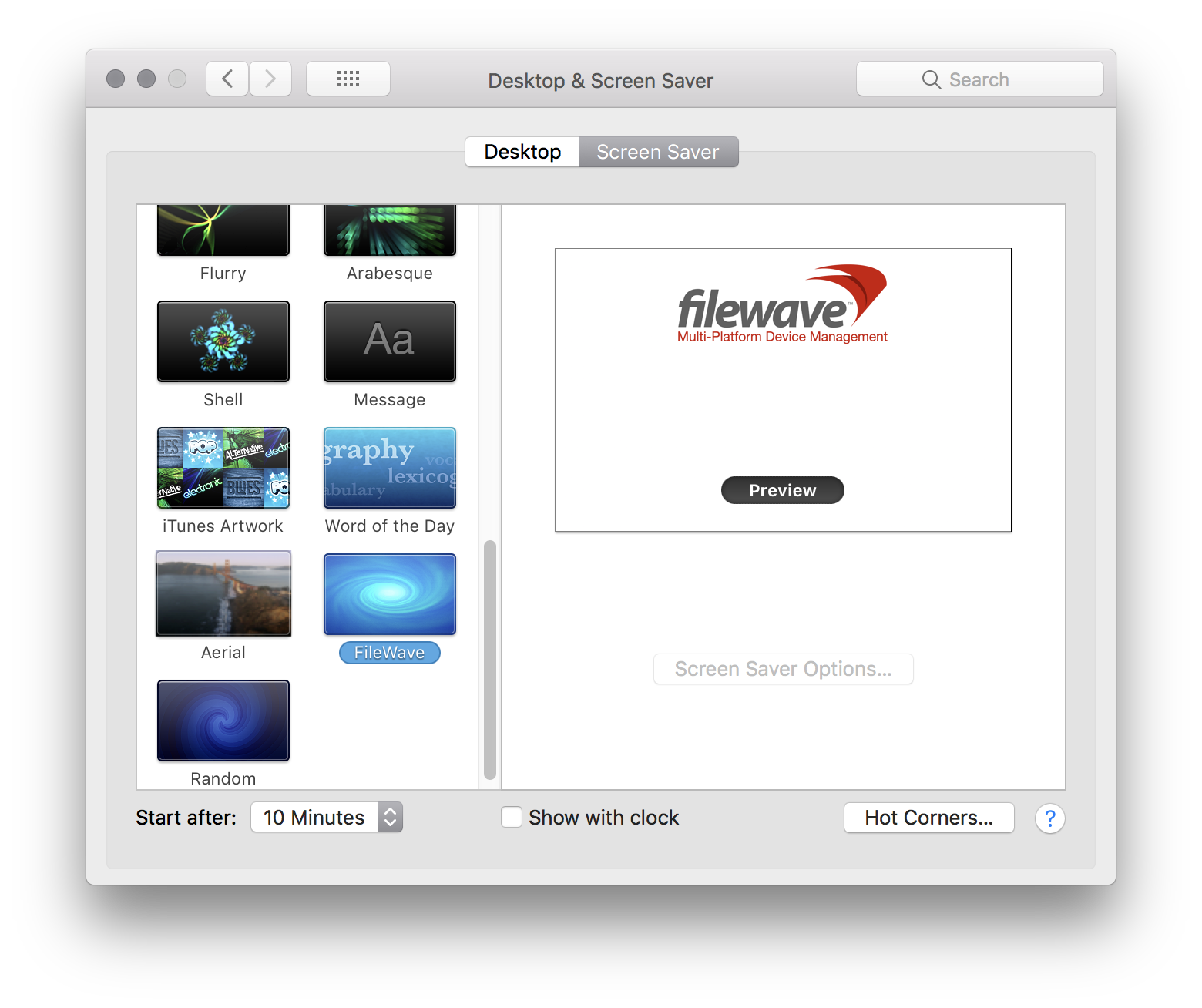
Associate the Fileset to a test Mac first. After installation, the example screen saver should appear as shown below:
### Set Screen Saver as Default
- Open Profile Editor and select **Login Window**.
- Set **Use screen saver module at path** to `/Library/Screen Savers/FileWave.saver`. Replace `FileWave.saver` with your custom name if you changed it above.
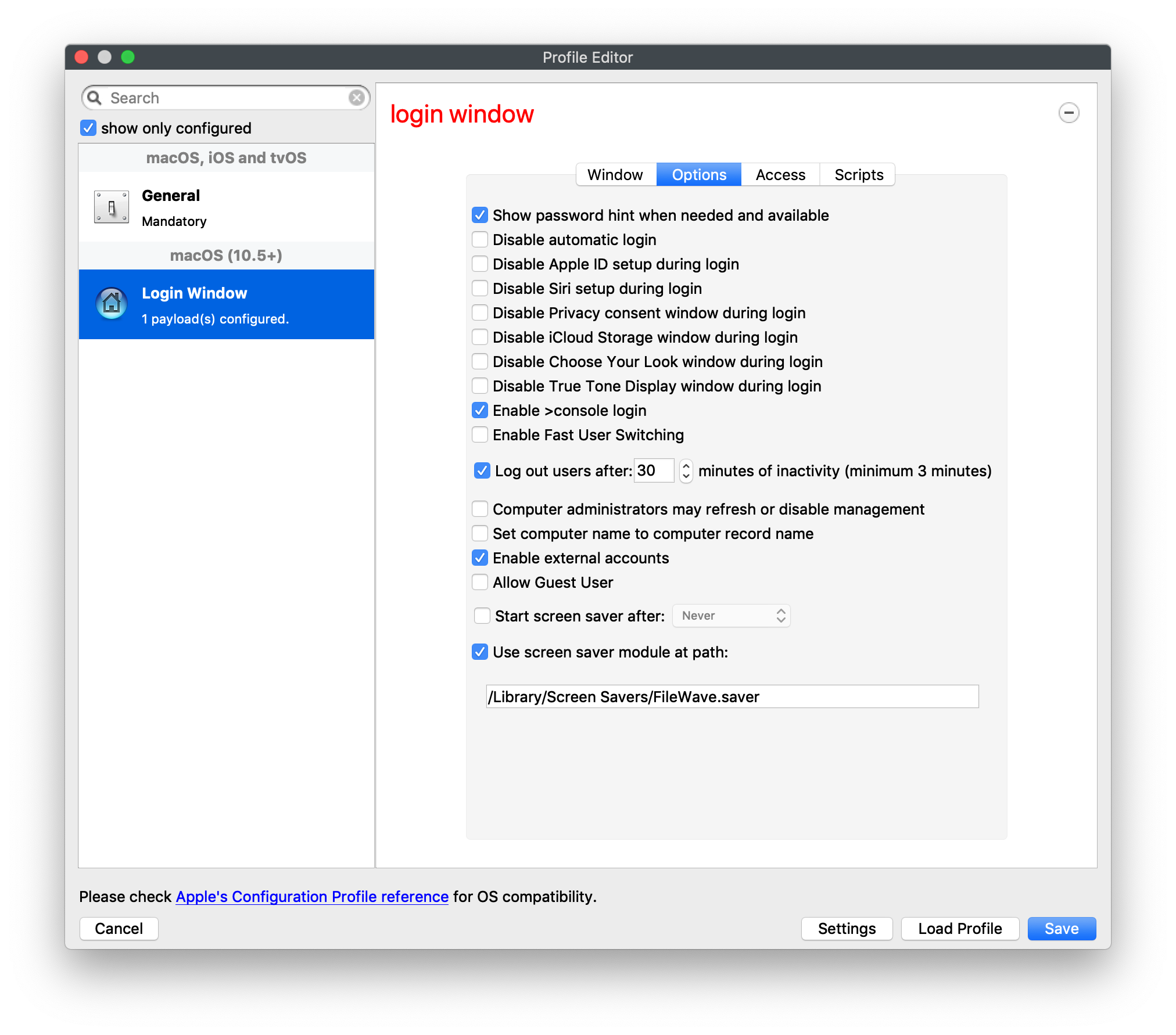
**Login Window profile requirement** Edit an existing Login Window profile if you already use one. If this is your first Login Window payload, review the other profile settings before deploying it.